
Create New VendorPayee Concur Invoice Students Petty Cash


- Slides: 21
Create New Vendor(Payee) Concur Invoice Students, Petty Cash Custodians, Refunds
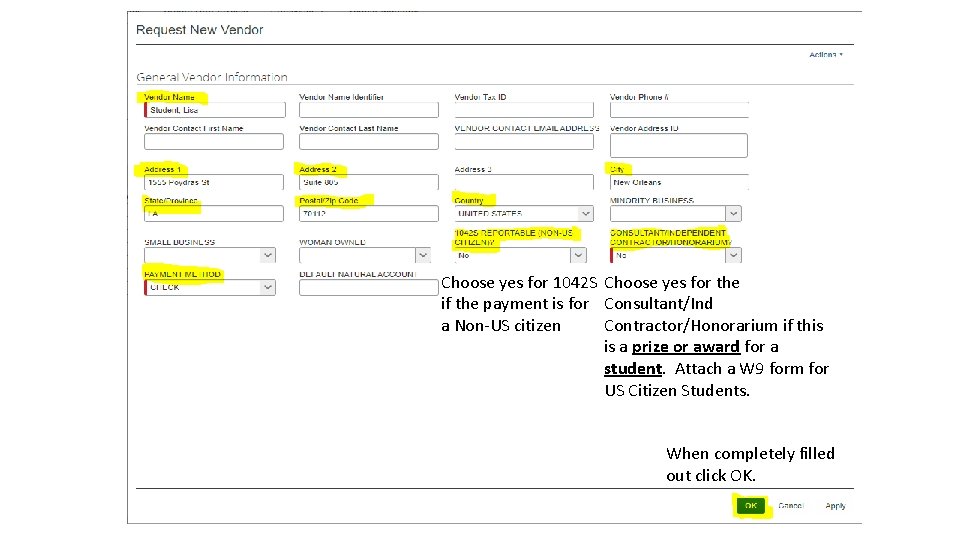
Choose yes for 1042 S Choose yes for the if the payment is for Consultant/Ind a Non-US citizen Contractor/Honorarium if this is a prize or award for a student. Attach a W 9 form for US Citizen Students. When completely filled out click OK.
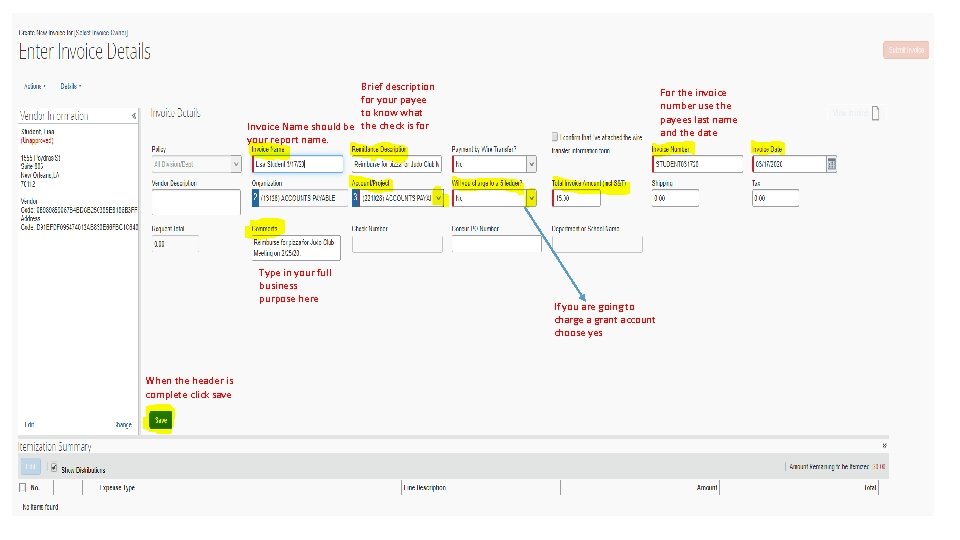
Brief description for your payee to know what Invoice Name should be the check is for your report name. Type in your full business purpose here When the header is complete click save For the invoice number use the payees last name and the date If you are going to charge a grant account choose yes
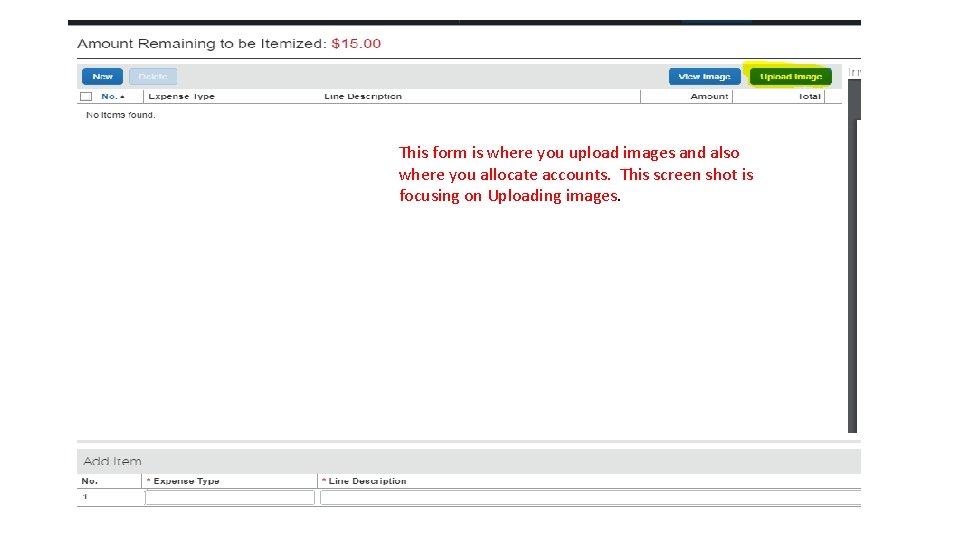
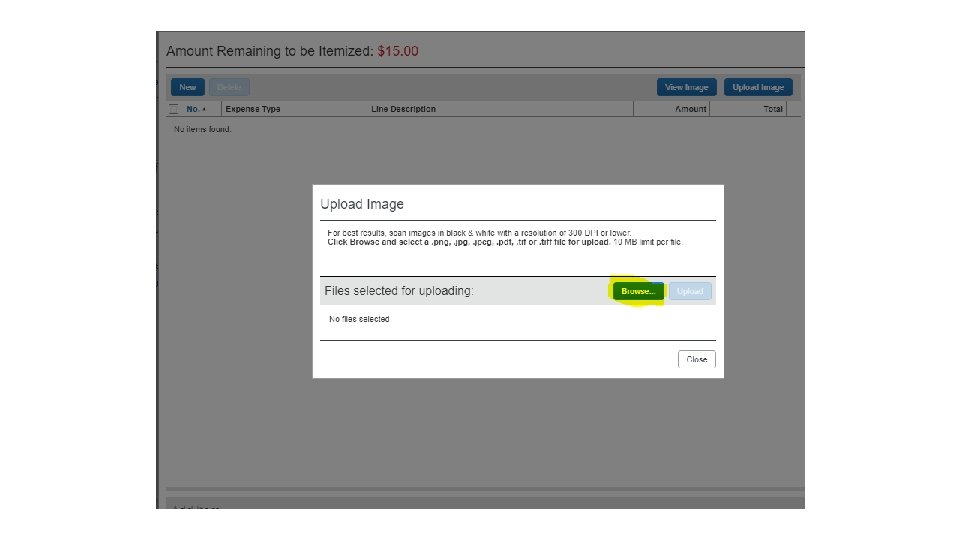
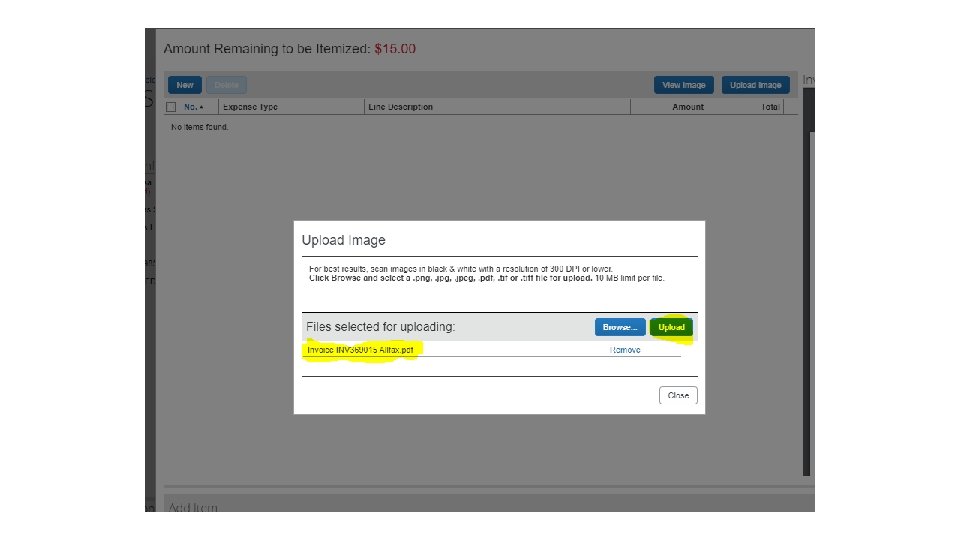
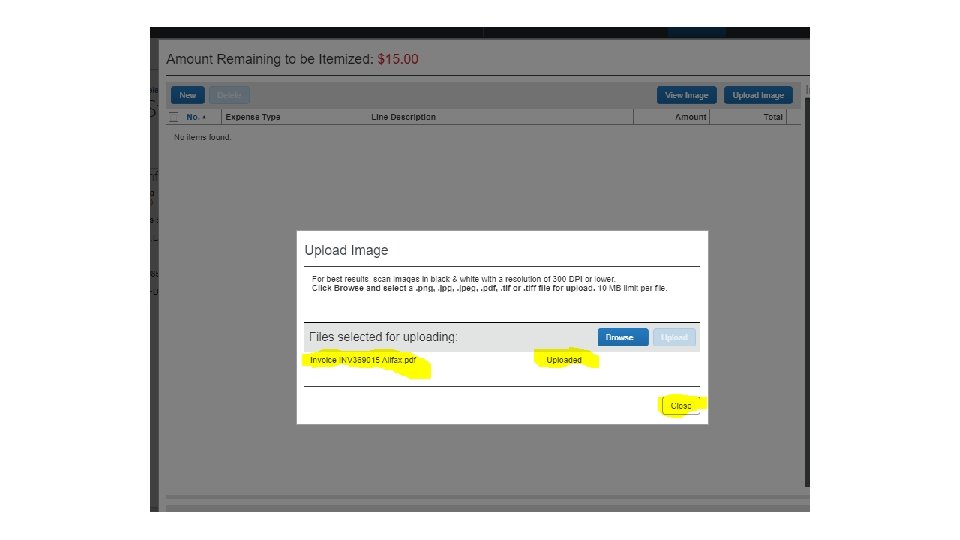
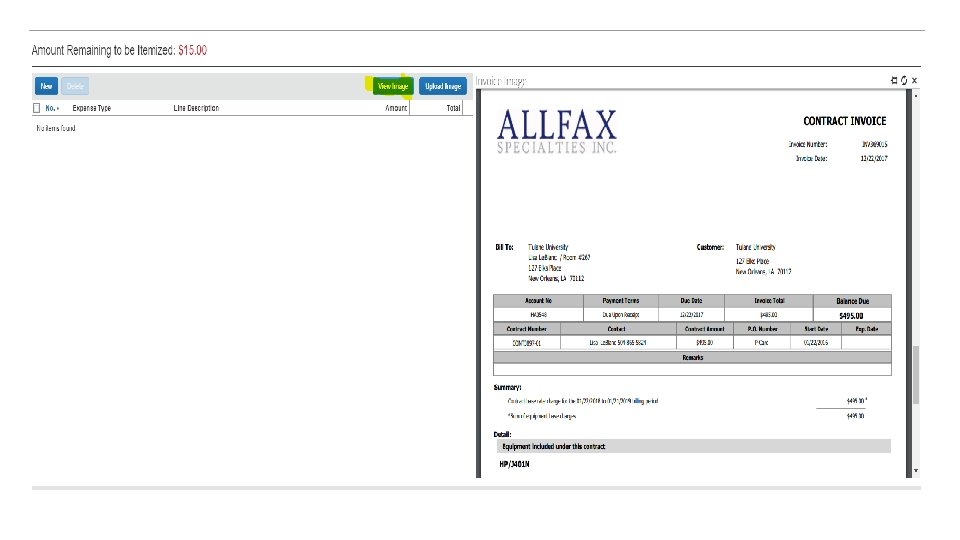
This form is where you upload images and also where you allocate accounts. This screen shot is focusing on Uploading images.
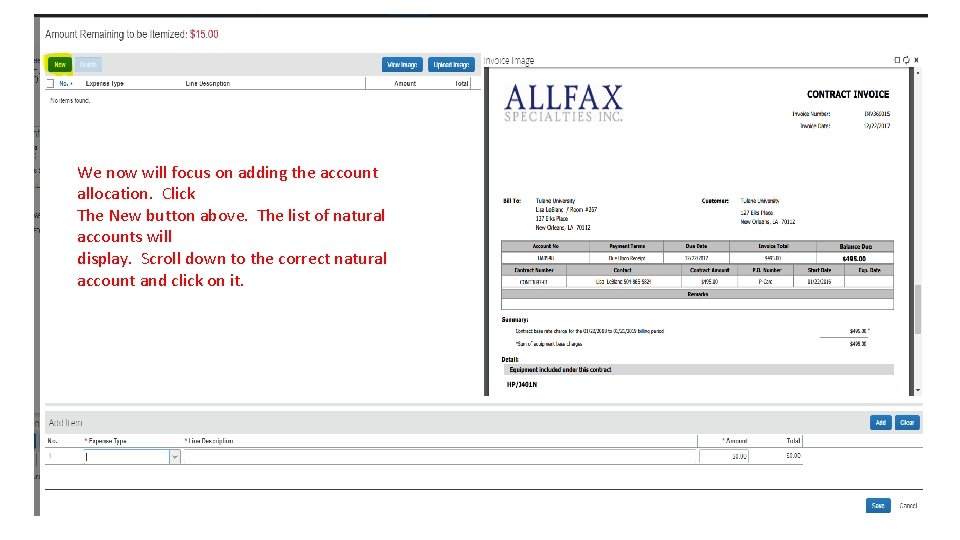
We now will focus on adding the account allocation. Click The New button above. The list of natural accounts will display. Scroll down to the correct natural account and click on it.
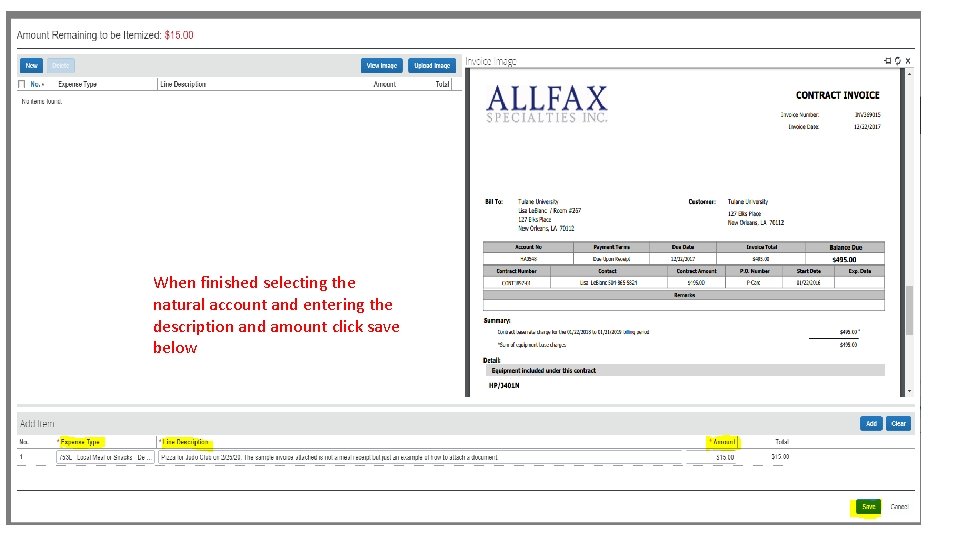
When finished selecting the natural account and entering the description and amount click save below
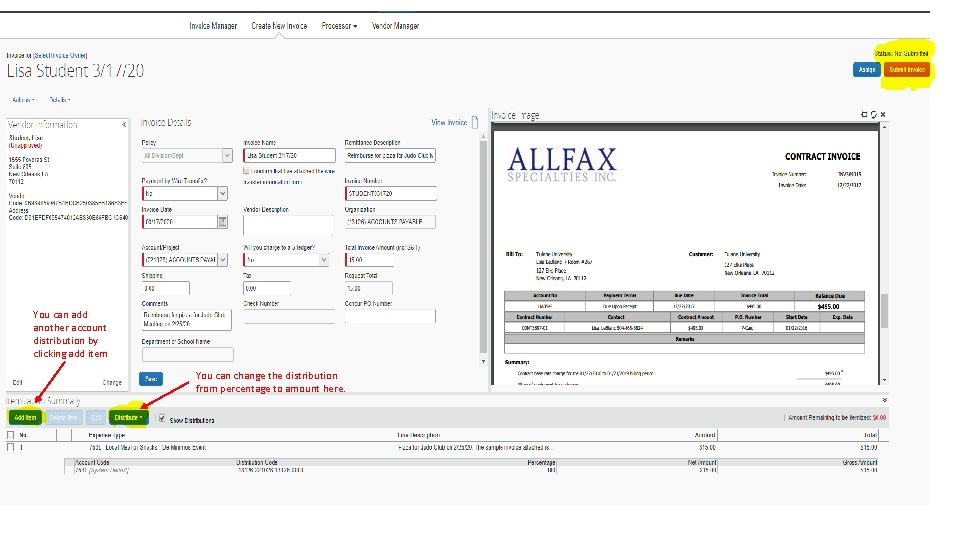
You can add another account distribution by clicking add item You can change the distribution from percentage to amount here.
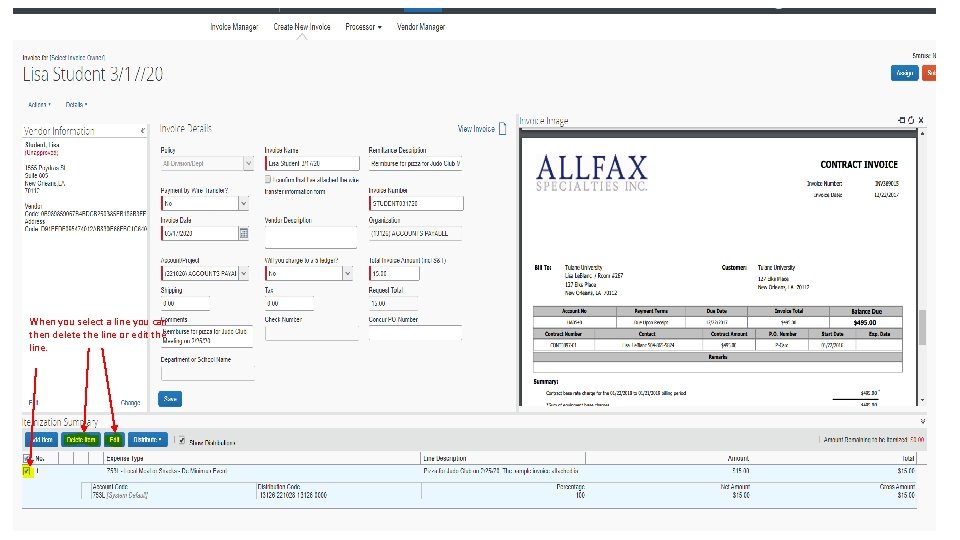
When you select a line you can then delete the line or edit the line.
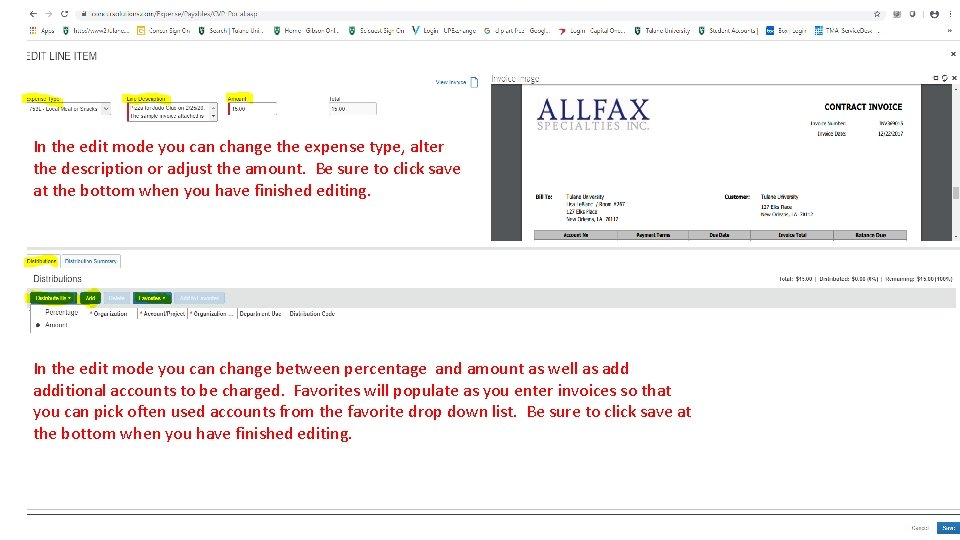
In the edit mode you can change the expense type, alter the description or adjust the amount. Be sure to click save at the bottom when you have finished editing. In the edit mode you can change between percentage and amount as well as additional accounts to be charged. Favorites will populate as you enter invoices so that you can pick often used accounts from the favorite drop down list. Be sure to click save at the bottom when you have finished editing.
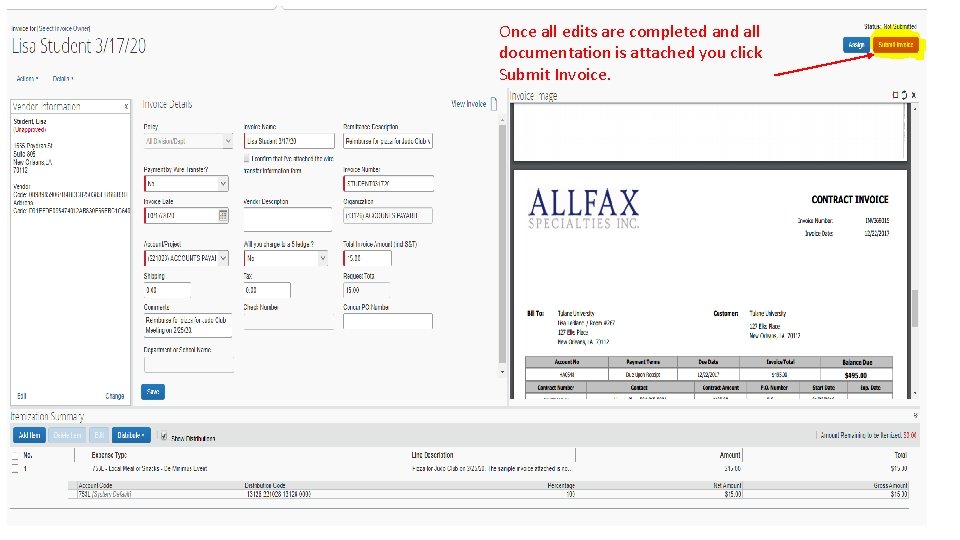
Once all edits are completed and all documentation is attached you click Submit Invoice.
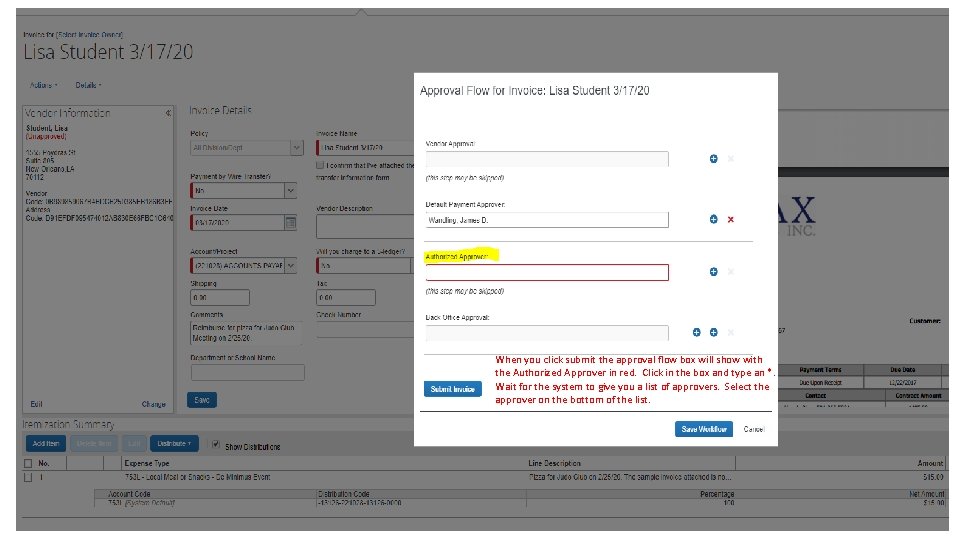
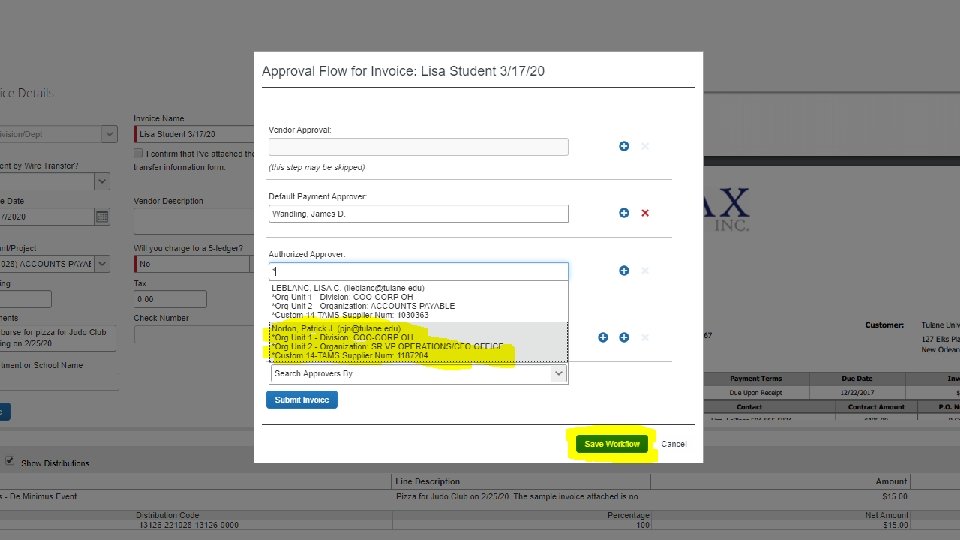
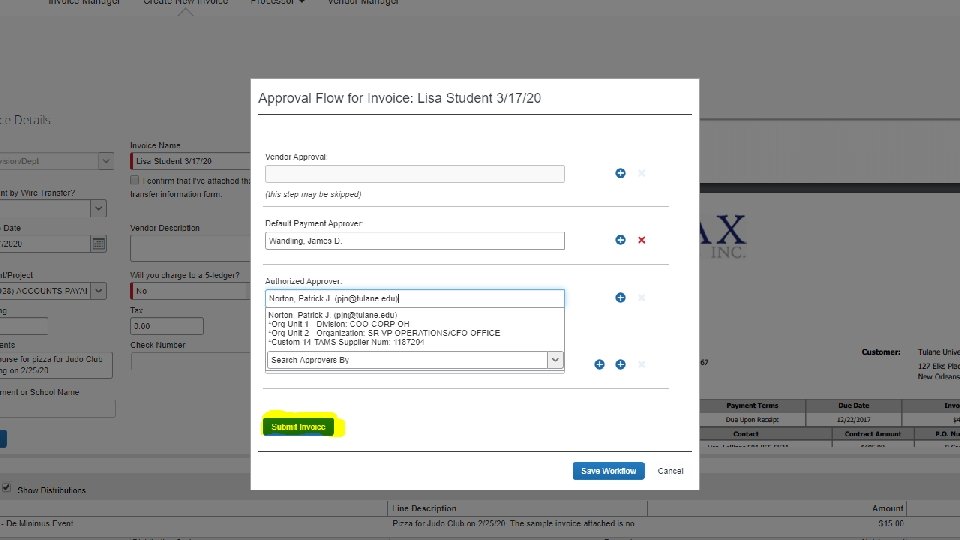
When you click submit the approval flow box will show with the Authorized Approver in red. Click in the box and type an *. Wait for the system to give you a list of approvers. Select the approver on the bottom of the list.
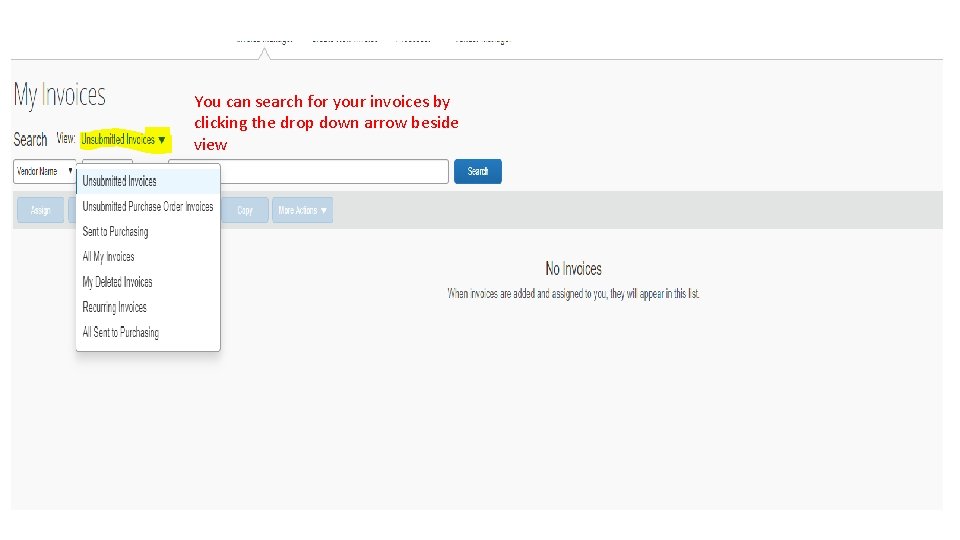
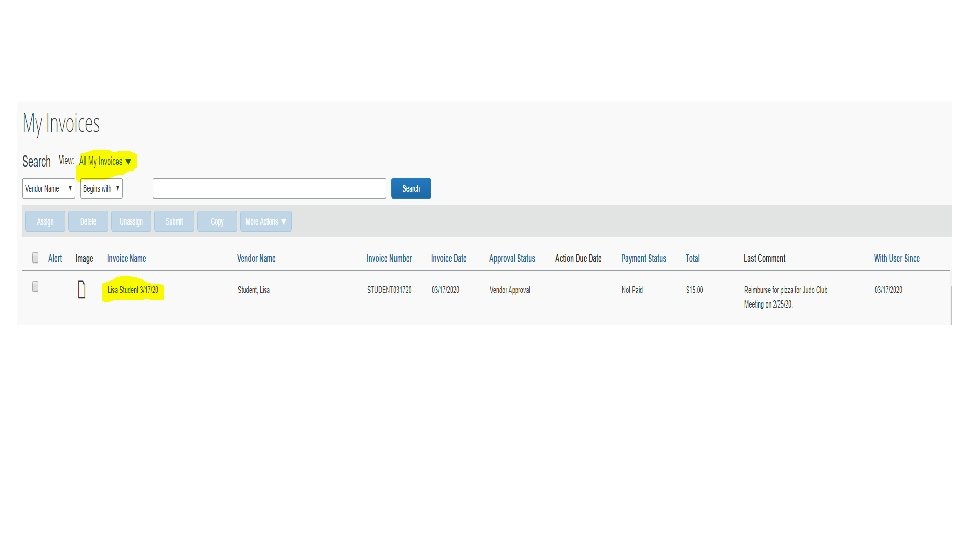
You can search for your invoices by clicking the drop down arrow beside view