
Create Instructional Videos with Camtasia in 3 2

- Slides: 16
Create Instructional Videos with Camtasia in 3… 2… 1 Slides = bit. ly/camtasia 321 stemtech
Agenda • • About Camtasia Tips before recording (Project preparation) Setting up the Camtasia Recorder Saving and organizing your files Recommended editing workflow Produce and share options Additional resources
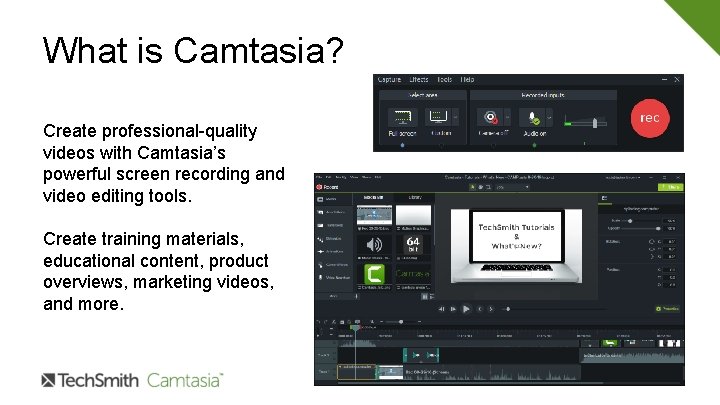
What is Camtasia? Create professional-quality videos with Camtasia’s powerful screen recording and video editing tools. Create training materials, educational content, product overviews, marketing videos, and more.
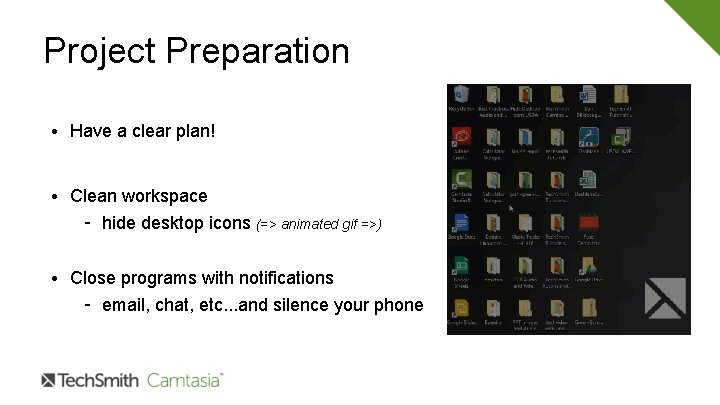
Project Preparation • Have a clear plan! • Clean workspace – hide desktop icons (=> animated gif =>) • Close programs with notifications – email, chat, etc. . . and silence your phone
Recording & Audio Best Practices • Recommended microphones – usb headset or desktop mic • Learn to accept the sound of your own voice – yes, that is how you sound ; ) • Be aware of your surroundings – fans, traffic, co-workers, doors, etc. • Script, outline, or off-the-cuff – personal preference…and depends on the video project
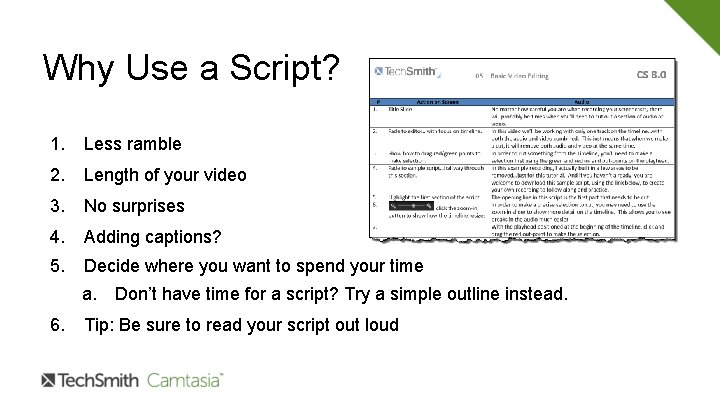
Why Use a Script? 1. Less ramble 2. Length of your video 3. No surprises 4. Adding captions? 5. Decide where you want to spend your time a. Don’t have time for a script? Try a simple outline instead. 6. Tip: Be sure to read your script out loud
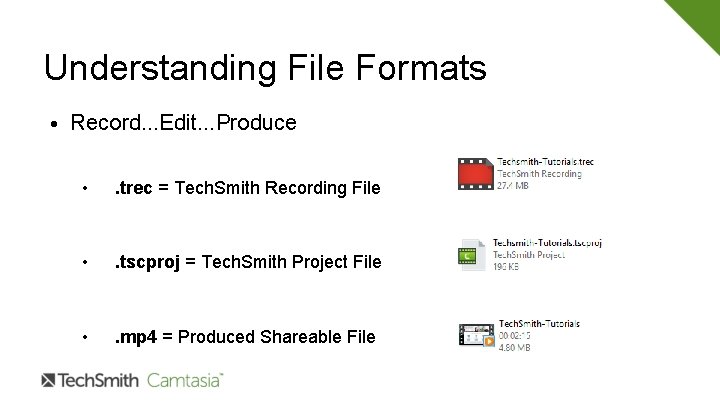
Understanding File Formats • Record. . . Edit. . . Produce • . trec = Tech. Smith Recording File • . tscproj = Tech. Smith Project File • . mp 4 = Produced Shareable File
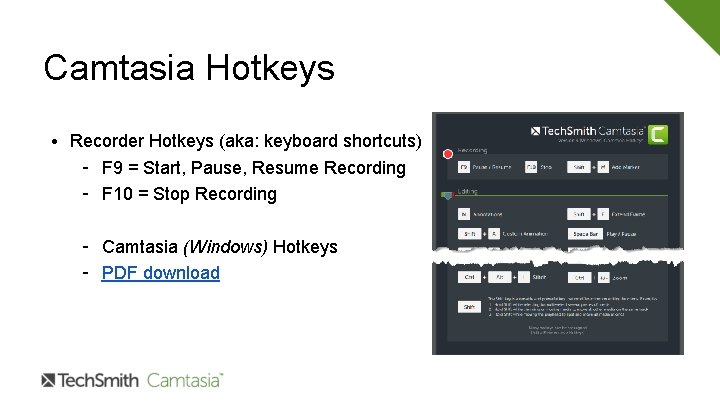
Camtasia Hotkeys • Recorder Hotkeys (aka: keyboard shortcuts) – F 9 = Start, Pause, Resume Recording – F 10 = Stop Recording – Camtasia (Windows) Hotkeys – PDF download
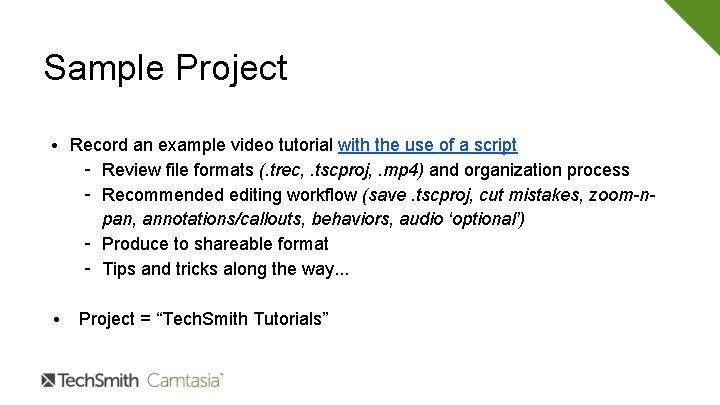
Sample Project • Record an example video tutorial with the use of a script – Review file formats (. trec, . tscproj, . mp 4) and organization process – Recommended editing workflow (save. tscproj, cut mistakes, zoom-npan, annotations/callouts, behaviors, audio ‘optional’) – Produce to shareable format – Tips and tricks along the way. . . • Project = “Tech. Smith Tutorials”
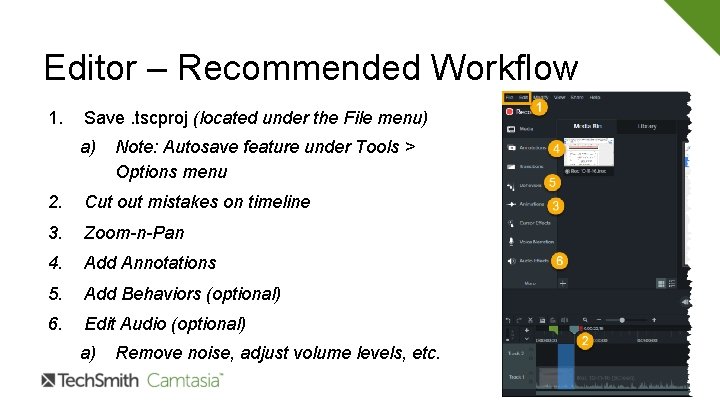
Editor – Recommended Workflow 1. Save. tscproj (located under the File menu) a) Note: Autosave feature under Tools > Options menu 2. Cut out mistakes on timeline 3. Zoom-n-Pan 4. Add Annotations 5. Add Behaviors (optional) 6. Edit Audio (optional) a) Remove noise, adjust volume levels, etc.
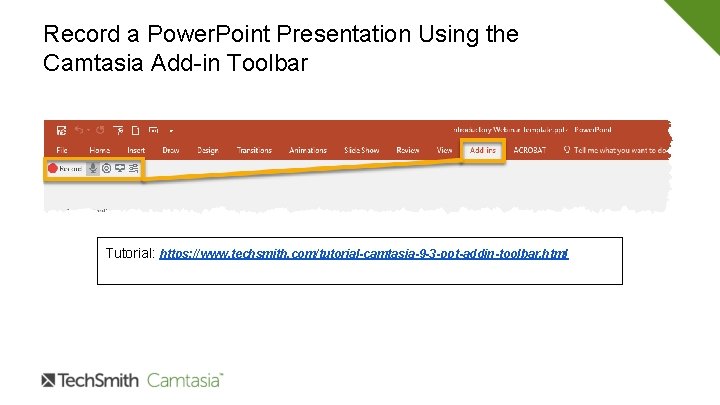
Record a Power. Point Presentation Using the Camtasia Add-in Toolbar Tutorial: https: //www. techsmith. com/tutorial-camtasia-9 -3 -ppt-addin-toolbar. html
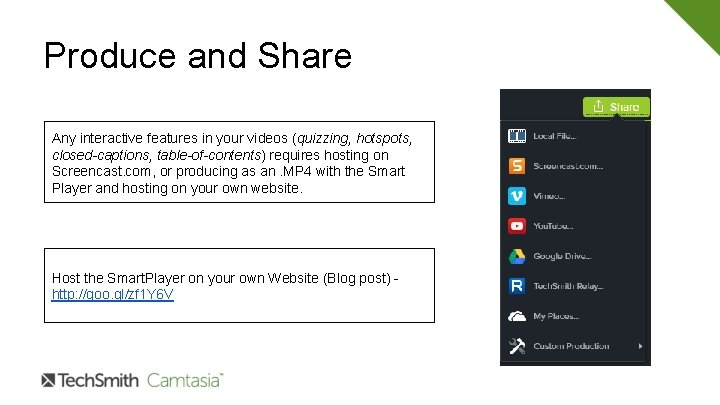
Produce and Share Any interactive features in your videos (quizzing, hotspots, closed-captions, table-of-contents) requires hosting on Screencast. com, or producing as an. MP 4 with the Smart Player and hosting on your own website. Host the Smart. Player on your own Website (Blog post) http: //goo. gl/zf 1 Y 6 V
Create a Table of Contents Here is a 12 -minute video tutorial that walks you through how to create a table of contents (TOC) for your Camtasia videos. Note: This was created for v 8 of Camtasia, but the process is similar for v 9. http: //www. screencast. com/t/r. Pv. Gx. Os. H 4 (11: 56) Note: Utilizing the table of contents feature in your Camtasia videos requires hosting your video on Screencast. com, or producing as an. MP 4 with the Tech. Smith Smart Player and hosting your video on your own website.
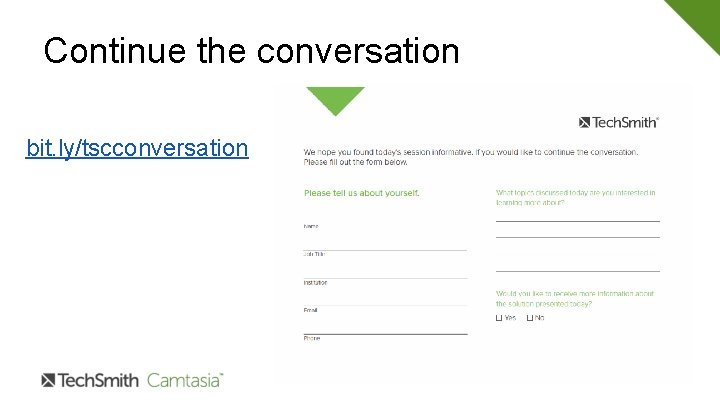
Continue the conversation bit. ly/tscconversation
Additional Resources Camtasia tutorials https: //www. techsmith. com/tutorial-camtasia-9 -3. html Free product trials https: //www. techsmith. com/download. html Tech. Smith Fuse - mobile companion app for Snagit and Camtasia https: //www. techsmith. com/fuse. html *Education Pricing https: //www. techsmith. com/volume-license-education. html $169 new purchase | $84. 50 upgrade from earlier version
Let me know if I can help. . . Ryan Eash | Learning and Development Specialist Tech. Smith Corporation | r. eash@techsmith. com | @ryaneash (517) 381 -2300 x 589 Desk | (252) 299 -2130 Cell Slides = bit. ly/camtasia 321 stemtech