
Create a Simple Game in Scratch Mike Scott
- Slides: 47
Create a Simple Game in Scratch Mike Scott University of Texas at Austin Many Thanks to Barb Ericson of Georgia Tech
Goals • Learn about – – – – event handling simple sequential execution loops variables conditionals parallel execution message passing
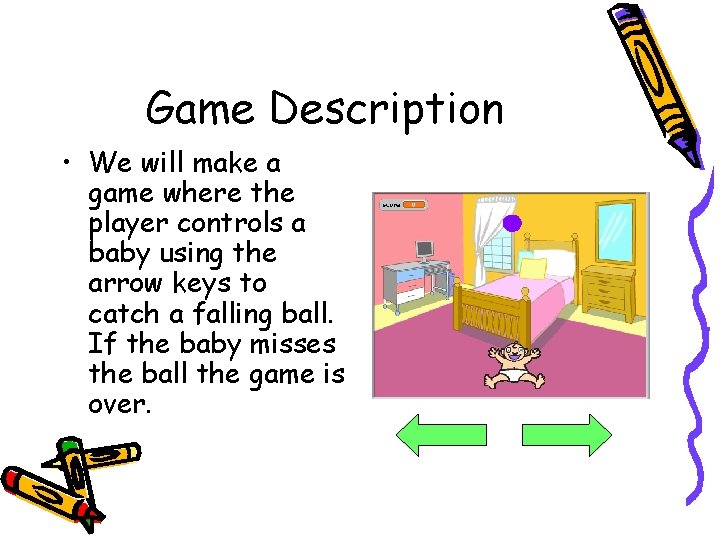
Game Description • We will make a game where the player controls a baby using the arrow keys to catch a falling ball. If the baby misses the ball the game is over.
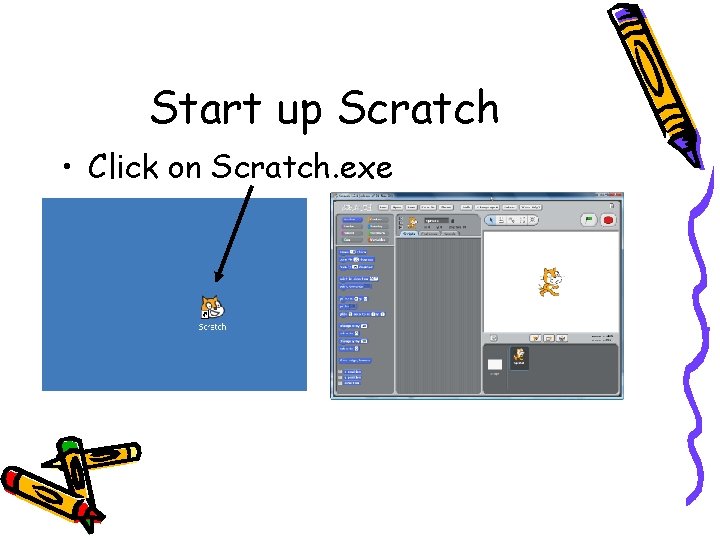
Start up Scratch • Click on Scratch. exe
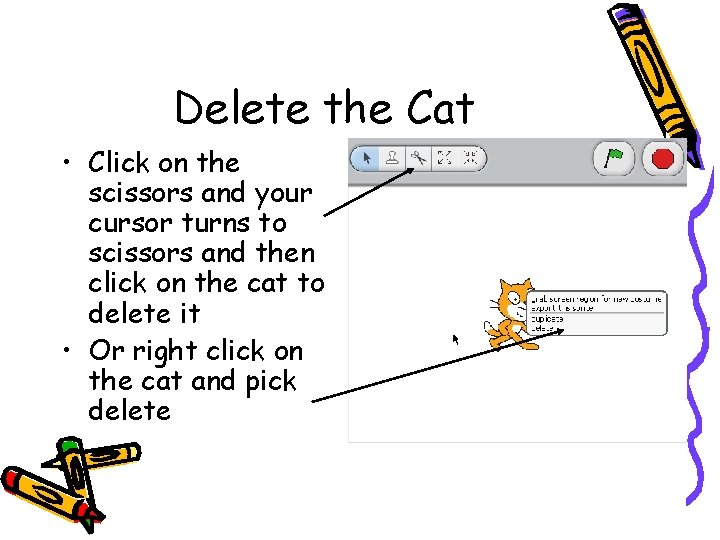
Delete the Cat • Click on the scissors and your cursor turns to scissors and then click on the cat to delete it • Or right click on the cat and pick delete
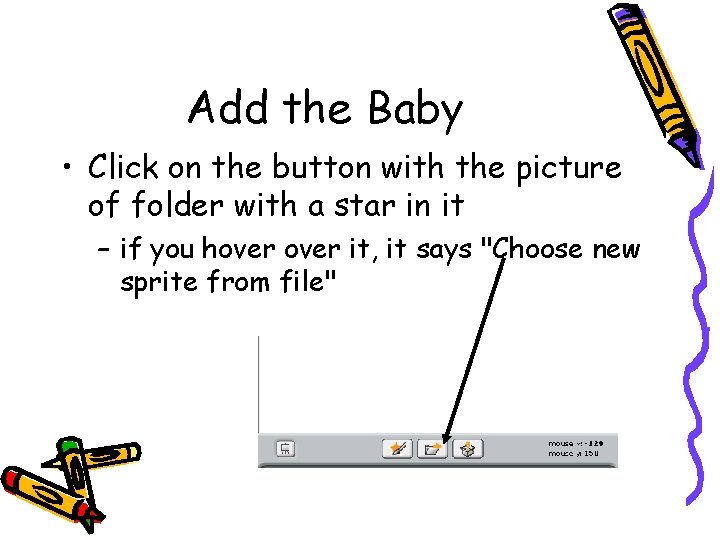
Add the Baby • Click on the button with the picture of folder with a star in it – if you hover it, it says "Choose new sprite from file"
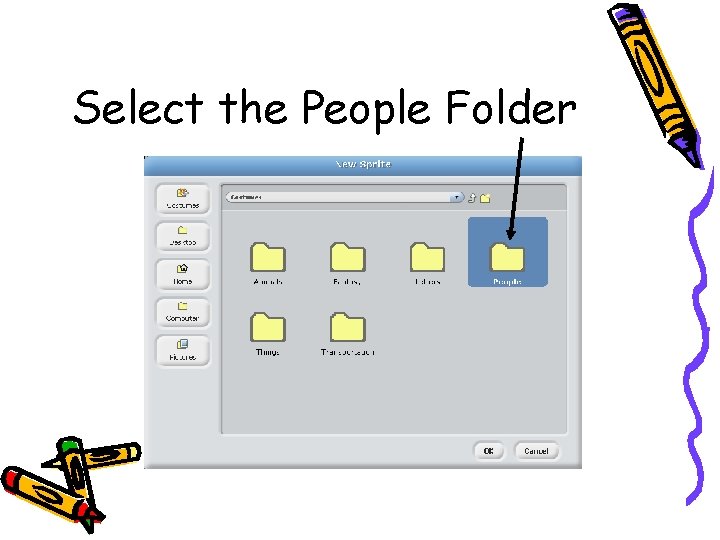
Select the People Folder
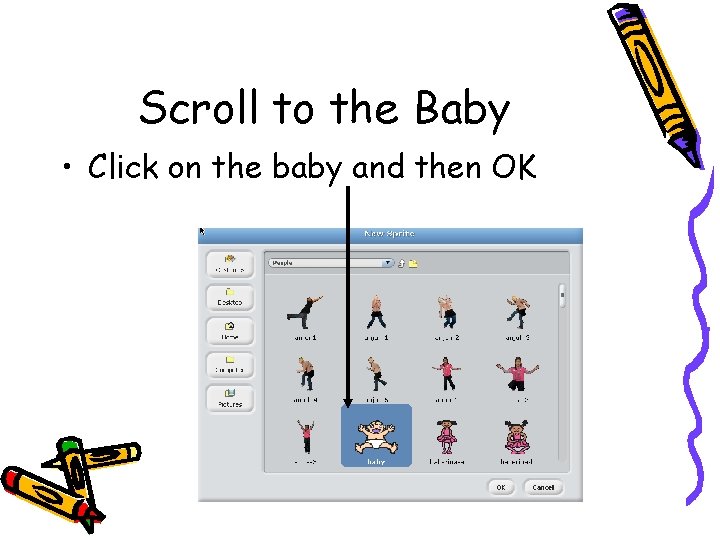
Scroll to the Baby • Click on the baby and then OK
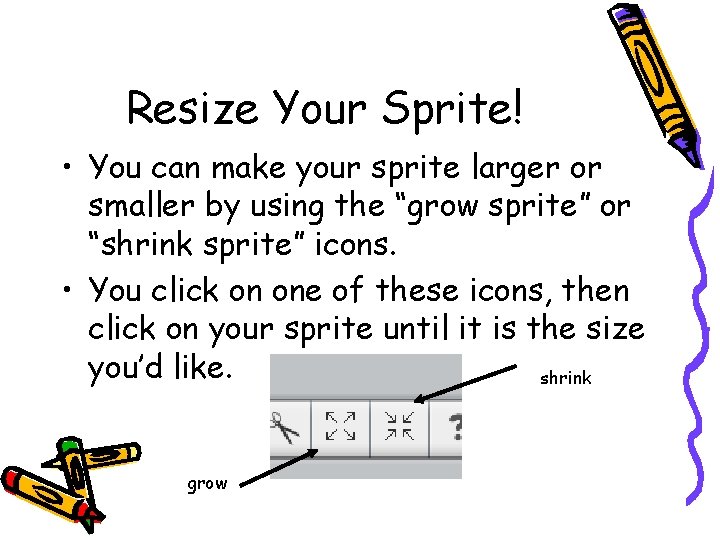
Resize Your Sprite! • You can make your sprite larger or smaller by using the “grow sprite” or “shrink sprite” icons. • You click on one of these icons, then click on your sprite until it is the size you’d like. shrink grow
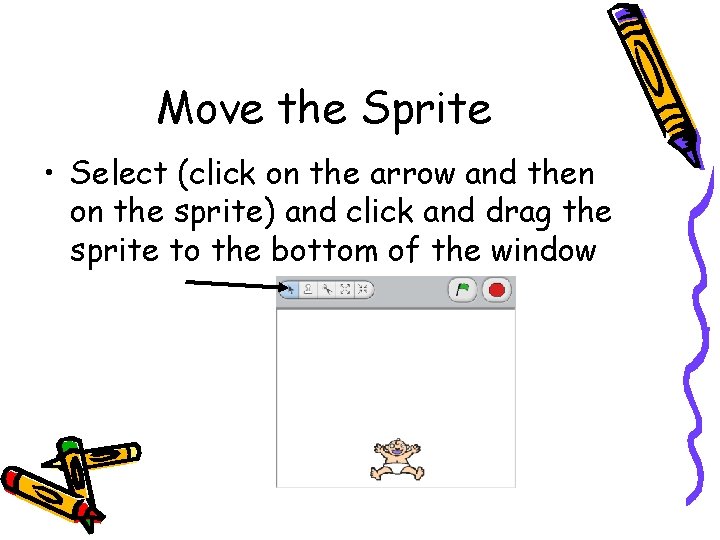
Move the Sprite • Select (click on the arrow and then on the sprite) and click and drag the sprite to the bottom of the window
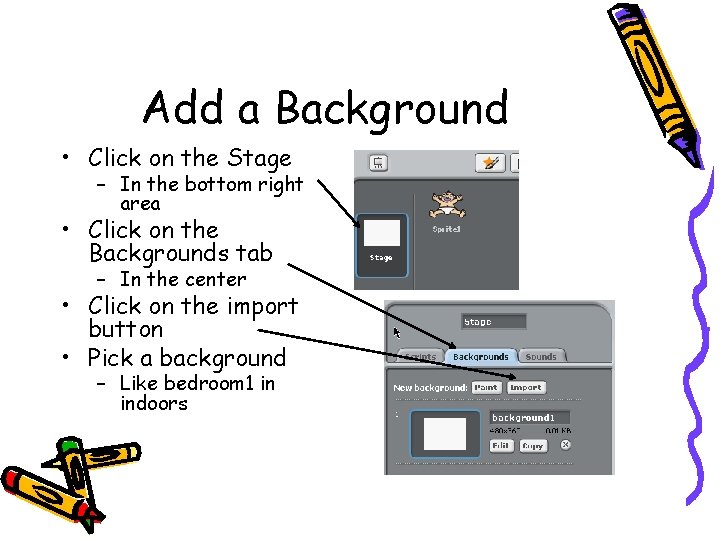
Add a Background • Click on the Stage – In the bottom right area • Click on the Backgrounds tab – In the center • Click on the import button • Pick a background – Like bedroom 1 in indoors
Event Handling • We want to control the baby using the arrow keys – When we click the left arrow the baby should move left – When we click the right arrow the baby should move right • This is a form of event handling – Responding to user actions like mouse clicks and key presses
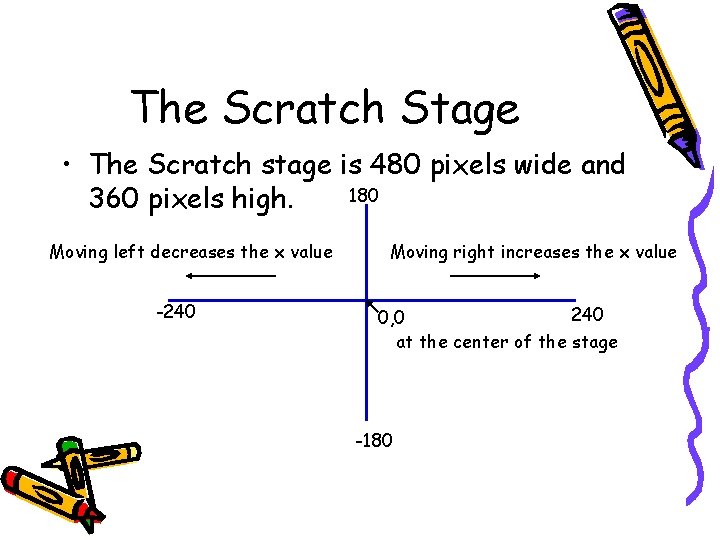
The Scratch Stage • The Scratch stage is 480 pixels wide and 180 360 pixels high. Moving left decreases the x value -240 Moving right increases the x value 240 0, 0 at the center of the stage -180
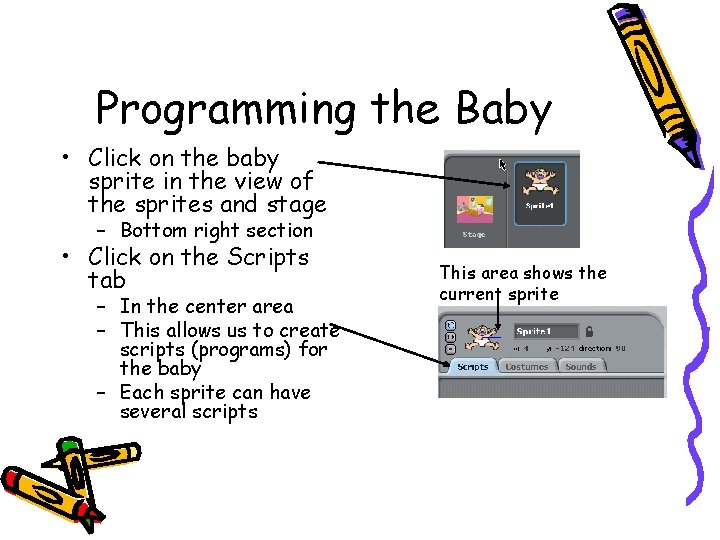
Programming the Baby • Click on the baby sprite in the view of the sprites and stage – Bottom right section • Click on the Scripts tab – In the center area – This allows us to create scripts (programs) for the baby – Each sprite can have several scripts This area shows the current sprite
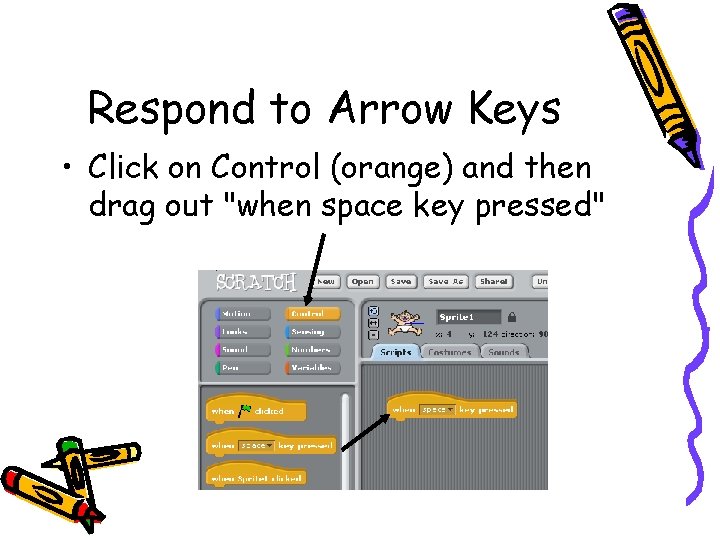
Respond to Arrow Keys • Click on Control (orange) and then drag out "when space key pressed"
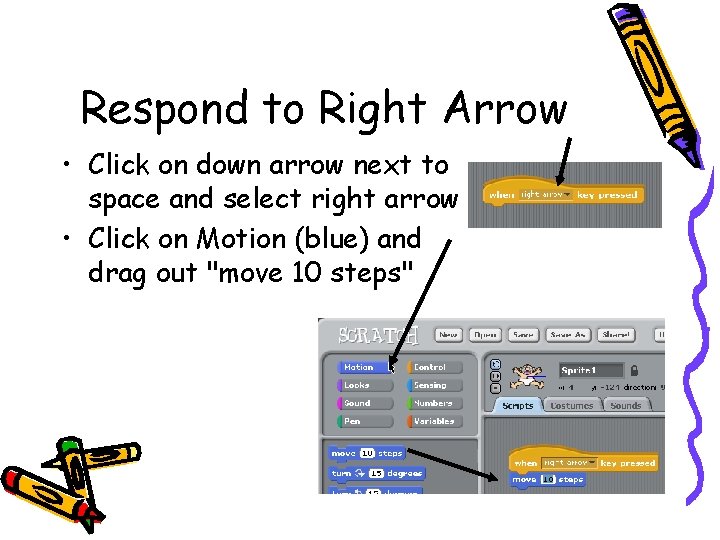
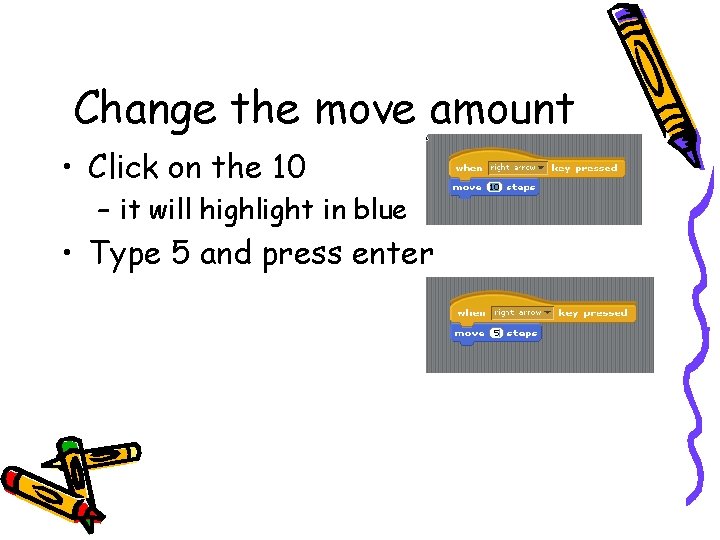
Respond to Right Arrow • Click on down arrow next to space and select right arrow • Click on Motion (blue) and drag out "move 10 steps"
Change the move amount • Click on the 10 – it will highlight in blue • Type 5 and press enter
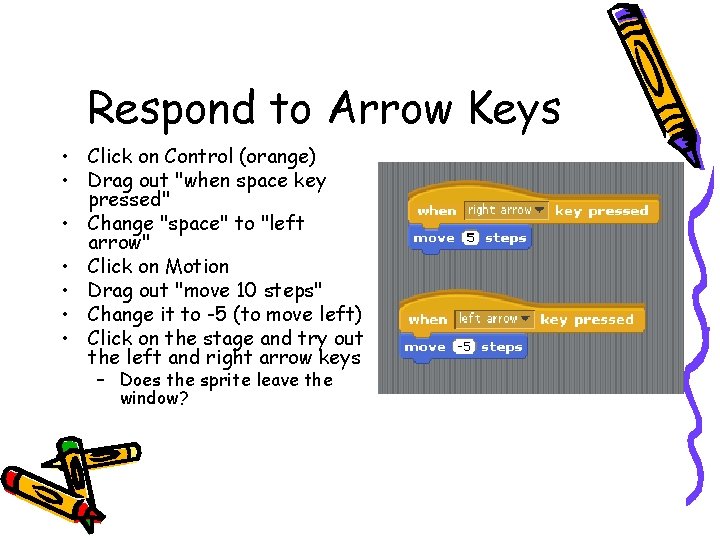
Respond to Arrow Keys • Click on Control (orange) • Drag out "when space key pressed" • Change "space" to "left arrow" • Click on Motion • Drag out "move 10 steps" • Change it to -5 (to move left) • Click on the stage and try out the left and right arrow keys – Does the sprite leave the window?
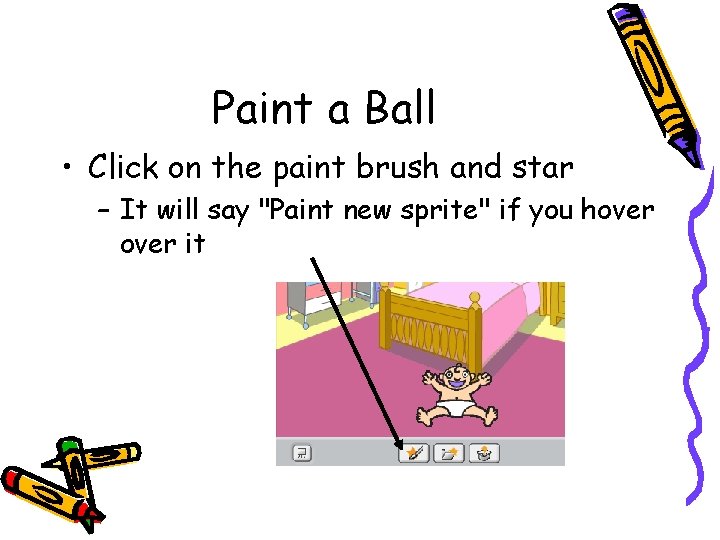
Paint a Ball • Click on the paint brush and star – It will say "Paint new sprite" if you hover it
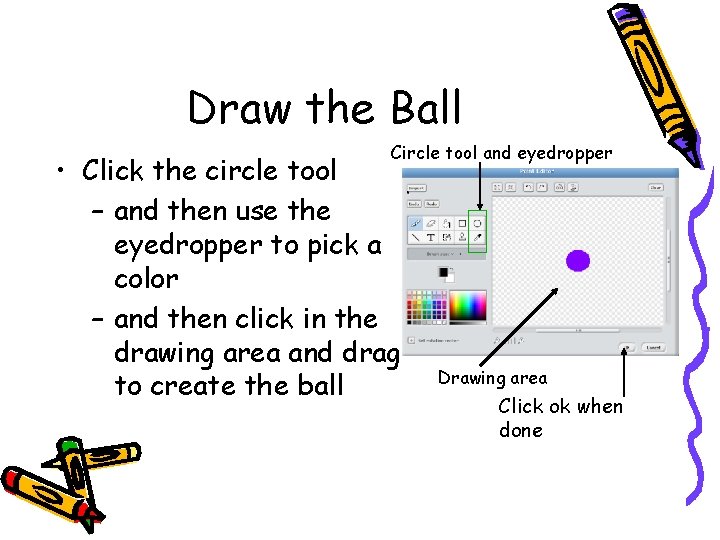
Draw the Ball Circle tool and eyedropper • Click the circle tool – and then use the eyedropper to pick a color – and then click in the drawing area and drag to create the ball Drawing area Click ok when done
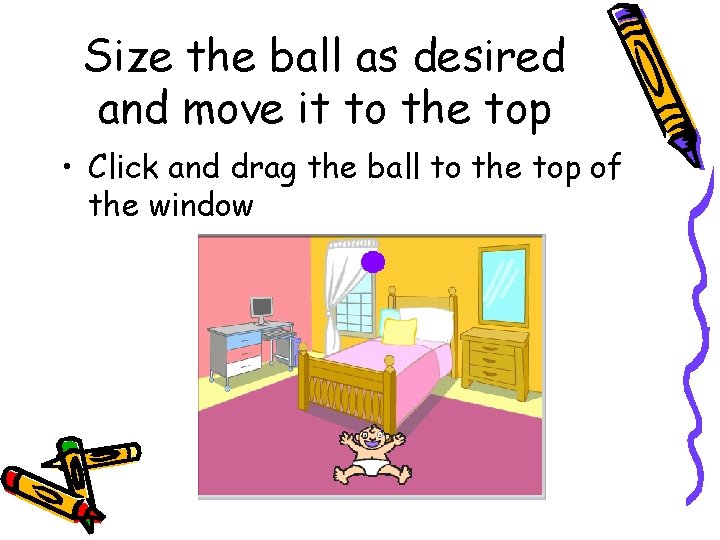
Size the ball as desired and move it to the top • Click and drag the ball to the top of the window
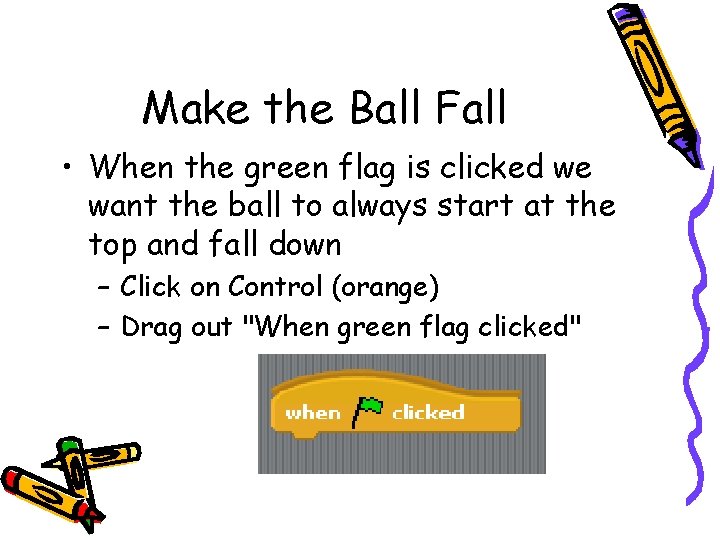
Make the Ball Fall • When the green flag is clicked we want the ball to always start at the top and fall down – Click on Control (orange) – Drag out "When green flag clicked"
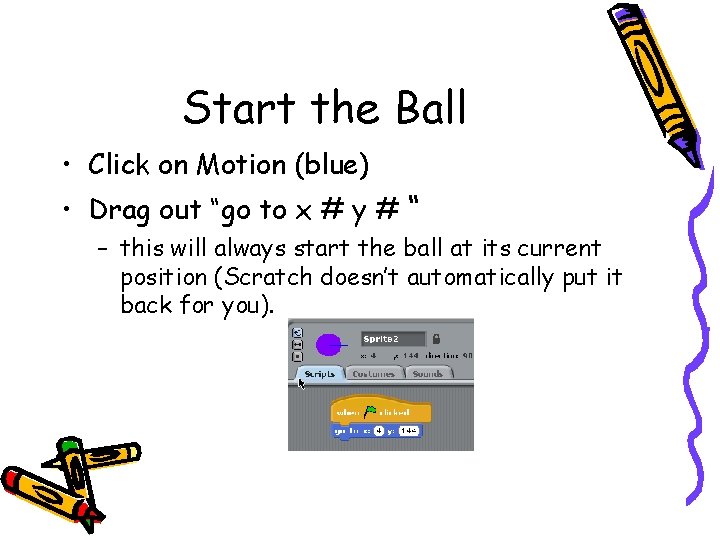
Start the Ball • Click on Motion (blue) • Drag out “go to x # y # “ – this will always start the ball at its current position (Scratch doesn’t automatically put it back for you).
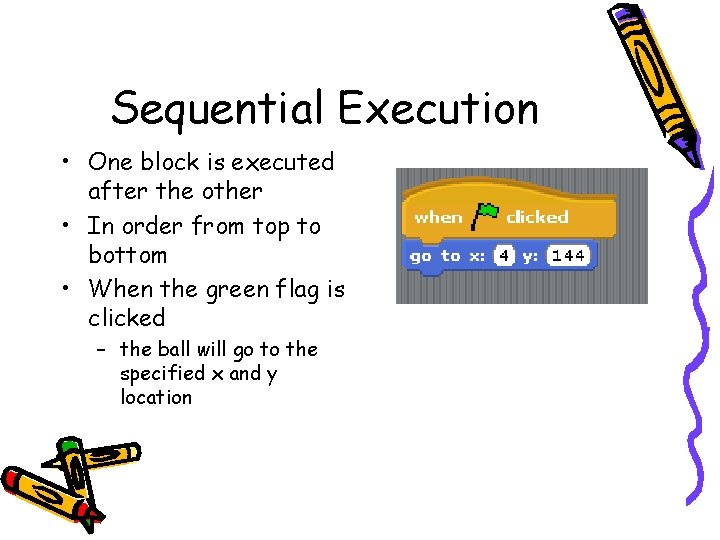
Sequential Execution • One block is executed after the other • In order from top to bottom • When the green flag is clicked – the ball will go to the specified x and y location
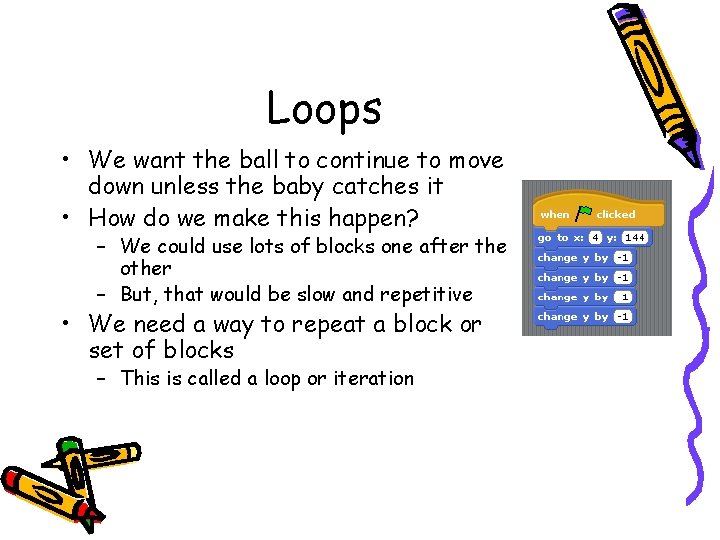
Loops • We want the ball to continue to move down unless the baby catches it • How do we make this happen? – We could use lots of blocks one after the other – But, that would be slow and repetitive • We need a way to repeat a block or set of blocks – This is called a loop or iteration
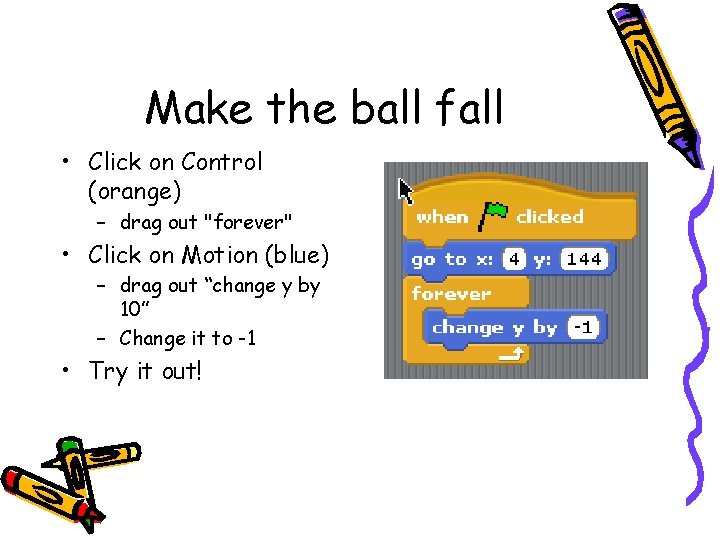
Make the ball fall • Click on Control (orange) – drag out "forever" • Click on Motion (blue) – drag out “change y by 10” – Change it to -1 • Try it out!
Catch the ball! • If the ball touches the baby then it is caught • Let's track how many balls we have caught with a score – We will increment the score each time we catch a ball
Variables • If we are going to keep track of the score – We want something to hold the current score – And we want to be able to change the score – We want the value to change or vary • This is called a variable
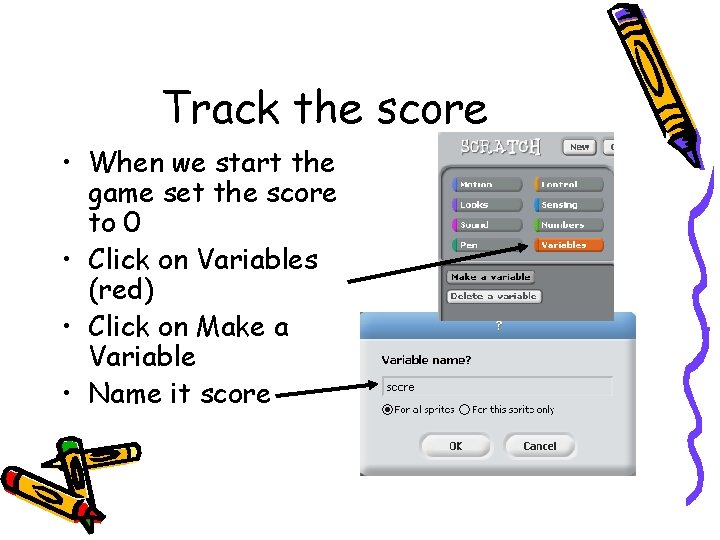
Track the score • When we start the game set the score to 0 • Click on Variables (red) • Click on Make a Variable • Name it score
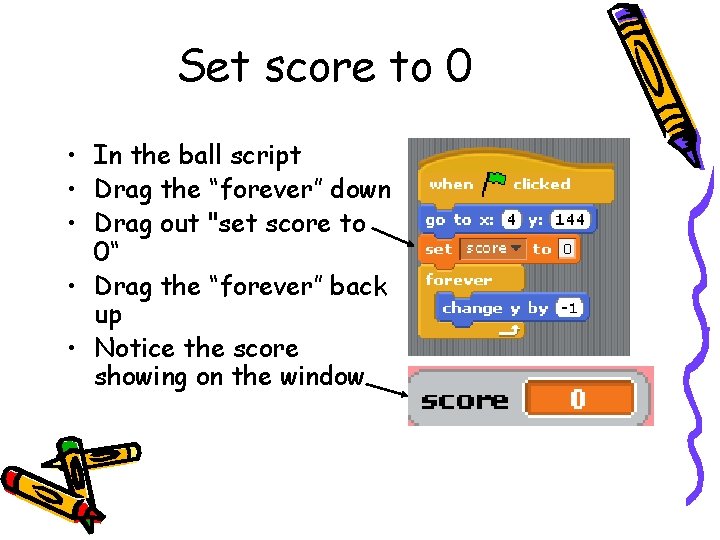
Set score to 0 • In the ball script • Drag the “forever” down • Drag out "set score to 0“ • Drag the “forever” back up • Notice the score showing on the window
Conditionals • We want to increase the score if the baby caught the ball – So this action will only occur only if some condition is true – This is called a conditional or an “if”
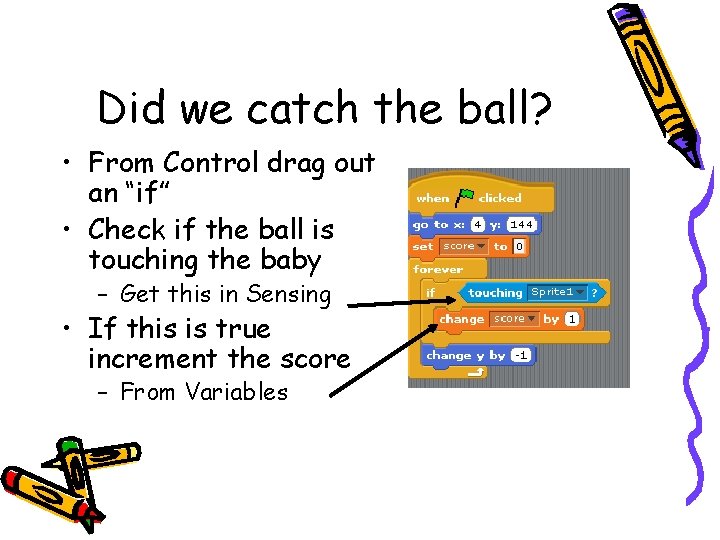
Did we catch the ball? • From Control drag out an “if” • Check if the ball is touching the baby – Get this in Sensing • If this is true increment the score – From Variables
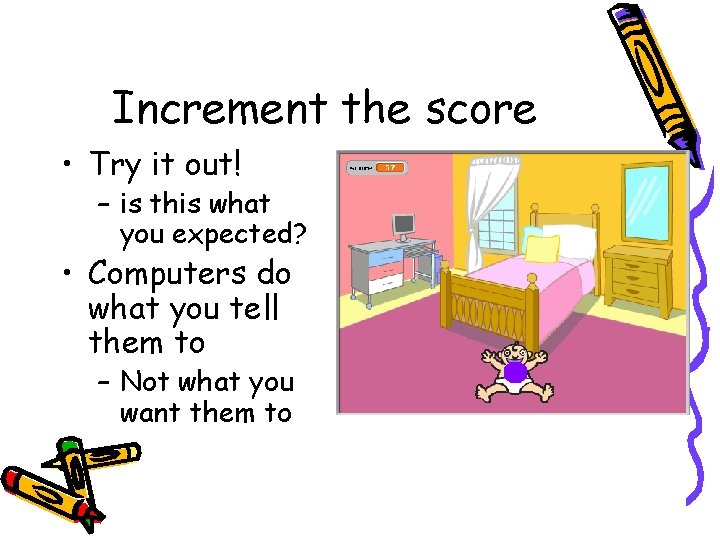
Increment the score • Try it out! – is this what you expected? • Computers do what you tell them to – Not what you want them to
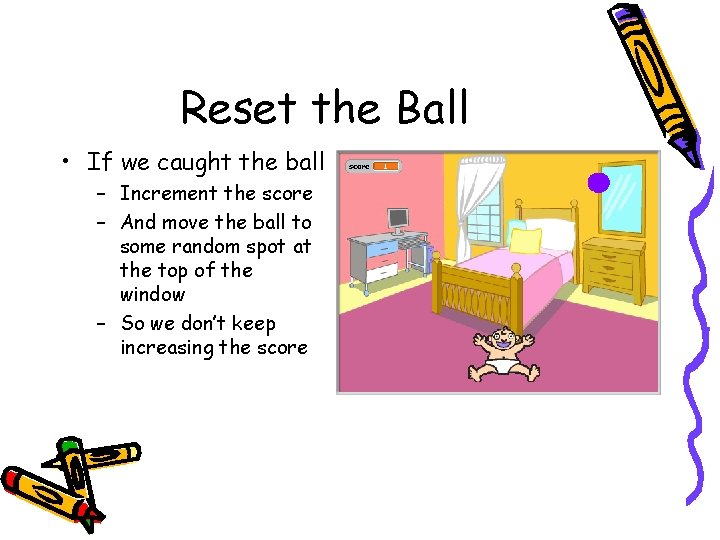
Reset the Ball • If we caught the ball – Increment the score – And move the ball to some random spot at the top of the window – So we don’t keep increasing the score
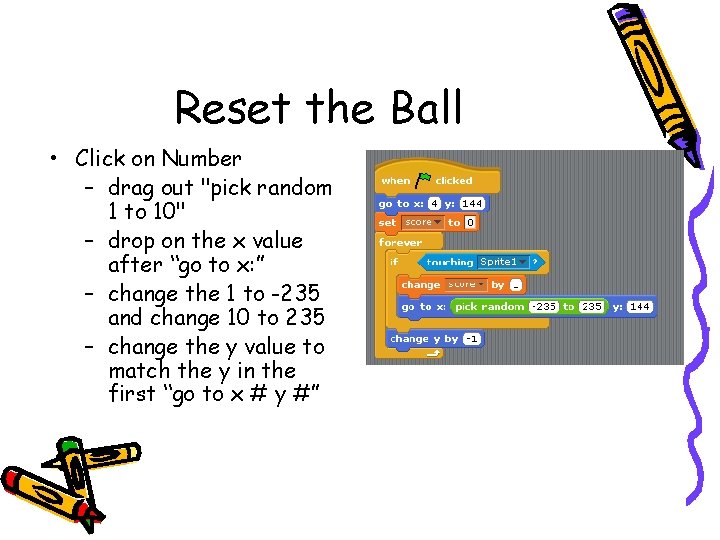
Reset the Ball • Click on Number – drag out "pick random 1 to 10" – drop on the x value after “go to x: ” – change the 1 to -235 and change 10 to 235 – change the y value to match the y in the first “go to x # y #”
Adding Losing • If the baby doesn't catch the ball it just gets stuck at the bottom of the screen • Let's tell the player that he or she lost
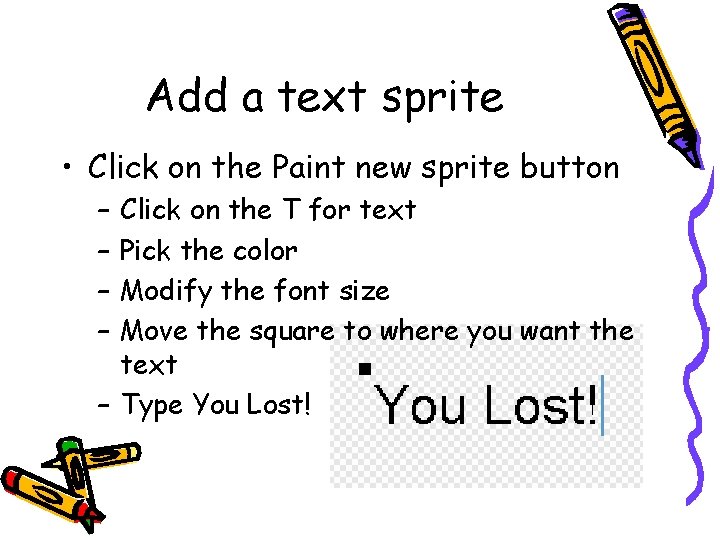
Add a text sprite • Click on the Paint new sprite button – – Click on the T for text Pick the color Modify the font size Move the square to where you want the text – Type You Lost!
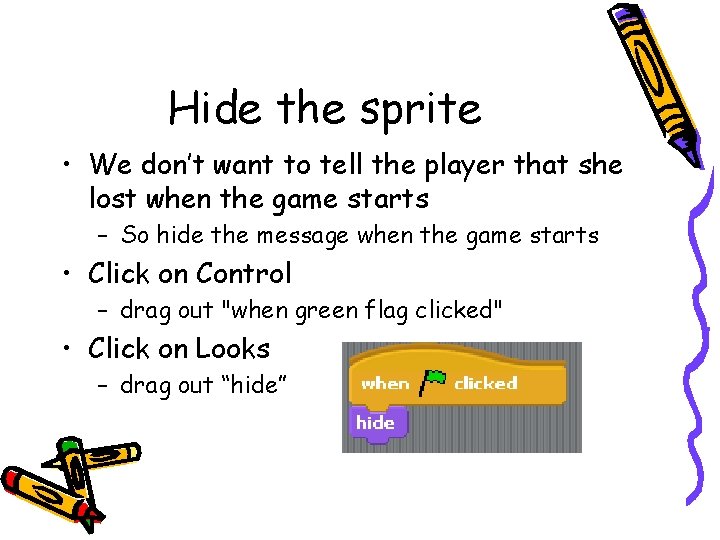
Hide the sprite • We don’t want to tell the player that she lost when the game starts – So hide the message when the game starts • Click on Control – drag out "when green flag clicked" • Click on Looks – drag out “hide”
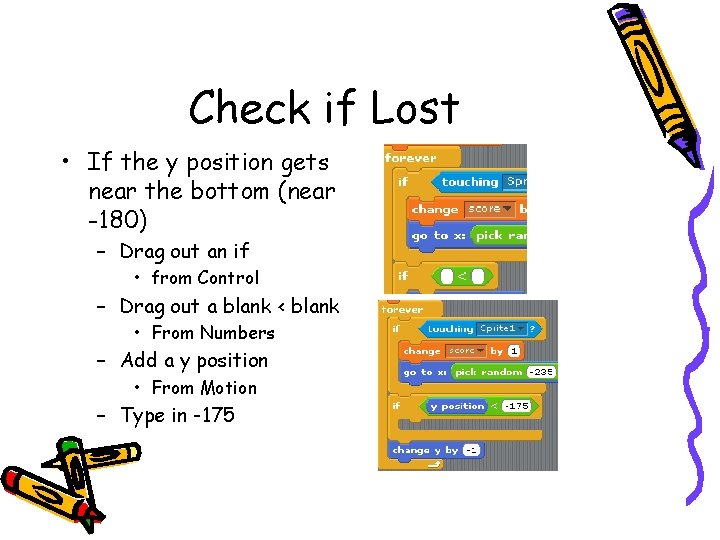
Check if Lost • If the y position gets near the bottom (near -180) – Drag out an if • from Control – Drag out a blank < blank • From Numbers – Add a y position • From Motion – Type in -175
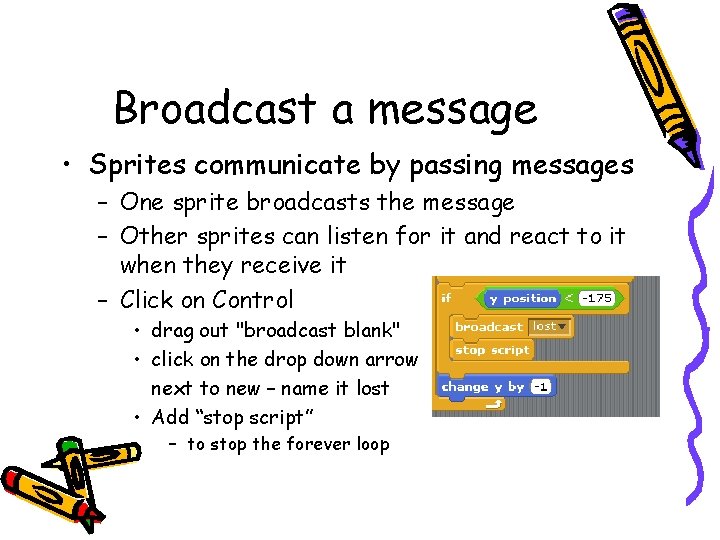
Broadcast a message • Sprites communicate by passing messages – One sprite broadcasts the message – Other sprites can listen for it and react to it when they receive it – Click on Control • drag out "broadcast blank" • click on the drop down arrow next to new – name it lost • Add “stop script” – to stop the forever loop
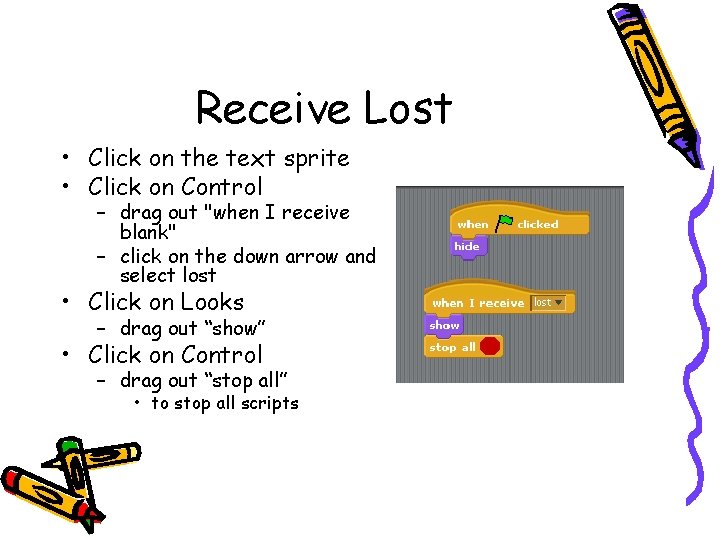
Receive Lost • Click on the text sprite • Click on Control – drag out "when I receive blank" – click on the down arrow and select lost • Click on Looks – drag out “show” • Click on Control – drag out “stop all” • to stop all scripts
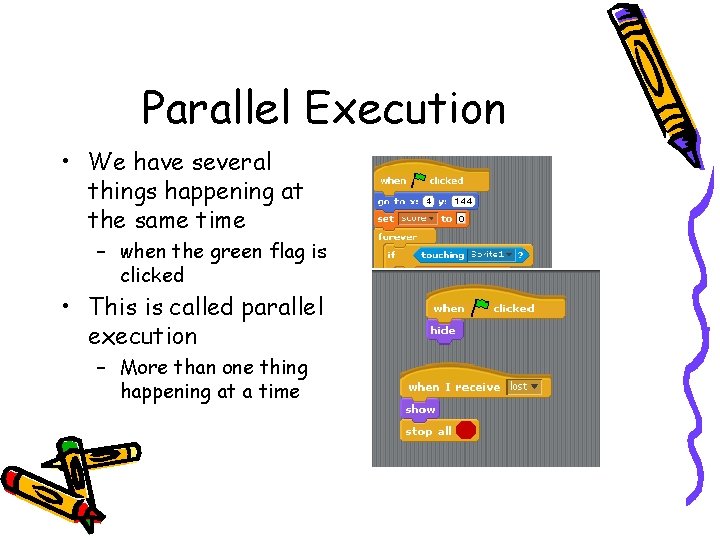
Parallel Execution • We have several things happening at the same time – when the green flag is clicked • This is called parallel execution – More than one thing happening at a time
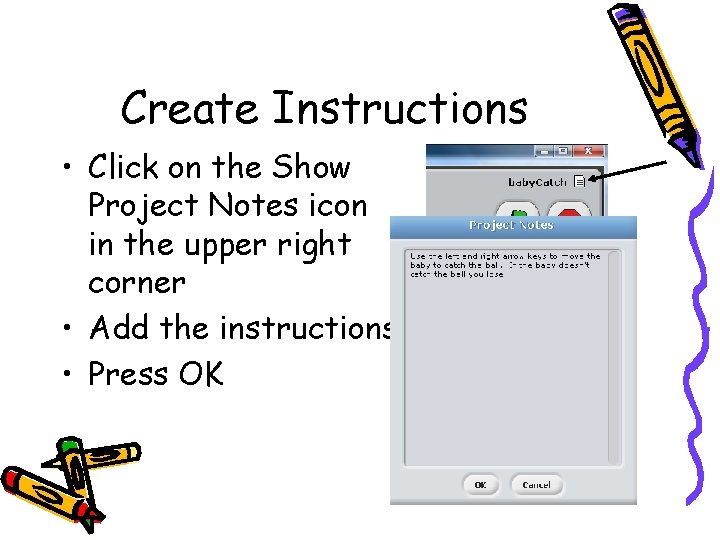
Create Instructions • Click on the Show Project Notes icon in the upper right corner • Add the instructions • Press OK
Test your game • Click the green flag • If you want, adjust the speed of the ball – Increase the amount it changes in y • Modify the sprites using the “Costume” tab • Save your game with the “Save” button
Share your game • You can share your projects at the scratch web site – http: //scratch. mit. edu • Click on the Share! button • You can also download other projects and see how they were created
Other Ideas • Add a sound when you lose • Add the ability to win – When you reach a certain score – Track the amount of time it takes as well • Speed up the ball over time • Add more sprites to catch • Add a sprite to avoid (like a big brother) – killer sprite
Concept Summary • Variables • Forever loops • Conditionals – ifs • Sprites can pass messages • Sprites can react to events • • Sprites can have several scripts, costumes, and sounds Things can happen one after the other – sequential execution or at the same time – parallel execution – can hold values and can change value – repeat all the commands inside of them one at a time until the script is stopped or all scripts are stopped – only execute the body of the if when the condition is true – and receive them – like clicking the green flag and pressing the left or right arrow keys