
Create a Service Activity Service Activities may be

Create a Service Activity
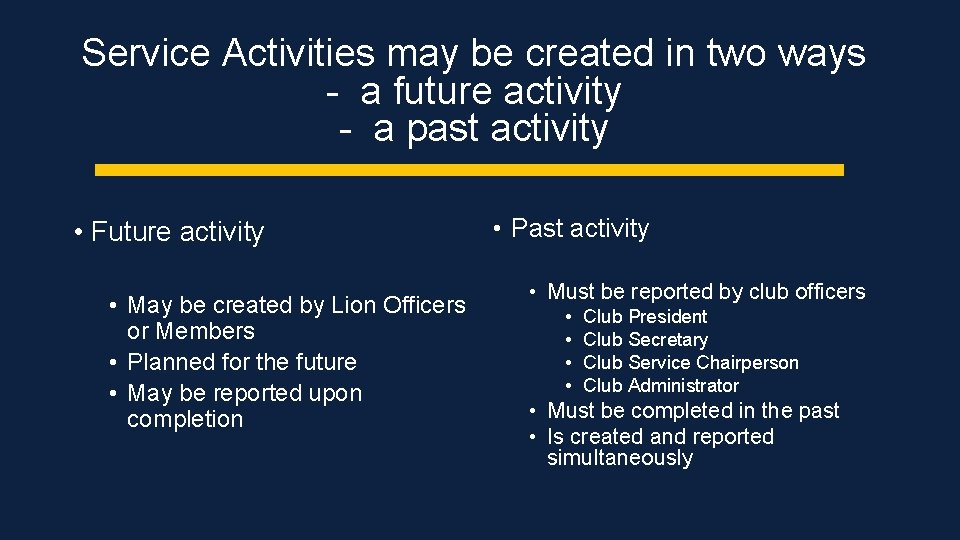
Service Activities may be created in two ways - a future activity - a past activity • Future activity • May be created by Lion Officers or Members • Planned for the future • May be reported upon completion • Past activity • Must be reported by club officers • • Club President Club Secretary Club Service Chairperson Club Administrator • Must be completed in the past • Is created and reported simultaneously
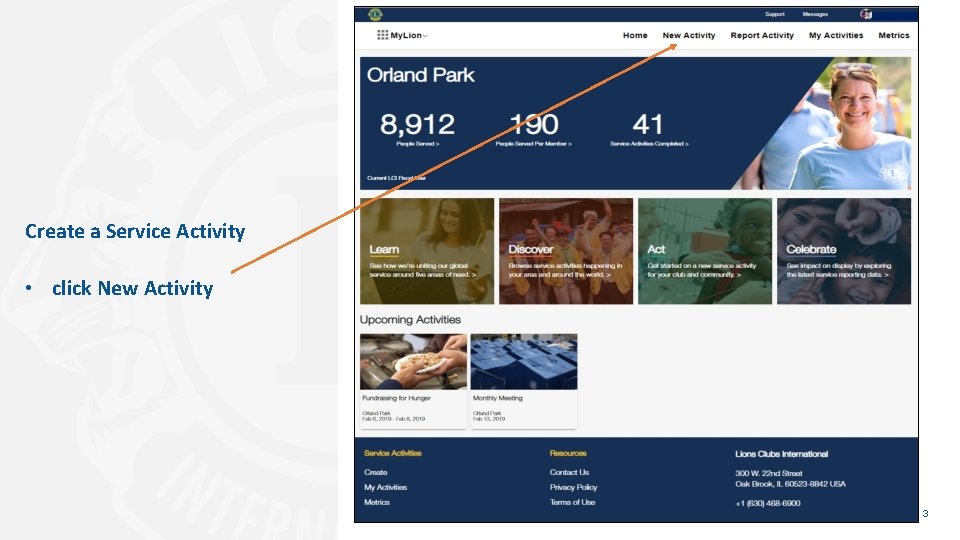
Create a Service Activity • click New Activity 3
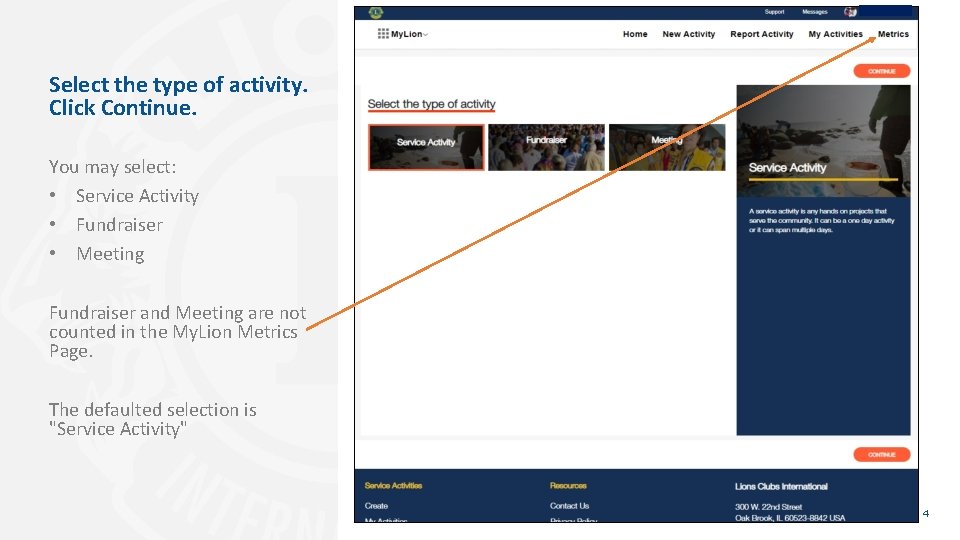
Select the type of activity. Click Continue. You may select: • Service Activity • Fundraiser • Meeting Fundraiser and Meeting are not counted in the My. Lion Metrics Page. The defaulted selection is "Service Activity" 4
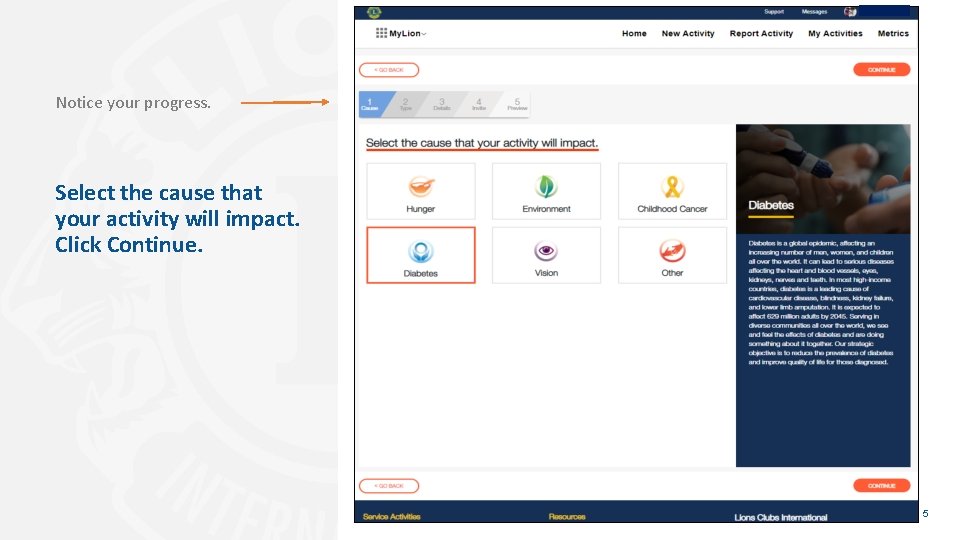
Notice your progress. Select the cause that your activity will impact. Click Continue. 5
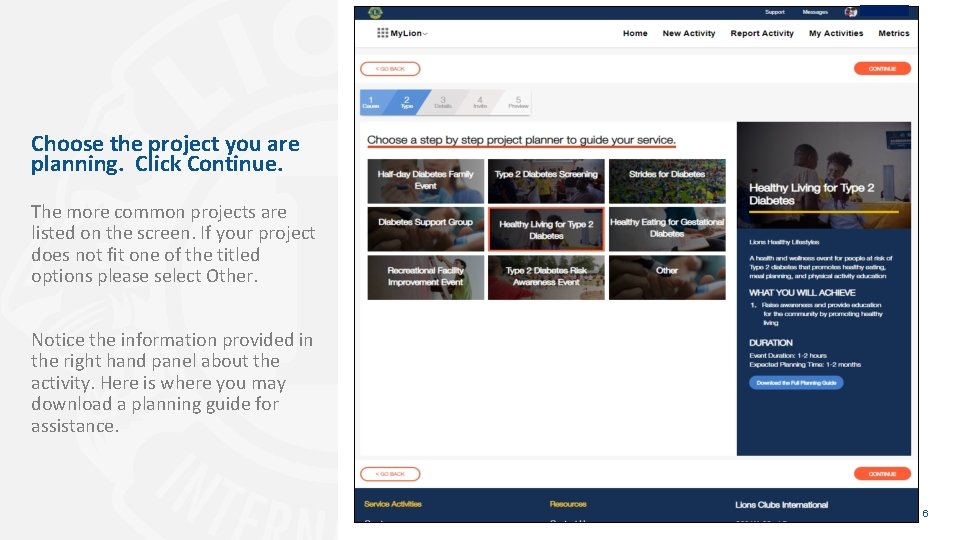
Choose the project you are planning. Click Continue. The more common projects are listed on the screen. If your project does not fit one of the titled options please select Other. Notice the information provided in the right hand panel about the activity. Here is where you may download a planning guide for assistance. 6
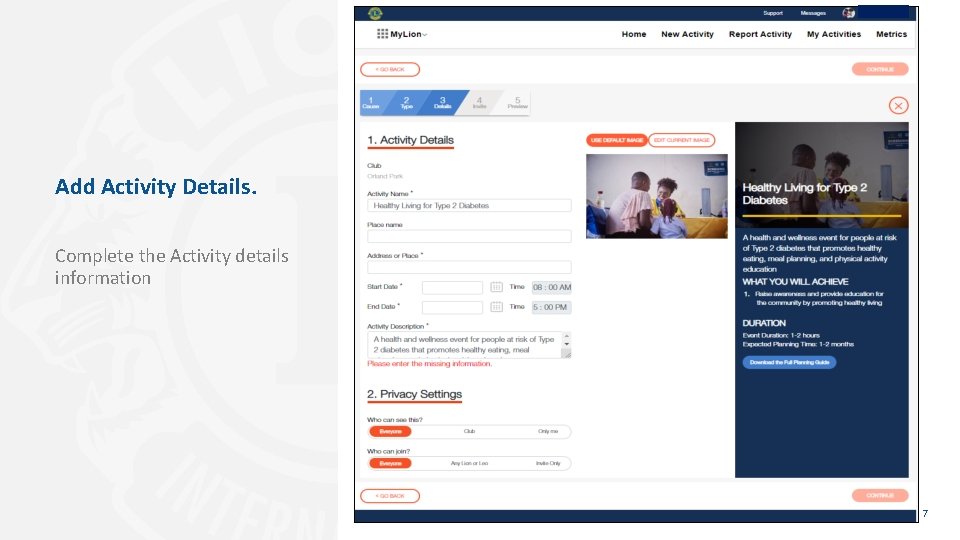
Add Activity Details. Complete the Activity details information 7
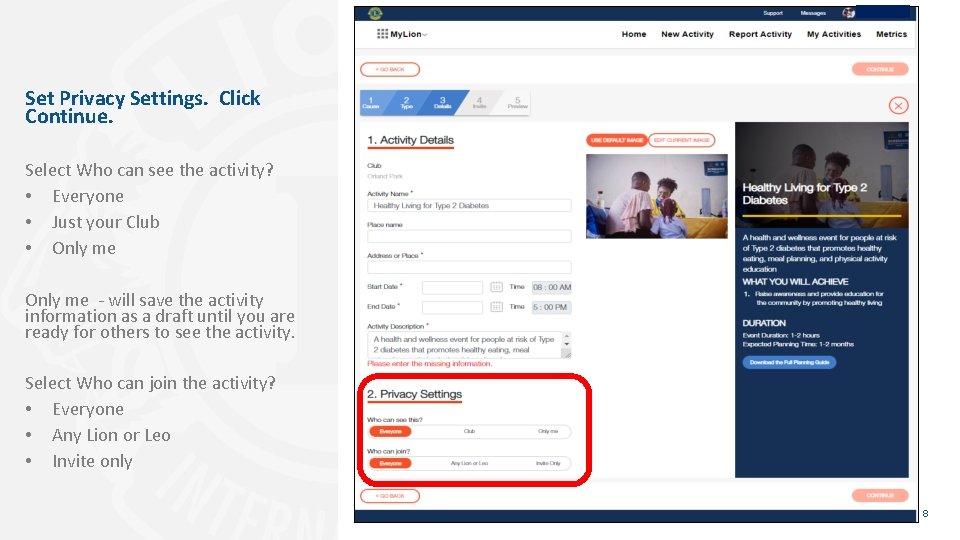
Set Privacy Settings. Click Continue. Select Who can see the activity? • Everyone • Just your Club • Only me - will save the activity information as a draft until you are ready for others to see the activity. Select Who can join the activity? • Everyone • Any Lion or Leo • Invite only 8
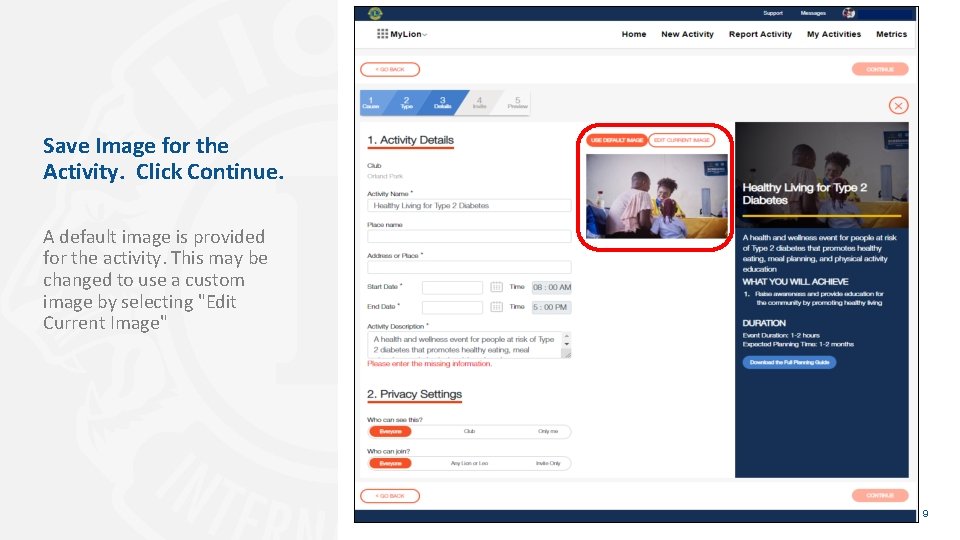
Save Image for the Activity. Click Continue. A default image is provided for the activity. This may be changed to use a custom image by selecting "Edit Current Image" 9
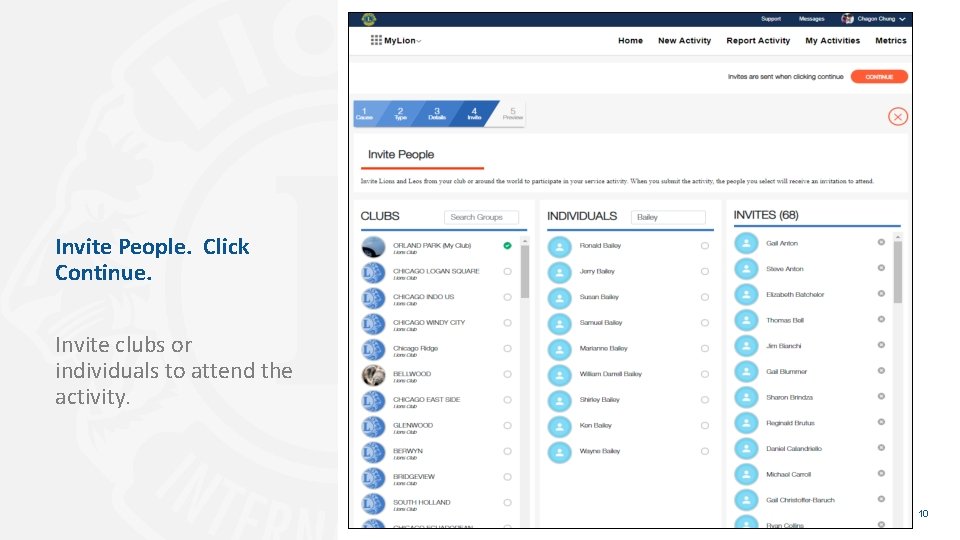
Invite People. Click Continue. Invite clubs or individuals to attend the activity. 10
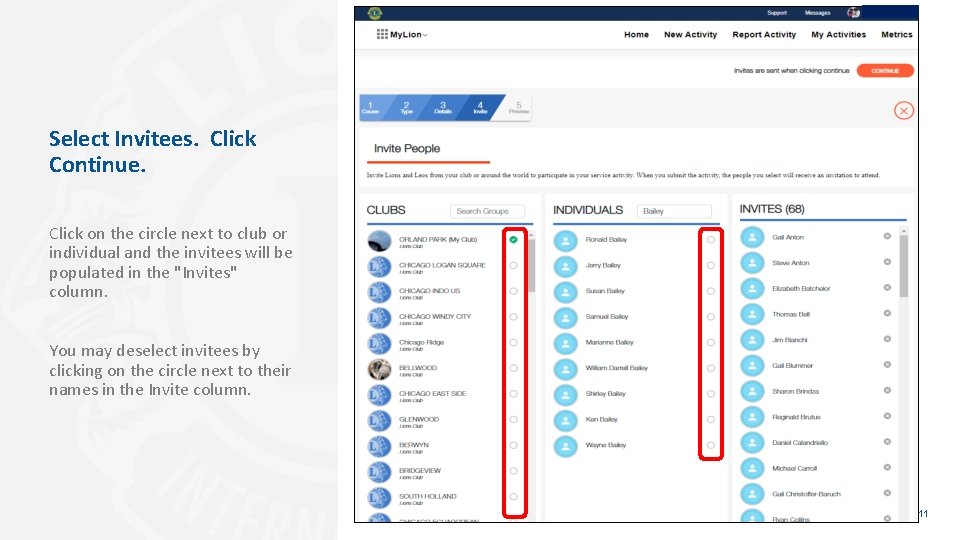
Select Invitees. Click Continue. Click on the circle next to club or individual and the invitees will be populated in the "Invites" column. You may deselect invitees by clicking on the circle next to their names in the Invite column. 11
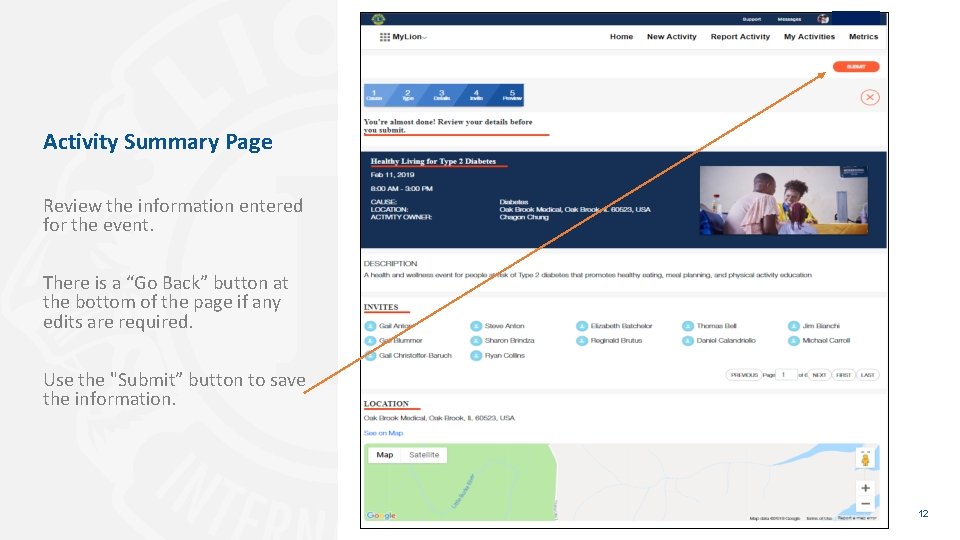
Activity Summary Page Review the information entered for the event. There is a “Go Back” button at the bottom of the page if any edits are required. Use the "Submit” button to save the information. 12
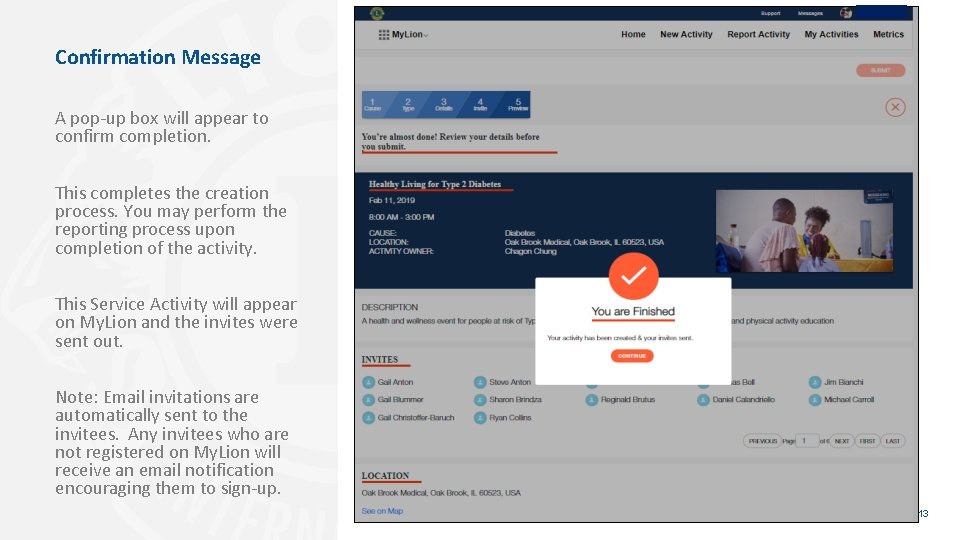
Confirmation Message A pop-up box will appear to confirm completion. This completes the creation process. You may perform the reporting process upon completion of the activity. This Service Activity will appear on My. Lion and the invites were sent out. Note: Email invitations are automatically sent to the invitees. Any invitees who are not registered on My. Lion will receive an email notification encouraging them to sign-up. 13

Thank you
- Slides: 14