
Create a Halloween Computer Game in Scratch Stephanie
- Slides: 43
Create a Halloween Computer Game in Scratch Stephanie Smullen and Dawn Ellis Barb Ericson October 2008
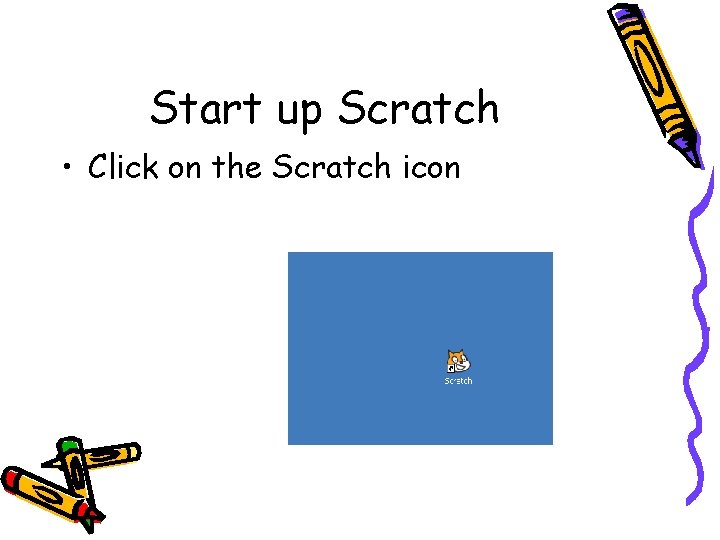
Start up Scratch • Click on the Scratch icon
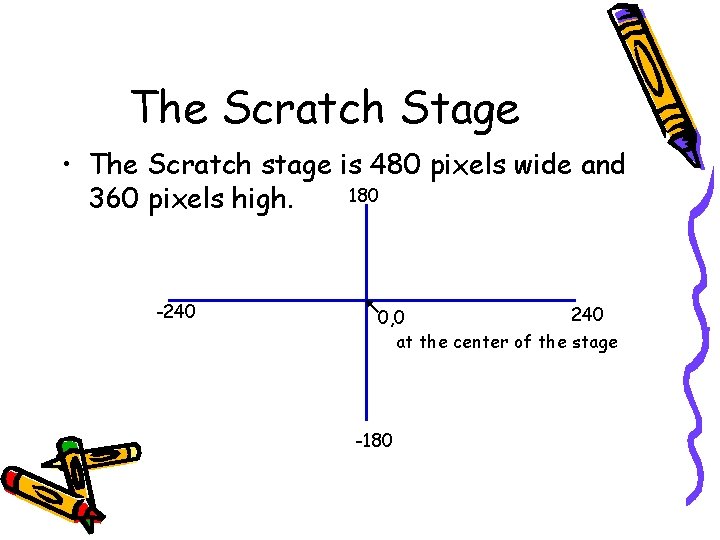
The Scratch Stage • The Scratch stage is 480 pixels wide and 180 360 pixels high. -240 0, 0 at the center of the stage -180
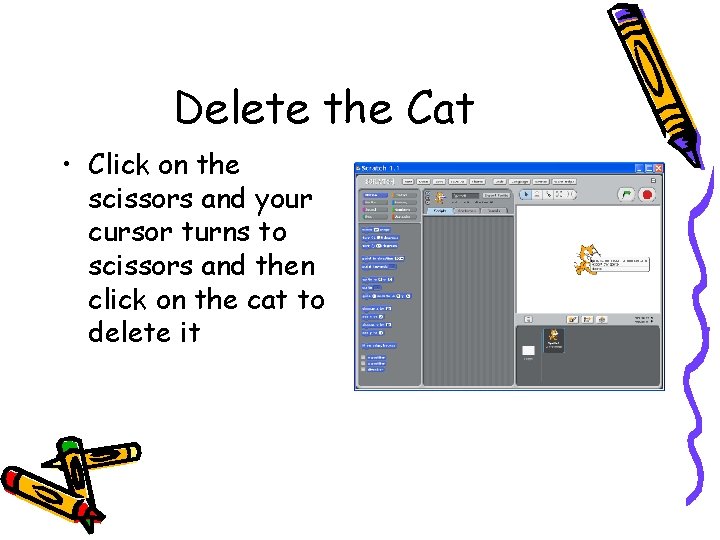
Delete the Cat • Click on the scissors and your cursor turns to scissors and then click on the cat to delete it
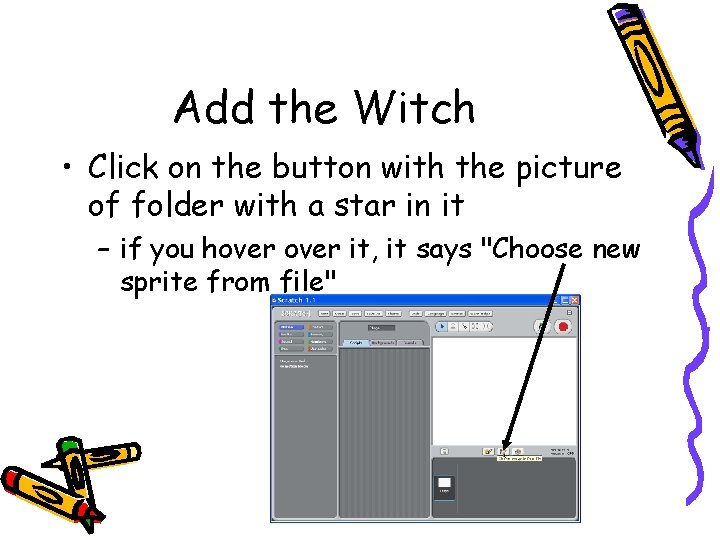
Add the Witch • Click on the button with the picture of folder with a star in it – if you hover it, it says "Choose new sprite from file"
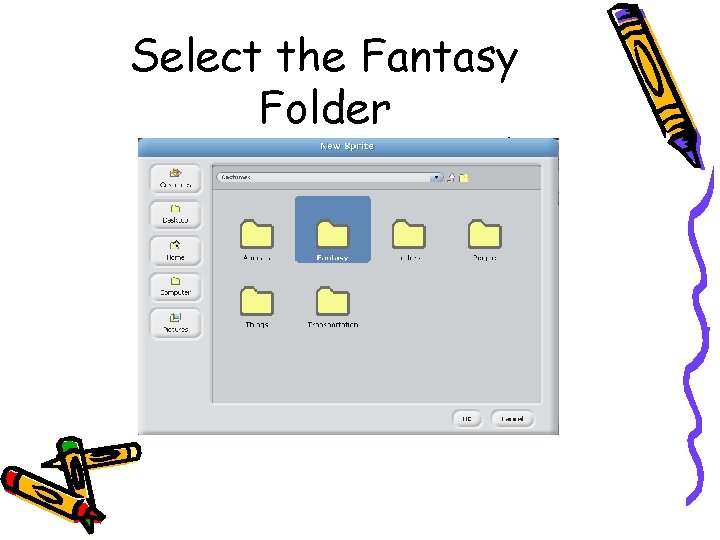
Select the Fantasy Folder
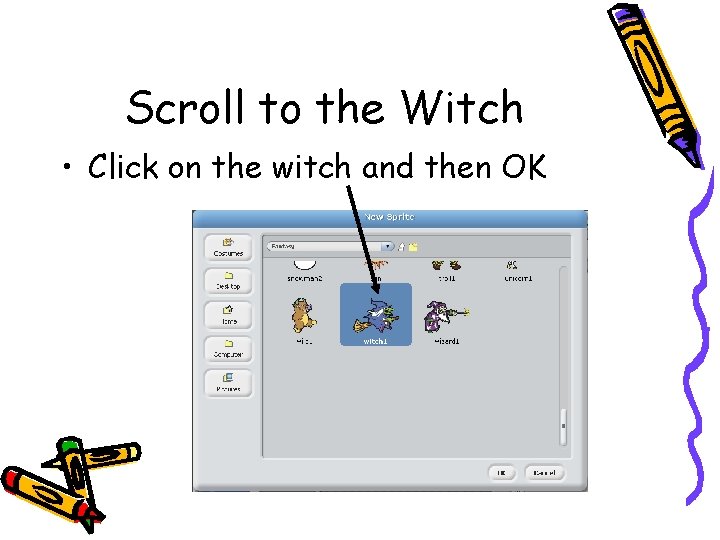
Scroll to the Witch • Click on the witch and then OK
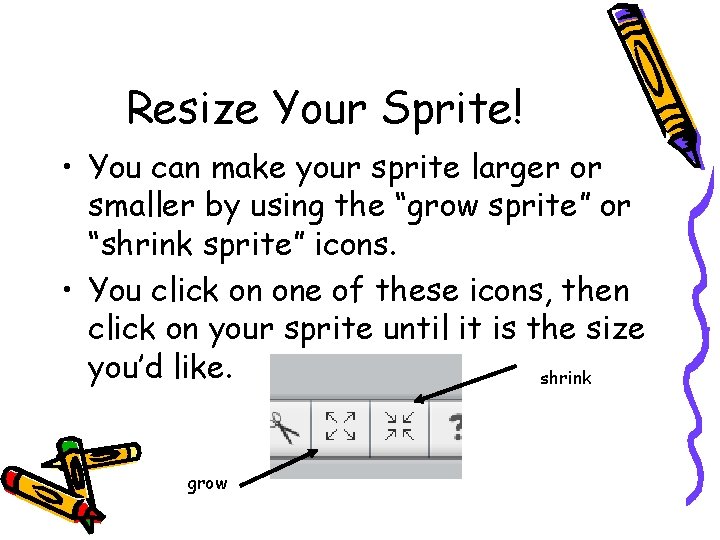
Resize Your Sprite! • You can make your sprite larger or smaller by using the “grow sprite” or “shrink sprite” icons. • You click on one of these icons, then click on your sprite until it is the size you’d like. shrink grow
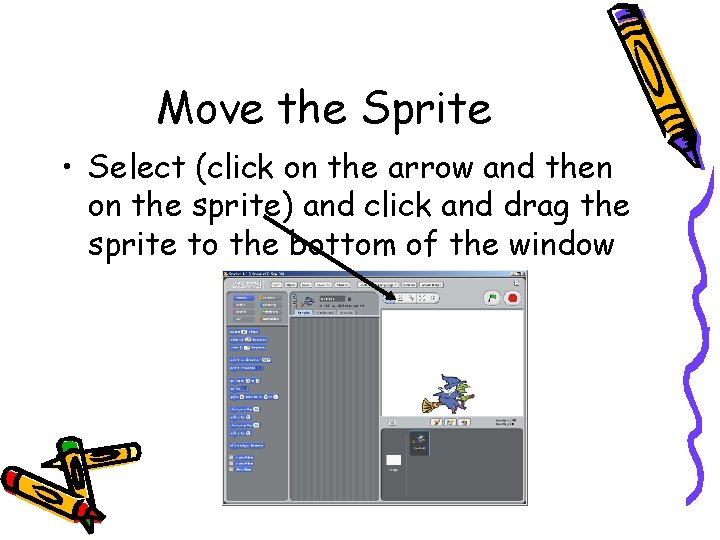
Move the Sprite • Select (click on the arrow and then on the sprite) and click and drag the sprite to the bottom of the window
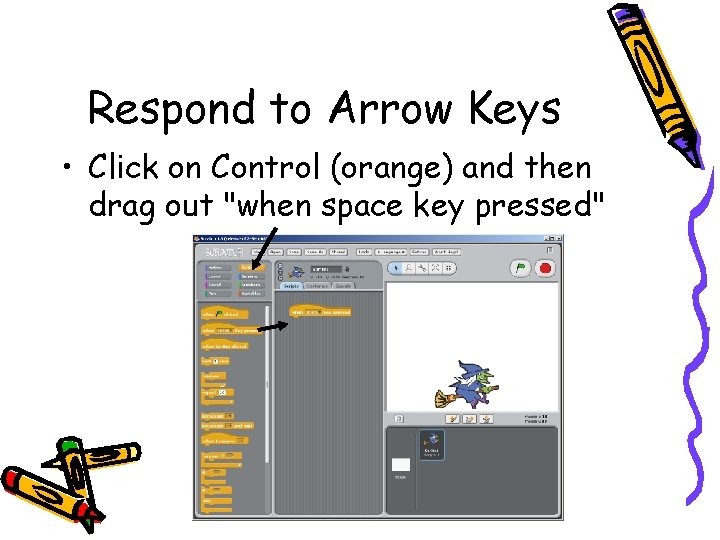
Respond to Arrow Keys • Click on Control (orange) and then drag out "when space key pressed"
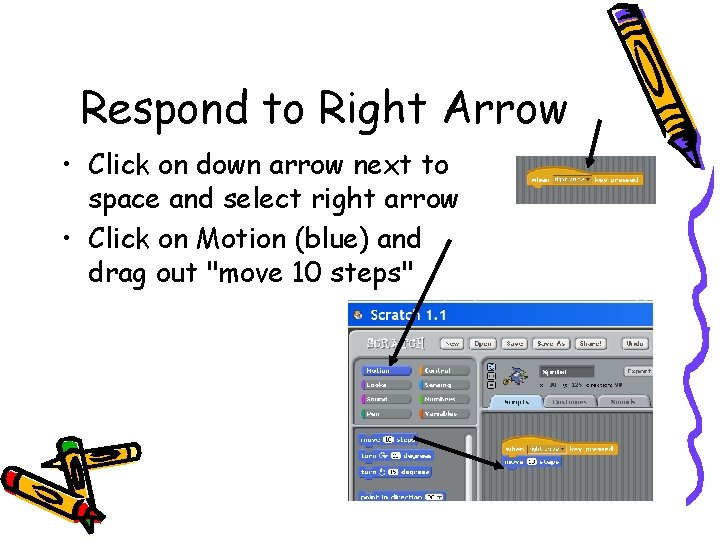
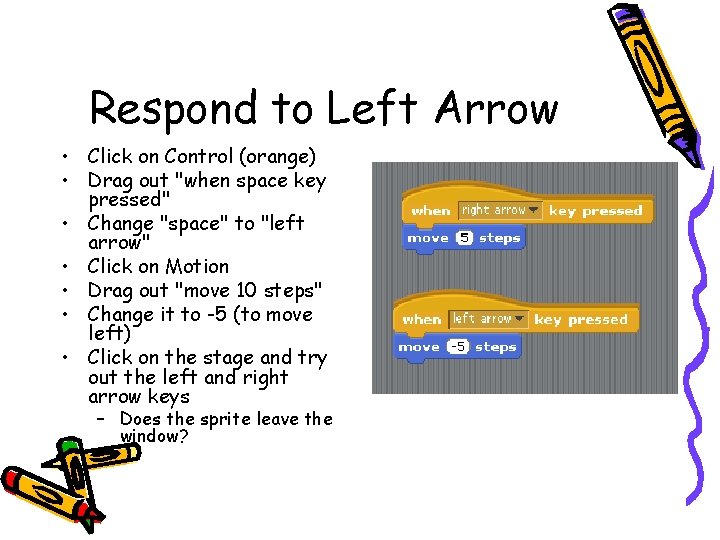
Respond to Right Arrow • Click on down arrow next to space and select right arrow • Click on Motion (blue) and drag out "move 10 steps"
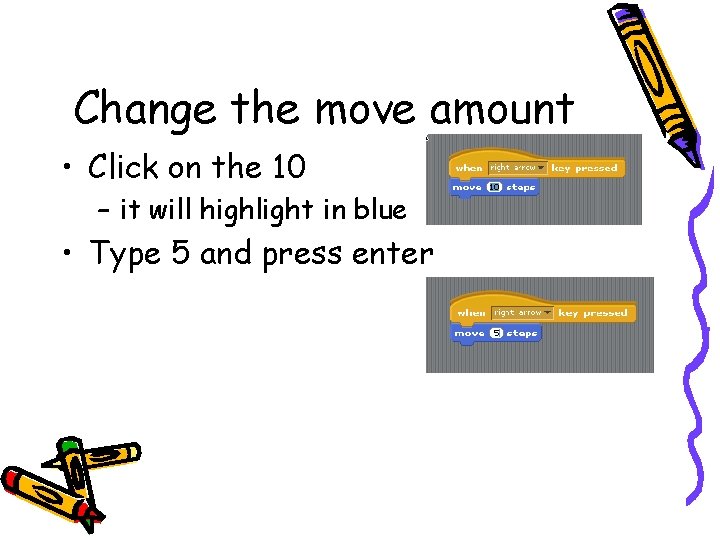
Change the move amount • Click on the 10 – it will highlight in blue • Type 5 and press enter
Respond to Left Arrow • Click on Control (orange) • Drag out "when space key pressed" • Change "space" to "left arrow" • Click on Motion • Drag out "move 10 steps" • Change it to -5 (to move left) • Click on the stage and try out the left and right arrow keys – Does the sprite leave the window?
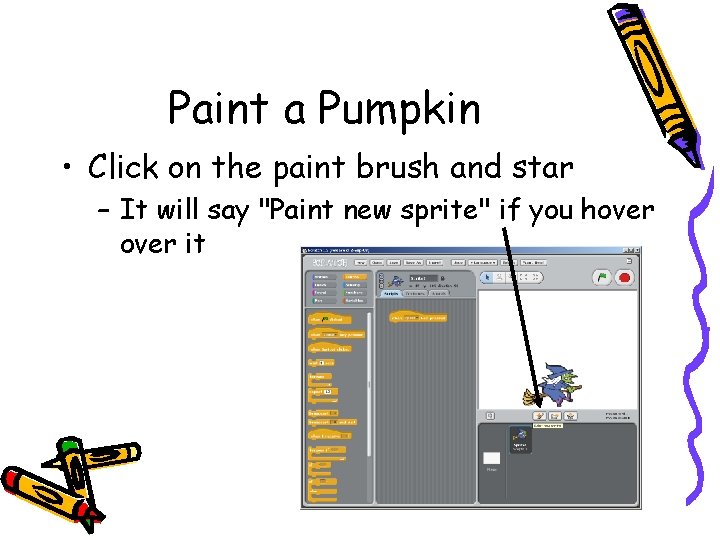
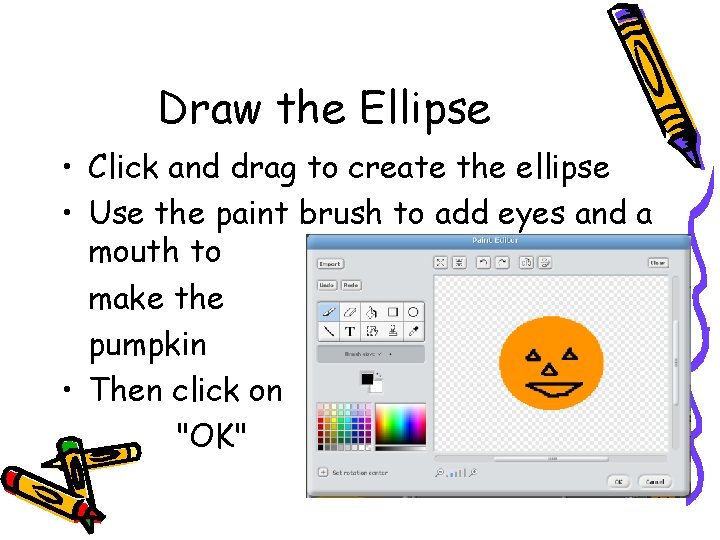
Paint a Pumpkin • Click on the paint brush and star – It will say "Paint new sprite" if you hover it
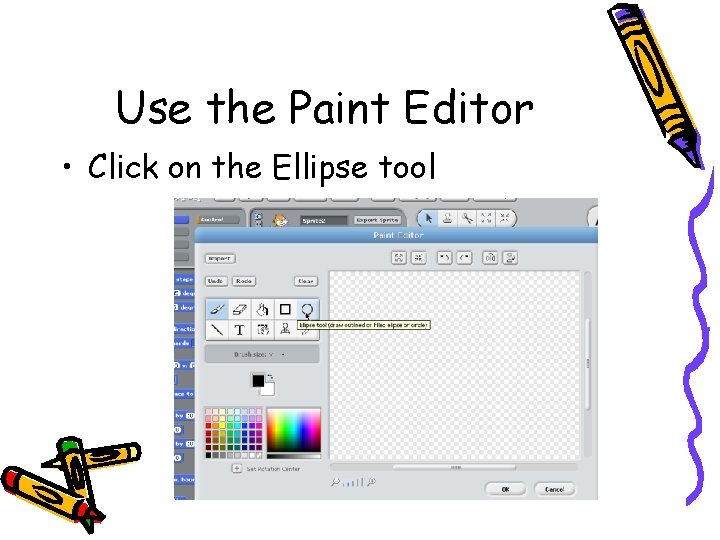
Use the Paint Editor • Click on the Ellipse tool
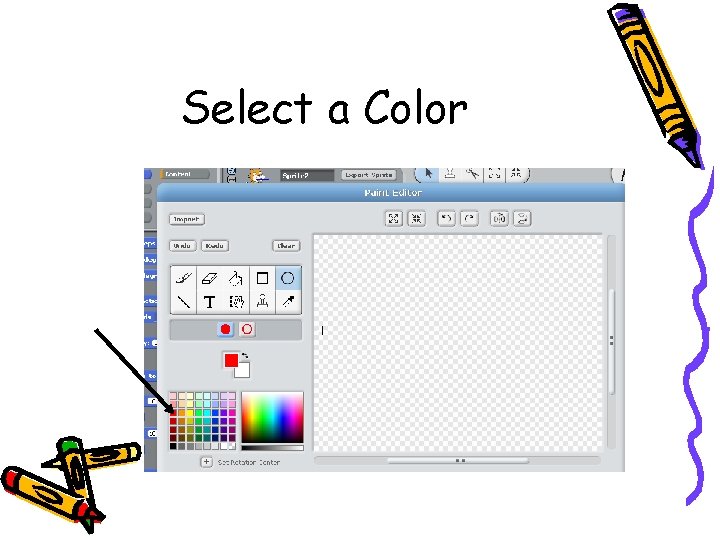
Select a Color
Draw the Ellipse • Click and drag to create the ellipse • Use the paint brush to add eyes and a mouth to make the pumpkin • Then click on "OK"
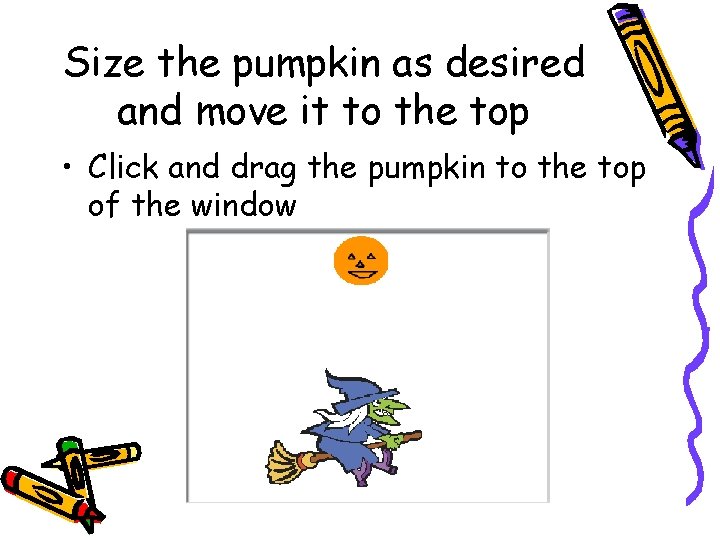
Size the pumpkin as desired and move it to the top • Click and drag the pumpkin to the top of the window
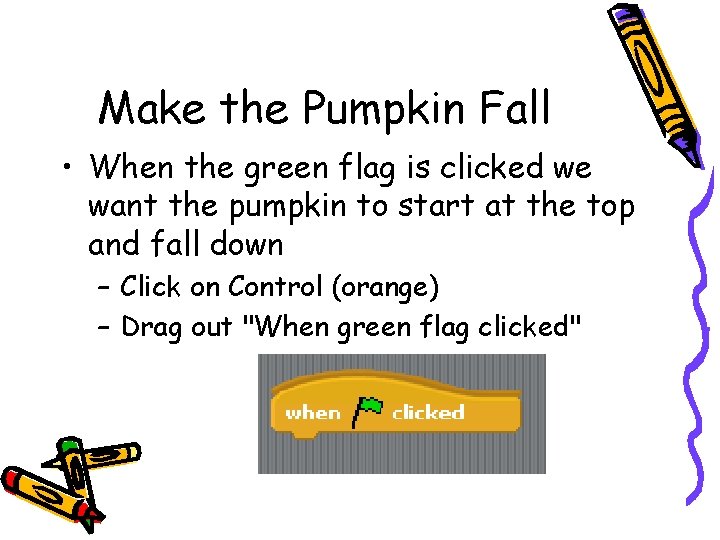
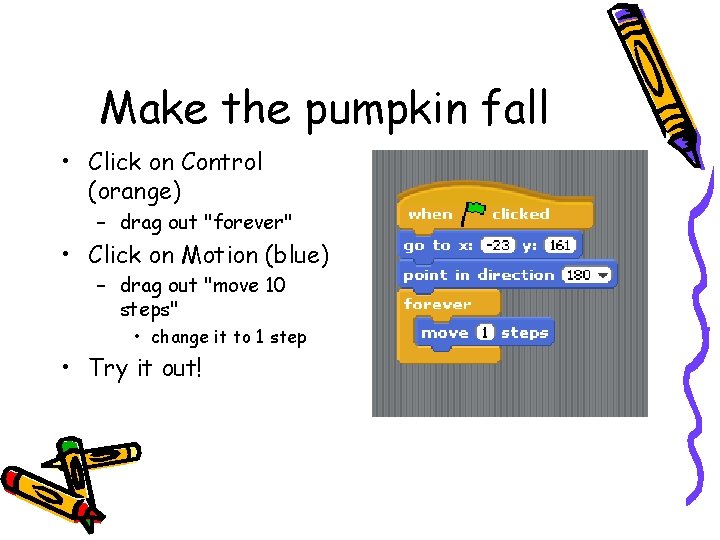
Make the Pumpkin Fall • When the green flag is clicked we want the pumpkin to start at the top and fall down – Click on Control (orange) – Drag out "When green flag clicked"
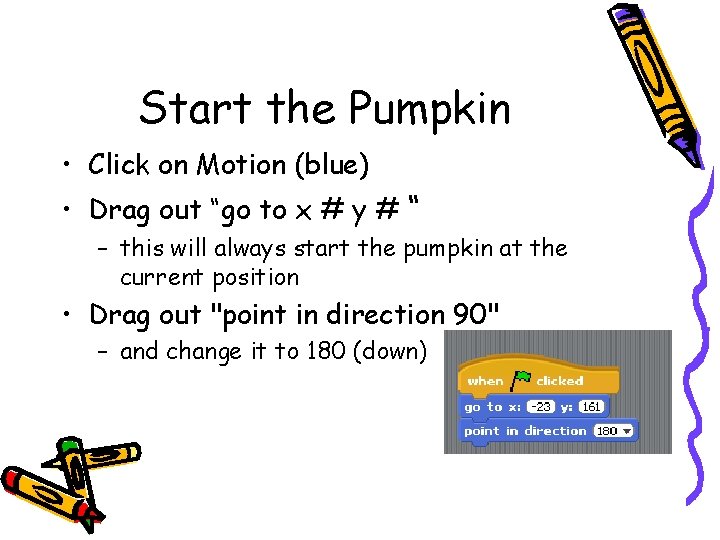
Start the Pumpkin • Click on Motion (blue) • Drag out “go to x # y # “ – this will always start the pumpkin at the current position • Drag out "point in direction 90" – and change it to 180 (down)
Make the pumpkin fall • Click on Control (orange) – drag out "forever" • Click on Motion (blue) – drag out "move 10 steps" • change it to 1 step • Try it out!
Catch the pumpkin! • If the distance from the center of the pumpkin to the sprite is less than the half the size of the pumpkin then it is caught • Let's track how many pumpkins we have caught with a score
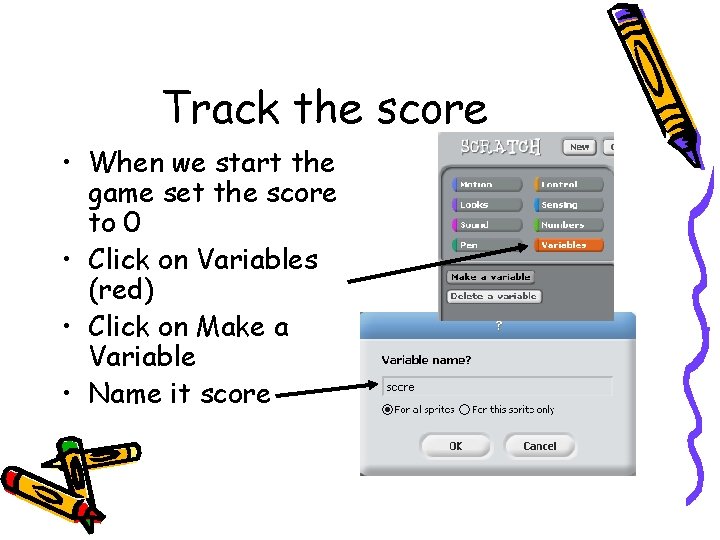
Track the score • When we start the game set the score to 0 • Click on Variables (red) • Click on Make a Variable • Name it score
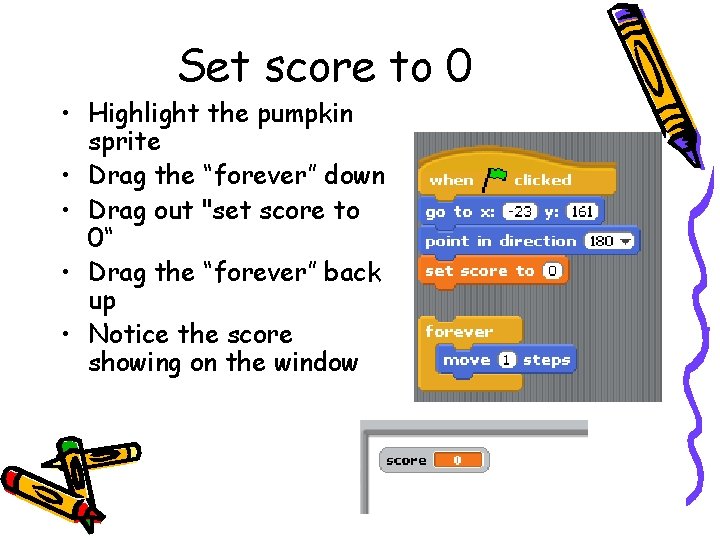
Set score to 0 • Highlight the pumpkin sprite • Drag the “forever” down • Drag out "set score to 0“ • Drag the “forever” back up • Notice the score showing on the window
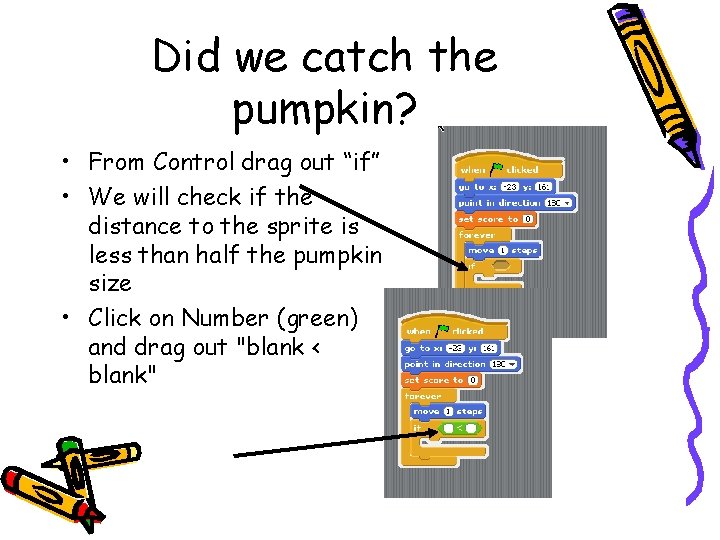
Did we catch the pumpkin? • From Control drag out “if” • We will check if the distance to the sprite is less than half the pumpkin size • Click on Number (green) and drag out "blank < blank"
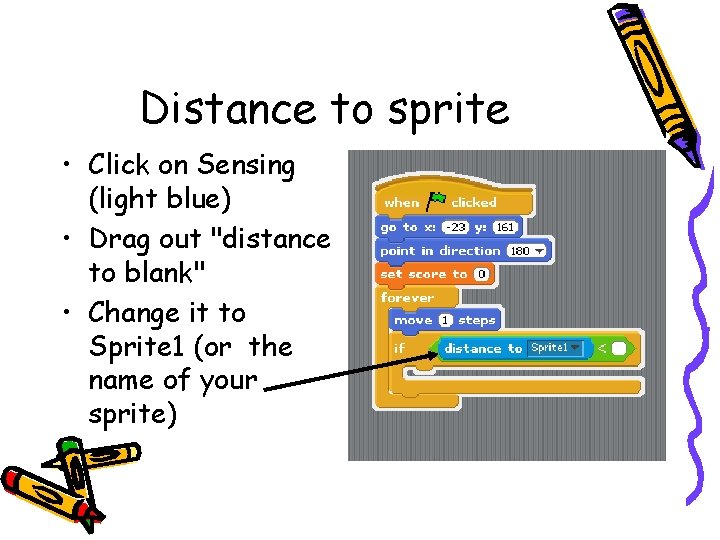
Distance to sprite • Click on Sensing (light blue) • Drag out "distance to blank" • Change it to Sprite 1 (or the name of your sprite)
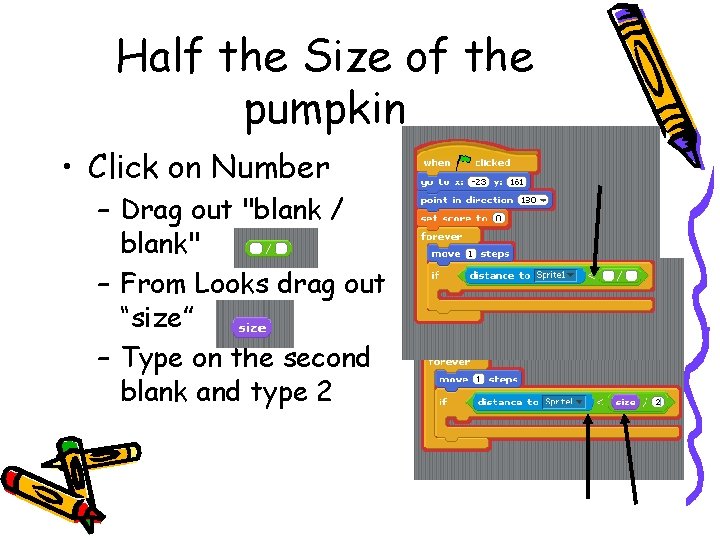
Half the Size of the pumpkin • Click on Number – Drag out "blank / blank" – From Looks drag out “size” – Type on the second blank and type 2
Increment the score • Click on Variables – drag out “change score by 1” – Put it inside the “if” block • Try it out! – is this what you expected?
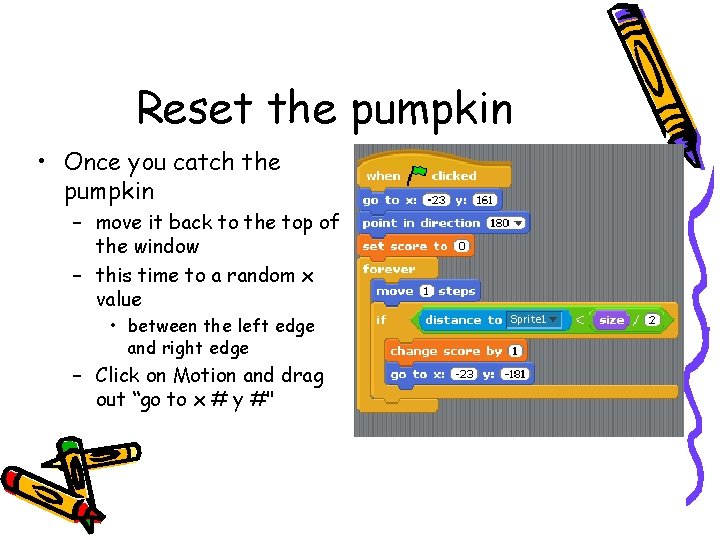
Reset the pumpkin • Once you catch the pumpkin – move it back to the top of the window – this time to a random x value • between the left edge and right edge – Click on Motion and drag out “go to x # y #"
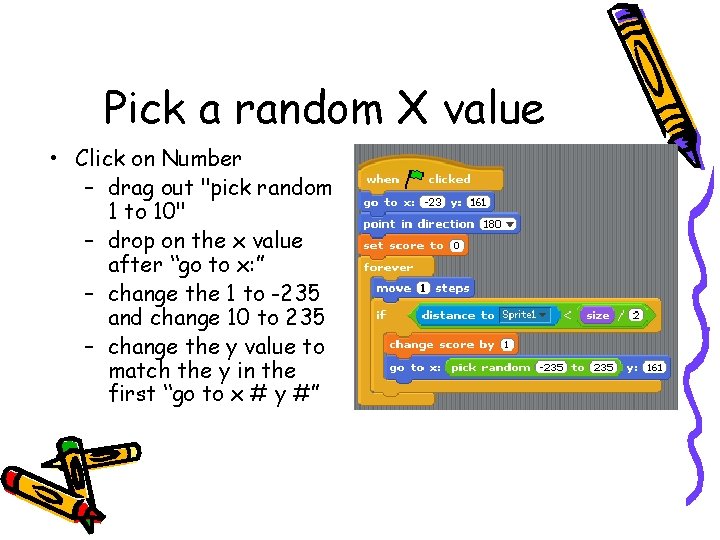
Pick a random X value • Click on Number – drag out "pick random 1 to 10" – drop on the x value after “go to x: ” – change the 1 to -235 and change 10 to 235 – change the y value to match the y in the first “go to x # y #”
Adding Losing • If the sprite doesn't catch the pumpkin it just gets stuck at the bottom of the screen • Let's tell the player that he or she lost
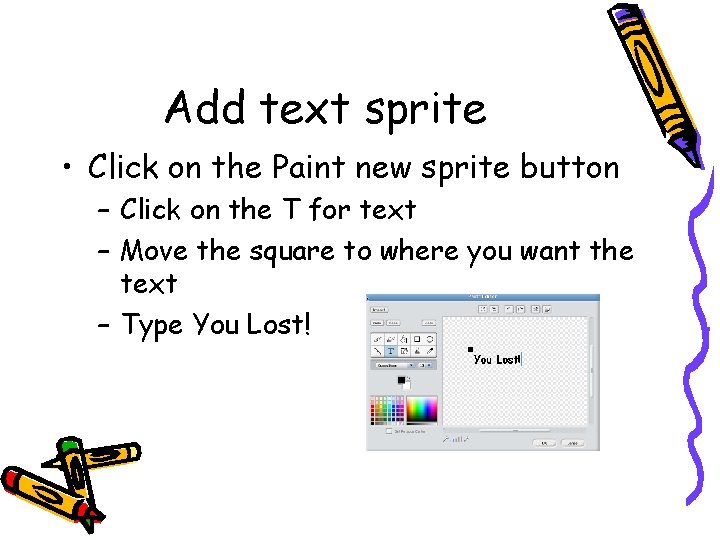
Add text sprite • Click on the Paint new sprite button – Click on the T for text – Move the square to where you want the text – Type You Lost!
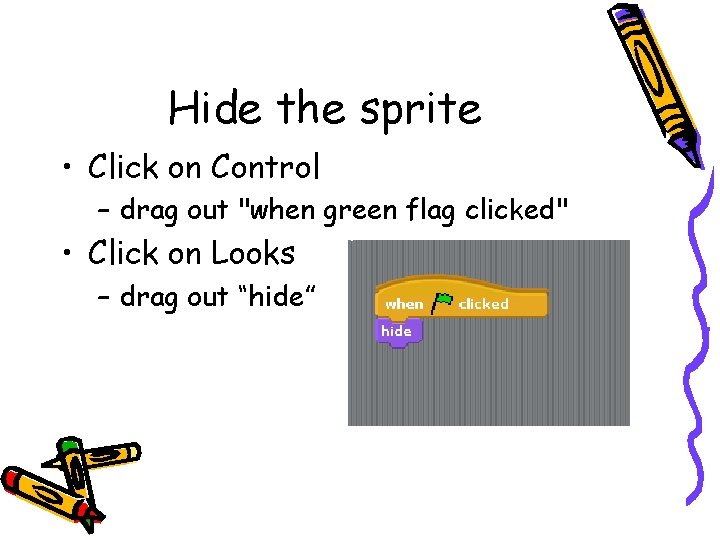
Hide the sprite • Click on Control – drag out "when green flag clicked" • Click on Looks – drag out “hide”
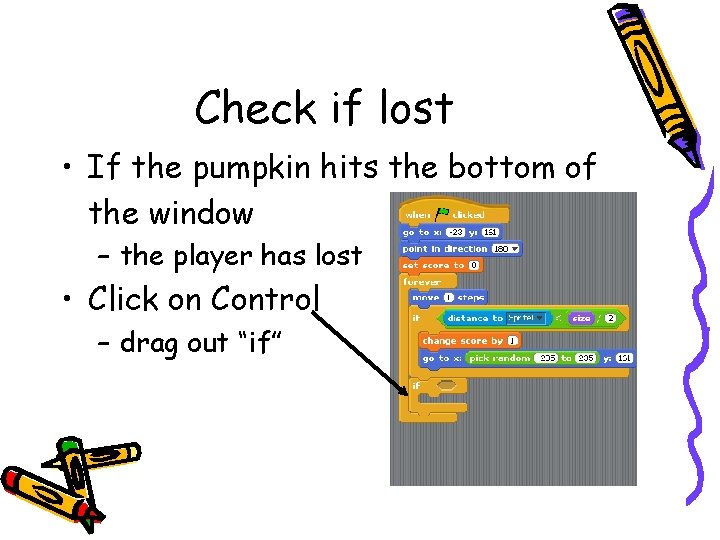
Check if lost • If the pumpkin hits the bottom of the window – the player has lost • Click on Control – drag out “if”
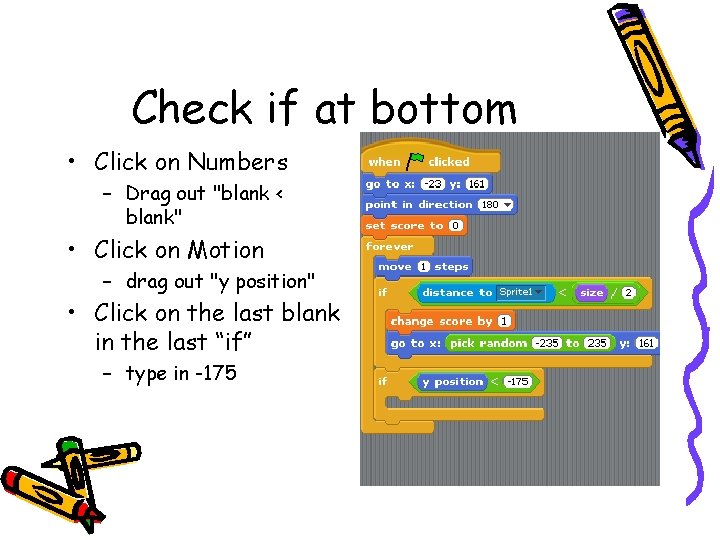
Check if at bottom • Click on Numbers – Drag out "blank < blank" • Click on Motion – drag out "y position" • Click on the last blank in the last “if” – type in -175
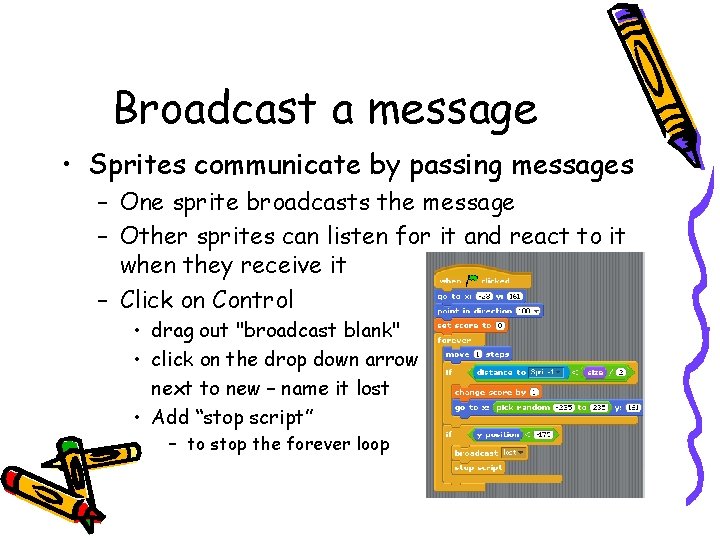
Broadcast a message • Sprites communicate by passing messages – One sprite broadcasts the message – Other sprites can listen for it and react to it when they receive it – Click on Control • drag out "broadcast blank" • click on the drop down arrow next to new – name it lost • Add “stop script” – to stop the forever loop
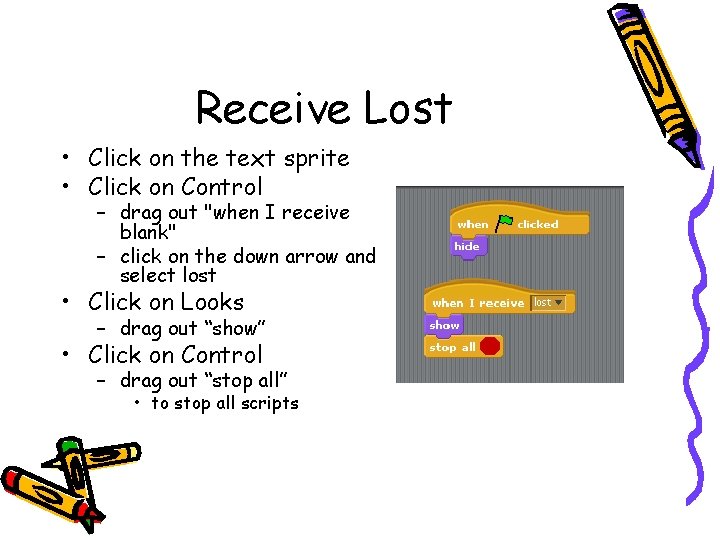
Receive Lost • Click on the text sprite • Click on Control – drag out "when I receive blank" – click on the down arrow and select lost • Click on Looks – drag out “show” • Click on Control – drag out “stop all” • to stop all scripts
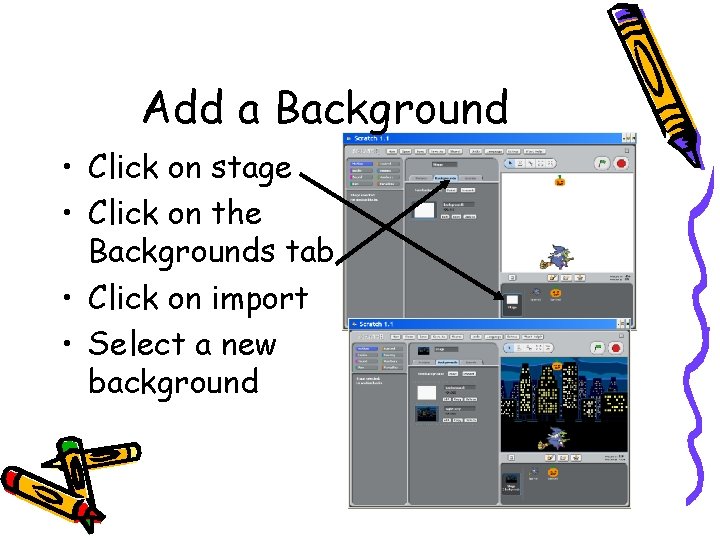
Add a Background • Click on stage • Click on the Backgrounds tab • Click on import • Select a new background
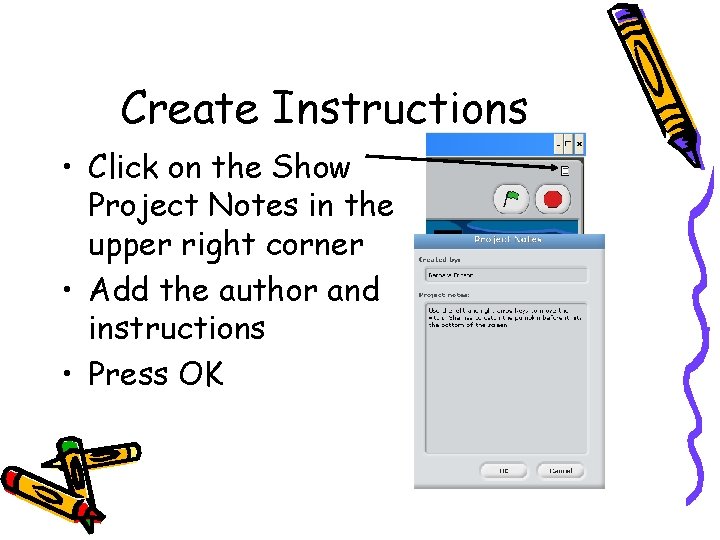
Create Instructions • Click on the Show Project Notes in the upper right corner • Add the author and instructions • Press OK
Test your game • Click the green flag • If you want, adjust the speed of the pumpkin • Modify the sprites using the “Costume” tab • Save your game with the “Save” button
Share your game • You can share your projects at the scratch web site – http: //scratch. mit. edu • Click on the Share! button • You can also download other projects and see how they were created
Other Ideas • Add a sound when you lose – You may need to add a "stop script" to the script for the pumpkin after you send the lost message • Add the ability to win – When you reach a certain score – Track the amount of time it takes as well • Speed up the pumpkin over time • Add more sprites to catch • Add a sprite to avoid (like a ghost) – killer sprite
Concept Summary • Variables – can hold values and can change value • Forever loops – repeat all the commands inside of them one at a time until the script is stopped • Conditionals – ifs – only execute the body of the if when the condition is true • Sprites can pass messages – and receive them • Sprites can react to events – like clicking the green flag and pressing the left or right arrow keys • Sprites can have several scripts, costumes, and sounds