
CPCS 391 Computer Graphics Lab One Computer Graphics
CPCS 391 Computer Graphics Lab One
Computer Graphics Using Java What is Computer Graphics: Computer graphics are graphics created using computers and, more generally, the representation and manipulation of pictorial by a computer. data Java contains two nearly parallel sets of facilities for GUI programming. (1) Abstract Window Toolkit (AWT): Offers capabilities to control certain rendering attributes such as drawing color and to draw simple graphics such as lines, rectangles, and ovals. There is also some support for images. However, these features are severely limited. For example, there is no way to control the width of drawing lines. (2) Swing: The Java 2 platform brings significant improvements in graphics capabilities with the introduction of Swing and Java 2 D and 3 D APIs. The Swing package is a completely redesigned GUI programming API included in the Java 2 platform. Java 2 D and Java 3 D is a very attractive option for graphics programming and learning computer graphics.

n Swing, like the rest of the Java API is subdivided into packages: javax. swing, javax. accessibility, n javax. swing. border … n n At the start of your code - always import javax. swing; n import javax. swing. event; n n Most Swing programs also need import java. awt. *; n import java. awt. event. *; n Differences between Swing and AWT n AWT: Button n Swing: JButton
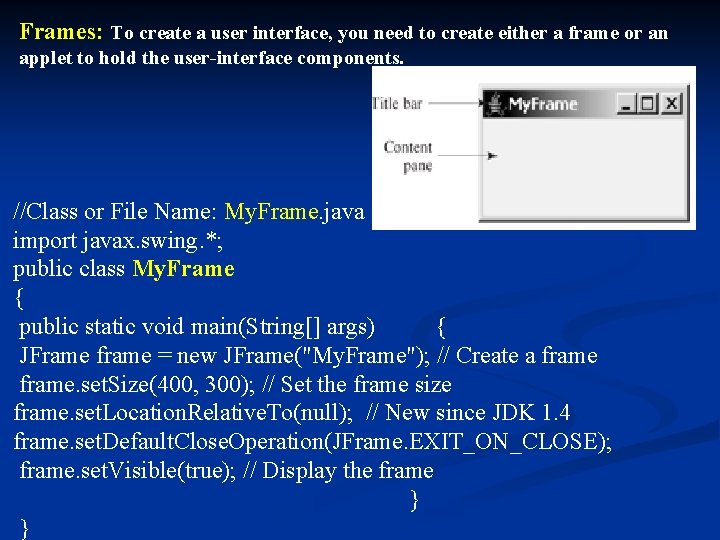
Frames: To create a user interface, you need to create either a frame or an applet to hold the user-interface components. //Class or File Name: My. Frame. java import javax. swing. *; public class My. Frame { public static void main(String[] args) { JFrame frame = new JFrame("My. Frame"); // Create a frame. set. Size(400, 300); // Set the frame size frame. set. Location. Relative. To(null); // New since JDK 1. 4 frame. set. Default. Close. Operation(JFrame. EXIT_ON_CLOSE); frame. set. Visible(true); // Display the frame } }
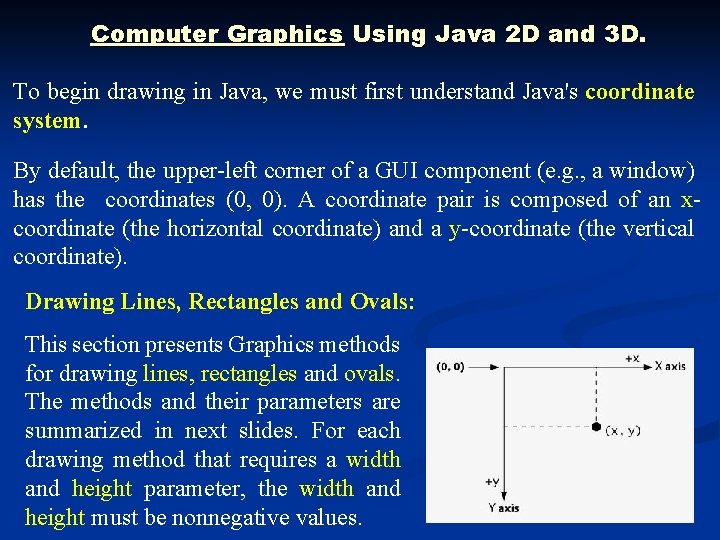
Computer Graphics Using Java 2 D and 3 D. To begin drawing in Java, we must first understand Java's coordinate system. By default, the upper-left corner of a GUI component (e. g. , a window) has the coordinates (0, 0). A coordinate pair is composed of an xcoordinate (the horizontal coordinate) and a y-coordinate (the vertical coordinate). Drawing Lines, Rectangles and Ovals: This section presents Graphics methods for drawing lines, rectangles and ovals. The methods and their parameters are summarized in next slides. For each drawing method that requires a width and height parameter, the width and height must be nonnegative values.
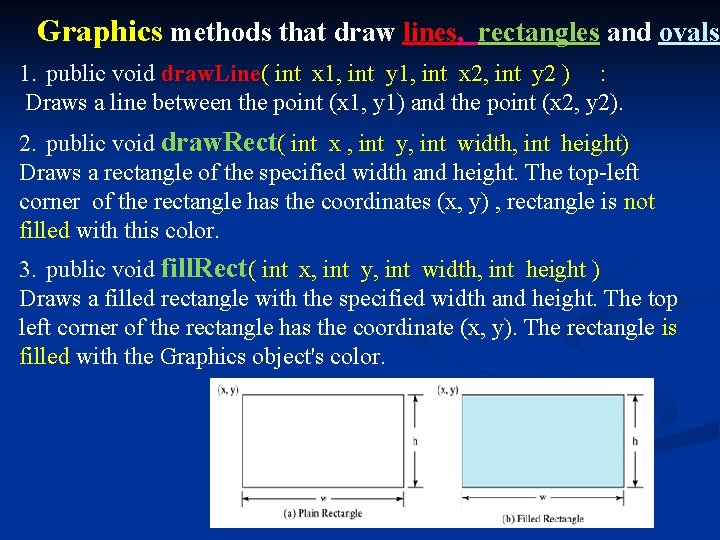
Graphics methods that draw lines, rectangles and ovals 1. public void draw. Line( int x 1, int y 1, int x 2, int y 2 ) : Draws a line between the point (x 1, y 1) and the point (x 2, y 2). 2. public void draw. Rect( int x , int y, int width, int height) Draws a rectangle of the specified width and height. The top-left corner of the rectangle has the coordinates (x, y) , rectangle is not filled with this color. 3. public void fill. Rect( int x, int y, int width, int height ) Draws a filled rectangle with the specified width and height. The top left corner of the rectangle has the coordinate (x, y). The rectangle is filled with the Graphics object's color.
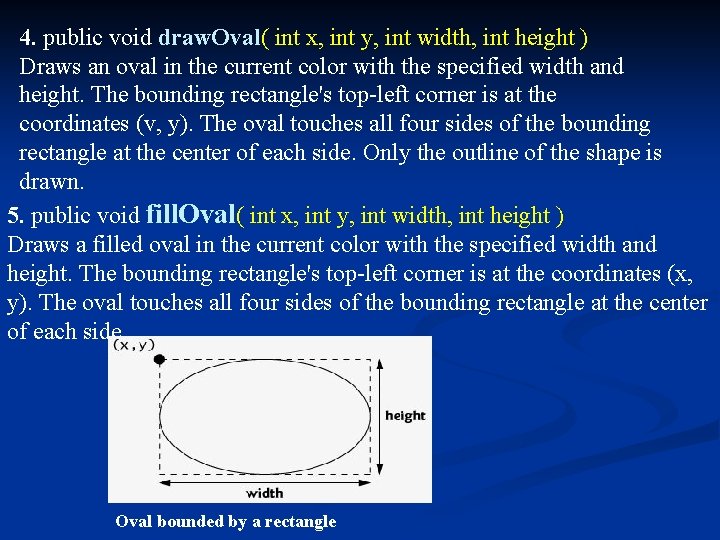
4. public void draw. Oval( int x, int y, int width, int height ) Draws an oval in the current color with the specified width and height. The bounding rectangle's top-left corner is at the coordinates (v, y). The oval touches all four sides of the bounding rectangle at the center of each side. Only the outline of the shape is drawn. 5. public void fill. Oval( int x, int y, int width, int height ) Draws a filled oval in the current color with the specified width and height. The bounding rectangle's top-left corner is at the coordinates (x, y). The oval touches all four sides of the bounding rectangle at the center of each side Oval bounded by a rectangle
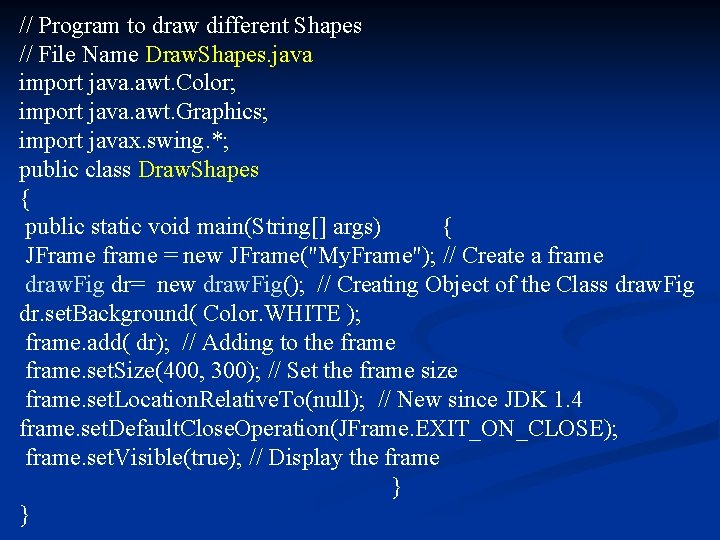
// Program to draw different Shapes // File Name Draw. Shapes. java import java. awt. Color; import java. awt. Graphics; import javax. swing. *; public class Draw. Shapes { public static void main(String[] args) { JFrame frame = new JFrame("My. Frame"); // Create a frame draw. Fig dr= new draw. Fig(); // Creating Object of the Class draw. Fig dr. set. Background( Color. WHITE ); frame. add( dr); // Adding to the frame. set. Size(400, 300); // Set the frame size frame. set. Location. Relative. To(null); // New since JDK 1. 4 frame. set. Default. Close. Operation(JFrame. EXIT_ON_CLOSE); frame. set. Visible(true); // Display the frame } }
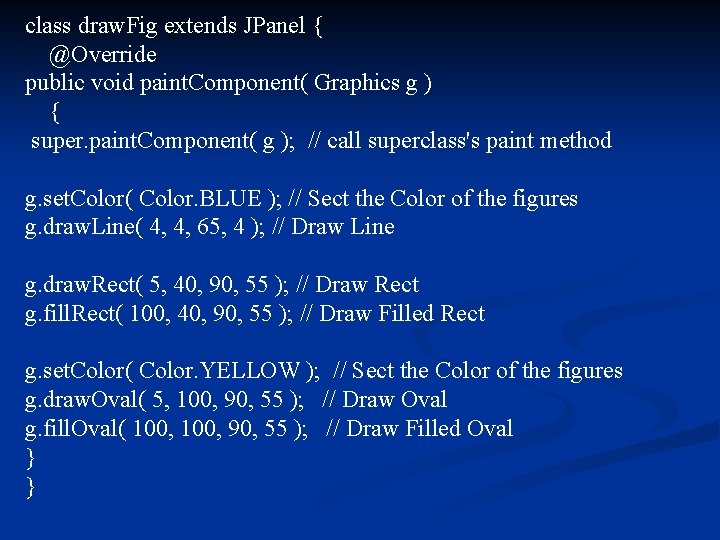
class draw. Fig extends JPanel { @Override public void paint. Component( Graphics g ) { super. paint. Component( g ); // call superclass's paint method g. set. Color( Color. BLUE ); // Sect the Color of the figures g. draw. Line( 4, 4, 65, 4 ); // Draw Line g. draw. Rect( 5, 40, 90, 55 ); // Draw Rect g. fill. Rect( 100, 40, 90, 55 ); // Draw Filled Rect g. set. Color( Color. YELLOW ); // Sect the Color of the figures g. draw. Oval( 5, 100, 90, 55 ); // Draw Oval g. fill. Oval( 100, 90, 55 ); // Draw Filled Oval } }
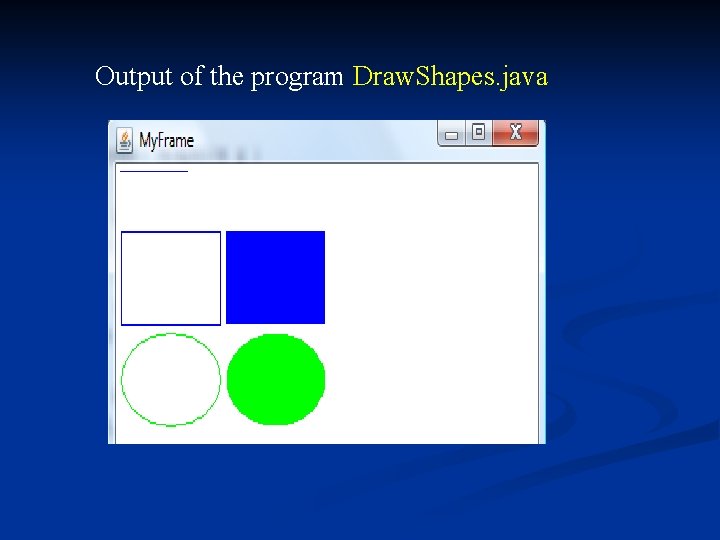
Output of the program Draw. Shapes. java
Pixels : the picture elements, or pixels is the smallest unit a computer can display. Pixels come in various sizes and shapes, depending upon the type of display that you are using, although from normal viewing distance they look like dots and alike. Plotting Points or Pixels: The Java language does not offer any way to draw points (pixels) but we can achieve it by using the draw. Line() method like this: draw. Line(int x 1, int y 1, int x 1, int y 1); That is, we use the same starting point and the ending point for x 1 and y 1. For example to plot a point at the 10 by 15 pixels away from the origin use: draw. Line(10, 15, 10, 15);
Objectives of the laboratory 1 Recognition Computer Graphics. n Swing. n create a user interface. n Recognition Drawing Lines, Rectangles and Ovals. n The difference between Draw and fill. n First programmable in Computer Graphics n

- Slides: 13