
CP 2030 Visual Basic for C Programmers v
CP 2030 Visual Basic for C++ Programmers v Component 9 working with text files and random access files CP 2030 Copyright © University of Wolverhampton Component 9, Slide 1
Aims and objectives Review the use of text files v Understand the structure of Random Access Files (RAF’s) v Use the various techniques available in Visual Basic to write to random access files. v Set the file read and write access for users and second users v CP 2030 Copyright © University of Wolverhampton Component 9, Slide 2
Useful functions for handling Drives, Directories and Files Ch. Drive v Ch. Dir v Cur. Dir$ v Mk. Dir v Rm. Dir v Dir$ v - CP 2030 Copyright © University of Wolverhampton Component 9, Slide 3
VB data files v v VB supports three kinds of data files – Sequential (text) files store data as ACII text. Characters are read from and stored to the file character by character (see VB 1) – Random-access files store data in special VB internal formats. Such files require rigid file structure – Binary files store data as individual bytes. No file structure exists, and no special internal formats are assumed we will review text files and look at random-access files this week and binary files later in the module CP 2030 Copyright © University of Wolverhampton Component 9, Slide 4

Sequential (Text) files v Commands for handling Text files: v Useful Functions/Statement – – Free. File Dir$ Tab Spc - CP 2030 Copyright © University of Wolverhampton Component 9, Slide 5
Opening Text Files Before you can use a file you must open it: v Opening for Input: v v Opening for Output: v Opening for Appending: CP 2030 Copyright © University of Wolverhampton Component 9, Slide 6
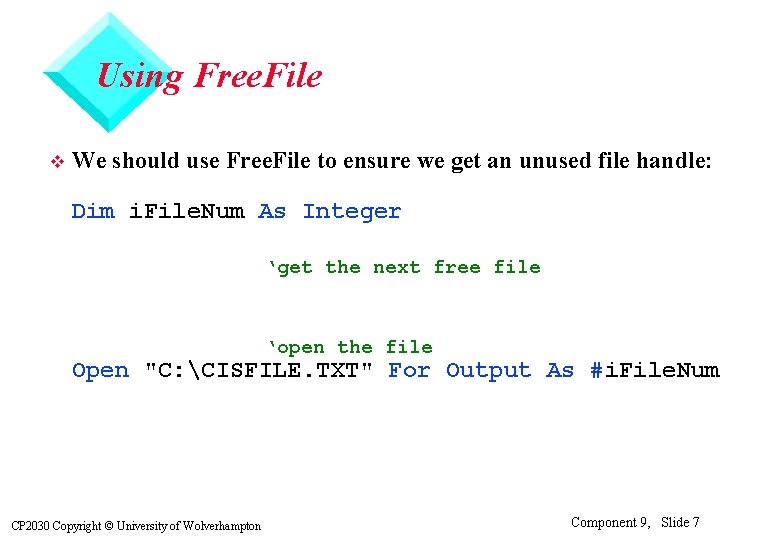
Using Free. File v We should use Free. File to ensure we get an unused file handle: Dim i. File. Num As Integer ‘get the next free file ‘open the file Open "C: CISFILE. TXT" For Output As #i. File. Num CP 2030 Copyright © University of Wolverhampton Component 9, Slide 7
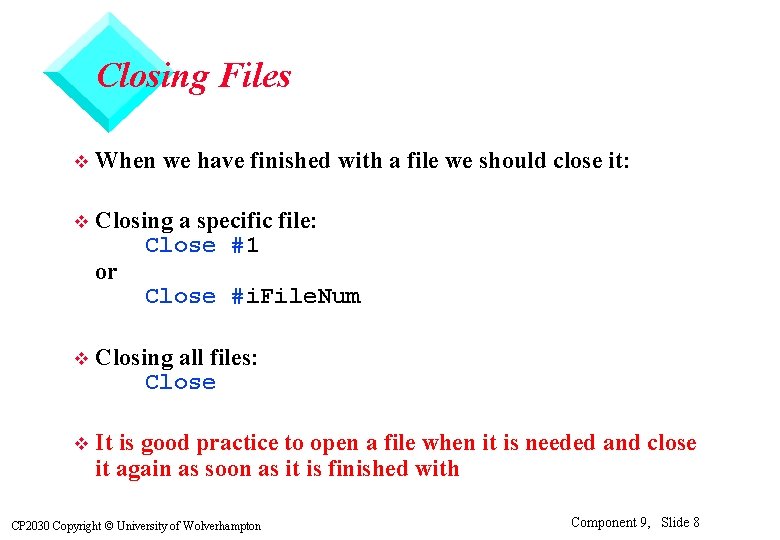
Closing Files v When we have finished with a file we should close it: v Closing a specific file: Close #1 or Close #i. File. Num v Closing all files: Close v It is good practice to open a file when it is needed and close it again as soon as it is finished with CP 2030 Copyright © University of Wolverhampton Component 9, Slide 8
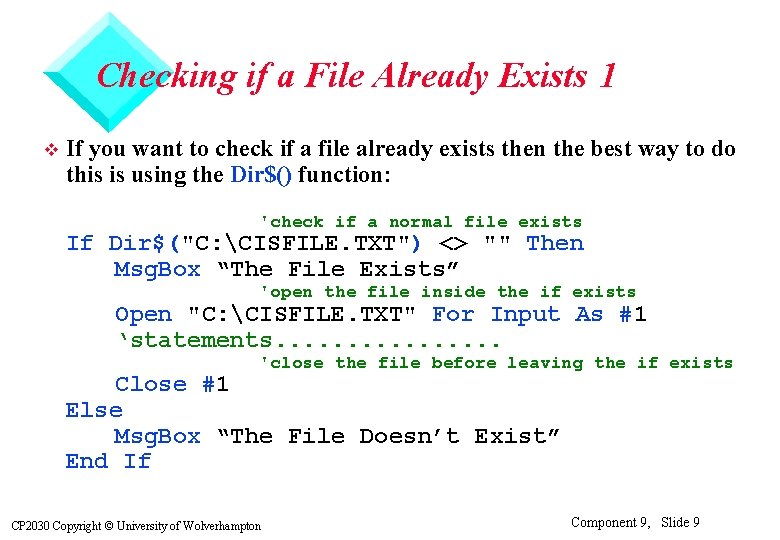
Checking if a File Already Exists 1 v If you want to check if a file already exists then the best way to do this is using the Dir$() function: 'check if a normal file exists If Dir$("C: CISFILE. TXT") <> "" Then Msg. Box “The File Exists” 'open the file inside the if exists Open "C: CISFILE. TXT" For Input As #1 ‘statements. . . . 'close the file before leaving the if exists Close #1 Else Msg. Box “The File Doesn’t Exist” End If CP 2030 Copyright © University of Wolverhampton Component 9, Slide 9

Checking if a File Already Exists 2 v You can also use symbolic file attribute constants: Symbolic Constant Value ATTR_NORMAL 0 ATTR_HIDDEN 2 ATTR_SYSTEM 4 ATTR_VOLUME 8 ATTR_DIRECTORY 16 Meaning 'check if a directory exists If Dir$("C: CISDIR", ATTR_DIRECTORY) <> "" Then Msg. Box “The Sub Directory Exists” End If v You can, of course, combine file attribute constants CP 2030 Copyright © University of Wolverhampton Component 9, Slide 10

Printing To Text Files 1 Once a file has been opened for Output or Appending we can either Print or Write information to it v Print # Statement: Open "TESTFILE. TXT" For Output As #1 Print #1, "Test of the Print # statement" v Print #1, ' Print blank line to file ' Print in two print zones i. Value = 12 Print #1, ”Value is", i. Value ' Print two strings together Print #1, "With no space between" ; ". " Close #1 CP 2030 Copyright © University of Wolverhampton Component 9, Slide 11
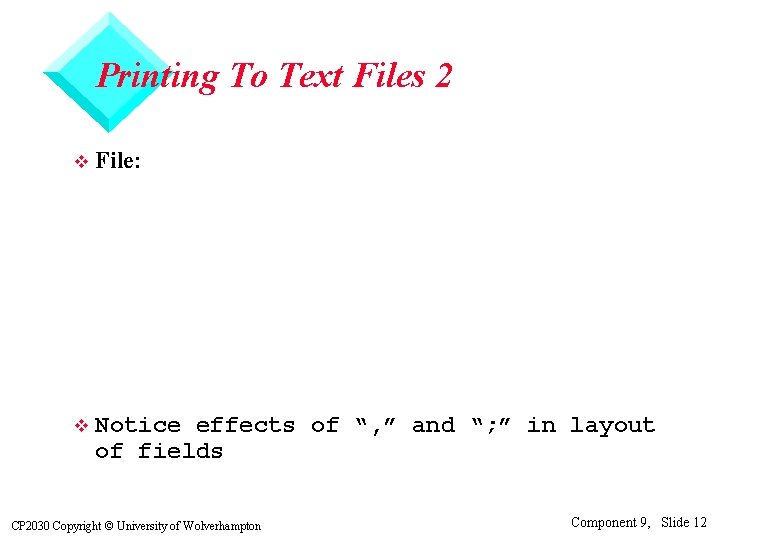
Printing To Text Files 2 v File: v Notice effects of “, ” and “; ” in layout of fields CP 2030 Copyright © University of Wolverhampton Component 9, Slide 12

Printing To Text Files - Tab Function v There are two functions available which can help the programmer with formatting the layout of a file when using Print # v Tab function: Open "TEST 2. TXT" For Output As #1 Print #1, "This is a Tab"; Tab(20); "function test. " Print #1, "Get the"; Tab(20); "idea? " Close #1 v File: This is a Tab Get the CP 2030 Copyright © University of Wolverhampton function test. idea? Component 9, Slide 13
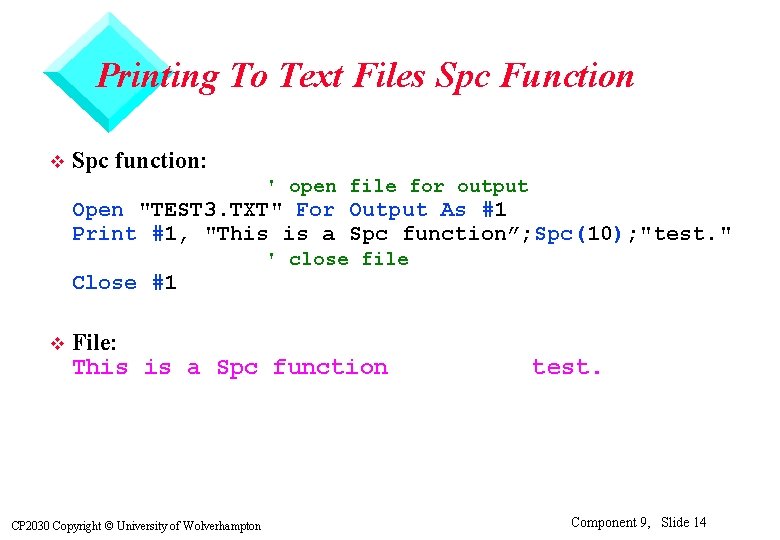
Printing To Text Files Spc Function v Spc function: ' open file for output Open "TEST 3. TXT" For Output As #1 Print #1, "This is a Spc function”; Spc(10); "test. " Close #1 v ' close file File: This is a Spc function CP 2030 Copyright © University of Wolverhampton test. Component 9, Slide 14
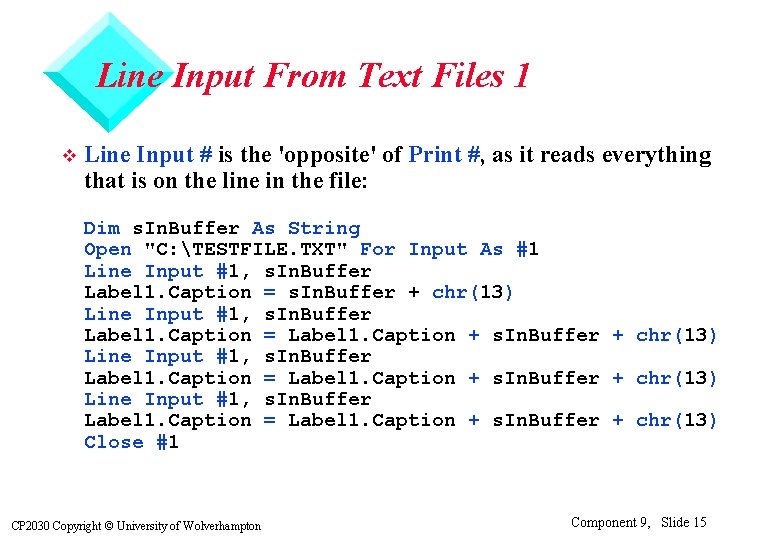
Line Input From Text Files 1 v Line Input # is the 'opposite' of Print #, as it reads everything that is on the line in the file: Dim s. In. Buffer As String Open "C: TESTFILE. TXT" For Input As #1 Line Input #1, s. In. Buffer Label 1. Caption = s. In. Buffer + chr(13) Line Input #1, s. In. Buffer Label 1. Caption = Label 1. Caption + s. In. Buffer + chr(13) Close #1 CP 2030 Copyright © University of Wolverhampton Component 9, Slide 15

Line Input From Text Files 2 v TESTFILE. TXT Test of the Print # statement Value is 12 With no space between. v Label 1. Caption = Test of the Print # statement Value is 12 With no space between. v Note: Data is read line-by-line; not as separate fields CP 2030 Copyright © University of Wolverhampton Component 9, Slide 16
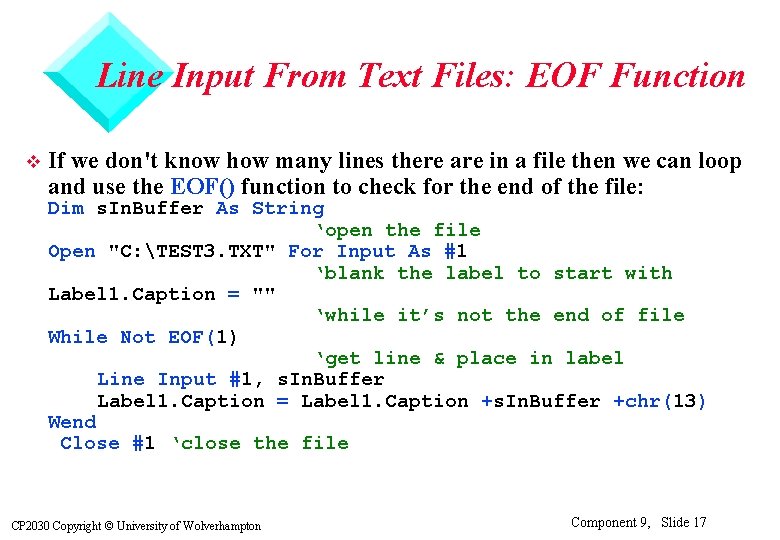
Line Input From Text Files: EOF Function v If we don't know how many lines there are in a file then we can loop and use the EOF() function to check for the end of the file: Dim s. In. Buffer As String ‘open the file Open "C: TEST 3. TXT" For Input As #1 ‘blank the label to start with Label 1. Caption = "" ‘while it’s not the end of file While Not EOF(1) ‘get line & place in label Line Input #1, s. In. Buffer Label 1. Caption = Label 1. Caption +s. In. Buffer +chr(13) Wend Close #1 ‘close the file CP 2030 Copyright © University of Wolverhampton Component 9, Slide 17
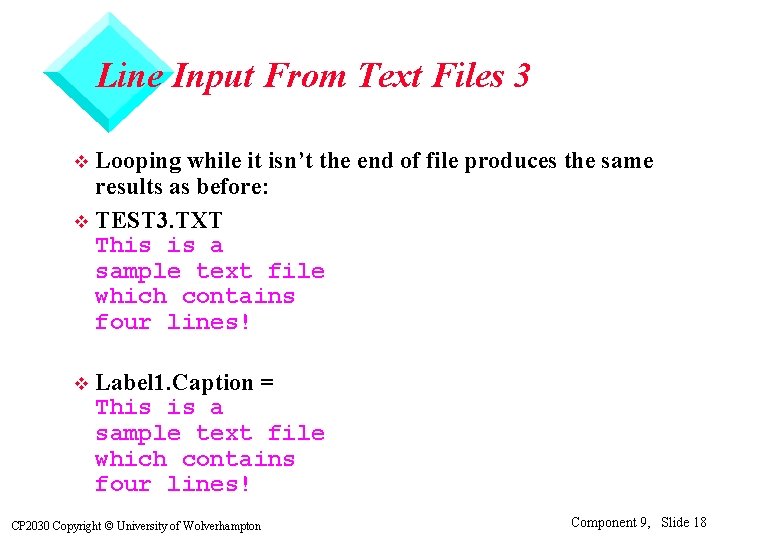
Line Input From Text Files 3 Looping while it isn’t the end of file produces the same results as before: v TEST 3. TXT This is a sample text file which contains four lines! v v Label 1. Caption = This is a sample text file which contains four lines! CP 2030 Copyright © University of Wolverhampton Component 9, Slide 18
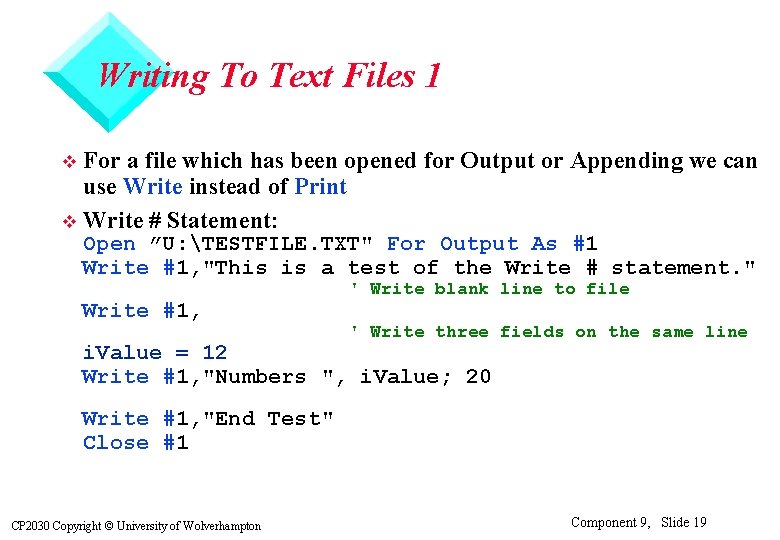
Writing To Text Files 1 For a file which has been opened for Output or Appending we can use Write instead of Print v Write # Statement: v Open ”U: TESTFILE. TXT" For Output As #1 Write #1, "This is a test of the Write # statement. " Write #1, ' Write blank line to file ' Write three fields on the same line i. Value = 12 Write #1, "Numbers ", i. Value; 20 Write #1, "End Test" Close #1 CP 2030 Copyright © University of Wolverhampton Component 9, Slide 19
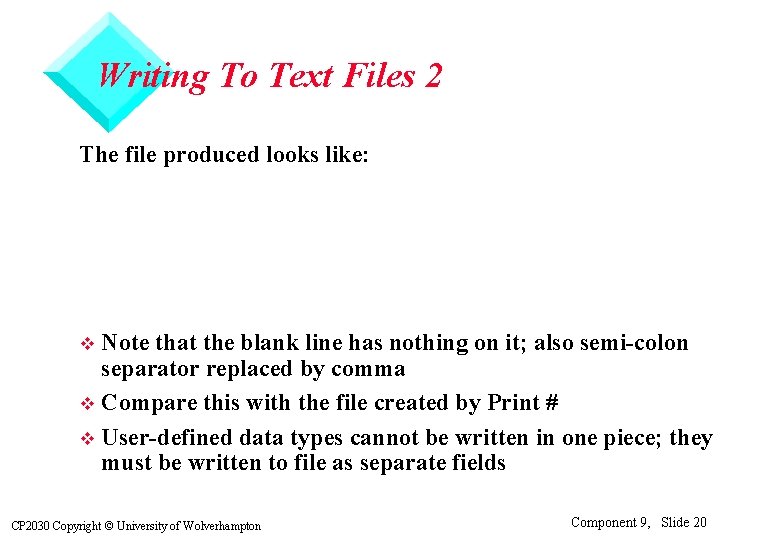
Writing To Text Files 2 The file produced looks like: Note that the blank line has nothing on it; also semi-colon separator replaced by comma v Compare this with the file created by Print # v User-defined data types cannot be written in one piece; they must be written to file as separate fields v CP 2030 Copyright © University of Wolverhampton Component 9, Slide 20
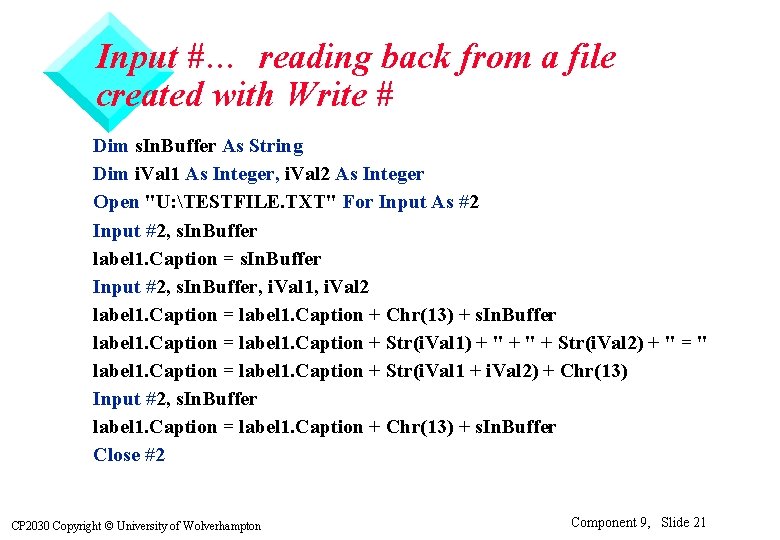
Input #… reading back from a file created with Write # Dim s. In. Buffer As String Dim i. Val 1 As Integer, i. Val 2 As Integer Open "U: TESTFILE. TXT" For Input As #2 Input #2, s. In. Buffer label 1. Caption = s. In. Buffer Input #2, s. In. Buffer, i. Val 1, i. Val 2 label 1. Caption = label 1. Caption + Chr(13) + s. In. Buffer label 1. Caption = label 1. Caption + Str(i. Val 1) + " + Str(i. Val 2) + " = " label 1. Caption = label 1. Caption + Str(i. Val 1 + i. Val 2) + Chr(13) Input #2, s. In. Buffer label 1. Caption = label 1. Caption + Chr(13) + s. In. Buffer Close #2 CP 2030 Copyright © University of Wolverhampton Component 9, Slide 21
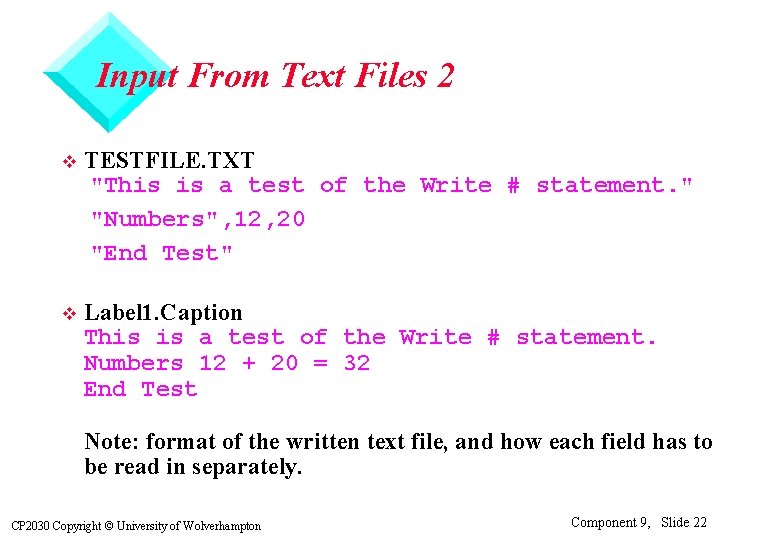
Input From Text Files 2 v TESTFILE. TXT "This is a test of the Write # statement. " "Numbers", 12, 20 "End Test" v Label 1. Caption This is a test of the Write # statement. Numbers 12 + 20 = 32 End Test Note: format of the written text file, and how each field has to be read in separately. CP 2030 Copyright © University of Wolverhampton Component 9, Slide 22
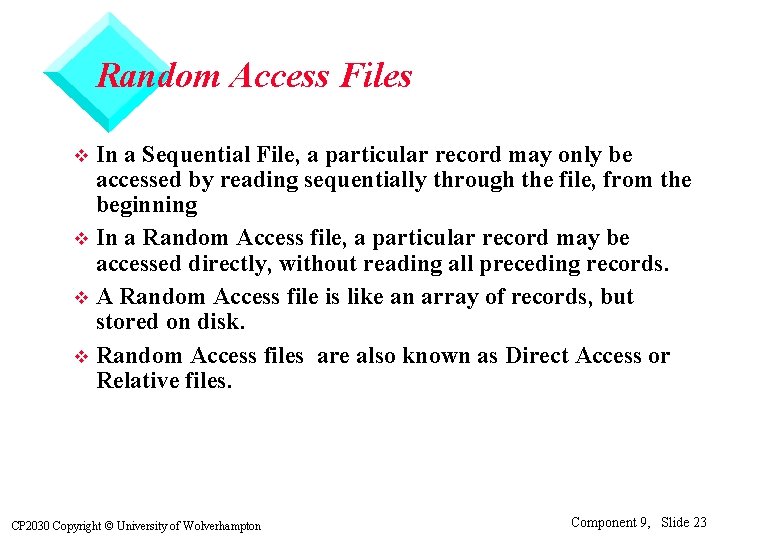
Random Access Files In a Sequential File, a particular record may only be accessed by reading sequentially through the file, from the beginning v In a Random Access file, a particular record may be accessed directly, without reading all preceding records. v A Random Access file is like an array of records, but stored on disk. v Random Access files are also known as Direct Access or Relative files. v CP 2030 Copyright © University of Wolverhampton Component 9, Slide 23
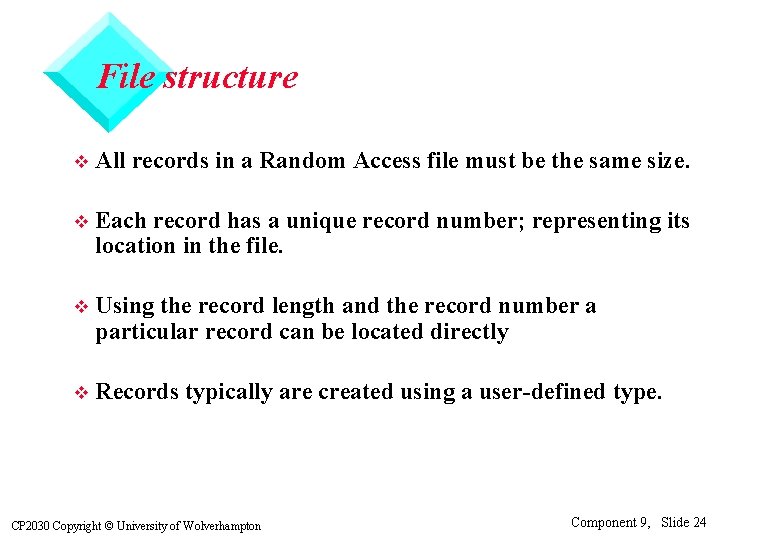
File structure v All records in a Random Access file must be the same size. v Each record has a unique record number; representing its location in the file. v Using the record length and the record number a particular record can be located directly v Records typically are created using a user-defined type. CP 2030 Copyright © University of Wolverhampton Component 9, Slide 24
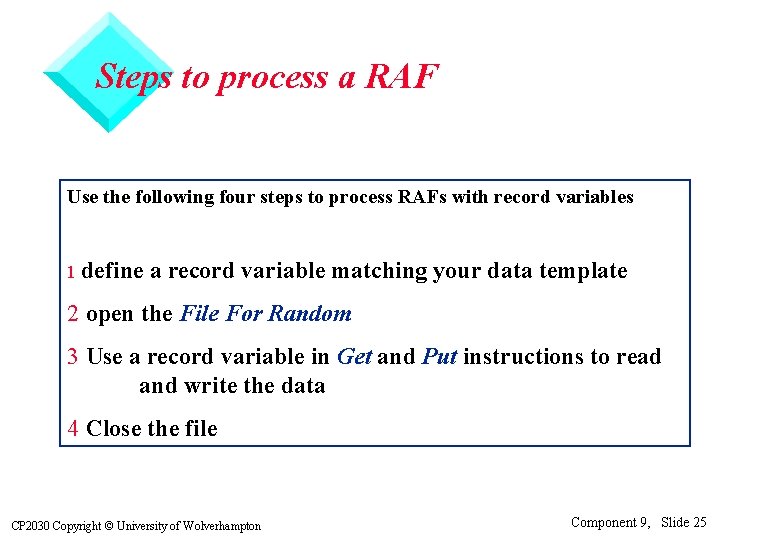
Steps to process a RAF Use the following four steps to process RAFs with record variables 1 define a record variable matching your data template 2 open the File For Random 3 Use a record variable in Get and Put instructions to read and write the data 4 Close the file CP 2030 Copyright © University of Wolverhampton Component 9, Slide 25
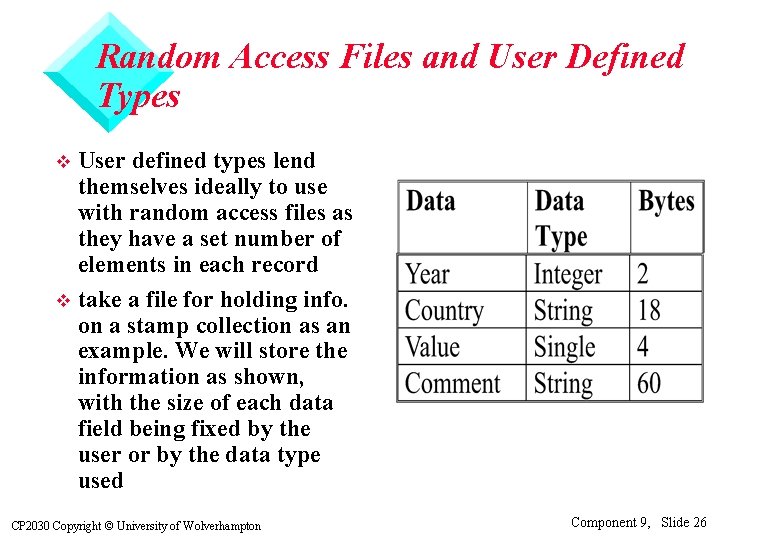
Random Access Files and User Defined Types User defined types lend themselves ideally to use with random access files as they have a set number of elements in each record v take a file for holding info. on a stamp collection as an example. We will store the information as shown, with the size of each data field being fixed by the user or by the data type used v CP 2030 Copyright © University of Wolverhampton Component 9, Slide 26
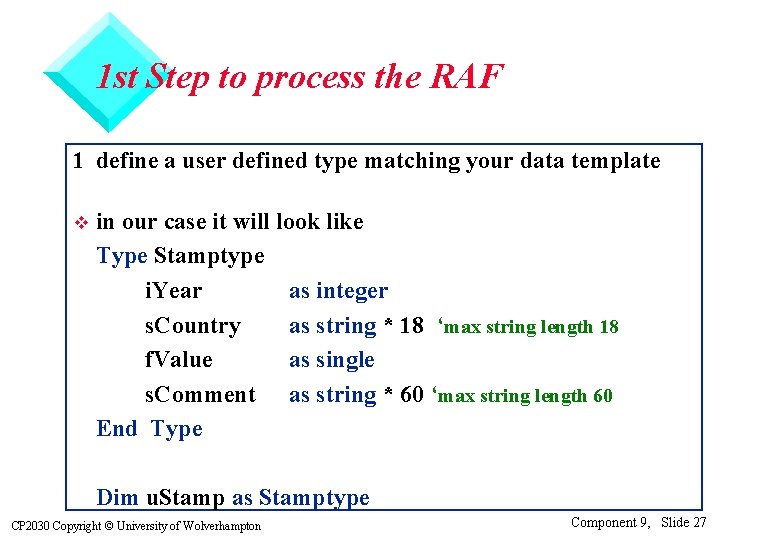
1 st Step to process the RAF 1 define a user defined type matching your data template v in our case it will look like Type Stamptype i. Year as integer s. Country as string * 18 ‘max string length 18 f. Value as single s. Comment as string * 60 ‘max string length 60 End Type Dim u. Stamp as Stamptype CP 2030 Copyright © University of Wolverhampton Component 9, Slide 27
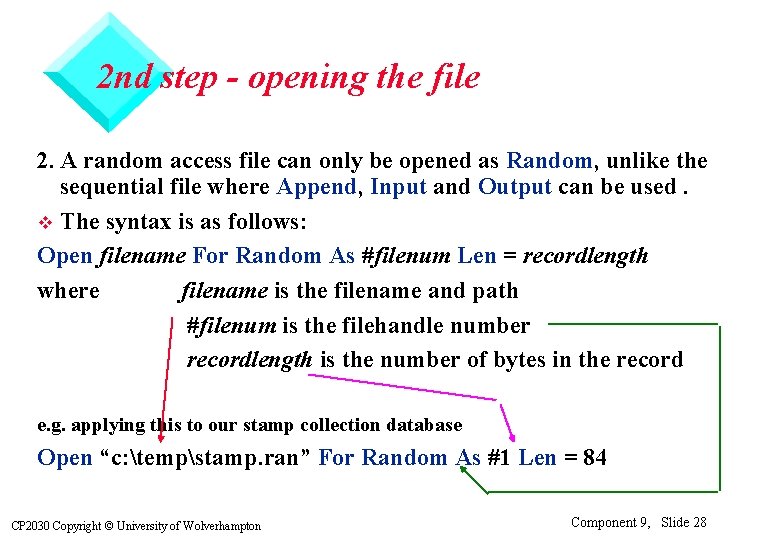
2 nd step - opening the file 2. A random access file can only be opened as Random, unlike the sequential file where Append, Input and Output can be used. v The syntax is as follows: Open filename For Random As #filenum Len = recordlength where filename is the filename and path #filenum is the filehandle number recordlength is the number of bytes in the record e. g. applying this to our stamp collection database Open “c: tempstamp. ran” For Random As #1 Len = 84 CP 2030 Copyright © University of Wolverhampton Component 9, Slide 28
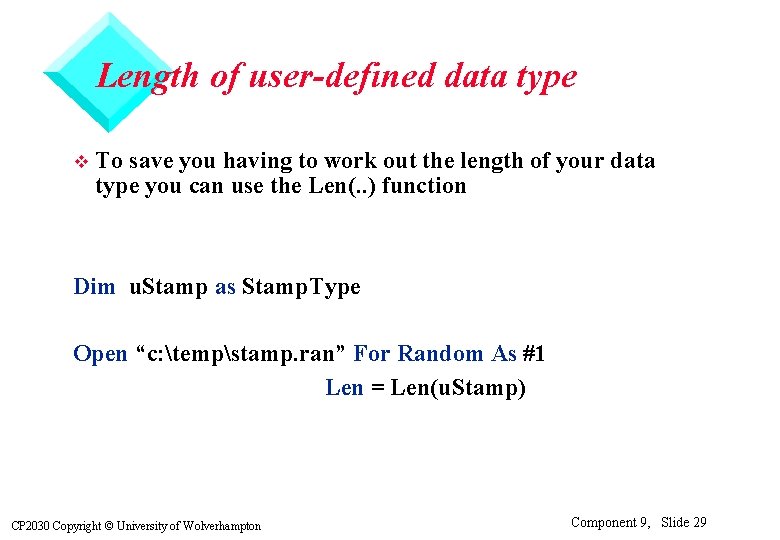
Length of user-defined data type v To save you having to work out the length of your data type you can use the Len(. . ) function Dim u. Stamp as Stamp. Type Open “c: tempstamp. ran” For Random As #1 Len = Len(u. Stamp) CP 2030 Copyright © University of Wolverhampton Component 9, Slide 29
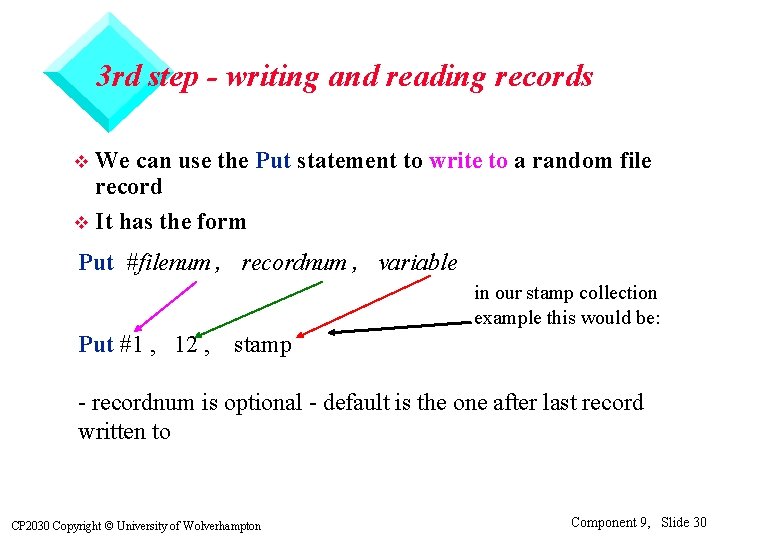
3 rd step - writing and reading records We can use the Put statement to write to a random file record v It has the form v Put #filenum , recordnum , variable in our stamp collection example this would be: Put #1 , 12 , stamp - recordnum is optional - default is the one after last record written to CP 2030 Copyright © University of Wolverhampton Component 9, Slide 30
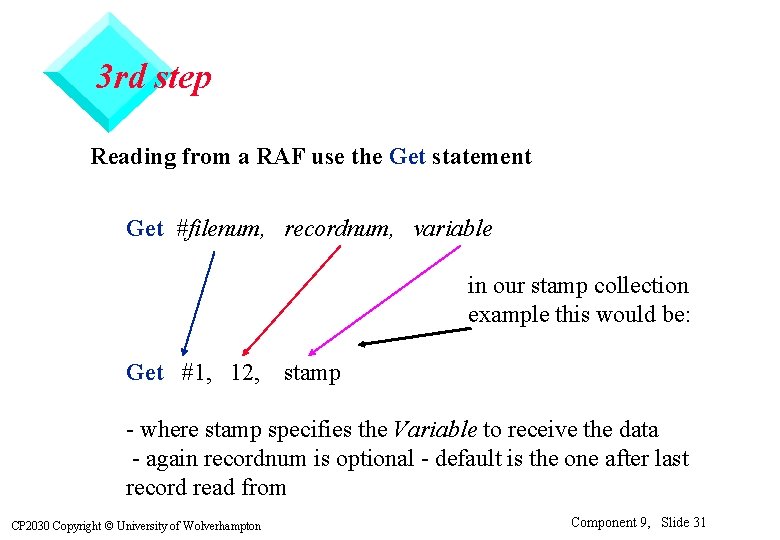
3 rd step Reading from a RAF use the Get statement Get #filenum, recordnum, variable in our stamp collection example this would be: Get #1, 12, stamp - where stamp specifies the Variable to receive the data - again recordnum is optional - default is the one after last record read from CP 2030 Copyright © University of Wolverhampton Component 9, Slide 31
More info on Recordnum As the file is random access - recordnum can be any value above 0. v You can Put data to record number 12 when you have only written data records 1 to 4 previously. v You can Get data from any existing record by specifying its number v CP 2030 Copyright © University of Wolverhampton Component 9, Slide 32
4 th step - closing the file As with all file handling work it is important to Close the file when all i/o activity has finished format Close #filenum e. g. Close #1 CP 2030 Copyright © University of Wolverhampton Component 9, Slide 33
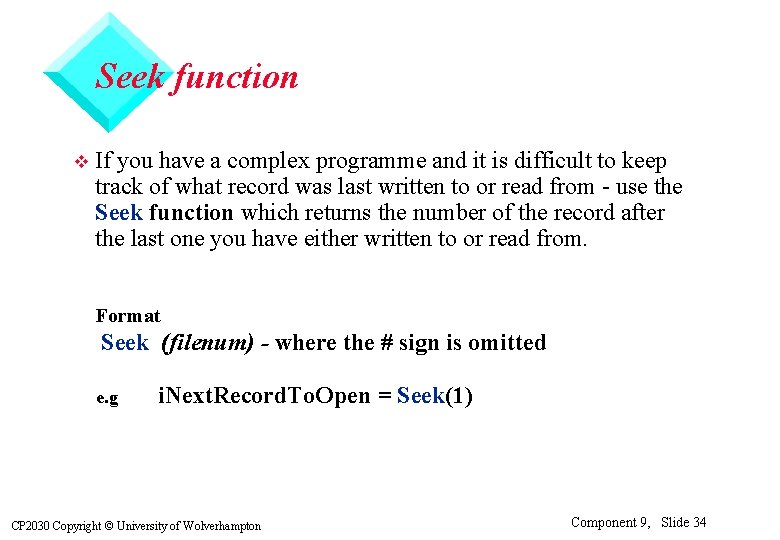
Seek function v If you have a complex programme and it is difficult to keep track of what record was last written to or read from - use the Seek function which returns the number of the record after the last one you have either written to or read from. Format Seek (filenum) - where the # sign is omitted e. g i. Next. Record. To. Open = Seek(1) CP 2030 Copyright © University of Wolverhampton Component 9, Slide 34
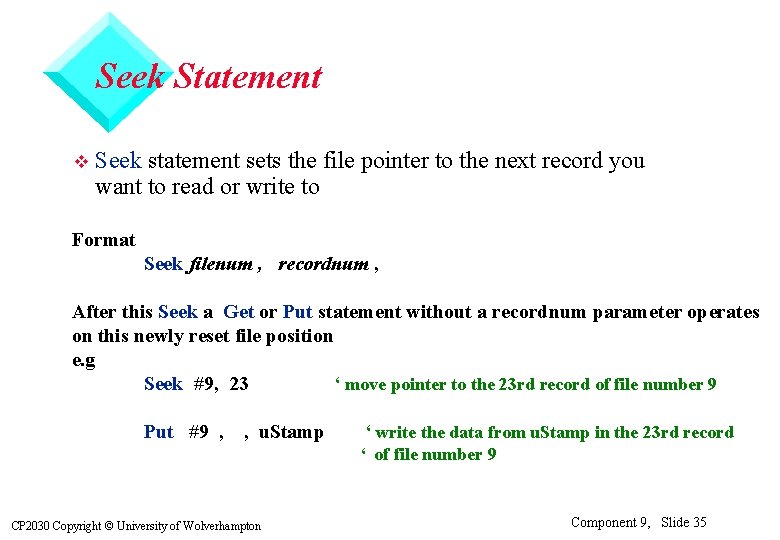
Seek Statement v Seek statement sets the file pointer to the next record you want to read or write to Format Seek filenum , recordnum , After this Seek a Get or Put statement without a recordnum parameter operates on this newly reset file position e. g Seek #9, 23 ‘ move pointer to the 23 rd record of file number 9 Put #9 , , u. Stamp ‘ write the data from u. Stamp in the 23 rd record ‘ of file number 9 CP 2030 Copyright © University of Wolverhampton Component 9, Slide 35
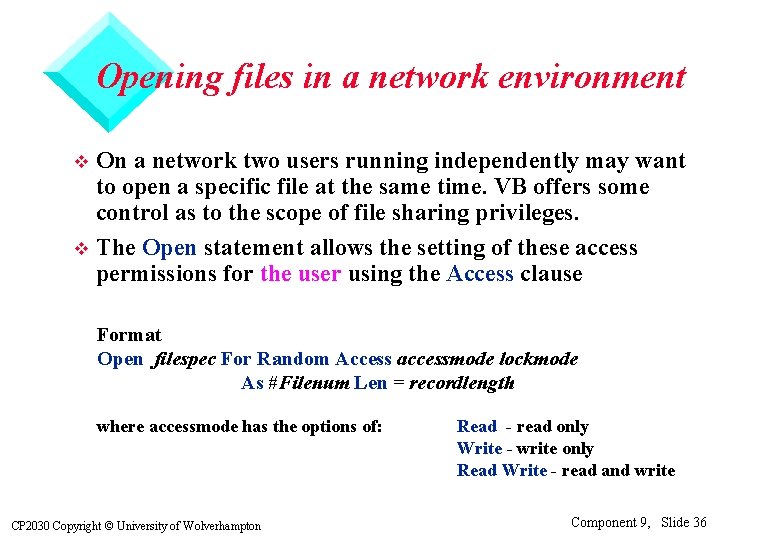
Opening files in a network environment On a network two users running independently may want to open a specific file at the same time. VB offers some control as to the scope of file sharing privileges. v The Open statement allows the setting of these access permissions for the user using the Access clause v Format Open filespec For Random Access accessmode lockmode As #Filenum Len = recordlength where accessmode has the options of: CP 2030 Copyright © University of Wolverhampton Read - read only Write - write only Read Write - read and write Component 9, Slide 36
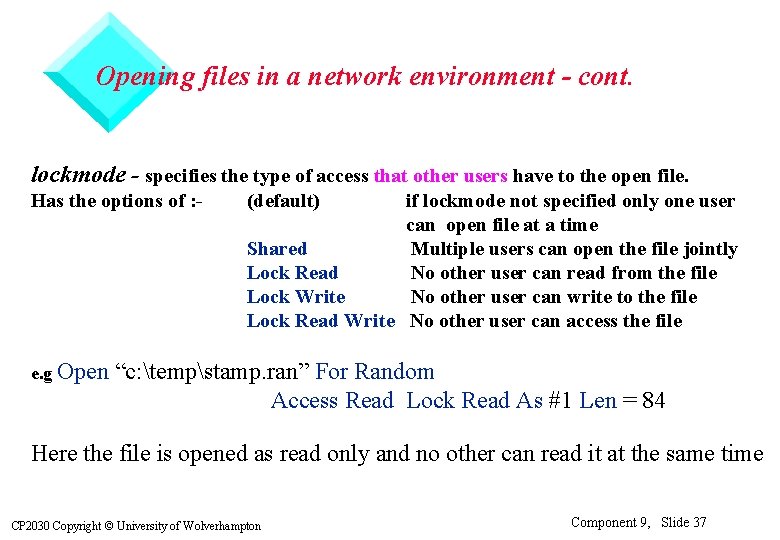
Opening files in a network environment - cont. lockmode - specifies the type of access that other users have to the open file. Has the options of : - e. g Open (default) if lockmode not specified only one user can open file at a time Shared Multiple users can open the file jointly Lock Read No other user can read from the file Lock Write No other user can write to the file Lock Read Write No other user can access the file “c: tempstamp. ran” For Random Access Read Lock Read As #1 Len = 84 Here the file is opened as read only and no other can read it at the same time CP 2030 Copyright © University of Wolverhampton Component 9, Slide 37
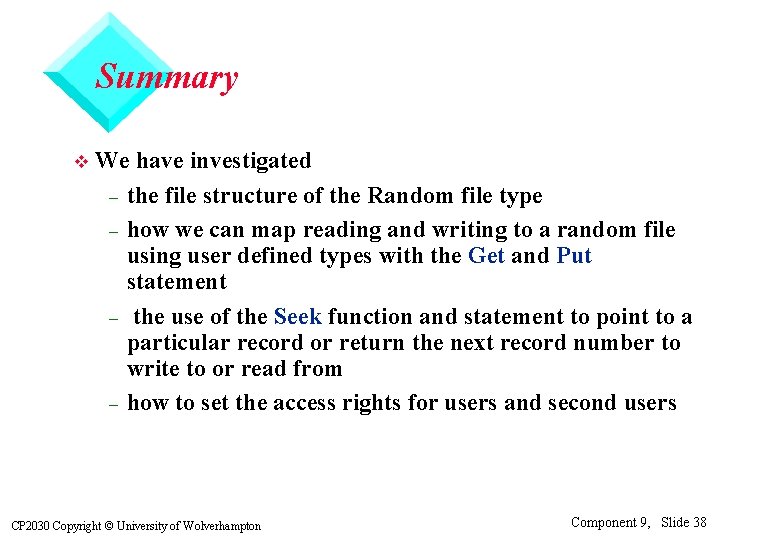
Summary v We have investigated – the file structure of the Random file type – how we can map reading and writing to a random file using user defined types with the Get and Put statement – the use of the Seek function and statement to point to a particular record or return the next record number to write to or read from – how to set the access rights for users and second users CP 2030 Copyright © University of Wolverhampton Component 9, Slide 38
- Slides: 38