
CP 2030 VBFC Lecture 3 Back To Index
CP 2030 VBFC Lecture 3 Back To Index v If - Then Statement v Select Case v User defined Types v Dialog boxes : Message boxes, Input boxes v Menu Designer CP 2030 Visual Basic For C++ Programmers Copyright © University of Wolverhampton Lec 3 P 1
Syntax: If. . . Then. . . Statement v In Visual Basic the statement has two main forms, in both the condition is held inside normal (curved) brackets v Single line form 1: If. . . Then. . . If ( condition ) Then {actions when condition is TRUE} v Example: If (i. Marks<40) Then Label 3. Caption = "Fail" CP 2030 Visual Basic For C++ Programmers Copyright © University of Wolverhampton Lec 3 P 2

Syntax: If. . . Then. . . Else. . . Statement v Single line form 2: If. . . Then. . . Else. . . If ( condition ) Then {TRUE action} Else {FALSE action} v Example: If (i. Marks<40) Then Label 3. Caption = "Fail" Else Label 3. Caption = "Pass" v This form is really present to aid backwards compatibility v It is VERY BAD practice as it is detrimental to the understandability of the code, you should NOT use it! CP 2030 Visual Basic For C++ Programmers Copyright © University of Wolverhampton Lec 3 P 3
Syntax: If. . . Then. . . Statement Block Form In C: Students to add code v Allows more than one action (statement) as part of a condition. Allows selections to be nested In VB: Students to add code CP 2030 Visual Basic For C++ Programmers Copyright © University of Wolverhampton Lec 3 P 4
v As in C - if the result of the condition is true (non zero value) statements are executed. Hence non zero - TRUE zero - FALSE Unlike C the ‘=‘ symbol is used for both assignment and as an operator. v C uses : Students to add code v CP 2030 Visual Basic For C++ Programmers Copyright © University of Wolverhampton Lec 3 P 5
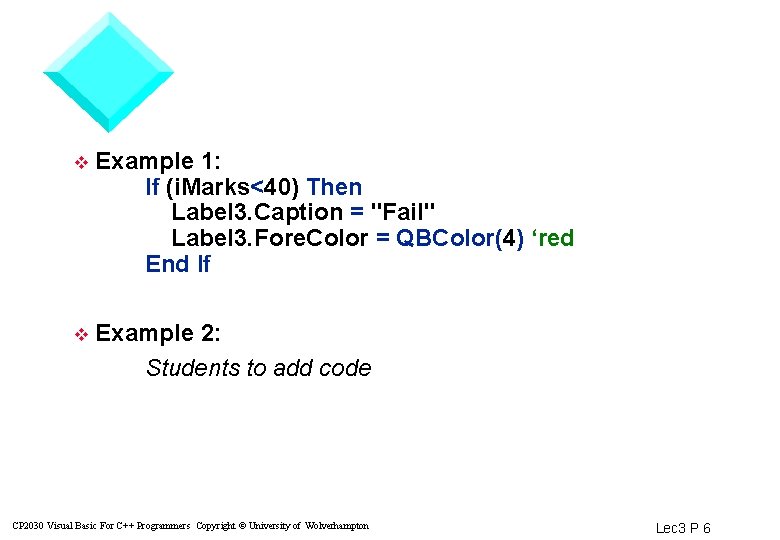
v Example 1: If (i. Marks<40) Then Label 3. Caption = "Fail" Label 3. Fore. Color = QBColor(4) ‘red End If v Example 2: Students to add code CP 2030 Visual Basic For C++ Programmers Copyright © University of Wolverhampton Lec 3 P 6
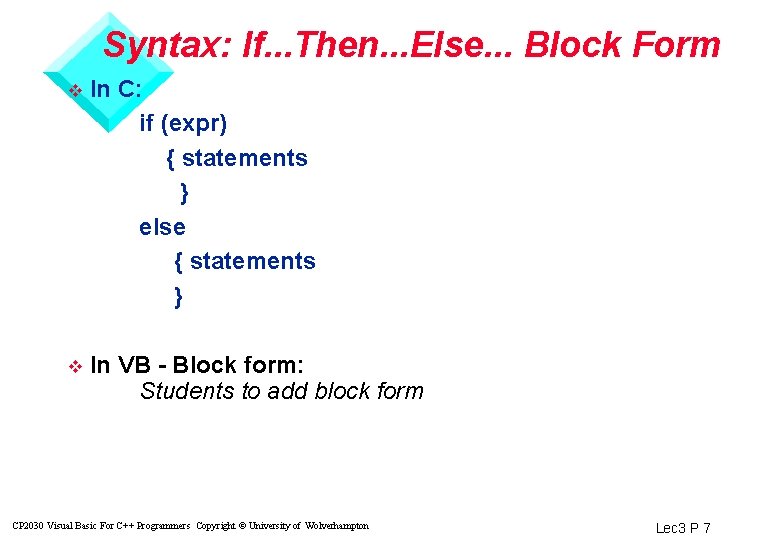
Syntax: If. . . Then. . . Else. . . Block Form v In C: if (expr) { statements } else { statements } v In VB - Block form: Students to add block form CP 2030 Visual Basic For C++ Programmers Copyright © University of Wolverhampton Lec 3 P 7

v Example: If (i. Marks<40) Then Label 3. Caption = "Fail" Label 3. Fore. Color = QBColor(4) ‘red Else Label 3. Caption = "Pass" Label 3. Fore. Color = QBColor(1) ‘blue End If CP 2030 Visual Basic For C++ Programmers Copyright © University of Wolverhampton Lec 3 P 8
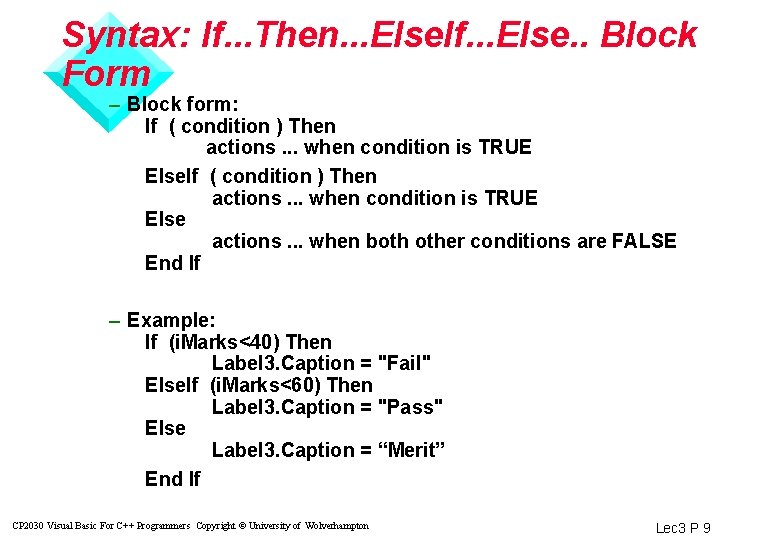
Syntax: If. . . Then. . . Else. If. . . Else. . Block Form – Block form: If ( condition ) Then actions. . . when condition is TRUE Else actions. . . when both other conditions are FALSE End If – Example: If (i. Marks<40) Then Label 3. Caption = "Fail" Else. If (i. Marks<60) Then Label 3. Caption = "Pass" Else Label 3. Caption = “Merit” End If CP 2030 Visual Basic For C++ Programmers Copyright © University of Wolverhampton Lec 3 P 9
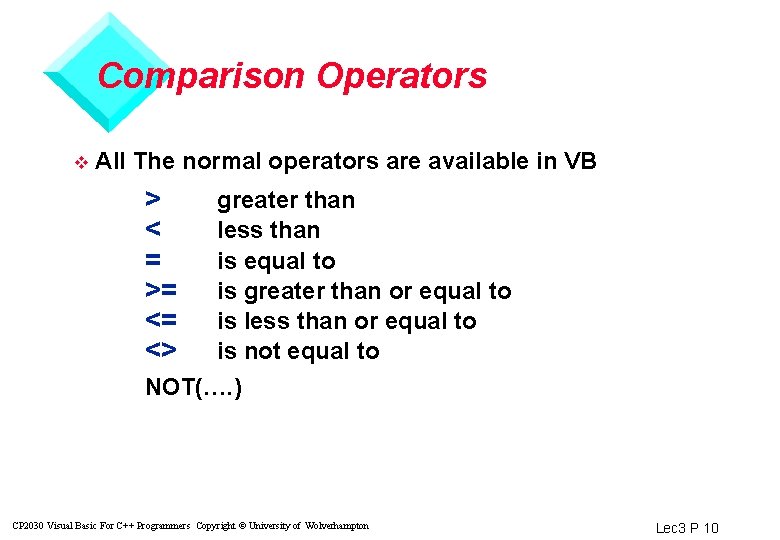
Comparison Operators v All The normal operators are available in VB > < = >= <= <> greater than less than is equal to is greater than or equal to is less than or equal to is not equal to NOT(…. ) CP 2030 Visual Basic For C++ Programmers Copyright © University of Wolverhampton Lec 3 P 10
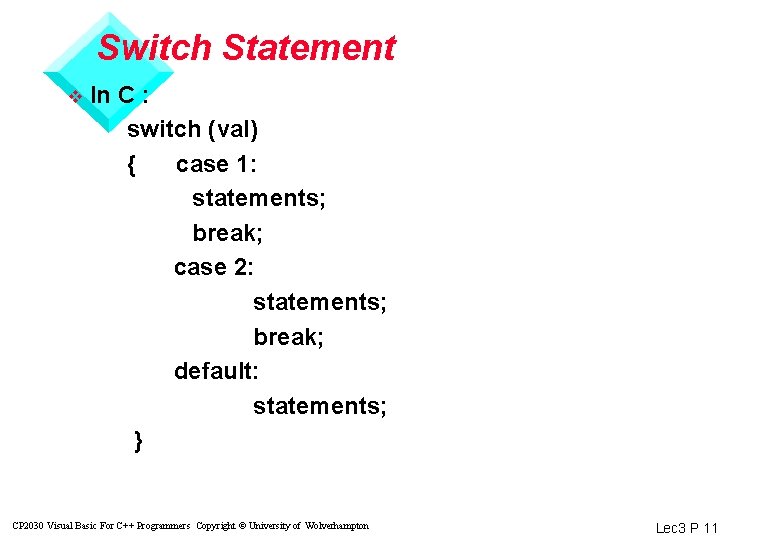
Switch Statement v In C : switch (val) { case 1: statements; break; case 2: statements; break; default: statements; } CP 2030 Visual Basic For C++ Programmers Copyright © University of Wolverhampton Lec 3 P 11
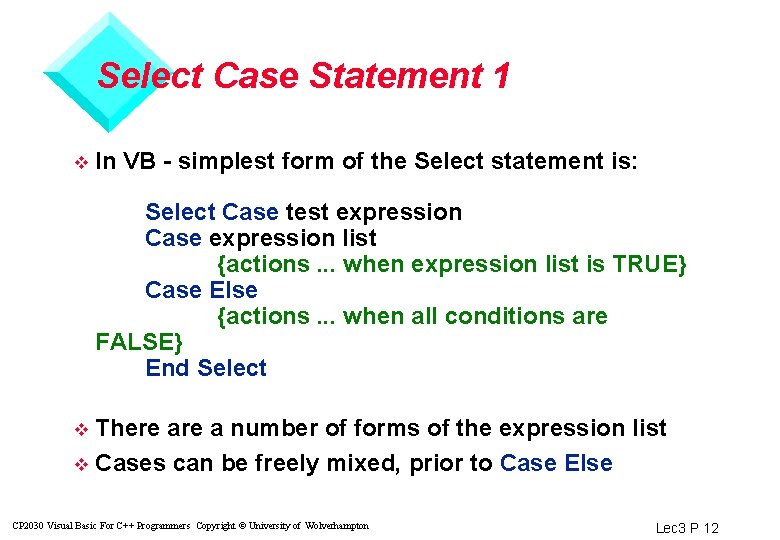
Select Case Statement 1 v In VB - simplest form of the Select statement is: Select Case test expression Case expression list {actions. . . when expression list is TRUE} Case Else {actions. . . when all conditions are FALSE} End Select There a number of forms of the expression list v Cases can be freely mixed, prior to Case Else v CP 2030 Visual Basic For C++ Programmers Copyright © University of Wolverhampton Lec 3 P 12
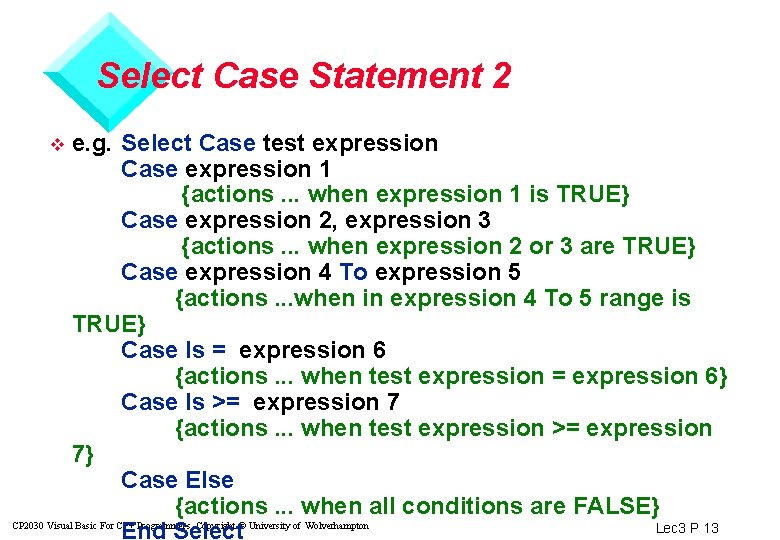
Select Case Statement 2 e. g. Select Case test expression Case expression 1 {actions. . . when expression 1 is TRUE} Case expression 2, expression 3 {actions. . . when expression 2 or 3 are TRUE} Case expression 4 To expression 5 {actions. . . when in expression 4 To 5 range is TRUE} Case Is = expression 6 {actions. . . when test expression = expression 6} Case Is >= expression 7 {actions. . . when test expression >= expression 7} Case Else {actions. . . when all conditions are FALSE} CP 2030 Visual Basic For C++ Programmers Copyright © University of Wolverhampton Lec 3 P 13 End Select v
Syntax: Select Case Statement v Students to add case syntax eg CP 2030 Visual Basic For C++ Programmers Copyright © University of Wolverhampton Lec 3 P 14
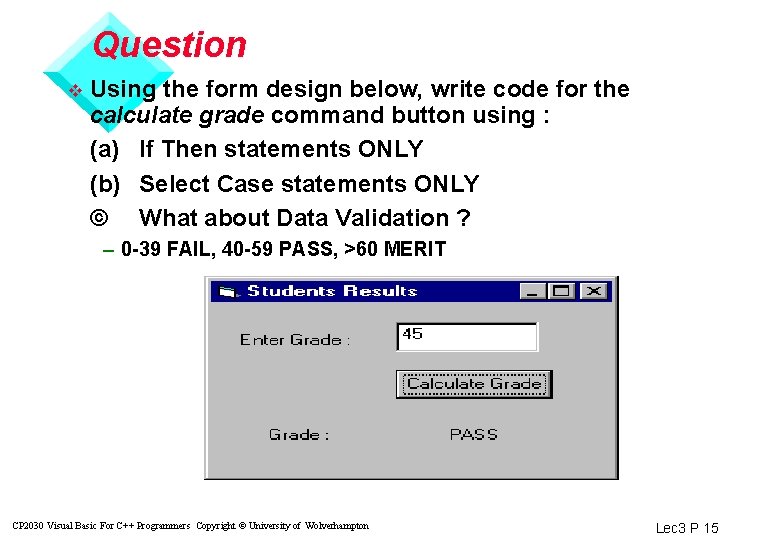
Question v Using the form design below, write code for the calculate grade command button using : (a) If Then statements ONLY (b) Select Case statements ONLY © What about Data Validation ? – 0 -39 FAIL, 40 -59 PASS, >60 MERIT CP 2030 Visual Basic For C++ Programmers Copyright © University of Wolverhampton Lec 3 P 15
User Defined Types - Overview C++ Data Structures Pascal/Delphi - Records VB User defined types v Used to hold a group of related data under one name v eg. Students to add examples CP 2030 Visual Basic For C++ Programmers Copyright © University of Wolverhampton Lec 3 P 16
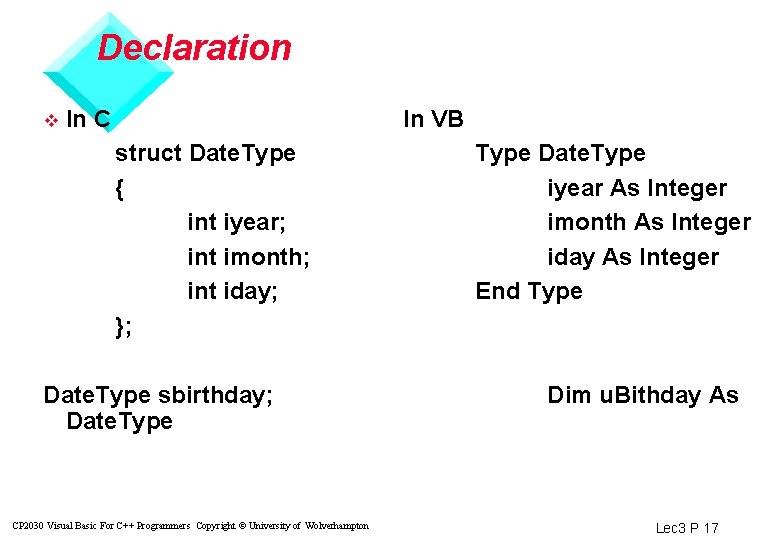
Declaration v In C In VB struct Date. Type { int iyear; int imonth; int iday; }; Date. Type sbirthday; Date. Type CP 2030 Visual Basic For C++ Programmers Copyright © University of Wolverhampton Type Date. Type iyear As Integer imonth As Integer iday As Integer End Type Dim u. Bithday As Lec 3 P 17
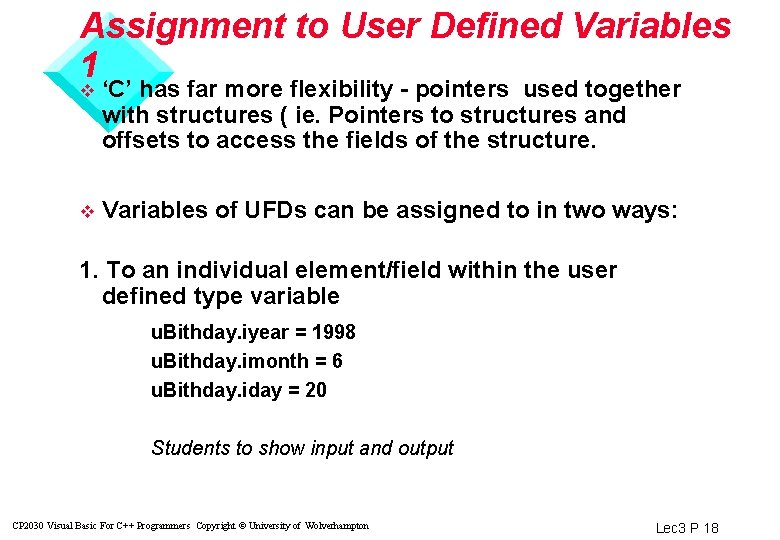
Assignment to User Defined Variables 1 v ‘C’ has far more flexibility - pointers used together with structures ( ie. Pointers to structures and offsets to access the fields of the structure. v Variables of UFDs can be assigned to in two ways: 1. To an individual element/field within the user defined type variable u. Bithday. iyear = 1998 u. Bithday. imonth = 6 u. Bithday. iday = 20 Students to show input and output CP 2030 Visual Basic For C++ Programmers Copyright © University of Wolverhampton Lec 3 P 18
Assignment to User Defined Variables 2 2. To the user defined type variable as a whole: v Both variables involved in the assignment must be of the same user defined type u. New. Book = u. Old. Book Both u. New. Book and u. Old. Book are of the user defined type Book. Type v This would assign all of the elements/fields of u. Old. Book to their respective element/field in u. New. Book v CP 2030 Visual Basic For C++ Programmers Copyright © University of Wolverhampton Lec 3 P 19
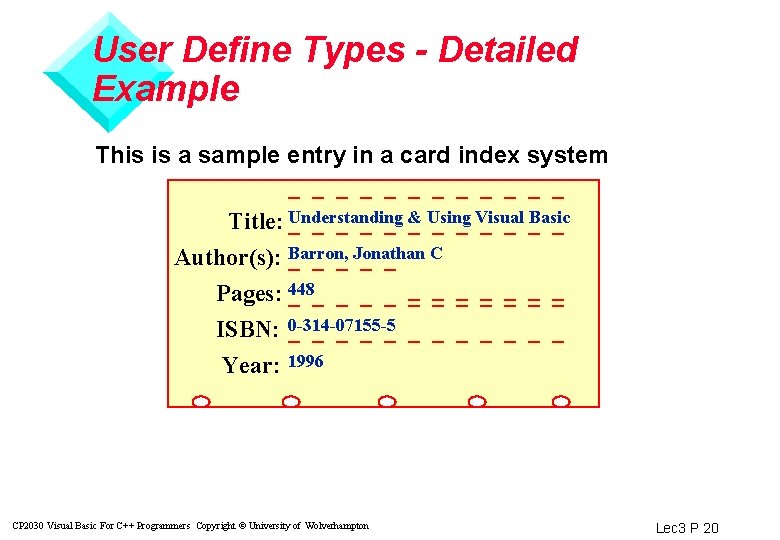
User Define Types - Detailed Example This is a sample entry in a card index system Title: Understanding & Using Visual Basic Author(s): Barron, Jonathan C Pages: 448 ISBN: 0 -314 -07155 -5 Year: 1996 CP 2030 Visual Basic For C++ Programmers Copyright © University of Wolverhampton Lec 3 P 20
Creating a User Defined Data Type v Students to add notes CP 2030 Visual Basic For C++ Programmers Copyright © University of Wolverhampton Lec 3 P 21
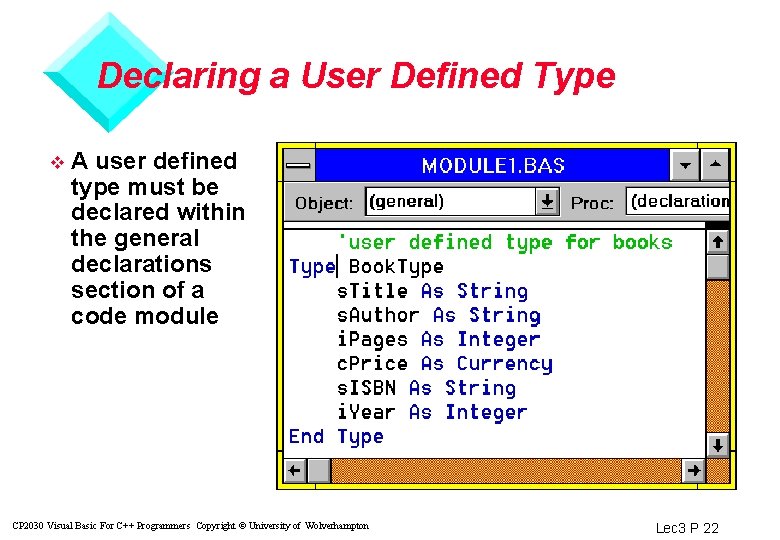
Declaring a User Defined Type v A user defined type must be declared within the general declarations section of a code module CP 2030 Visual Basic For C++ Programmers Copyright © University of Wolverhampton Lec 3 P 22
Syntax: Type Definition Declaration starts with keyword Type and ends with End Type v Each element/field should be defined v v Example: Students to add type declaration CP 2030 Visual Basic For C++ Programmers Copyright © University of Wolverhampton Lec 3 P 23
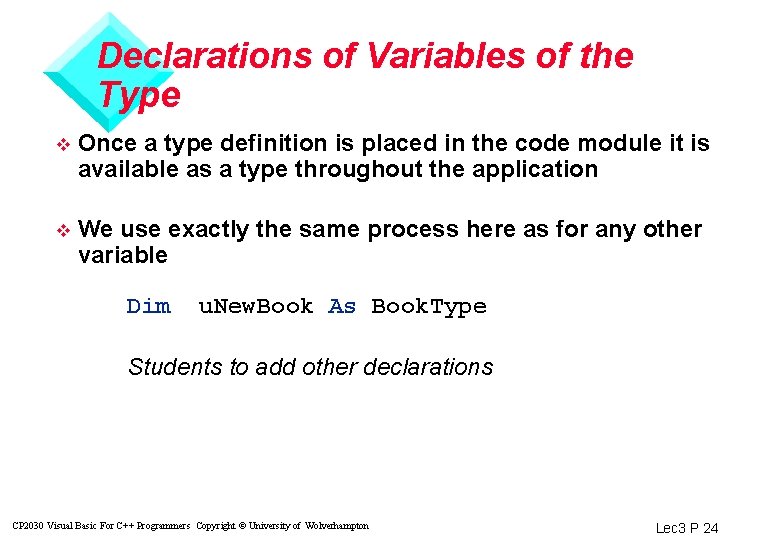
Declarations of Variables of the Type v Once a type definition is placed in the code module it is available as a type throughout the application v We use exactly the same process here as for any other variable Dim u. New. Book As Book. Type Students to add other declarations CP 2030 Visual Basic For C++ Programmers Copyright © University of Wolverhampton Lec 3 P 24
Question - revision v Which declarations could be made where? (i. e. at module level, form level or control handler level) CP 2030 Visual Basic For C++ Programmers Copyright © University of Wolverhampton Lec 3 P 25
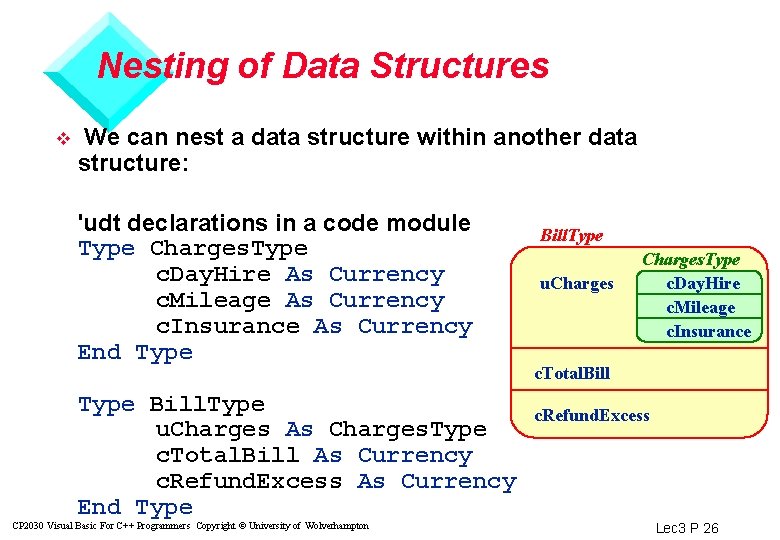
Nesting of Data Structures v We can nest a data structure within another data structure: 'udt declarations in a code module Type Charges. Type c. Day. Hire As Currency c. Mileage As Currency c. Insurance As Currency End Type Bill. Type u. Charges As Charges. Type c. Total. Bill As Currency c. Refund. Excess As Currency End Type CP 2030 Visual Basic For C++ Programmers Copyright © University of Wolverhampton Bill. Type u. Charges. Type c. Day. Hire c. Mileage c. Insurance c. Total. Bill c. Refund. Excess Lec 3 P 26
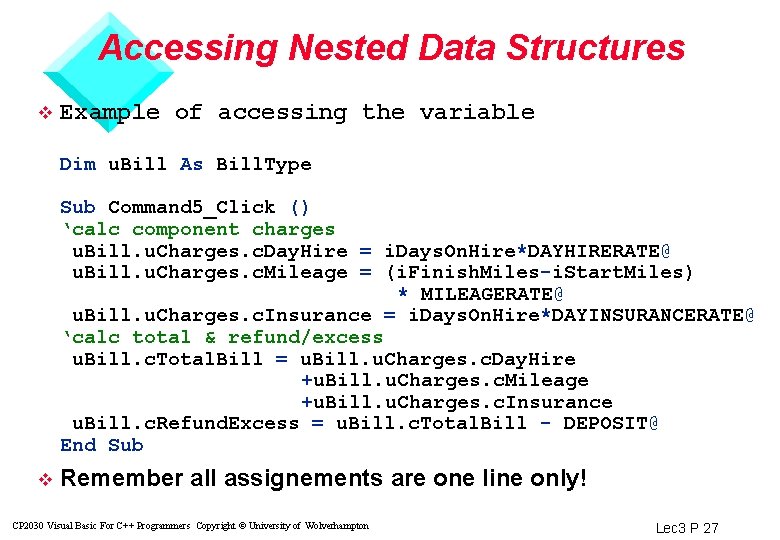
Accessing Nested Data Structures v Example of accessing the variable Dim u. Bill As Bill. Type Sub Command 5_Click () ‘calc component charges u. Bill. u. Charges. c. Day. Hire = i. Days. On. Hire*DAYHIRERATE@ u. Bill. u. Charges. c. Mileage = (i. Finish. Miles-i. Start. Miles) * MILEAGERATE@ u. Bill. u. Charges. c. Insurance = i. Days. On. Hire*DAYINSURANCERATE@ ‘calc total & refund/excess u. Bill. c. Total. Bill = u. Bill. u. Charges. c. Day. Hire +u. Bill. u. Charges. c. Mileage +u. Bill. u. Charges. c. Insurance u. Bill. c. Refund. Excess = u. Bill. c. Total. Bill - DEPOSIT@ End Sub v Remember all assignements are one line only! CP 2030 Visual Basic For C++ Programmers Copyright © University of Wolverhampton Lec 3 P 27
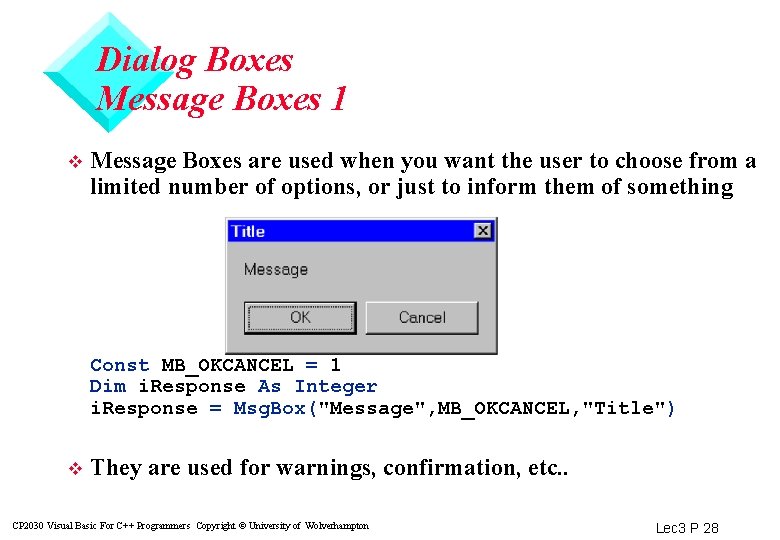
Dialog Boxes Message Boxes 1 v Message Boxes are used when you want the user to choose from a limited number of options, or just to inform them of something Const MB_OKCANCEL = 1 Dim i. Response As Integer i. Response = Msg. Box("Message", MB_OKCANCEL, "Title") v They are used for warnings, confirmation, etc. . CP 2030 Visual Basic For C++ Programmers Copyright © University of Wolverhampton Lec 3 P 28
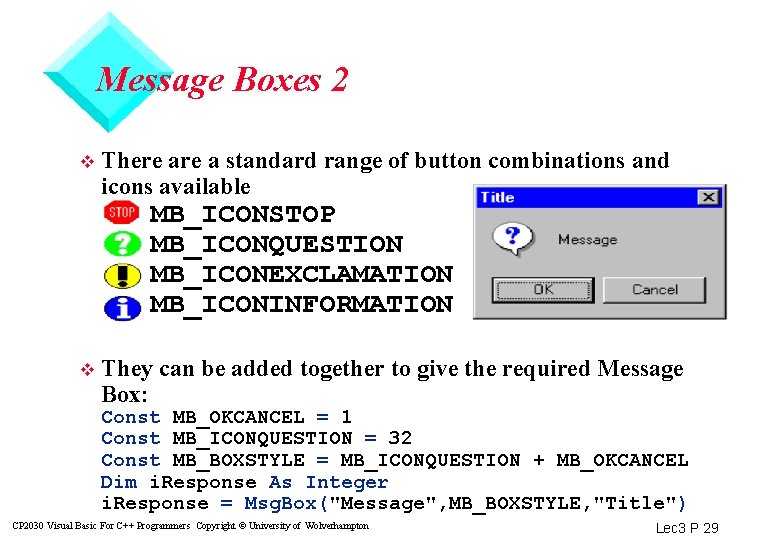
Message Boxes 2 v There a standard range of button combinations and icons available MB_ICONSTOP MB_ICONQUESTION MB_ICONEXCLAMATION MB_ICONINFORMATION v They can be added together to give the required Message Box: Const MB_OKCANCEL = 1 Const MB_ICONQUESTION = 32 Const MB_BOXSTYLE = MB_ICONQUESTION + MB_OKCANCEL Dim i. Response As Integer i. Response = Msg. Box("Message", MB_BOXSTYLE, "Title") CP 2030 Visual Basic For C++ Programmers Copyright © University of Wolverhampton Lec 3 P 29
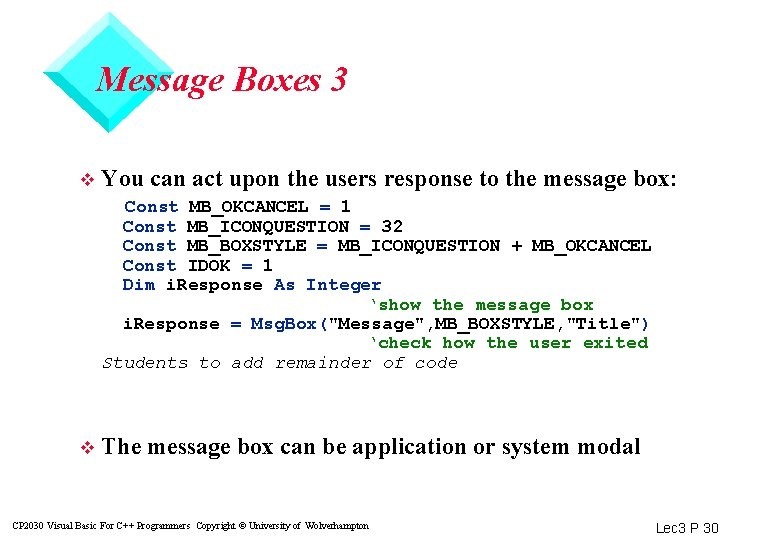
Message Boxes 3 v You can act upon the users response to the message box: Const MB_OKCANCEL = 1 Const MB_ICONQUESTION = 32 Const MB_BOXSTYLE = MB_ICONQUESTION + MB_OKCANCEL Const IDOK = 1 Dim i. Response As Integer ‘show the message box i. Response = Msg. Box("Message", MB_BOXSTYLE, "Title") ‘check how the user exited Students to add remainder of code v The message box can be application or system modal CP 2030 Visual Basic For C++ Programmers Copyright © University of Wolverhampton Lec 3 P 30
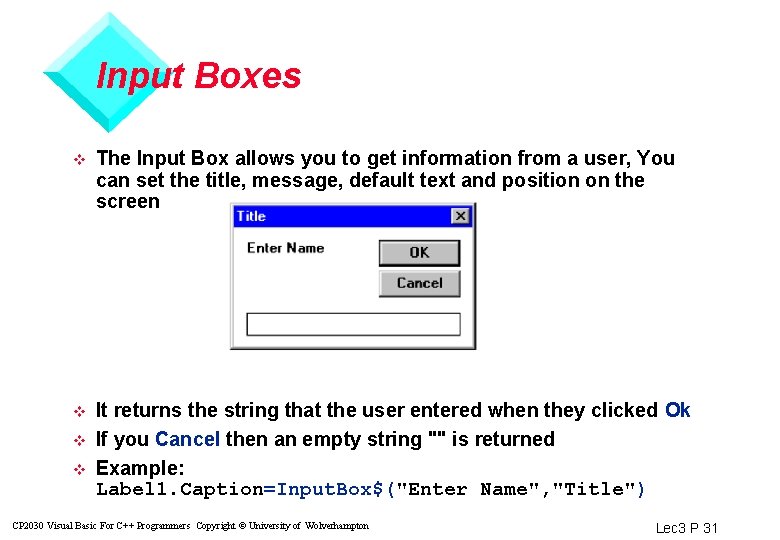
Input Boxes v The Input Box allows you to get information from a user, You can set the title, message, default text and position on the screen v It returns the string that the user entered when they clicked Ok If you Cancel then an empty string "" is returned Example: Label 1. Caption=Input. Box$("Enter Name", "Title") v v CP 2030 Visual Basic For C++ Programmers Copyright © University of Wolverhampton Lec 3 P 31
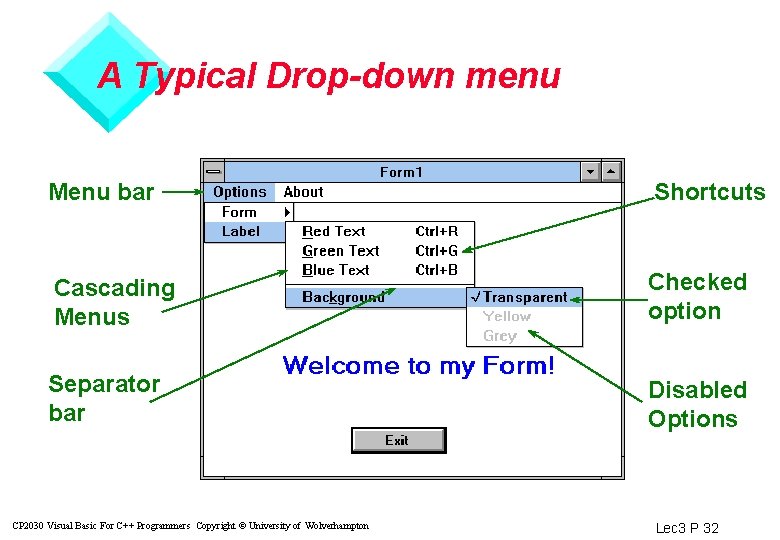
A Typical Drop-down menu Menu bar Shortcuts Cascading Menus Checked option Separator bar Disabled Options CP 2030 Visual Basic For C++ Programmers Copyright © University of Wolverhampton Lec 3 P 32
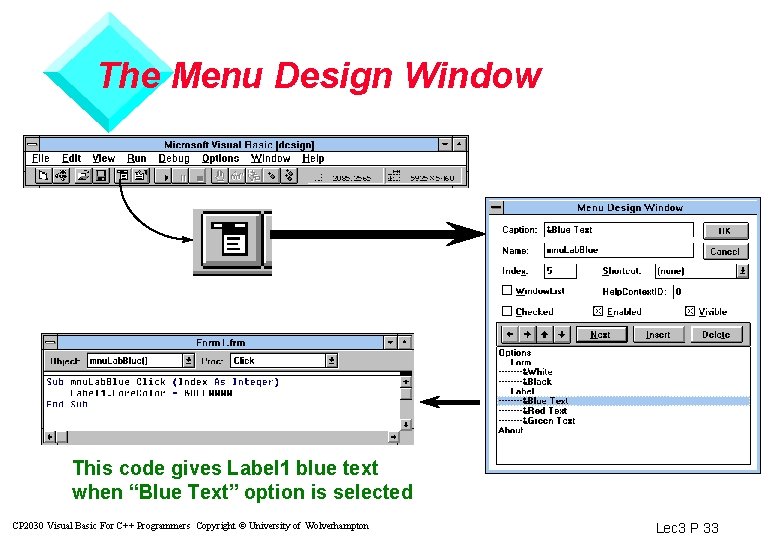
The Menu Design Window This code gives Label 1 blue text when “Blue Text” option is selected CP 2030 Visual Basic For C++ Programmers Copyright © University of Wolverhampton Lec 3 P 33
Demo of menu builder v As above example CP 2030 Visual Basic For C++ Programmers Copyright © University of Wolverhampton Lec 3 P 34
- Slides: 34