
Course 2 Key Features Functions Introduction to core
- Slides: 30
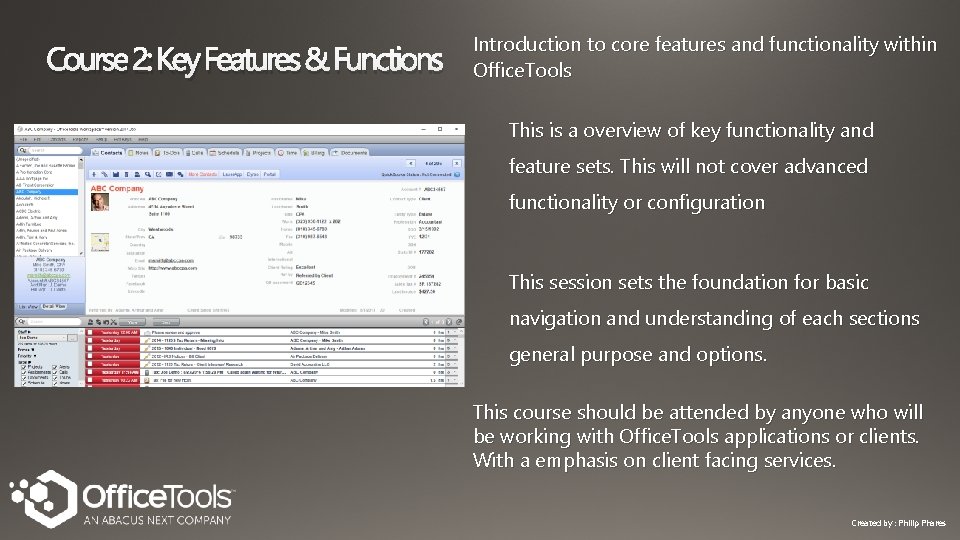
Course 2: Key Features & Functions Introduction to core features and functionality within Office. Tools This is a overview of key functionality and feature sets. This will not cover advanced functionality or configuration This session sets the foundation for basic navigation and understanding of each sections general purpose and options. This course should be attended by anyone who will be working with Office. Tools applications or clients. With a emphasis on client facing services. Created by : Philip Phares
Course Objective Summary *Excluding Add-ons, Syncs & Integrations Completion of this Course will provide the information to understand communicate the basic features of Office. Tools. This is not a Advanced level or all inclusive presentation. In this course presentation we will cover each section of the application including: § Adding, editing and tracking data § Additional tab specific options and functionality § Integrated processes and best practices § General layout and navigation § Common processes needed by users
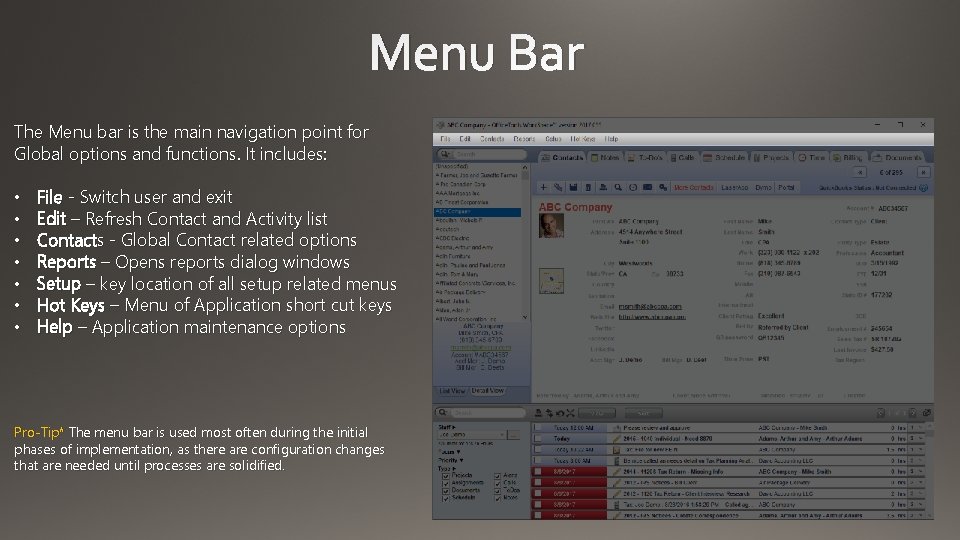
Menu Bar The Menu bar is the main navigation point for Global options and functions. It includes: • • File - Switch user and exit Edit – Refresh Contact and Activity list Contacts - Global Contact related options Reports – Opens reports dialog windows Setup – key location of all setup related menus Hot Keys – Menu of Application short cut keys Help – Application maintenance options Pro-Tip* The menu bar is used most often during the initial phases of implementation, as there are configuration changes that are needed until processes are solidified.
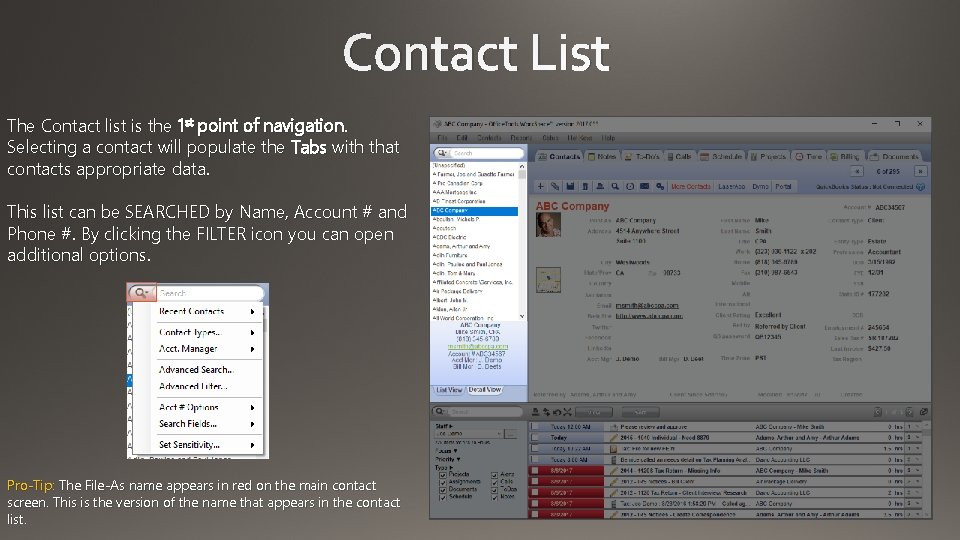
Contact List The Contact list is the 1 st point of navigation. Selecting a contact will populate the Tabs with that contacts appropriate data. This list can be SEARCHED by Name, Account # and Phone #. By clicking the FILTER icon you can open additional options. Pro-Tip: The File-As name appears in red on the main contact screen. This is the version of the name that appears in the contact list.
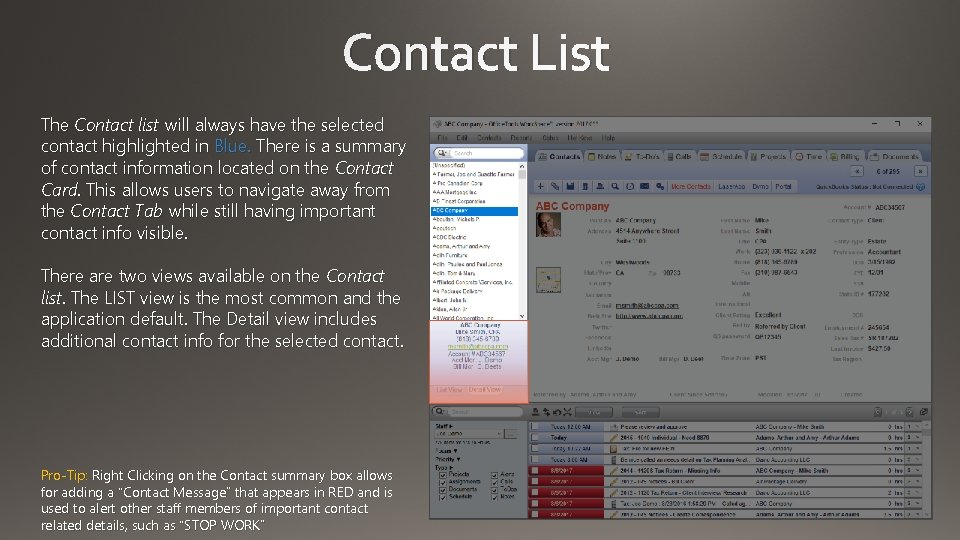
Contact List The Contact list will always have the selected contact highlighted in Blue. There is a summary of contact information located on the Contact Card. This allows users to navigate away from the Contact Tab while still having important contact info visible. There are two views available on the Contact list. The LIST view is the most common and the application default. The Detail view includes additional contact info for the selected contact. Pro-Tip: Right Clicking on the Contact summary box allows for adding a “Contact Message” that appears in RED and is used to alert other staff members of important contact related details, such as “STOP WORK”
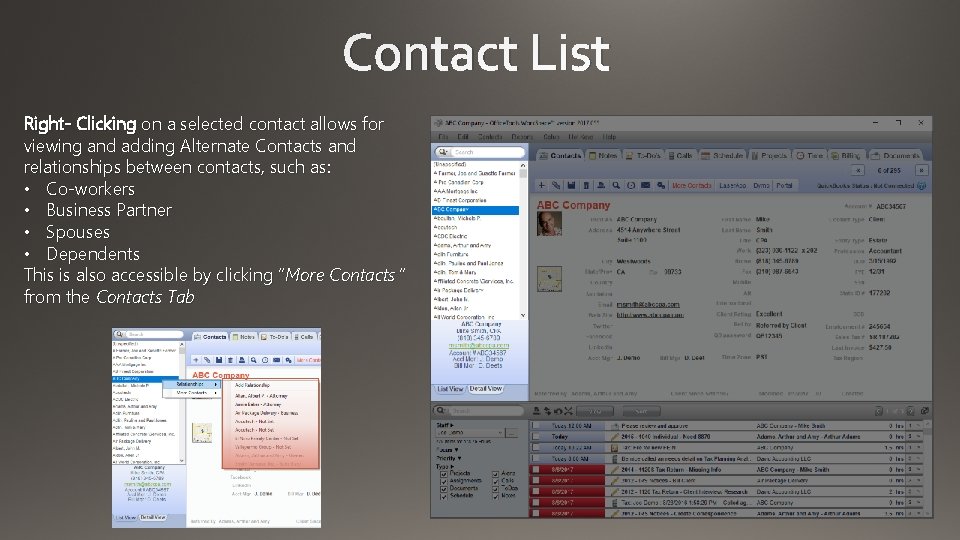
Contact List Right- Clicking on a selected contact allows for viewing and adding Alternate Contacts and relationships between contacts, such as: • Co-workers • Business Partner • Spouses • Dependents This is also accessible by clicking “More Contacts ” from the Contacts Tab
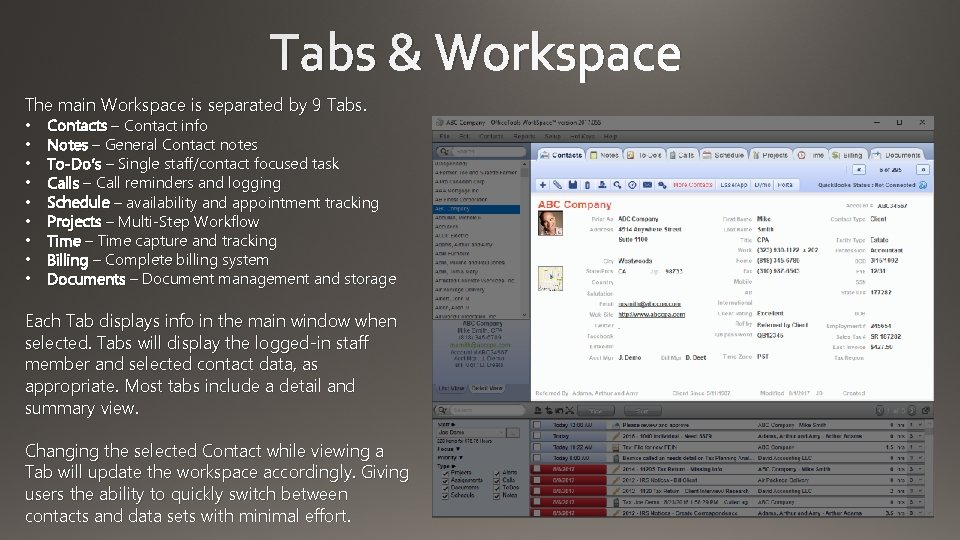
Tabs & Workspace The main Workspace is separated by 9 Tabs. • • • Contacts – Contact info Notes – General Contact notes To-Do’s – Single staff/contact focused task Calls – Call reminders and logging Schedule – availability and appointment tracking Projects – Multi-Step Workflow Time – Time capture and tracking Billing – Complete billing system Documents – Document management and storage Each Tab displays info in the main window when selected. Tabs will display the logged-in staff member and selected contact data, as appropriate. Most tabs include a detail and summary view. Changing the selected Contact while viewing a Tab will update the workspace accordingly. Giving users the ability to quickly switch between contacts and data sets with minimal effort.
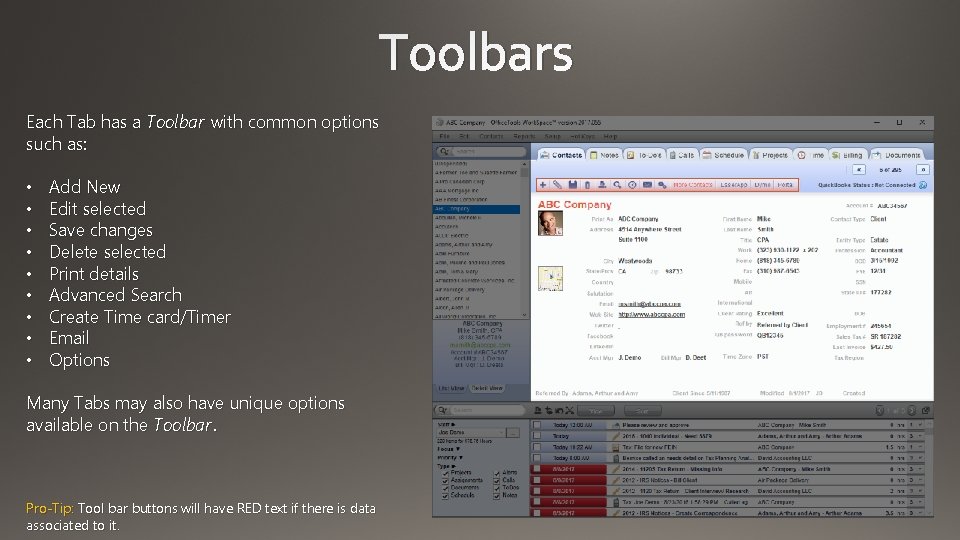
Toolbars Each Tab has a Toolbar with common options such as: • • • Add New Edit selected Save changes Delete selected Print details Advanced Search Create Time card/Timer Email Options Many Tabs may also have unique options available on the Toolbar. Pro-Tip: Tool bar buttons will have RED text if there is data associated to it.
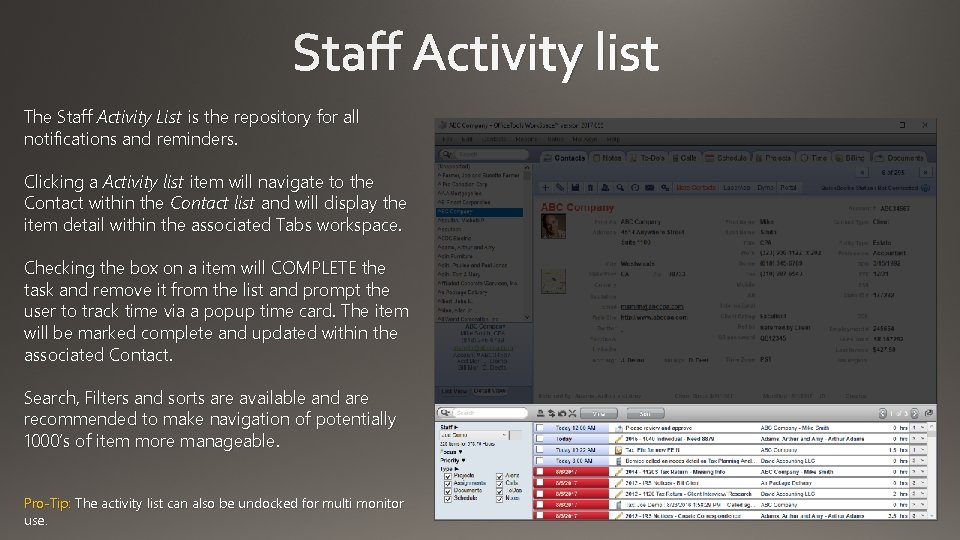
Staff Activity list The Staff Activity List is the repository for all notifications and reminders. Clicking a Activity list item will navigate to the Contact within the Contact list and will display the item detail within the associated Tabs workspace. Checking the box on a item will COMPLETE the task and remove it from the list and prompt the user to track time via a popup time card. The item will be marked complete and updated within the associated Contact. Search, Filters and sorts are available and are recommended to make navigation of potentially 1000’s of item more manageable. Pro-Tip: The activity list can also be undocked for multi monitor use.
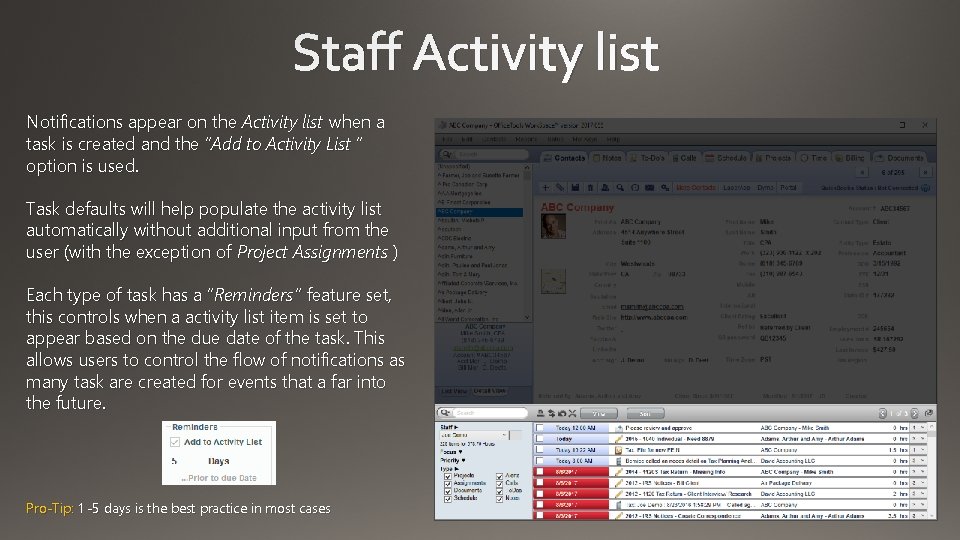
Staff Activity list Notifications appear on the Activity list when a task is created and the “Add to Activity List ” option is used. Task defaults will help populate the activity list automatically without additional input from the user (with the exception of Project Assignments ) Each type of task has a “Reminders ” feature set, this controls when a activity list item is set to appear based on the due date of the task. This allows users to control the flow of notifications as many task are created for events that a far into the future. Pro-Tip: 1 -5 days is the best practice in most cases
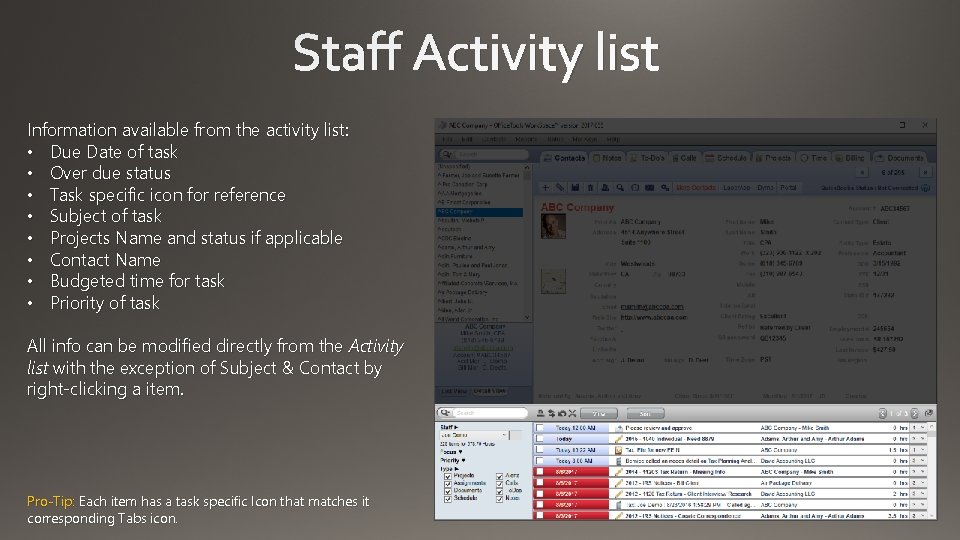
Staff Activity list Information available from the activity list: • Due Date of task • Over due status • Task specific icon for reference • Subject of task • Projects Name and status if applicable • Contact Name • Budgeted time for task • Priority of task All info can be modified directly from the Activity list with the exception of Subject & Contact by right-clicking a item. Pro-Tip: Each item has a task specific Icon that matches it corresponding Tabs icon.
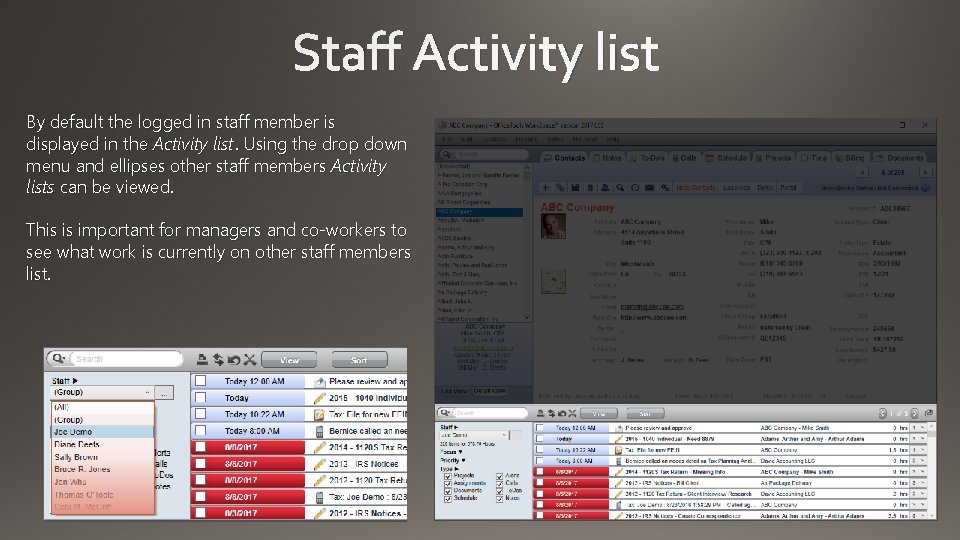
Staff Activity list By default the logged in staff member is displayed in the Activity list. Using the drop down menu and ellipses other staff members Activity lists can be viewed. This is important for managers and co-workers to see what work is currently on other staff members list.
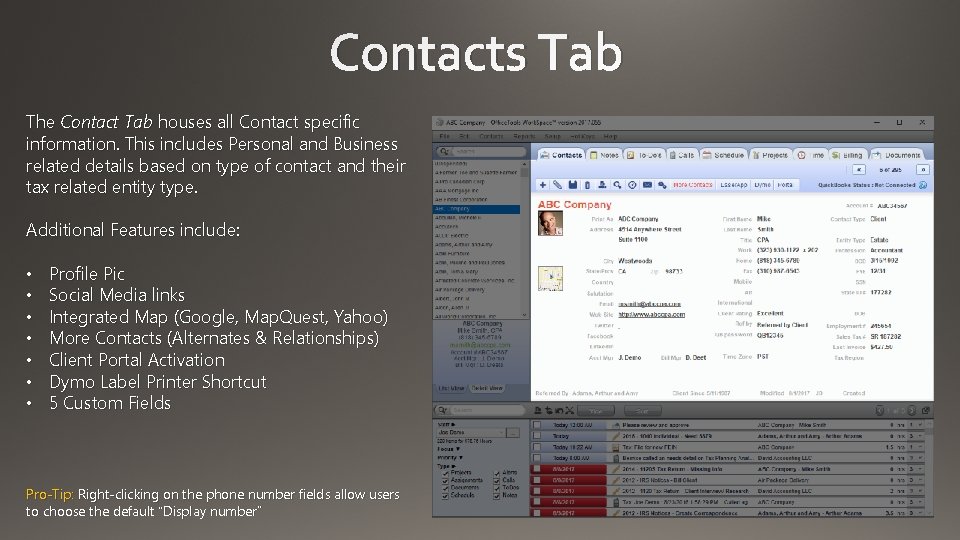
Contacts Tab The Contact Tab houses all Contact specific information. This includes Personal and Business related details based on type of contact and their tax related entity type. Additional Features include: • • Profile Pic Social Media links Integrated Map (Google, Map. Quest, Yahoo) More Contacts (Alternates & Relationships) Client Portal Activation Dymo Label Printer Shortcut 5 Custom Fields Pro-Tip: Right-clicking on the phone number fields allow users to choose the default “Display number”
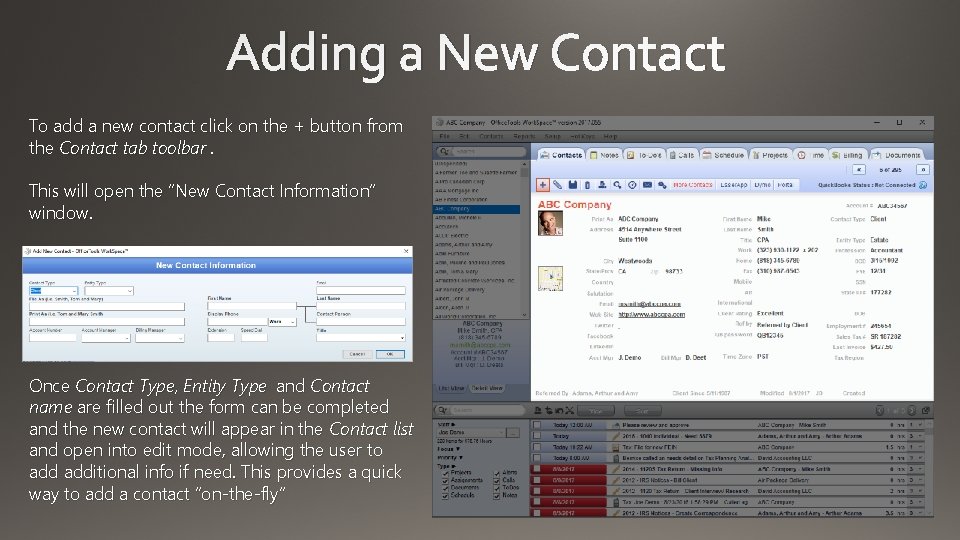
Adding a New Contact To add a new contact click on the + button from the Contact tab toolbar. This will open the “New Contact Information” window. Once Contact Type, Entity Type and Contact name are filled out the form can be completed and the new contact will appear in the Contact list and open into edit mode, allowing the user to additional info if need. This provides a quick way to add a contact “on-the-fly”
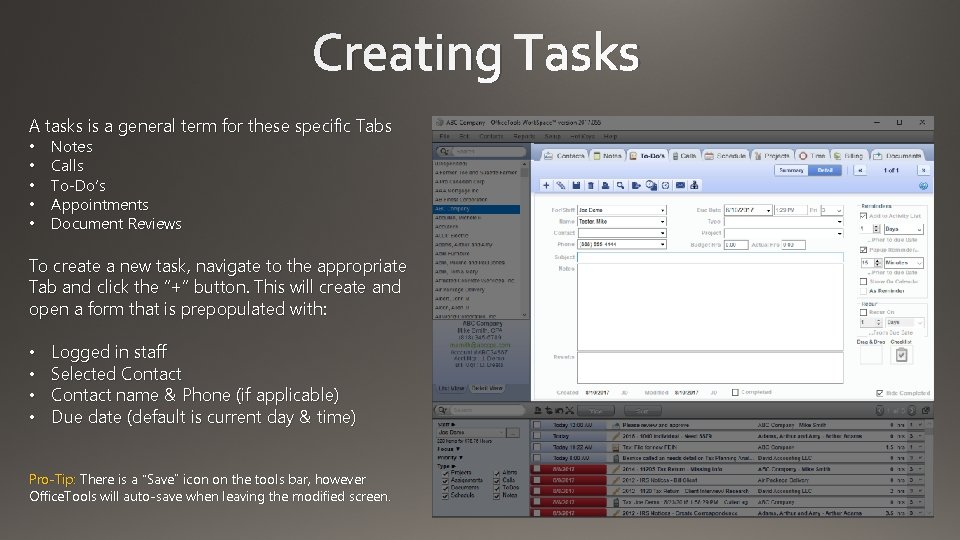
Creating Tasks A tasks is a general term for these specific Tabs • • • Notes Calls To-Do’s Appointments Document Reviews To create a new task, navigate to the appropriate Tab and click the “+” button. This will create and open a form that is prepopulated with: • • Logged in staff Selected Contact name & Phone (if applicable) Due date (default is current day & time) Pro-Tip: There is a “Save” icon on the tools bar, however Office. Tools will auto-save when leaving the modified screen.
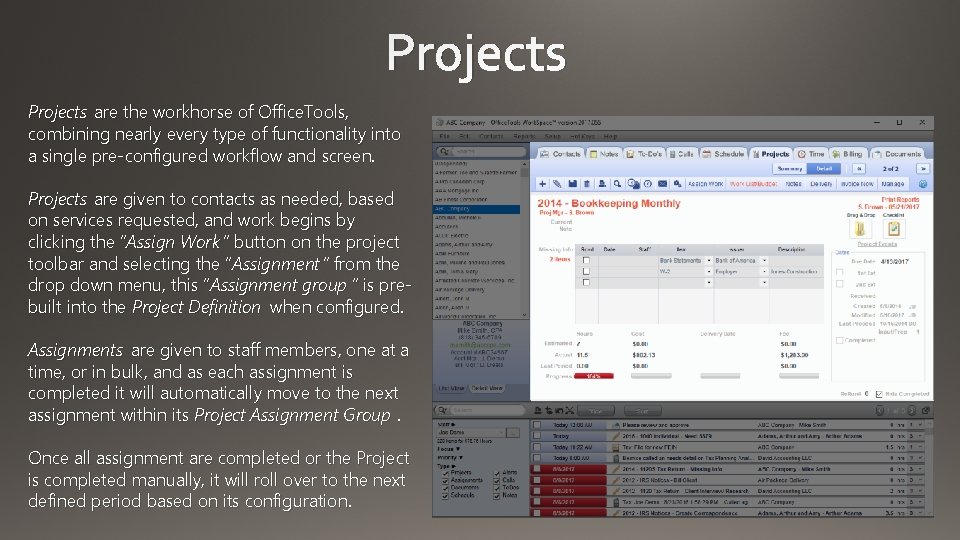
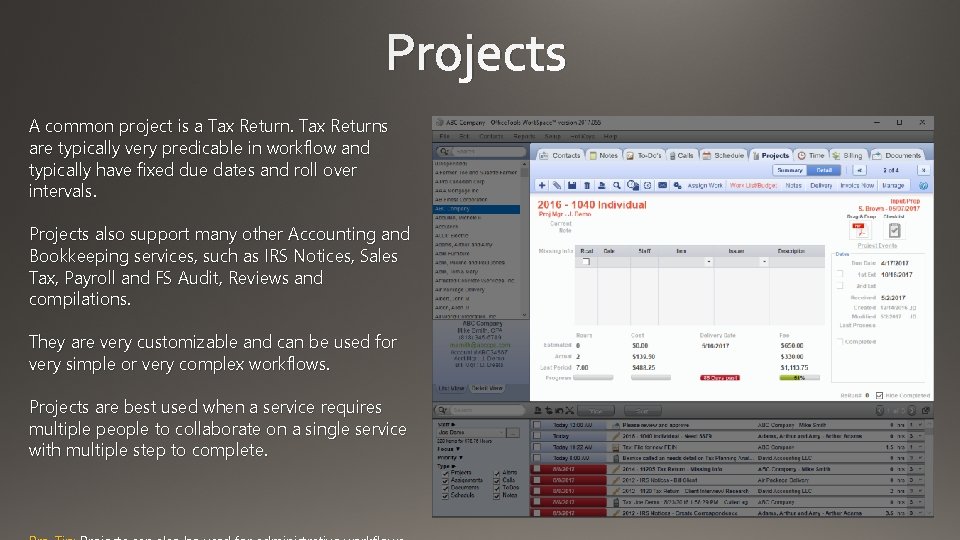
Projects are the workhorse of Office. Tools, combining nearly every type of functionality into a single pre-configured workflow and screen. Projects are given to contacts as needed, based on services requested, and work begins by clicking the “Assign Work ” button on the project toolbar and selecting the “Assignment ” from the drop down menu, this “Assignment group ” is prebuilt into the Project Definition when configured. Assignments are given to staff members, one at a time, or in bulk, and as each assignment is completed it will automatically move to the next assignment within its Project Assignment Group. Once all assignment are completed or the Project is completed manually, it will roll over to the next defined period based on its configuration.
Projects A common project is a Tax Returns are typically very predicable in workflow and typically have fixed due dates and roll over intervals. Projects also support many other Accounting and Bookkeeping services, such as IRS Notices, Sales Tax, Payroll and FS Audit, Reviews and compilations. They are very customizable and can be used for very simple or very complex workflows. Projects are best used when a service requires multiple people to collaborate on a single service with multiple step to complete.
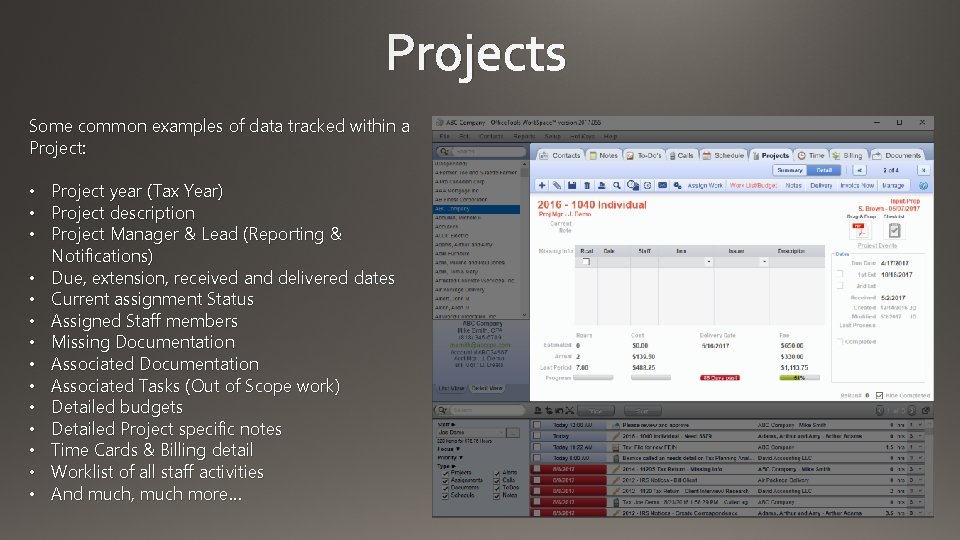
Projects Some common examples of data tracked within a Project: • Project year (Tax Year) • Project description • Project Manager & Lead (Reporting & Notifications) • Due, extension, received and delivered dates • Current assignment Status • Assigned Staff members • Missing Documentation • Associated Tasks (Out of Scope work) • Detailed budgets • Detailed Project specific notes • Time Cards & Billing detail • Worklist of all staff activities • And much, much more…
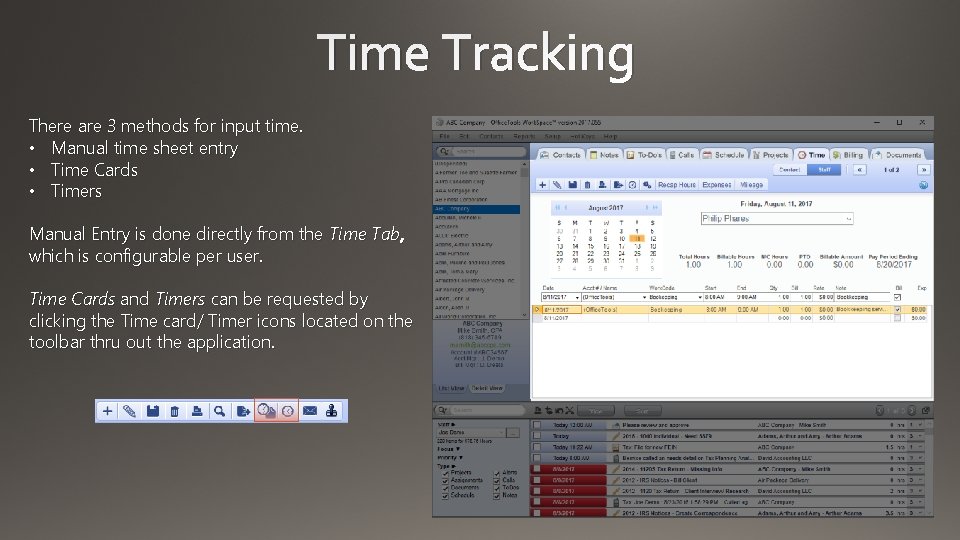
Time Tracking There are 3 methods for input time. • Manual time sheet entry • Time Cards • Timers Manual Entry is done directly from the Time Tab , which is configurable per user. Time Cards and Timers can be requested by clicking the Time card/ Timer icons located on the toolbar thru out the application.
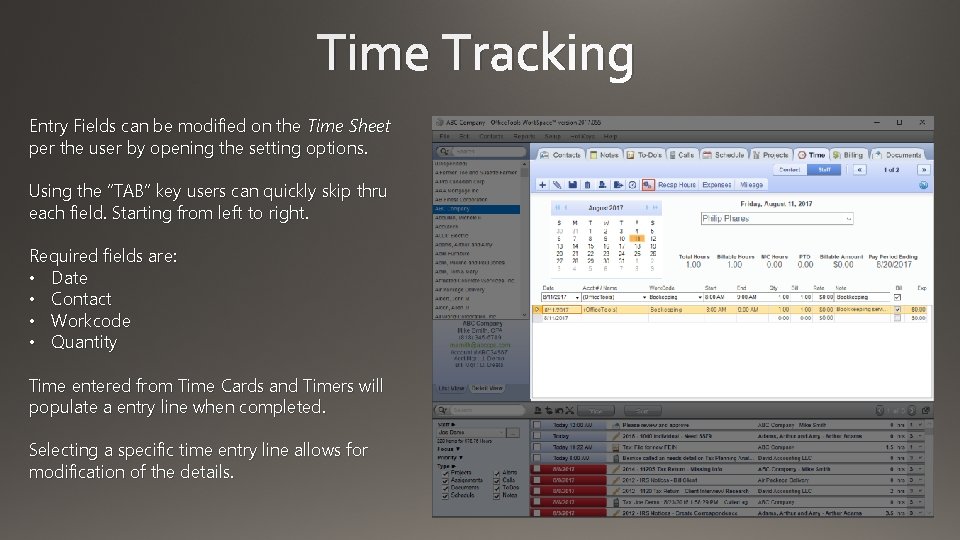
Time Tracking Entry Fields can be modified on the Time Sheet per the user by opening the setting options. Using the “TAB” key users can quickly skip thru each field. Starting from left to right. Required fields are: • Date • Contact • Workcode • Quantity Time entered from Time Cards and Timers will populate a entry line when completed. Selecting a specific time entry line allows for modification of the details.
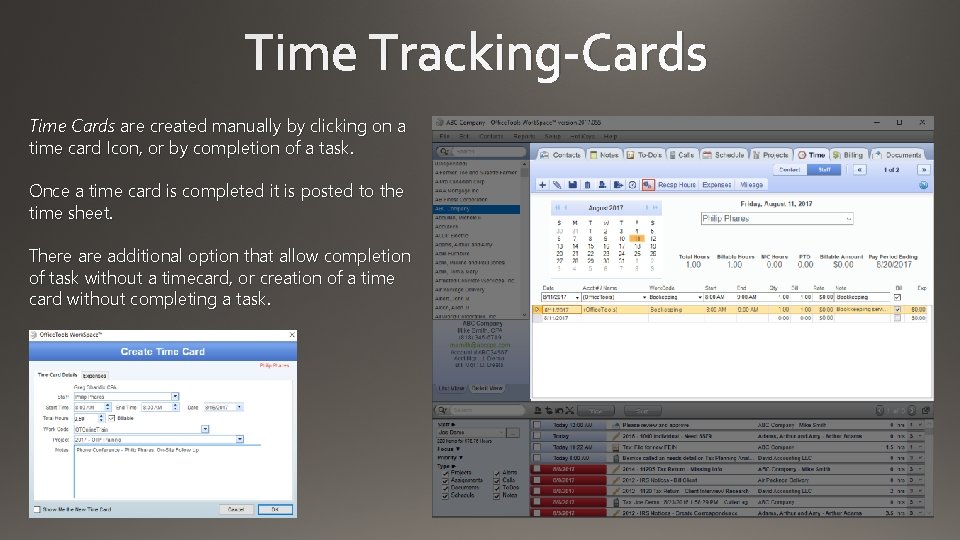
Time Tracking-Cards Time Cards are created manually by clicking on a time card Icon, or by completion of a task. Once a time card is completed it is posted to the time sheet. There additional option that allow completion of task without a timecard, or creation of a time card without completing a task.
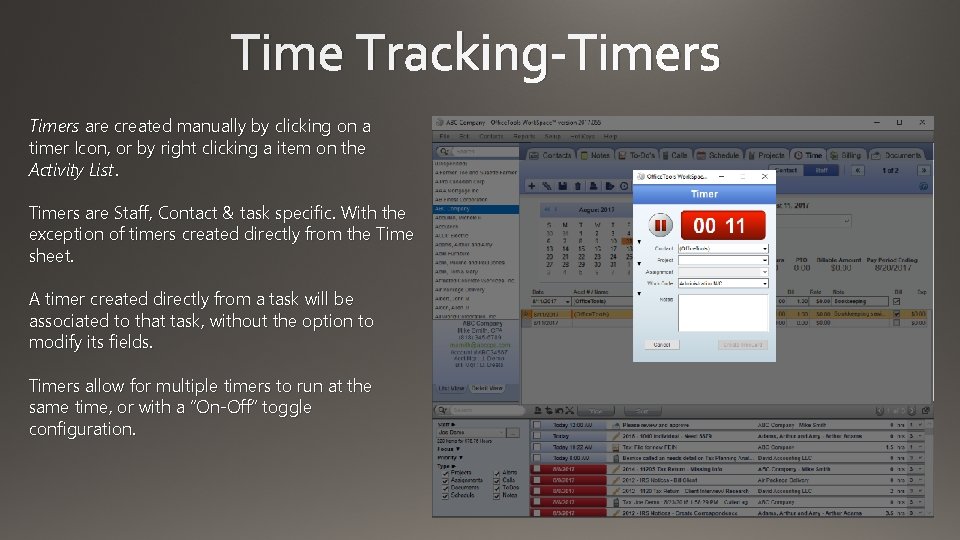
Time Tracking-Timers are created manually by clicking on a timer Icon, or by right clicking a item on the Activity List. Timers are Staff, Contact & task specific. With the exception of timers created directly from the Time sheet. A timer created directly from a task will be associated to that task, without the option to modify its fields. Timers allow for multiple timers to run at the same time, or with a “On-Off” toggle configuration.
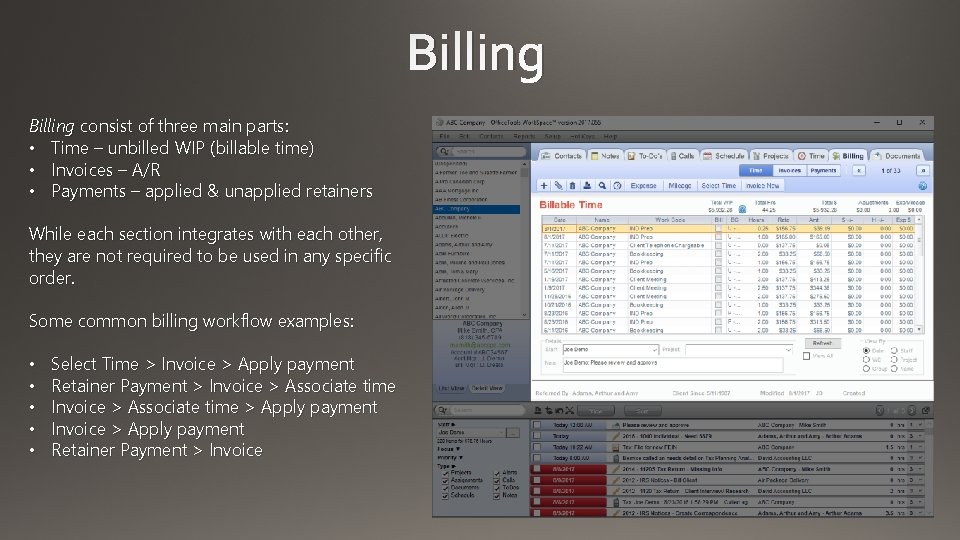
Billing consist of three main parts: • Time – unbilled WIP (billable time) • Invoices – A/R • Payments – applied & unapplied retainers While each section integrates with each other, they are not required to be used in any specific order. Some common billing workflow examples: • • • Select Time > Invoice > Apply payment Retainer Payment > Invoice > Associate time > Apply payment Invoice > Apply payment Retainer Payment > Invoice
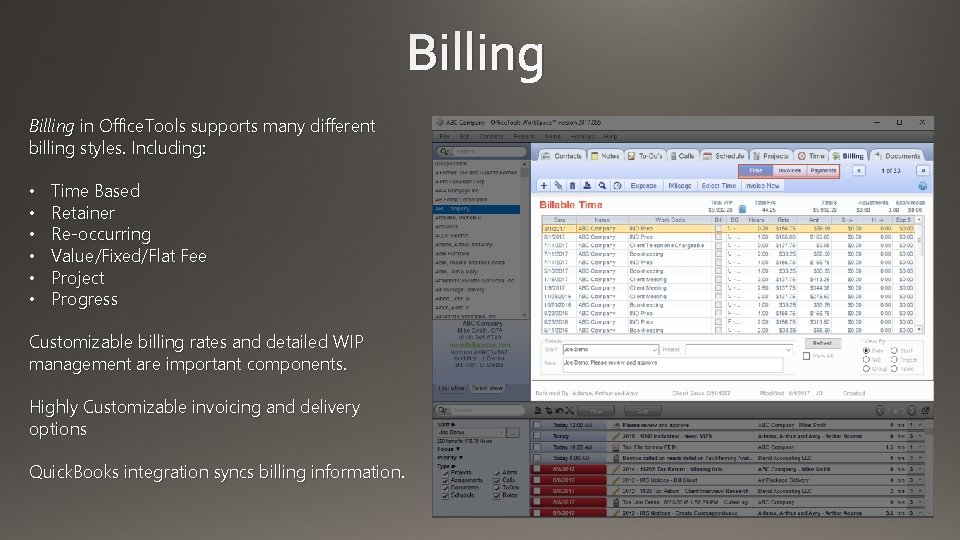
Billing in Office. Tools supports many different billing styles. Including: • • • Time Based Retainer Re-occurring Value/Fixed/Flat Fee Project Progress Customizable billing rates and detailed WIP management are important components. Highly Customizable invoicing and delivery options Quick. Books integration syncs billing information.
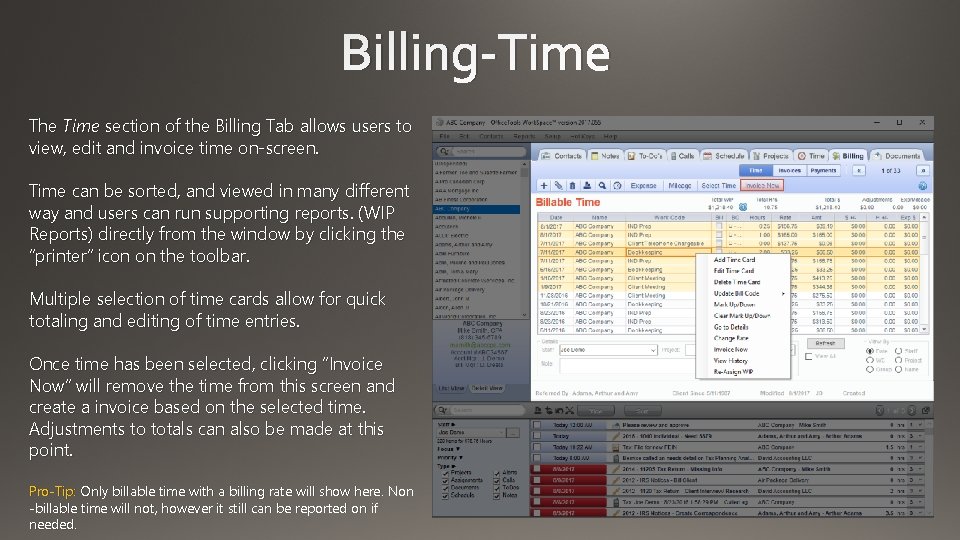
Billing-Time The Time section of the Billing Tab allows users to view, edit and invoice time on-screen. Time can be sorted, and viewed in many different way and users can run supporting reports. (WIP Reports) directly from the window by clicking the “printer” icon on the toolbar. Multiple selection of time cards allow for quick totaling and editing of time entries. Once time has been selected, clicking “Invoice Now” will remove the time from this screen and create a invoice based on the selected time. Adjustments to totals can also be made at this point. Pro-Tip: Only billable time with a billing rate will show here. Non -billable time will not, however it still can be reported on if needed.
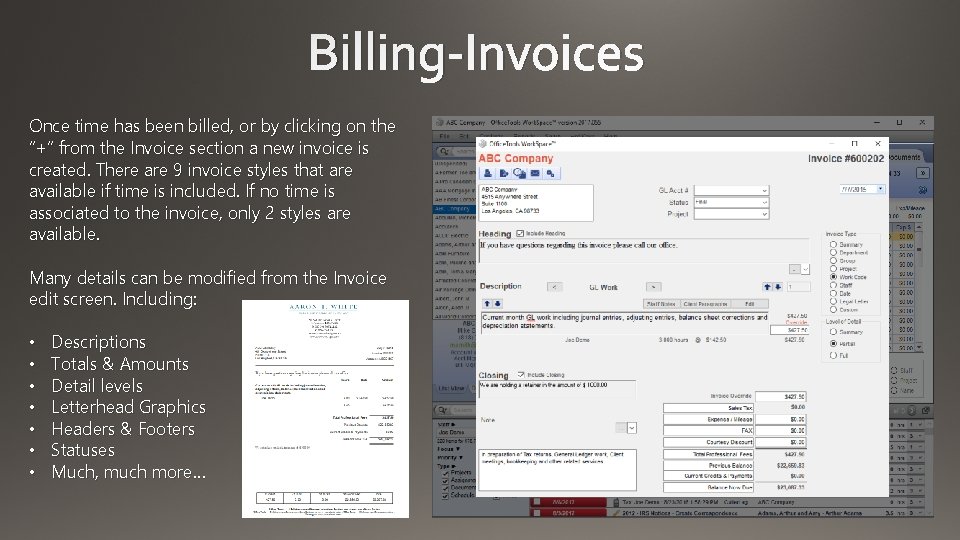
Billing-Invoices Once time has been billed, or by clicking on the “+” from the Invoice section a new invoice is created. There are 9 invoice styles that are available if time is included. If no time is associated to the invoice, only 2 styles are available. Many details can be modified from the Invoice edit screen. Including: • • Descriptions Totals & Amounts Detail levels Letterhead Graphics Headers & Footers Statuses Much, much more…
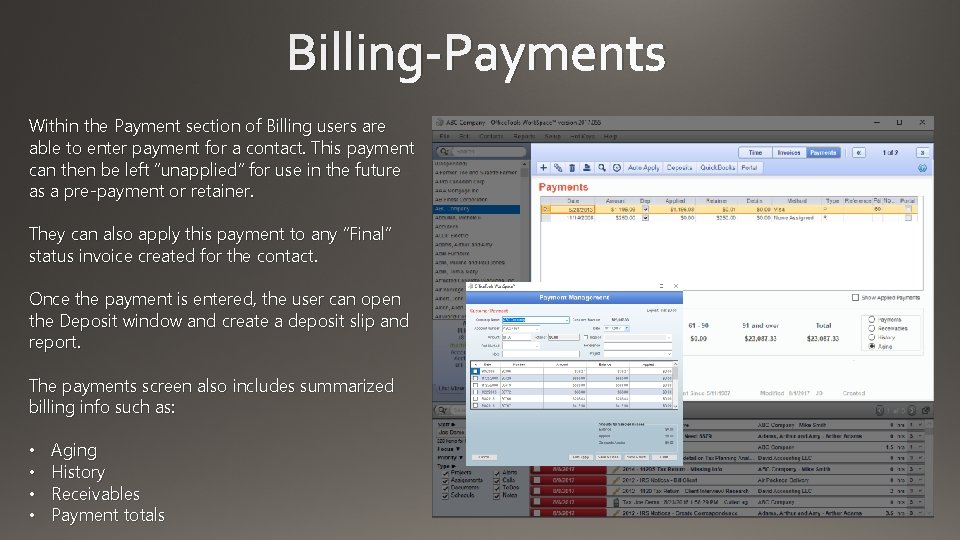
Billing-Payments Within the Payment section of Billing users are able to enter payment for a contact. This payment can then be left “unapplied” for use in the future as a pre-payment or retainer. They can also apply this payment to any “Final” status invoice created for the contact. Once the payment is entered, the user can open the Deposit window and create a deposit slip and report. The payments screen also includes summarized billing info such as: • • Aging History Receivables Payment totals
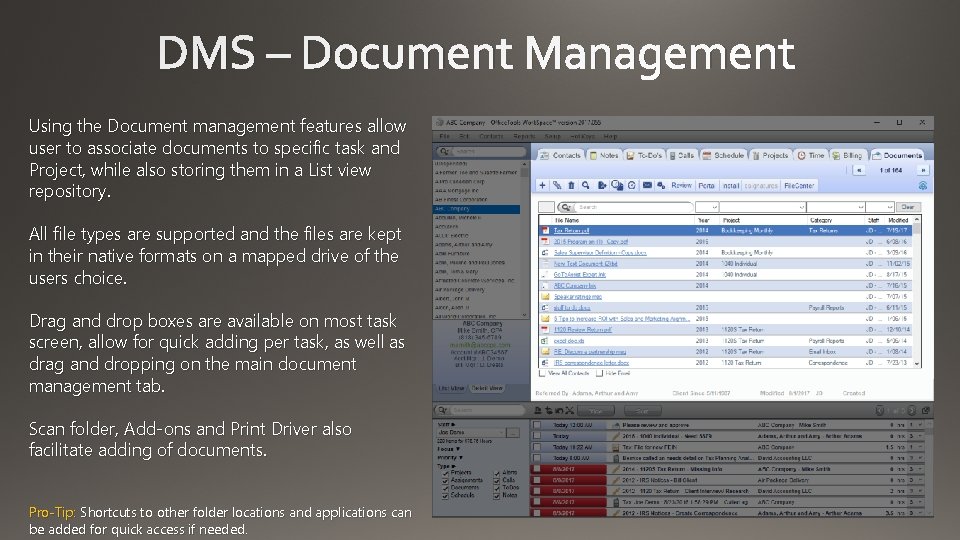
DMS – Document Management Using the Document management features allow user to associate documents to specific task and Project, while also storing them in a List view repository. All file types are supported and the files are kept in their native formats on a mapped drive of the users choice. Drag and drop boxes are available on most task screen, allow for quick adding per task, as well as drag and dropping on the main document management tab. Scan folder, Add-ons and Print Driver also facilitate adding of documents. Pro-Tip: Shortcuts to other folder locations and applications can be added for quick access if needed.
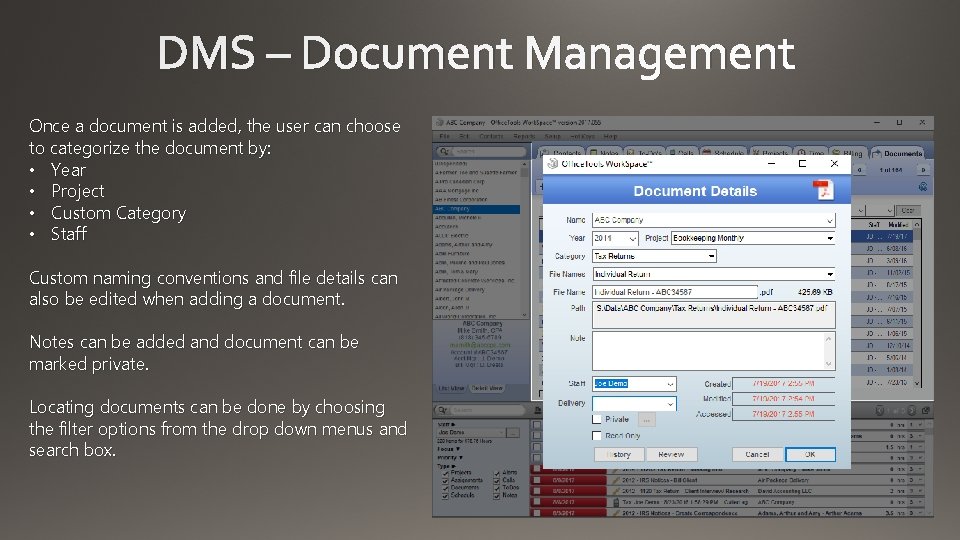
DMS – Document Management Once a document is added, the user can choose to categorize the document by: • Year • Project • Custom Category • Staff Custom naming conventions and file details can also be edited when adding a document. Notes can be added and document can be marked private. Locating documents can be done by choosing the filter options from the drop down menus and search box.
Integrations Add-ons Sync Tools Client Portal Remote Questionnaires Online Appointment request Lobby Kiosk Contact Groups Form Letters Email Marketing options Auto Reminders Entity Types Global Settings Company Setting Staff Settings and Profiles User Rights Event Types Management tools Reports Project setup Assignment Setup Pop-up reminders AIMI – Instant Messaging Custom Contact reports Importing/Exporting Contact Multiple Project Creation Hidden Contact management Label & Envelope creation Hot-Keys & Shortcuts Project Setup Assignment Group Setup Adjusting billing rates Staff Budgets HR options and setup What we didn’t talk about… Project Budget Staff Reviews Project Managers Budget Notifications Priorities Task Checklist Project Checklist Assignment Checklist Tier 1 & 2 Billing rates Billing Codes Invoice Statues Invoice Types and detail level Client Paragraphs Letterhead Graphics Late fee generation Aging options Re-occurring invoice setup Apportioning time Invoice Overrides Credit Memos Debits Deposit slips Portal Invoice and Payments Call action short cuts Calendar views and configuration Manage Projects window Undocked calendar features Appointment types Appointment statuses Re-occurring and repeating task Assignment checklist Copy to options Appointment request Go-to feature History and Audit options Project best practices E-signatures Project Worklist Right- Click options Project Events Staff Cost setup Applying billing rates Project notes Tracking Expenses Payroll reports Auto Applying payments View all notes Adjustment to WIP Sales Tax Email Signatures Multi-Office settings Email Templates Banking & Financial Info Document Review tracking File Center integration PDF Print Driver Microsoft Office Add-on Adobe Add-on Online Staff time tracking Project Rollover and Re-runs Previous period fee tracking Project Manager notifications Account Manager Bill Manager Custom Field types and setup Excel import utility Lacerte Sync Quick. Books Integration Staff Activity tracking Due Date tracking Office Groups Bill to Contacts Sales Tax Regions Billing Rate multipliers Work Code Groups Departments Office IDs Business Relationships Industry product lines Auto. Text Macros Drop Folder File name convention setup Archive and Destroy Document Custom Categories Re-index of Documents Reoccurring tasks Entering beginning balances GL Accounts Billing Statements Project Groups My Settings Long Workcode descriptions Staff work code defaults Text-to-Speech Results entries Activity list focus Report options Billing Utilization Associated time cards Timer management Project Setup Assignment Group setup Quick Start wizard Anything Technical Account number generation Privatization of notes Word templates Project Form letters Project Billing Concurrent Assignment setup Auto populating worklist Unprocessed Project reminders Contact view reminders Budget Alerts and setup Custom letterhead options Confirmation letters Appointment statuses Automatic Confirmation calls SMTP email setup Drag & Drop options Activity list types Advanced contact search Schedule locations and events Enforcing Project Assignments Help bubbles Referred by options File-As vs Print-As Project Due date reports Re-assigning staff & due dates Project Fees Outlook Sync Profile Integration Crexendo Voi. P integration Show on Calendar options Mileage Tracking And more…….