
COUPA in INCHCAPE Coupa Supplier Portal CSP Purchase

- Slides: 32
COUPA in INCHCAPE Coupa Supplier Portal (CSP) – Purchase Orders, Invoices & Credit Notes November 2020 DRIVEN BY TRUST 1
INTRODUCTION You should have now registered on the Coupa Supplier Portal (CSP). If you haven’t, please read the documentation that walks you through this set up process. Now what? You need to know how to view and acknowledge a Purchase Order that been sent from Inchcape, submit your invoices and issue credit notes. 2 2
CONTENT • Viewing, Acknowledging a PO & Adding Comments • Flipping a PO to an Invoice • Blanket Purchase Orders • Creating Credit Notes • Invoice Disputes • Viewing Invoices & Credit Notes 3
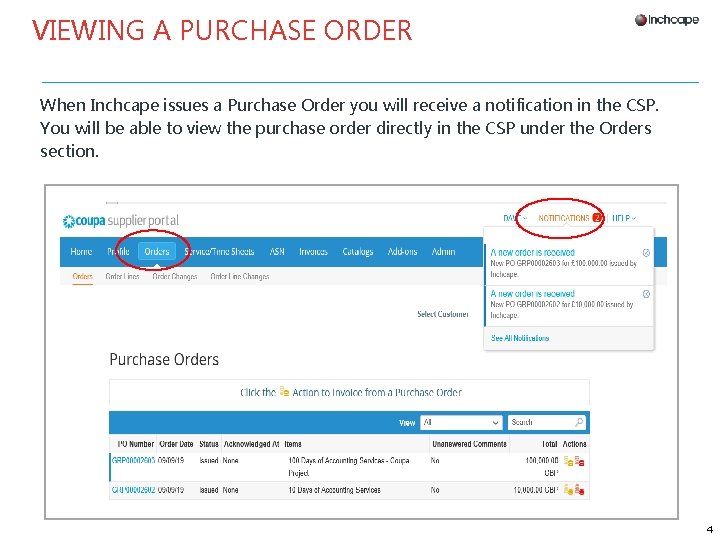
VIEWING A PURCHASE ORDER When Inchcape issues a Purchase Order you will receive a notification in the CSP. You will be able to view the purchase order directly in the CSP under the Orders section. 4
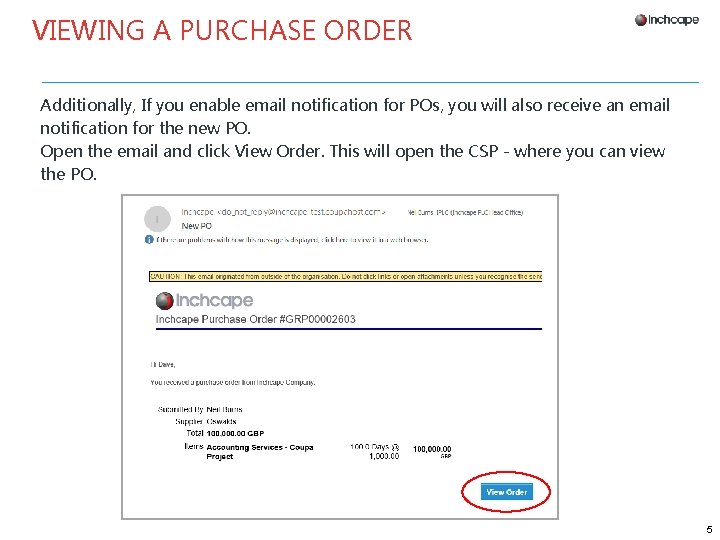
VIEWING A PURCHASE ORDER Additionally, If you enable email notification for POs, you will also receive an email notification for the new PO. Open the email and click View Order. This will open the CSP - where you can view the PO. 5
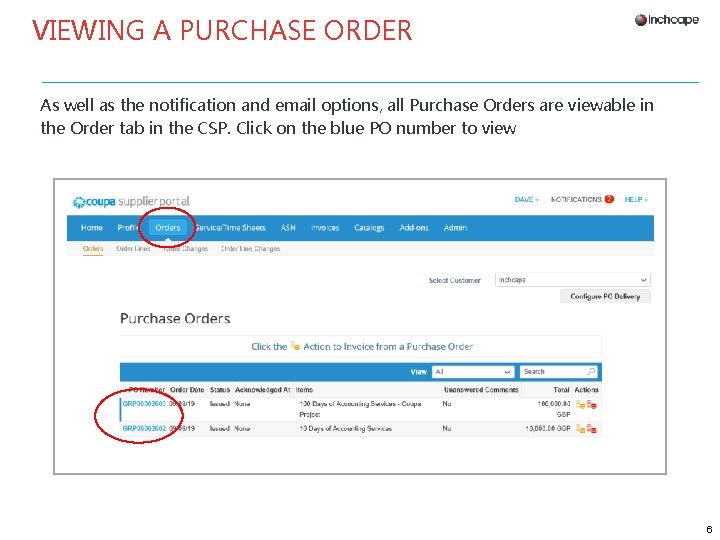
VIEWING A PURCHASE ORDER As well as the notification and email options, all Purchase Orders are viewable in the Order tab in the CSP. Click on the blue PO number to view 6
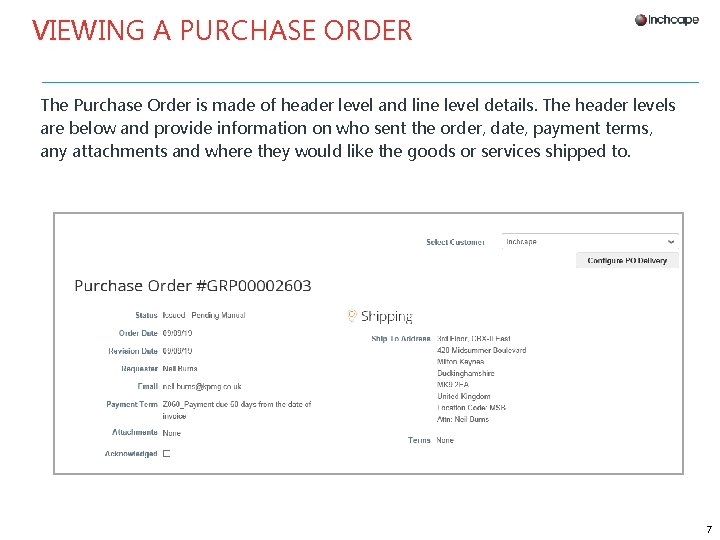
VIEWING A PURCHASE ORDER The Purchase Order is made of header level and line level details. The header levels are below and provide information on who sent the order, date, payment terms, any attachments and where they would like the goods or services shipped to. 7
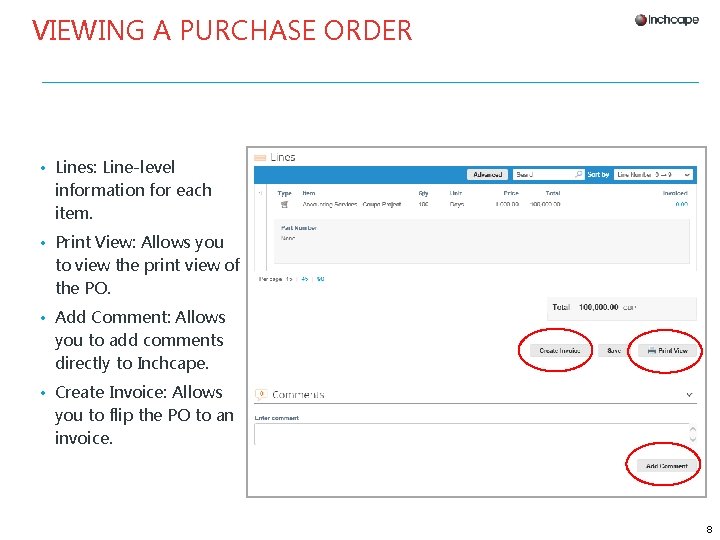
VIEWING A PURCHASE ORDER • Lines: Line-level information for each item. • Print View: Allows you to view the print view of the PO. • Add Comment: Allows you to add comments directly to Inchcape. • Create Invoice: Allows you to flip the PO to an invoice. 8
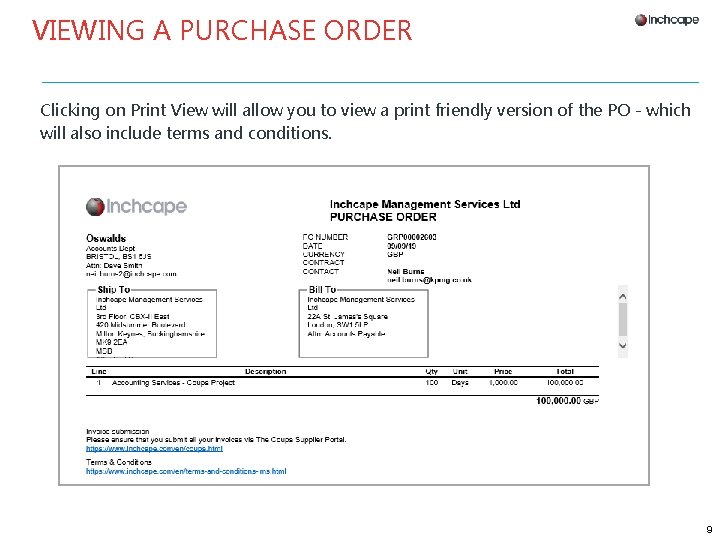
VIEWING A PURCHASE ORDER Clicking on Print View will allow you to view a print friendly version of the PO - which will also include terms and conditions. 9
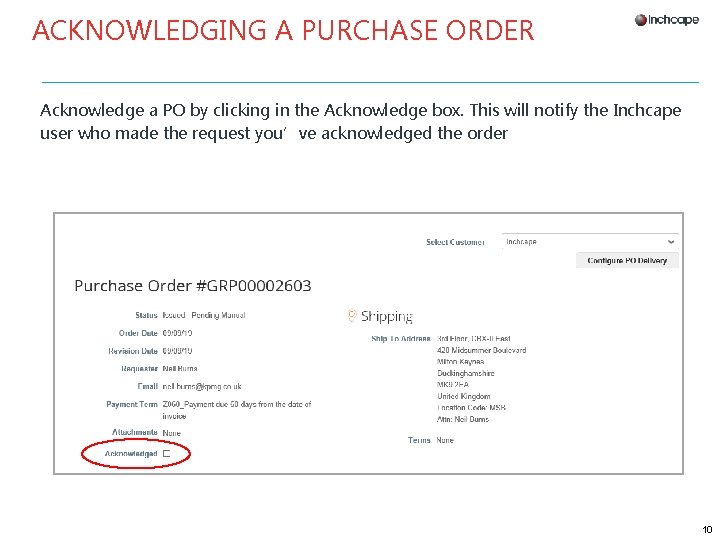
ACKNOWLEDGING A PURCHASE ORDER Acknowledge a PO by clicking in the Acknowledge box. This will notify the Inchcape user who made the request you’ve acknowledged the order 10
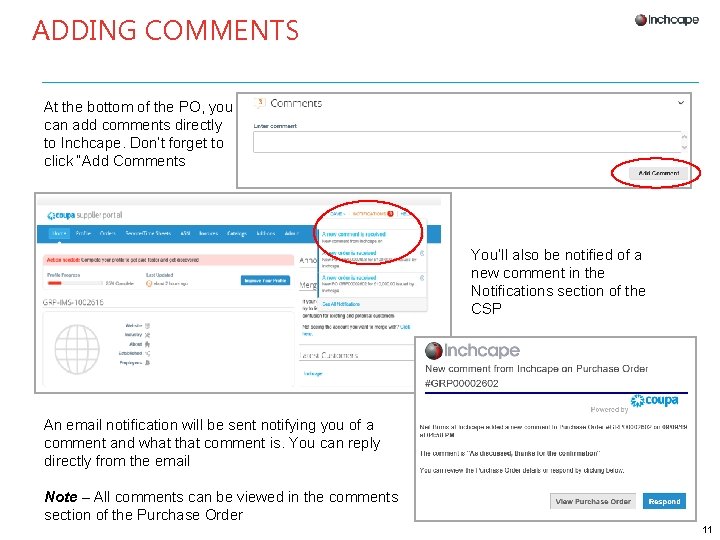
ADDING COMMENTS At the bottom of the PO, you can add comments directly to Inchcape. Don’t forget to click “Add Comments You’ll also be notified of a new comment in the Notifications section of the CSP An email notification will be sent notifying you of a comment and what that comment is. You can reply directly from the email Note – All comments can be viewed in the comments section of the Purchase Order 11
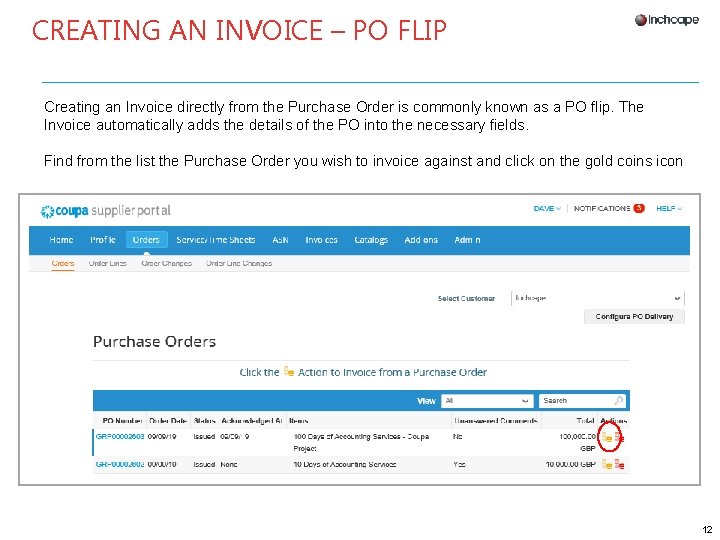
CREATING AN INVOICE – PO FLIP Creating an Invoice directly from the Purchase Order is commonly known as a PO flip. The Invoice automatically adds the details of the PO into the necessary fields. Find from the list the Purchase Order you wish to invoice against and click on the gold coins icon 12
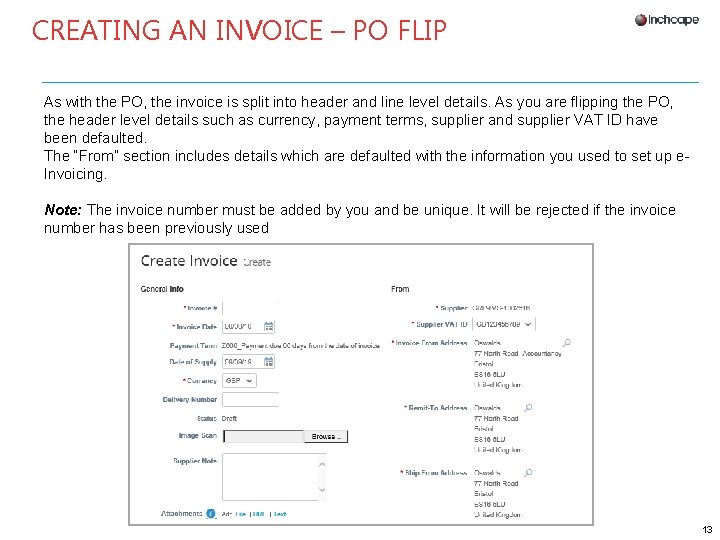
CREATING AN INVOICE – PO FLIP As with the PO, the invoice is split into header and line level details. As you are flipping the PO, the header level details such as currency, payment terms, supplier and supplier VAT ID have been defaulted. The “From” section includes details which are defaulted with the information you used to set up e. Invoicing. Note: The invoice number must be added by you and be unique. It will be rejected if the invoice number has been previously used 13
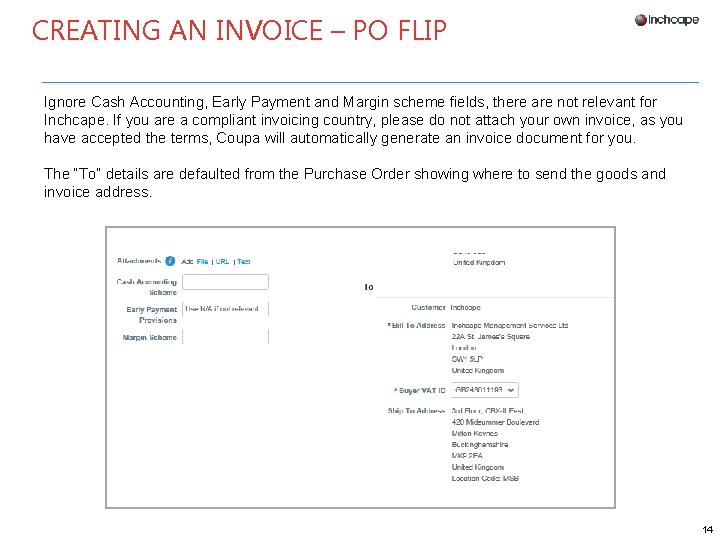
CREATING AN INVOICE – PO FLIP Ignore Cash Accounting, Early Payment and Margin scheme fields, there are not relevant for Inchcape. If you are a compliant invoicing country, please do not attach your own invoice, as you have accepted the terms, Coupa will automatically generate an invoice document for you. The “To” details are defaulted from the Purchase Order showing where to send the goods and invoice address. 14
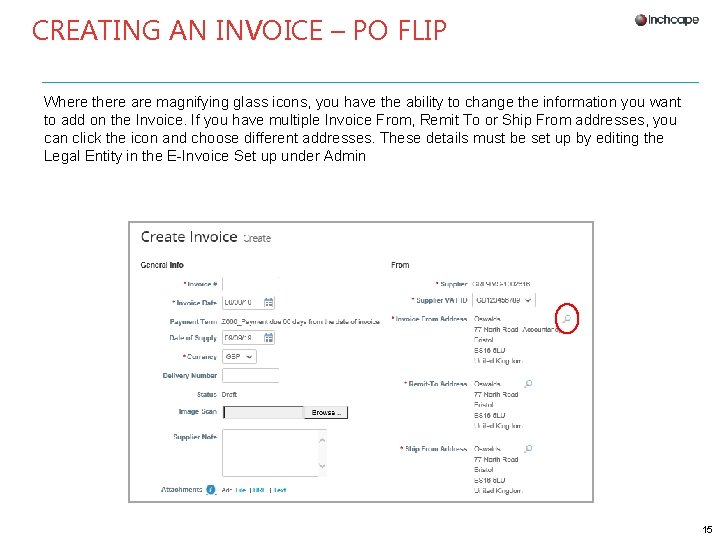
CREATING AN INVOICE – PO FLIP Where there are magnifying glass icons, you have the ability to change the information you want to add on the Invoice. If you have multiple Invoice From, Remit To or Ship From addresses, you can click the icon and choose different addresses. These details must be set up by editing the Legal Entity in the E-Invoice Set up under Admin 15
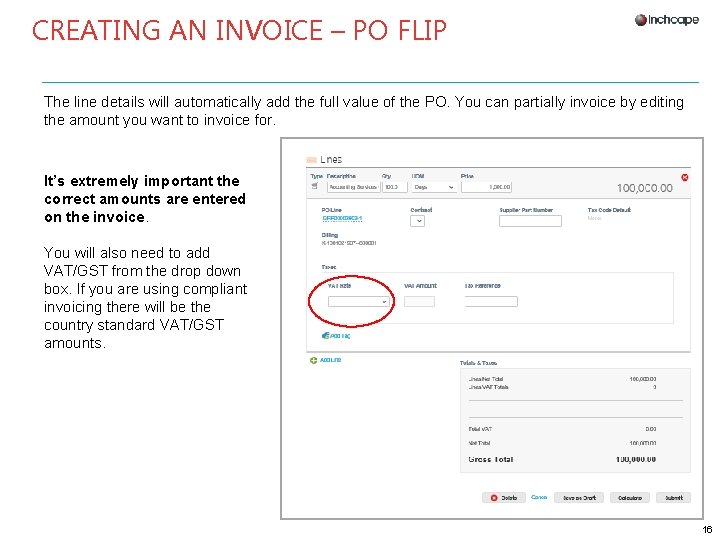
CREATING AN INVOICE – PO FLIP The line details will automatically add the full value of the PO. You can partially invoice by editing the amount you want to invoice for. It’s extremely important the correct amounts are entered on the invoice. You will also need to add VAT/GST from the drop down box. If you are using compliant invoicing there will be the country standard VAT/GST amounts. 16
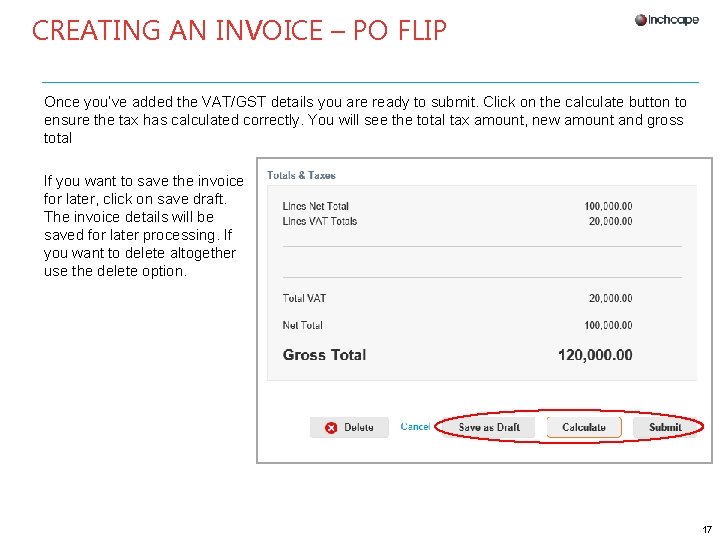
CREATING AN INVOICE – PO FLIP Once you’ve added the VAT/GST details you are ready to submit. Click on the calculate button to ensure the tax has calculated correctly. You will see the total tax amount, new amount and gross total If you want to save the invoice for later, click on save draft. The invoice details will be saved for later processing. If you want to delete altogether use the delete option. 17
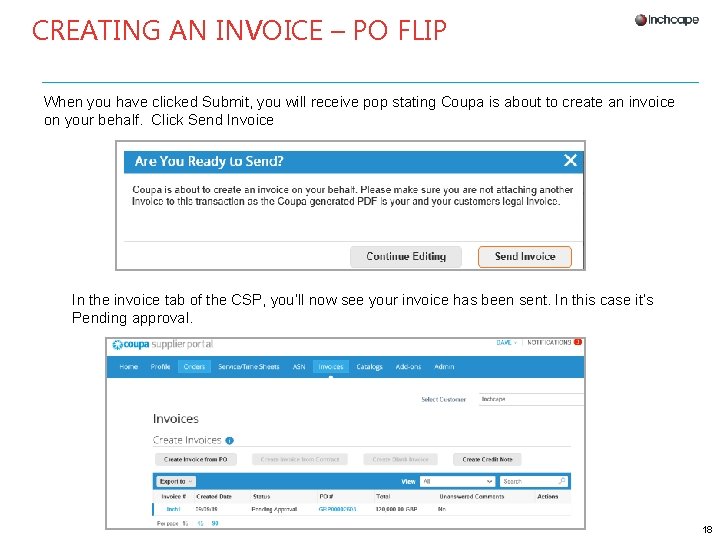
CREATING AN INVOICE – PO FLIP When you have clicked Submit, you will receive pop stating Coupa is about to create an invoice on your behalf. Click Send Invoice In the invoice tab of the CSP, you’ll now see your invoice has been sent. In this case it’s Pending approval. 18
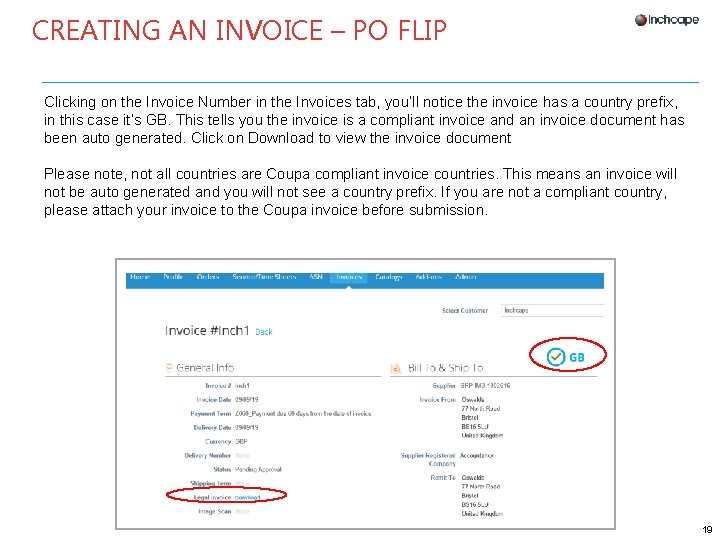
CREATING AN INVOICE – PO FLIP Clicking on the Invoice Number in the Invoices tab, you’ll notice the invoice has a country prefix, in this case it’s GB. This tells you the invoice is a compliant invoice and an invoice document has been auto generated. Click on Download to view the invoice document Please note, not all countries are Coupa compliant invoice countries. This means an invoice will not be auto generated and you will not see a country prefix. If you are not a compliant country, please attach your invoice to the Coupa invoice before submission. 19
CREATING AN INVOICE – BLANKET PURCHASE ORDERS In certain circumstances, Inchcape may send you a blanket purchase order. Blanket purchase orders are typically sent for an overall value and invoices are called off against the order. For Example: Blanket PO sent for a value of 12000 but you have agree to invoice 1000 per month for 12 months. When flipping an PO to an invoice it’s vital you change the amount on the invoice to only the amount you wish to invoice for. Coupa will naturally put the full amount of the PO onto the invoice when a PO flip is carried out so it’s important you change the invoice value before submitting. 20
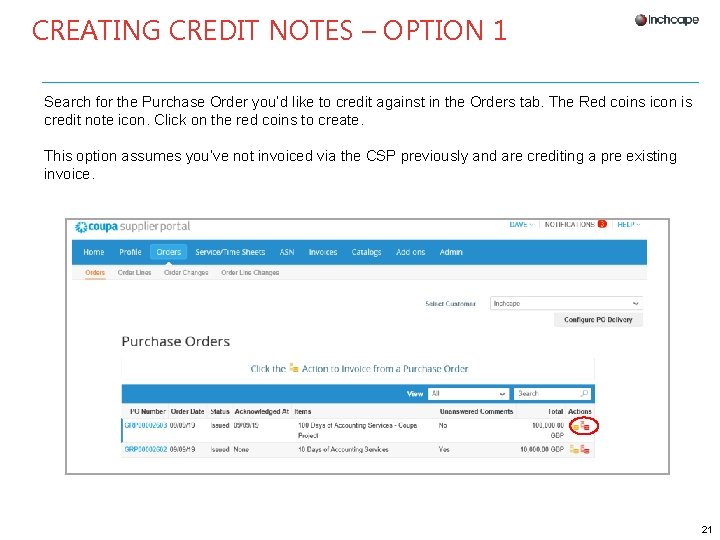
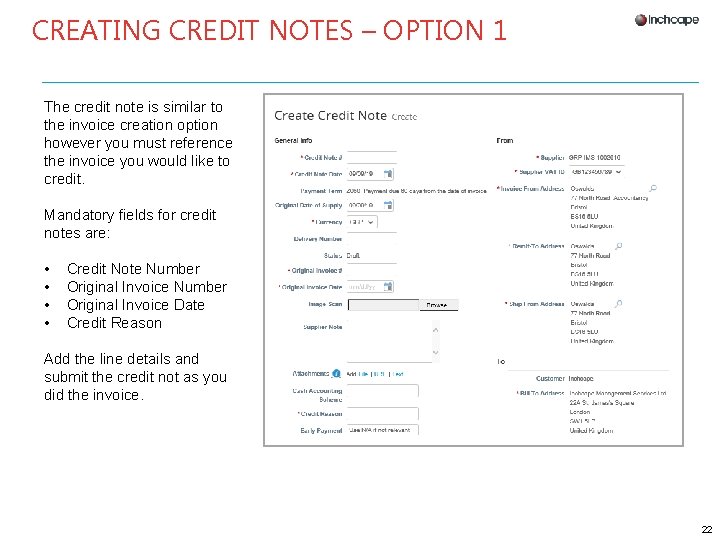
CREATING CREDIT NOTES – OPTION 1 Search for the Purchase Order you’d like to credit against in the Orders tab. The Red coins icon is credit note icon. Click on the red coins to create. This option assumes you’ve not invoiced via the CSP previously and are crediting a pre existing invoice. 21
CREATING CREDIT NOTES – OPTION 1 The credit note is similar to the invoice creation option however you must reference the invoice you would like to credit. Mandatory fields for credit notes are: • • Credit Note Number Original Invoice Date Credit Reason Add the line details and submit the credit not as you did the invoice. 22
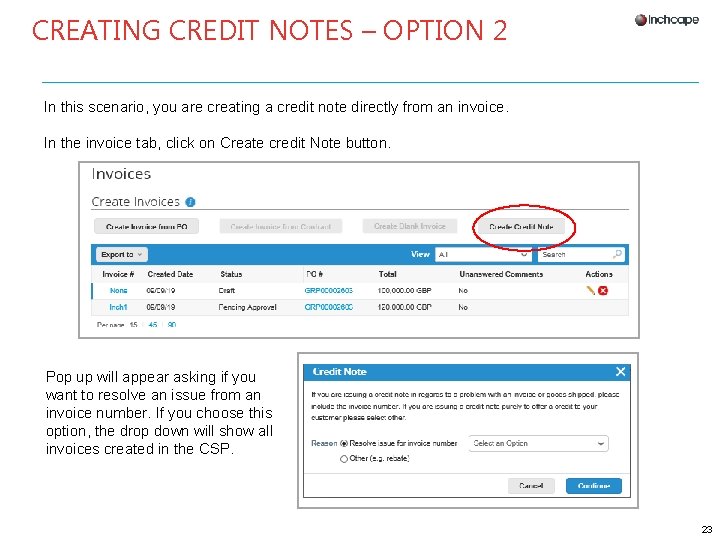
CREATING CREDIT NOTES – OPTION 2 In this scenario, you are creating a credit note directly from an invoice. In the invoice tab, click on Create credit Note button. Pop up will appear asking if you want to resolve an issue from an invoice number. If you choose this option, the drop down will show all invoices created in the CSP. 23
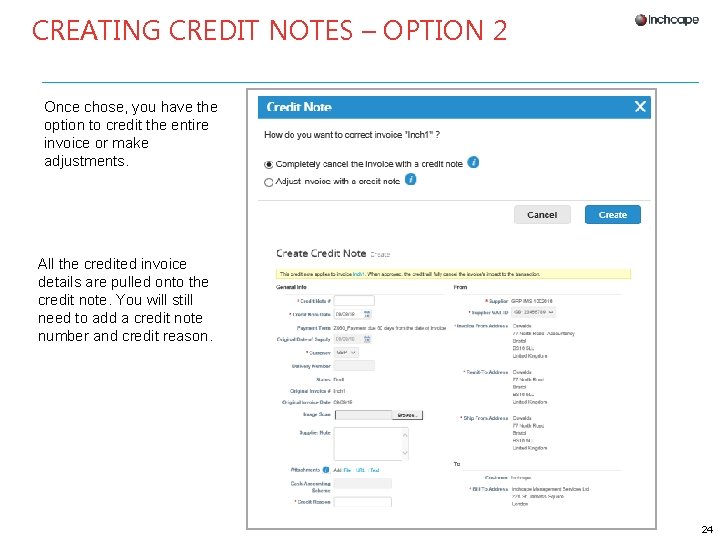
CREATING CREDIT NOTES – OPTION 2 Once chose, you have the option to credit the entire invoice or make adjustments. All the credited invoice details are pulled onto the credit note. You will still need to add a credit note number and credit reason. 24
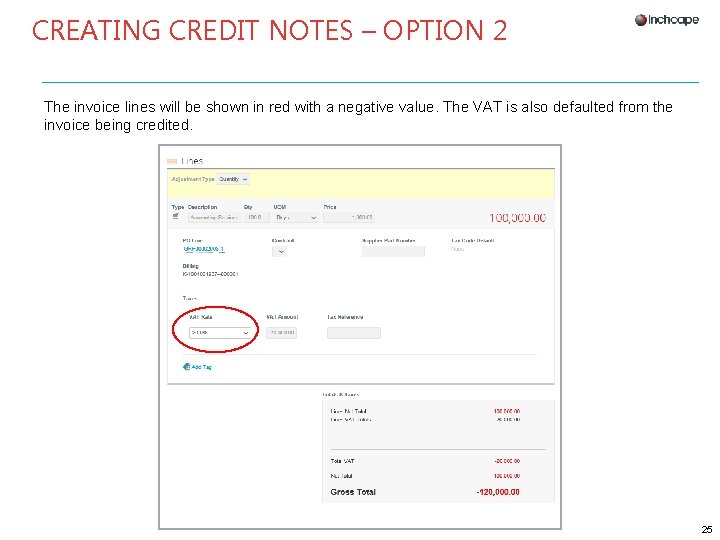
CREATING CREDIT NOTES – OPTION 2 The invoice lines will be shown in red with a negative value. The VAT is also defaulted from the invoice being credited. 25
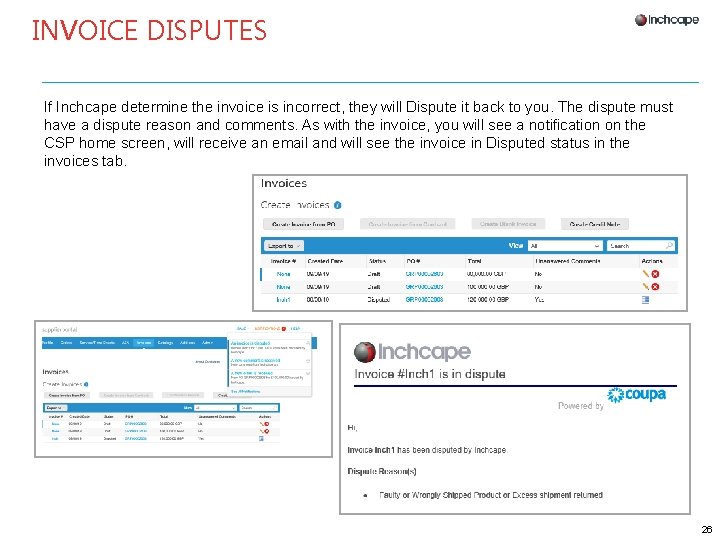
INVOICE DISPUTES If Inchcape determine the invoice is incorrect, they will Dispute it back to you. The dispute must have a dispute reason and comments. As with the invoice, you will see a notification on the CSP home screen, will receive an email and will see the invoice in Disputed status in the invoices tab. 26
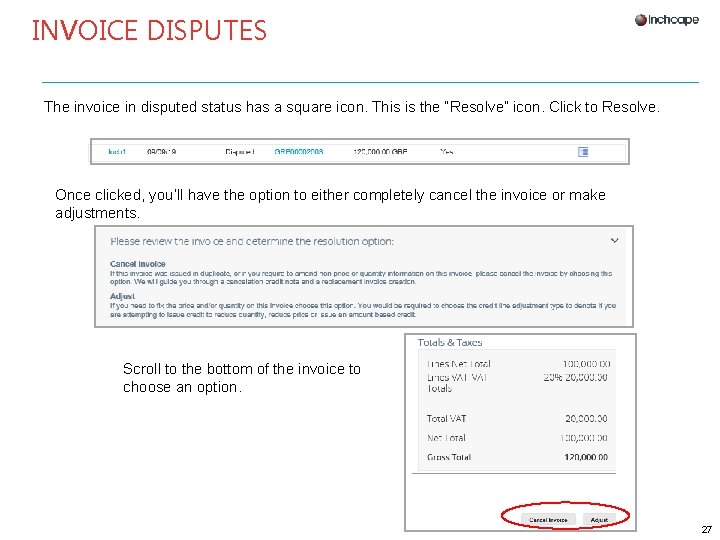
INVOICE DISPUTES The invoice in disputed status has a square icon. This is the “Resolve” icon. Click to Resolve. Once clicked, you’ll have the option to either completely cancel the invoice or make adjustments. Scroll to the bottom of the invoice to choose an option. 27
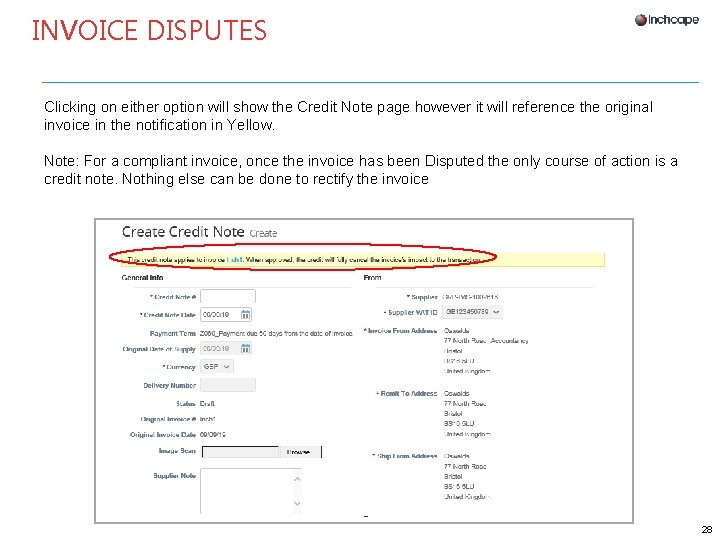
INVOICE DISPUTES Clicking on either option will show the Credit Note page however it will reference the original invoice in the notification in Yellow. Note: For a compliant invoice, once the invoice has been Disputed the only course of action is a credit note. Nothing else can be done to rectify the invoice 28
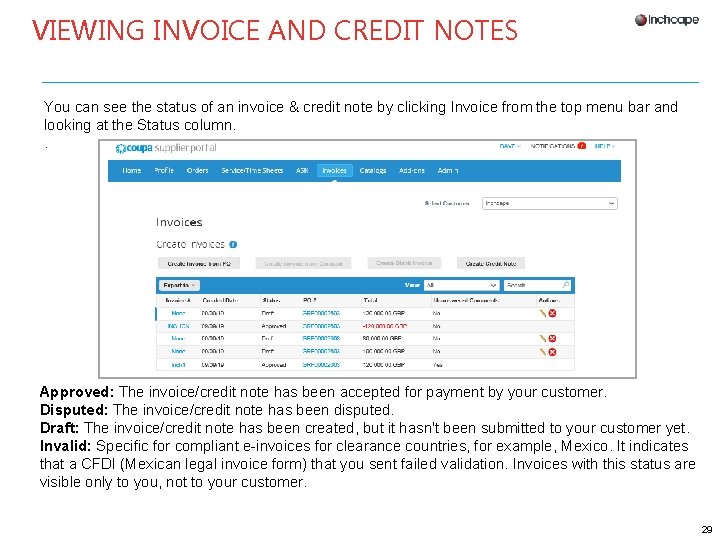
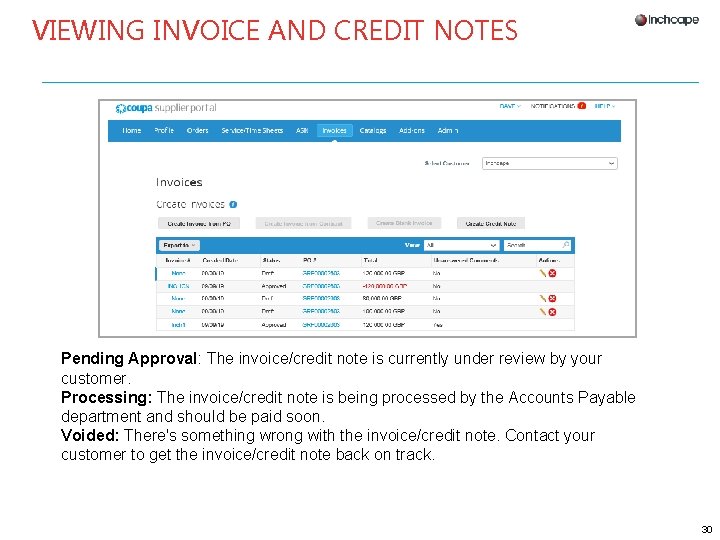
VIEWING INVOICE AND CREDIT NOTES You can see the status of an invoice & credit note by clicking Invoice from the top menu bar and looking at the Status column. . Approved: The invoice/credit note has been accepted for payment by your customer. Disputed: The invoice/credit note has been disputed. Draft: The invoice/credit note has been created, but it hasn't been submitted to your customer yet. Invalid: Specific for compliant e-invoices for clearance countries, for example, Mexico. It indicates that a CFDI (Mexican legal invoice form) that you sent failed validation. Invoices with this status are visible only to you, not to your customer. 29
VIEWING INVOICE AND CREDIT NOTES Pending Approval: The invoice/credit note is currently under review by your customer. Processing: The invoice/credit note is being processed by the Accounts Payable department and should be paid soon. Voided: There's something wrong with the invoice/credit note. Contact your customer to get the invoice/credit note back on track. 30
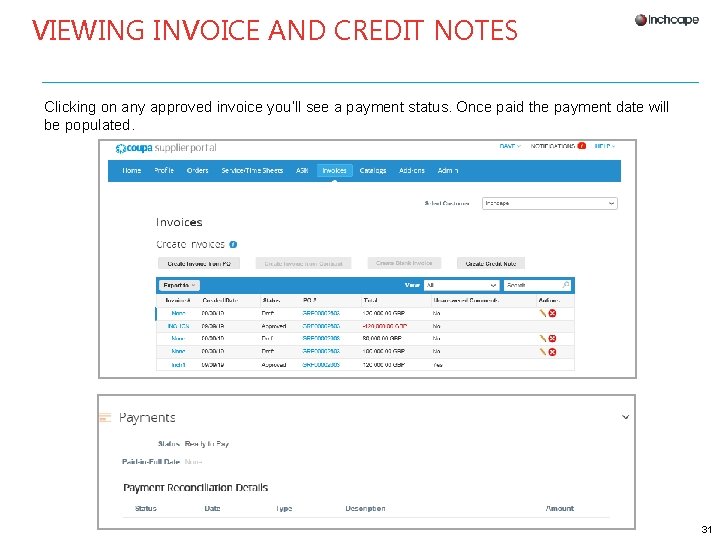
VIEWING INVOICE AND CREDIT NOTES Clicking on any approved invoice you’ll see a payment status. Once paid the payment date will be populated. 31
WRAP UP • If you are having issues with set up or invoice submission, please contact Inchcape Accounts Payable THANK YOU! 32