
Costpoint Understanding and Planning for TE 10 Upgrade










- Slides: 93
Costpoint: Understanding and Planning for T&E 10 Upgrade Deltek University Preconference Workshop
COPYRIGHT INFORMATION Deltek is the leading global provider of enterprise software and information solutions for professional services firms and government contractors. For decades, we have delivered actionable insight that empowers our customers to unlock their business potential. 16, 000 organizations and 2 million users in over 80 countries around the world rely on Deltek to research and identify opportunities, win new business, optimize resources, streamline operations, and deliver more profitable projects. Deltek – Know more. Do more. ® deltek. com/education © October 2017 Deltek, Inc. All rights reserved. All referenced trademarks are the property of their respective owners. © Deltek, Inc. All Rights Reserved. 2
Introductions Presenters: Diane Hanks Deltek University – Principal Curriculum Manager © Deltek, Inc. All Rights Reserved. 3
Agenda Slide • Overview • Planning Getting Ready - Decisions • Implementation • Post Upgrade Steps • Training Resources © Deltek, Inc. All Rights Reserved. 4
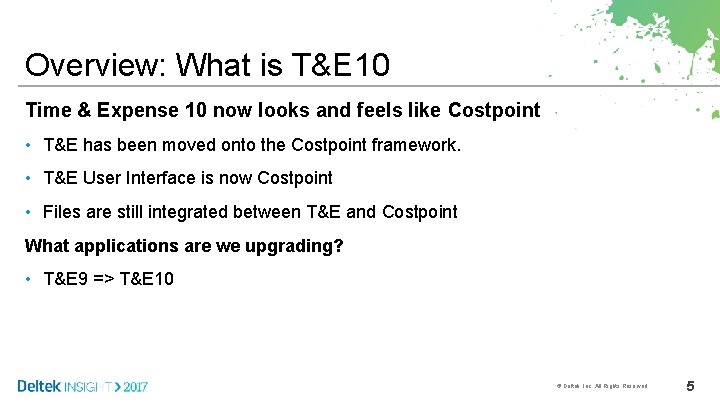
Overview: What is T&E 10 Time & Expense 10 now looks and feels like Costpoint • T&E has been moved onto the Costpoint framework. • T&E User Interface is now Costpoint • Files are still integrated between T&E and Costpoint What applications are we upgrading? • T&E 9 => T&E 10 © Deltek, Inc. All Rights Reserved. 5
Overview: Benefits to Moving to T&E 10 • Functionality and User Experience on Par with 9. 0. 1 • Enhanced authentication methods – Provides enhanced LDAP, SSO, and mixed authentication capabilities • TabletPhone Support – Provides automatic screen resizing when used with a tablet or phone (Smart Phone Mode) • T&E 10 can be deployed by itself or together with Costpoint and/or B&P • Enhanced security to control what products can be exposed over Internet • Lower Cost of Operation – Provides deployment option to combine/share application and web servers for CP and T&E as single deployment © Deltek, Inc. All Rights Reserved. 6
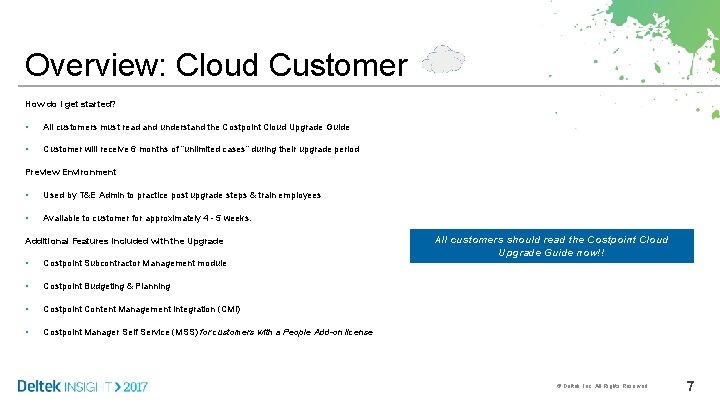
Overview: Cloud Customer How do I get started? • All customers must read and understand the Costpoint Cloud Upgrade Guide • Customer will receive 6 months of “unlimited cases” during their upgrade period Preview Environment • Used by T&E Admin to practice post upgrade steps & train employees • Available to customer for approximately 4 - 5 weeks. Additional Features included with the Upgrade • Costpoint Subcontractor Management module • Costpoint Budgeting & Planning • Costpoint Content Management Integration (CMI) • Costpoint Manager Self Service (MSS) for customers with a People Add-on license All customers should read the Costpoint Cloud Upgrade Guide now!! © Deltek, Inc. All Rights Reserved. 7
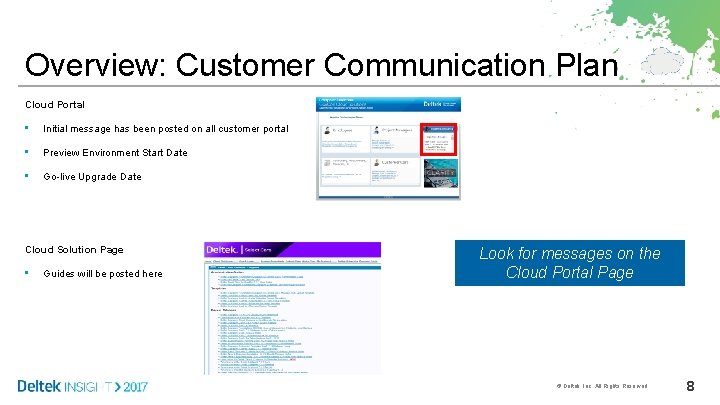
Overview: Customer Communication Plan Cloud Portal • Initial message has been posted on all customer portal • Preview Environment Start Date • Go-live Upgrade Date Cloud Solution Page • Guides will be posted here Look for messages on the Cloud Portal Page © Deltek, Inc. All Rights Reserved. 8
Planning: Getting Ready © Deltek, Inc. All Rights Reserved. 9
Steps to a Successful Upgrade Initial Planning and Preview Environment Configuration • Monitor your company’s cloud portal page for a message notifying you of the start of your Preview Environment. • Read, understand distribute the Deltek Cloud Upgrade Guide to all relevant stakeholders. This includes external consultants you may be working with on various project. • Read the Time & Expense, Budgeting & Planning and Employee Self Service Release Notes. Complete Post Upgrade Steps in Preview Environment • Plan on completing these steps as soon as your Preview Environment is made available. • Document your company’s post upgrade steps and any additional configurations you make in the Preview system. You will be required to re-do these steps on your Go-live system. Don’t Delay. Start your Upgrade Planning ASAP!! © Deltek, Inc. All Rights Reserved. 10
Steps to a Successful Upgrade Employee Training & Notifications: Employees should understand that Time & Expense, and Employee Self Service are now part of Costpoint. This means you will log into Costpoint to get to your Timesheet, Expense report, and Employee Self Service screens. Employees should understand that any url’s they have bookmarked are changing with the upgrade. Employees should navigate to the company’s cloud portal to get the Preview link and the new links once your company goes live. Notify your employees that Time & Expense, and Employee Self Service are being upgraded and the user interface for these applications is changing. Notify your employees that the Deltek Touch app will no longer be available on your Go-live date. Instruct employees on how they can log into the Preview system. All employees will be impacted! © Deltek, Inc. All Rights Reserved. 11
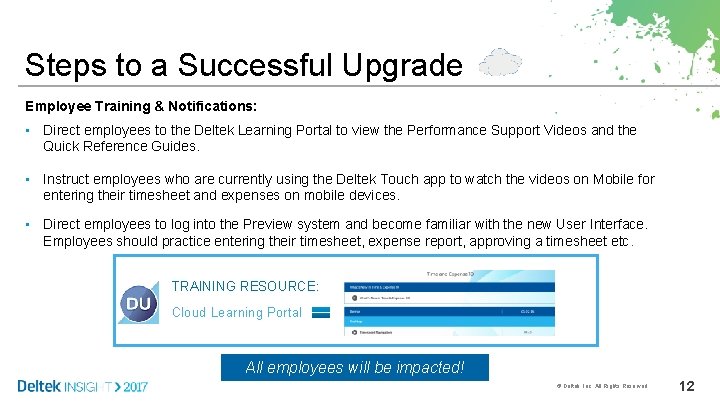
Steps to a Successful Upgrade Employee Training & Notifications: • Direct employees to the Deltek Learning Portal to view the Performance Support Videos and the Quick Reference Guides. • Instruct employees who are currently using the Deltek Touch app to watch the videos on Mobile for entering their timesheet and expenses on mobile devices. • Direct employees to log into the Preview system and become familiar with the new User Interface. Employees should practice entering their timesheet, expense report, approving a timesheet etc. TRAINING RESOURCE: Cloud Learning Portal All employees will be impacted! © Deltek, Inc. All Rights Reserved. 12
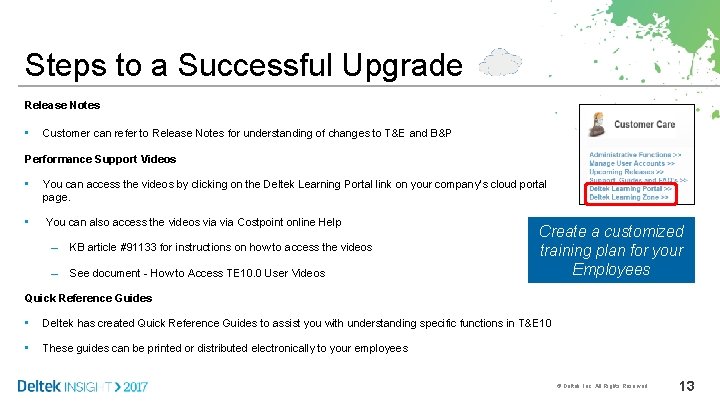
Steps to a Successful Upgrade Release Notes • Customer can refer to Release Notes for understanding of changes to T&E and B&P Performance Support Videos • You can access the videos by clicking on the Deltek Learning Portal link on your company’s cloud portal page. • You can also access the videos via Costpoint online Help – KB article #91133 for instructions on how to access the videos – See document - How to Access TE 10. 0 User Videos Create a customized training plan for your Employees Quick Reference Guides • Deltek has created Quick Reference Guides to assist you with understanding specific functions in T&E 10 • These guides can be printed or distributed electronically to your employees © Deltek, Inc. All Rights Reserved. 13
Preview Environment Overview • Preview Environment will be available for ~ 4 to 5 weeks prior to your scheduled Go-live upgrade date • Provides you with the ability to view your data in the latest versions of the applications • Utilize the Preview Environment to practice your post upgrade steps • Utilize the Preview Environment to Train your employees • Link on Customer Cloud Portal Page - Costpoint, Time & Expense, B&P - PREVIEW >> • Your Preview system will be named <Client. Name>PRV • Your Preview Environment will include access to Costpoint, Time & Expense, Budgeting & Planning and CER • Changes you make in the Preview database will not be carried forward into your Go-live database. Important • Deltek will create your Preview Environment using a copy of your {Client. Name}Config system • If you want Deltek to use your {Client. Name. TEST} system to create the copy of the system for your Preview Environment you must submit a support ticket to Deltek at least 6 days prior to the start of your Preview Environment. – This support ticket must get routed to DCO!! Notify Deltek if you want to use your TEST db for Preview © Deltek, Inc. All Rights Reserved. 14
T&E 10 User Interface difference © Deltek, Inc. All Rights Reserved. 15
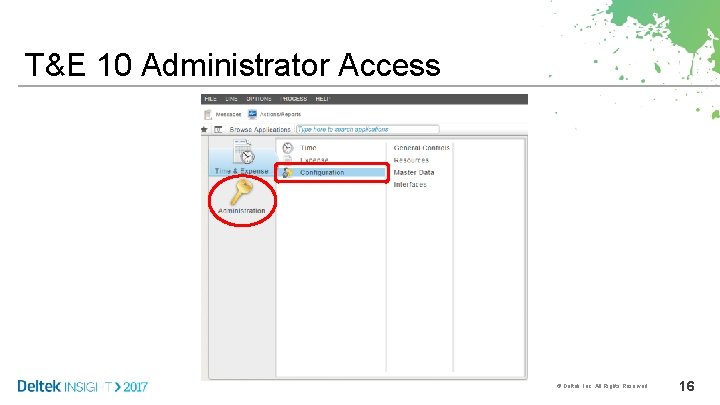
T&E 10 Administrator Access © Deltek, Inc. All Rights Reserved. 16
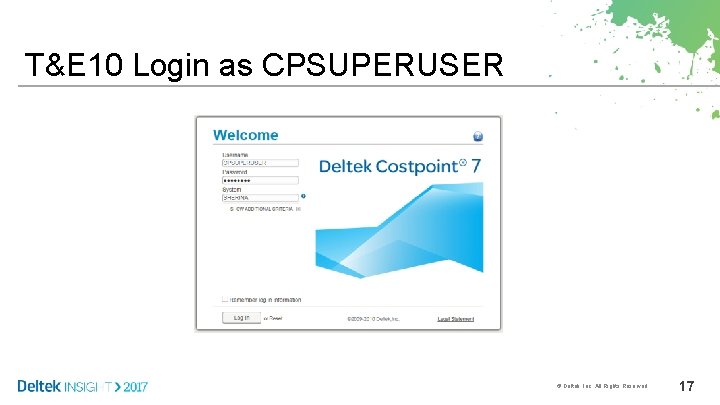
T&E 10 Login as CPSUPERUSER © Deltek, Inc. All Rights Reserved. 17
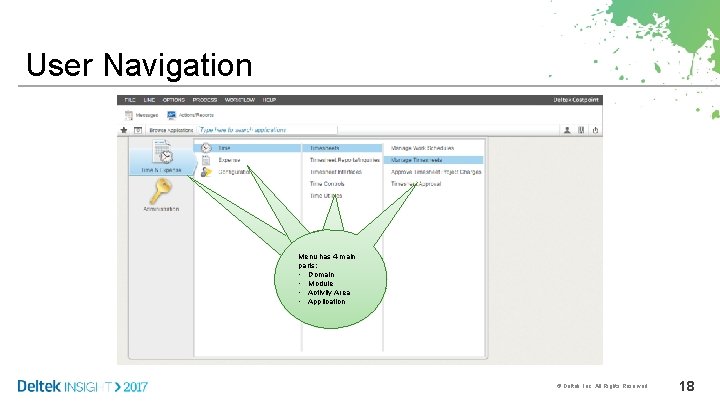
User Navigation Menu has 4 main parts: parts – Domain, • Domain Modules, Activity • Module Areas and • Activity Area Applications • Application © Deltek, Inc. All Rights Reserved. 18
Demonstration • Navigating T&E 10 • Manage Timesheets • Manage Expense Report © Deltek, Inc. All Rights Reserved. 19
Summary You should now be able to: • • Understand the benefits of moving to T&E 10 Know the steps to a successful upgrade Locate and complete training Navigate T&E 10 Timesheet and Expense Report Any questions? © Deltek, Inc. All Rights Reserved. 20
Decisions © Deltek, Inc. All Rights Reserved. 21
Decisions: Deployment © Deltek, Inc. All Rights Reserved. 22
Decisions – Deployment Options • Shared Deployment – Share Everything – Share Infrastructure • Standalone Deployment • Are the benefits of co-deployment necessary for your business? • Are you deploying Mobile functionality? • Employee Self-Service (ESS) no longer part of T&E 10, now part of Costpoint. How does this impact your decision? © Deltek, Inc. All Rights Reserved. 23
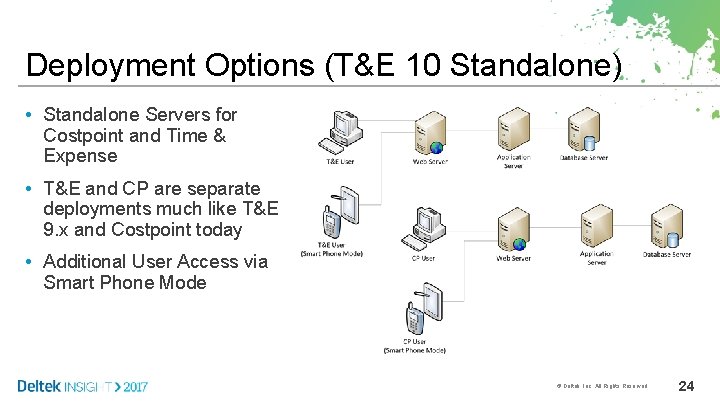
Deployment Options (T&E 10 Standalone) • Standalone Servers for Costpoint and Time & Expense • T&E and CP are separate deployments much like T&E 9. x and Costpoint today • Additional User Access via Smart Phone Mode © Deltek, Inc. All Rights Reserved. 24
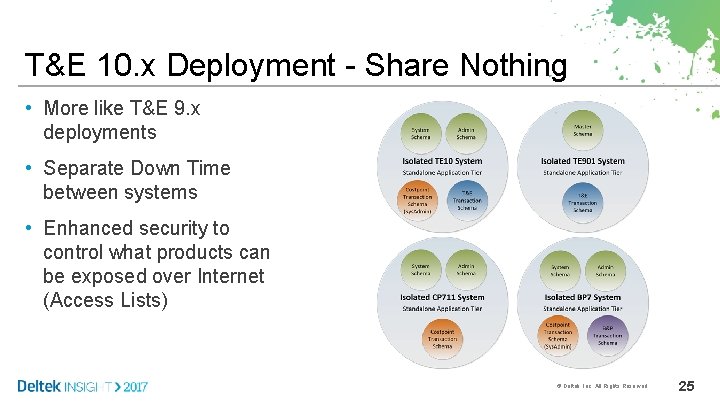
T&E 10. x Deployment - Share Nothing • More like T&E 9. x deployments • Separate Down Time between systems • Enhanced security to control what products can be exposed over Internet (Access Lists) © Deltek, Inc. All Rights Reserved. 25
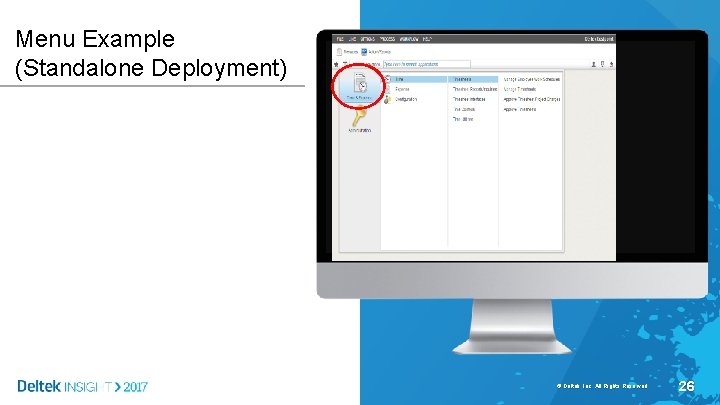
Menu Example (Standalone Deployment) © Deltek, Inc. All Rights Reserved. 26
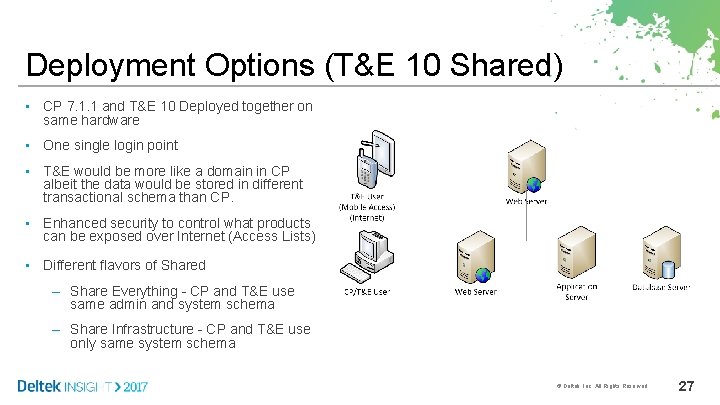
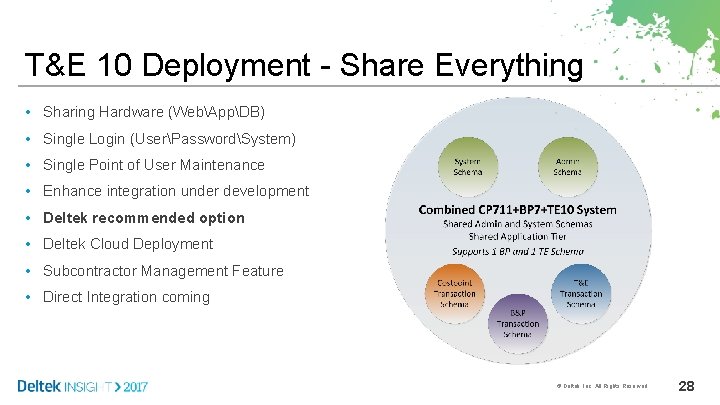
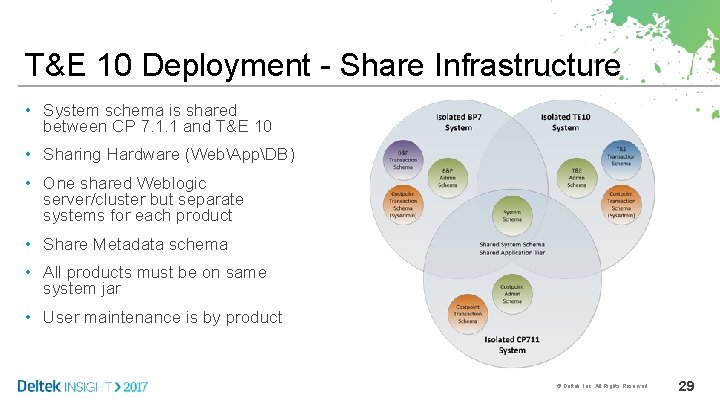
Deployment Options (T&E 10 Shared) • CP 7. 1. 1 and T&E 10 Deployed together on same hardware • One single login point • T&E would be more like a domain in CP albeit the data would be stored in different transactional schema than CP. • Enhanced security to control what products can be exposed over Internet (Access Lists) • Different flavors of Shared – Share Everything - CP and T&E use same admin and system schema – Share Infrastructure - CP and T&E use only same system schema © Deltek, Inc. All Rights Reserved. 27
T&E 10 Deployment - Share Everything • Sharing Hardware (WebAppDB) • Single Login (UserPasswordSystem) • Single Point of User Maintenance • Enhance integration under development • Deltek recommended option • Deltek Cloud Deployment • Subcontractor Management Feature • Direct Integration coming © Deltek, Inc. All Rights Reserved. 28
T&E 10 Deployment - Share Infrastructure • System schema is shared between CP 7. 1. 1 and T&E 10 • Sharing Hardware (WebAppDB) • One shared Weblogic server/cluster but separate systems for each product • Share Metadata schema • All products must be on same system jar • User maintenance is by product © Deltek, Inc. All Rights Reserved. 29
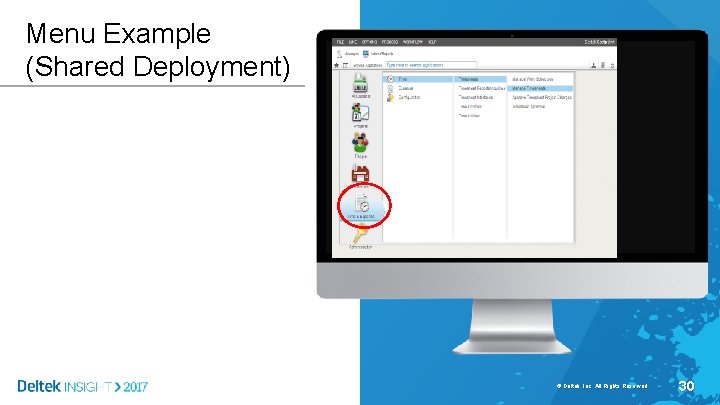
Menu Example (Shared Deployment) © Deltek, Inc. All Rights Reserved. 30
Summary You should now be able to: • Determine your deployment options, either: • Shared Deployment • Share Everything • Share Infrastructure • Standalone Deployment Any questions? © Deltek, Inc. All Rights Reserved. 31
Decisions: Mobile Capability © Deltek, Inc. All Rights Reserved. 32
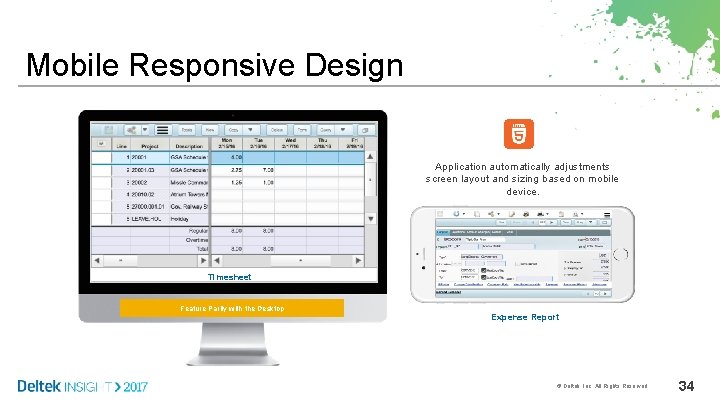
Mobile • Background – What is mobile in T&E 10 – Responsive Design replaces Touch © Deltek, Inc. All Rights Reserved. 33
Mobile Responsive Design Application automatically adjustments screen layout and sizing based on mobile device. Timesheet Feature Parity with the Desktop Expense Report © Deltek, Inc. All Rights Reserved. 34
Mobile Responsive Design • Key Benefits – No application install – Full application functionality – Additional Device Support (HTML 5 browser) – Ability to be deployed with MDM Software (mobile device management) – Similar User Experience as desktop – Automatically adjusts UI based on device orientation (Portrait vs. Landscape) – No separate Touch server required © Deltek, Inc. All Rights Reserved. 35
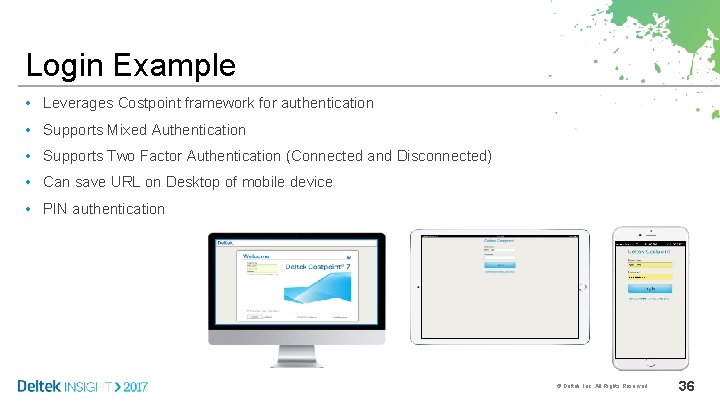
Login Example • Leverages Costpoint framework for authentication • Supports Mixed Authentication • Supports Two Factor Authentication (Connected and Disconnected) • Can save URL on Desktop of mobile device • PIN authentication © Deltek, Inc. All Rights Reserved. 36
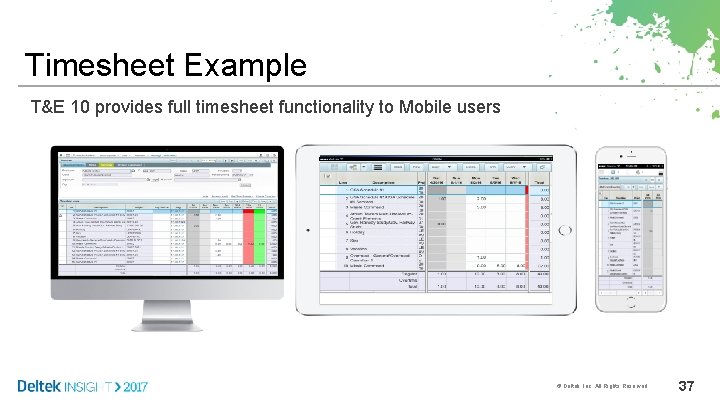
Timesheet Example T&E 10 provides full timesheet functionality to Mobile users © Deltek, Inc. All Rights Reserved. 37
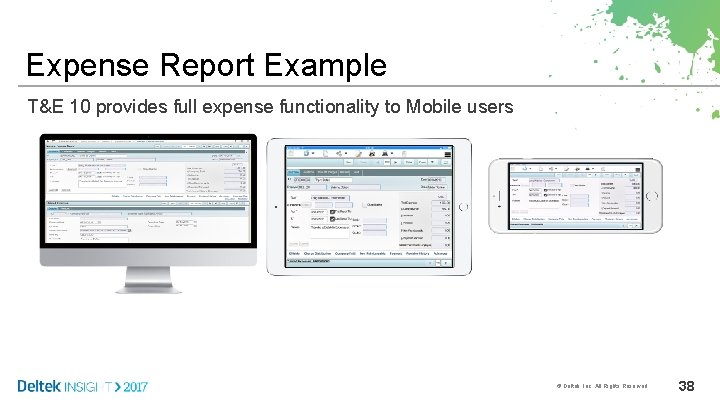
Expense Report Example T&E 10 provides full expense functionality to Mobile users © Deltek, Inc. All Rights Reserved. 38
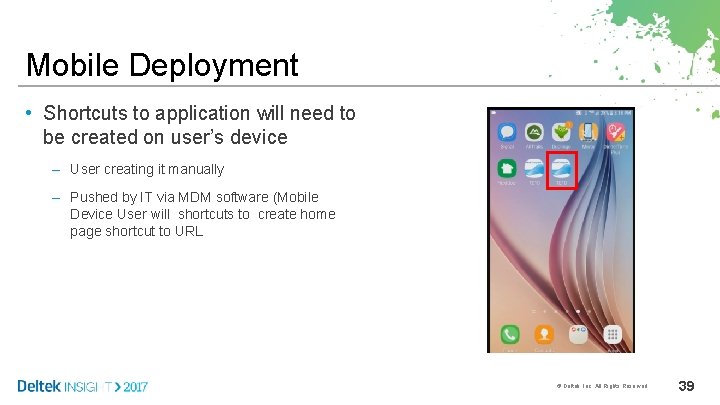
Mobile Deployment • Shortcuts to application will need to be created on user’s device – User creating it manually – Pushed by IT via MDM software (Mobile Device User will shortcuts to create home page shortcut to URL © Deltek, Inc. All Rights Reserved. 39
Summary You should now be able to: Determine how to deploy the mobile capability in T&E 10 Any questions? © Deltek, Inc. All Rights Reserved. 40
Implementation © Deltek, Inc. All Rights Reserved. 41
Implementation • Pre installation – Costpoint 7. 1. 1 must be installed and operational – All Costpoint 7. 1. 1 Hot Fixes must be installed – Check Time And Expense 9. 0. 1 Transaction Database Pre-Upgrade Status – Back up Time And Expense 9. 0. 1 Schemas © Deltek, Inc. All Rights Reserved. 42
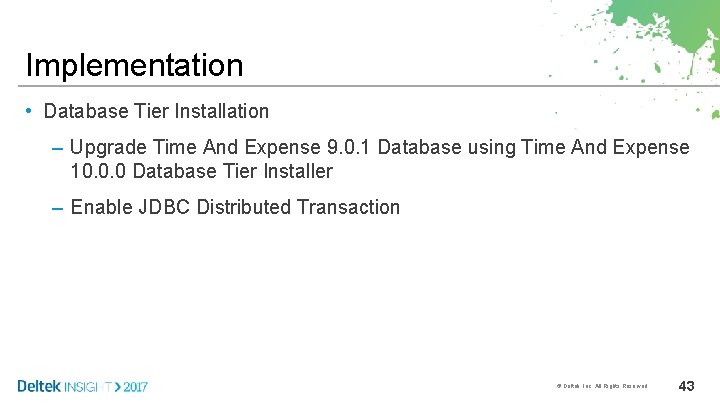
Implementation • Database Tier Installation – Upgrade Time And Expense 9. 0. 1 Database using Time And Expense 10. 0. 0 Database Tier Installer – Enable JDBC Distributed Transaction © Deltek, Inc. All Rights Reserved. 43
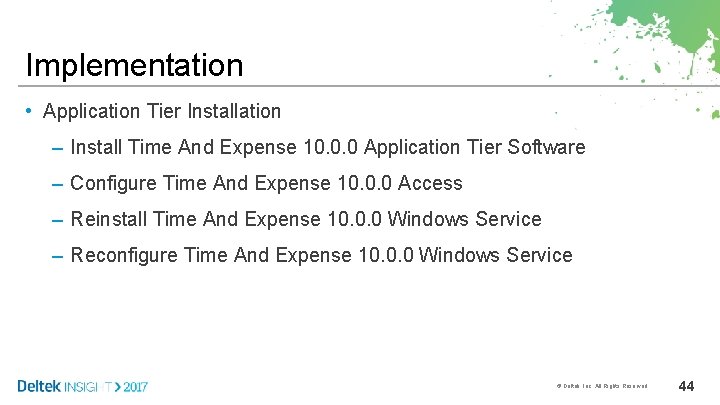
Implementation • Application Tier Installation – Install Time And Expense 10. 0. 0 Application Tier Software – Configure Time And Expense 10. 0. 0 Access – Reinstall Time And Expense 10. 0. 0 Windows Service – Reconfigure Time And Expense 10. 0. 0 Windows Service © Deltek, Inc. All Rights Reserved. 44
Implementation • Web Tier Installation (Microsoft IIS) – Install Time And Expense 10. 0. 0 Web Tier Software © Deltek, Inc. All Rights Reserved. 45
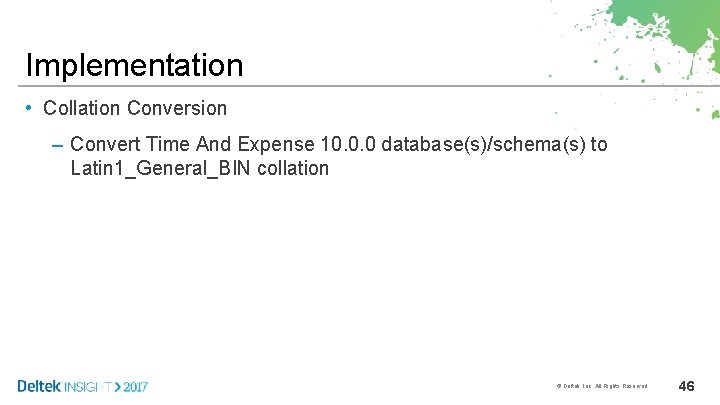
Implementation • Collation Conversion – Convert Time And Expense 10. 0. 0 database(s)/schema(s) to Latin 1_General_BIN collation © Deltek, Inc. All Rights Reserved. 46
Installation Overview • Post-Installation – Install latest Time And Expense 10. 0. 0 hot fixes – Perform Post Upgrade Steps © Deltek, Inc. All Rights Reserved. 47
Summary You should now be able to: Understand the Implementation process Any questions? © Deltek, Inc. All Rights Reserved. 48
Post Upgrade Steps © Deltek, Inc. All Rights Reserved. 49
What is Post Upgrade Steps • Post Upgrade Steps are the steps required to make T&E 10 Operational after installation and upgrade of T&E 9. x to T&E 10 • Post Upgrade Steps are performed for both getting preview and production operational after update. © Deltek, Inc. All Rights Reserved. 50
What is Post Upgrade Steps • Verify your Time & Expense User Security setup – Time & Expense 10 is now part of Costpoint. Your Time & Expense 9 security roles were converted to a Costpoint User Group. You must review the Costpoint User Groups and ensure the correct users as assigned to these User Groups. • Configure New Time & Expense Features – Time & Expense 10 contains several new features that require configuration. These features include enhanced timesheet correction and timesheet preset revision explanation. • Grant Employees Access to Time & Expense – A Costpoint User ID must be setup for all of your Time & Expense users. If a Time & Expense user is already a Costpoint user that Time & Expense user will be synced up with their Costpoint User ID. © Deltek, Inc. All Rights Reserved. 51
What is Post Upgrade Steps (con’t) • Set up Costpoint Jobs to replace your Time & Expense Scheduled Processes – Time & Expense scheduled processes are not carried forward during the upgrade process. You must recreate your Time & Expense scheduled processes as a Costpoint job utilizing Costpoint’s Job Server functionality. • Mobile Device Access – Setting up Shortcuts on a Mobile Device – The Gov. Con Touch app for mobile device entry is no longer available. Time & Expense 10 allows users to enter their time and expenses using any mobile device. Time & Expense shortcuts (to commonly used applications) should be set up on the user’s mobile device. © Deltek, Inc. All Rights Reserved. 52
Post Upgrade Steps • Post Upgrades Steps apply to: – Cloud Customers – On-Premise Customers The icons above will identify steps for each. If no icon, then steps pertains to both. © Deltek, Inc. All Rights Reserved. 53
Step 1 - Log in to Costpoint (T&E) • Administrator must login into the system: – On-Premise: • Co-Deployed: Costpoint Administrator Account • Standalone: CPSUPERUSER Account – Cloud: • Log in with Saa. S Administrator Account © Deltek, Inc. All Rights Reserved. 54
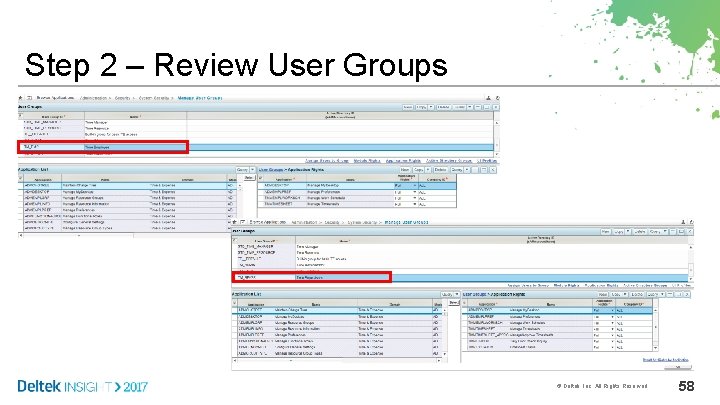
Step 2 - Review Costpoint Security (User Groups) • The purpose of this step is to ensure your Time & Expense users have been placed into the appropriate Costpoint User Groups. New Costpoint User Groups have been created, and users have been assigned to these groups, based on the security roles the users were assigned to in Time & Expense 9. © Deltek, Inc. All Rights Reserved. 55
Step 2 - Security Conversion • Time & Expense 10 menus do not completely align with Time & Expense 9 menus. – Supervisory functions (for example, approving timesheets) associated with timesheets and expense reports/authorizations were separated into the following new screens/applications in Costpoint: • Manage/Approve Timesheets • Manage/Approve Expense Reports • Manage/Approve Expense Authorizations – Print functions in the Expense module were separated into the following new screens: • Print Expense Report • Print Expense Authorization Report – My Desktop and Preferences are menu selections in the new version. All Costpoint User Groups created will be granted rights. © Deltek, Inc. All Rights Reserved. 56
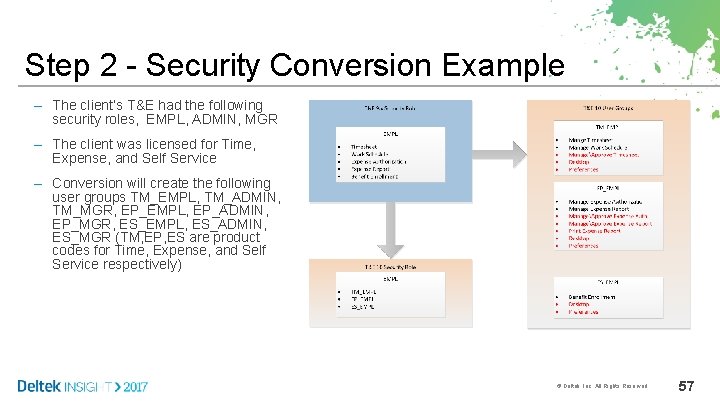
Step 2 - Security Conversion Example – The client’s T&E had the following security roles, EMPL, ADMIN, MGR – The client was licensed for Time, Expense, and Self Service – Conversion will create the following user groups TM_EMPL, TM_ADMIN, TM_MGR, EP_EMPL, EP_ADMIN, EP_MGR, ES_EMPL, ES_ADMIN, ES_MGR (TM, EP, ES are product codes for Time, Expense, and Self Service respectively) © Deltek, Inc. All Rights Reserved. 57
Step 2 – Review User Groups © Deltek, Inc. All Rights Reserved. 58
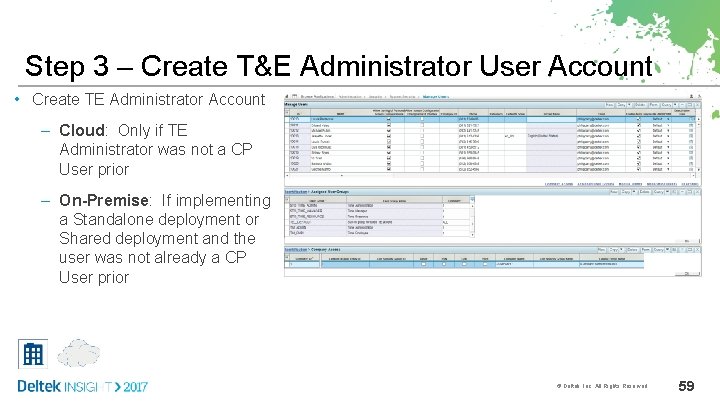
Step 3 – Create T&E Administrator User Account • Create TE Administrator Account – Cloud: Only if TE Administrator was not a CP User prior – On-Premise: If implementing a Standalone deployment or Shared deployment and the user was not already a CP User prior © Deltek, Inc. All Rights Reserved. 59
Step 4 – Grant T&E Administrator Rights • The Administrator will need access to T&E Admin screens to complete rest of setup. They will need to manually grant themselves Admin rights for T&E. Please note all other users will be granted in mass. • With conversion, if you have a T&E 9. x security role of ADMIN, the upgrade process creates the following user groups: – TM_ADMIN – Administrator screen rights for Deltek Time – EP_ADMIN – Administrator screen rights for Deltek Expense – ES_ADMIN – Administrator screen rights for Deltek Employee Self Service © Deltek, Inc. All Rights Reserved. 60
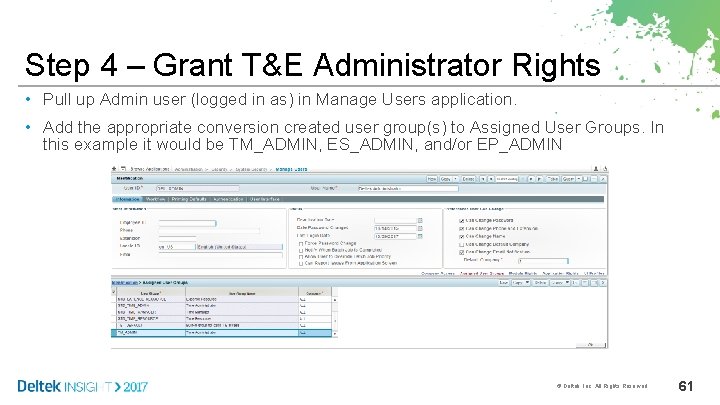
Step 4 – Grant T&E Administrator Rights • Pull up Admin user (logged in as) in Manage Users application. • Add the appropriate conversion created user group(s) to Assigned User Groups. In this example it would be TM_ADMIN, ES_ADMIN, and/or EP_ADMIN © Deltek, Inc. All Rights Reserved. 61
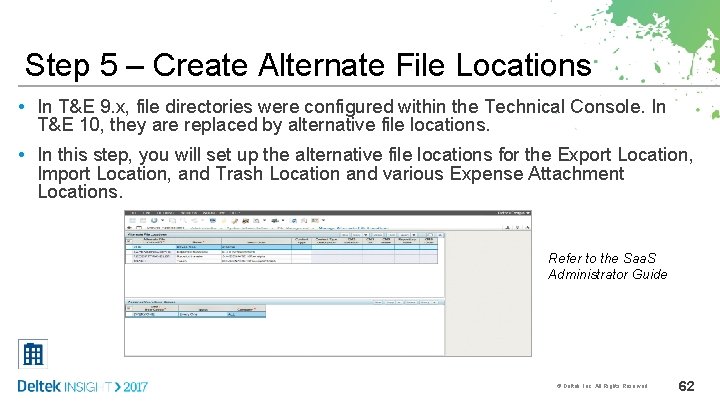
Step 5 – Create Alternate File Locations • In T&E 9. x, file directories were configured within the Technical Console. In T&E 10, they are replaced by alternative file locations. • In this step, you will set up the alternative file locations for the Export Location, Import Location, and Trash Location and various Expense Attachment Locations. Refer to the Saa. S Administrator Guide © Deltek, Inc. All Rights Reserved. 62
Step 6 – Configure Alternate File Locations and Default Authentication Method © Deltek, Inc. All Rights Reserved. 63
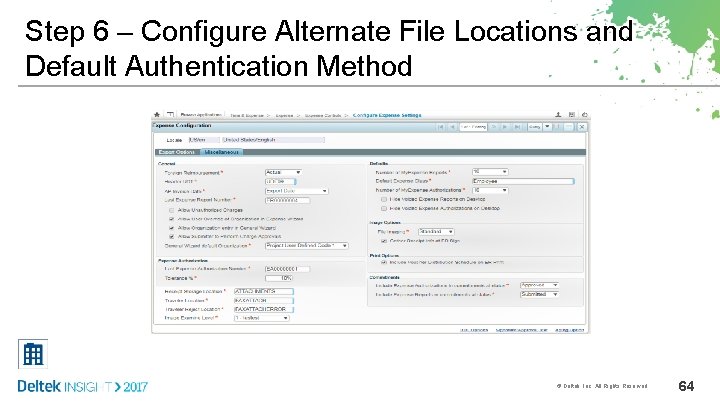
Step 6 – Configure Alternate File Locations and Default Authentication Method © Deltek, Inc. All Rights Reserved. 64
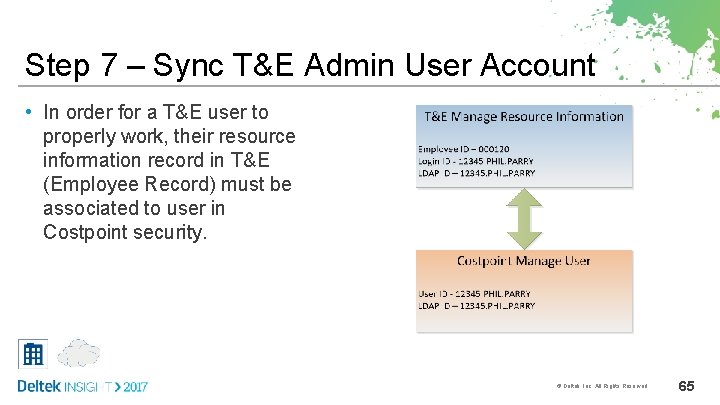
Step 7 – Sync T&E Admin User Account • In order for a T&E user to properly work, their resource information record in T&E (Employee Record) must be associated to user in Costpoint security. © Deltek, Inc. All Rights Reserved. 65
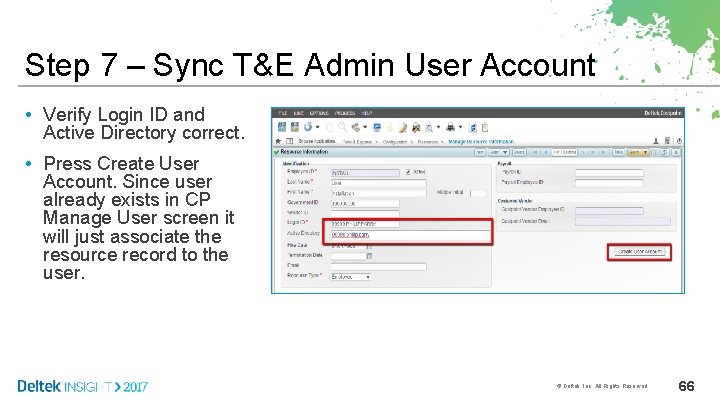
Step 7 – Sync T&E Admin User Account • Verify Login ID and Active Directory correct. • Press Create User Account. Since user already exists in CP Manage User screen it will just associate the resource record to the user. © Deltek, Inc. All Rights Reserved. 66
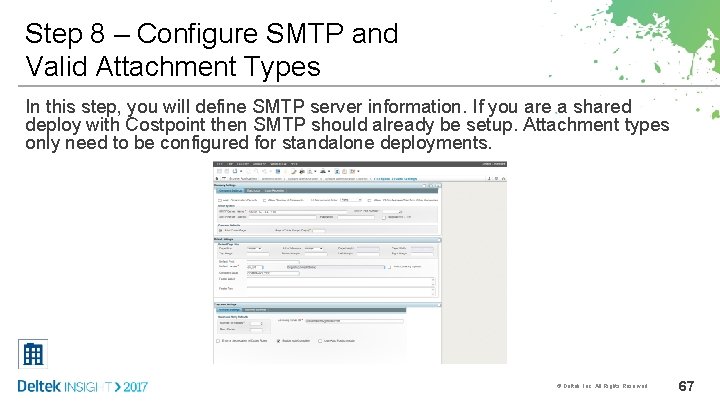
Step 8 – Configure SMTP and Valid Attachment Types In this step, you will define SMTP server information. If you are a shared deploy with Costpoint then SMTP should already be setup. Attachment types only need to be configured for standalone deployments. © Deltek, Inc. All Rights Reserved. 67
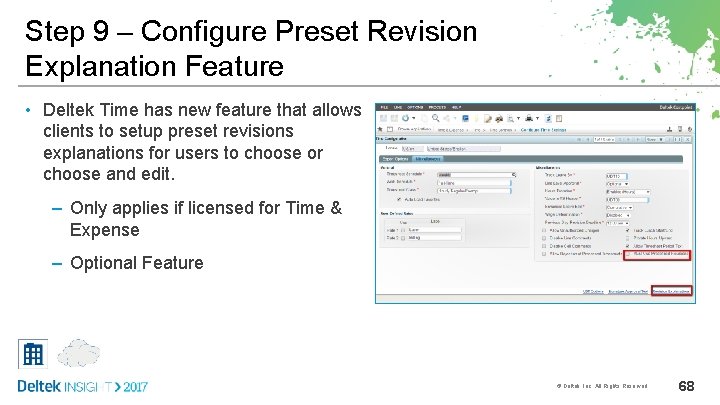
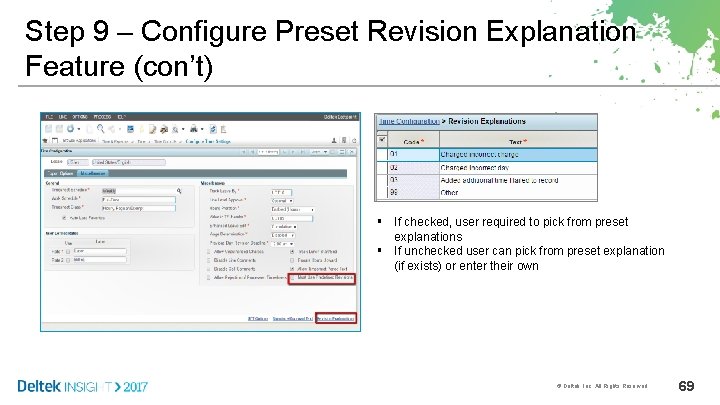
Step 9 – Configure Preset Revision Explanation Feature • Deltek Time has new feature that allows clients to setup preset revisions explanations for users to choose or choose and edit. – Only applies if licensed for Time & Expense – Optional Feature © Deltek, Inc. All Rights Reserved. 68
Step 9 – Configure Preset Revision Explanation Feature (con’t) § If checked, user required to pick from preset explanations § If unchecked user can pick from preset explanation (if exists) or enter their own © Deltek, Inc. All Rights Reserved. 69
Step 10 – Configure Enhanced Timesheet Correction Feature • • Background – Deltek Time timesheet correction process has been enhanced. Below is the functionality that was added: – Require resource to request correction to timesheet in closed period – Provide resource manager or administrator e-mail andor task that timesheet correction request submitted – Provide resource manager or administrator ability to approve timesheet correction requests – Provide resource e-mail andor task that timesheet correction request approved or rejected. – Enhance resource’s timesheet correction UX (Hide Reversal) – Automatically export reversals for timesheet corrections when user exports approved timesheets Benefits – Improve end user UX – Better control over closed periods – Support personas with dozens of charges on Timesheet © Deltek, Inc. All Rights Reserved. 70
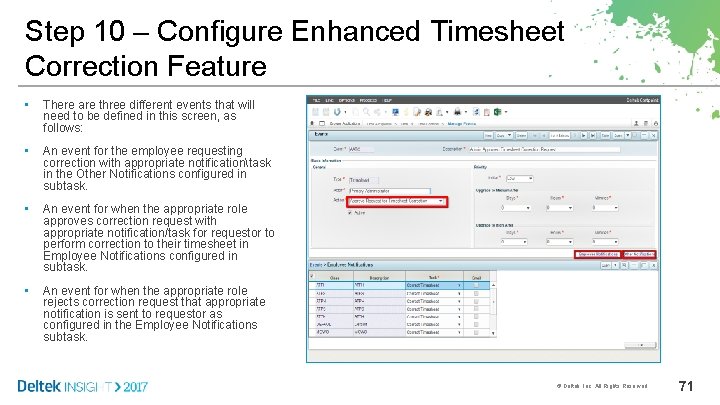
Step 10 – Configure Enhanced Timesheet Correction Feature • There are three different events that will need to be defined in this screen, as follows: • An event for the employee requesting correction with appropriate notificationtask in the Other Notifications configured in subtask. • An event for when the appropriate role approves correction request with appropriate notification/task for requestor to perform correction to their timesheet in Employee Notifications configured in subtask. • An event for when the appropriate role rejects correction request that appropriate notification is sent to requestor as configured in the Employee Notifications subtask. © Deltek, Inc. All Rights Reserved. 71
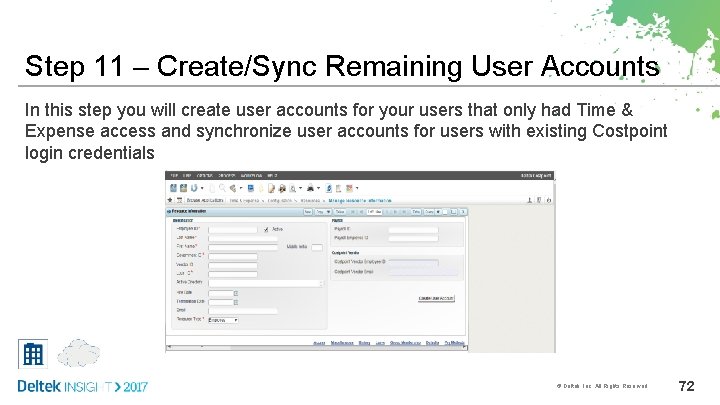
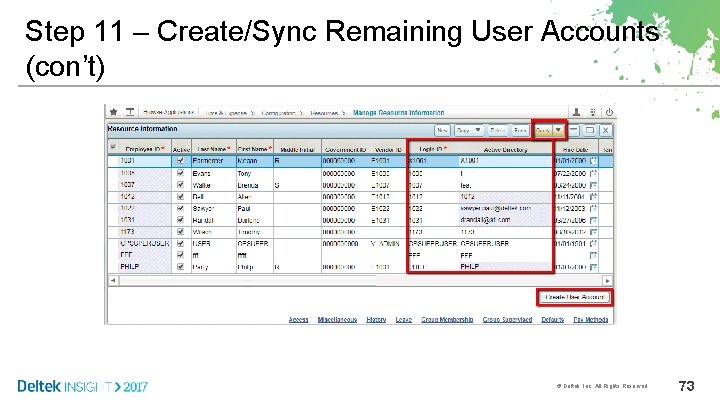
Step 11 – Create/Sync Remaining User Accounts In this step you will create user accounts for your users that only had Time & Expense access and synchronize user accounts for users with existing Costpoint login credentials © Deltek, Inc. All Rights Reserved. 72
Step 11 – Create/Sync Remaining User Accounts (con’t) © Deltek, Inc. All Rights Reserved. 73
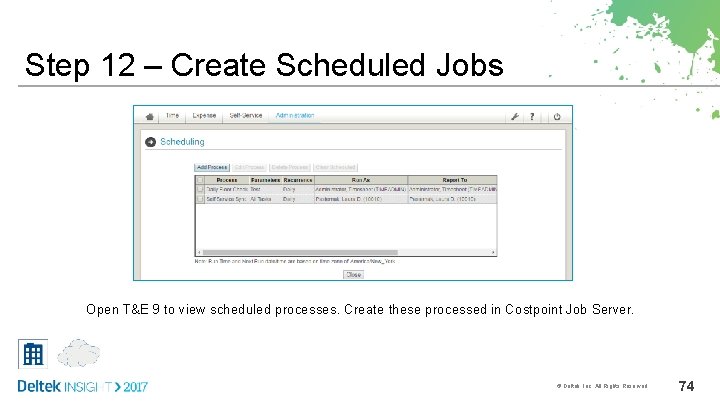
Step 12 – Create Scheduled Jobs Open T&E 9 to view scheduled processes. Create these processed in Costpoint Job Server. © Deltek, Inc. All Rights Reserved. 74
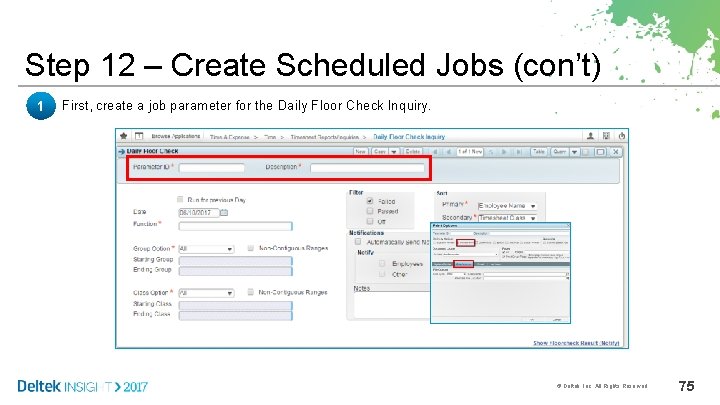
Step 12 – Create Scheduled Jobs (con’t) 1 First, create a job parameter for the Daily Floor Check Inquiry. © Deltek, Inc. All Rights Reserved. 75
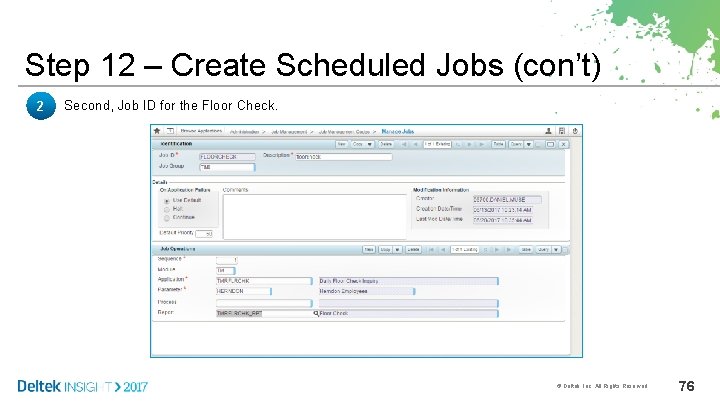
Step 12 – Create Scheduled Jobs (con’t) 2 Second, Job ID for the Floor Check. © Deltek, Inc. All Rights Reserved. 76
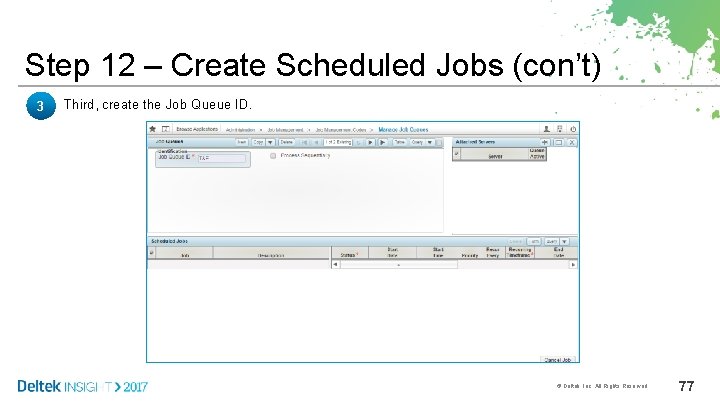
Step 12 – Create Scheduled Jobs (con’t) 3 Third, create the Job Queue ID. © Deltek, Inc. All Rights Reserved. 77
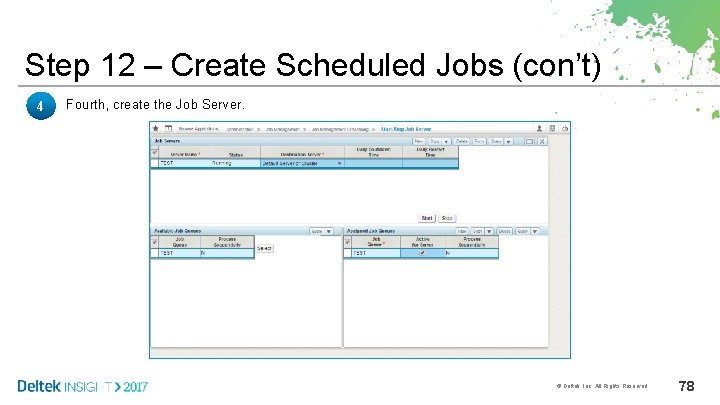
Step 12 – Create Scheduled Jobs (con’t) 4 Fourth, create the Job Server. © Deltek, Inc. All Rights Reserved. 78
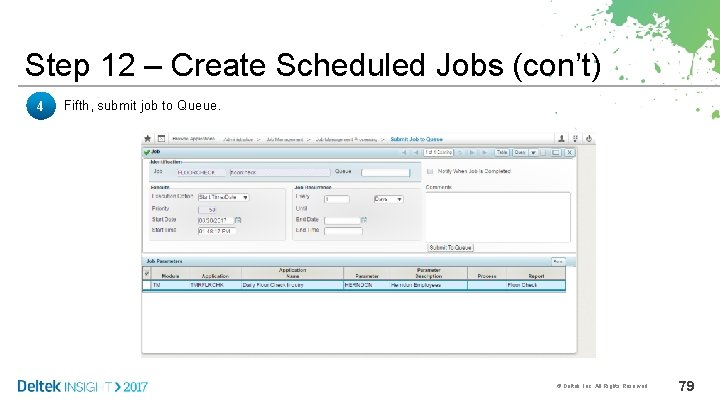
Step 12 – Create Scheduled Jobs (con’t) 4 Fifth, submit job to Queue. © Deltek, Inc. All Rights Reserved. 79
Demonstration • Navigate Post Upgrade Steps © Deltek, Inc. All Rights Reserved. 80
Step 13 – Training Resources are available for: • End-users • Managers • Administrators © Deltek, Inc. All Rights Reserved. 81
Training Resources © Deltek, Inc. All Rights Reserved. 82
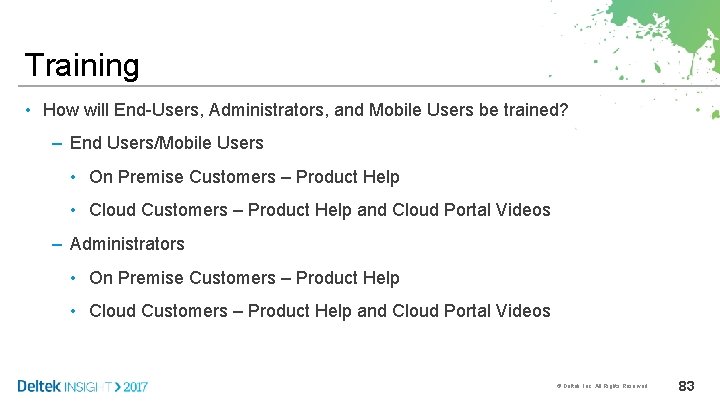
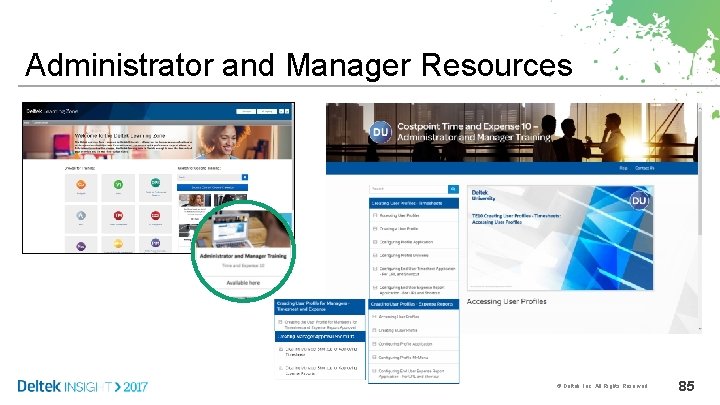
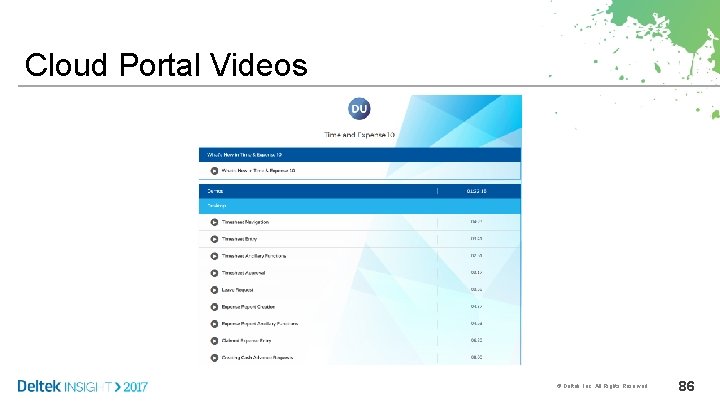
Training • How will End-Users, Administrators, and Mobile Users be trained? – End Users/Mobile Users • On Premise Customers – Product Help • Cloud Customers – Product Help and Cloud Portal Videos – Administrators • On Premise Customers – Product Help • Cloud Customers – Product Help and Cloud Portal Videos © Deltek, Inc. All Rights Reserved. 83
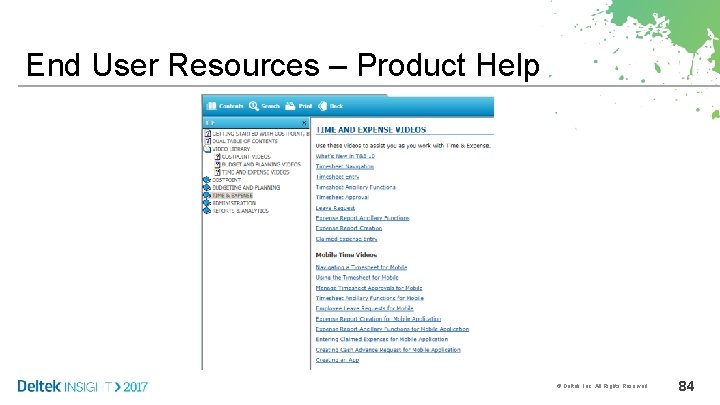
End User Resources – Product Help © Deltek, Inc. All Rights Reserved. 84
Administrator and Manager Resources © Deltek, Inc. All Rights Reserved. 85
Cloud Portal Videos © Deltek, Inc. All Rights Reserved. 86
Demonstration • Navigating to training resources • • • Deltek Learning Zone Cloud Portal Product Help © Deltek, Inc. All Rights Reserved. 87
Summary You should now be able to: • Complete Post Upgrade Steps • Locate and complete T&E 10 training Any questions? © Deltek, Inc. All Rights Reserved. 88
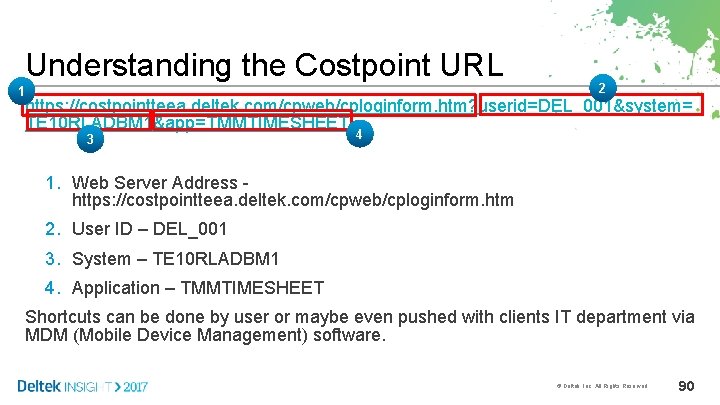
Mobile Device Access Training • The Gov. Con Touch app for mobile device entry is not supported with T&E 10 because Costpoint framework supports mobile devices natively. • Time & Expense 10 allows users to enter their time and expenses using any mobile device. • To maximize user experience, users will need to add shortcuts to their device. TRAINING RESOURCE: Cloud Learning Portal © Deltek, Inc. All Rights Reserved. 89
Understanding the Costpoint URL 1 2 https: //costpointteea. deltek. com/cpweb/cploginform. htm? userid=DEL_001&system= TE 10 RLADBM 1&app=TMMTIMESHEET 3 4 1. Web Server Address https: //costpointteea. deltek. com/cpweb/cploginform. htm 2. User ID – DEL_001 3. System – TE 10 RLADBM 1 4. Application – TMMTIMESHEET Shortcuts can be done by user or maybe even pushed with clients IT department via MDM (Mobile Device Management) software. © Deltek, Inc. All Rights Reserved. 90
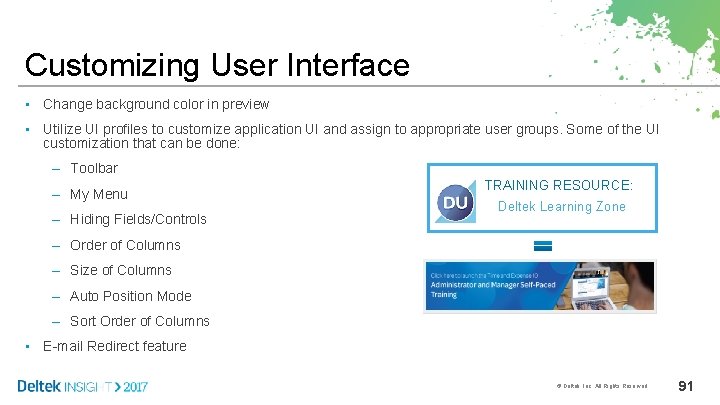
Customizing User Interface • Change background color in preview • Utilize UI profiles to customize application UI and assign to appropriate user groups. Some of the UI customization that can be done: – Toolbar – My Menu – Hiding Fields/Controls TRAINING RESOURCE: Deltek Learning Zone – Order of Columns – Size of Columns – Auto Position Mode – Sort Order of Columns • E-mail Redirect feature © Deltek, Inc. All Rights Reserved. 91
Thank you for attending the Deltek University Preconference Workshop. For questions: deltekuniversity@Deltek. com © Deltek, Inc. All Rights Reserved. 93