
Cosc 54735 Firebase ML and MLkit firebase components
Cosc 5/4735 Firebase ML and ML-kit
firebase components • It's basically middle ware that allows you do a number of things cross platform – Analytics • is a free and unlimited analytics tool to help you get insight on app usage and user engagement. No extra code needed, only console. – Cloud Messaging • Firebase Cloud Messaging lets you deliver and receive messages across platforms reliably. – Notifications • helps you re-engage with users at the right moment. No extra code needed, only console – Authentication • a key feature for protecting the data in your database and storage. – Realtime Database (previous covered, so quick refresher) • lets you sync data across all clients in realtime and remains available when your app goes offline. – Cloud Firestore (previous covered, so quick refresher) • Combines cloud database and functions together. Uses a scalable No. SQL cloud database to store and sync data. – Storage • lets you store and serve user-generated content, such as photos or videos. Firebase Storage is backed by Google Cloud Storage
Firebase components(2) • Functions – Run your mobile backend code without managing servers • Hosting (not covered) – provides fast and secure static hosting. No backend, but delivers. html, . css, etc files. • Remote Config – change the behavior and appearance of your app without publishing an app update. • App Indexing (not covered) – With Firebase App Indexing, you can drive organic search traffic to your app, helping potential users of your app become your app’s biggest fans. • Dynamic Links (not covered) – lets you pull users right to the content they were interested in, keeping them engaged and increasing the likelihood that they will continue to use the app. • Invites (depreciated, replaced by dynamic links) • Ad. Words (not covered here) – help you search potential users with online ads. • Ad. Mob (same as google admob), just a different console. – provides easy and powerful ad monetization with full support in Firebase.
![Firebase Components (3) • Machine Learning (beta [again? ]) – "use machine learning to](http://slidetodoc.com/presentation_image_h2/7c16db0e4aa39935f02a8ccc09dde8ed/image-4.jpg "Firebase Components (3) • Machine Learning (beta [again? ]) – \"use machine learning to")
Firebase Components (3) • Machine Learning (beta [again? ]) – "use machine learning to solve problems. " • https: //firebase. google. com/docs/ml – This would use the cloud based systems instead of just the device cpu. • Use your own Tensor. Flow Lite models for on-device inference. Just deploy your model to Firebase. It will dynamically serve the latest version of the model to your users, allowing you to regularly update them without having to push a new version of your app to users. – Can use remote config and A/B testing as well. • Firebase ML comes with a set of ready-to-use APIs for common mobile use cases: recognizing text, labeling images, and identifying landmarks.
ML Kit • ML Kit: Ready-to-use on-device models – On June 3, 2020, we started offering ML Kit's on-device APIs through a new standalone SDK. It then depreciated all the models provided in ML kit (former Vision API) in the Cloud APIs. • Google Cloud APIs, Auto. ML Vision Edge, and custom model deployment will continue to be available through Firebase Machine Learning. – has APIs for many use cases: (replaces Cloud Vision APIs in firebase) • Text recognition, Image labeling, Object detection and tracking, Face detection and contour tracing, Barcode scanning, Entity Extraction • Language identification, Translation (language), Smart Reply • pose detection (beta)

MACHINE LEARNING
ML Text Recognition • With Firebase ML's text recognition API, you can recognize text in 100+ different languages and scripts. (both Android and i. OS) – With this Cloud-based API, you can automate tedious data entry and extract text from pictures of documents, which you can use to increase accessibility or translate documents. – https: //firebase. google. com/docs/ml/recognize-text • on-device text recognition is in the ML Kit.

ML Image Labeling • With Firebase ML's cloud image labeling APIs, you can recognize entities in an image without having to provide any additional contextual metadata. (both Android and i. OS) – Image labeling gives you insight into the content of images. When you use the API, you get a list of the entities that were recognized: people, things, places, activities, and so on. Each label found comes with a score that indicates the confidence the ML model has in its relevance. With this information, you can perform tasks such as automatic metadata generation and content moderation. – https: //firebase. google. com/docs/ml/label-images • on-device image labeling is in the ML Kit.
ML Landmark Recognition • With Firebase ML's landmark recognition API, you can recognize well-known landmarks in an image. (both Android and i. OS) – When you pass an image to this API, you get the landmarks that were recognized in it, along with each landmark's geographic coordinates and the region of the image the landmark was found. You can use this information to automatically generate image metadata, create individualized experiences for users based on the content they share, and more.
Auto. ML Vision Edge • Create custom image classification models from your own training data with Auto. ML Vision Edge. – The models used by these APIs are built for general-purpose use, and are trained to recognize the most commonly-found concepts in photos. – You can use Firebase ML and Auto. ML Vision Edge to train a model with your own images and categories. The custom model is trained in Google Cloud, and once the model is ready, it's used fully on the device. – https: //firebase. google. com/docs/ml/automl-image-labeling

not Firebase. ML KIT
bundled vs thin version • In the original Vision APIs, there were thin version that required the phone to download parts to the phone. the first time your app had to wait normally about 30 seconds. – Most of these you can choose to bundle in your app (at most 16 Mbs) or use thin version. – Text Recognition can't be bundled and Object Detection and tracking doesn't have thin version. • example barcode scanning implementations – thin: implementation 'com. google. android. gms: play-services-mlkit-barcodescanning: 16. 1. 4 ' – bundle: implementation 'com. google. mlkit: barcode-scanning: 16. 1. 1 ' // about 2. 2 MB.
A note. • Most of these are actually pretty simple to explain – but because of the camera parts are such a mess, they turn out to look very complex. • camera, camera 2, and/or camerax – plus which format, bitmap, bytebuffer/byte. Array, • or a just file URI. • Google's example code, doesn't help in the confusion, since they provide a huge over all example with inheritance classes, instead a each piece, say the barcode scanner example.
Barcode Scanning • In the manifest. xml file include the following meta-data <meta-data android: name="com. google. mlkit. vision. DEPENDENCIES" android: value="barcode" /> • Note, if you barcode and face, then "barcode, face"
Configure the barcode Scanner Barcode. Scanner. Options options = new Barcode. Scanner. Options. Builder(). set. Barcode. Formats( Barcode. FORMAT_QR_CODE, Barcode. FORMAT_AZTEC). build(); • the following are supported • Code 128 (FORMAT_CODE_128), Code 39 (FORMAT_CODE_39), Code 93 (FORMAT_CODE_93), Codabar (FORMAT_CODABAR), EAN-13 (FORMAT_EAN_13), EAN 8 (FORMAT_EAN_8), ITF (FORMAT_ITF), UPC-A (FORMAT_UPC_A), UPC-E (FORMAT_UPC_E), QR Code (FORMAT_QR_CODE), PDF 417 (FORMAT_PDF 417) only in bundled version, Aztec (FORMAT_AZTEC), Data Matrix (FORMAT_DATA_MATRIX)
We need an Image. • There is where things get complex – via the camera (media. Image) so get an image from there and it's rotation – via a file: • Input. Image image; • try { • image = Input. Image. from. File. Path(context, uri); • } catch (IOException e) { e. print. Stack. Trace(); } – via a Byte. Buffer or Byte. Array – via a bitmap : • Input. Image image = Input. Image. from. Bitmap(bitmap, rotation. Degree);
The scanner • get the scanner Barcode. Scanner scanner = Barcode. Scanning. get. Client(); //all possible formats • Or, to specify the formats to recognize: from 2 slides back. Barcode. Scanner scanner = Barcode. Scanning. get. Client(options);
process the image • We use the scanner to create a Task to get a "result", ie process that image Task<List<Barcode>> result = scanner. process(image). add. On. Success. Listener(new On. Success. Listener<List<Barcode>>() { @Override public void on. Success(List<Barcode> barcodes) { // Task completed successfully // code for here is on the next slide } }). add. On. Failure. Listener(new On. Failure. Listener() { @Override public void on. Failure(@Non. Null Exception e) { // Task failed with an exception image was not processed. } });
Reading the barcodes. • We get a list of barcodes found or an empty list – for (Barcode barcode: barcodes) { //to loop through them all. • If we want to draw on the screen, gives cooridantes – Rect bounds =barcode. get. Bound. Box() • If you want types and info – int value. Type = barcode. get. Value. Type(); • barcode. TYPE_WFI – barcode. get. Wifi(). get. Ssid() and bardcode. get. Wifi(). get. Password() • barcode. Type_URL: – bardcode. get. Url() and barcode. get. Url(). get. Title() • the API lists the complete list,
Face Detection • In the manifest. xml file include the following meta-data <meta-data android: name="com. google. mlkit. vision. DEPENDENCIES" android: value="face" /> • Note, if you barcode and face, then "barcode, face"
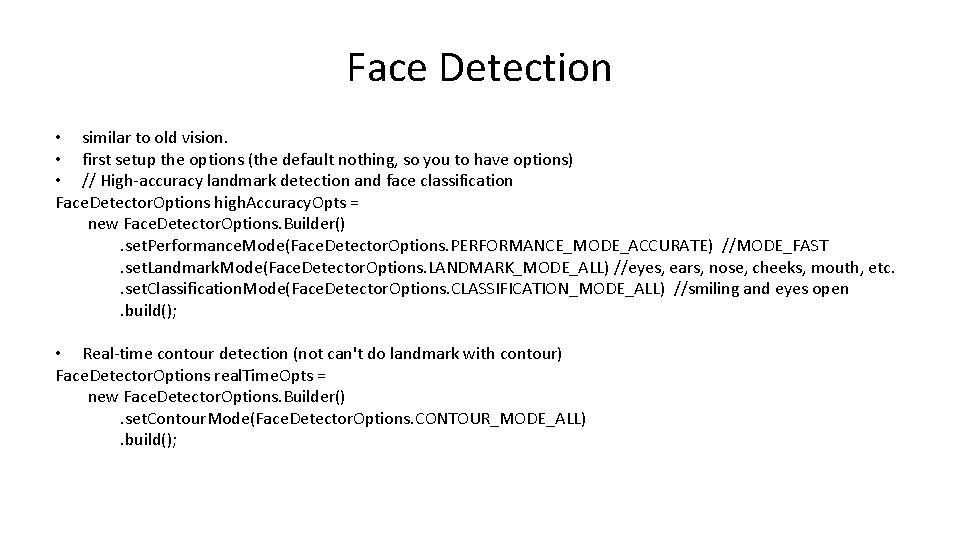
Face Detection • similar to old vision. • first setup the options (the default nothing, so you to have options) • // High-accuracy landmark detection and face classification Face. Detector. Options high. Accuracy. Opts = new Face. Detector. Options. Builder(). set. Performance. Mode(Face. Detector. Options. PERFORMANCE_MODE_ACCURATE) //MODE_FAST. set. Landmark. Mode(Face. Detector. Options. LANDMARK_MODE_ALL) //eyes, ears, nose, cheeks, mouth, etc. . set. Classification. Mode(Face. Detector. Options. CLASSIFICATION_MODE_ALL) //smiling and eyes open. build(); • Real-time contour detection (not can't do landmark with contour) Face. Detector. Options real. Time. Opts = new Face. Detector. Options. Builder(). set. Contour. Mode(Face. Detector. Options. CONTOUR_MODE_ALL). build();
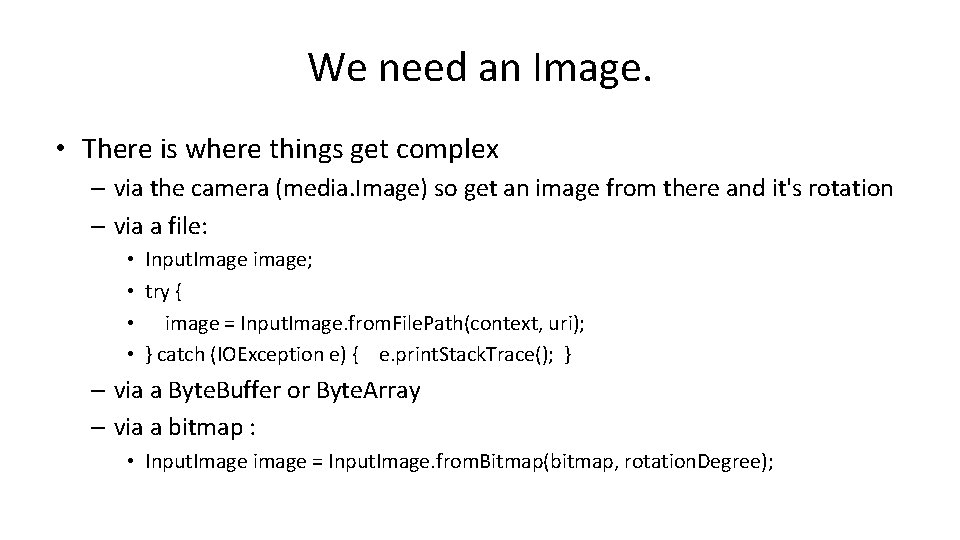
We need an Image. • There is where things get complex – via the camera (media. Image) so get an image from there and it's rotation – via a file: • Input. Image image; • try { • image = Input. Image. from. File. Path(context, uri); • } catch (IOException e) { e. print. Stack. Trace(); } – via a Byte. Buffer or Byte. Array – via a bitmap : • Input. Image image = Input. Image. from. Bitmap(bitmap, rotation. Degree);
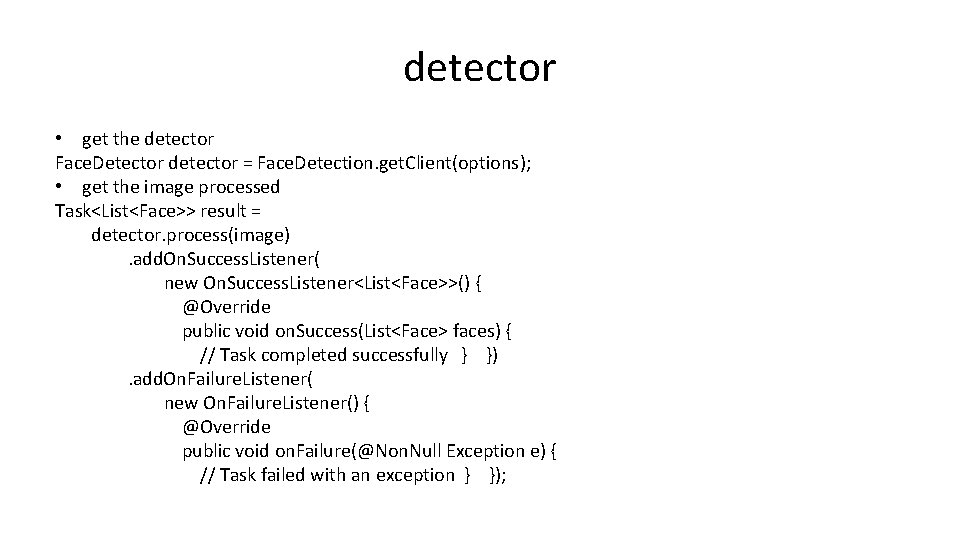
detector • get the detector Face. Detector detector = Face. Detection. get. Client(options); • get the image processed Task<List<Face>> result = detector. process(image). add. On. Success. Listener( new On. Success. Listener<List<Face>>() { @Override public void on. Success(List<Face> faces) { // Task completed successfully } }). add. On. Failure. Listener( new On. Failure. Listener() { @Override public void on. Failure(@Non. Null Exception e) { // Task failed with an exception } });
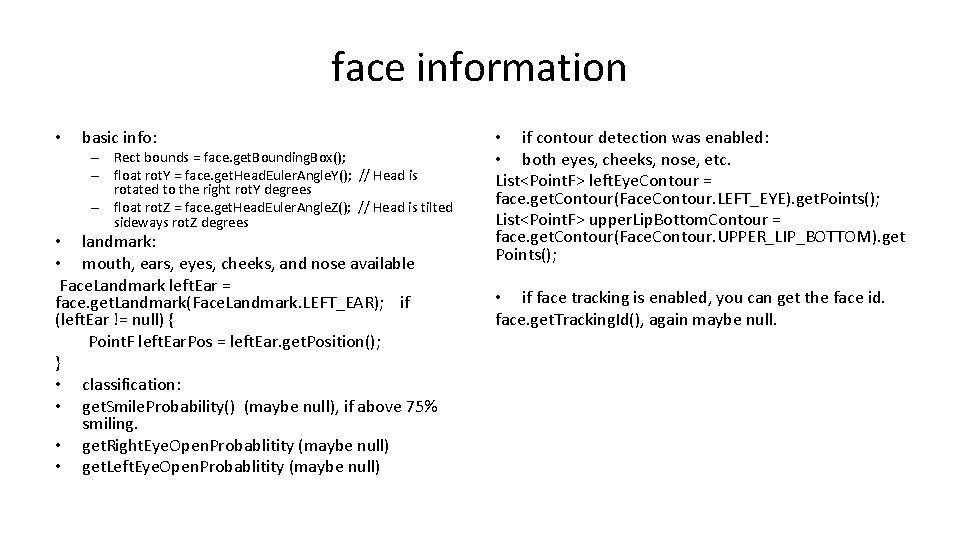
face information • basic info: – Rect bounds = face. get. Bounding. Box(); – float rot. Y = face. get. Head. Euler. Angle. Y(); // Head is rotated to the right rot. Y degrees – float rot. Z = face. get. Head. Euler. Angle. Z(); // Head is tilted sideways rot. Z degrees • landmark: • mouth, ears, eyes, cheeks, and nose available Face. Landmark left. Ear = face. get. Landmark(Face. Landmark. LEFT_EAR); if (left. Ear != null) { Point. F left. Ear. Pos = left. Ear. get. Position(); } • classification: • get. Smile. Probability() (maybe null), if above 75% smiling. • get. Right. Eye. Open. Probablitity (maybe null) • get. Left. Eye. Open. Probablitity (maybe null) • if contour detection was enabled: • both eyes, cheeks, nose, etc. List<Point. F> left. Eye. Contour = face. get. Contour(Face. Contour. LEFT_EYE). get. Points(); List<Point. F> upper. Lip. Bottom. Contour = face. get. Contour(Face. Contour. UPPER_LIP_BOTTOM). get Points(); • if face tracking is enabled, you can get the face id. face. get. Tracking. Id(), again maybe null.
Image Labeling <meta-data android: name="com. google. mlkit. vision. DEPENDENCIES" android: value="ica" /> • Get an image like shown before.
Image Labeling (2) • get an labeler • Image. Labeler labeler = Image. Labeling. get. Client(Image. Labeler. Options. DEFAULT_OPTIONS); • and process it. labeler. process(image). add. On. Success. Listener(new On. Success. Listener<List<Image. Label>>() { @Override public void on. Success(List<Image. Label> labels) { // Task completed successfully } }). add. On. Failure. Listener(new On. Failure. Listener() { @Override public void on. Failure(@Non. Null Exception e) { // Task failed with an exception } });
Image Labeling (3) • get the information, the base model support 400+ different labels for (Image. Label label : labels) { String text = label. get. Text(); float confidence = label. get. Confidence(); int index = label. get. Index(); } • There is a custom model version as well.
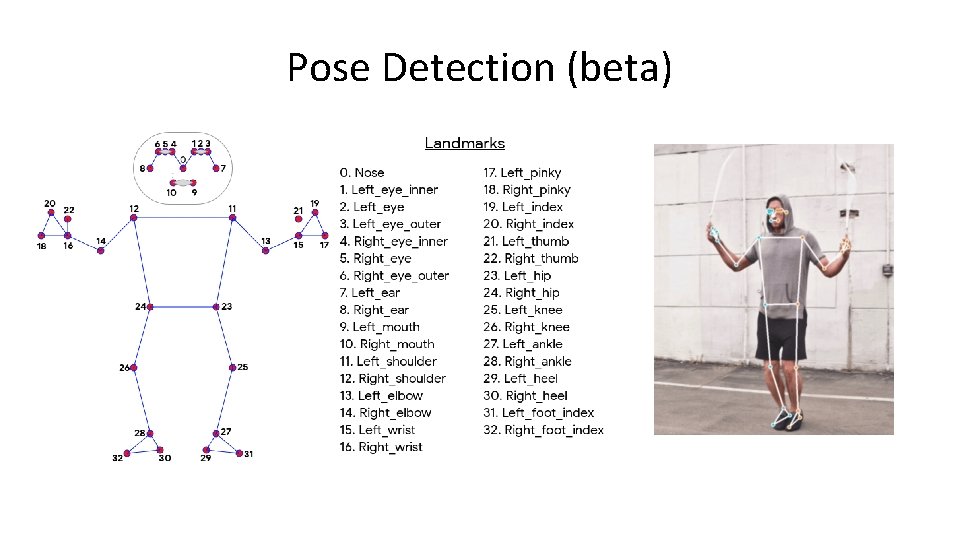
Pose Detection (beta)
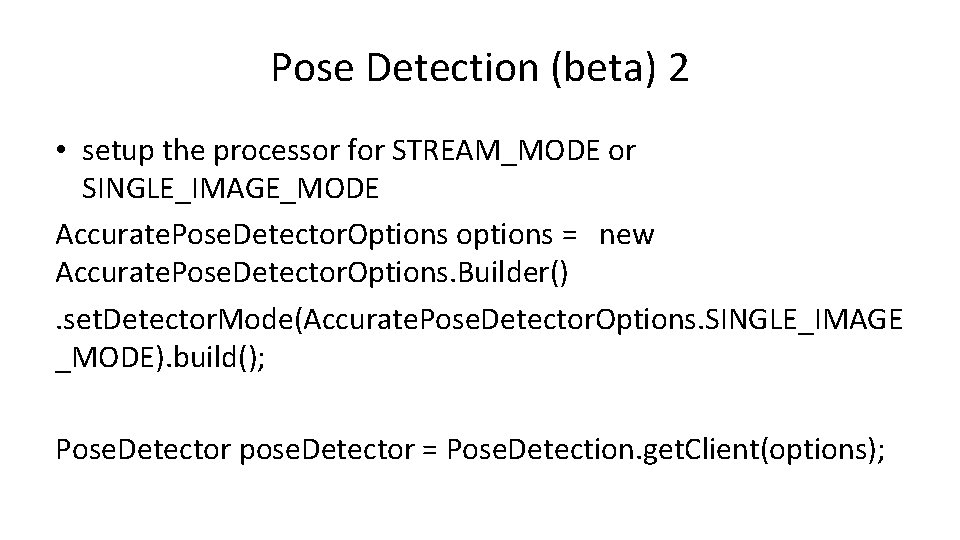
Pose Detection (beta) 2 • setup the processor for STREAM_MODE or SINGLE_IMAGE_MODE Accurate. Pose. Detector. Options options = new Accurate. Pose. Detector. Options. Builder(). set. Detector. Mode(Accurate. Pose. Detector. Options. SINGLE_IMAGE _MODE). build(); Pose. Detector pose. Detector = Pose. Detection. get. Client(options);
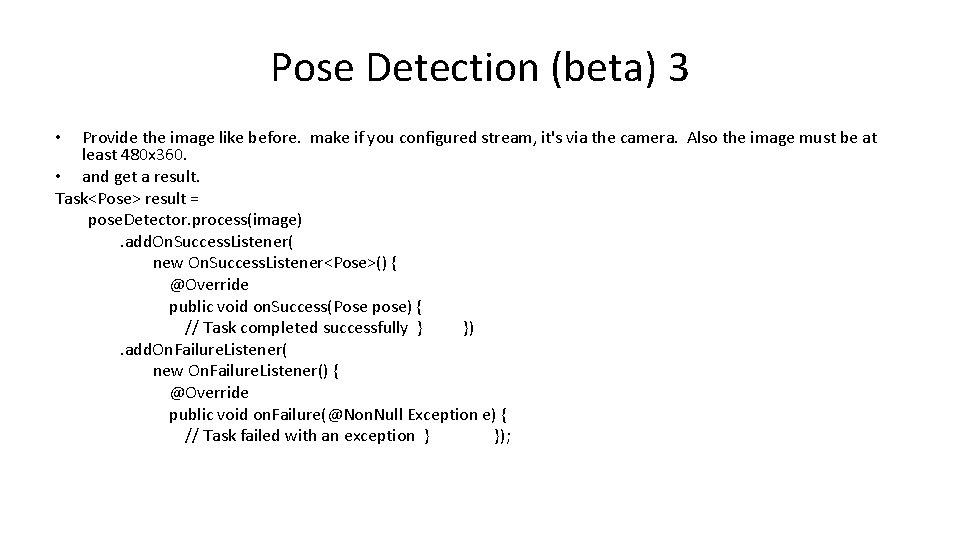
Pose Detection (beta) 3 Provide the image like before. make if you configured stream, it's via the camera. Also the image must be at least 480 x 360. • and get a result. Task<Pose> result = pose. Detector. process(image). add. On. Success. Listener( new On. Success. Listener<Pose>() { @Override public void on. Success(Pose pose) { // Task completed successfully } }). add. On. Failure. Listener( new On. Failure. Listener() { @Override public void on. Failure(@Non. Null Exception e) { // Task failed with an exception } }); •
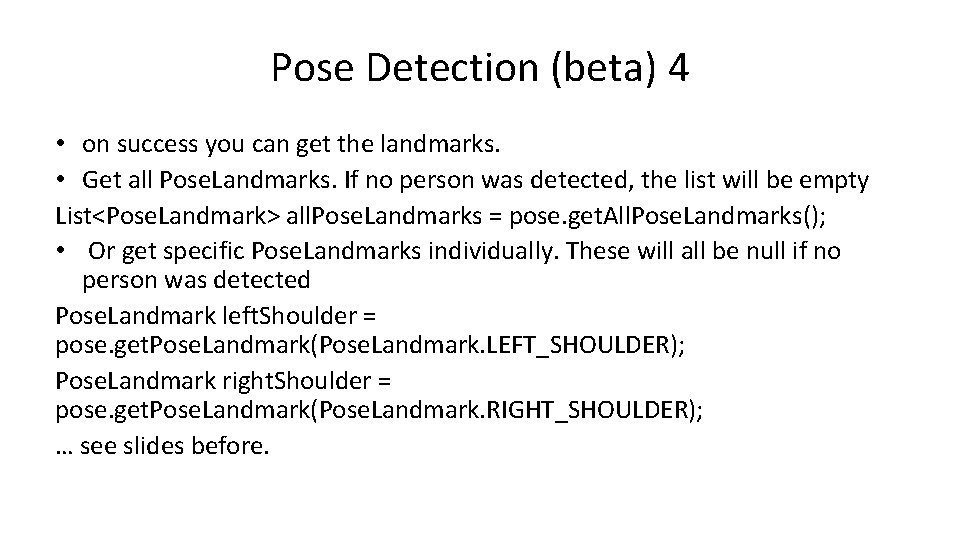
Pose Detection (beta) 4 • on success you can get the landmarks. • Get all Pose. Landmarks. If no person was detected, the list will be empty List<Pose. Landmark> all. Pose. Landmarks = pose. get. All. Pose. Landmarks(); • Or get specific Pose. Landmarks individually. These will all be null if no person was detected Pose. Landmark left. Shoulder = pose. get. Pose. Landmark(Pose. Landmark. LEFT_SHOULDER); Pose. Landmark right. Shoulder = pose. get. Pose. Landmark(Pose. Landmark. RIGHT_SHOULDER); … see slides before.
Object Detection and Tracking • as with the others, setup options, get an image, use the task to get a result, on success process the info. • Detected. Object – bounding box and a tracking ID (ie for track that object) – labels description, confidence, and index (predefined category)
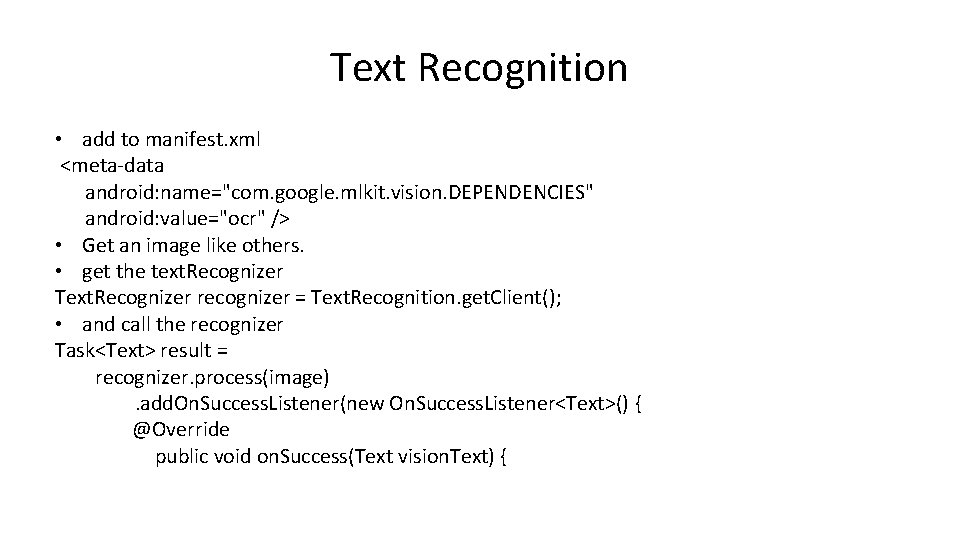
Text Recognition • add to manifest. xml <meta-data android: name="com. google. mlkit. vision. DEPENDENCIES" android: value="ocr" /> • Get an image like others. • get the text. Recognizer Text. Recognizer recognizer = Text. Recognition. get. Client(); • and call the recognizer Task<Text> result = recognizer. process(image). add. On. Success. Listener(new On. Success. Listener<Text>() { @Override public void on. Success(Text vision. Text) {
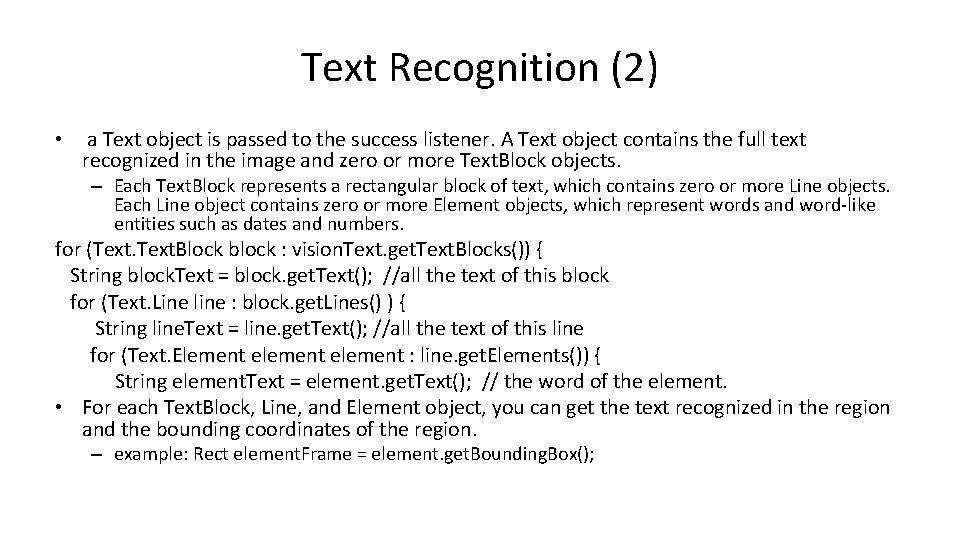
Text Recognition (2) • a Text object is passed to the success listener. A Text object contains the full text recognized in the image and zero or more Text. Block objects. – Each Text. Block represents a rectangular block of text, which contains zero or more Line objects. Each Line object contains zero or more Element objects, which represent words and word-like entities such as dates and numbers. for (Text. Block block : vision. Text. get. Text. Blocks()) { String block. Text = block. get. Text(); //all the text of this block for (Text. Line line : block. get. Lines() ) { String line. Text = line. get. Text(); //all the text of this line for (Text. Element element : line. get. Elements()) { String element. Text = element. get. Text(); // the word of the element. • For each Text. Block, Line, and Element object, you can get the text recognized in the region and the bounding coordinates of the region. – example: Rect element. Frame = element. get. Bounding. Box();
Digital Ink Recognition. • Converts handwritten text to sequences of unicode characters. – Recognition is performed without any network connection. • Supports 300+ languages and 25+ writing systems including all major Latin languages, as well as Chinese, Japanese, Korean, Arabic, and Cyrillic. See the complete list of supported languages. • Recognizes emojis and basic shapes. • Shapes symbol recognition model. – Recognizes basic shapes and returns the strings "RECTANGLE", "TRIANGLE", "ARROW", "ELLIPSE".
Digital Ink Recognition (2) • This uses the touchevent (and maybe canvas so the user can see what they are drawing), instead of an image. • create a Ink. Stroke object. very similar to a path object. – You can include timing for better accuracy.
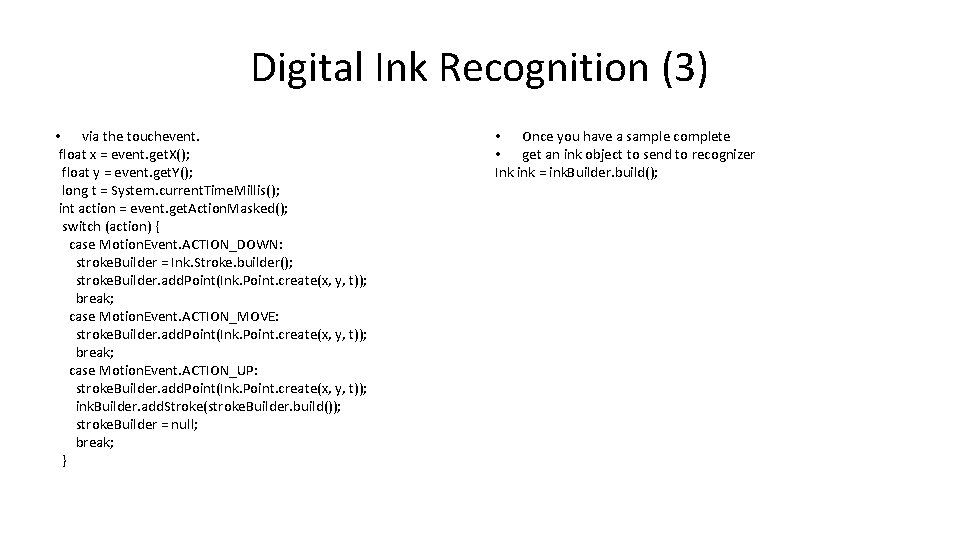
Digital Ink Recognition (3) • via the touchevent. float x = event. get. X(); float y = event. get. Y(); long t = System. current. Time. Millis(); int action = event. get. Action. Masked(); switch (action) { case Motion. Event. ACTION_DOWN: stroke. Builder = Ink. Stroke. builder(); stroke. Builder. add. Point(Ink. Point. create(x, y, t)); break; case Motion. Event. ACTION_MOVE: stroke. Builder. add. Point(Ink. Point. create(x, y, t)); break; case Motion. Event. ACTION_UP: stroke. Builder. add. Point(Ink. Point. create(x, y, t)); ink. Builder. add. Stroke(stroke. Builder. build()); stroke. Builder = null; break; } • Once you have a sample complete • get an ink object to send to recognizer Ink ink = ink. Builder. build();
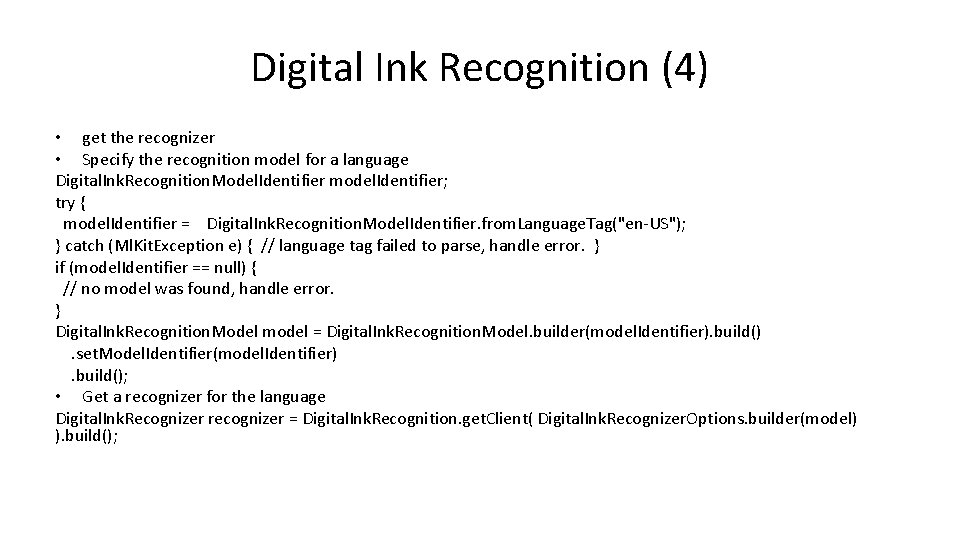
Digital Ink Recognition (4) • get the recognizer • Specify the recognition model for a language Digital. Ink. Recognition. Model. Identifier model. Identifier; try { model. Identifier = Digital. Ink. Recognition. Model. Identifier. from. Language. Tag("en-US"); } catch (Ml. Kit. Exception e) { // language tag failed to parse, handle error. } if (model. Identifier == null) { // no model was found, handle error. } Digital. Ink. Recognition. Model model = Digital. Ink. Recognition. Model. builder(model. Identifier). build(). set. Model. Identifier(model. Identifier). build(); • Get a recognizer for the language Digital. Ink. Recognizer recognizer = Digital. Ink. Recognition. get. Client( Digital. Ink. Recognizer. Options. builder(model) ). build();
Digital Ink Recognition (5) • finally get results recognizer. recognize(ink). add. On. Success. Listener
Digital Ink Recognition (6) • A final note. Each model that is download is about 20 MBs, so you likely a good idea to download and then delete models to save space.
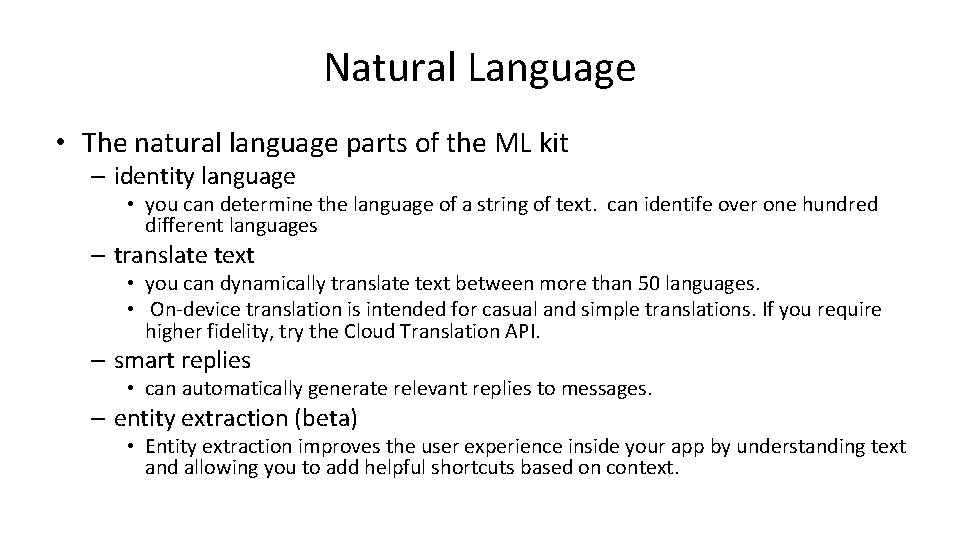
Natural Language • The natural language parts of the ML kit – identity language • you can determine the language of a string of text. can identife over one hundred different languages – translate text • you can dynamically translate text between more than 50 languages. • On-device translation is intended for casual and simple translations. If you require higher fidelity, try the Cloud Translation API. – smart replies • can automatically generate relevant replies to messages. – entity extraction (beta) • Entity extraction improves the user experience inside your app by understanding text and allowing you to add helpful shortcuts based on context.
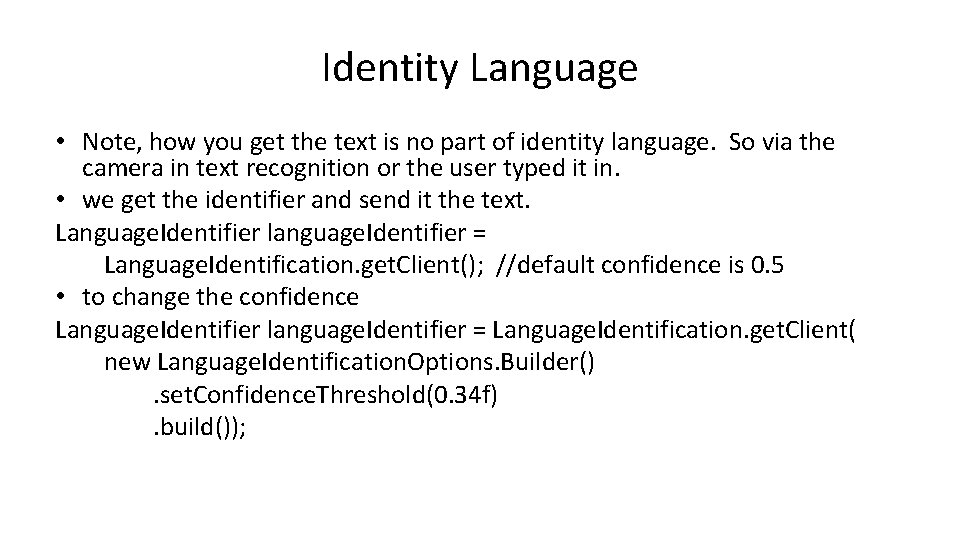
Identity Language • Note, how you get the text is no part of identity language. So via the camera in text recognition or the user typed it in. • we get the identifier and send it the text. Language. Identifier language. Identifier = Language. Identification. get. Client(); //default confidence is 0. 5 • to change the confidence Language. Identifier language. Identifier = Language. Identification. get. Client( new Language. Identification. Options. Builder(). set. Confidence. Threshold(0. 34 f). build());
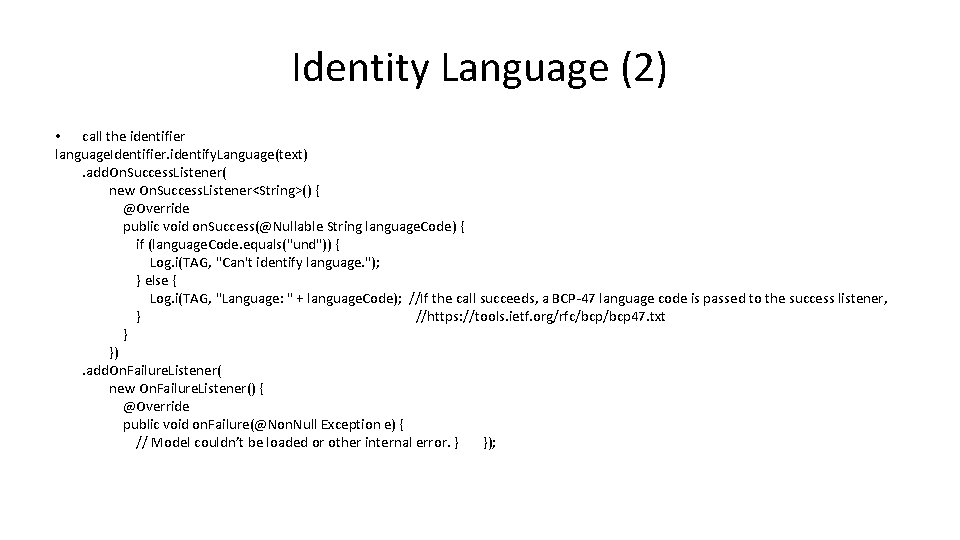
Identity Language (2) • call the identifier language. Identifier. identify. Language(text). add. On. Success. Listener( new On. Success. Listener<String>() { @Override public void on. Success(@Nullable String language. Code) { if (language. Code. equals("und")) { Log. i(TAG, "Can't identify language. "); } else { Log. i(TAG, "Language: " + language. Code); //If the call succeeds, a BCP-47 language code is passed to the success listener, } //https: //tools. ietf. org/rfc/bcp 47. txt } }). add. On. Failure. Listener( new On. Failure. Listener() { @Override public void on. Failure(@Non. Null Exception e) { // Model couldn’t be loaded or other internal error. } });
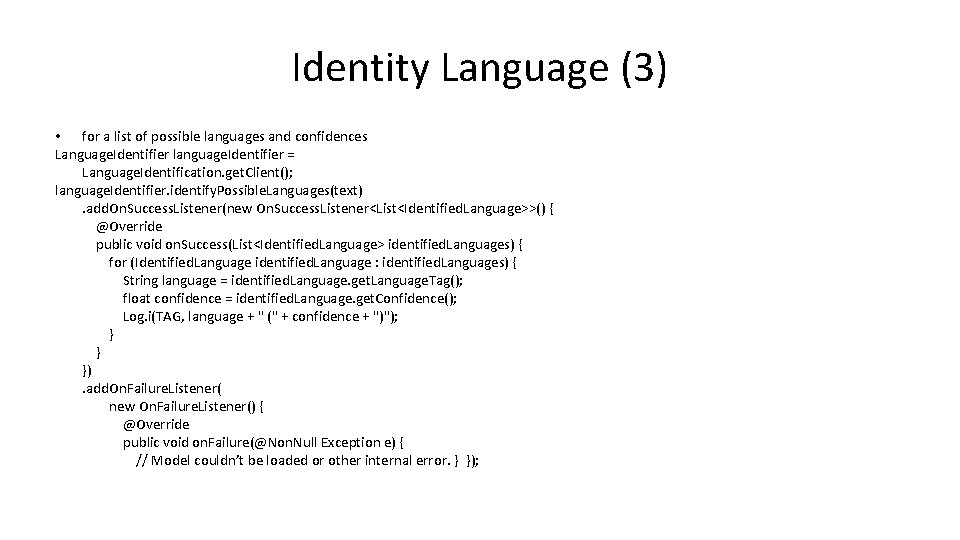
Identity Language (3) • for a list of possible languages and confidences Language. Identifier language. Identifier = Language. Identification. get. Client(); language. Identifier. identify. Possible. Languages(text). add. On. Success. Listener(new On. Success. Listener<List<Identified. Language>>() { @Override public void on. Success(List<Identified. Language> identified. Languages) { for (Identified. Language identified. Language : identified. Languages) { String language = identified. Language. get. Language. Tag(); float confidence = identified. Language. get. Confidence(); Log. i(TAG, language + " (" + confidence + ")"); } } }). add. On. Failure. Listener( new On. Failure. Listener() { @Override public void on. Failure(@Non. Null Exception e) { // Model couldn’t be loaded or other internal error. } });
Translate Text • Please note, there are lots of restrictions and attributions to using the translate. – https: //developers. google. com/mlkit/language/translation-terms • supported languages – https: //developers. google. com/mlkit/language/translation-language-support
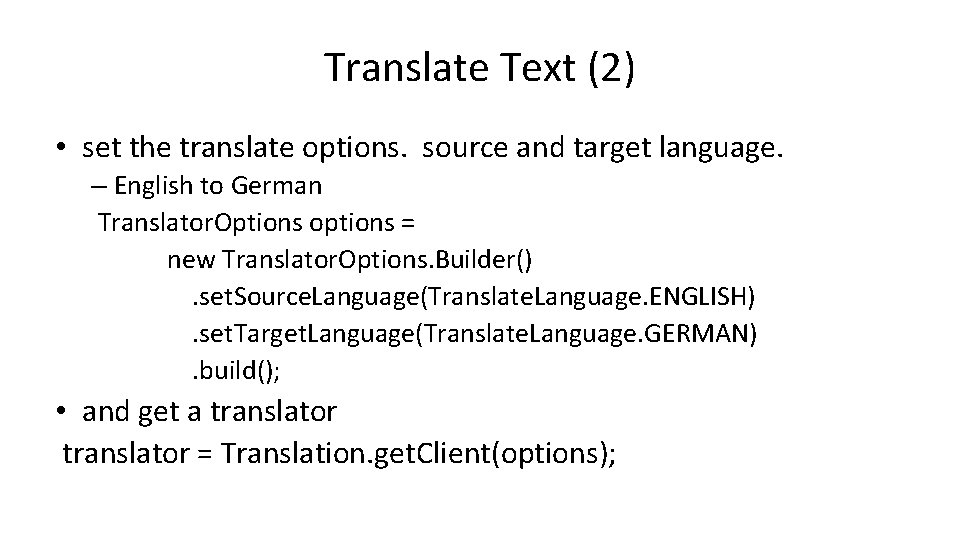
Translate Text (2) • set the translate options. source and target language. – English to German Translator. Options options = new Translator. Options. Builder(). set. Source. Language(Translate. Language. ENGLISH). set. Target. Language(Translate. Language. GERMAN). build(); • and get a translator = Translation. get. Client(options);
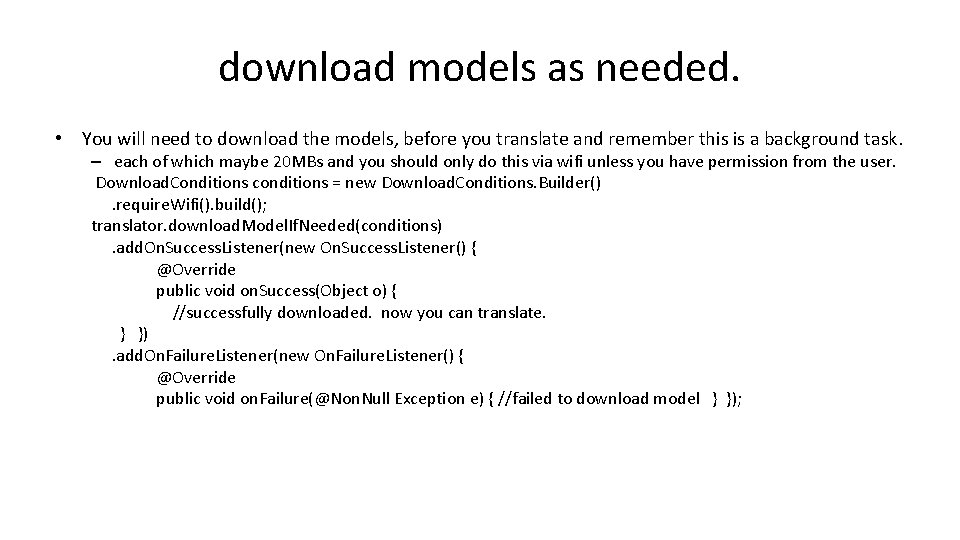
download models as needed. • You will need to download the models, before you translate and remember this is a background task. – each of which maybe 20 MBs and you should only do this via wifi unless you have permission from the user. Download. Conditions conditions = new Download. Conditions. Builder(). require. Wifi(). build(); translator. download. Model. If. Needed(conditions). add. On. Success. Listener(new On. Success. Listener() { @Override public void on. Success(Object o) { //successfully downloaded. now you can translate. } }). add. On. Failure. Listener(new On. Failure. Listener() { @Override public void on. Failure(@Non. Null Exception e) { //failed to download model } });
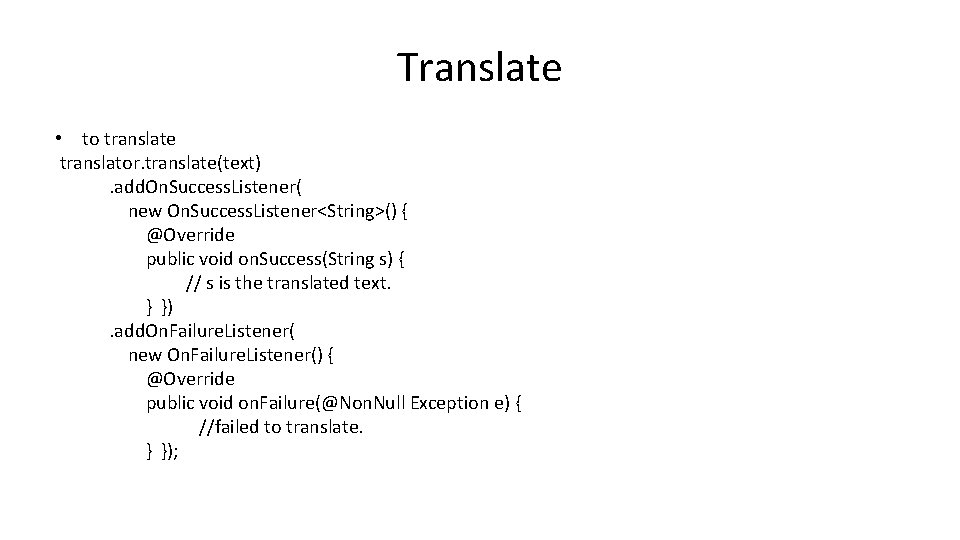
Translate • to translate translator. translate(text). add. On. Success. Listener( new On. Success. Listener<String>() { @Override public void on. Success(String s) { // s is the translated text. } }). add. On. Failure. Listener( new On. Failure. Listener() { @Override public void on. Failure(@Non. Null Exception e) { //failed to translate. } });
Smart Replies • You create a conversation object. – it contents the local user messages and the remote user(s) messages • contents timestep, userid (for multiple remote users), and message • Note the remote user must be the last entry. • You then pass that object to a suggested. Relies task. – if the task is successful it will return a set of suggestions. • you can then display the suggestions to the user.
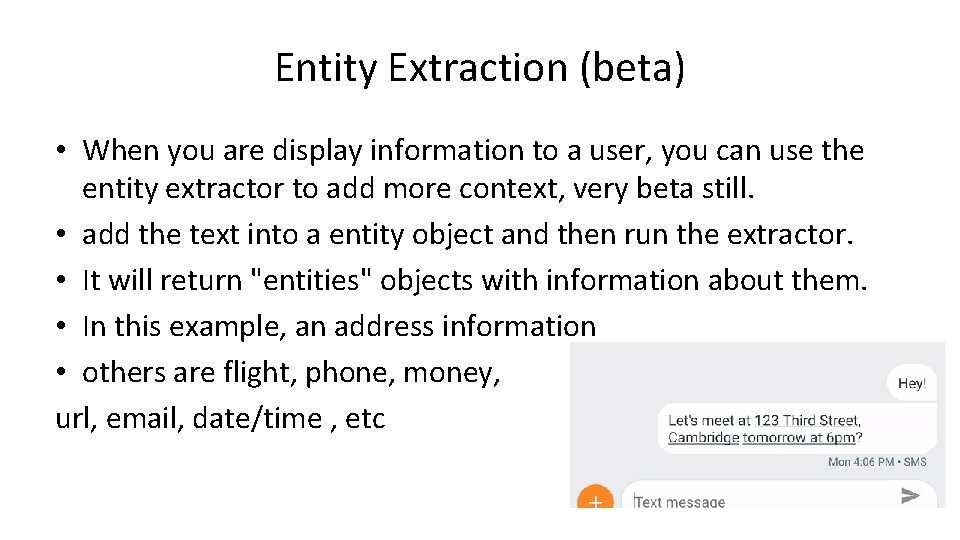
Entity Extraction (beta) • When you are display information to a user, you can use the entity extractor to add more context, very beta still. • add the text into a entity object and then run the extractor. • It will return "entities" objects with information about them. • In this example, an address information • others are flight, phone, money, url, email, date/time , etc
References • https: //console. firebase. google. com/ • https: //firebase. google. com/docs/ml – Machine Learning codelab: https: //firebase. google. com/docs/ml/codelabs – For flutter: • Flutter. Fire: https: //github. com/Firebase. Extended/flutterfire/tree/master/packages/firebase_ml_vision • • • https: //developers. google. com/ml-kit/vision/barcode-scanning https: //developers. google. com/ml-kit/vision/face-detection https: //developers. google. com/ml-kit/vision/digital-ink-recognition https: //developers. google. com/ml-kit/vision/object-detection https: //developers. google. com/ml-kit/vision/pose-detection

Q&A
- Slides: 52