
Corrective Action Requests and Improvement Plans for Agency
- Slides: 37
Corrective Action Requests and Improvement Plans for Agency Users Supplier Management
Agenda Welcome to the Corrective Action Requests and Improvement Plans for Agency Users course. Here is a list of topics that will be covered in this course: • Course Introduction • Lesson 1: Corrective Action Requests • Lesson 2: Improvement Plans • Knowledge Check and Course Summary • Questions and Answers 2
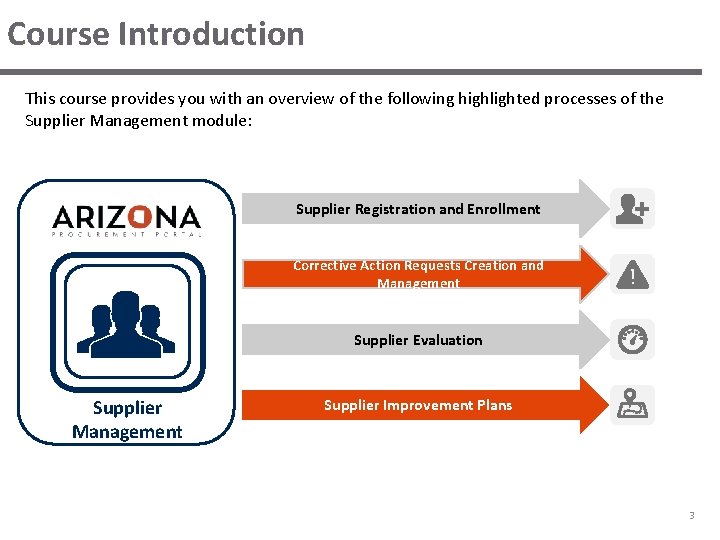
Course Introduction This course provides you with an overview of the following highlighted processes of the Supplier Management module: Supplier Registration and Enrollment Corrective Action Requests Creation and Management Supplier Evaluation Supplier Management Supplier Improvement Plans 3
Corrective Action Requests and Improvement Plans When a supplier is performing poorly, it may be necessary to take action to help mitigate this issue. The Arizona Procurement Portal (APP) provides an efficient and interactive process for managing performance through Corrective Action Requests and Improvement Plans. Corrective Action Requests are formal grievances or complaints which are logged in APP. A Corrective Action Request can be completed for any item in the system, such as a supplier or contract. This allows you to log and track performance issues and mitigation activities related to them. An Improvement Plan serves as a roadmap to improve performance. Similar to Corrective Action Requests, Improvement Plans can be created for any item in APP. These plans allow you to assign and schedule tasks that help manage a supplier’s performance and can be linked to Corrective Action Requests or performance assessments. In this course, we will further discuss how to create and manage Corrective Action Requests and Improvement Plans. 4
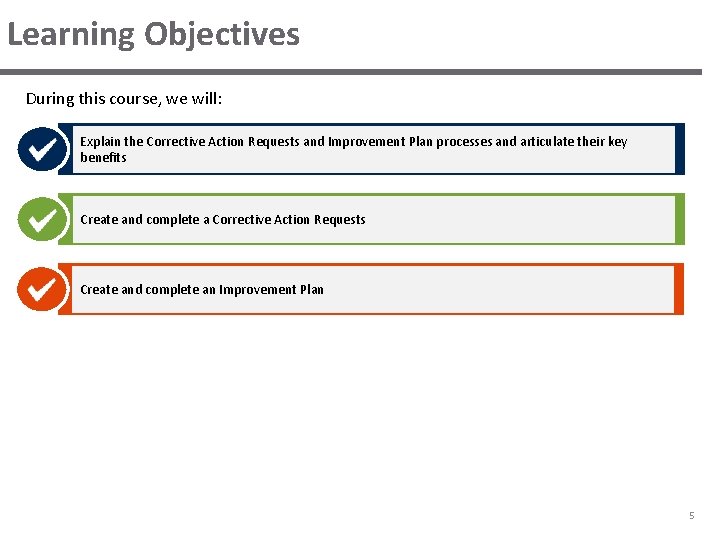
Learning Objectives During this course, we will: Explain the Corrective Action Requests and Improvement Plan processes and articulate their key benefits Create and complete a Corrective Action Requests Create and complete an Improvement Plan 5
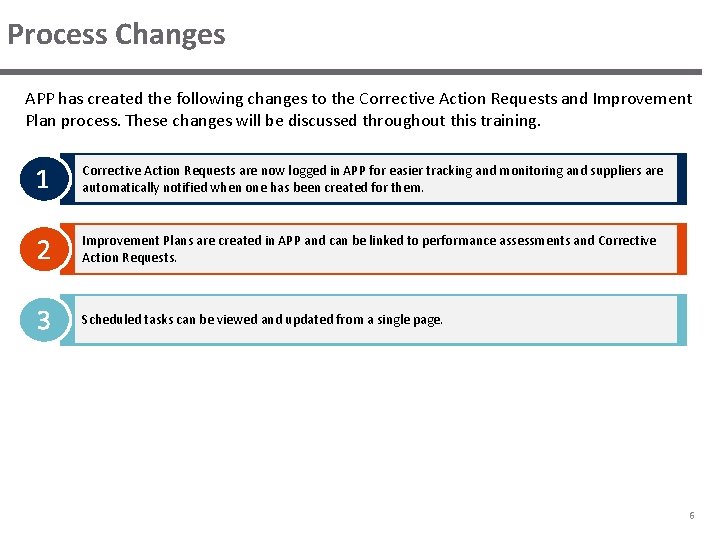
Process Changes APP has created the following changes to the Corrective Action Requests and Improvement Plan process. These changes will be discussed throughout this training. 1 Corrective Action Requests are now logged in APP for easier tracking and monitoring and suppliers are automatically notified when one has been created for them. 2 Improvement Plans are created in APP and can be linked to performance assessments and Corrective Action Requests. 3 Scheduled tasks can be viewed and updated from a single page. 6
PROCESS OVERVIEW
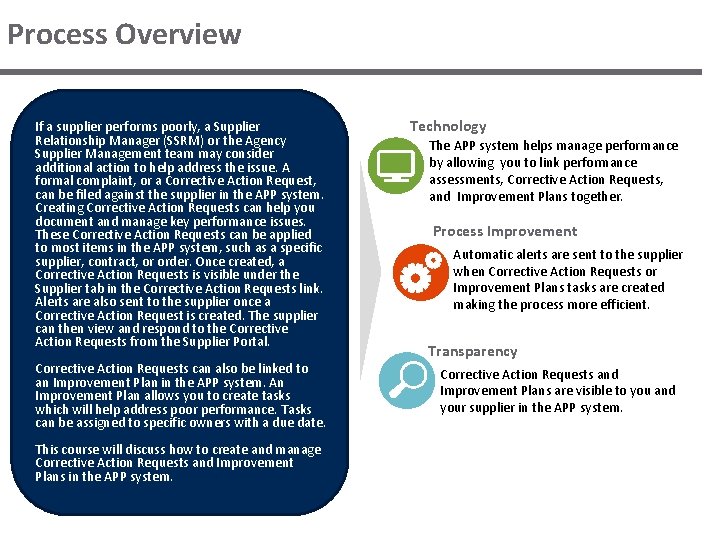
Process Overview If a supplier performs poorly, a Supplier Relationship Manager (SSRM) or the Agency Supplier Management team may consider additional action to help address the issue. A formal complaint, or a Corrective Action Request, can be filed against the supplier in the APP system. Creating Corrective Action Requests can help you document and manage key performance issues. These Corrective Action Requests can be applied to most items in the APP system, such as a specific supplier, contract, or order. Once created, a Corrective Action Requests is visible under the Supplier tab in the Corrective Action Requests link. Alerts are also sent to the supplier once a Corrective Action Request is created. The supplier can then view and respond to the Corrective Action Requests from the Supplier Portal. Corrective Action Requests can also be linked to an Improvement Plan in the APP system. An Improvement Plan allows you to create tasks which will help address poor performance. Tasks can be assigned to specific owners with a due date. This course will discuss how to create and manage Corrective Action Requests and Improvement Plans in the APP system. Technology The APP system helps manage performance by allowing you to link performance assessments, Corrective Action Requests, and Improvement Plans together. Process Improvement Automatic alerts are sent to the supplier when Corrective Action Requests or Improvement Plans tasks are created making the process more efficient. Transparency Corrective Action Requests and Improvement Plans are visible to you and your supplier in the APP system.
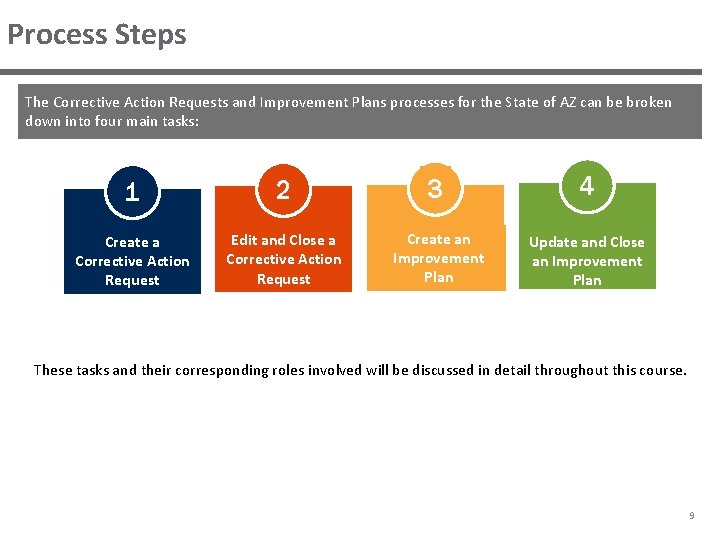
Process Steps The Corrective Action Requests and Improvement Plans processes for the State of AZ can be broken down into four main tasks: 1 2 3 4 Create a Corrective Action Request Edit and Close a Corrective Action Request Create an Improvement Plan Update and Close an Improvement Plan These tasks and their corresponding roles involved will be discussed in detail throughout this course. 9
LESSON 1: CORRECTIVE ACTION REQUESTS
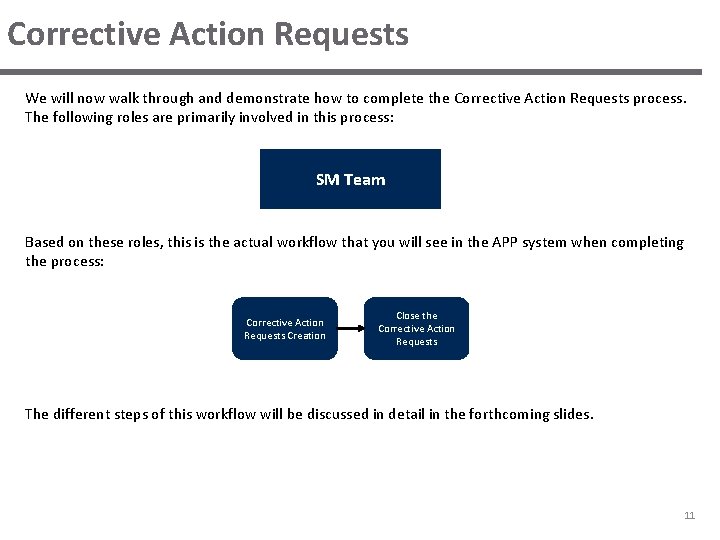
Corrective Action Requests We will now walk through and demonstrate how to complete the Corrective Action Requests process. The following roles are primarily involved in this process: SM Team Based on these roles, this is the actual workflow that you will see in the APP system when completing the process: Corrective Action Requests Creation Close the Corrective Action Requests The different steps of this workflow will be discussed in detail in the forthcoming slides. 11
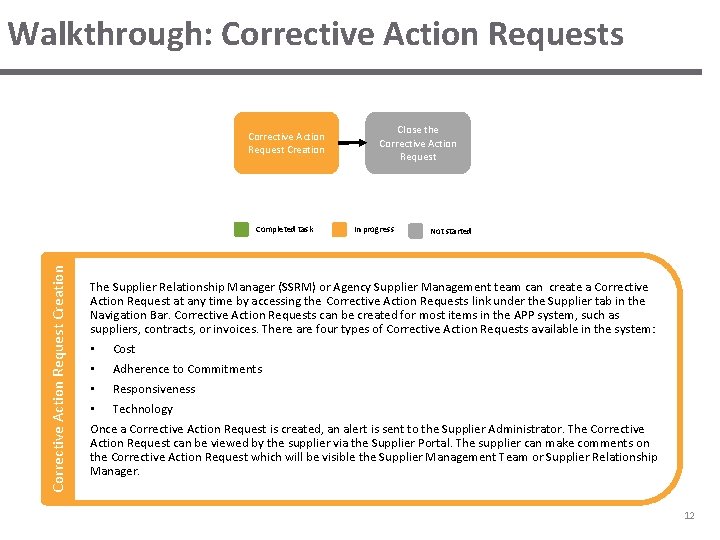
Walkthrough: Corrective Action Requests Corrective Action Request Creation Completed task Close the Corrective Action Request In progress Not started The Supplier Relationship Manager (SSRM) or Agency Supplier Management team can create a Corrective Action Request at any time by accessing the Corrective Action Requests link under the Supplier tab in the Navigation Bar. Corrective Action Requests can be created for most items in the APP system, such as suppliers, contracts, or invoices. There are four types of Corrective Action Requests available in the system: • Cost • Adherence to Commitments • Responsiveness • Technology Once a Corrective Action Request is created, an alert is sent to the Supplier Administrator. The Corrective Action Request can be viewed by the supplier via the Supplier Portal. The supplier can make comments on the Corrective Action Request which will be visible the Supplier Management Team or Supplier Relationship Manager. 12
Demonstration 1: Create a Corrective Action Request Now that you have learned about the creating a Corrective Action Request process, we will demonstrate this in the system. 13
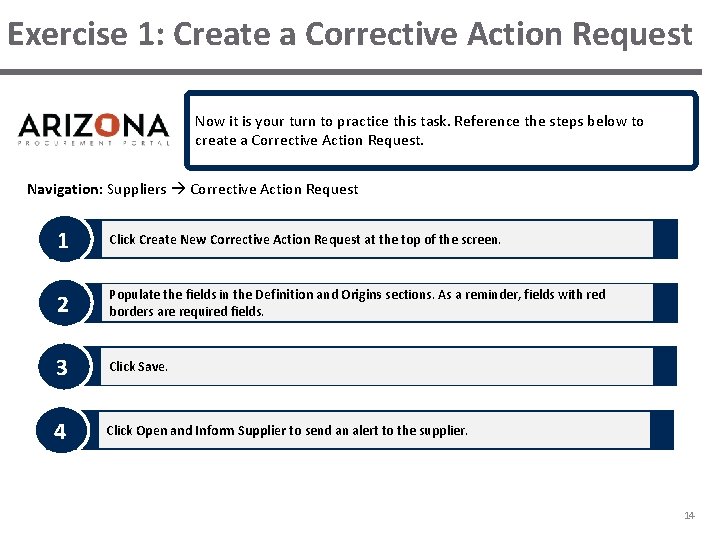
Exercise 1: Create a Corrective Action Request Now it is your turn to practice this task. Reference the steps below to create a Corrective Action Request. Navigation: Suppliers Corrective Action Request 1 Click Create New Corrective Action Request at the top of the screen. 2 Populate the fields in the Definition and Origins sections. As a reminder, fields with red borders are required fields. 3 Click Save. 4 Click Open and Inform Supplier to send an alert to the supplier. 14
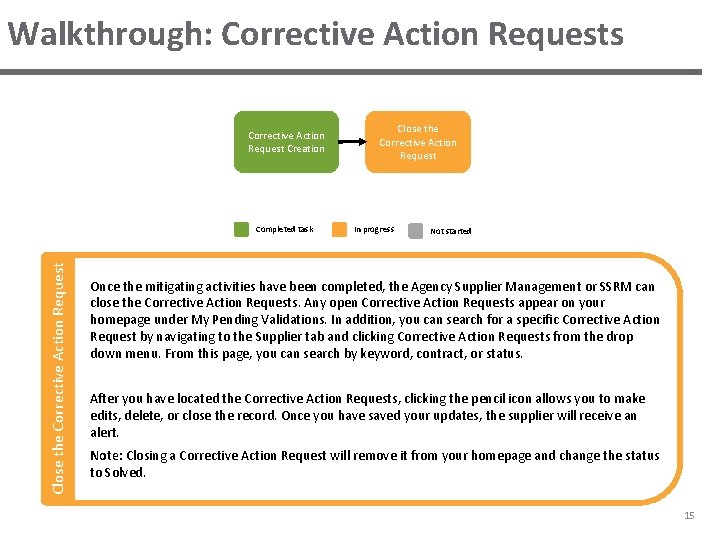
Walkthrough: Corrective Action Requests Corrective Action Request Creation Close the Corrective Action Request Completed task Close the Corrective Action Request In progress Not started Once the mitigating activities have been completed, the Agency Supplier Management or SSRM can close the Corrective Action Requests. Any open Corrective Action Requests appear on your homepage under My Pending Validations. In addition, you can search for a specific Corrective Action Request by navigating to the Supplier tab and clicking Corrective Action Requests from the drop down menu. From this page, you can search by keyword, contract, or status. After you have located the Corrective Action Requests, clicking the pencil icon allows you to make edits, delete, or close the record. Once you have saved your updates, the supplier will receive an alert. Note: Closing a Corrective Action Request will remove it from your homepage and change the status to Solved. 15
Demonstration 2: Edit a Corrective Action Requests Now that you have learned about the editing a Corrective Action Requests process, we will demonstrate this in the system. 16
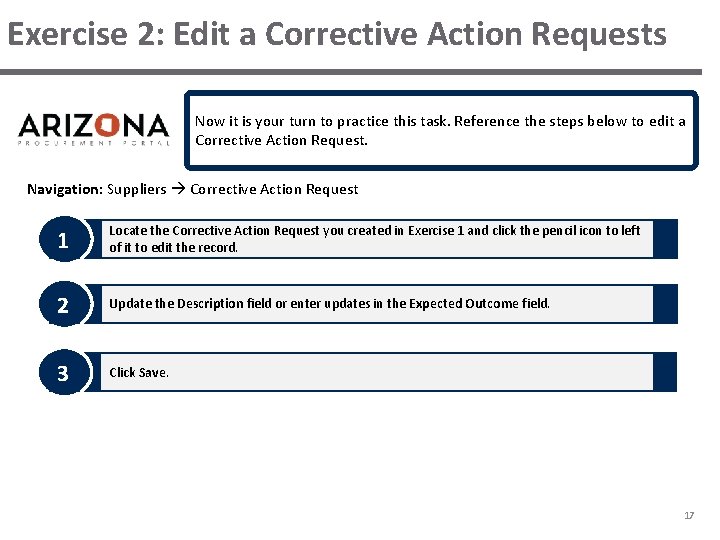
Exercise 2: Edit a Corrective Action Requests Now it is your turn to practice this task. Reference the steps below to edit a Corrective Action Request. Navigation: Suppliers Corrective Action Request 1 Locate the Corrective Action Request you created in Exercise 1 and click the pencil icon to left of it to edit the record. 2 Update the Description field or enter updates in the Expected Outcome field. 3 Click Save. 17
Demonstration 3: Close a Corrective Action Request Now that you have learned about the closing a Corrective Action Request process, we will demonstrate this in the system. 18
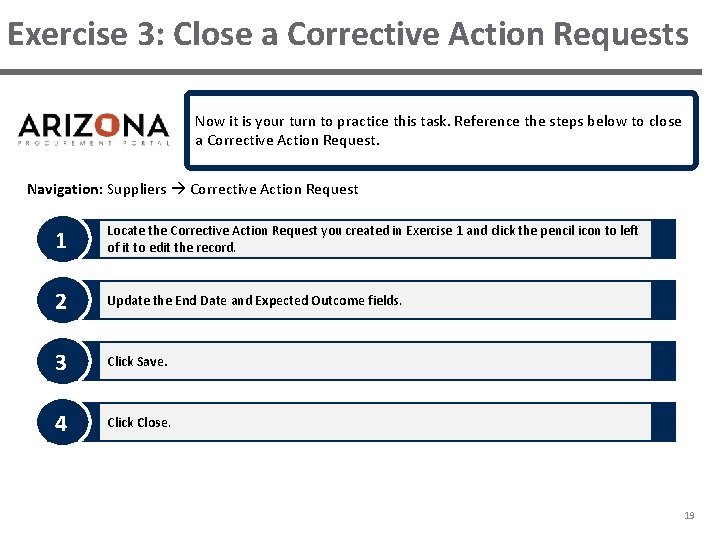
Exercise 3: Close a Corrective Action Requests Now it is your turn to practice this task. Reference the steps below to close a Corrective Action Request. Navigation: Suppliers Corrective Action Request 1 Locate the Corrective Action Request you created in Exercise 1 and click the pencil icon to left of it to edit the record. 2 Update the End Date and Expected Outcome fields. 3 Click Save. 4 Click Close. 19
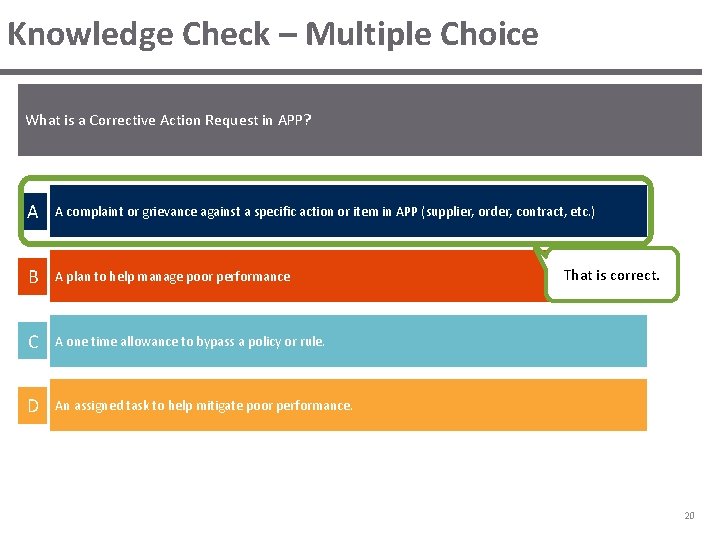
Knowledge Check – Multiple Choice What is a Corrective Action Request in APP? A A complaint or grievance against a specific action or item in APP (supplier, order, contract, etc. ) B A plan to help manage poor performance C A one time allowance to bypass a policy or rule. D An assigned task to help mitigate poor performance. That is correct. 20
LESSON 2: IMPROVEMENT PLANS
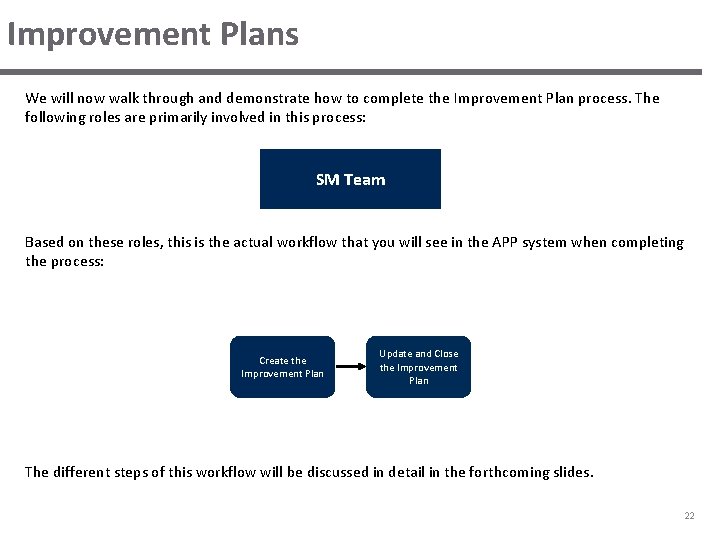
Improvement Plans We will now walk through and demonstrate how to complete the Improvement Plan process. The following roles are primarily involved in this process: SM Team Based on these roles, this is the actual workflow that you will see in the APP system when completing the process: Create the Improvement Plan Update and Close the Improvement Plan The different steps of this workflow will be discussed in detail in the forthcoming slides. 22
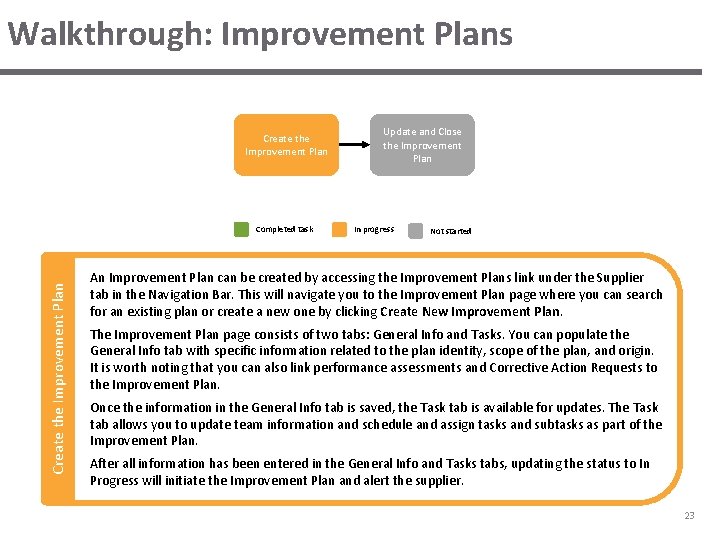
Walkthrough: Improvement Plans Create the Improvement Plan Completed task Update and Close the Improvement Plan In progress Not started An Improvement Plan can be created by accessing the Improvement Plans link under the Supplier tab in the Navigation Bar. This will navigate you to the Improvement Plan page where you can search for an existing plan or create a new one by clicking Create New Improvement Plan. The Improvement Plan page consists of two tabs: General Info and Tasks. You can populate the General Info tab with specific information related to the plan identity, scope of the plan, and origin. It is worth noting that you can also link performance assessments and Corrective Action Requests to the Improvement Plan. Once the information in the General Info tab is saved, the Task tab is available for updates. The Task tab allows you to update team information and schedule and assign tasks and subtasks as part of the Improvement Plan. After all information has been entered in the General Info and Tasks tabs, updating the status to In Progress will initiate the Improvement Plan and alert the supplier. 23
Demonstration 4: Create an Improvement Plan Now that you have learned about the Create an Improvement Plan process, we will demonstrate this in the system. 24
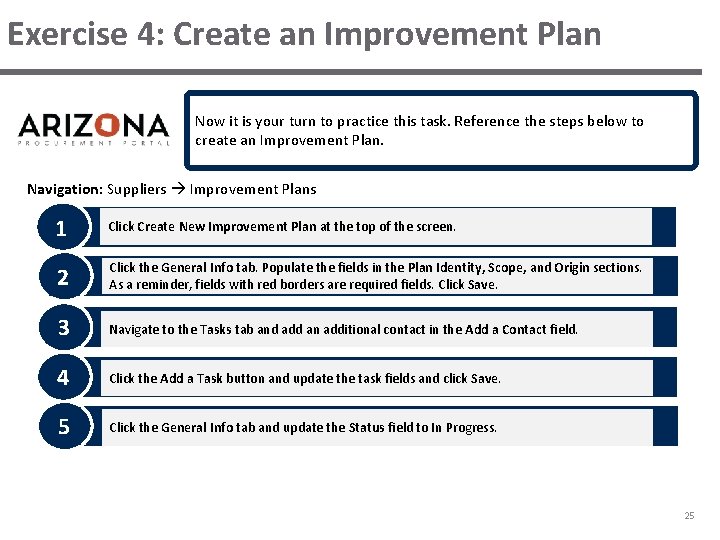
Exercise 4: Create an Improvement Plan Now it is your turn to practice this task. Reference the steps below to create an Improvement Plan. Navigation: Suppliers Improvement Plans 1 Click Create New Improvement Plan at the top of the screen. 2 Click the General Info tab. Populate the fields in the Plan Identity, Scope, and Origin sections. As a reminder, fields with red borders are required fields. Click Save. 3 Navigate to the Tasks tab and add an additional contact in the Add a Contact field. 4 Click the Add a Task button and update the task fields and click Save. 5 Click the General Info tab and update the Status field to In Progress. 25
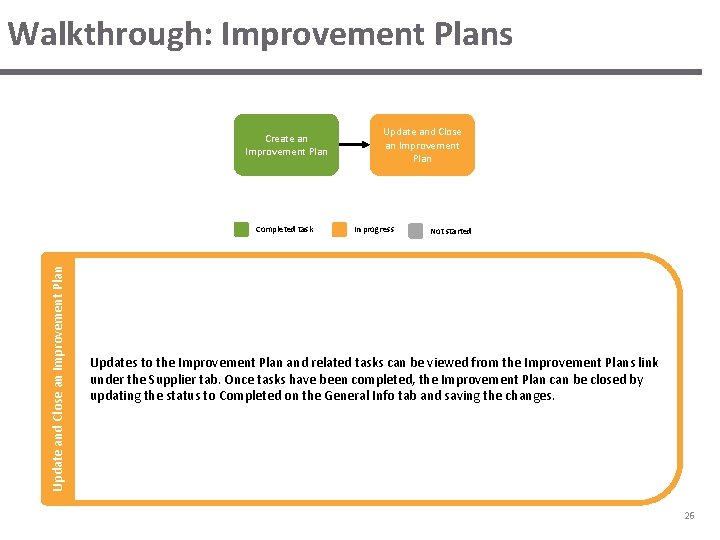
Walkthrough: Improvement Plans Create an Improvement Plan Update and Close an Improvement Plan Completed task Update and Close an Improvement Plan In progress Not started Updates to the Improvement Plan and related tasks can be viewed from the Improvement Plans link under the Supplier tab. Once tasks have been completed, the Improvement Plan can be closed by updating the status to Completed on the General Info tab and saving the changes. 26
Demonstration 5: Update and Close an Improvement Plan Now that you have learned about the Update and Close an Improvement Plan process, we will demonstrate this in the system. 27
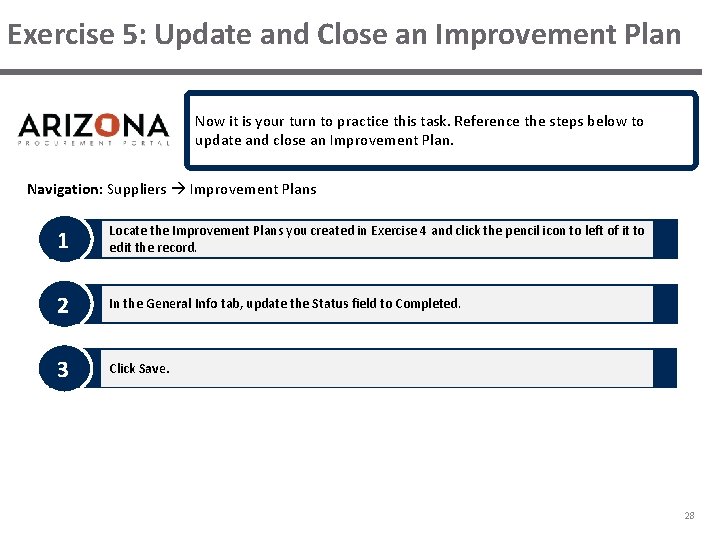
Exercise 5: Update and Close an Improvement Plan Now it is your turn to practice this task. Reference the steps below to update and close an Improvement Plan. Navigation: Suppliers Improvement Plans 1 Locate the Improvement Plans you created in Exercise 4 and click the pencil icon to left of it to edit the record. 2 In the General Info tab, update the Status field to Completed. 3 Click Save. 28
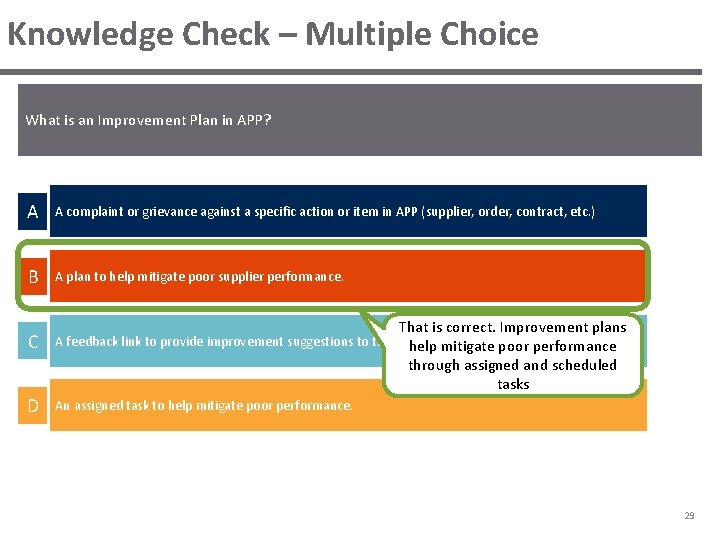
Knowledge Check – Multiple Choice What is an Improvement Plan in APP? A A complaint or grievance against a specific action or item in APP (supplier, order, contract, etc. ) B A plan to help mitigate poor supplier performance. C D That is correct. Improvement plans A feedback link to provide improvement suggestions to the State help mitigate poor performance through assigned and scheduled tasks An assigned task to help mitigate poor performance. 29
PROCESS FLOW AND COURSE SUMMARY
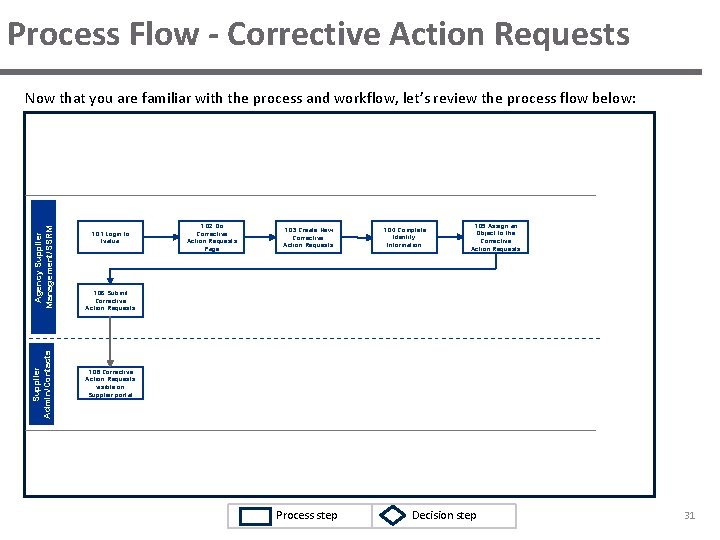
Process Flow - Corrective Action Requests Supplier Admin/Contacts Agency Supplier Management/SSRM Now that you are familiar with the process and workflow, let’s review the process flow below: 1. 01 Login to Ivalua 1. 02 Go Corrective Action Requests Page 1. 03 Create New Corrective Action Requests 1. 04 Complete Identity Information 1. 05 Assign an Object to the Corrective Action Requests 1. 06 Submit Corrective Action Requests 1. 08 Corrective Action Requests visible on Supplier portal Process step Decision step 31
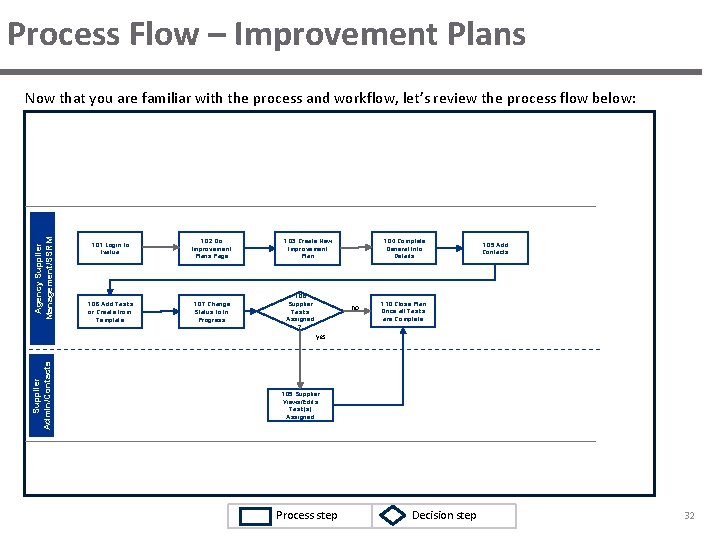
Process Flow – Improvement Plans Agency Supplier Management/SSRM Now that you are familiar with the process and workflow, let’s review the process flow below: 1. 01 Login to Ivalua 1. 02 Go Improvement Plans Page 1. 06 Add Tasks or Create from Template 1. 07 Change Status to In Progress 1. 04 Complete General Info Details 1. 03 Create New Improvement Plan 1. 08 Supplier Tasks Assigned ? no 1. 05 Add Contacts 1. 10 Close Plan Once all Tasks are Complete Supplier Admin/Contacts yes 1. 09 Supplier Views/Edits Task(s) Assigned Process step Decision step 32
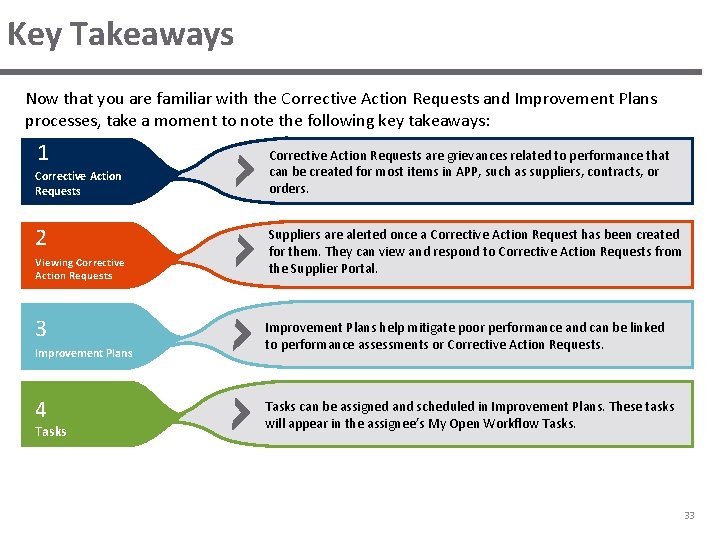
Key Takeaways Now that you are familiar with the Corrective Action Requests and Improvement Plans processes, take a moment to note the following key takeaways: 1 Corrective Action Requests 2 Viewing Corrective Action Requests 3 Improvement Plans 4 Tasks Corrective Action Requests are grievances related to performance that can be created for most items in APP, such as suppliers, contracts, or orders. Suppliers are alerted once a Corrective Action Request has been created for them. They can view and respond to Corrective Action Requests from the Supplier Portal. Improvement Plans help mitigate poor performance and can be linked to performance assessments or Corrective Action Requests. Tasks can be assigned and scheduled in Improvement Plans. These tasks will appear in the assignee’s My Open Workflow Tasks. 33
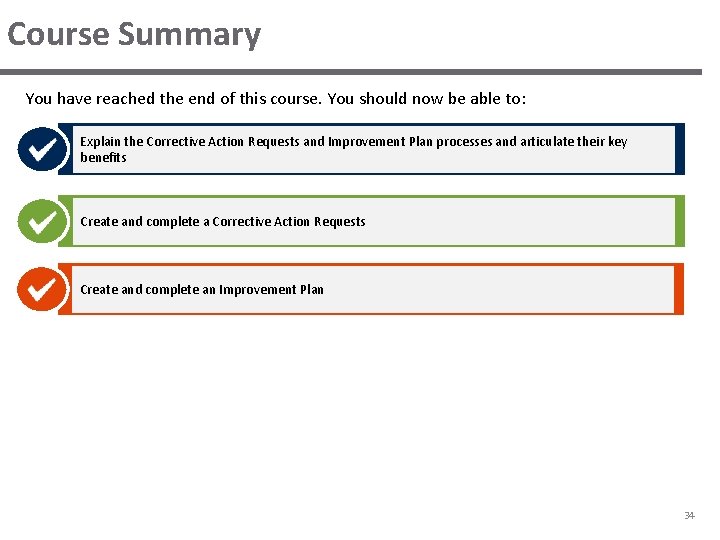
Course Summary You have reached the end of this course. You should now be able to: Explain the Corrective Action Requests and Improvement Plan processes and articulate their key benefits Create and complete a Corrective Action Requests Create and complete an Improvement Plan 34
What questions do you have? 35
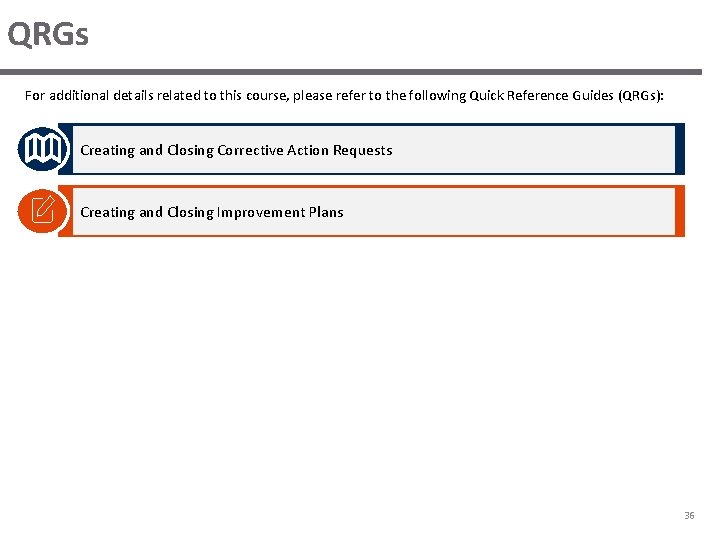
QRGs For additional details related to this course, please refer to the following Quick Reference Guides (QRGs): Creating and Closing Corrective Action Requests Creating and Closing Improvement Plans 36
THANK YOU 37