
Core LIMS Training Inventory Management Locations Processes Course
- Slides: 33
Core LIMS Training: Inventory Management – Locations & Processes
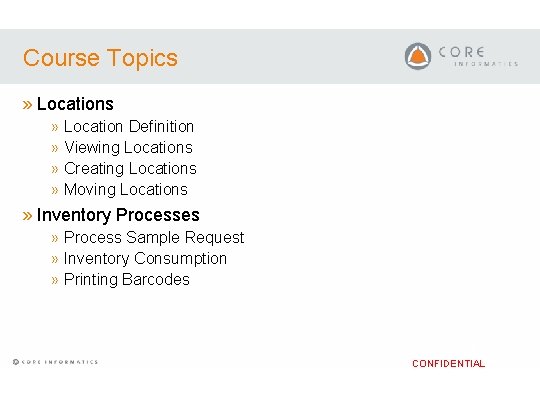
Course Topics » Location Definition » Viewing Locations » Creating Locations » Moving Locations » Inventory Processes » Process Sample Request » Inventory Consumption » Printing Barcodes CONFIDENTIAL
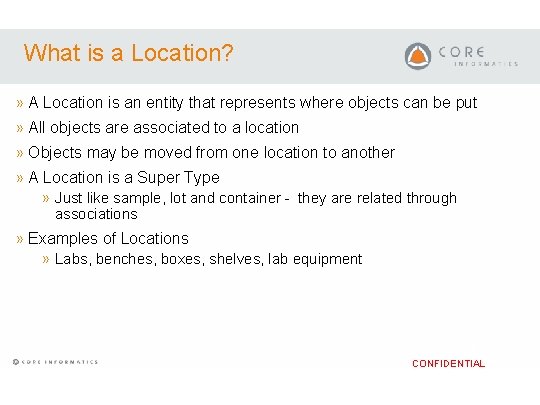
What is a Location? » A Location is an entity that represents where objects can be put » All objects are associated to a location » Objects may be moved from one location to another » A Location is a Super Type » Just like sample, lot and container - they are related through associations » Examples of Locations » Labs, benches, boxes, shelves, lab equipment CONFIDENTIAL
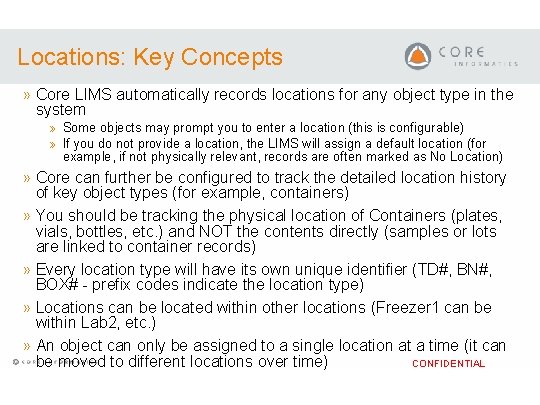
Locations: Key Concepts » Core LIMS automatically records locations for any object type in the system » Some objects may prompt you to enter a location (this is configurable) » If you do not provide a location, the LIMS will assign a default location (for example, if not physically relevant, records are often marked as No Location) » Core can further be configured to track the detailed location history of key object types (for example, containers) » You should be tracking the physical location of Containers (plates, vials, bottles, etc. ) and NOT the contents directly (samples or lots are linked to container records) » Every location type will have its own unique identifier (TD#, BN#, BOX# - prefix codes indicate the location type) » Locations can be located within other locations (Freezer 1 can be within Lab 2, etc. ) » An object can only be assigned to a single location at a time (it can be moved to different locations over time) CONFIDENTIAL
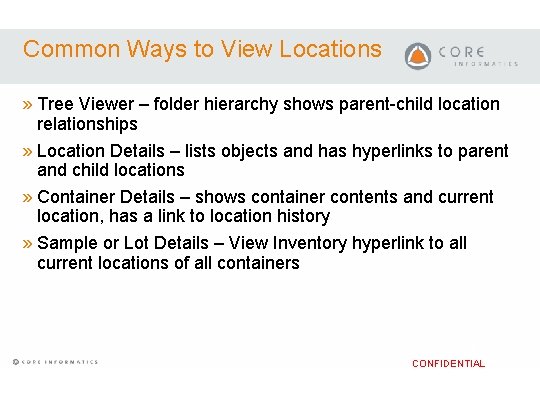
Common Ways to View Locations » Tree Viewer – folder hierarchy shows parent-child location relationships » Location Details – lists objects and has hyperlinks to parent and child locations » Container Details – shows container contents and current location, has a link to location history » Sample or Lot Details – View Inventory hyperlink to all current locations of all containers CONFIDENTIAL
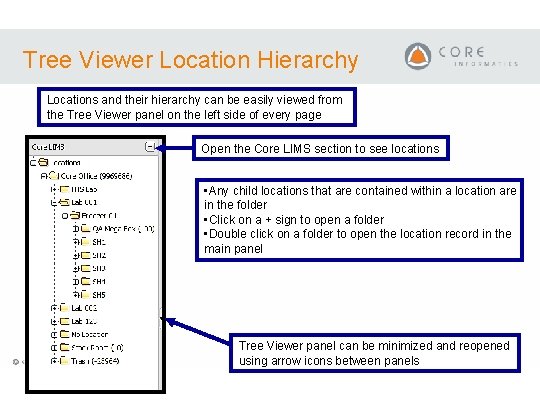
Tree Viewer Location Hierarchy Locations and their hierarchy can be easily viewed from the Tree Viewer panel on the left side of every page Open the Core LIMS section to see locations • Any child locations that are contained within a location are in the folder • Click on a + sign to open a folder • Double click on a folder to open the location record in the main panel Tree Viewer panel can be minimized and reopened using arrow icons between panels CONFIDENTIAL
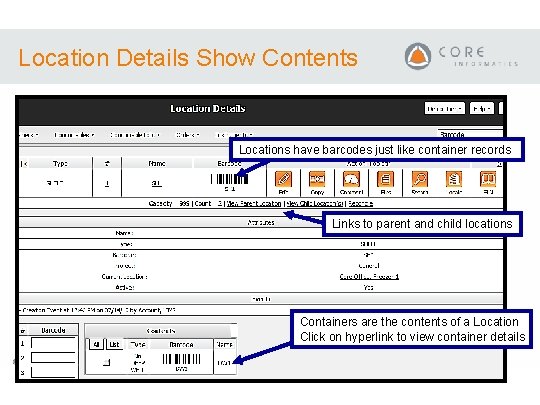
Location Details Show Contents Locations have barcodes just like container records Links to parent and child locations Containers are the contents of a Location Click on hyperlink to view container details CONFIDENTIAL
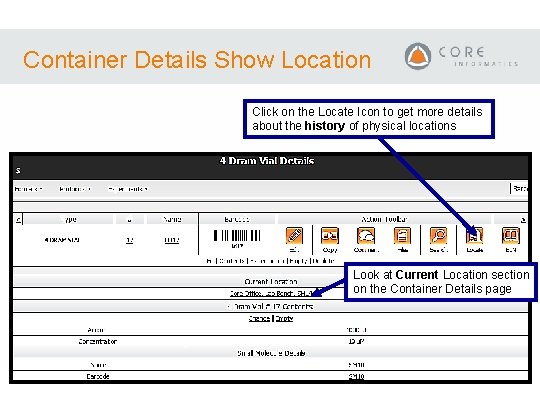
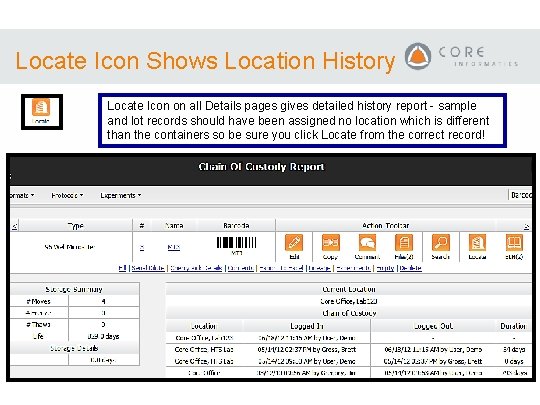
Container Details Show Location Click on the Locate Icon to get more details about the history of physical locations Look at Current Location section on the Container Details page CONFIDENTIAL
Locate Icon Shows Location History Locate Icon on all Details pages gives detailed history report - sample and lot records should have been assigned no location which is different than the containers so be sure you click Locate from the correct record! CONFIDENTIAL
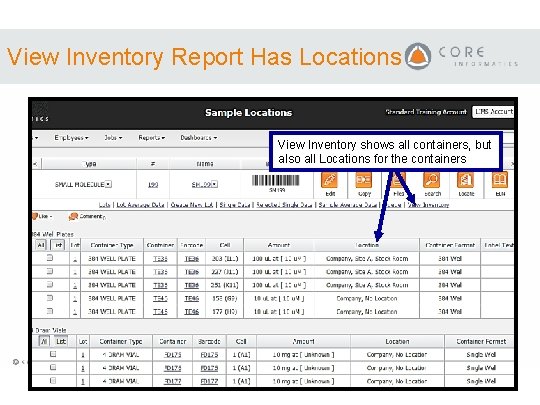
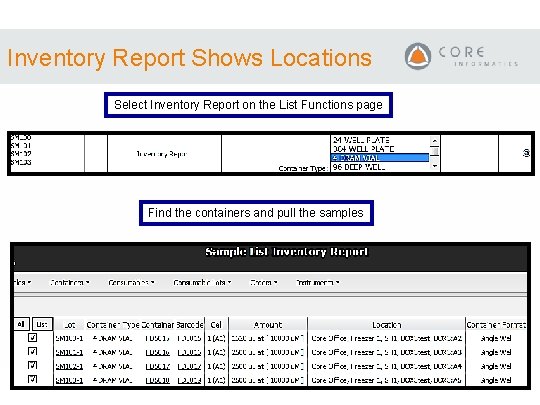
View Inventory Report Has Locations View Inventory shows all containers, but also all Locations for the containers CONFIDENTIAL
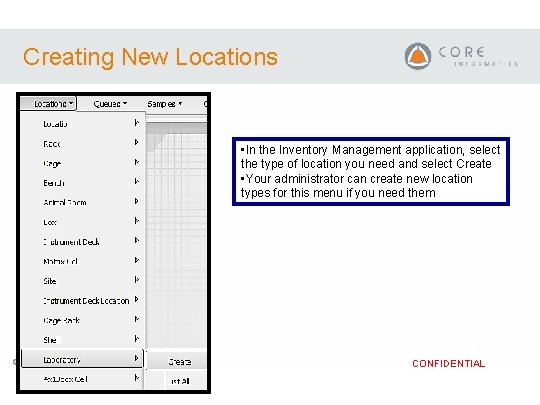
Creating New Locations • In the Inventory Management application, select the type of location you need and select Create • Your administrator can create new location types for this menu if you need them CONFIDENTIAL
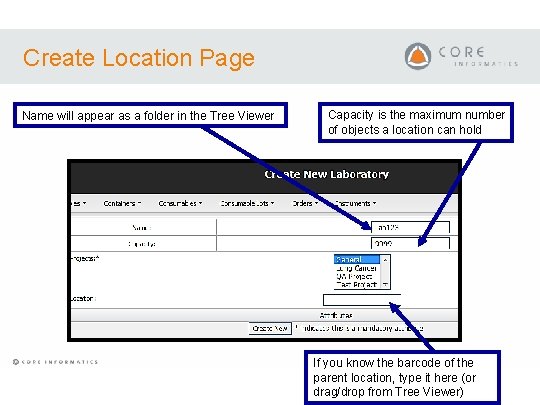
Create Location Page Name will appear as a folder in the Tree Viewer Capacity is the maximum number of objects a location can hold CONFIDENTIAL If you know the barcode of the parent location, type it here (or drag/drop from Tree Viewer)
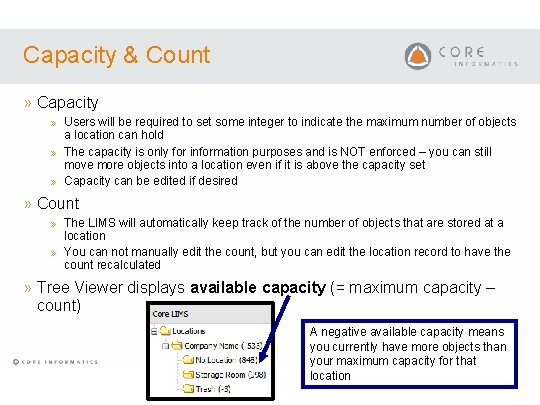
Capacity & Count » Capacity » Users will be required to set some integer to indicate the maximum number of objects a location can hold » The capacity is only for information purposes and is NOT enforced – you can still move more objects into a location even if it is above the capacity set » Capacity can be edited if desired » Count » The LIMS will automatically keep track of the number of objects that are stored at a location » You can not manually edit the count, but you can edit the location record to have the count recalculated » Tree Viewer displays available capacity (= maximum capacity – count) A negative available capacity means you currently have more objects than your maximum capacity for that CONFIDENTIAL location
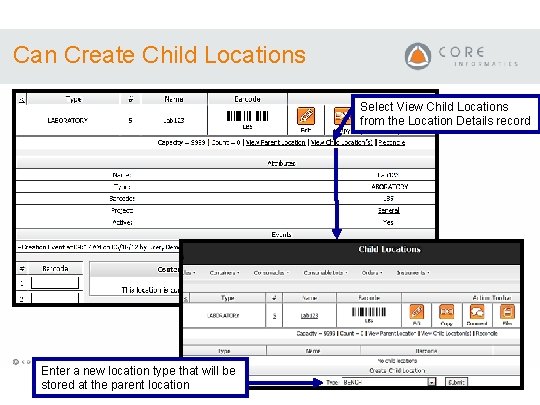
Can Create Child Locations Select View Child Locations from the Location Details record Enter a new location type that will be stored at the parent location CONFIDENTIAL
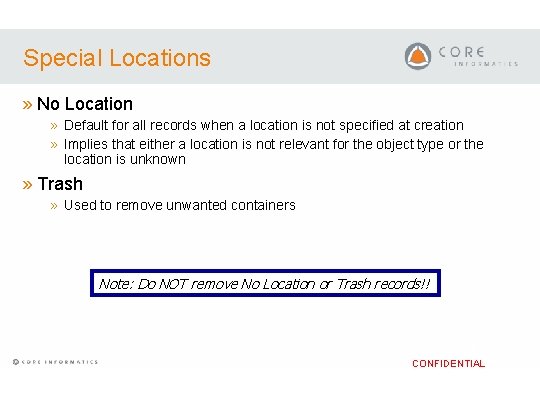
Special Locations » No Location » Default for all records when a location is not specified at creation » Implies that either a location is not relevant for the object type or the location is unknown » Trash » Used to remove unwanted containers Note: Do NOT remove No Location or Trash records!! CONFIDENTIAL
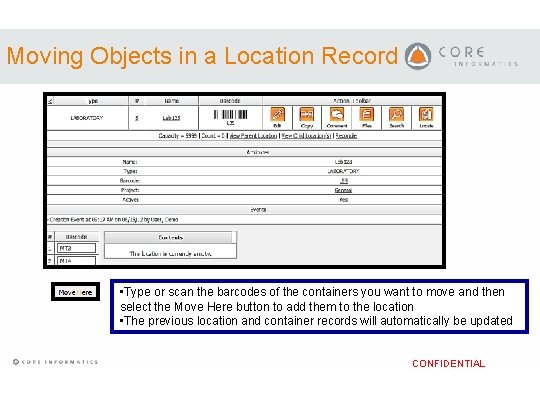
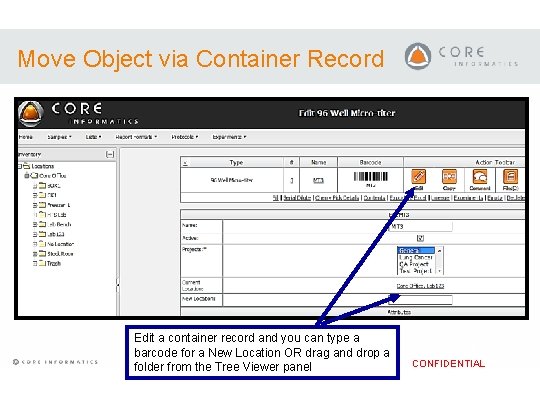
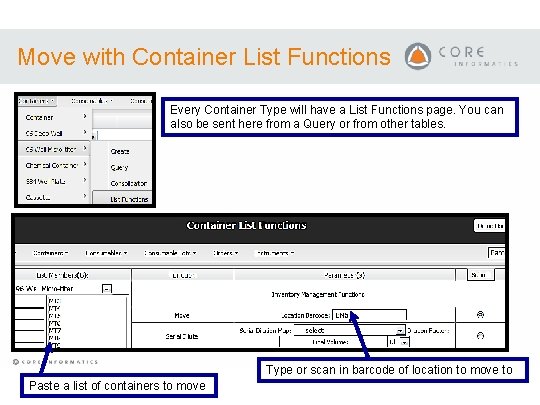
Multiple Ways to Move Objects » Enter objects into destination location » Edit container record » Containers List Functions page CONFIDENTIAL
Moving Objects in a Location Record • Type or scan the barcodes of the containers you want to move and then select the Move Here button to add them to the location • The previous location and container records will automatically be updated CONFIDENTIAL
Move Object via Container Record Edit a container record and you can type a barcode for a New Location OR drag and drop a folder from the Tree Viewer panel CONFIDENTIAL
Move with Container List Functions Every Container Type will have a List Functions page. You can also be sent here from a Query or from other tables. CONFIDENTIAL Type or scan in barcode of location to move to Paste a list of containers to move
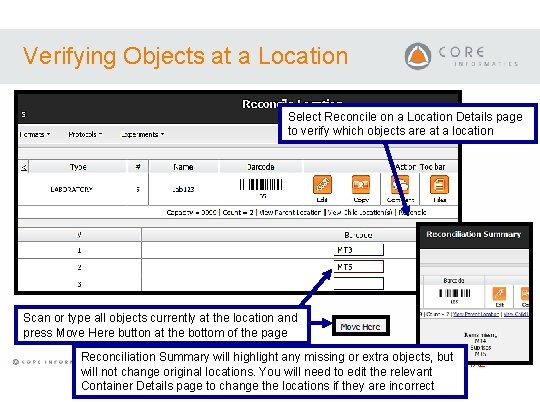
Verifying Objects at a Location Select Reconcile on a Location Details page to verify which objects are at a location Scan or type all objects currently at the location and press Move Here button at the bottom of the page Reconciliation Summary will highlight any missing or extra objects, but CONFIDENTIAL will not change original locations. You will need to edit the relevant Container Details page to change the locations if they are incorrect
Inventory Processes » Now that we understand the Container and Location concepts, let’s look at some common functions an inventory manager might perform to understand how it all fits together… CONFIDENTIAL
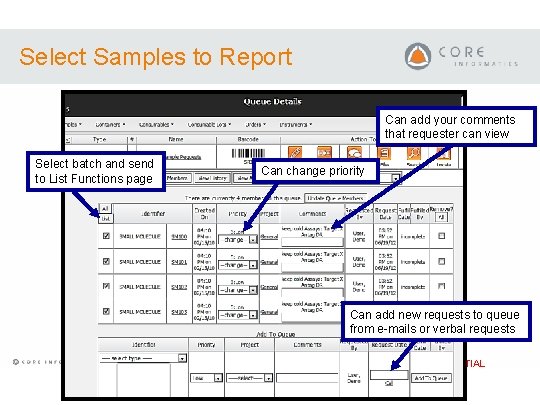
Sample Request Workflow » Users can request samples or lots from a centralized inventory group or manager » The inventory manager can view all the combined requests as a single task list » Samples or lots can be converted to containers and locations with an Inventory Report » Containers can be physically pulled and processed » Request is marked complete CONFIDENTIAL
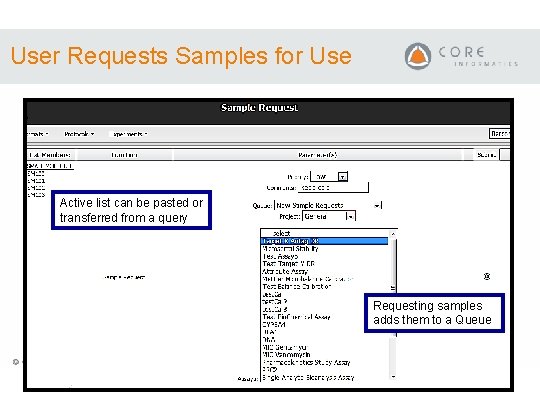
User Requests Samples for Use Active list can be pasted or transferred from a query Requesting samples adds them to a Queue CONFIDENTIAL
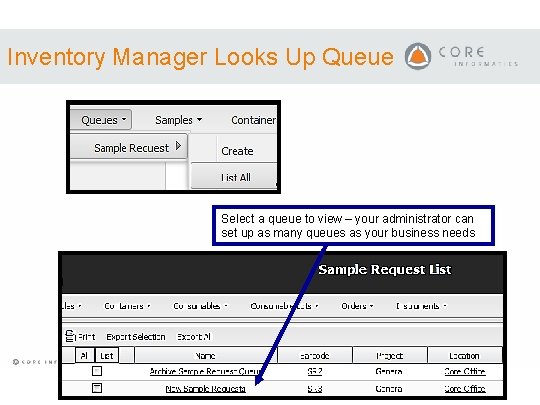
Inventory Manager Looks Up Queue Select a queue to view – your administrator can set up as many queues as your business needs CONFIDENTIAL
Select Samples to Report Can add your comments that requester can view Select batch and send to List Functions page Can change priority Can add new requests to queue from e-mails or verbal requests CONFIDENTIAL
Inventory Report Shows Locations Select Inventory Report on the List Functions page Find the containers and pull the samples CONFIDENTIAL
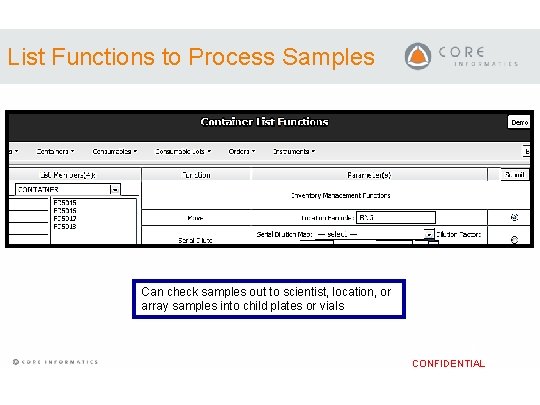
List Functions to Process Samples Can check samples out to scientist, location, or array samples into child plates or vials CONFIDENTIAL
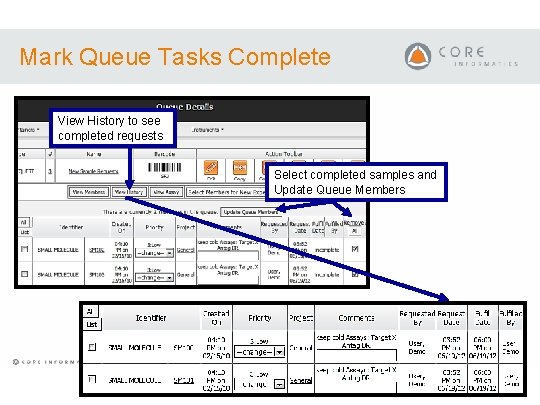
Mark Queue Tasks Complete View History to see completed requests Select completed samples and Update Queue Members CONFIDENTIAL
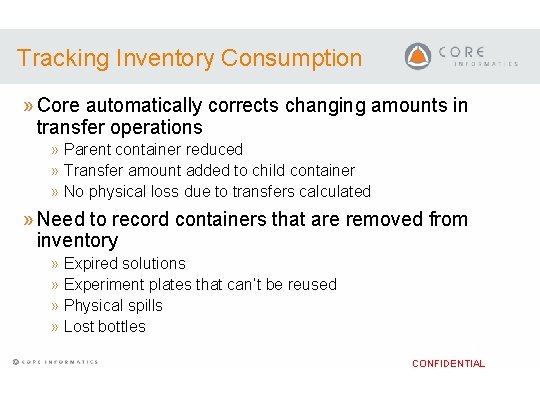
Tracking Inventory Consumption » Core automatically corrects changing amounts in transfer operations » Parent container reduced » Transfer amount added to child container » No physical loss due to transfers calculated » Need to record containers that are removed from inventory » Expired solutions » Experiment plates that can’t be reused » Physical spills » Lost bottles CONFIDENTIAL
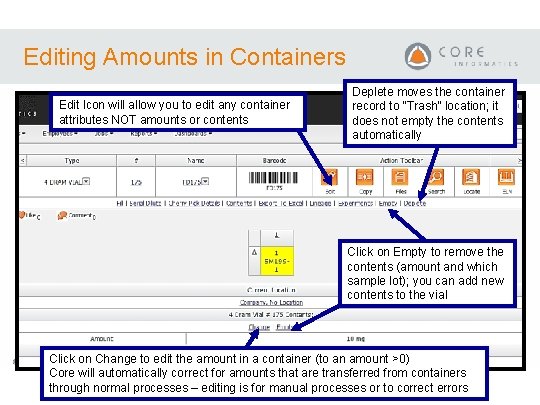
Editing Amounts in Containers Edit Icon will allow you to edit any container attributes NOT amounts or contents Deplete moves the container record to “Trash” location; it does not empty the contents automatically Click on Empty to remove the contents (amount and which sample lot); you can add new contents to the vial Click on Change to edit the amount in a container (to an amount >0) CONFIDENTIAL Core will automatically correct for amounts that are transferred from containers through normal processes – editing is for manual processes or to correct errors
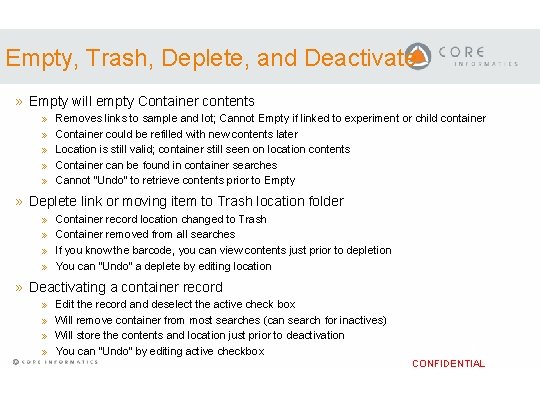
Empty, Trash, Deplete, and Deactivate » Empty will empty Container contents » » » Removes links to sample and lot; Cannot Empty if linked to experiment or child container Container could be refilled with new contents later Location is still valid; container still seen on location contents Container can be found in container searches Cannot “Undo” to retrieve contents prior to Empty » Deplete link or moving item to Trash location folder » » Container record location changed to Trash Container removed from all searches If you know the barcode, you can view contents just prior to depletion You can “Undo” a deplete by editing location » Deactivating a container record » » Edit the record and deselect the active check box Will remove container from most searches (can search for inactives) Will store the contents and location just prior to deactivation You can “Undo” by editing active checkbox CONFIDENTIAL
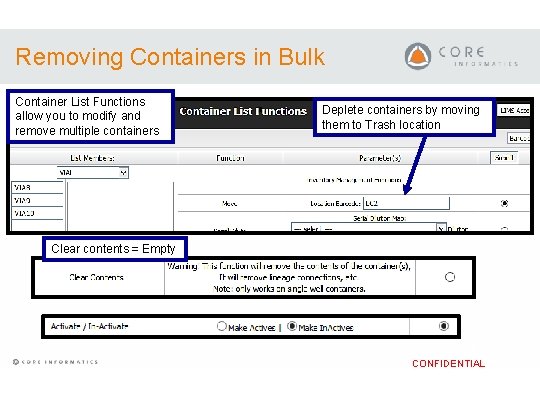
Removing Containers in Bulk Container List Functions allow you to modify and remove multiple containers Deplete containers by moving them to Trash location Clear contents = Empty CONFIDENTIAL
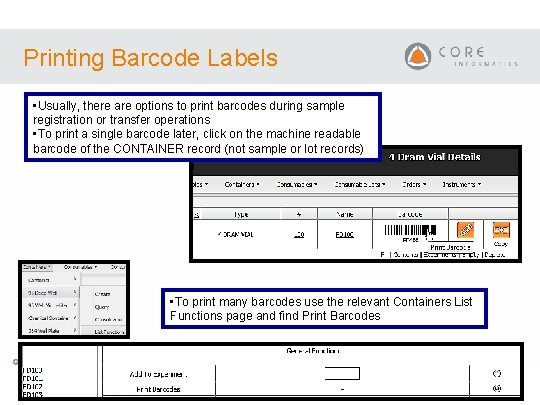
Printing Barcode Labels • Usually, there are options to print barcodes during sample registration or transfer operations • To print a single barcode later, click on the machine readable barcode of the CONTAINER record (not sample or lot records) • To print many barcodes use the relevant Containers List Functions page and find Print Barcodes CONFIDENTIAL