
Copyright 2014 Pearson Education Inc Chapter 1 Introduction

- Slides: 58
Copyright © 2014 Pearson Education, Inc. Chapter 1 Introduction to Programming and Visual Basic Copyright © 2014 Pearson Education, Inc.
Topics • • • 1. 1 Computer Systems: Hardware and Software 1. 2 Programs and Programming Languages 1. 3 More about Controls and Programming 1. 4 The Programming Process 1. 5 Visual Studio and Visual Studio Express (the Visual Basic Environment) Copyright © 2014 Pearson Education, Inc.
Introducing Microsoft Visual Basic – What is Visual Basic? • a software development system for creating applications on the Windows operating system • Commonly referred to as VB – What can you do with Visual Basic? • Create applications with graphical windows, dialog boxes, and menus • Create applications that work with databases • Create Web applications and applications that use Internet technologies • Create applications that display graphics Copyright © 2014 Pearson Education, Inc.
1. 1 Computer Systems: Hardware and Software Copyright © 2014 Pearson Education, Inc.
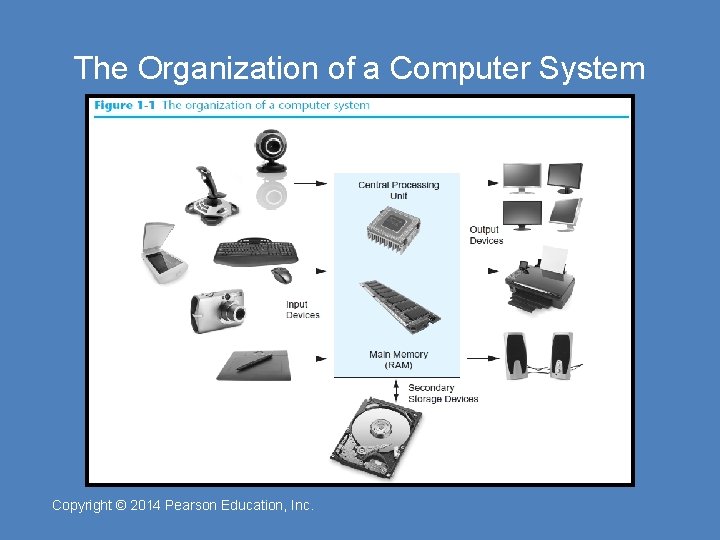
Computer Hardware • The term hardware refers to the computer’s physical components • A computer is not one device, but a system of devices • Major types of components include: 1. 2. 3. 4. 5. Central Processing Unit Main memory Secondary storage devices Input devices Output devices Copyright © 2014 Pearson Education, Inc.
The Organization of a Computer System Copyright © 2014 Pearson Education, Inc.
1. The CPU • The central processing unit, or CPU, is the part of a computer that actually runs programs – The most important component – Without it, the computer could not run software – Fetches instructions one by one • A program is a set of instructions a computer’s CPU follows to perform a task – Instructions are stored in memory as binary numbers • A binary number is a sequence of 1’s and 0’s Copyright © 2014 Pearson Education, Inc.
2. Main Memory • Think of main memory as the computer’s work area – Holds instructions and data needed for programs that are currently running • Commonly known as random-access memory, or just RAM – CPU can quickly access data at any random location • Used as temporary storage – Contents are lost when power is turned off Copyright © 2014 Pearson Education, Inc.
3. Secondary Storage • Most common secondary storage device is the disk drive – Records data magnetically on a circular disk • Other types of secondary storage devices include: – External disk drives • Connects to one of the computer’s communication ports – USB drives • Small devices that plug into a computer’s USB port – Optical devices such as CDs and DVDs • Data is encoded using a series of pits on the disc surface Copyright © 2014 Pearson Education, Inc.
4. Input Devices • Input is any data the computer collects from the outside world • The device that collects and sends data to the computer is called an input device • Common input devices: – Keyboard – Mouse – Digital camera • Disk and optical drives can be input devices – If their data is retrieved and loaded into main memory Copyright © 2014 Pearson Education, Inc.
5. Output Devices • Output is any data the computer sends to the outside world – A sales report, list of names, graphic images, or a sound • Data is sent to an output device, which formats and presents it • Common output devices: – Monitor – Printer – Disk and optical drives can be output devices • If the CPU sends them data to be saved Copyright © 2014 Pearson Education, Inc.
Software • Software refers to the programs that run on a computer • There are two general categories of software: – Operating systems • An operating system or OS is a set of programs that manages the computer’s hardware devices and controls their processes • Windows, Mac OS, and Linux are all operating systems – Application Software • Application software refers to programs that make the computer useful to the user • Word processing, spreadsheet, and database packages are all examples of application software Copyright © 2014 Pearson Education, Inc.
1. 2 Programs and Programming Languages Copyright © 2014 Pearson Education, Inc.
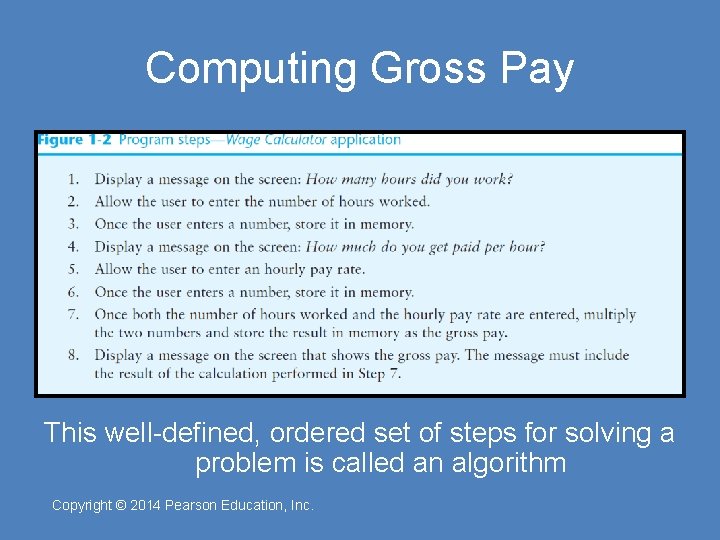
What is a Program? • Computers can only follow instructions • A computer program is a set of instructions on how to solve a problem or perform a task • In order for a computer to compute someone’s gross pay, we must tell it to perform the steps on the following slide Copyright © 2014 Pearson Education, Inc.
Computing Gross Pay This well-defined, ordered set of steps for solving a problem is called an algorithm Copyright © 2014 Pearson Education, Inc.
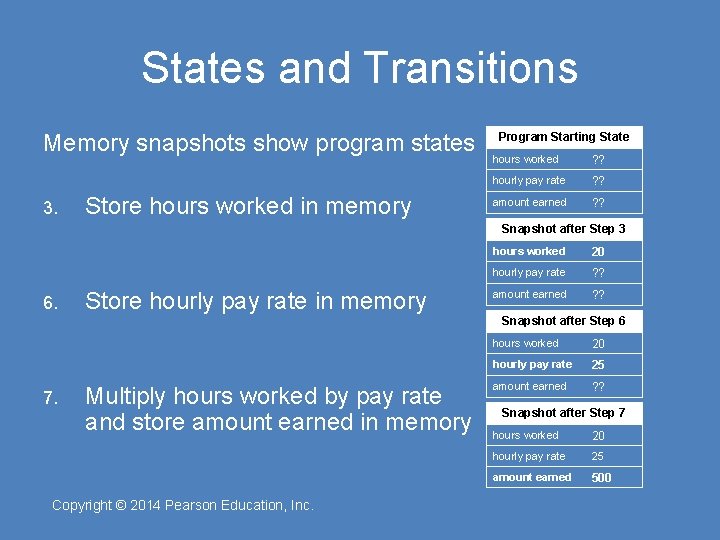
States and Transitions Memory snapshots show program states 3. Store hours worked in memory Program Starting State hours worked ? ? hourly pay rate ? ? amount earned ? ? Snapshot after Step 3 6. Store hourly pay rate in memory hours worked 20 hourly pay rate ? ? amount earned ? ? Snapshot after Step 6 7. Multiply hours worked by pay rate and store amount earned in memory Copyright © 2014 Pearson Education, Inc. hours worked 20 hourly pay rate 25 amount earned ? ? Snapshot after Step 7 hours worked 20 hourly pay rate 25 amount earned 500
Programming Languages • The steps in an algorithm must be stated in a form the computer understands • The CPU processes a series of 1’s and 0’s called machine language instructions • This is a tedious and difficult format for people • Programming languages allow us to use words instead of numbers • Special software called a compiler converts the programming language statements to machine language instructions Copyright © 2014 Pearson Education, Inc.
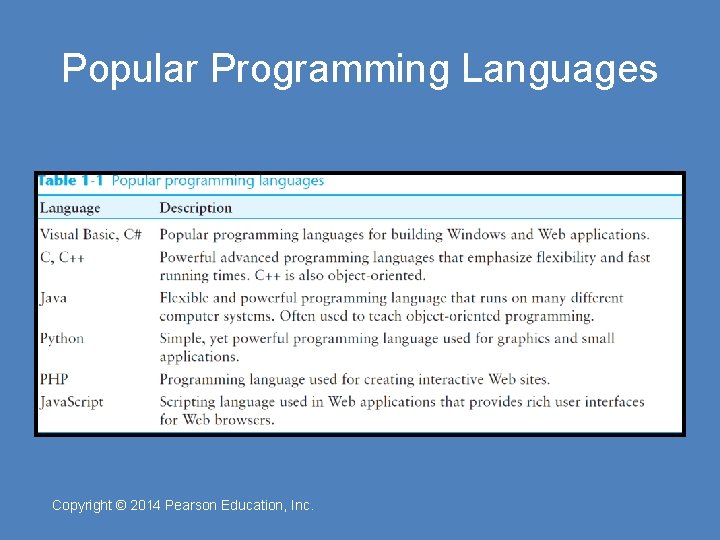
Popular Programming Languages Copyright © 2014 Pearson Education, Inc.
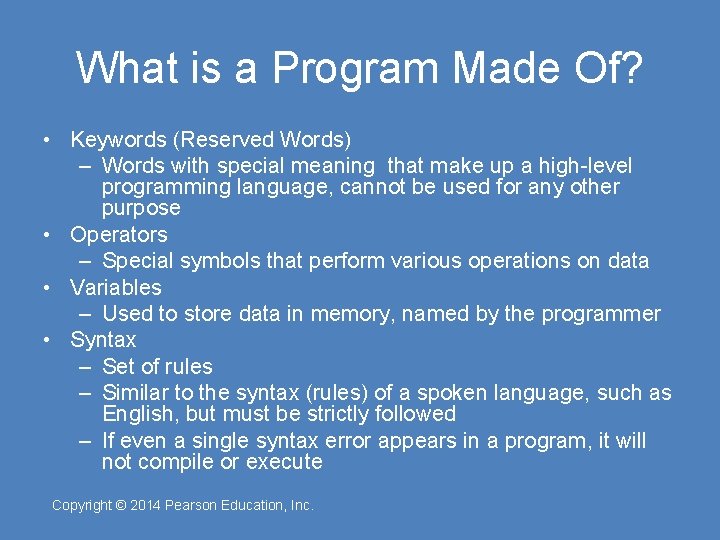
What is a Program Made Of? • Keywords (Reserved Words) – Words with special meaning that make up a high-level programming language, cannot be used for any other purpose • Operators – Special symbols that perform various operations on data • Variables – Used to store data in memory, named by the programmer • Syntax – Set of rules – Similar to the syntax (rules) of a spoken language, such as English, but must be strictly followed – If even a single syntax error appears in a program, it will not compile or execute Copyright © 2014 Pearson Education, Inc.
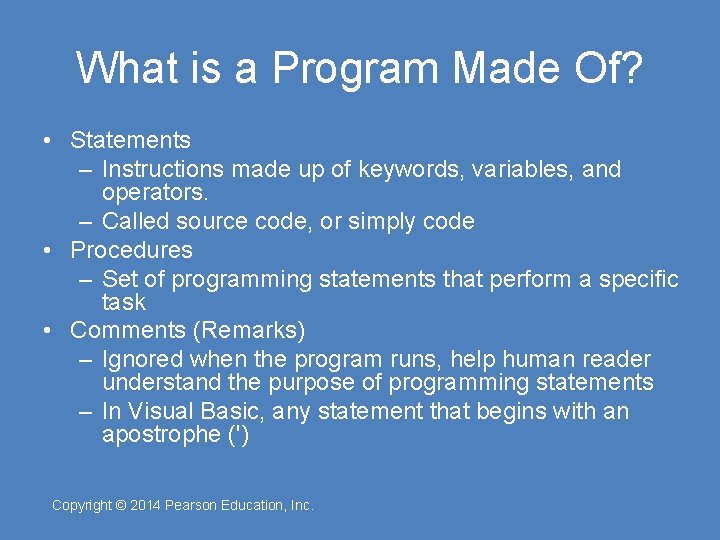
What is a Program Made Of? • Statements – Instructions made up of keywords, variables, and operators. – Called source code, or simply code • Procedures – Set of programming statements that perform a specific task • Comments (Remarks) – Ignored when the program runs, help human reader understand the purpose of programming statements – In Visual Basic, any statement that begins with an apostrophe (') Copyright © 2014 Pearson Education, Inc.
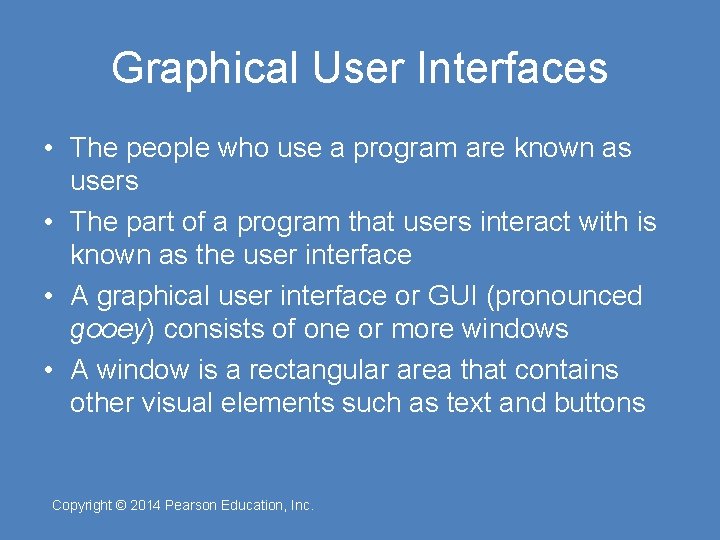
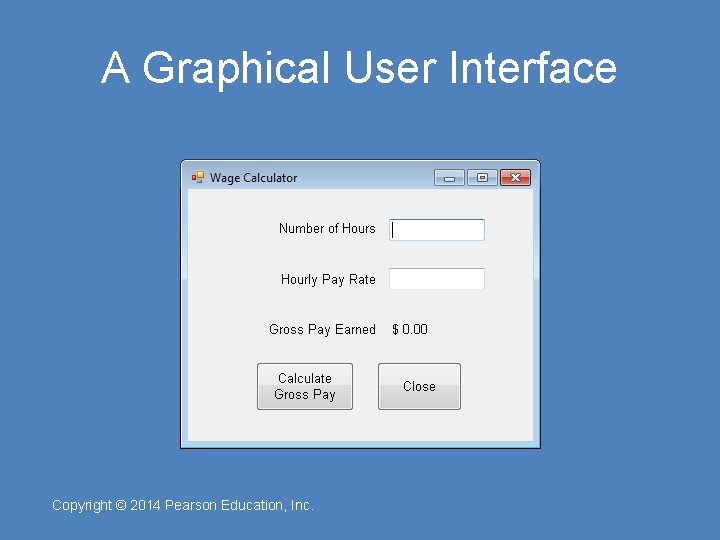
Graphical User Interfaces • The people who use a program are known as users • The part of a program that users interact with is known as the user interface • A graphical user interface or GUI (pronounced gooey) consists of one or more windows • A window is a rectangular area that contains other visual elements such as text and buttons Copyright © 2014 Pearson Education, Inc.
A Graphical User Interface Copyright © 2014 Pearson Education, Inc.
Objects and Controls • Visual Basic is an object-oriented programming (OOP) language • An object is an item in a program that contains data and has the ability to perform actions • The data an object contains is referred to as properties, or attributes • The operations that an object can perform are called methods • A method is a special type of procedure that belongs to an object Copyright © 2014 Pearson Education, Inc.
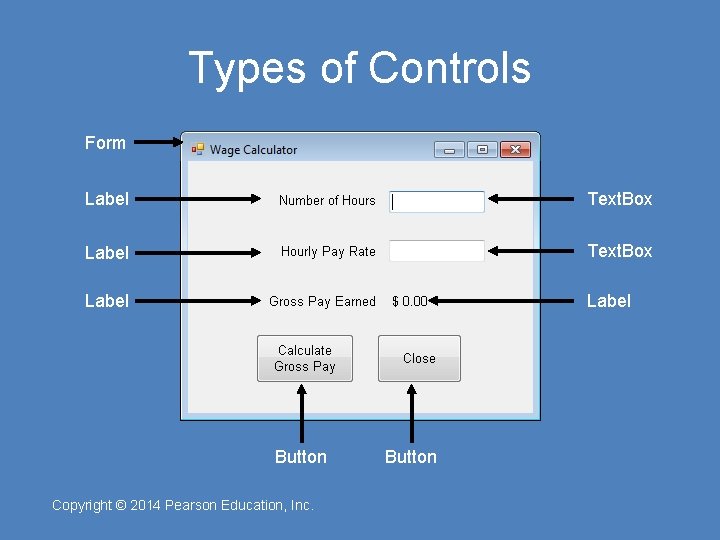
Objects and Controls • A control is specific type of object that usually appears in a program’s graphical user interface – The window that contains the other elements is known as a Form control – The small boxes that accept input are known as Text. Box controls – The areas that simply display text are known as Label controls – The buttons that perform operations when clicked with the mouse are known as Button controls Copyright © 2014 Pearson Education, Inc.
Types of Controls Form Label Text. Box Label Button Copyright © 2014 Pearson Education, Inc. Button
Event-Driven Programming • The GUI environment is event-driven – An event is an action that takes place within a program – All Visual Basic controls are capable of detecting various events, such as: • Clicking a Button control • Changing the text in a Text. Box control • In order for a control to respond to a specific event, you must write a special type of procedure called an event handler – Event handlers are also known as event procedures Copyright © 2014 Pearson Education, Inc.
1. 3 More about Controls and Programming Copyright © 2014 Pearson Education, Inc.
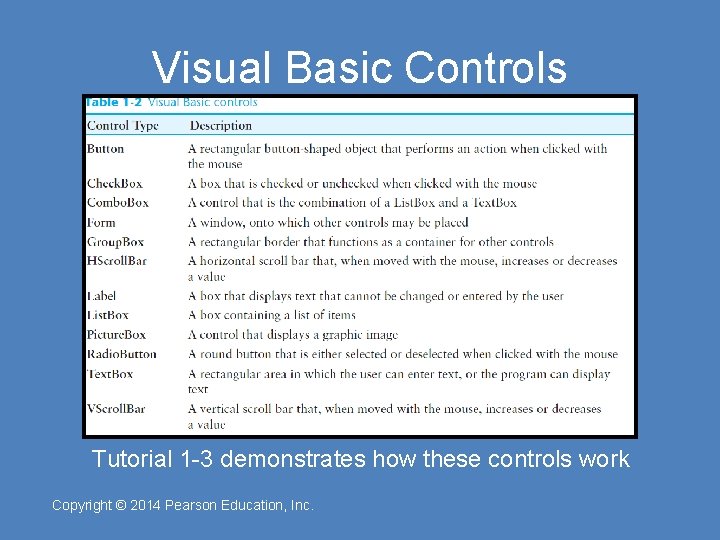
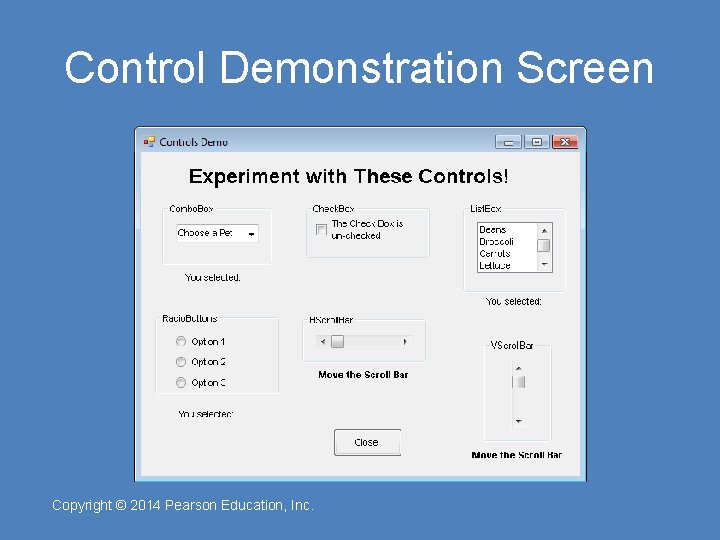
Visual Basic Controls Tutorial 1 -3 demonstrates how these controls work Copyright © 2014 Pearson Education, Inc.
Control Demonstration Screen Copyright © 2014 Pearson Education, Inc.
The Name Property • All controls have properties – Each property has a value (or values) – Not all properties deal with appearance • The Name property establishes a means for the program to refer to that control – Controls are assigned relatively meaningless names when created – Programmers usually change these names to something more meaningful Copyright © 2014 Pearson Education, Inc.
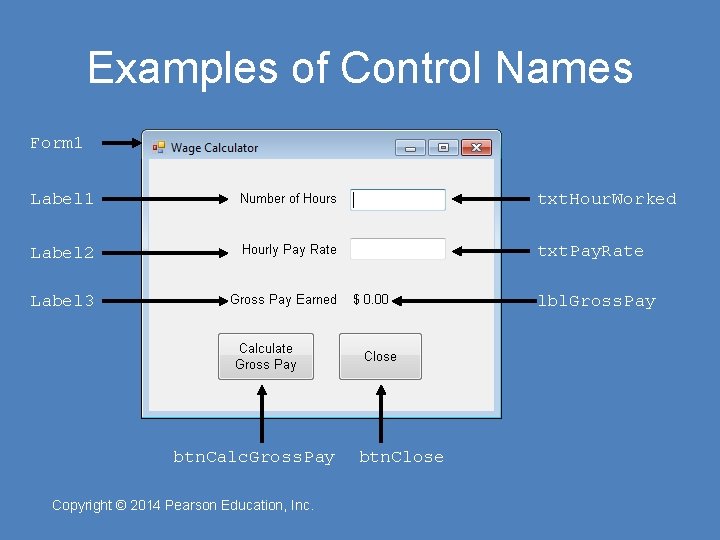
Examples of Control Names Form 1 Label 1 txt. Hour. Worked Label 2 txt. Pay. Rate Label 3 lbl. Gross. Pay btn. Calc. Gross. Pay Copyright © 2014 Pearson Education, Inc. btn. Close
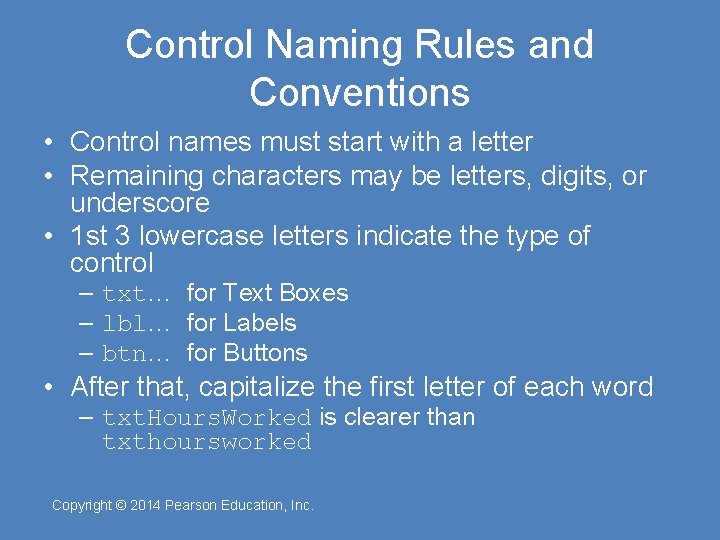
Control Naming Rules and Conventions • Control names must start with a letter • Remaining characters may be letters, digits, or underscore • 1 st 3 lowercase letters indicate the type of control – txt… for Text Boxes – lbl… for Labels – btn… for Buttons • After that, capitalize the first letter of each word – txt. Hours. Worked is clearer than txthoursworked Copyright © 2014 Pearson Education, Inc.
1. 4 The Programming Process Copyright © 2014 Pearson Education, Inc.
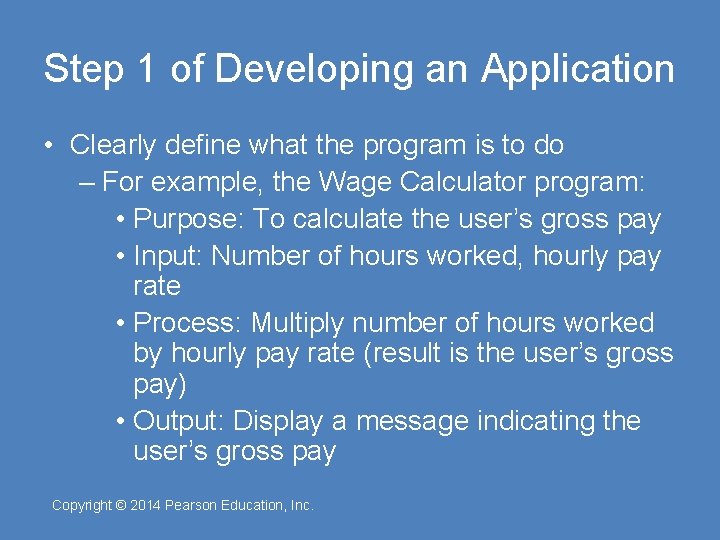
Step 1 of Developing an Application • Clearly define what the program is to do – For example, the Wage Calculator program: • Purpose: To calculate the user’s gross pay • Input: Number of hours worked, hourly pay rate • Process: Multiply number of hours worked by hourly pay rate (result is the user’s gross pay) • Output: Display a message indicating the user’s gross pay Copyright © 2014 Pearson Education, Inc.
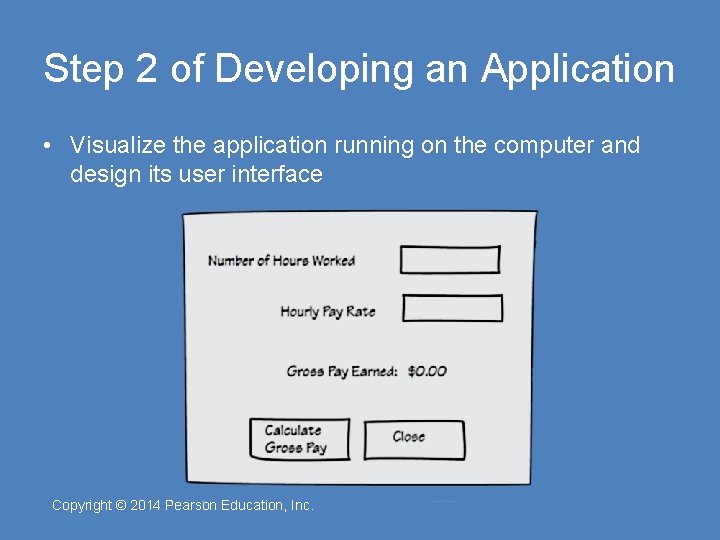
Step 2 of Developing an Application • Visualize the application running on the computer and design its user interface Copyright © 2014 Pearson Education, Inc.
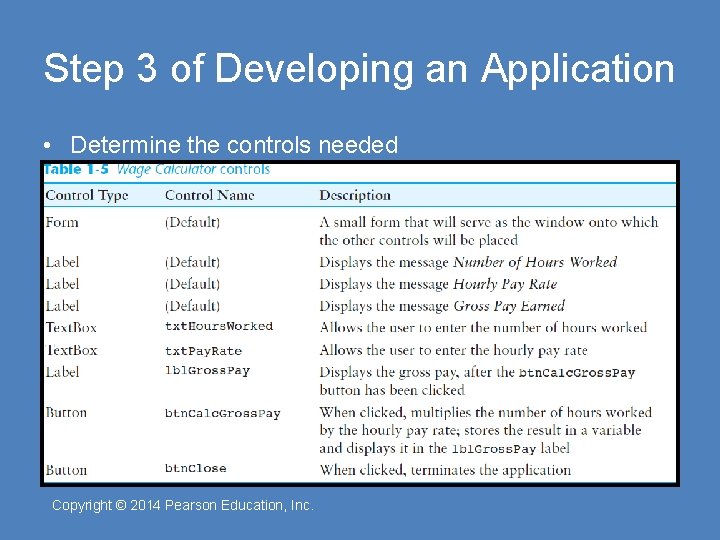
Step 3 of Developing an Application • Determine the controls needed Copyright © 2014 Pearson Education, Inc.
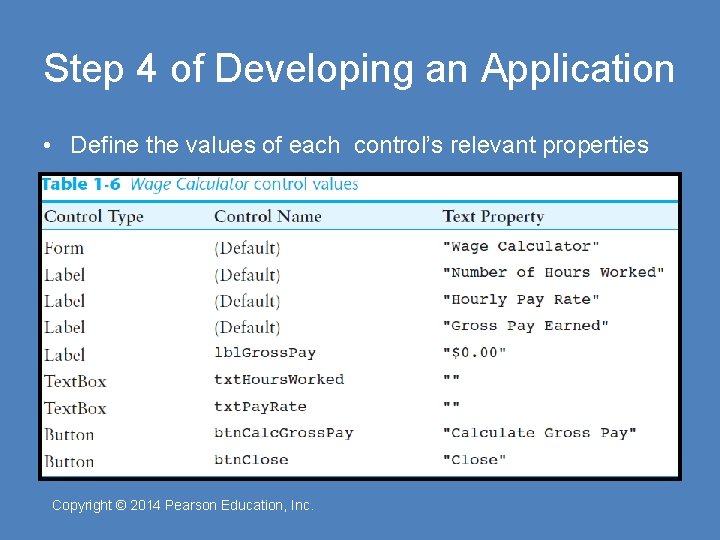
Step 4 of Developing an Application • Define the values of each control’s relevant properties Copyright © 2014 Pearson Education, Inc.
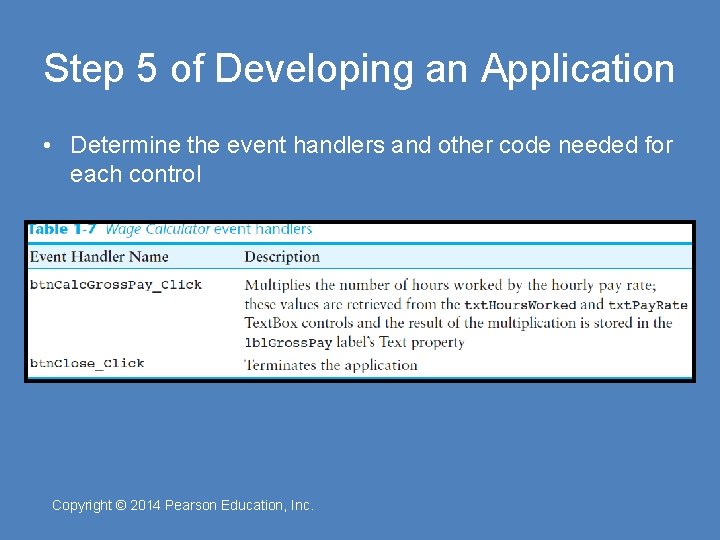
Step 5 of Developing an Application • Determine the event handlers and other code needed for each control Copyright © 2014 Pearson Education, Inc.
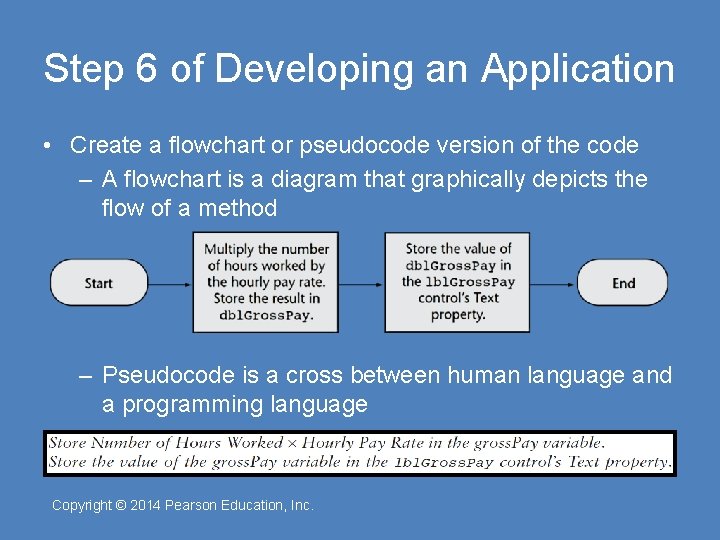
Step 6 of Developing an Application • Create a flowchart or pseudocode version of the code – A flowchart is a diagram that graphically depicts the flow of a method – Pseudocode is a cross between human language and a programming language Copyright © 2014 Pearson Education, Inc.
Step 7 of Developing an Application • Check the flowchart or pseudocode for errors: – Read the flowchart and/or pseudocode – Step through each operation as though you are the computer – Use a piece of paper to write down the values of variables and properties as they change – Verify that the expected results are achieved Copyright © 2014 Pearson Education, Inc.
Step 8 of Developing an Application • Start Visual Studio and create the forms and other controls identified in Step 3 – This is the first use of Visual Studio • All of the previous steps have just been on paper – In this step you create the application’s user interface and arrange the controls on each from. • This is the portion of the application the user will see Copyright © 2014 Pearson Education, Inc.
Step 9 of Developing an Application • Use the flowcharts or pseudocode from step 6 to write the actual code – This is the second step on the computer • In this step you develop the methods behind the click event for each button – Unlike the form developed on step 8, this portion of the application is invisible to the user Copyright © 2014 Pearson Education, Inc.
Step 10 of Developing an Application • Attempt to run the application - find syntax errors – Correct any syntax errors found – Syntax errors are the incorrect use of an element of the programming language – Repeat this step as many times as needed – All syntax errors must be removed before the program will run Copyright © 2014 Pearson Education, Inc.
Step 11 of Developing an Application • Run the application using test data as input – Run the program with a variety of test data – Check the results to be sure that they are correct – Incorrect results are referred to as a runtime error • Correct any runtime errors found • Repeat this step as many times as necessary Copyright © 2014 Pearson Education, Inc.
1. 5 Visual Studio and Visual Studio Express (the Visual Basic Environment) Copyright © 2014 Pearson Education, Inc.
What is Visual Studio? • Visual Studio is an integrated development environment, often abbreviated as IDE – Provides everything needed to create, test, and debug software including: • The Visual Basic language • Form design tools to create the user interface • Debugging tools to help find and correct programming errors – Visual Studio can be used to create applications with other languages such as C++ and C# Copyright © 2014 Pearson Education, Inc.
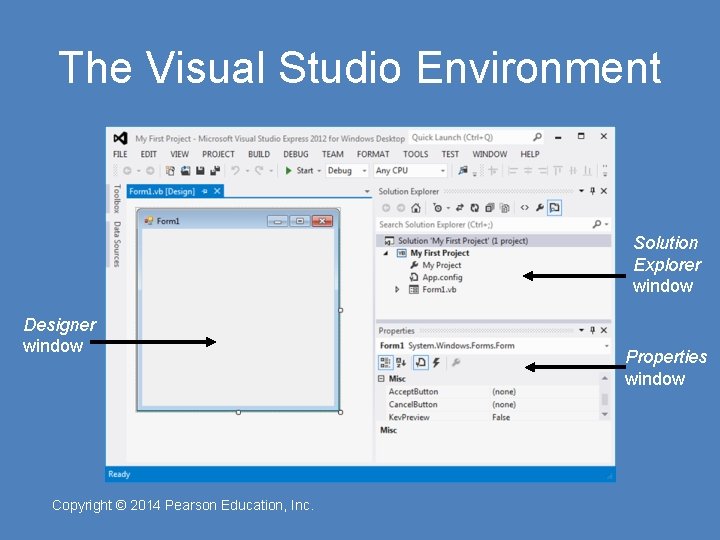
The Visual Studio Environment • The Visual Studio environment consists of a number of windows – The Designer Window • Used to create an application’s graphical user interface – The Solution Explorer Window • Allows you to navigate among the files in a Visual Basic project – The Properties Window • Used to examine and change a control’s properties Copyright © 2014 Pearson Education, Inc.
The Visual Studio Environment Solution Explorer window Designer window Copyright © 2014 Pearson Education, Inc. Properties window
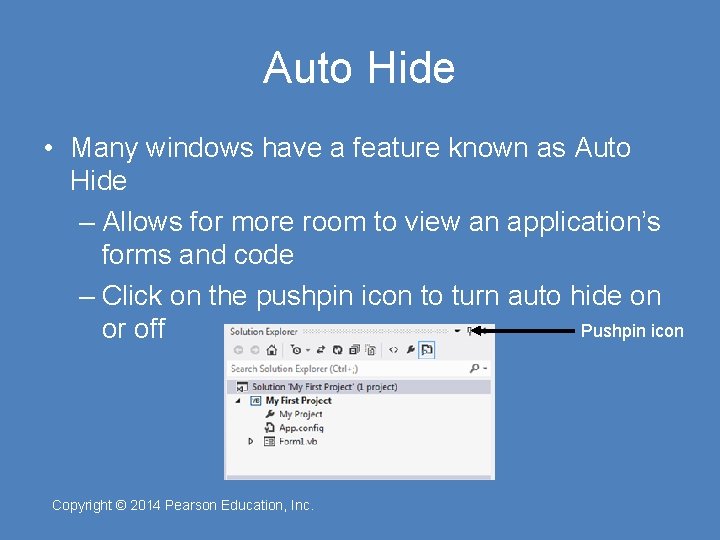
Auto Hide • Many windows have a feature known as Auto Hide – Allows for more room to view an application’s forms and code – Click on the pushpin icon to turn auto hide on Pushpin icon or off Copyright © 2014 Pearson Education, Inc.
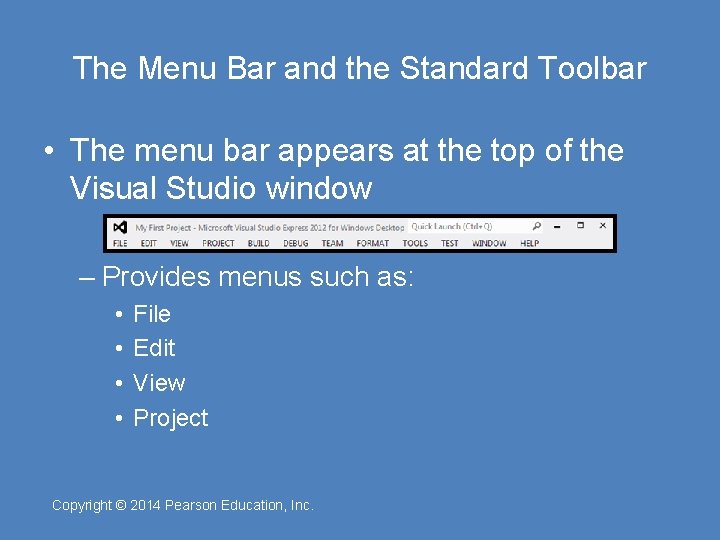
The Menu Bar and the Standard Toolbar • The menu bar appears at the top of the Visual Studio window – Provides menus such as: • • File Edit View Project Copyright © 2014 Pearson Education, Inc.
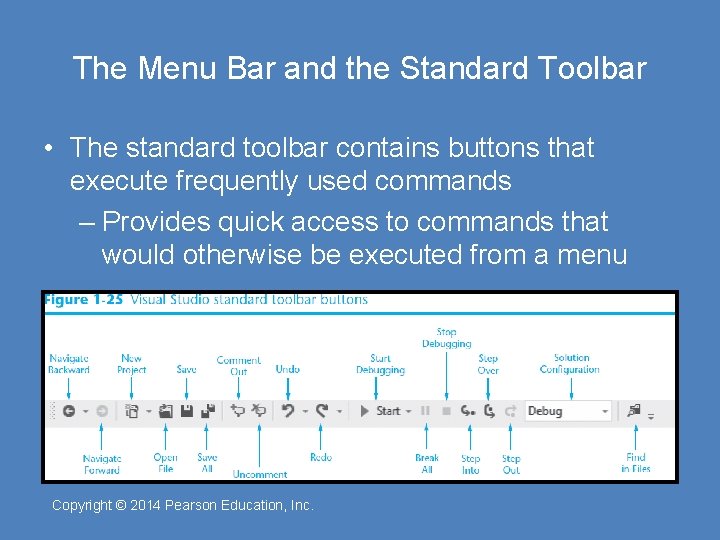
The Menu Bar and the Standard Toolbar • The standard toolbar contains buttons that execute frequently used commands – Provides quick access to commands that would otherwise be executed from a menu Copyright © 2014 Pearson Education, Inc.
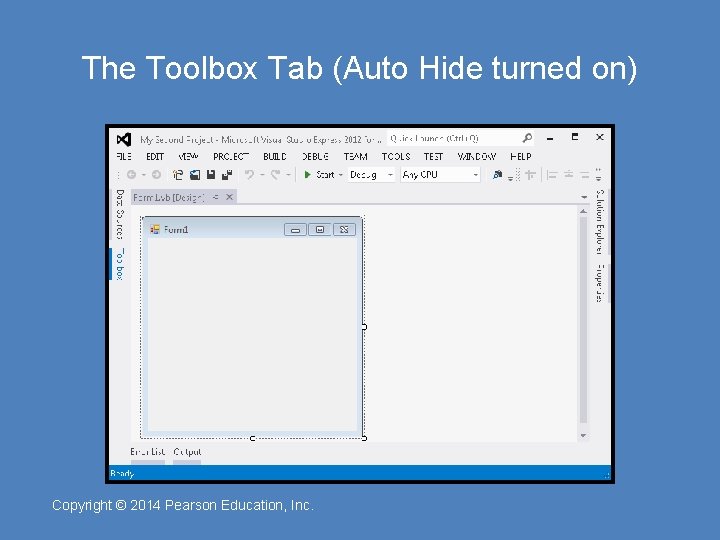
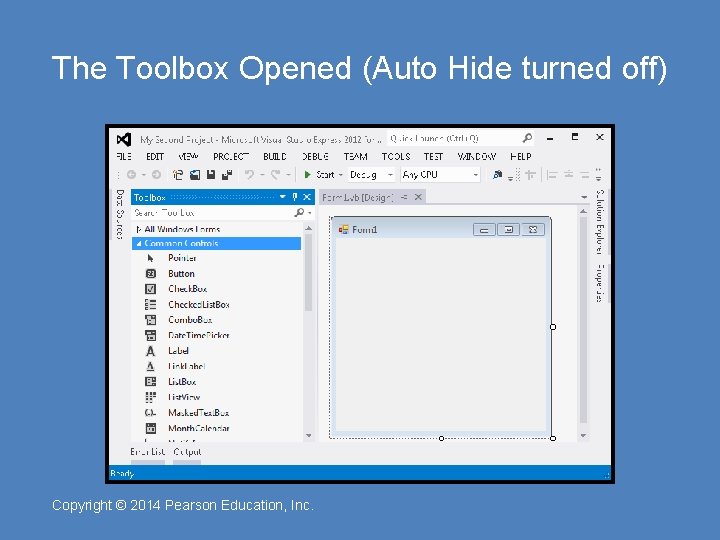
The Toolbox • The Toolbox is a window for selecting controls to use in an application’s user interface – Divided into sections such as All Windows Forms and Common Controls – To open a section, click on its name tab – To close a section, click on its name tab again – Move a section to the top by dragging its name with the mouse • The Toolbox typically appears on the left side of Visual Studio environment – If the toolbox is in Auto Hide mode – Clicking on the tab will display the window Copyright © 2014 Pearson Education, Inc.
The Toolbox Tab (Auto Hide turned on) Copyright © 2014 Pearson Education, Inc.
The Toolbox Opened (Auto Hide turned off) Copyright © 2014 Pearson Education, Inc.
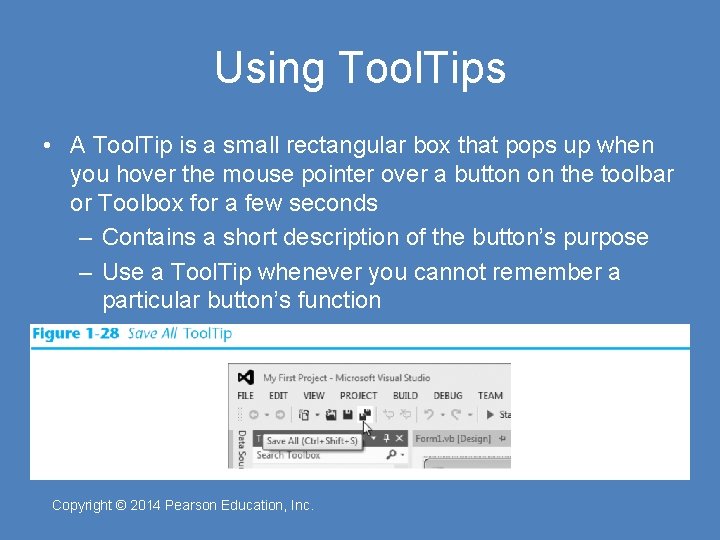
Using Tool. Tips • A Tool. Tip is a small rectangular box that pops up when you hover the mouse pointer over a button on the toolbar or Toolbox for a few seconds – Contains a short description of the button’s purpose – Use a Tool. Tip whenever you cannot remember a particular button’s function Copyright © 2014 Pearson Education, Inc.
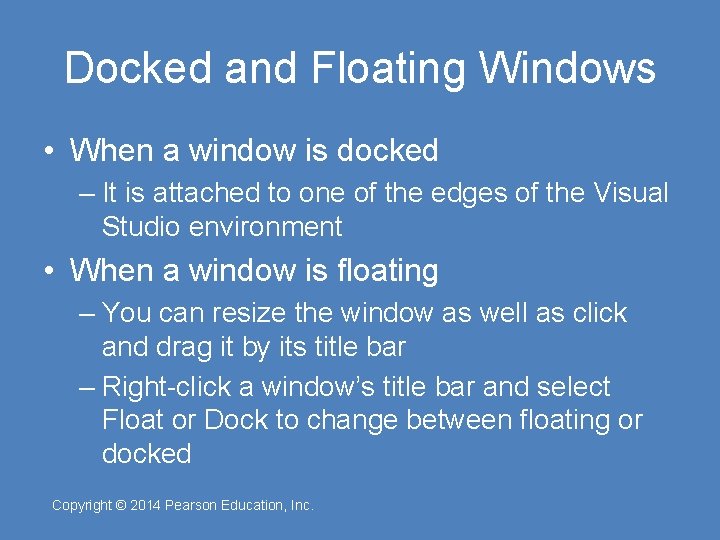
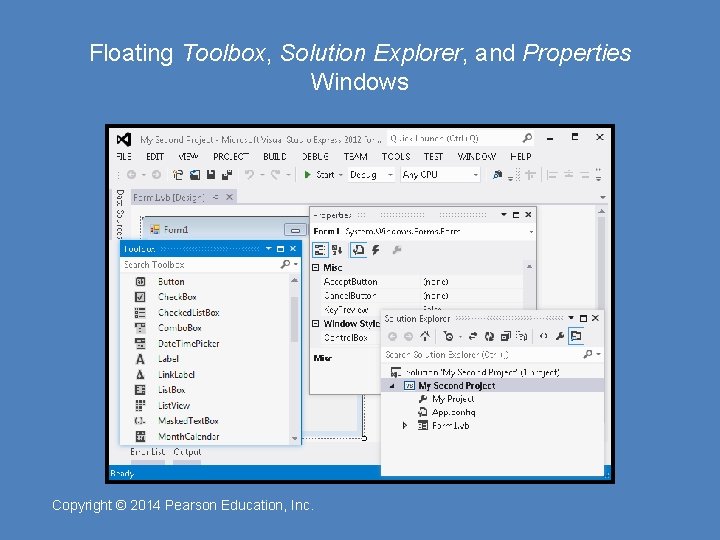
Docked and Floating Windows • When a window is docked – It is attached to one of the edges of the Visual Studio environment • When a window is floating – You can resize the window as well as click and drag it by its title bar – Right-click a window’s title bar and select Float or Dock to change between floating or docked Copyright © 2014 Pearson Education, Inc.
Floating Toolbox, Solution Explorer, and Properties Windows Copyright © 2014 Pearson Education, Inc.
Accessing the Visual Studio Documentation • Click Help on the menu bar and select View Help – Or simply press Ctrl + F 1 • This will launch your Web browser and open the online Microsoft Developer Network (MSDN) Library – View the complete documentation for Visual Basic and other programming languages – Find code samples, tutorials, articles, and Microsoft instructional videos Copyright © 2014 Pearson Education, Inc.