
Copying a UserDefined Depreciation Method Concept Copying a
- Slides: 19
Copying a User-Defined Depreciation Method Concept
Copying a User-Defined Depreciation Method
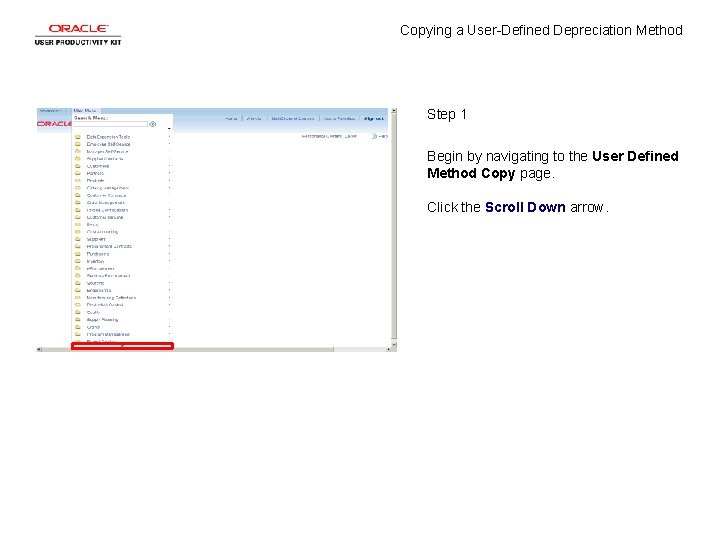
Copying a User-Defined Depreciation Method Step 1 Begin by navigating to the User Defined Method Copy page. Click the Scroll Down arrow.
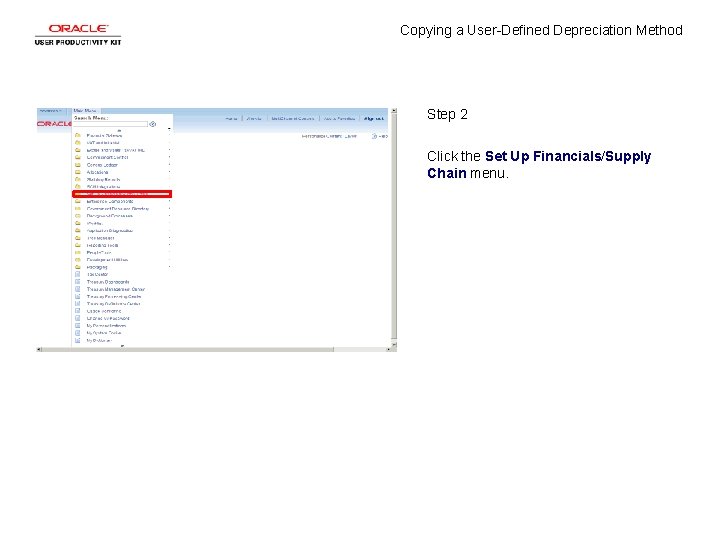
Copying a User-Defined Depreciation Method Step 2 Click the Set Up Financials/Supply Chain menu.
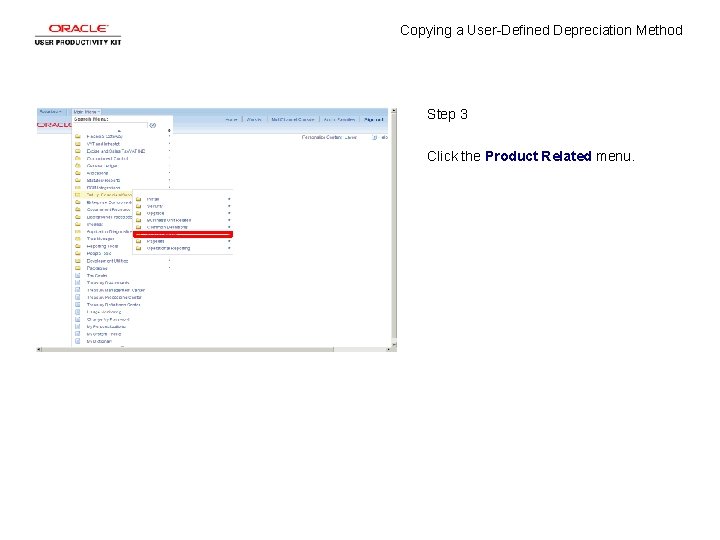
Copying a User-Defined Depreciation Method Step 3 Click the Product Related menu.
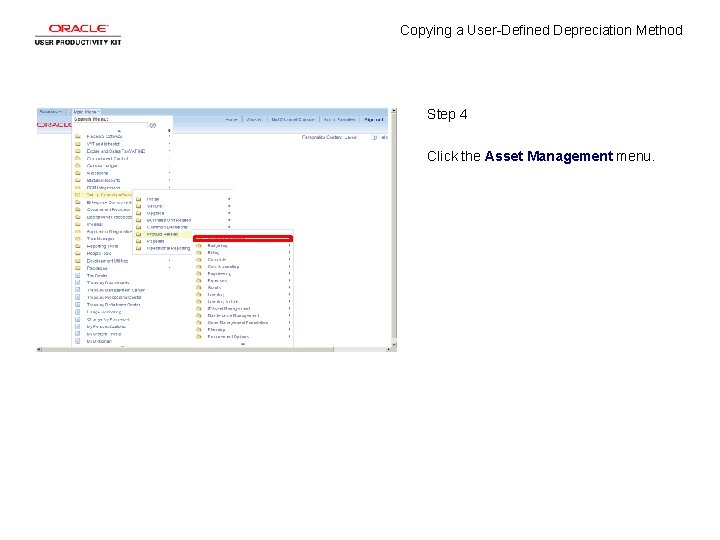
Copying a User-Defined Depreciation Method Step 4 Click the Asset Management menu.
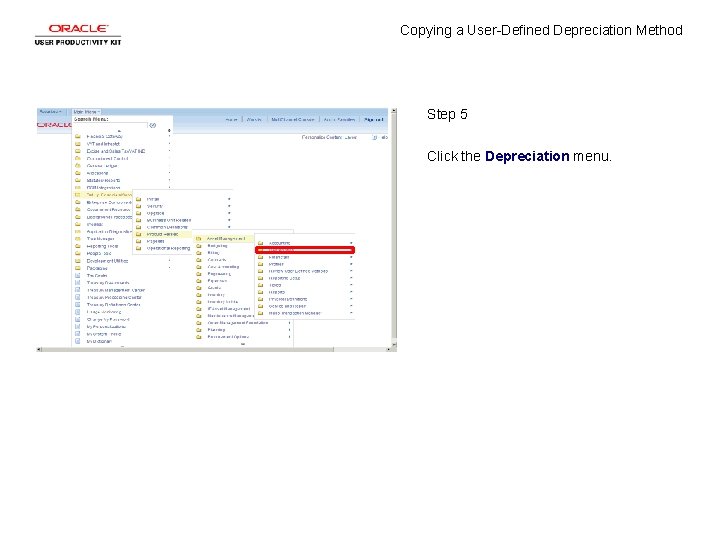
Copying a User-Defined Depreciation Method Step 5 Click the Depreciation menu.
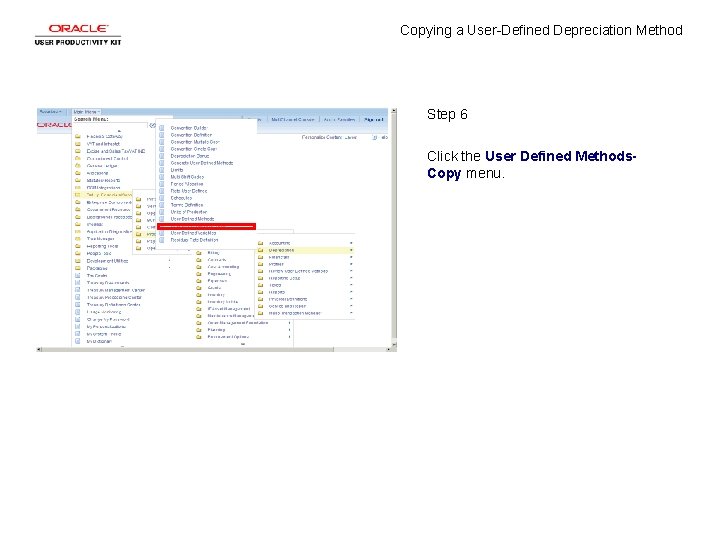
Copying a User-Defined Depreciation Method Step 6 Click the User Defined Methods. Copy menu.
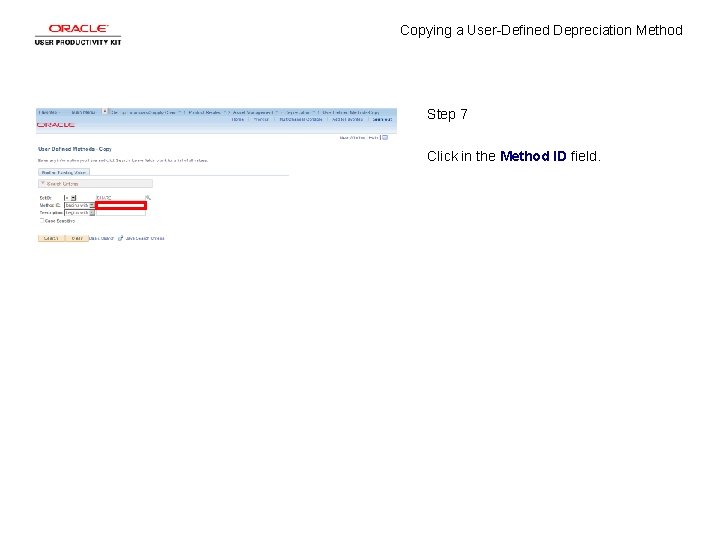
Copying a User-Defined Depreciation Method Step 7 Click in the Method ID field.
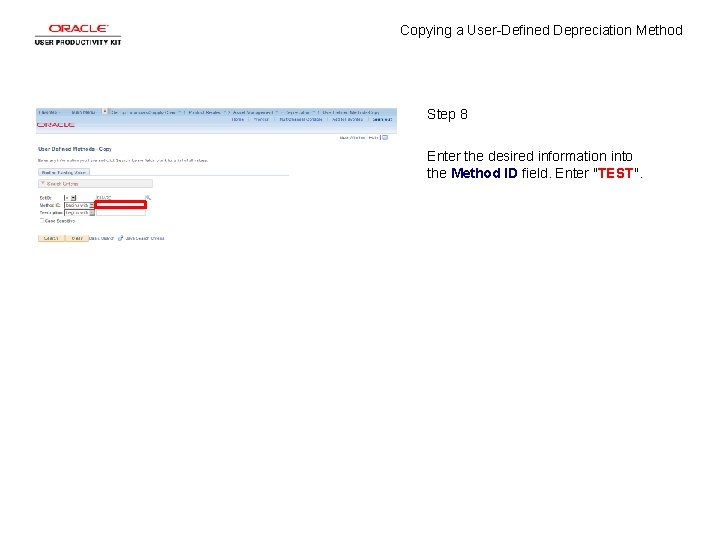
Copying a User-Defined Depreciation Method Step 8 Enter the desired information into the Method ID field. Enter "TEST".
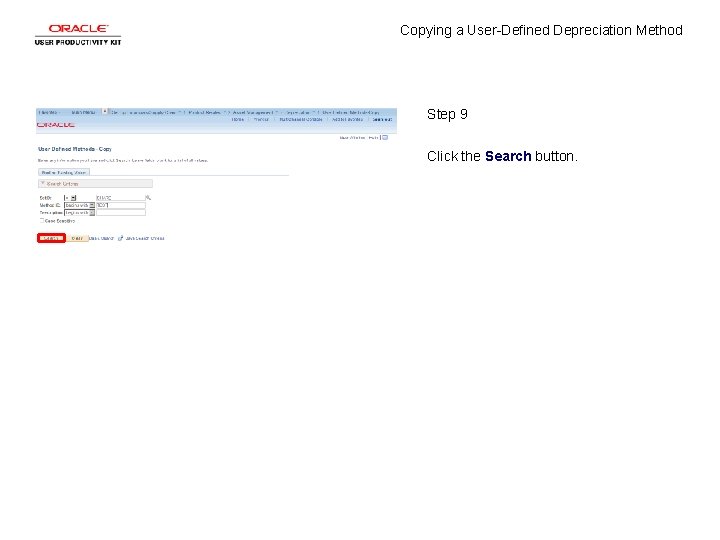
Copying a User-Defined Depreciation Method Step 9 Click the Search button.
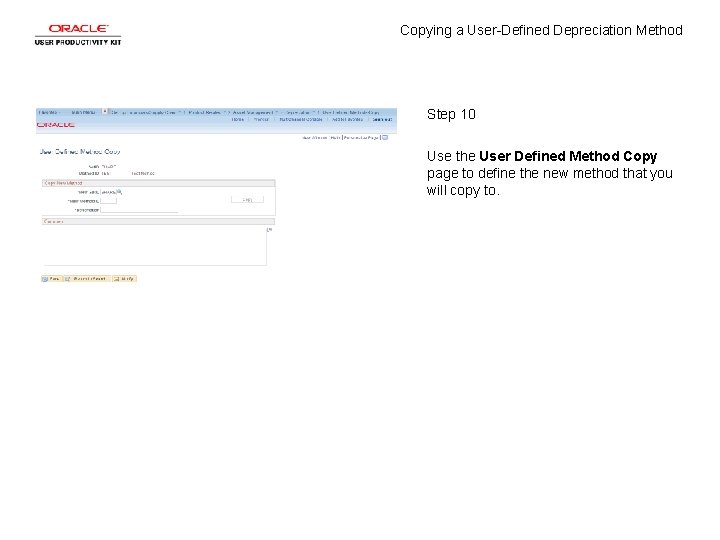
Copying a User-Defined Depreciation Method Step 10 Use the User Defined Method Copy page to define the new method that you will copy to.
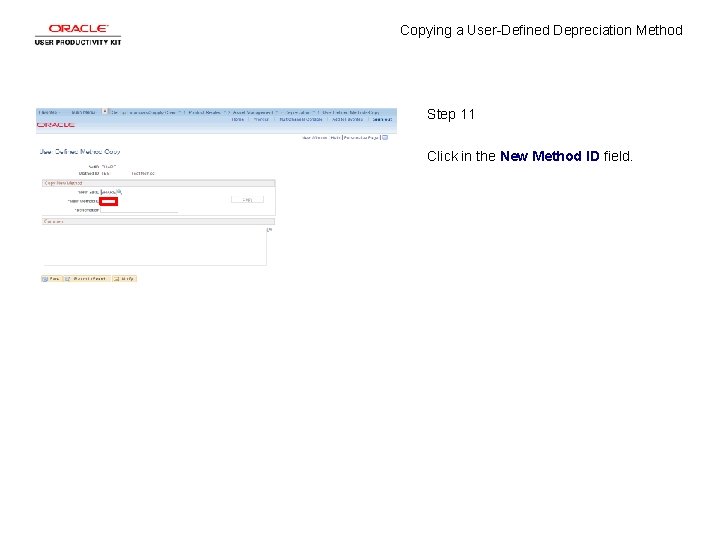
Copying a User-Defined Depreciation Method Step 11 Click in the New Method ID field.
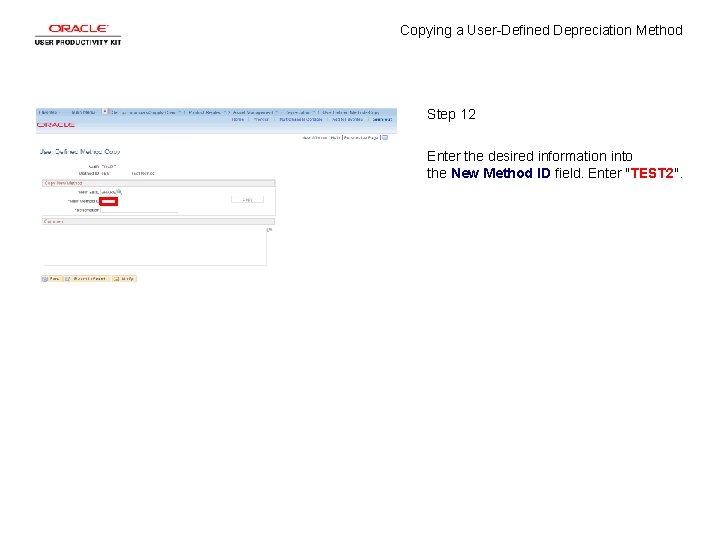
Copying a User-Defined Depreciation Method Step 12 Enter the desired information into the New Method ID field. Enter "TEST 2".
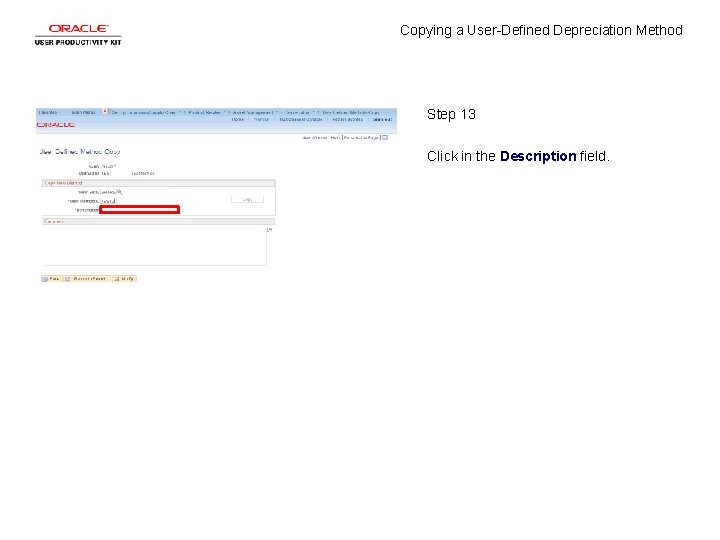
Copying a User-Defined Depreciation Method Step 13 Click in the Description field.
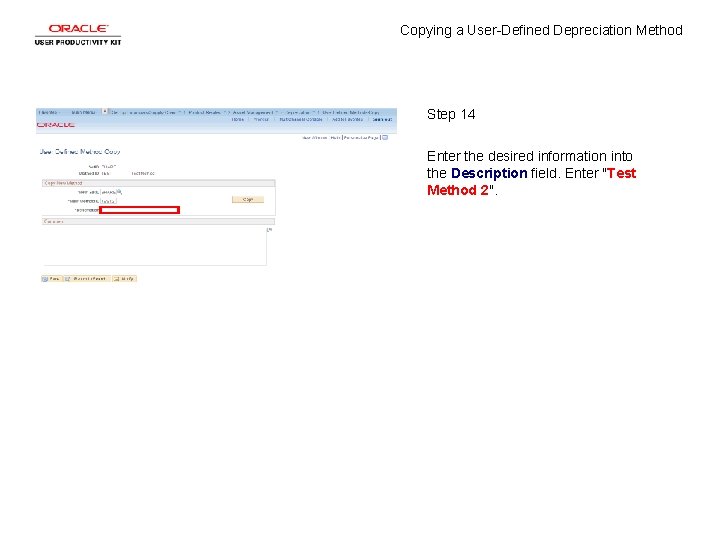
Copying a User-Defined Depreciation Method Step 14 Enter the desired information into the Description field. Enter "Test Method 2".
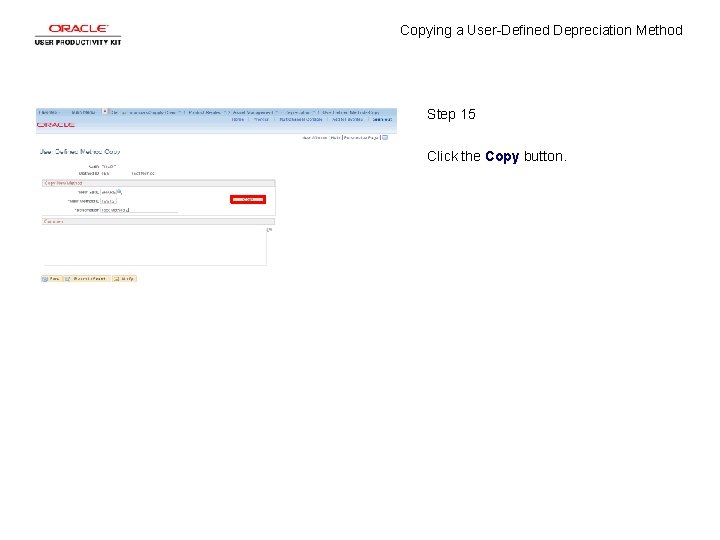
Copying a User-Defined Depreciation Method Step 15 Click the Copy button.
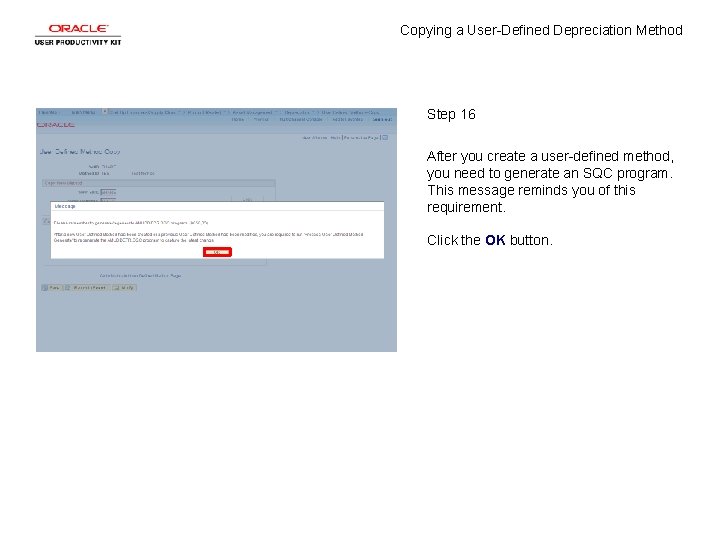
Copying a User-Defined Depreciation Method Step 16 After you create a user-defined method, you need to generate an SQC program. This message reminds you of this requirement. Click the OK button.
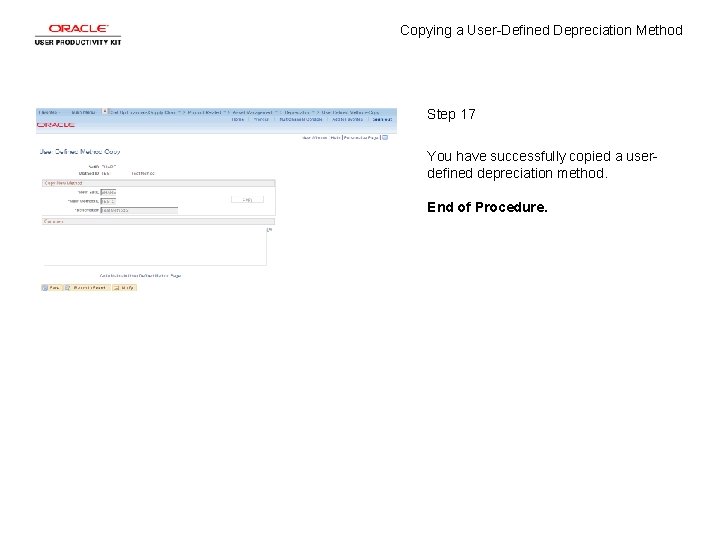
Copying a User-Defined Depreciation Method Step 17 You have successfully copied a userdefined depreciation method. End of Procedure.