
COOP Application Testing and Activation Testing Your COOP

- Slides: 8
COOP Application Testing and Activation
Testing Your COOP Periodic testing of the COOP is the responsibility of the individual University Unit to perform as needed to verify that the COOP program is adequate to support the needs of the University Unit when responding to an emergency, major disruption, or natural or man-made disaster during an emergency. Along with verifying needed capabilities are in place, a major objective of such exercises includes identifying challenges or weakness in plan/procedures so that University Units can determine what specific improvements or refinements are necessary. This activity is especially important for University Unit services that are dependent on information technology resources, research infrastructure facilities, etc. Although we recommend the COOP be verified on at least an annual basis, the testing frequency and regimen will depend on the capabilities that are required to be available and is left for each University Unit to determine. Strategies for conducting such activities include: • • Tabletop Exercises which are discussion-based sessions where team members meet in an informal setting to discuss their roles during an emergency and their responses to a particular emergency or disaster situation; Annual functional testing exercises including internal personnel, and third-party providers, where applicable, to verify information technology (IT) recovery capabilities are sufficient to respond to an emergency or disaster situation; Developing a COOP or DR test plan to guide the exercise; Verifying the ability to restore application systems and data from backup or replica copies; Verifying that essential staff and contact information are current; Verifying the ability to meet time and recovery point objectives; Collaborating with ITS to plan for and implement information technology resource related disaster recovery rehearsals or test exercises for vital information technology resources.
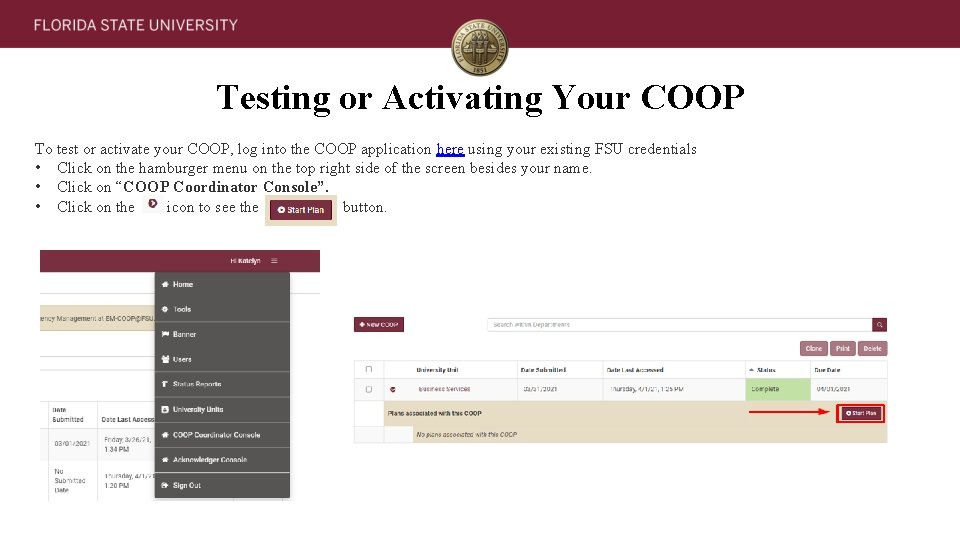
Testing or Activating Your COOP To test or activate your COOP, log into the COOP application here using your existing FSU credentials • Click on the hamburger menu on the top right side of the screen besides your name. • Click on “COOP Coordinator Console”. • Click on the icon to see the button.
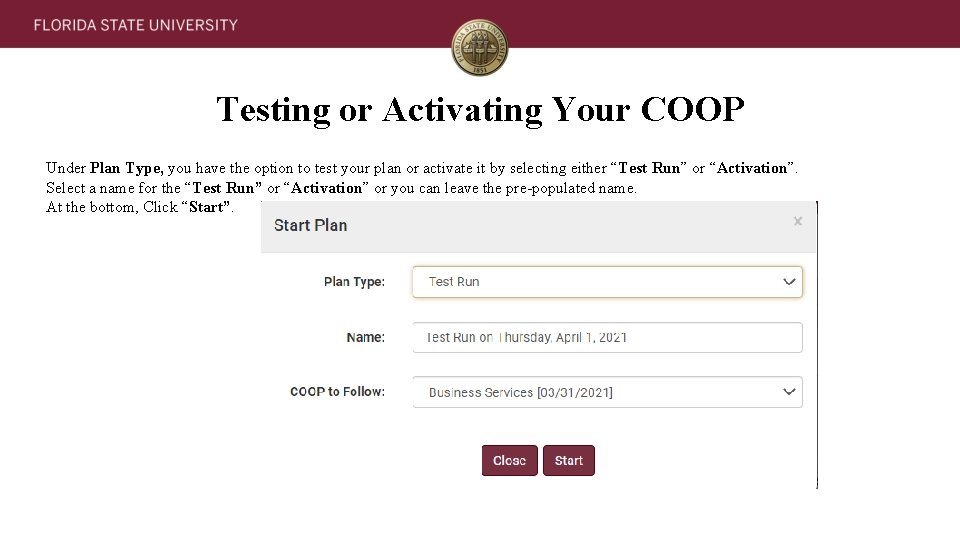
Testing or Activating Your COOP Under Plan Type, you have the option to test your plan or activate it by selecting either “Test Run” or “Activation”. Select a name for the “Test Run” or “Activation” or you can leave the pre-populated name. At the bottom, Click “Start”.
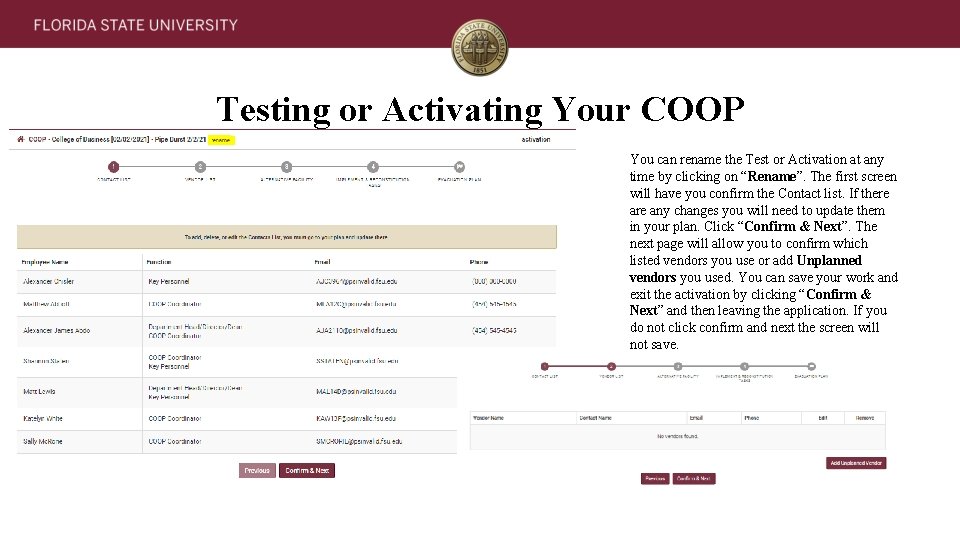
Testing or Activating Your COOP You can rename the Test or Activation at any time by clicking on “Rename”. The first screen will have you confirm the Contact list. If there any changes you will need to update them in your plan. Click “Confirm & Next”. The next page will allow you to confirm which listed vendors you use or add Unplanned vendors you used. You can save your work and exit the activation by clicking “Confirm & Next” and then leaving the application. If you do not click confirm and next the screen will not save.
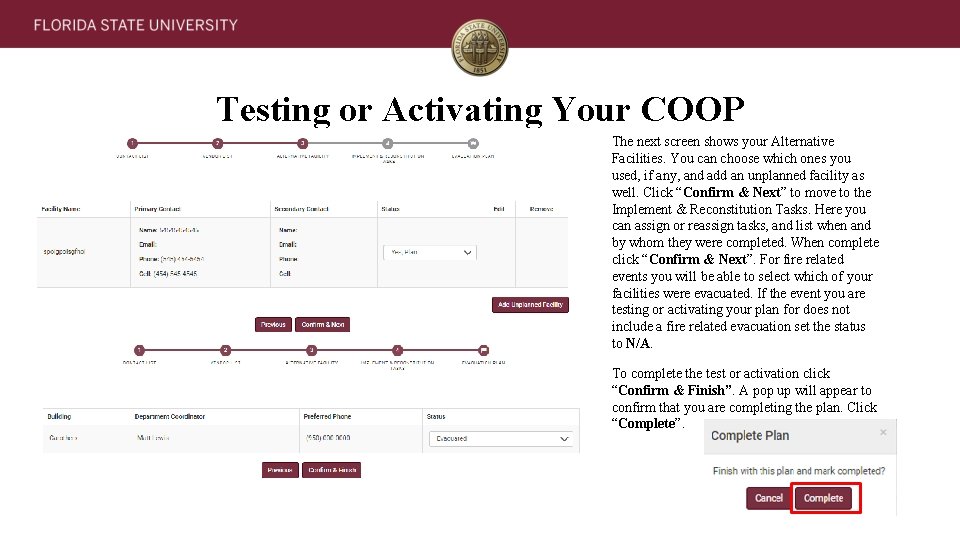
Testing or Activating Your COOP The next screen shows your Alternative Facilities. You can choose which ones you used, if any, and add an unplanned facility as well. Click “Confirm & Next” to move to the Implement & Reconstitution Tasks. Here you can assign or reassign tasks, and list when and by whom they were completed. When complete click “Confirm & Next”. For fire related events you will be able to select which of your facilities were evacuated. If the event you are testing or activating your plan for does not include a fire related evacuation set the status to N/A. To complete the test or activation click “Confirm & Finish”. A pop up will appear to confirm that you are completing the plan. Click “Complete”.
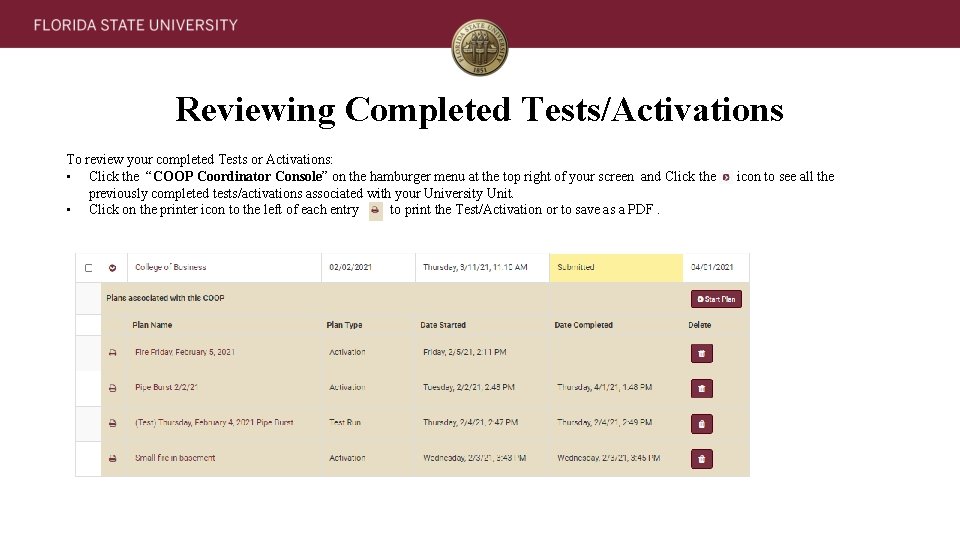
Reviewing Completed Tests/Activations To review your completed Tests or Activations: • Click the “COOP Coordinator Console” on the hamburger menu at the top right of your screen and Click the previously completed tests/activations associated with your University Unit. • Click on the printer icon to the left of each entry to print the Test/Activation or to save as a PDF. icon to see all the
Questions Email: EM-COOP@fsu. edu