
CONVERCENT INCIDENT REPORTING Employee Training Month Day Year



- Slides: 33
CONVERCENT INCIDENT REPORTING Employee Training <Month Day, Year>
Welcome. 2 © 2013 Convercent. All rights reserved.
TRAINING AGENDA 3 • Introduction to Convercent • Current company policies • What can I report on? • How do I access Convercent? • Filing an online report • Checking report status • Frequently asked questions © 2013 Convercent. All rights reserved.
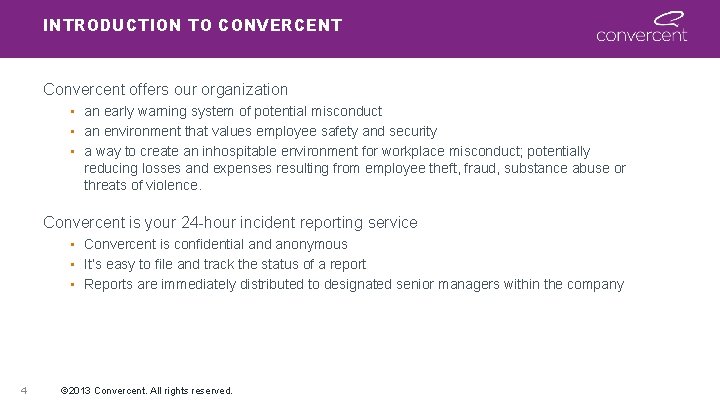
INTRODUCTION TO CONVERCENT Convercent offers our organization • an early warning system of potential misconduct • an environment that values employee safety and security • a way to create an inhospitable environment for workplace misconduct; potentially reducing losses and expenses resulting from employee theft, fraud, substance abuse or threats of violence. Convercent is your 24 -hour incident reporting service • Convercent is confidential and anonymous • It’s easy to file and track the status of a report • Reports are immediately distributed to designated senior managers within the company 4 © 2013 Convercent. All rights reserved.
CONVERCENT IS AN ADDED EMPLOYEE BENEFIT Convercent is not a replacement of current policies and procedures it is an added benefit. Please use our current company policies and procedures to bring forward concerns. If you do not feel comfortable with our current company policies and procedures, please utilize the Convercent solution. Convercent staff are not employees of our company. 5 © 2013 Convercent. All rights reserved.
COMPANY POLICIES • < Insert summary of your company ethics, code of conduct, or other policies governing employee misconduct and reporting > 6 © 2013 Convercent. All rights reserved.
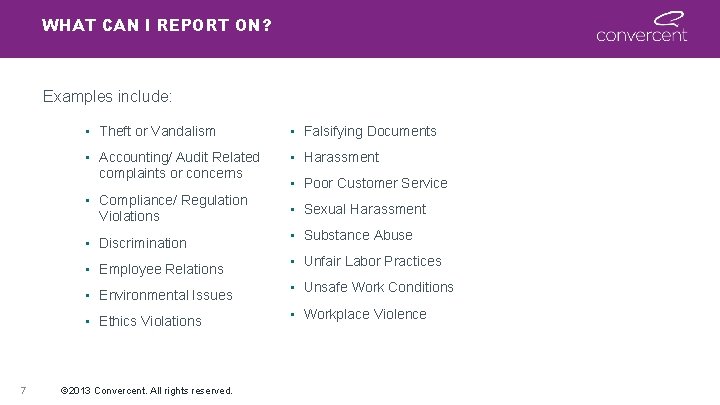
WHAT CAN I REPORT ON? Examples include: • Theft or Vandalism • Falsifying Documents • Accounting/ Audit Related complaints or concerns • Harassment • Compliance/ Regulation Violations • Discrimination • Employee Relations • Environmental Issues • Ethics Violations 7 © 2013 Convercent. All rights reserved. • Poor Customer Service • Sexual Harassment • Substance Abuse • Unfair Labor Practices • Unsafe Work Conditions • Workplace Violence
HOW TO FILE A REPORT 8 © 2013 Convercent. All rights reserved.
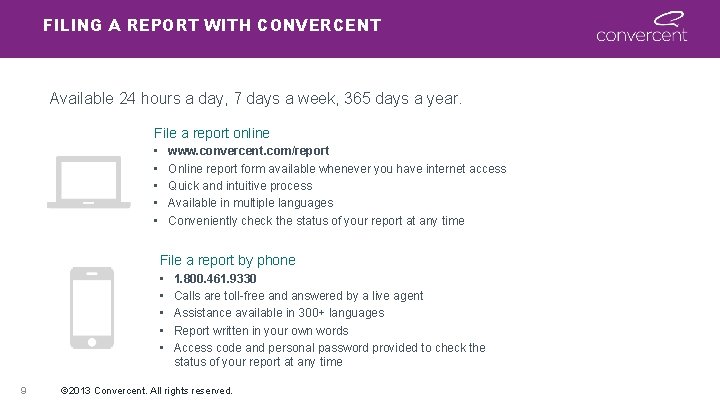
FILING A REPORT WITH CONVERCENT Available 24 hours a day, 7 days a week, 365 days a year. File a report online • • • www. convercent. com/report Online report form available whenever you have internet access Quick and intuitive process Available in multiple languages Conveniently check the status of your report at any time File a report by phone • • • 9 1. 800. 461. 9330 Calls are toll-free and answered by a live agent Assistance available in 300+ languages Report written in your own words Access code and personal password provided to check the status of your report at any time © 2013 Convercent. All rights reserved.
FILE A REPORT ONLINE To file a report online, go to www. convercent. com/report 10 © 2013 Convercent. All rights reserved.
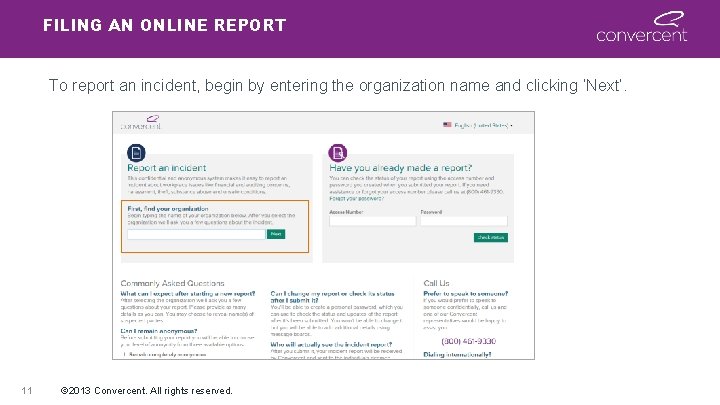
FILING AN ONLINE REPORT To report an incident, begin by entering the organization name and clicking ‘Next’. 11 © 2013 Convercent. All rights reserved.
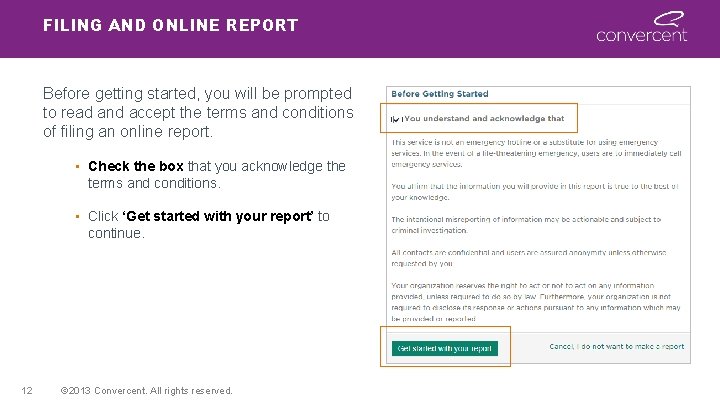
FILING AND ONLINE REPORT Before getting started, you will be prompted to read and accept the terms and conditions of filing an online report. • Check the box that you acknowledge the terms and conditions. • Click ‘Get started with your report’ to continue. 12 © 2013 Convercent. All rights reserved.
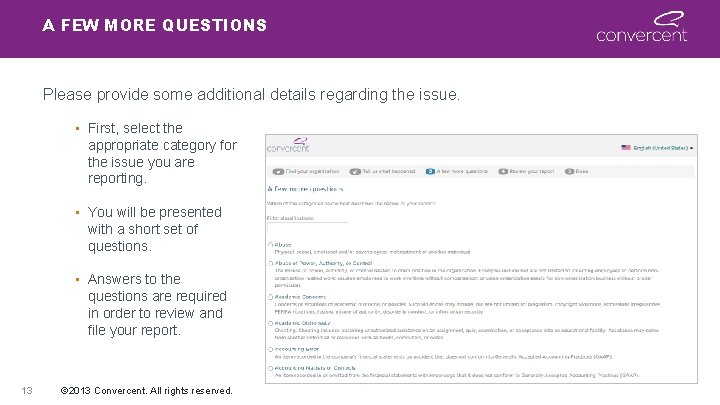
A FEW MORE QUESTIONS Please provide some additional details regarding the issue. • First, select the appropriate category for the issue you are reporting. • You will be presented with a short set of questions. • Answers to the questions are required in order to review and file your report. 13 © 2013 Convercent. All rights reserved.
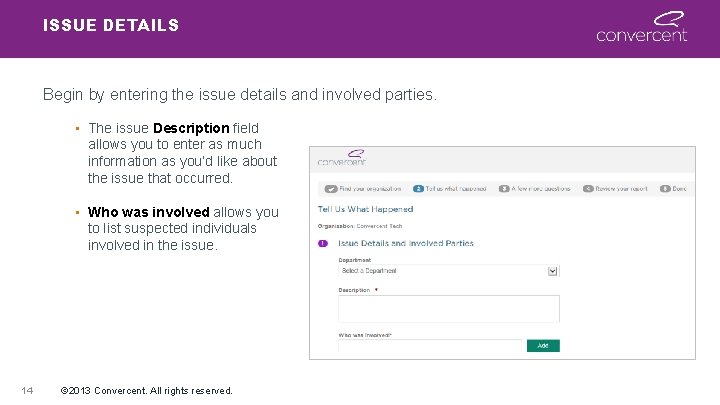
ISSUE DETAILS Begin by entering the issue details and involved parties. • The issue Description field allows you to enter as much information as you’d like about the issue that occurred. • Who was involved allows you to list suspected individuals involved in the issue. 14 © 2013 Convercent. All rights reserved.
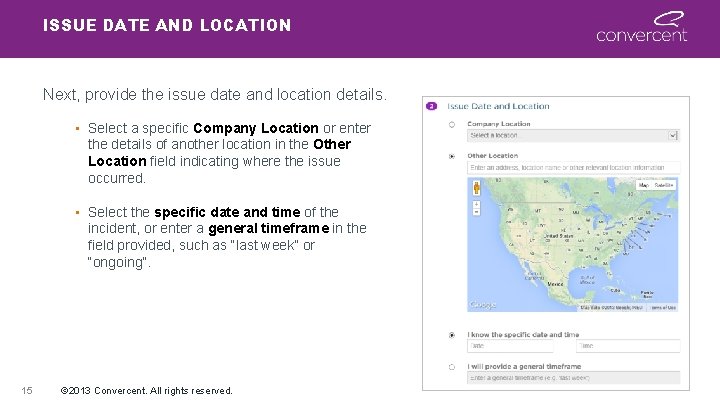
ISSUE DATE AND LOCATION Next, provide the issue date and location details. • Select a specific Company Location or enter the details of another location in the Other Location field indicating where the issue occurred. • Select the specific date and time of the incident, or enter a general timeframe in the field provided, such as “last week” or “ongoing”. 15 © 2013 Convercent. All rights reserved.
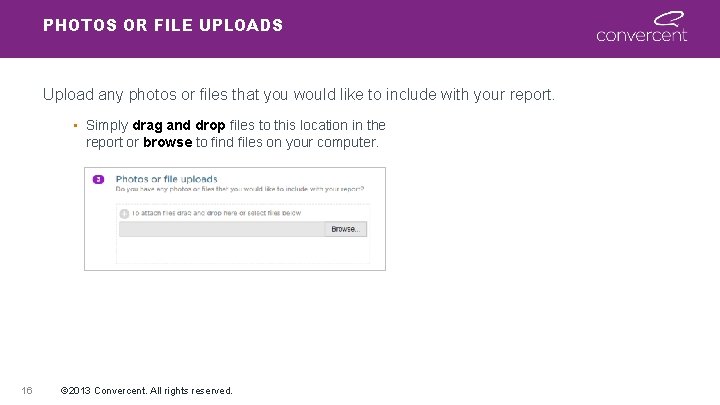
PHOTOS OR FILE UPLOADS Upload any photos or files that you would like to include with your report. • Simply drag and drop files to this location in the report or browse to find files on your computer. 16 © 2013 Convercent. All rights reserved.
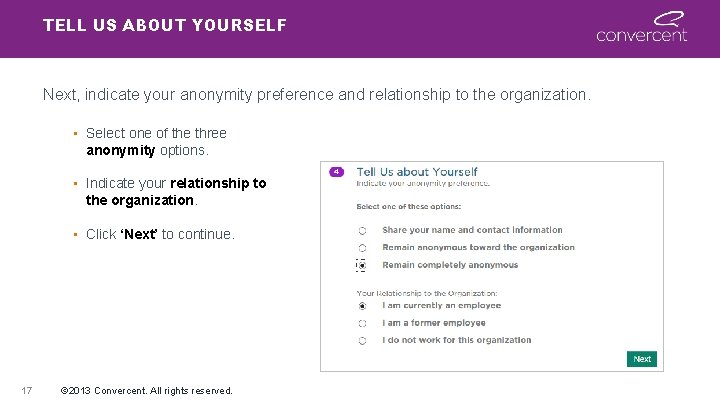
TELL US ABOUT YOURSELF Next, indicate your anonymity preference and relationship to the organization. • Select one of the three anonymity options. • Indicate your relationship to the organization. • Click ‘Next’ to continue. 17 © 2013 Convercent. All rights reserved.
UNDERSTANDING YOUR ANONYMITY OPTIONS Your anonymity options Share your name and contact information. • Your organization will be provided your contact details and could contact you regarding the issue. Remain anonymous toward the organization. • Your organization will not receive any of your contact information. • Convercent could contact you on behalf of your organization to enable anonymous communications between you and your organization. Stay anonymous and do not provide any contact information. • Neither you organization nor Convercent will have your contact information. 18 © 2013 Convercent. All rights reserved.
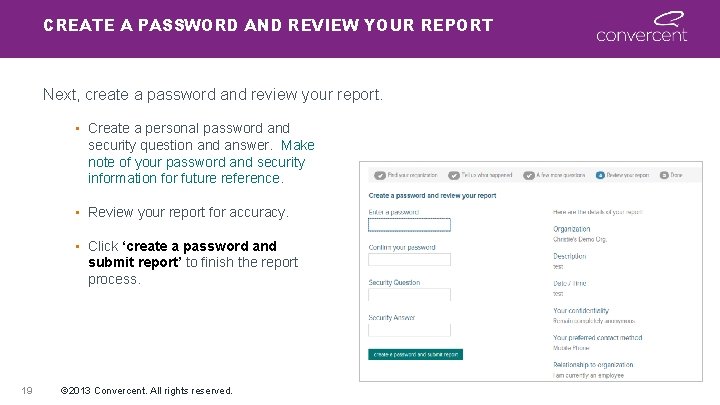
CREATE A PASSWORD AND REVIEW YOUR REPORT Next, create a password and review your report. • Create a personal password and security question and answer. Make note of your password and security information for future reference. • Review your report for accuracy. • Click ‘create a password and submit report’ to finish the report process. 19 © 2013 Convercent. All rights reserved.
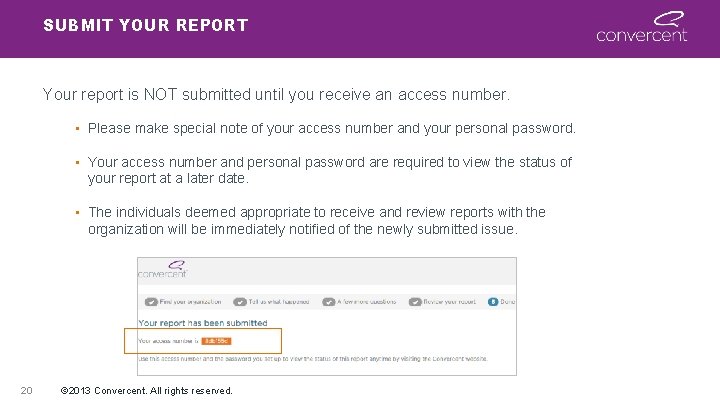
SUBMIT YOUR REPORT Your report is NOT submitted until you receive an access number. • Please make special note of your access number and your personal password. • Your access number and personal password are required to view the status of your report at a later date. • The individuals deemed appropriate to receive and review reports with the organization will be immediately notified of the newly submitted issue. 20 © 2013 Convercent. All rights reserved.
CHECKING THE REPORT STATUS 21 © 2013 Convercent. All rights reserved.
CHECKING THE REPORT STATUS There are two ways to check the report status. You are encouraged to check the status of your report within 24 -48 hours of submitting the report. Go to www. convercent. com/report Call 1. 800. 461. 9330 ask for “Report Status” Please note, you MUST have your report access number and personal password that were created at the time you submitted your report. Checking the status of the report also allows you to anonymously communicate with the organization by using the Convercent message board. 22 © 2013 Convercent. All rights reserved.
CHECKING REPORT STATUS ONLINE To check the status of a report online, go to www. convercent. com/report 23 © 2013 Convercent. All rights reserved.
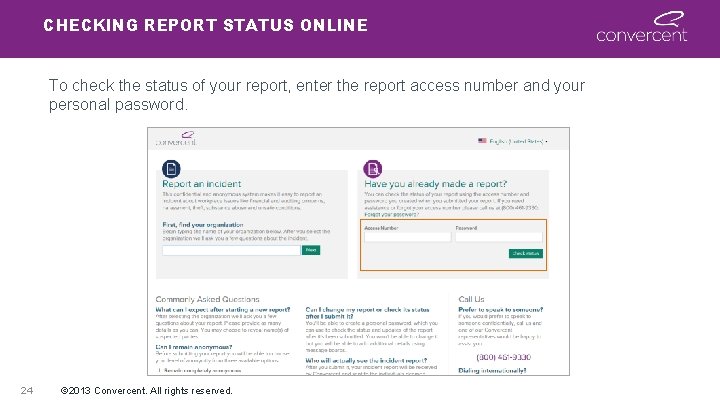
CHECKING REPORT STATUS ONLINE To check the status of your report, enter the report access number and your personal password. 24 © 2013 Convercent. All rights reserved.
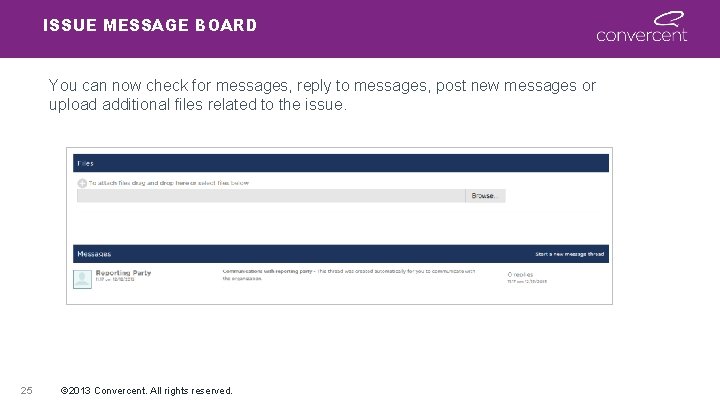
ISSUE MESSAGE BOARD You can now check for messages, reply to messages, post new messages or upload additional files related to the issue. 25 © 2013 Convercent. All rights reserved.
FREQUENTLY ASKED QUESTIONS 26 © 2013 Convercent. All rights reserved.
IS THIS SERVICE CONFIDENTIAL? The Convercent service is completely confidential. You have three options regarding your level of anonymity when filing a report: 1. Remain completely anonymous. 2. Remain anonymous toward the organization, but provide your contact information to Convercent staff may contact you, if and when appropriate. 3. Provide your contact information to the organization and Convercent staff. No one has access to your report except you and those designated by the organization to receive reports. 27 © 2013 Convercent. All rights reserved.
WHAT WILL HAPPEN AFTER I SUBMIT MY REPORT? Your report is immediately routed to pre-designated representatives within the organization for review and appropriate action. All of the information is provided to the organization as reported by you without editing or revision. The organization will respond to your report as they deem appropriate. 28 © 2013 Convercent. All rights reserved.
HOW DO I GET UPDATES ON MY REPORT? There are two ways to get updates on your report. Your access code and personal password are required for both online and phone access. Go to www. convercent. com/report Call 1. 800. 461. 9330 ask for “Report Status” 29 © 2013 Convercent. All rights reserved.
WILL ALL REPORTS BE ACCEPTED? The Convercent service accepts all reports. Convercent will record and relay all information that is submitted through the website and the call center. Any and all information received will be submitted to the organization as detailed by the reporting party. 30 © 2013 Convercent. All rights reserved.
ADDITIONAL REMINDERS Document your access number and password for each report. Check the status of your report 24 -48 hours after submission. A report can not be changed or deleted once it is submitted. Convercent is not a replacement of current policies and procedures - it is an added benefit the organization is providing. Convercent is not a replacement for 911 or other emergency services. Convercent is not an affiliate of the organization and is not a support line to obtain advice or legal counsel. 31 © 2013 Convercent. All rights reserved.
CONTACT INFORMATION WWW. CONVERCENT. COM/REPORT 1. 800. 461. 9330 CALL CENTER (UNITED STATES/ CANADA ONLY) www. convercent. com/report 1. 800. 461. 9330 (US and Canada) 32 © 2013 Convercent. All rights reserved.
Thank you. 33 © 2013 Convercent. All rights reserved.