
CONTROLM TRAINING Training courses March 2016 Benjamin LISAN
CONTROL-M TRAINING Training / courses March 2016 Benjamin LISAN 1

Thanks to : Vinil Gopalkrishnan www. srinimf. com 2
Introducing CONTROL-M • CONTROL-M is an interoperable solution for the integration of production control from a focal point of management across diverse environments • Challenges. Managing the enterprise vs. Platforms. Controlling the Business Process. Alert reactivity 3
Logging In To start the CONTROL-M/EM GUI: 1. Double-click the CONTROL-M/EM GUI icon on the Microsoft Windows desktop. CONTROL-M Enterprise Manager GUI -or Choose Shift => Programs => CONTROL-M/Enterprise Manager 6. 1. 00 => CONTROL-M/Enterprise Manager GUI. The following dialog box is displayed when the CONTROL-M/EM GUI is started: 4
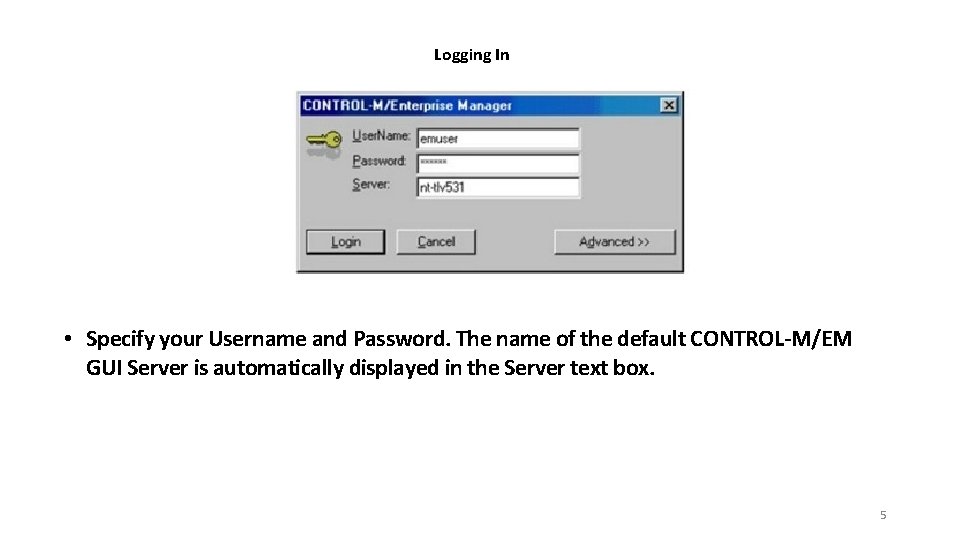
Logging In • Specify your Username and Password. The name of the default CONTROL-M/EM GUI Server is automatically displayed in the Server text box. 5
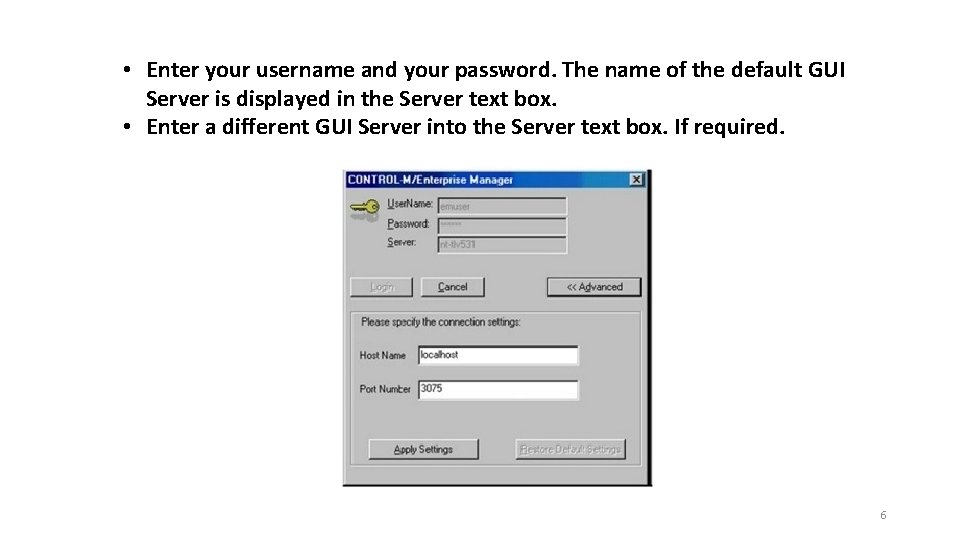
• Enter your username and your password. The name of the default GUI Server is displayed in the Server text box. • Enter a different GUI Server into the Server text box. If required. 6
Control-M / EM Windows 7
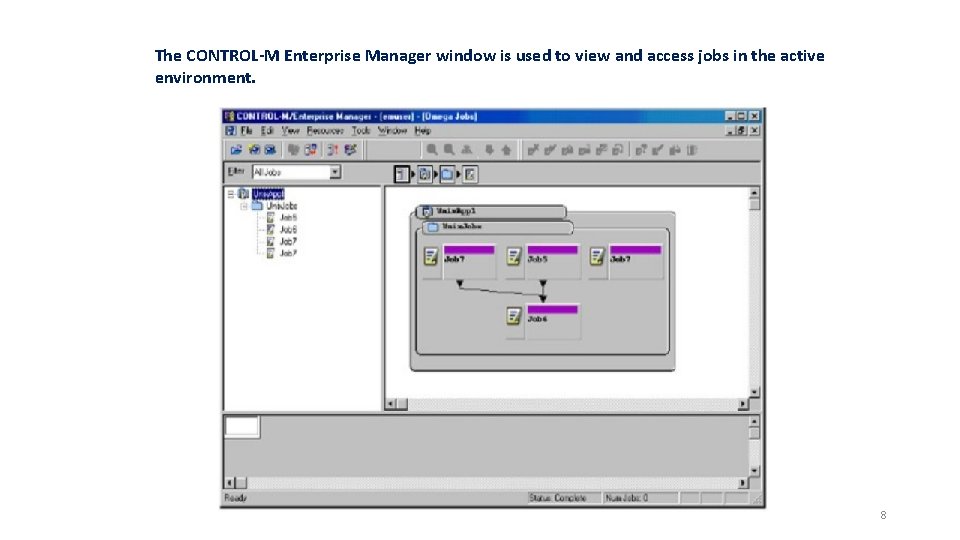
The CONTROL-M Enterprise Manager window is used to view and access jobs in the active environment. 8

The CONTROL-M Enterprise Manager window consists of the following parts: • Navigation Tree — Hierarchical view of jobs in the current environment. • Flow Diagram — Graphic representation of job production flow, based on job dependencies established by prerequisite conditions specified in job processing definitions. Components of the active environment are represented by boxes called nodes. The information displayed in a node varies depending on the type of node and on how certain customization options. • Net Overview — Miniature version of the flow diagram, indicating the part of the network currently displayed in the Flow Diagram view. By dragging the selected area in this view to a different part of the network, you can quickly navigate in a complex environment. 9
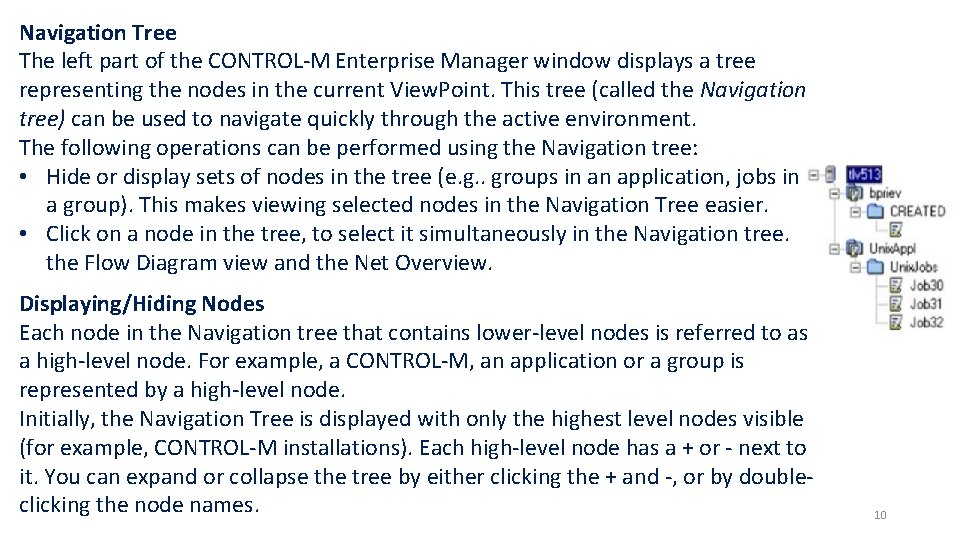
Navigation Tree The left part of the CONTROL-M Enterprise Manager window displays a tree representing the nodes in the current View. Point. This tree (called the Navigation tree) can be used to navigate quickly through the active environment. The following operations can be performed using the Navigation tree: • Hide or display sets of nodes in the tree (e. g. . groups in an application, jobs in a group). This makes viewing selected nodes in the Navigation Tree easier. • Click on a node in the tree, to select it simultaneously in the Navigation tree. the Flow Diagram view and the Net Overview. Displaying/Hiding Nodes Each node in the Navigation tree that contains lower-level nodes is referred to as a high-level node. For example, a CONTROL-M, an application or a group is represented by a high-level node. Initially, the Navigation Tree is displayed with only the highest level nodes visible (for example, CONTROL-M installations). Each high-level node has a + or - next to it. You can expand or collapse the tree by either clicking the + and -, or by doubleclicking the node names. 10
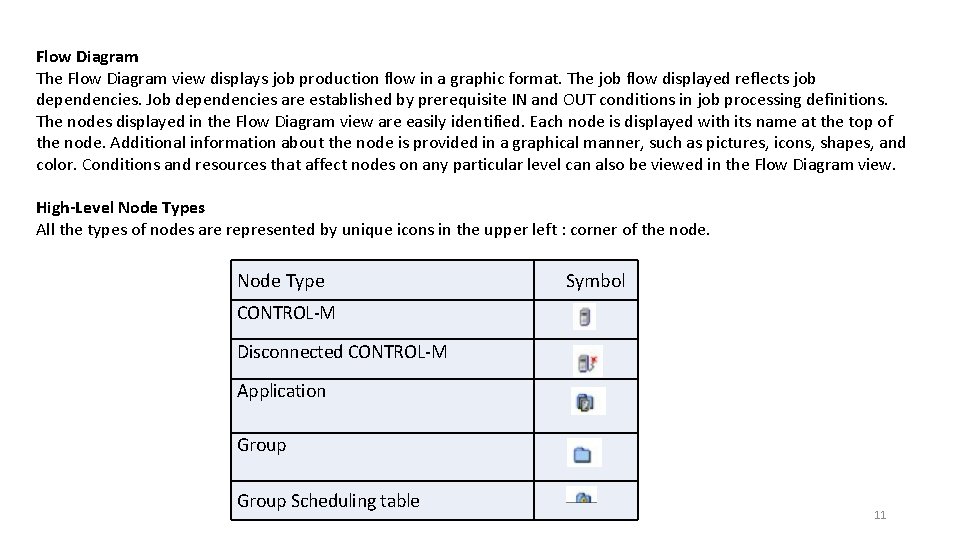
Flow Diagram The Flow Diagram view displays job production flow in a graphic format. The job flow displayed reflects job dependencies. Job dependencies are established by prerequisite IN and OUT conditions in job processing definitions. The nodes displayed in the Flow Diagram view are easily identified. Each node is displayed with its name at the top of the node. Additional information about the node is provided in a graphical manner, such as pictures, icons, shapes, and color. Conditions and resources that affect nodes on any particular level can also be viewed in the Flow Diagram view. High-Level Node Types All the types of nodes are represented by unique icons in the upper left : corner of the node. Node Type Symbol CONTROL-M Disconnected CONTROL-M Application Group Scheduling table 11
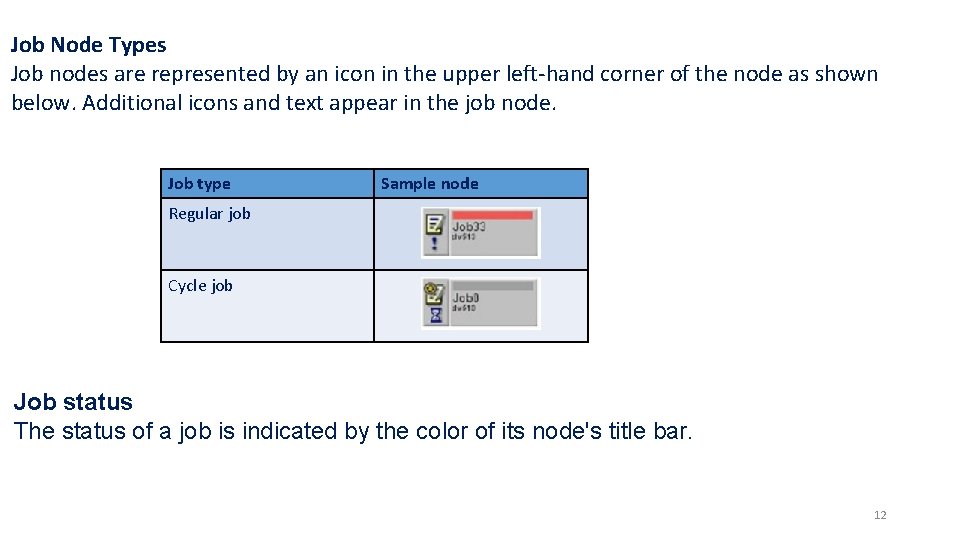
Job Node Types Job nodes are represented by an icon in the upper left-hand corner of the node as shown below. Additional icons and text appear in the job node. Job type Sample node Regular job Cycle job Job status The status of a job is indicated by the color of its node's title bar. 12
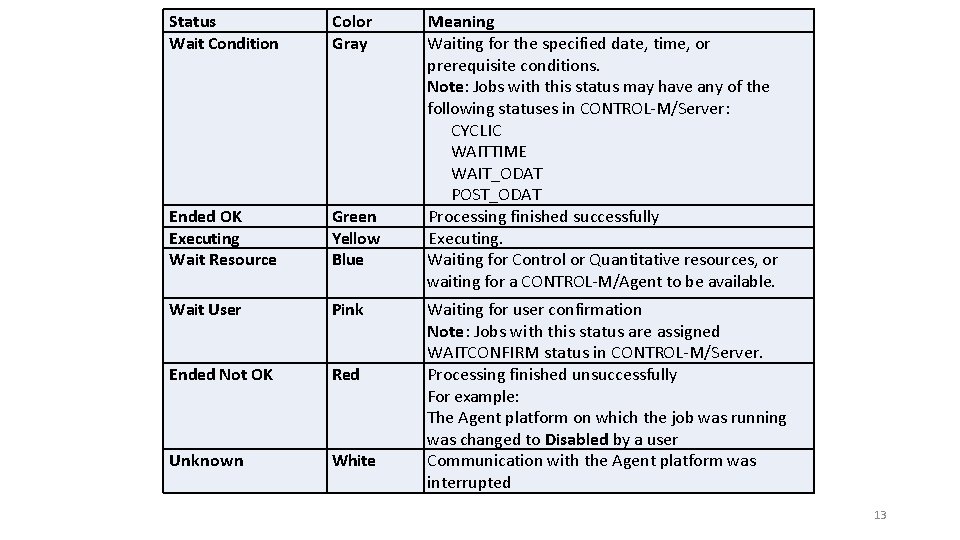
Status Wait Condition Color Gray Ended OK Executing Wait Resource Green Yellow Blue Wait User Pink Ended Not OK Red Unknown White Meaning Waiting for the specified date, time, or prerequisite conditions. Note: Jobs with this status may have any of the following statuses in CONTROL-M/Server: · CYCLIC · WAITTIME · WAIT_ODAT · POST_ODAT Processing finished successfully Executing. Waiting for Control or Quantitative resources, or waiting for a CONTROL-M/Agent to be available. Waiting for user confirmation Note: Jobs with this status are assigned WAITCONFIRM status in CONTROL-M/Server. Processing finished unsuccessfully For example: The Agent platform on which the job was running was changed to Disabled by a user Communication with the Agent platform was interrupted 13
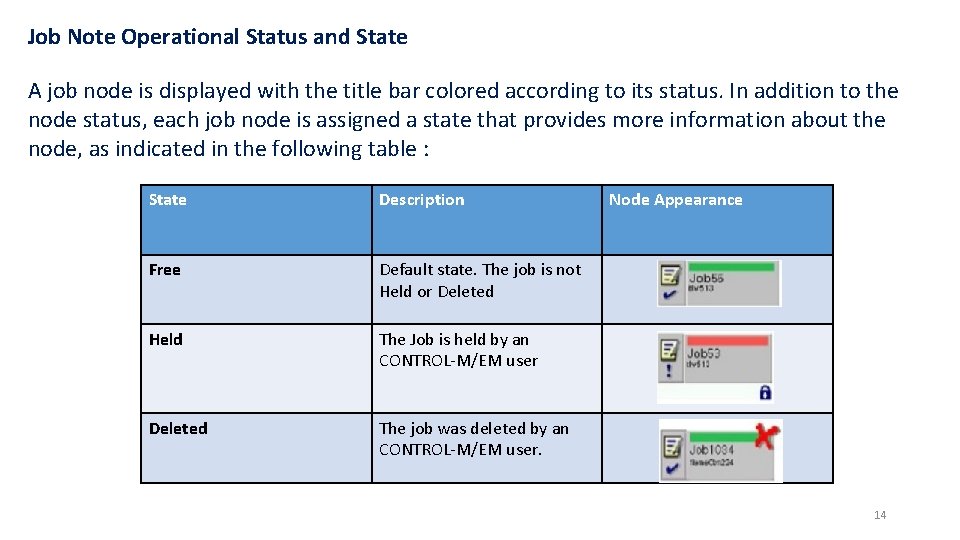
Job Note Operational Status and State A job node is displayed with the title bar colored according to its status. In addition to the node status, each job node is assigned a state that provides more information about the node, as indicated in the following table : State Description Free Default state. The job is not Held or Deleted Held The Job is held by an CONTROL-M/EM user Deleted The job was deleted by an CONTROL-M/EM user. Node Appearance 14

Net Overview The bottom pane of the “CONTROL-M Enterprise Manager View. Point” window contains a graphical overview of die current displayed View. Point. It is displayed on a miniature scale and provides an overview of what is displayed in the “Flow Diagram” view. The part of the “Net Overview” window that is enclosed in a rectangle is displayed in the “Flow Diagram” in the pane above. The “Net Overview” allows you to navigate more easily in the current environment. When there are too many codes in the current level to be displayed in the “Net Overview” pane, only a part of the current level is displayed. “Net Overview” contains a scroll bar at the bottom and side of the panel that allows you to view other parts of the current display level. 15
Control-M Architecture 16
17
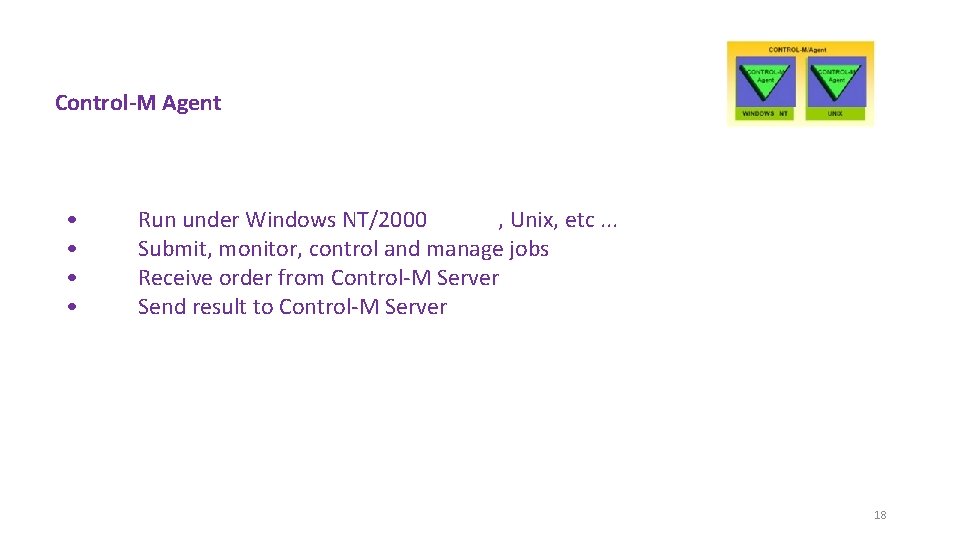
Control-M Agent • • Run under Windows NT/2000 , Unix, etc. . . Submit, monitor, control and manage jobs Receive order from Control-M Server Send result to Control-M Server 18
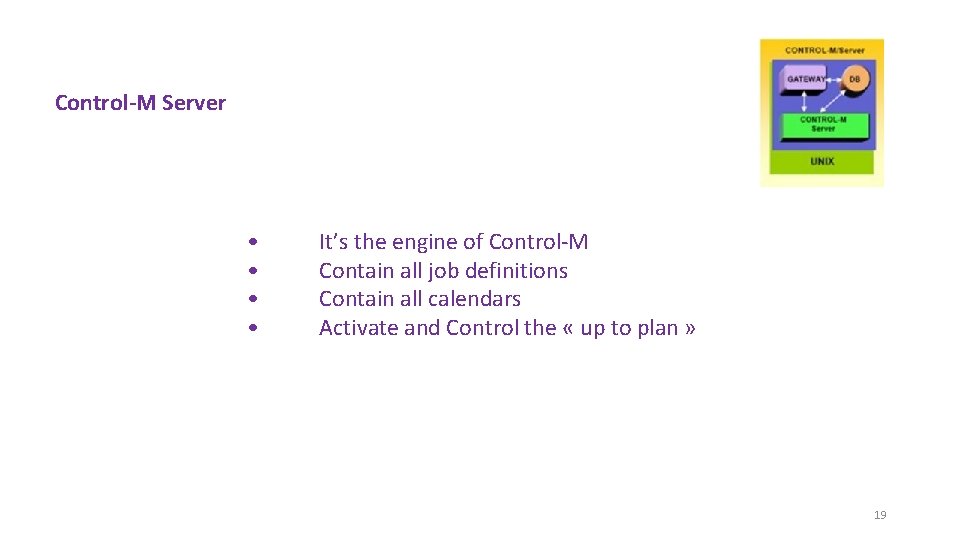
Control-M Server • • It’s the engine of Control-M Contain all job definitions Contain all calendars Activate and Control the « up to plan » 19
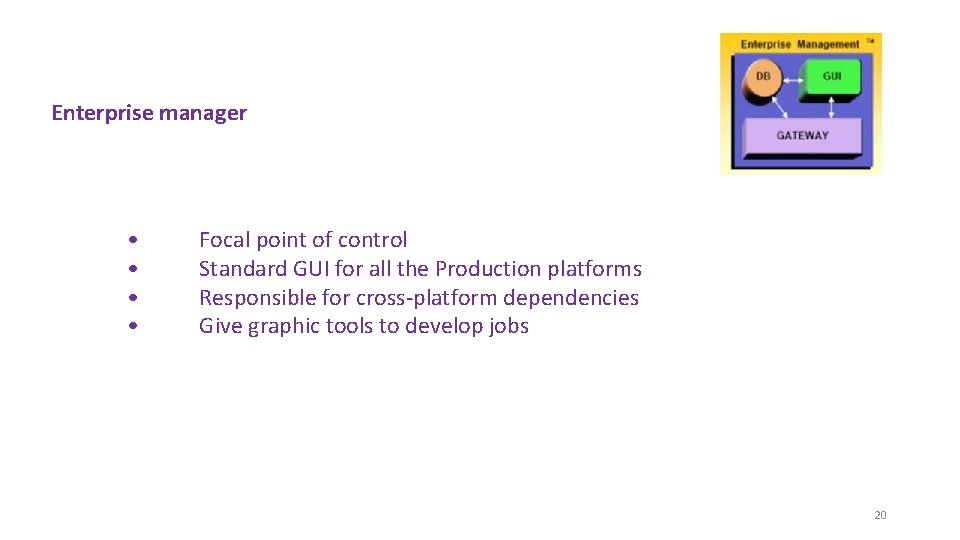
Enterprise manager • • Focal point of control Standard GUI for all the Production platforms Responsible for cross-platform dependencies Give graphic tools to develop jobs 20

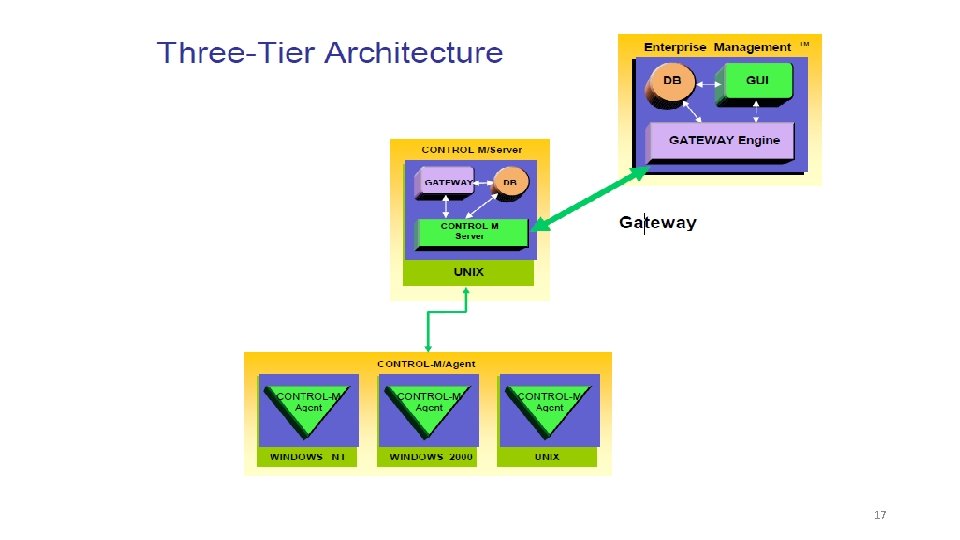
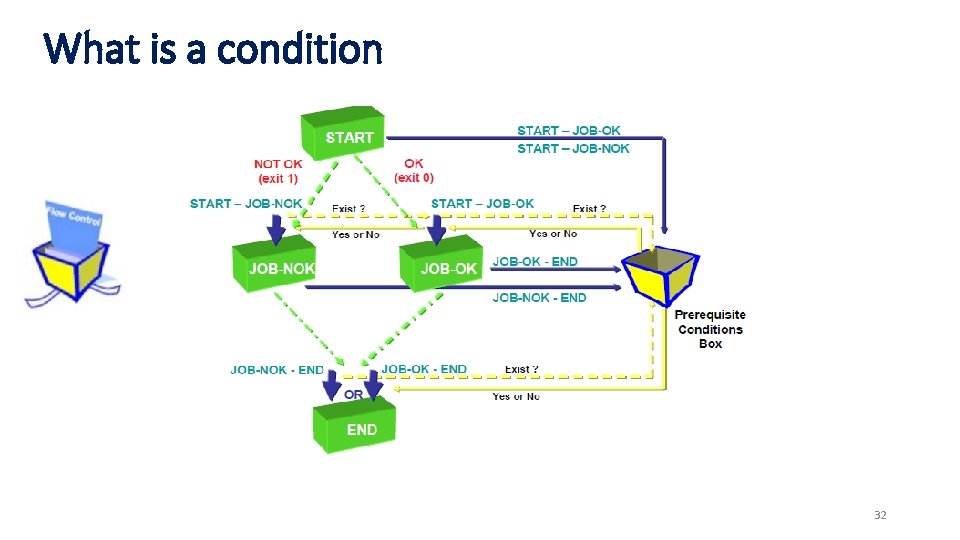
A typical job execution proceeds as follows: 1. A job waiting to be submitted "waits" on the server computer. 2. When all its prerequisite conditions, resource requirements, and all other scheduling constraints are satisfied, CONTROL-M/Server instructs CONTROL-M/Agent to submit the job. 3. Upon receiving a request to submit the job, CONTROL-M/Agent submits the job for execution according to the job definition. CONTROL-M/Agent can connect to a remote host and can perform requests and actions on that remote host. 4. CONTROL-M/Agent monitors the job and reports any exceptional situation to CONTROLM/Server. 5. Upon completion of the job, CONTROL-M/Agent and CONTROL-M/Server perform the post -processing analysis. 21
Job definitions 22
Control-M jobs definition. What ? . Where ? . Who ? . When ? . Flow control ? . Resource requirements. Results control 23

What do we schedule • Unix shell scripts /export/home. hipfeed/interfaces/scripts/ft_process. pl • NT Batch file (. bat, . cmd) d: prodCtmCopy_Logsdel_logs. cmd • Executable • Operators commands Execute command ls -l 24
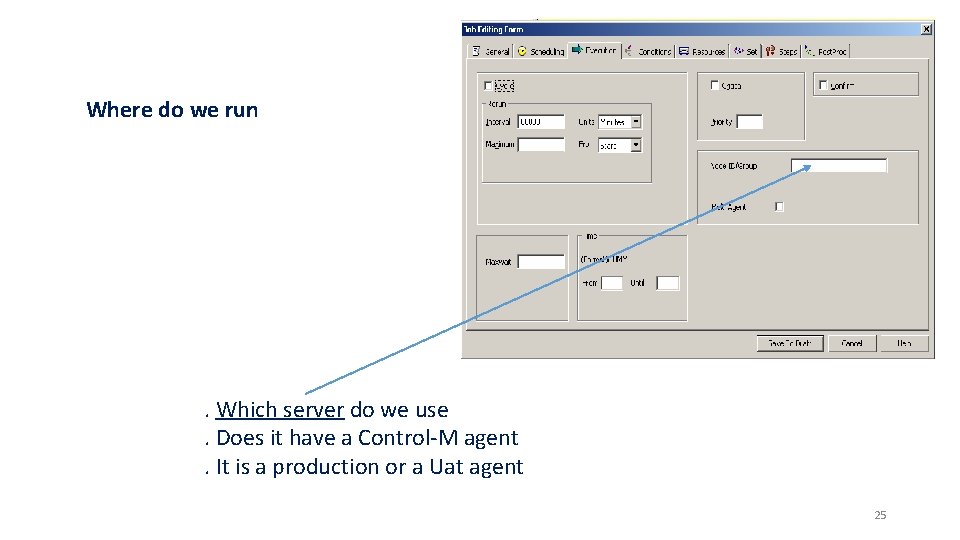
Where do we run . Which server do we use. Does it have a Control-M agent. It is a production or a Uat agent 25
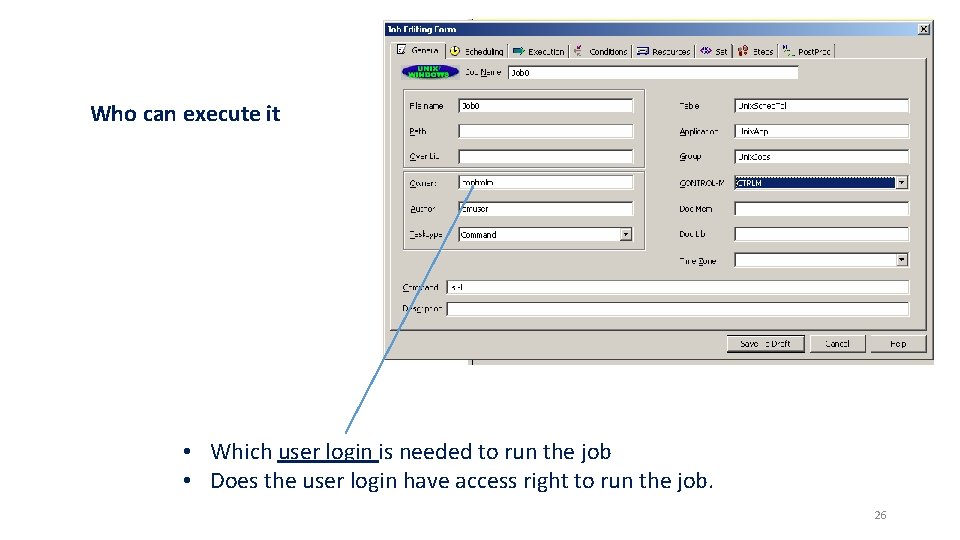
Who can execute it • Which user login is needed to run the job • Does the user login have access right to run the job. 26
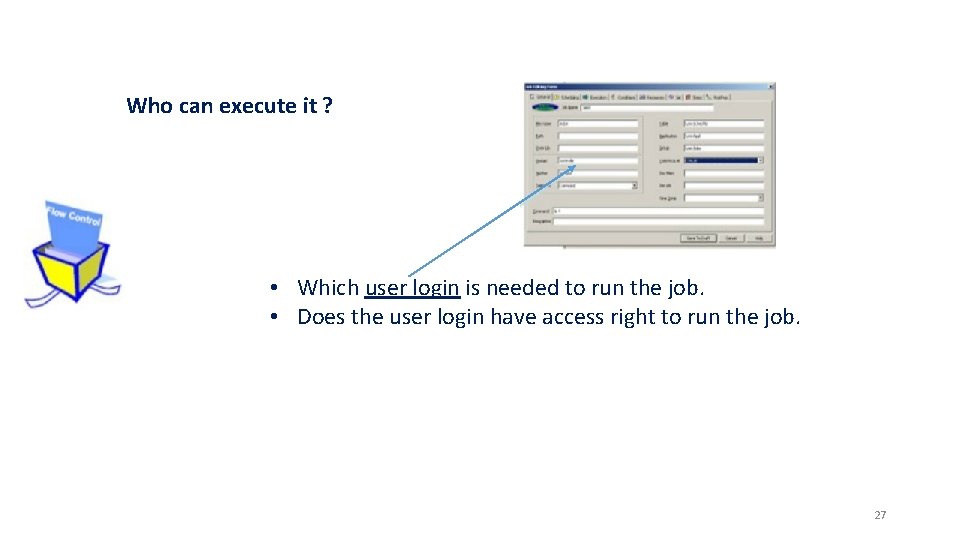
Who can execute it ? • Which user login is needed to run the job. • Does the user login have access right to run the job. 27
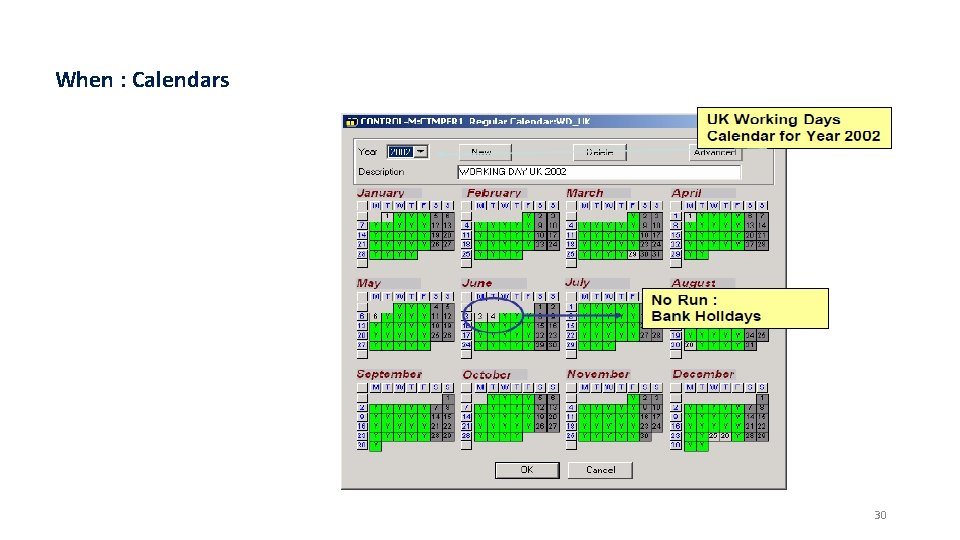
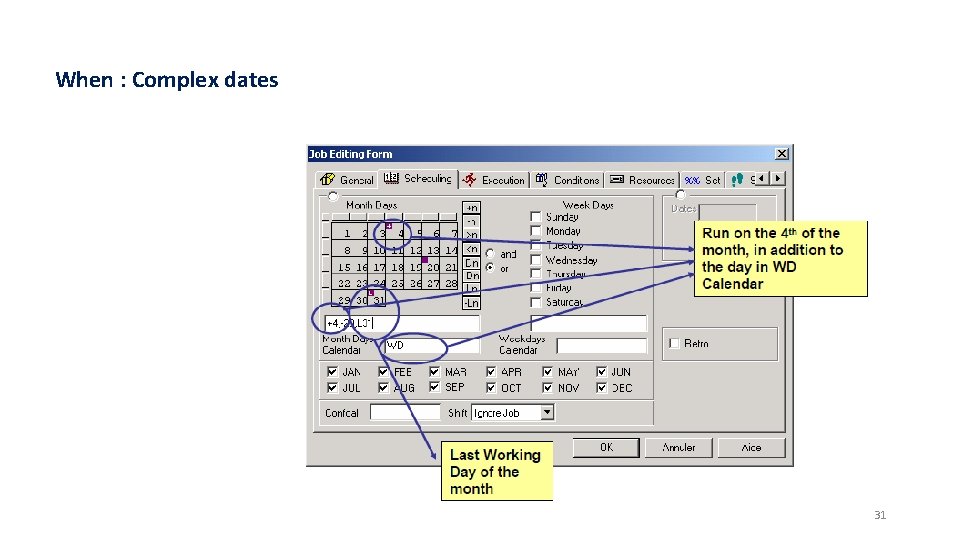
When : Date & time Scheduling Criteria • Specific days of the month/week/period • Automatic holiday processing • The nth workday • The nth last workday • Time window • Job can be executed in several times in cyclic mode with personnal interval 28
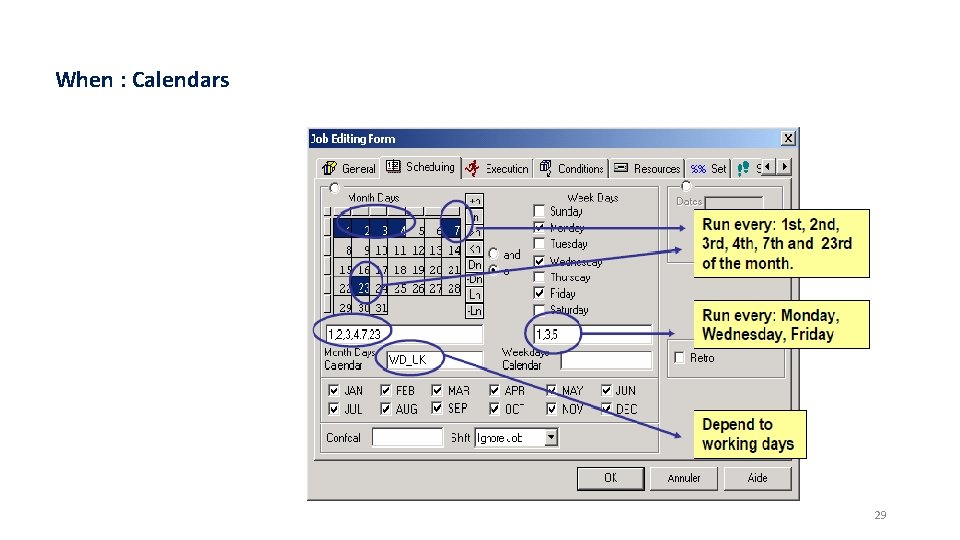
When : Calendars 29
When : Calendars 30
When : Complex dates 31
What is a condition 32
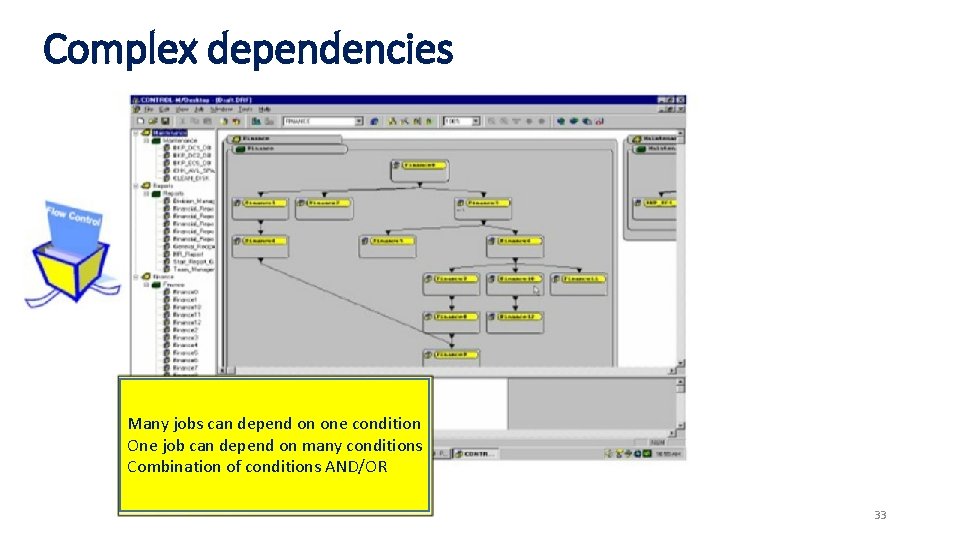
Complex dependencies Many jobs can depend on one condition One job can depend on many conditions Combination of conditions AND/OR 33
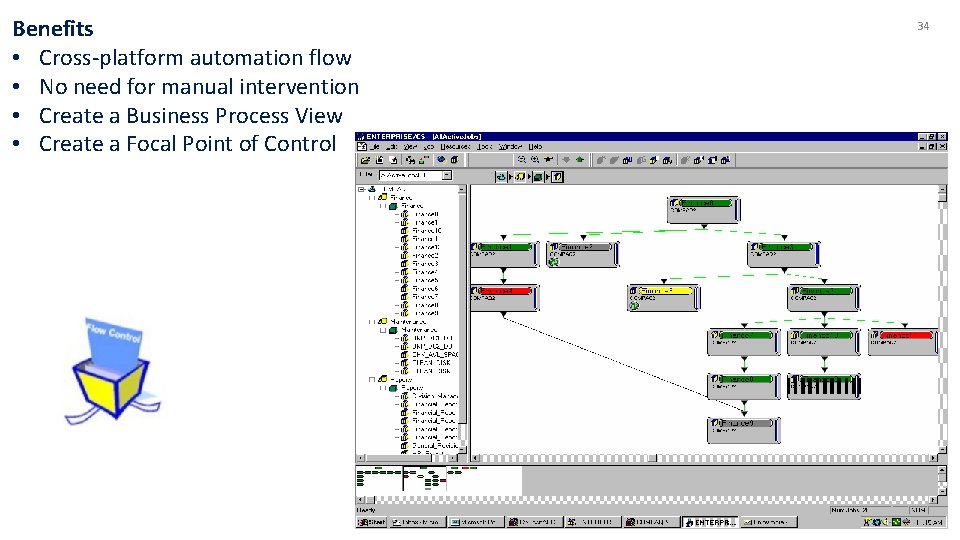
Benefits • Cross-platform automation flow • No need for manual intervention • Create a Business Process View • Create a Focal Point of Control 34
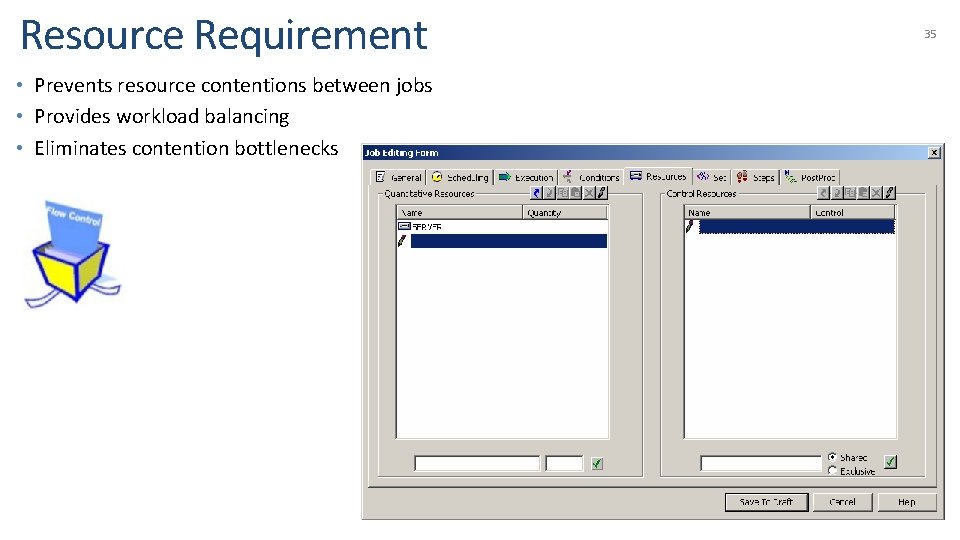
Resource Requirement • Prevents resource contentions between jobs • Provides workload balancing • Eliminates contention bottlenecks 35
Results Control • Capture Standard OUTPUT in Sysout • Sysout contain and Error Code will be tested • Shout Message can be sent to User Mail, Distribution • List, Console. . . • Rerun Facility Runs same job « n » times Runs another job Stop a Cyclic Job • Results Control • Sysout contain and Error Code will be tested 36
Job process 37
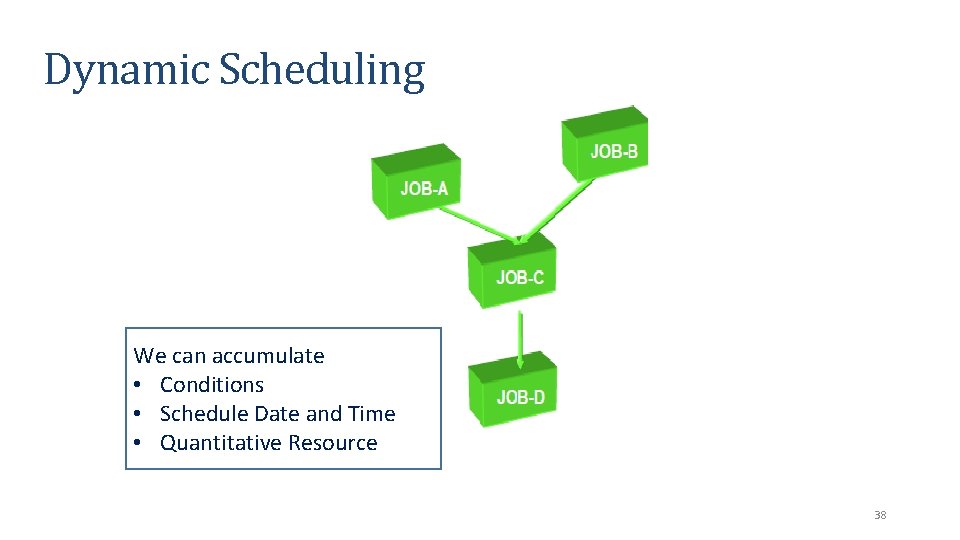
Dynamic Scheduling We can accumulate • Conditions • Schedule Date and Time • Quantitative Resource 38
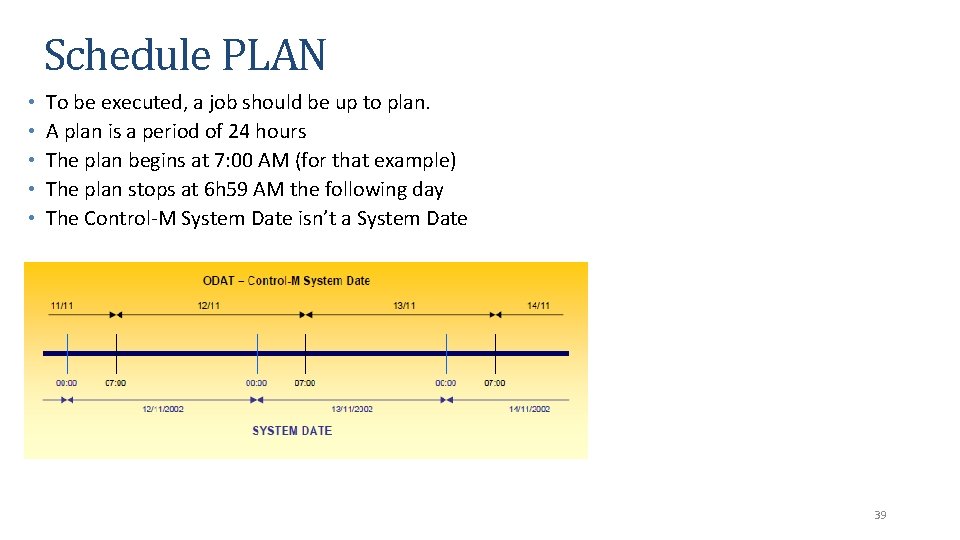
Schedule PLAN • • • To be executed, a job should be up to plan. A plan is a period of 24 hours The plan begins at 7: 00 AM (for that example) The plan stops at 6 h 59 AM the following day The Control-M System Date isn’t a System Date 39
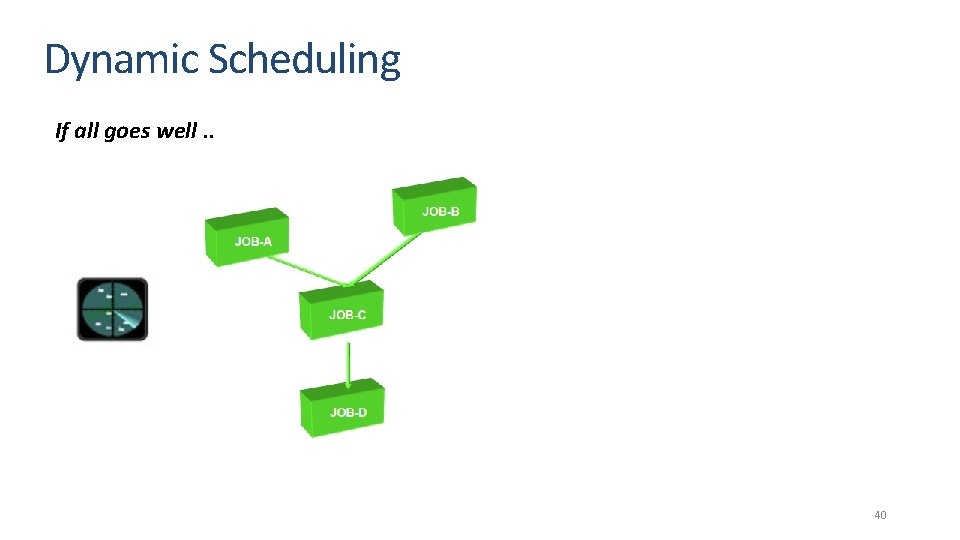
Dynamic Scheduling If all goes well. . 40

Problem Dynamic Scheduling 41
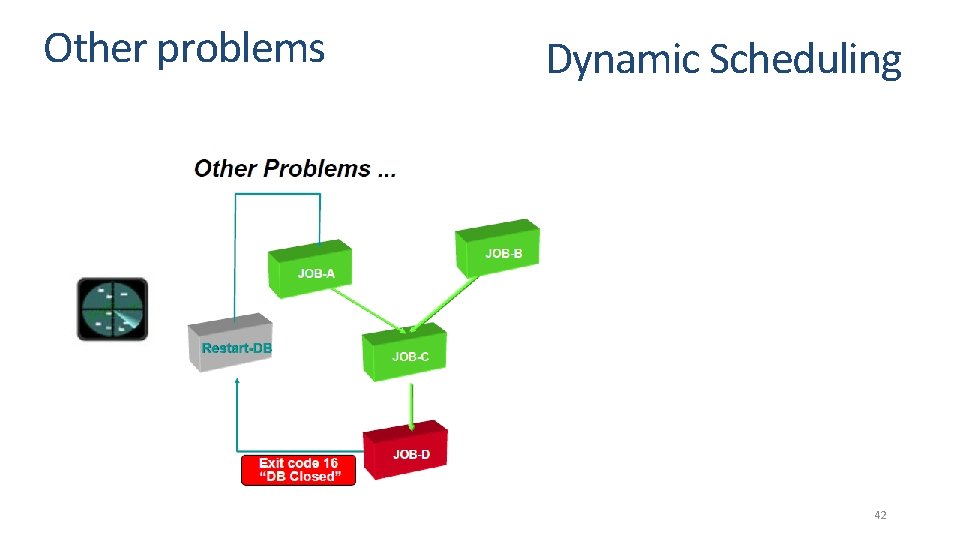
Other problems Dynamic Scheduling 42
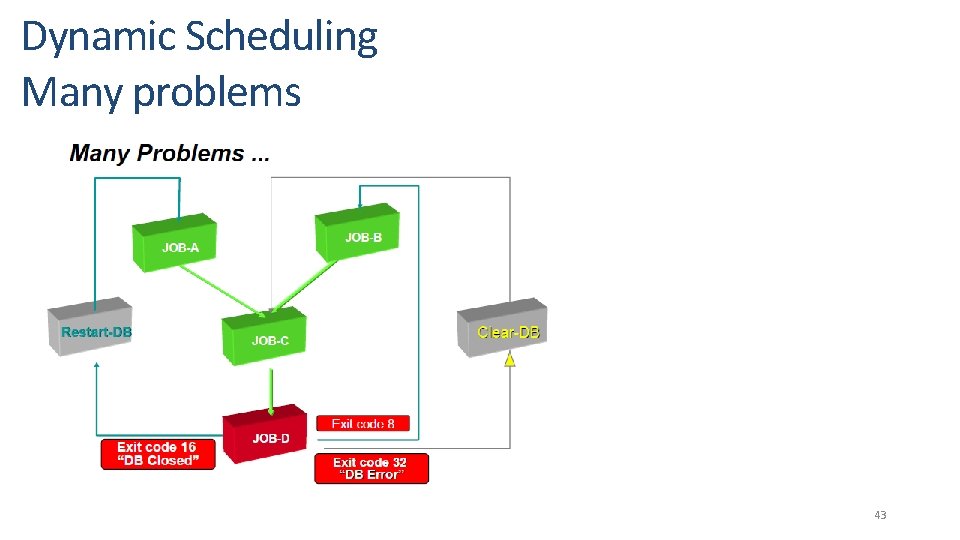
Dynamic Scheduling Many problems 43
Result Analysis 44
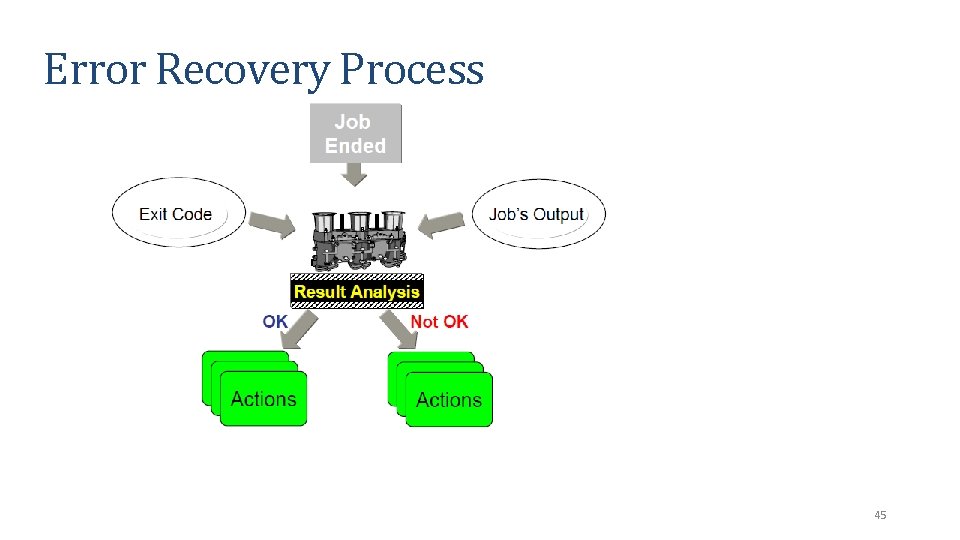
Error Recovery Process 45
Results Analysis • CONTROL-M is capable of detecting errors and react to them dynamically • Analyze contents of the Job Log • Match Line of statement with statement ouput and errors (contain of sysout) • Actions : Set completion status to Ok or NOTOK Set a parameter value (counter) Create or delete a condition Force a job to run Notify a user or console message Rerun the job Stop Cyclic 46
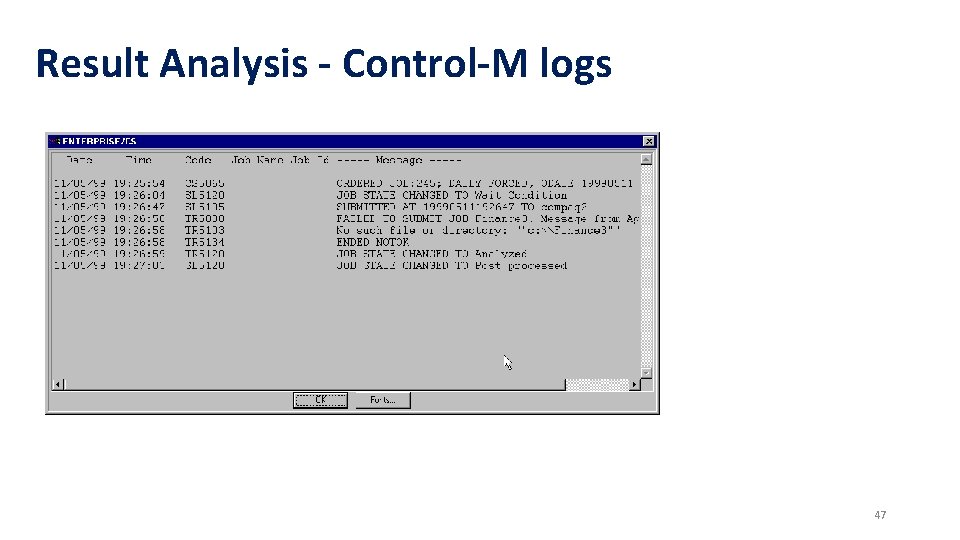
Result Analysis - Control-M logs 47
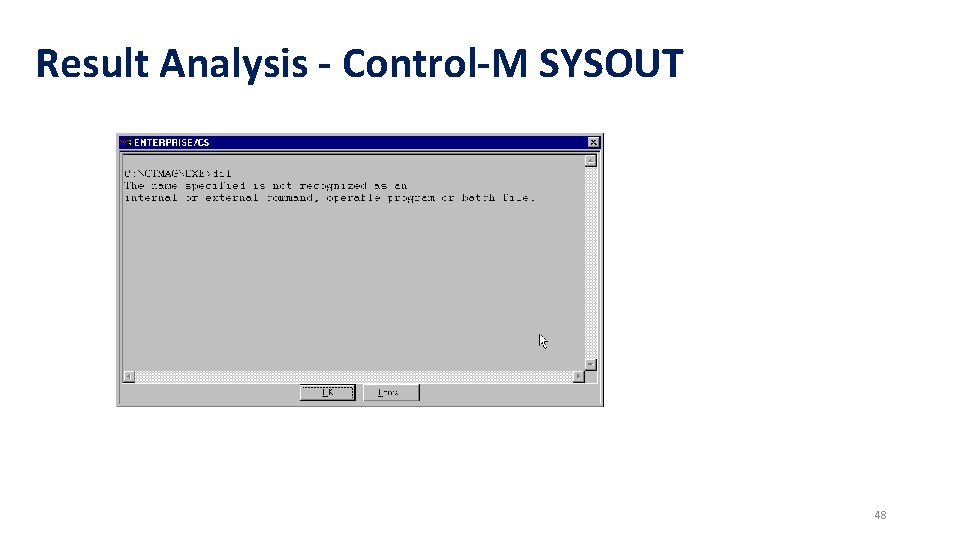
Result Analysis - Control-M SYSOUT 48
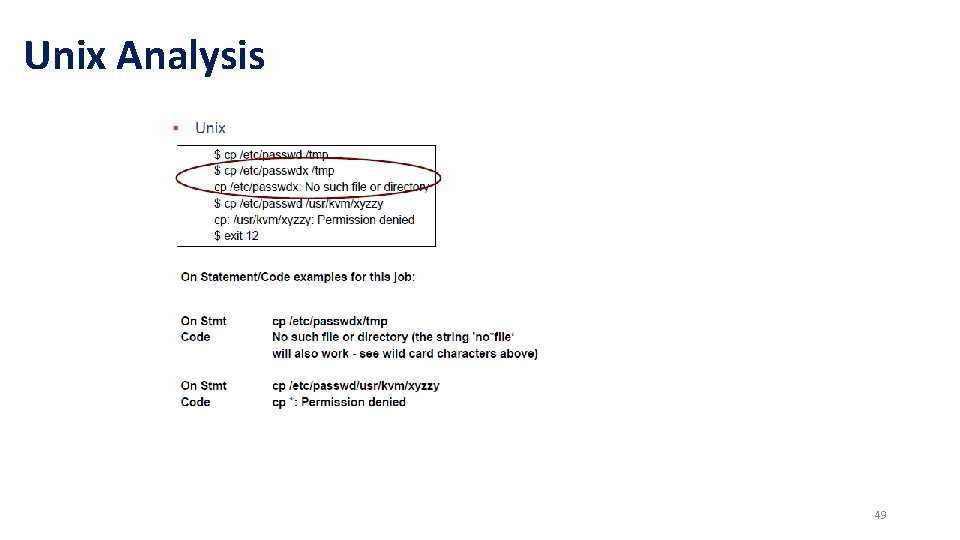
Unix Analysis 49
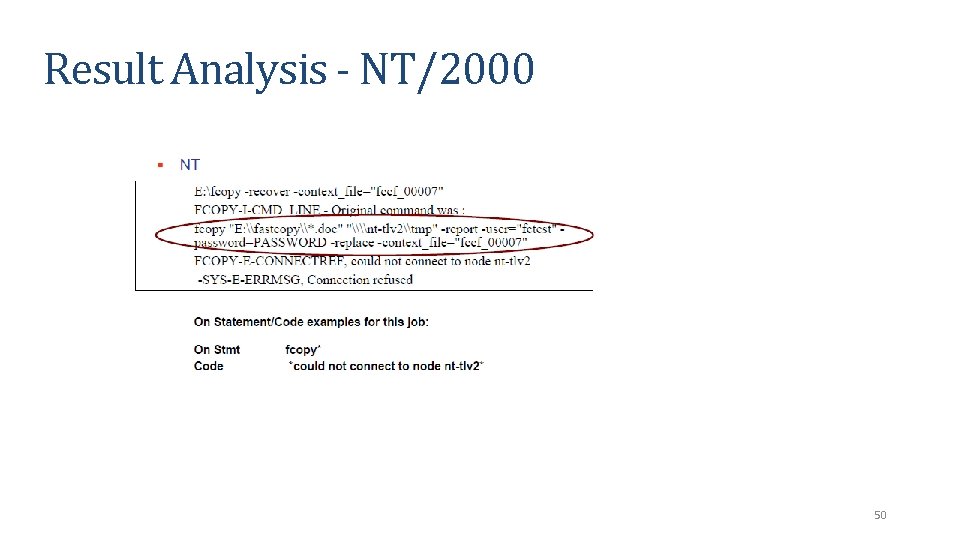
Result Analysis - NT/2000 50
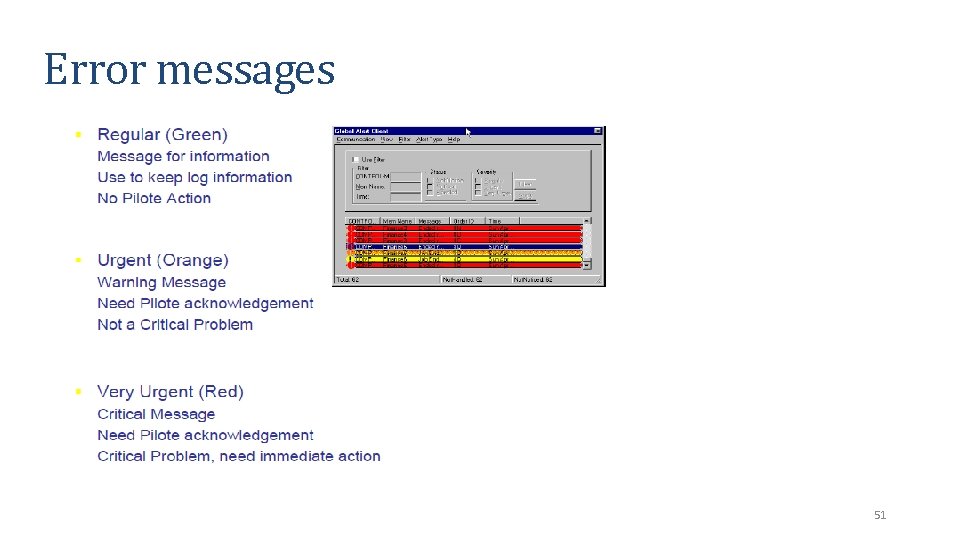
Error messages 51
- Slides: 51