
ContractorVendor Guide beta SAM gov Applying for an
Contractor/Vendor Guide beta. SAM. gov Applying for an Account
The next few charts will help you establish your account in beta. SAM. Please note, if you have a Legacy SAM account you can use the same LOGIN. gov email and password. If you do not have a Legacy SAM account, you will need to complete all the steps to include LOGIN. gov Note: When you complete your profile, we recommend you associate your account with your company. To do so, you’ll need to know your company DUNS or CAGE Code. If your account isn’t tied to your company, you will not gain access to the Interested Vendors List (IVL) and you will not be allowed to access controlled documents. 2
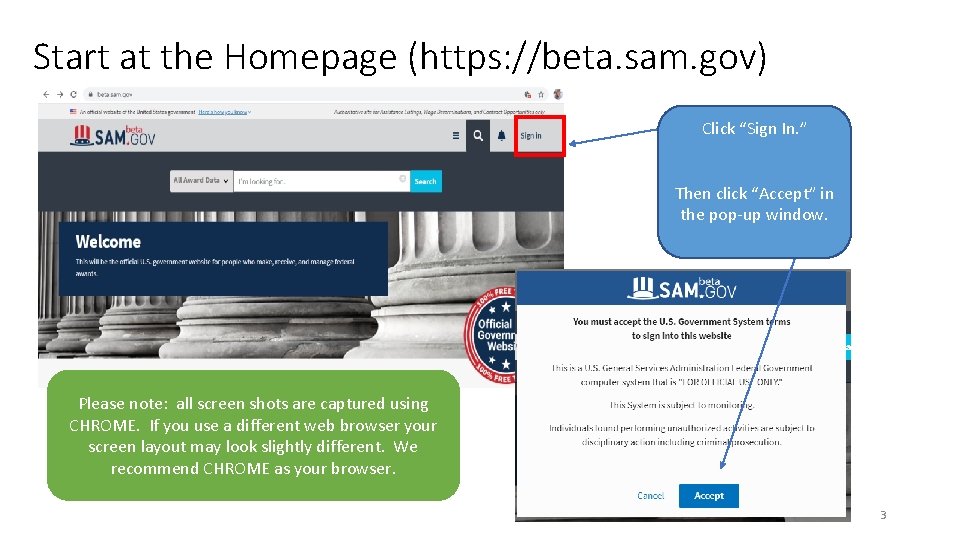
Start at the Homepage (https: //beta. sam. gov) Click “Sign In. ” Then click “Accept” in the pop-up window. Please note: all screen shots are captured using CHROME. If you use a different web browser your screen layout may look slightly different. We recommend CHROME as your browser. 3
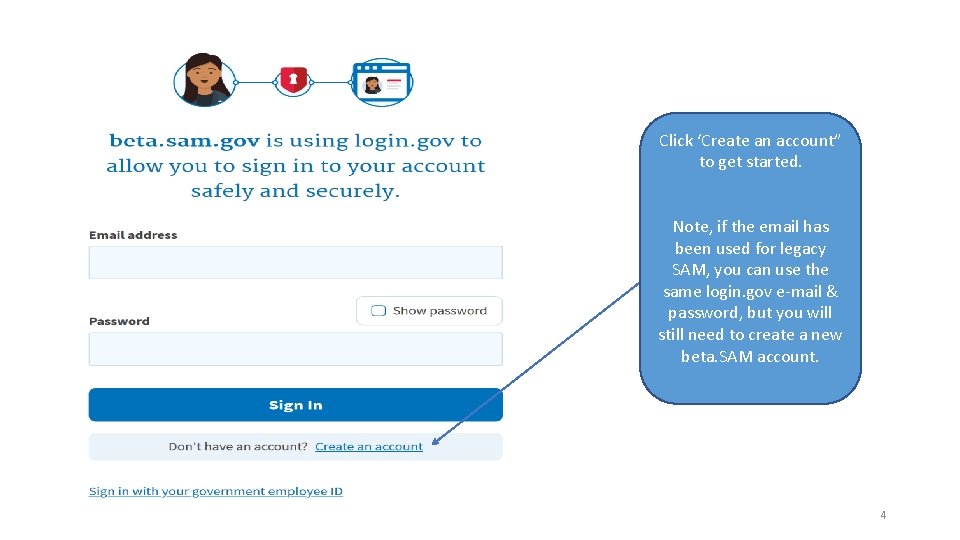
Click ‘Create an account” to get started. Note, if the email has been used for legacy SAM, you can use the same login. gov e-mail & password, but you will still need to create a new beta. SAM account. 4
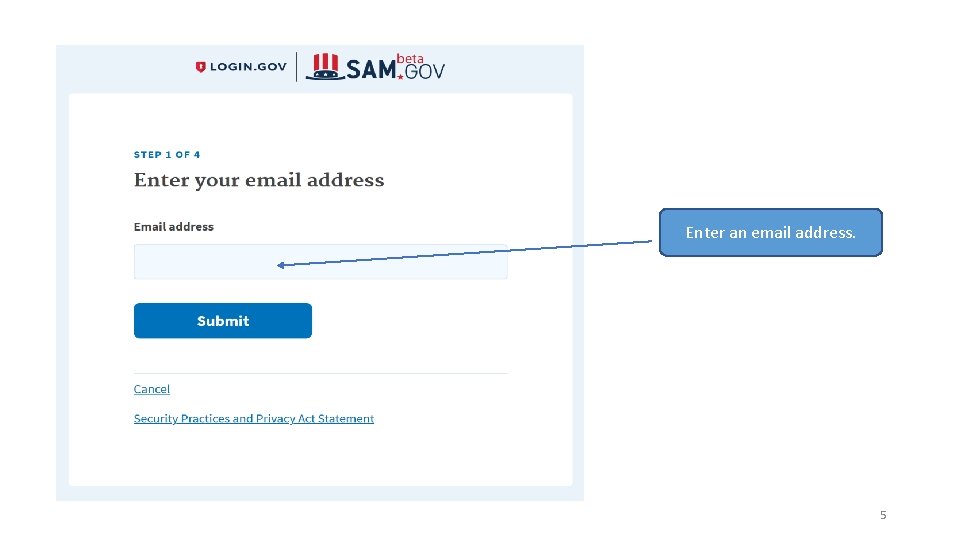
Enter an email address. 5
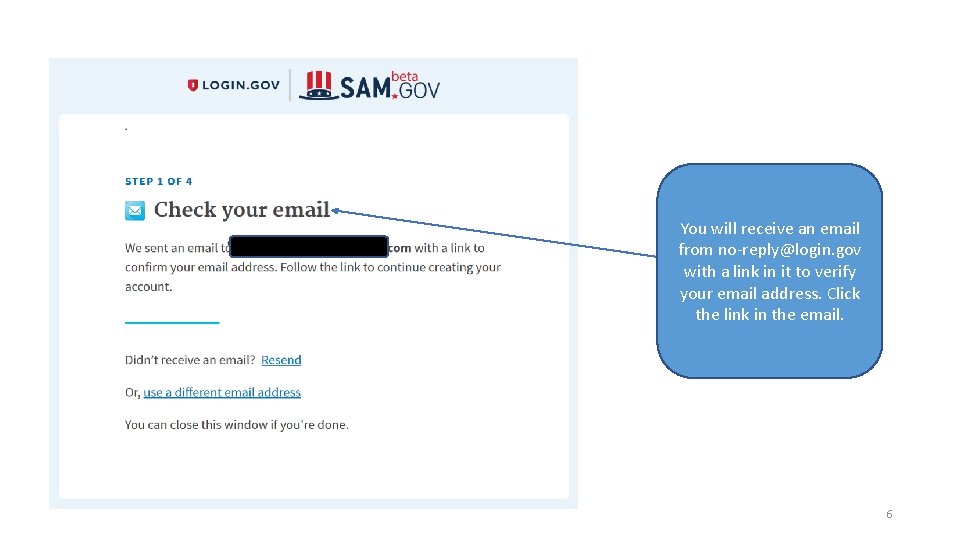
You will receive an email from no-reply@login. gov with a link in it to verify your email address. Click the link in the email. 6
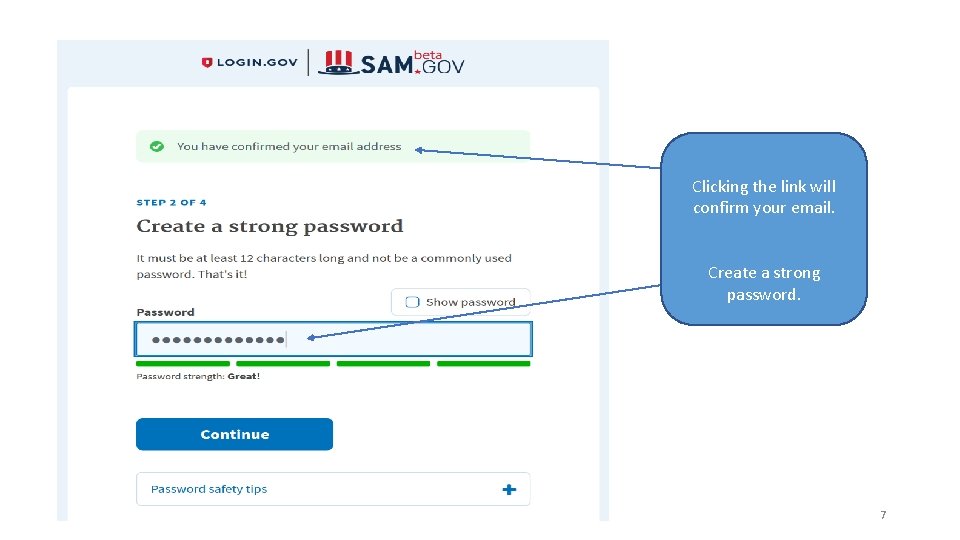
Clicking the link will confirm your email. Create a strong password. 7
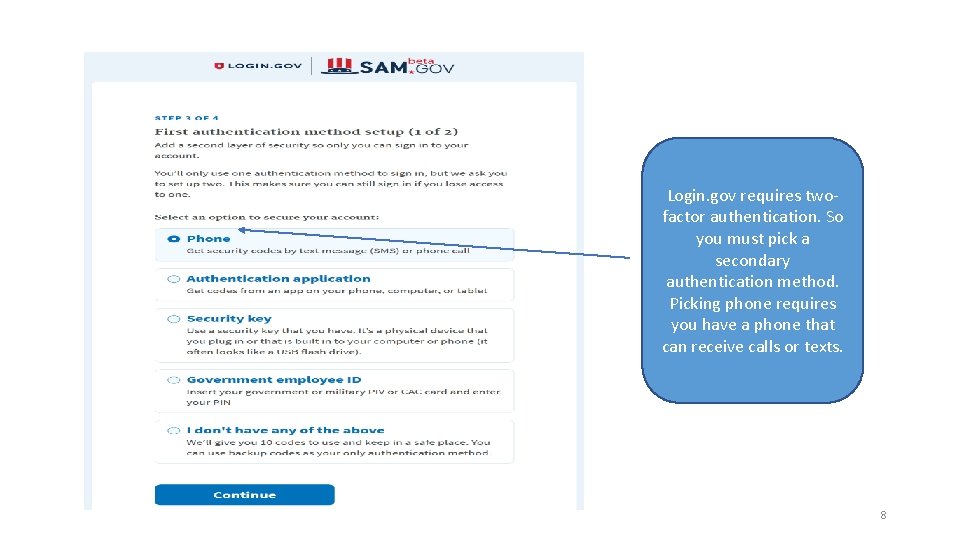
Login. gov requires twofactor authentication. So you must pick a secondary authentication method. Picking phone requires you have a phone that can receive calls or texts. 8

If selected, login. gov will send a text message to the phone number you enter. 9
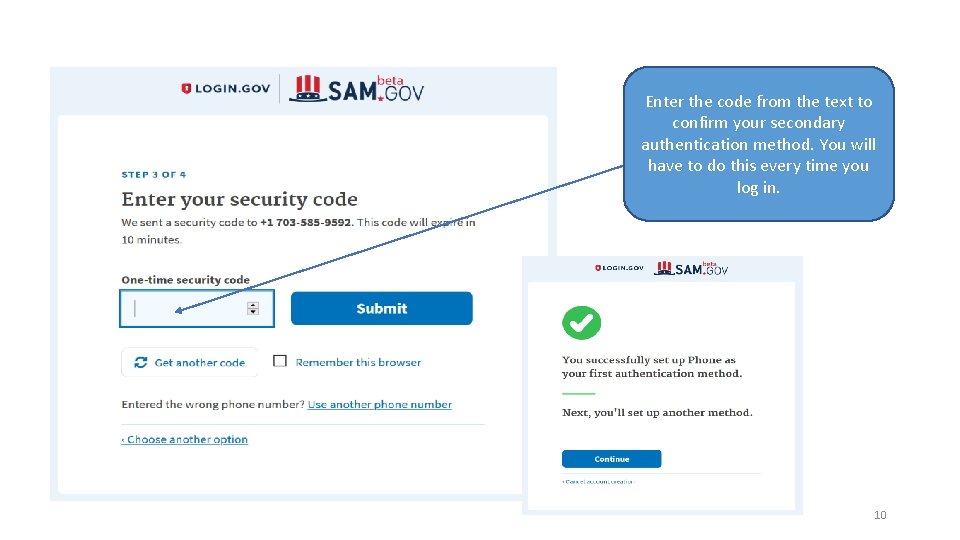
Enter the code from the text to confirm your secondary authentication method. You will have to do this every time you log in. 10
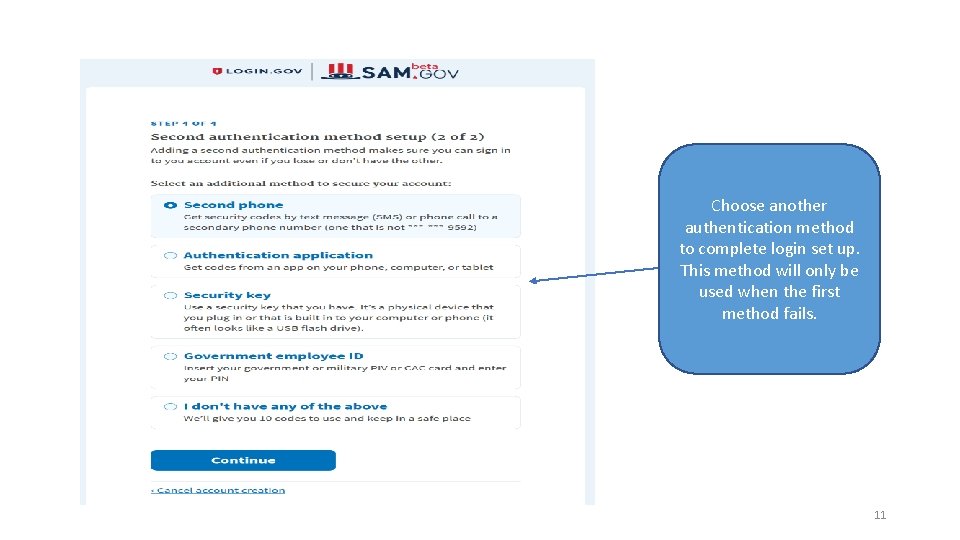
Choose another authentication method to complete login set up. This method will only be used when the first method fails. 11
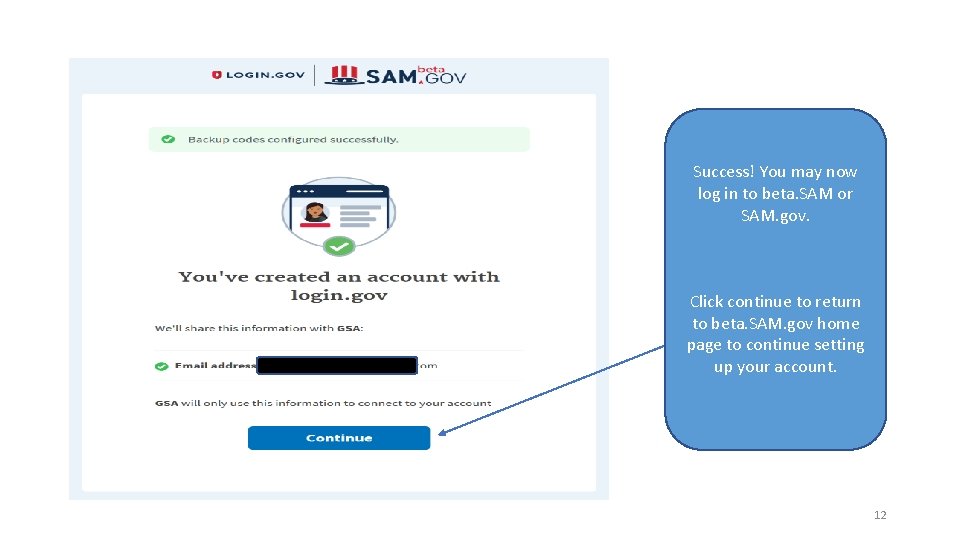
Success! You may now log in to beta. SAM or SAM. gov. Click continue to return to beta. SAM. gov home page to continue setting up your account. 12
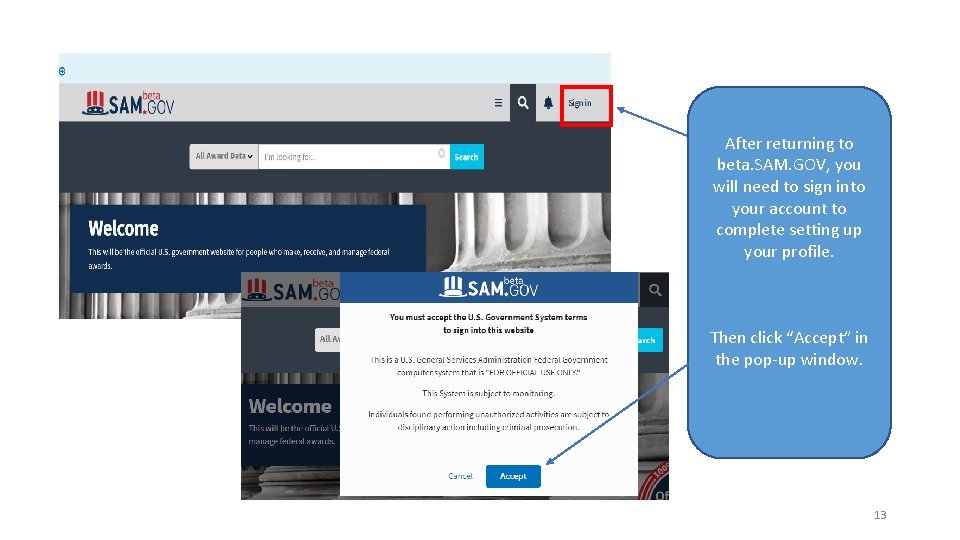
After returning to beta. SAM. GOV, you will need to sign into your account to complete setting up your profile. Then click “Accept” in the pop-up window. 13
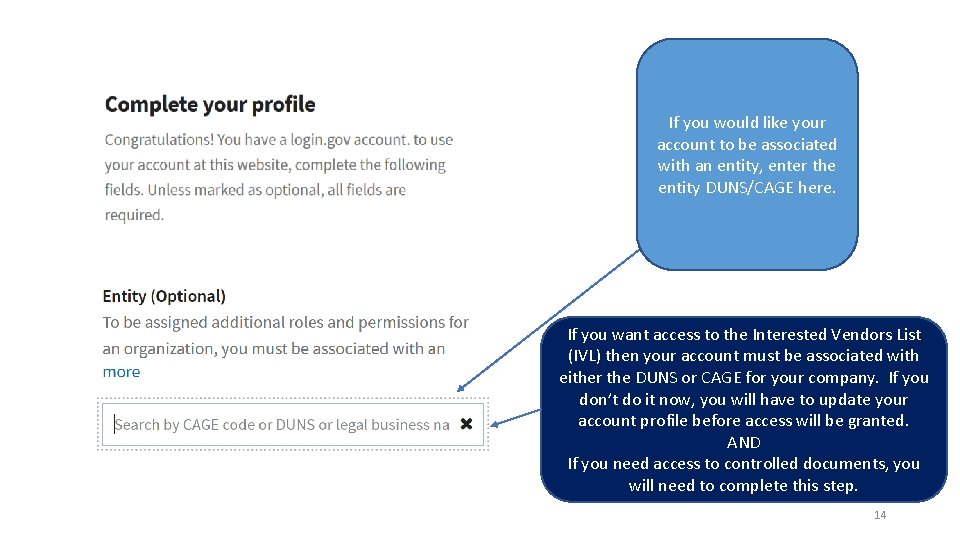
If you would like your account to be associated with an entity, enter the entity DUNS/CAGE here. If you want access to the Interested Vendors List (IVL) then your account must be associated with either the DUNS or CAGE for your company. If you don’t do it now, you will have to update your account profile before access will be granted. AND If you need access to controlled documents, you will need to complete this step. 14
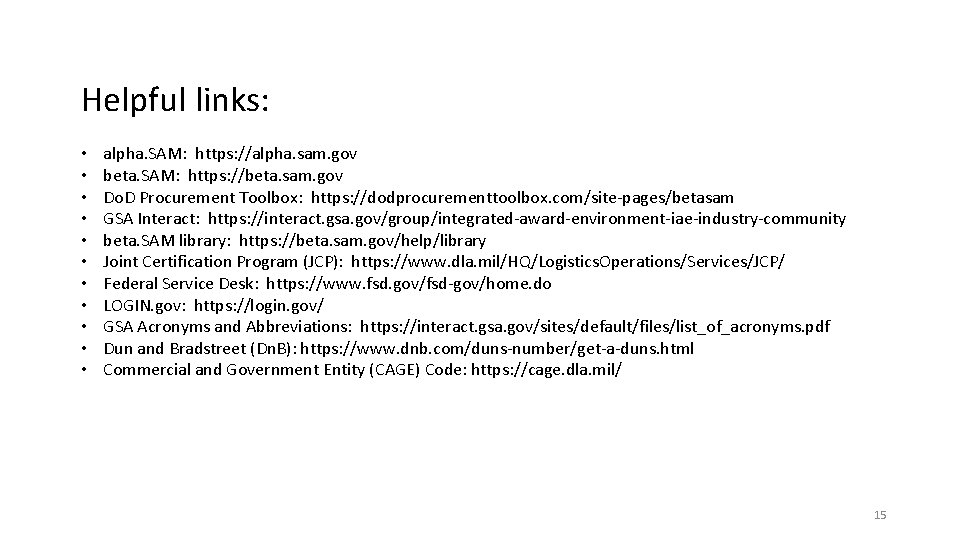
Helpful links: • • • alpha. SAM: https: //alpha. sam. gov beta. SAM: https: //beta. sam. gov Do. D Procurement Toolbox: https: //dodprocurementtoolbox. com/site-pages/betasam GSA Interact: https: //interact. gsa. gov/group/integrated-award-environment-iae-industry-community beta. SAM library: https: //beta. sam. gov/help/library Joint Certification Program (JCP): https: //www. dla. mil/HQ/Logistics. Operations/Services/JCP/ Federal Service Desk: https: //www. fsd. gov/fsd-gov/home. do LOGIN. gov: https: //login. gov/ GSA Acronyms and Abbreviations: https: //interact. gsa. gov/sites/default/files/list_of_acronyms. pdf Dun and Bradstreet (Dn. B): https: //www. dnb. com/duns-number/get-a-duns. html Commercial and Government Entity (CAGE) Code: https: //cage. dla. mil/ 15
- Slides: 15