
Contract Management Reporting System CMR Guidelines for Consultant
- Slides: 36
Contract Management Reporting System (CMR) Guidelines for Consultant Payments August 2020 1 BUILDING SUNY
First Step… 1. Complete and submit a CMR Access Request Form. This form can be found on the State University Construction Fund (SUCF) Website www. sucf. suny. edu under Resources / Forms / CMR Access Request Form (Contractor and Consultant) If you haven’t already submitted this form, please contact your Fund Coordinator. The next slide will show you the payment process overview. 2 BUILDING SUNY
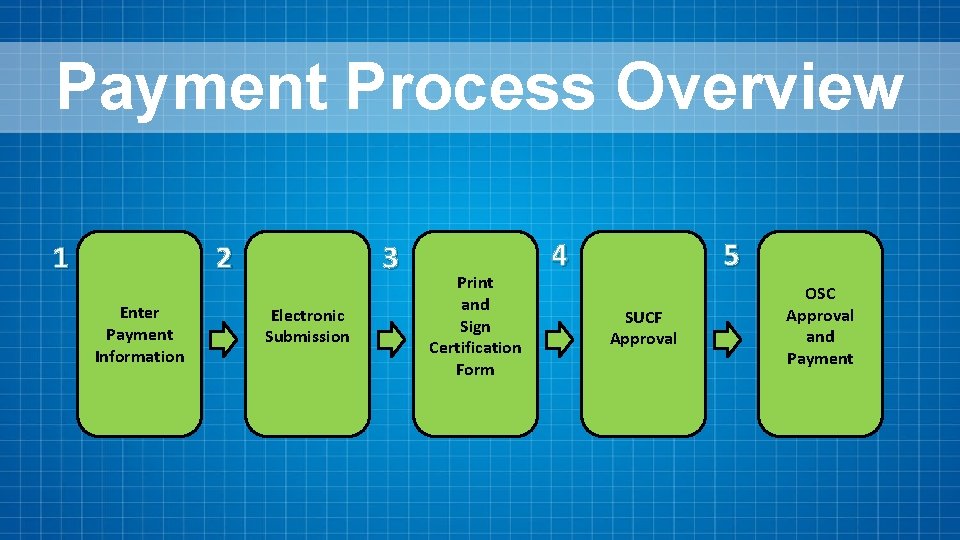
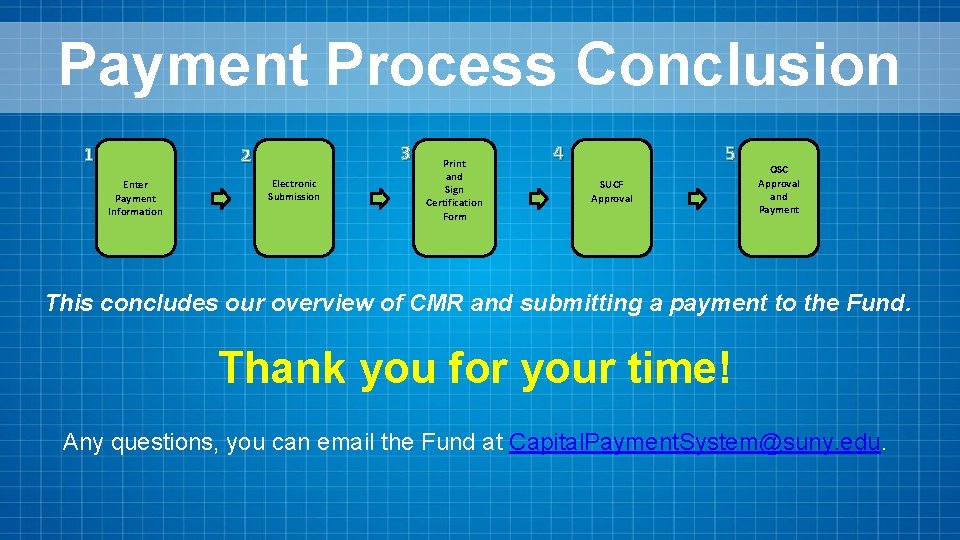
Payment Process Overview 1 3 2 Enter Payment Information Electronic Submission Print and Sign Certification Form 3 4 5 SUCF Approval OSC Approval and Payment BUILDING SUNY
Important Items to Remember… ü As CMR is supported by a web browser, it is important that you save your data often, in case your session times out. ü At the top of all CMR screens, you will see specific information about your contract. ü To navigate to a previous screen in CMR, you can use the “back” button at the bottom of each screen (do not use the internet browser’s back button). 4 BUILDING SUNY
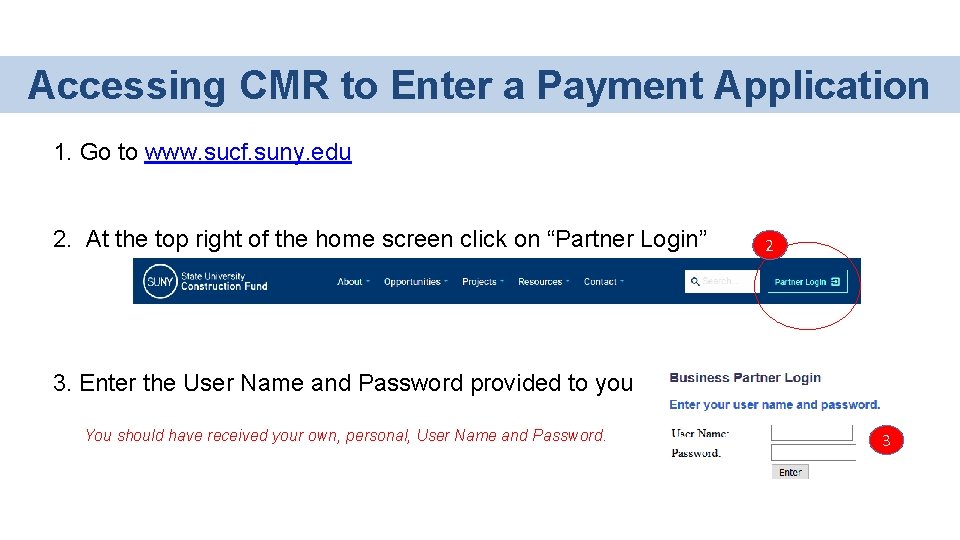
Accessing CMR to Enter a Payment Application 1. Go to www. sucf. suny. edu 2. At the top right of the home screen click on “Partner Login” 2 3. Enter the User Name and Password provided to you You should have received your own, personal, User Name and Password. 3
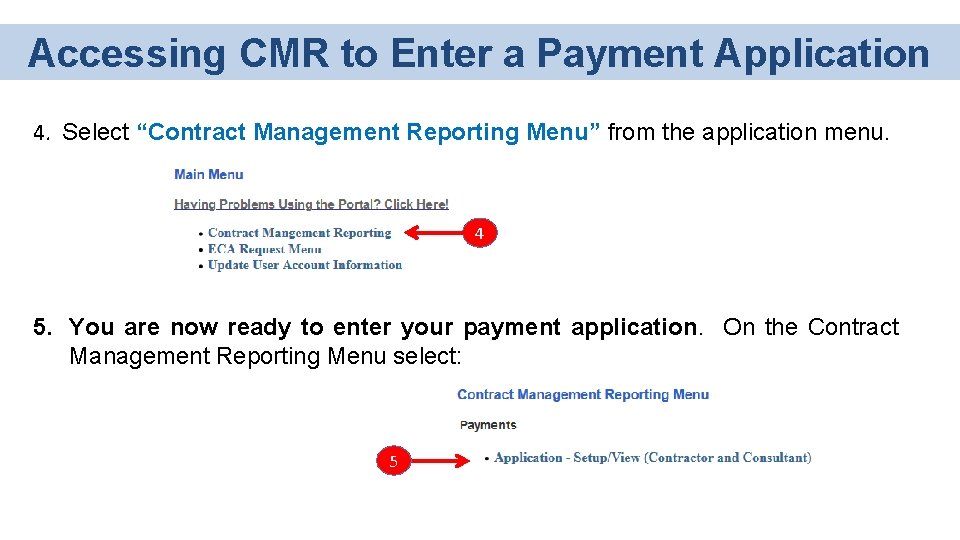
Accessing CMR to Enter a Payment Application 4. Select “Contract Management Reporting Menu” from the application menu. 4 5. You are now ready to enter your payment application. On the Contract Management Reporting Menu select: 5
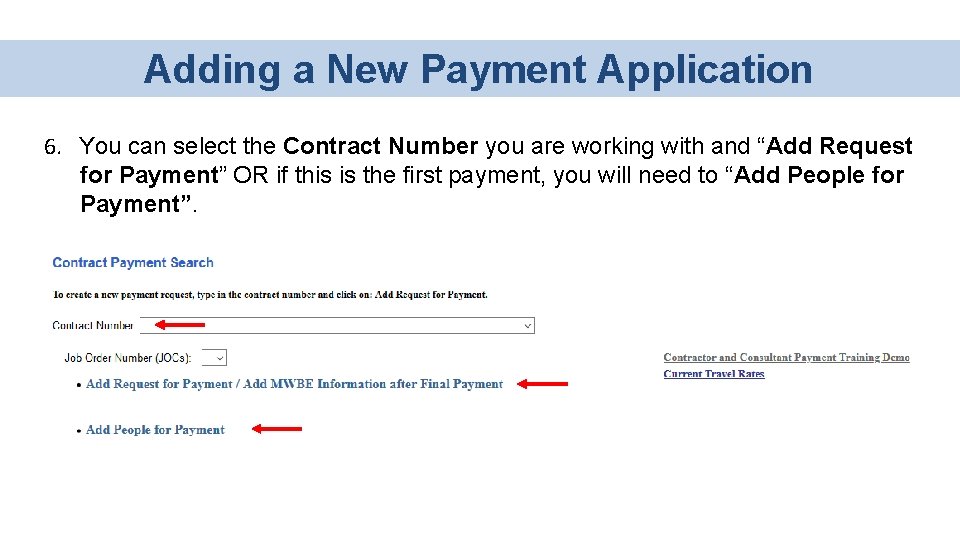
Adding a New Payment Application 6. You can select the Contract Number you are working with and “Add Request for Payment” OR if this is the first payment, you will need to “Add People for Payment”.
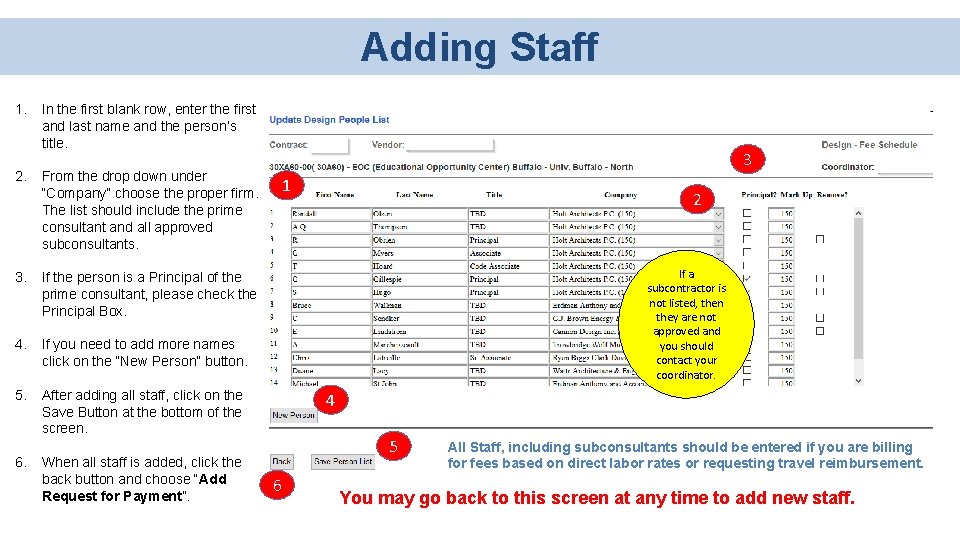
Adding Staff 1. 2. In the first blank row, enter the first and last name and the person’s title. From the drop down under “Company” choose the proper firm. The list should include the prime consultant and all approved subconsultants. 3. If the person is a Principal of the prime consultant, please check the Principal Box. 4. If you need to add more names click on the “New Person” button. 5. After adding all staff, click on the Save Button at the bottom of the screen. 6. 3 When all staff is added, click the back button and choose “Add Request for Payment”. 1 2 If a subcontractor is not listed, then they are not approved and you should contact your coordinator. 4 5 6 All Staff, including subconsultants should be entered if you are billing for fees based on direct labor rates or requesting travel reimbursement. You may go back to this screen at any time to add new staff.
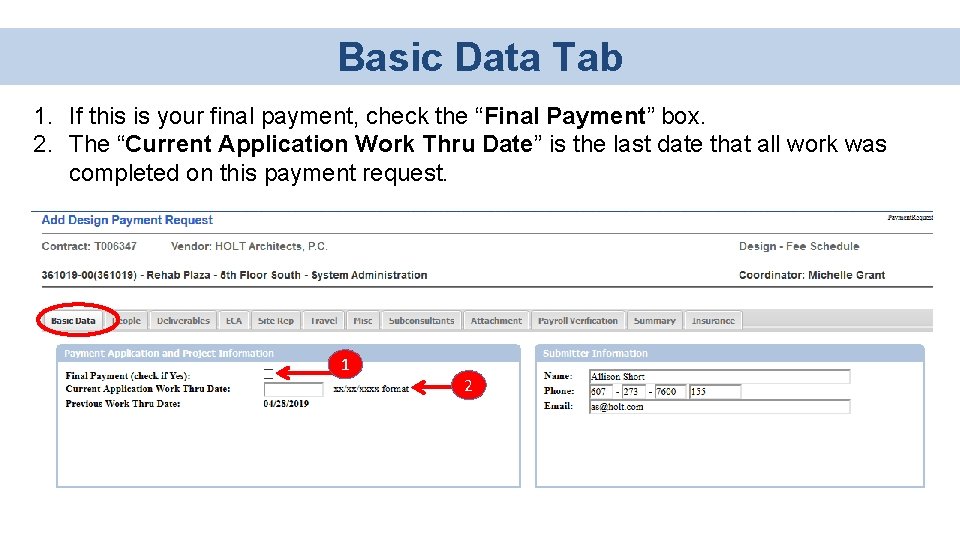
Basic Data Tab 1. If this is your final payment, check the “Final Payment” box. 2. The “Current Application Work Thru Date” is the last date that all work was completed on this payment request. 1 2
Deliverables Tab 1. Depending on the specific “Payment for Services” section of your Contract, the Deliverables Tab will display the necessary information for you to submit a request for the payment of fees. • Fee Schedule • Director Labor Plus Markup • Lump Sum Your contract will reimburse you for fees based on either a fee schedule, direct labor times an overhead multiplier, or on a percentage of work completed.
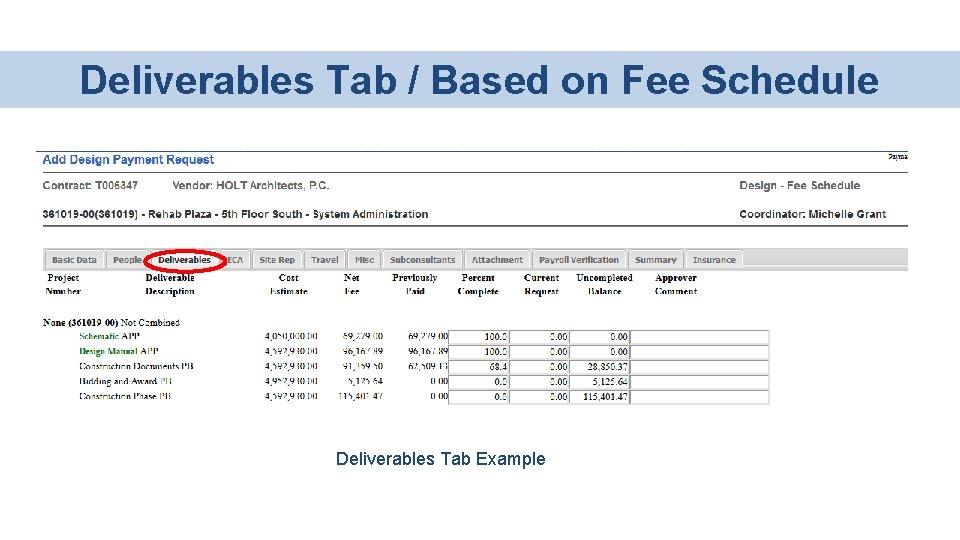
Deliverables Tab / Based on Fee Schedule • For contracts based on a fee schedule, CMR will display the cost estimates and the calculated fees based on those estimates. There is a fee schedule in the back of your contract which will also list the project complexity factor. • The basis for the cost estimate will be shown next to the cost estimate. An Approved Phase box will be checked if the Fund has approved the phase submission. • Next to the project number will be information about the phases and the status of the related construction contract. If design phases are combined you must bill the same percentage for all the combined phases. • Prior to the Construction Administration Phase, you may not bill more than 95% for a given phase until the phase or combined phases have been approved. During Construction Administration you may submit progress payment requests up to 96% until the construction contract is paid in full. Progress payments will be paid based on the percentage of construction work complete. • Breakout construction projects will be listed below the parent project. Deliverables Tab Example On Next Slide
Deliverables Tab / Based on Fee Schedule Deliverables Tab Example
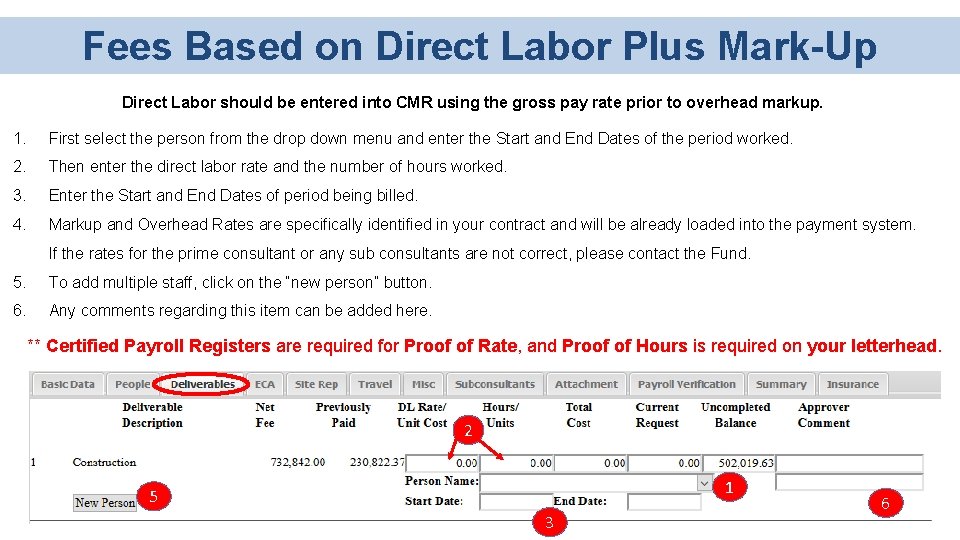
Fees Based on Direct Labor Plus Mark-Up Direct Labor should be entered into CMR using the gross pay rate prior to overhead markup. 1. First select the person from the drop down menu and enter the Start and End Dates of the period worked. 2. Then enter the direct labor rate and the number of hours worked. 3. Enter the Start and End Dates of period being billed. 4. Markup and Overhead Rates are specifically identified in your contract and will be already loaded into the payment system. If the rates for the prime consultant or any sub consultants are not correct, please contact the Fund. 5. To add multiple staff, click on the “new person” button. 6. Any comments regarding this item can be added here. ** Certified Payroll Registers are required for Proof of Rate, and Proof of Hours is required on your letterhead. 2 1 5 3 6
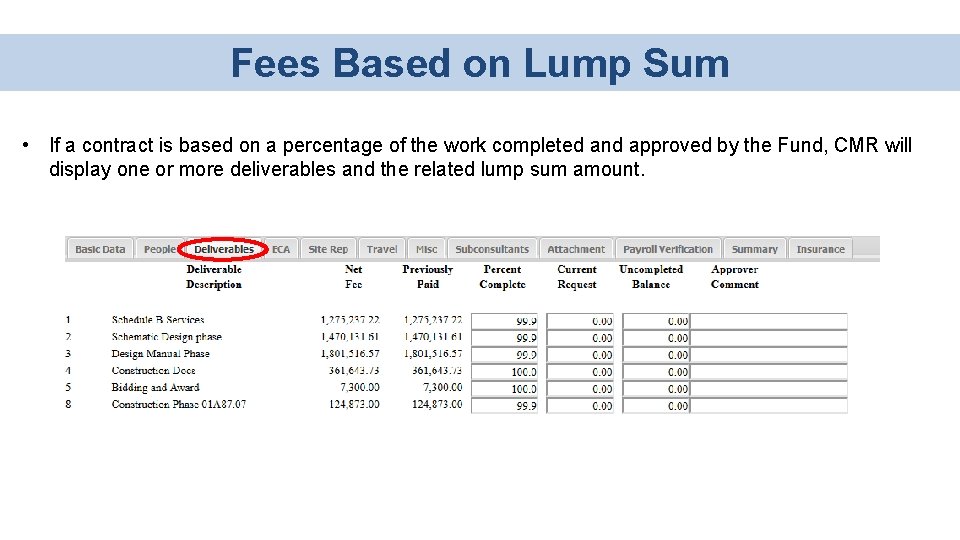
Fees Based on Lump Sum • If a contract is based on a percentage of the work completed and approved by the Fund, CMR will display one or more deliverables and the related lump sum amount.
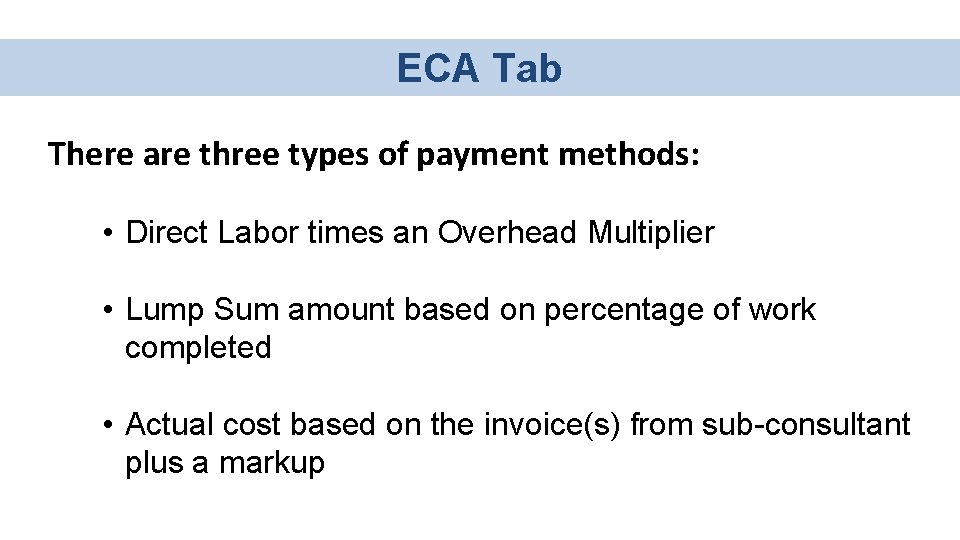
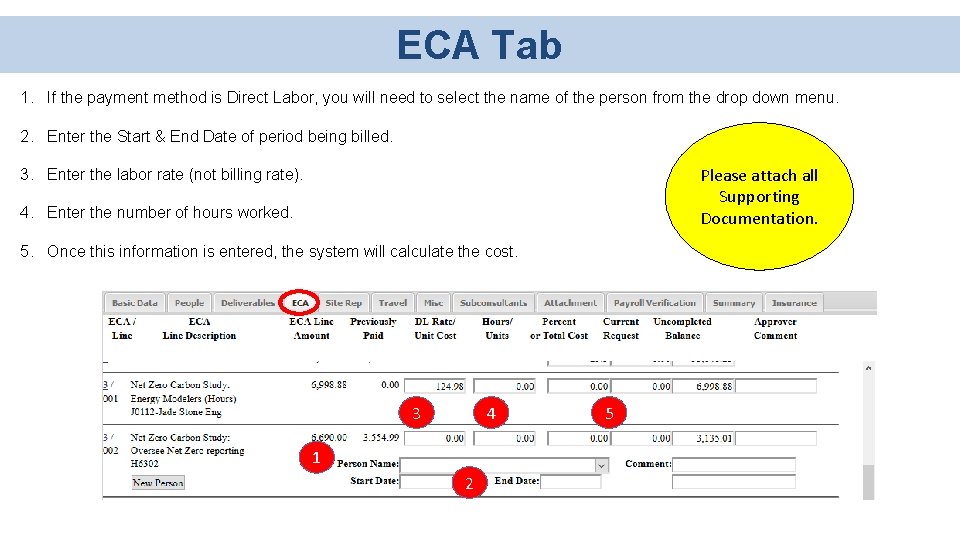
ECA Tab There are three types of payment methods: • Direct Labor times an Overhead Multiplier • Lump Sum amount based on percentage of work completed • Actual cost based on the invoice(s) from sub-consultant plus a markup
ECA Tab • The ECA Tab is used to request payment for Extra Compensation Authorizations (ECAs). • If an ECA is not showing on the CMR System, go to the Extra Compensation Authorization System to verify that the ECA has been approved. • If approved, and the ECA is not showing in CMR, please contact your coordinator. • The Schedule A attached to the approved ECA Letter will indicate the payment method. • If the ECA in whole, or in part, is based on a lump sum amount then you may bill based on the percentage of the work completed. ECA Tab Example On Next Slide
ECA Tab 1. If the payment method is Direct Labor, you will need to select the name of the person from the drop down menu. 2. Enter the Start & End Date of period being billed. Please attach all Supporting Documentation. 3. Enter the labor rate (not billing rate). 4. Enter the number of hours worked. 5. Once this information is entered, the system will calculate the cost. 3 4 1 2 5
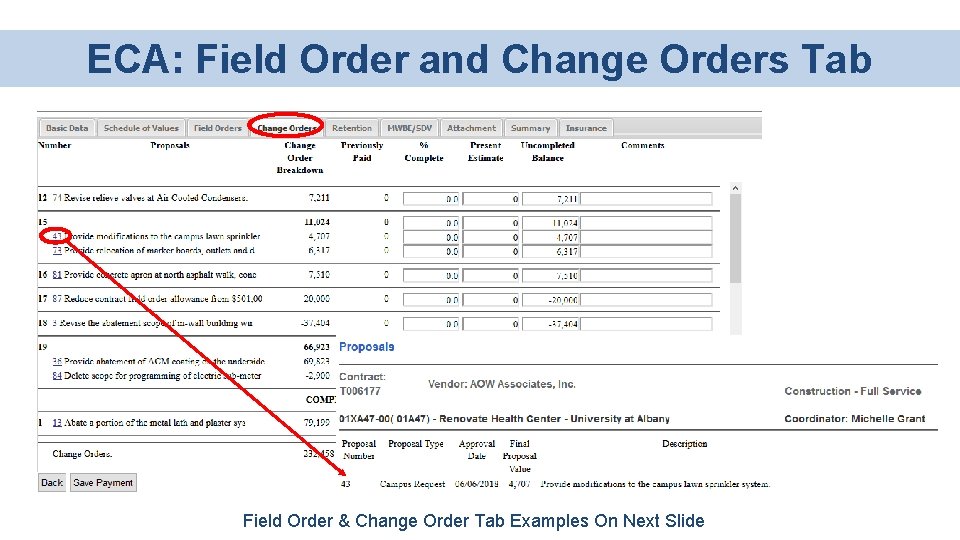
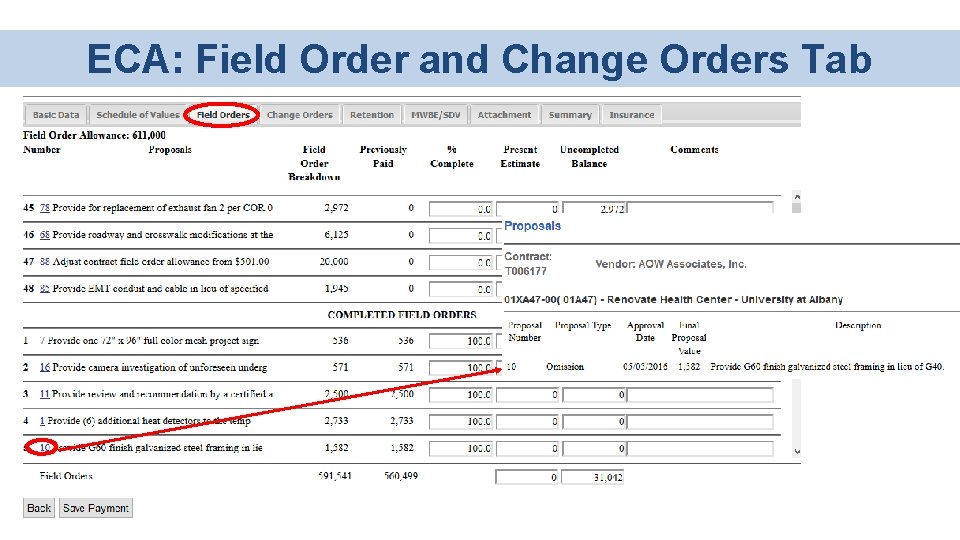
ECA: Field Order and Change Orders • Approved Field Orders and Change Orders are paid based on the percent of work complete. • The fee may not be exactly 5% of the total change order or field order as only a portion of the work may be approved for reimbursement to the consultant. • Only the reimbursable portion of the fee will be shown on these tabs. • Fees on Change Orders are designated with a number starting with a “ 8”. • Fees on Field Orders are designated with a number starting with a “ 9”. • To see details of the Change/Field Order, you may click on the hyperlinked Change/Field Order Number. Field Order & Change Order Tab Examples On Next Two Slides
ECA: Field Order and Change Orders Tab Field Order & Change Order Tab Examples On Next Slide
ECA: Field Order and Change Orders Tab
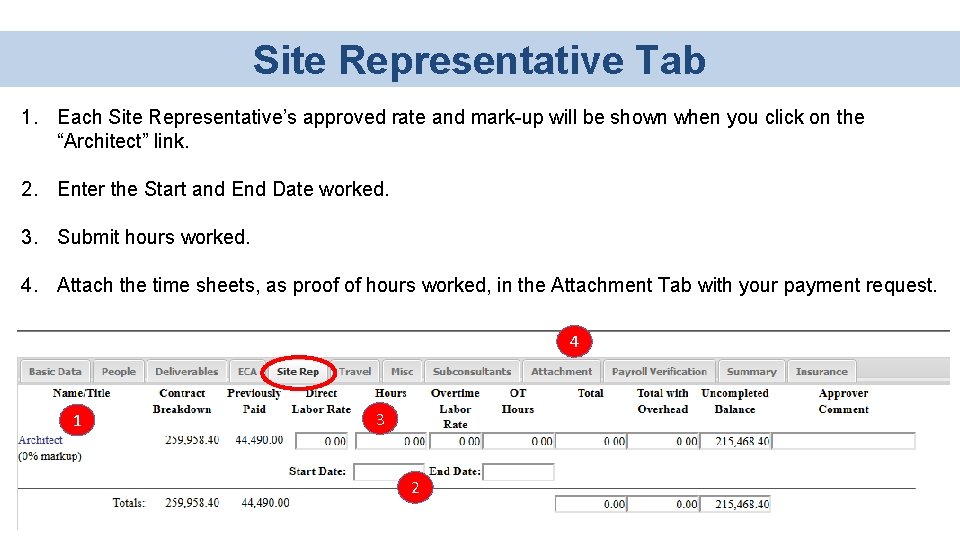
Site Representative Tab 1. Each Site Representative’s approved rate and mark-up will be shown when you click on the “Architect” link. 2. Enter the Start and End Date worked. 3. Submit hours worked. 4. Attach the time sheets, as proof of hours worked, in the Attachment Tab with your payment request. 4 1 3 2
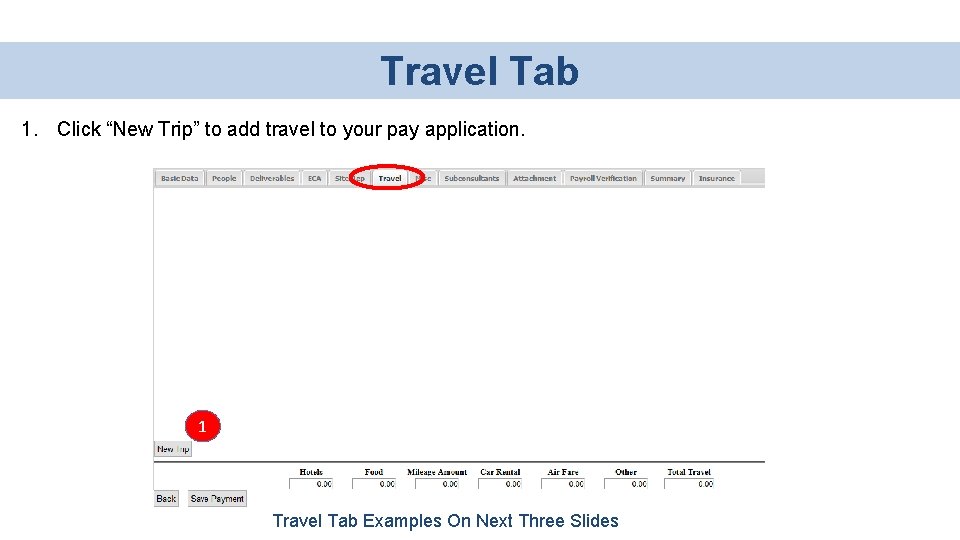
Travel Tab 1. Click “New Trip” to add travel to your pay application. 1 Travel Tab Examples On Next Three Slides
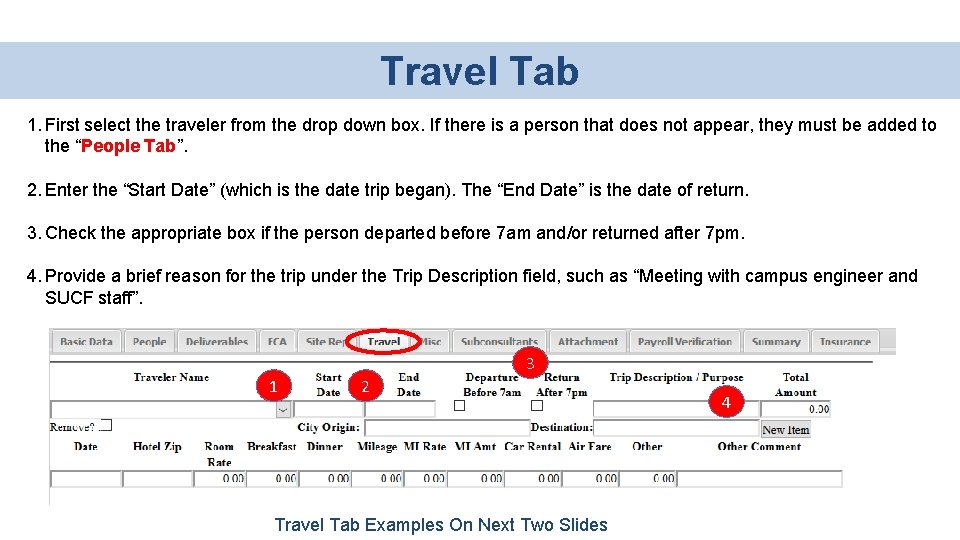
Travel Tab 1. First select the traveler from the drop down box. If there is a person that does not appear, they must be added to the “People Tab”. 2. Enter the “Start Date” (which is the date trip began). The “End Date” is the date of return. 3. Check the appropriate box if the person departed before 7 am and/or returned after 7 pm. 4. Provide a brief reason for the trip under the Trip Description field, such as “Meeting with campus engineer and SUCF staff”. 3 1 2 Travel Tab Examples On Next Two Slides 4
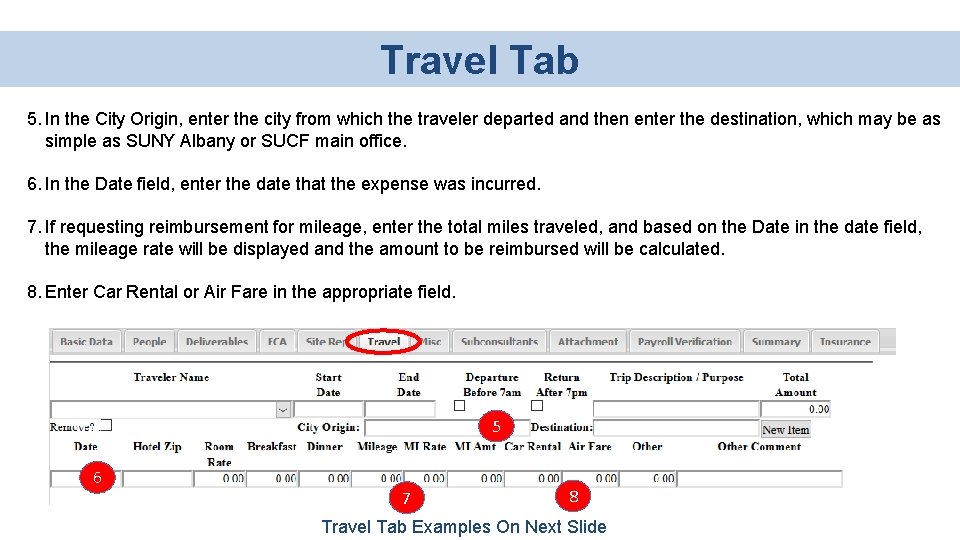
Travel Tab 5. In the City Origin, enter the city from which the traveler departed and then enter the destination, which may be as simple as SUNY Albany or SUCF main office. 6. In the Date field, enter the date that the expense was incurred. 7. If requesting reimbursement for mileage, enter the total miles traveled, and based on the Date in the date field, the mileage rate will be displayed and the amount to be reimbursed will be calculated. 8. Enter Car Rental or Air Fare in the appropriate field. 5 6 7 8 Travel Tab Examples On Next Slide
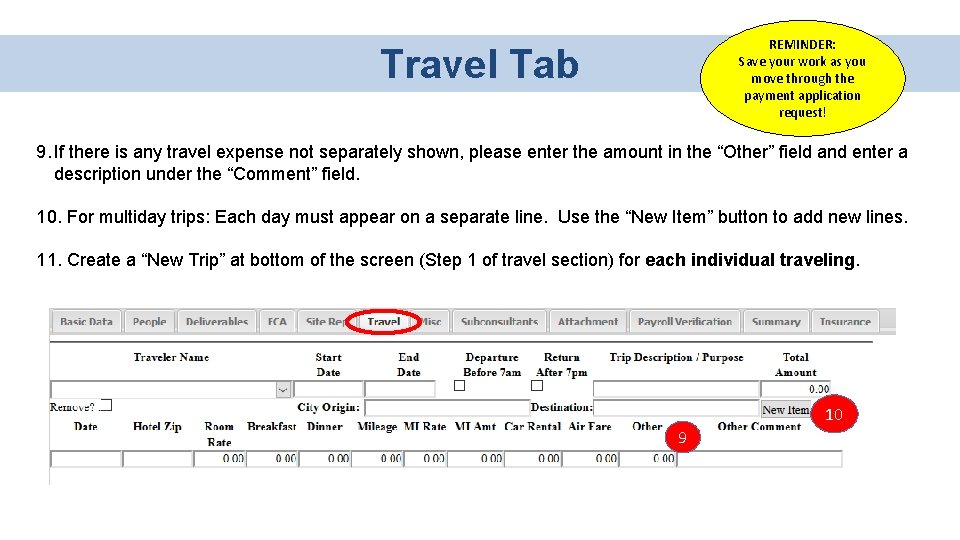
REMINDER: Save your work as you move through the payment application request! Travel Tab 9. If there is any travel expense not separately shown, please enter the amount in the “Other” field and enter a description under the “Comment” field. 10. For multiday trips: Each day must appear on a separate line. Use the “New Item” button to add new lines. 11. Create a “New Trip” at bottom of the screen (Step 1 of travel section) for each individual traveling. 10 9
Miscellaneous Tab • The Miscellaneous Tab is used to enter all other reimbursable expenses per the contract, other than travel and lodging. A few examples are listed below: • Printing and Reproduction Costs (only during bid period unless pre-approved in writing) • Equipment Rental • Field Office Expenses under a Construction Manager Contract • Additional testing when authorized in the contract under Reimbursable Expenses. Miscellaneous Tab Example On Next Slide
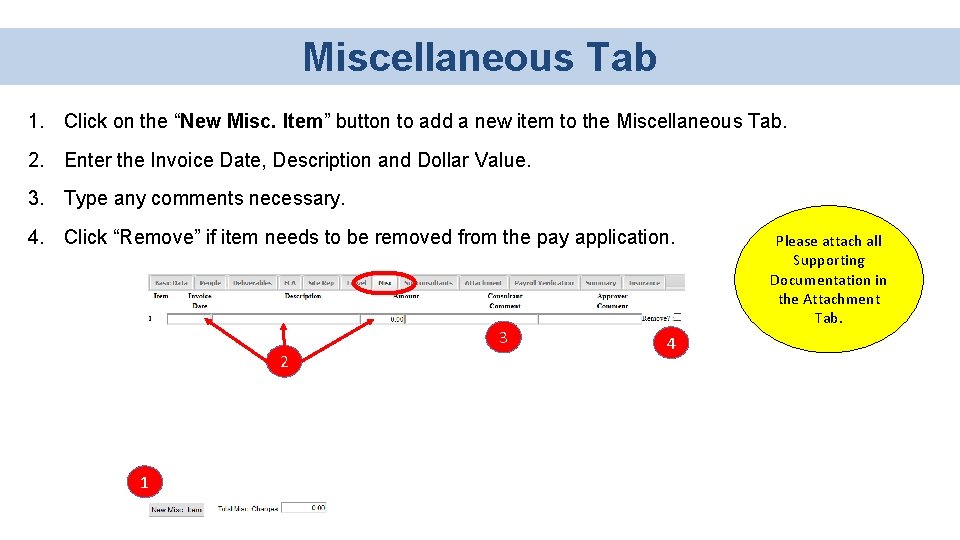
Miscellaneous Tab 1. Click on the “New Misc. Item” button to add a new item to the Miscellaneous Tab. 2. Enter the Invoice Date, Description and Dollar Value. 3. Type any comments necessary. 4. Click “Remove” if item needs to be removed from the pay application. 3 2 1 4 Please attach all Supporting Documentation in the Attachment Tab.
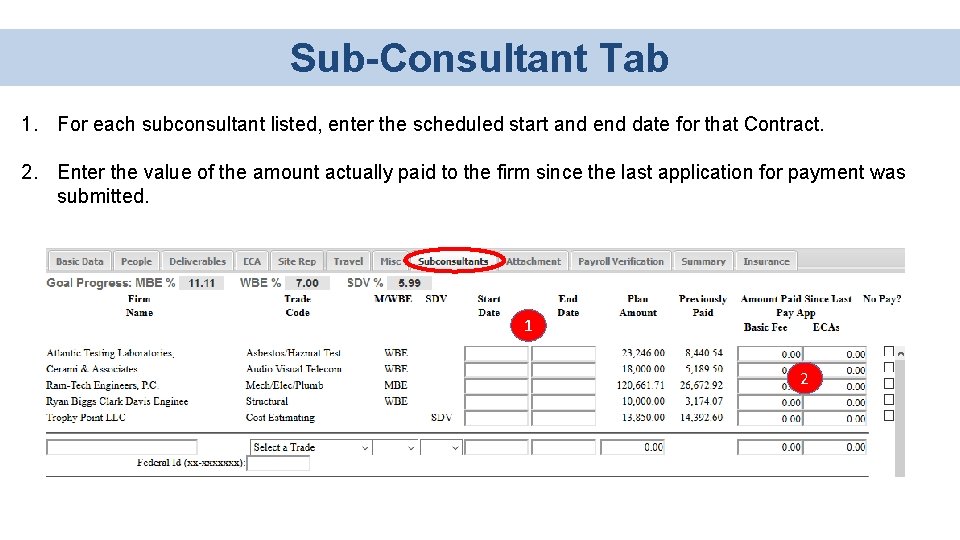
Sub-Consultant Tab • The information on this tab will be used to support and document your MWBE contract compliance. • All MWBE Consultants in the approved MWBE Utilization Plan will appear here, along with approved plan values. • All payments to subconsultants must be reported in CMR. • If any changes have been made to the subconsultants shown in the Subconsultant/MWBE Staff List, you must notify the Fund’s Opportunities Department for approval. • Changes of subconsultants must be approved by the Fund’s Opportunities Department to ensure MWBE participation is appropriately maintained. SUCF. Opportunity. Admin@suny. edu or 518 -320 -1650 Sub-Consultant Tab Example On Next Slide
Sub-Consultant Tab 1. For each subconsultant listed, enter the scheduled start and end date for that Contract. 2. Enter the value of the amount actually paid to the firm since the last application for payment was submitted. 1 2
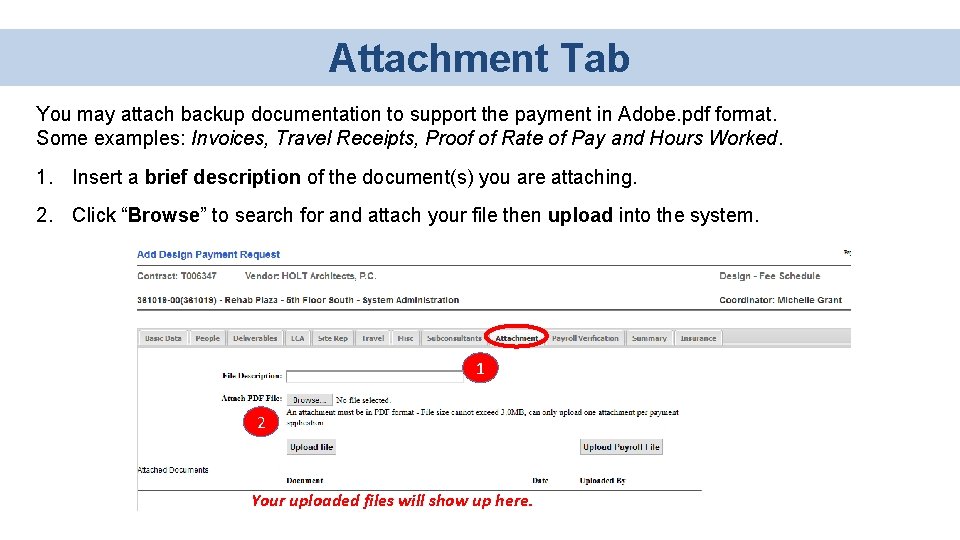
Attachment Tab You may attach backup documentation to support the payment in Adobe. pdf format. Some examples: Invoices, Travel Receipts, Proof of Rate of Pay and Hours Worked. 1. Insert a brief description of the document(s) you are attaching. 2. Click “Browse” to search for and attach your file then upload into the system. 1 2 Your uploaded files will show up here.
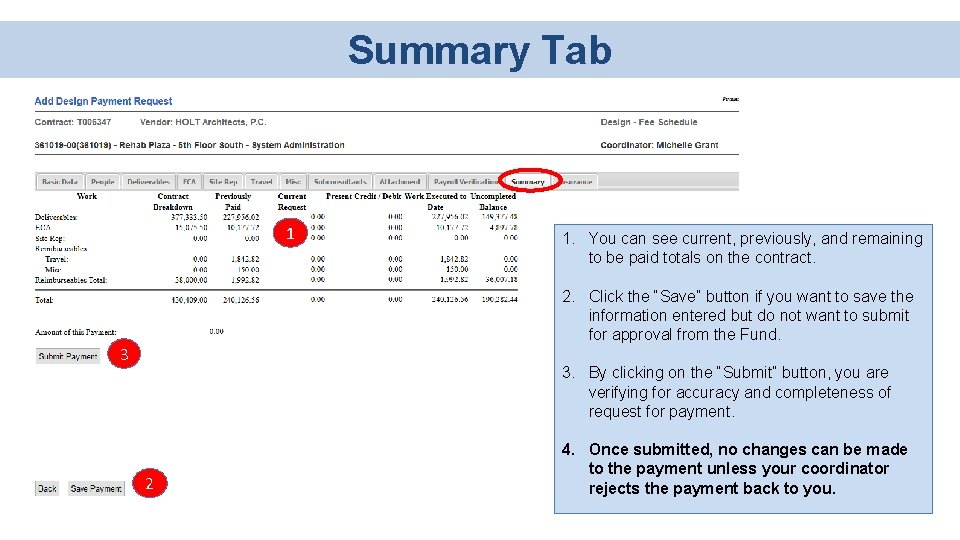
Summary Tab 1 1. You can see current, previously, and remaining to be paid totals on the contract. 2. Click the “Save” button if you want to save the information entered but do not want to submit for approval from the Fund. 3 3. By clicking on the “Submit” button, you are verifying for accuracy and completeness of request for payment. 2 4. Once submitted, no changes can be made to the payment unless your coordinator rejects the payment back to you.
Certification Form • Once you have submitted your payment electronically to the Fund for approval, you can print the Certification Form. • If this is a final payment and the final payment box is checked, an additional section will appear on the Certification Form stating that there will be no further billing on this Contract. • Two (2) signed original Certification Forms must be mailed to: State University Construction Fund Office of Construction & Design Management H. Carl Mc. Call SUNY Building 353 Broadway Albany, New York 12246
Important Items to Remember… ü To verify the payment request has been submitted, you can go to the Basic Data Tab, where the submitted date and amount will be displayed. ü It is important to attach all documentation and backup supporting your request for payment. ü After the payment request has been successfully submitted to the Fund, the payment request will be reviewed. ü The Fund may make adjustments to the payment without prior notification. ü To expedite the Fund’s approval process, it is important that the signed Certification Form is received and approved by the Fund as soon as possible. BUILDING SUNY 33
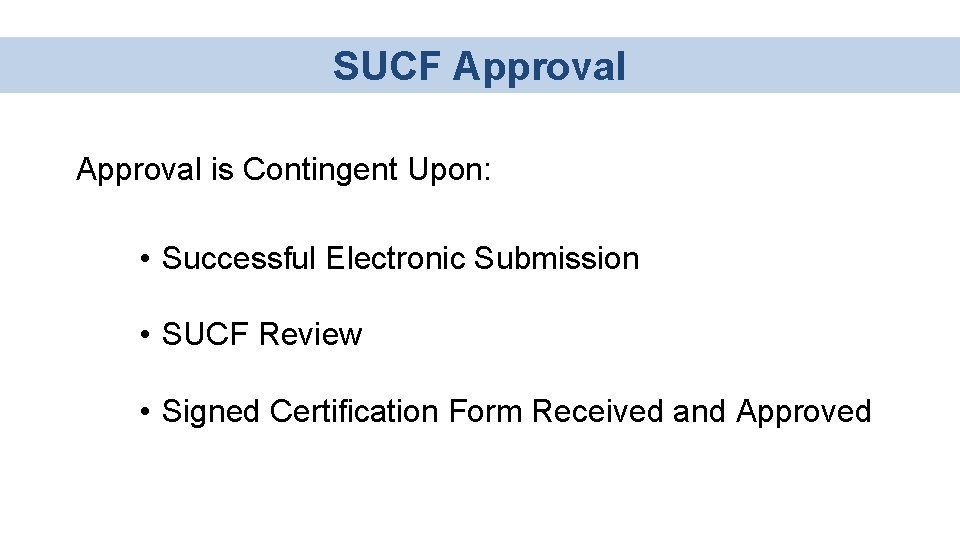
SUCF Approval is Contingent Upon: • Successful Electronic Submission • SUCF Review • Signed Certification Form Received and Approved
Office of State Comptroller (OSC), Review and Payment Status • Once your Payment Application is approved, OSC will perform a final review before the payment is made. • The CMR Basic Data Tab will be updated with check information once the payment is made. • You may submit your next payment in CMR once your previous payment is approved by the Fund and released to OSC.
Payment Process Conclusion 1 3 2 Enter Payment Information Electronic Submission Print and Sign Certification Form 4 5 SUCF Approval OSC Approval and Payment This concludes our overview of CMR and submitting a payment to the Fund. Thank you for your time! Any questions, you can email the Fund at Capital. Payment. System@suny. edu. 36 BUILDING SUNY