
Contract Compliance Reporting Run a Report Prepackaged reports
- Slides: 5
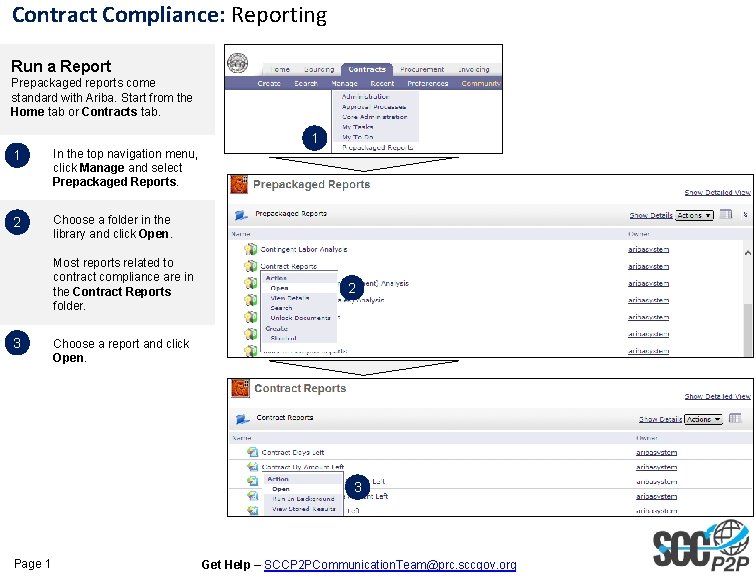
Contract Compliance: Reporting Run a Report Prepackaged reports come standard with Ariba. Start from the Home tab or Contracts tab. 1 1 In the top navigation menu, click Manage and select Prepackaged Reports. 2 Choose a folder in the library and click Open. Most reports related to contract compliance are in the Contract Reports folder. 3 2 Choose a report and click Open. 3 Page 1 Get Help – SCCP 2 PCommunication. Team@prc. sccgov. org
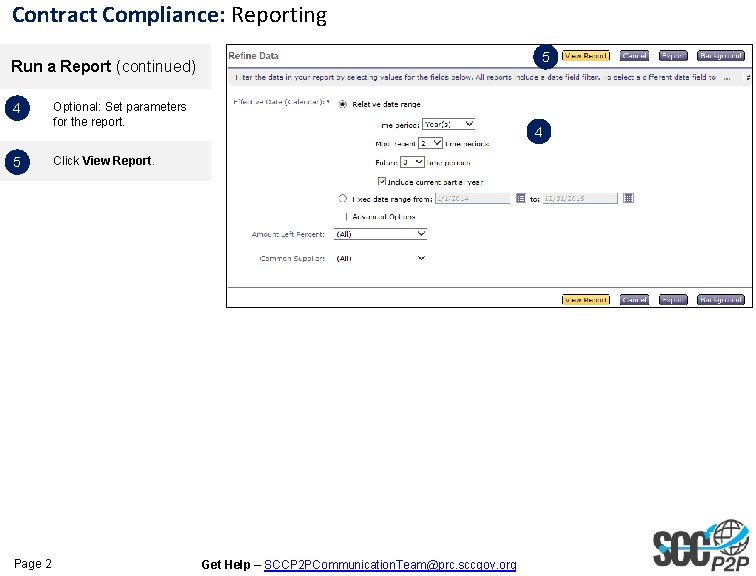
Contract Compliance: Reporting 5 Run a Report (continued) 4 5 Page 2 Optional: Set parameters for the report. 4 Click View Report. Get Help – SCCP 2 PCommunication. Team@prc. sccgov. org
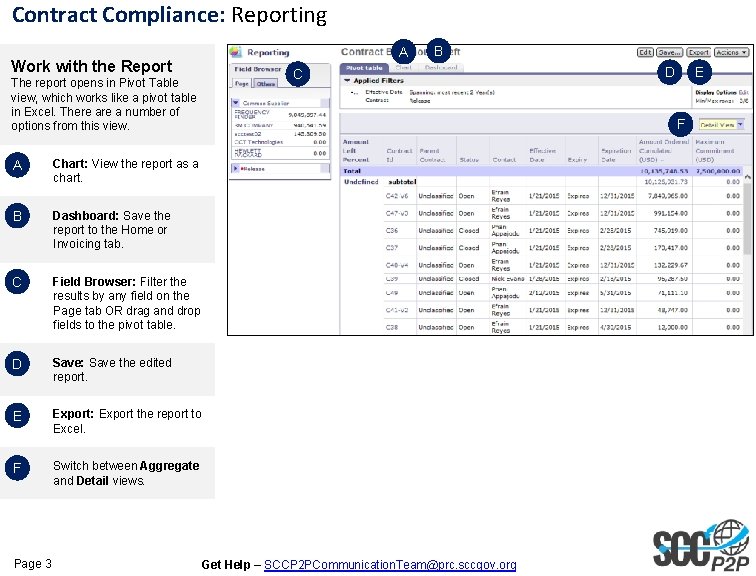
Contract Compliance: Reporting Work with the Report The report opens in Pivot Table view, which works like a pivot table in Excel. There a number of options from this view. A Chart: View the report as a chart. B Dashboard: Save the report to the Home or Invoicing tab. C Field Browser: Filter the results by any field on the Page tab OR drag and drop fields to the pivot table. D Save: Save the edited report. E Export: Export the report to Excel. F Switch between Aggregate and Detail views. Page 3 A B C D E F Get Help – SCCP 2 PCommunication. Team@prc. sccgov. org
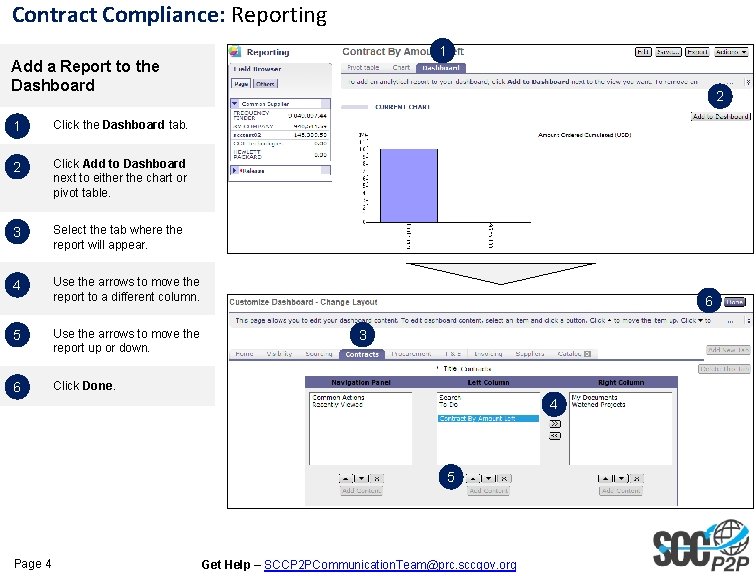
Contract Compliance: Reporting 1 Add a Report to the Dashboard 1 Click the Dashboard tab. 2 Click Add to Dashboard next to either the chart or pivot table. 3 Select the tab where the report will appear. 4 Use the arrows to move the report to a different column. 5 Use the arrows to move the report up or down. 6 Click Done. 2 6 3 4 5 Page 4 Get Help – SCCP 2 PCommunication. Team@prc. sccgov. org
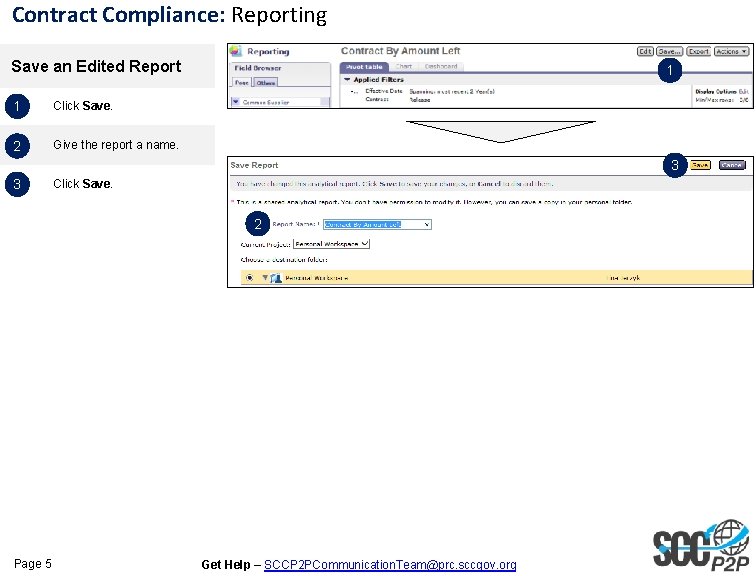
Contract Compliance: Reporting Save an Edited Report 1 Click Save. 2 Give the report a name. 1 3 3 Click Save. 2 Page 5 Get Help – SCCP 2 PCommunication. Team@prc. sccgov. org