
Contract Compliance Create and Publish a Contract Workspace
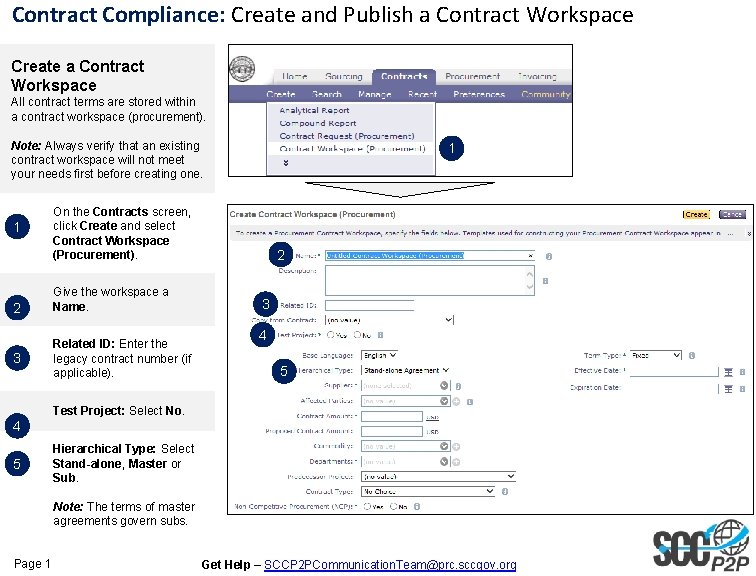
Contract Compliance: Create and Publish a Contract Workspace Create a Contract Workspace All contract terms are stored within a contract workspace (procurement). Note: Always verify that an existing contract workspace will not meet your needs first before creating one. 1 2 3 1 On the Contracts screen, click Create and select Contract Workspace (Procurement). Give the workspace a Name. Related ID: Enter the legacy contract number (if applicable). 2 3 4 5 Test Project: Select No. 4 5 Hierarchical Type: Select Stand-alone, Master or Sub. Note: The terms of master agreements govern subs. Page 1 Get Help – SCCP 2 PCommunication. Team@prc. sccgov. org
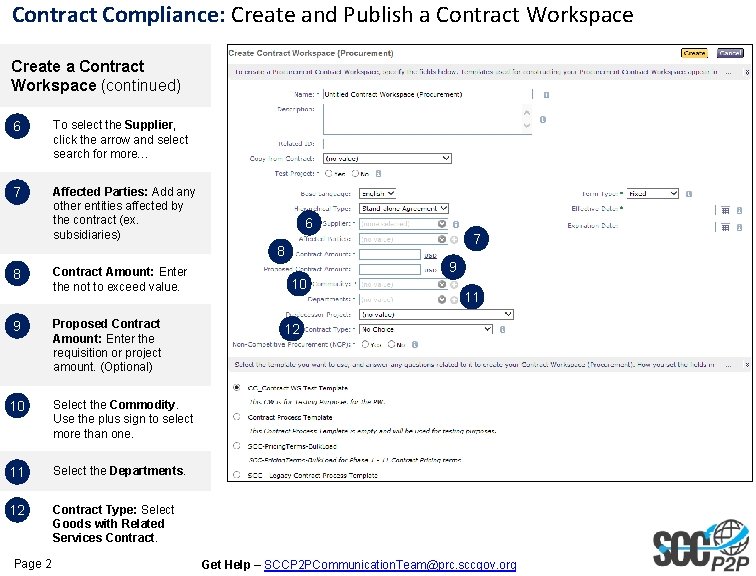
Contract Compliance: Create and Publish a Contract Workspace Create a Contract Workspace (continued) 6 To select the Supplier, click the arrow and select search for more… 7 Affected Parties: Add any other entities affected by the contract (ex. subsidiaries) 6 7 8 8 9 Contract Amount: Enter the not to exceed value. Proposed Contract Amount: Enter the requisition or project amount. (Optional) 10 Select the Commodity. Use the plus sign to select more than one. 11 Select the Departments. 12 Contract Type: Select Goods with Related Services Contract. Page 2 9 10 11 12 Get Help – SCCP 2 PCommunication. Team@prc. sccgov. org
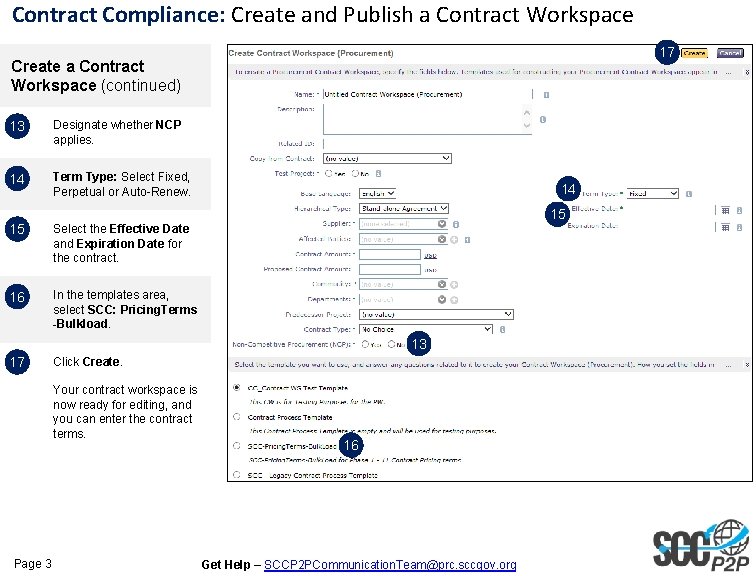
Contract Compliance: Create and Publish a Contract Workspace 17 Create a Contract Workspace (continued) 13 Designate whether NCP applies. 14 Term Type: Select Fixed, Perpetual or Auto-Renew. 15 Select the Effective Date and Expiration Date for the contract. 16 In the templates area, select SCC: Pricing. Terms -Bulkload. 14 15 13 17 Click Create. Your contract workspace is now ready for editing, and you can enter the contract terms. Page 3 16 Get Help – SCCP 2 PCommunication. Team@prc. sccgov. org
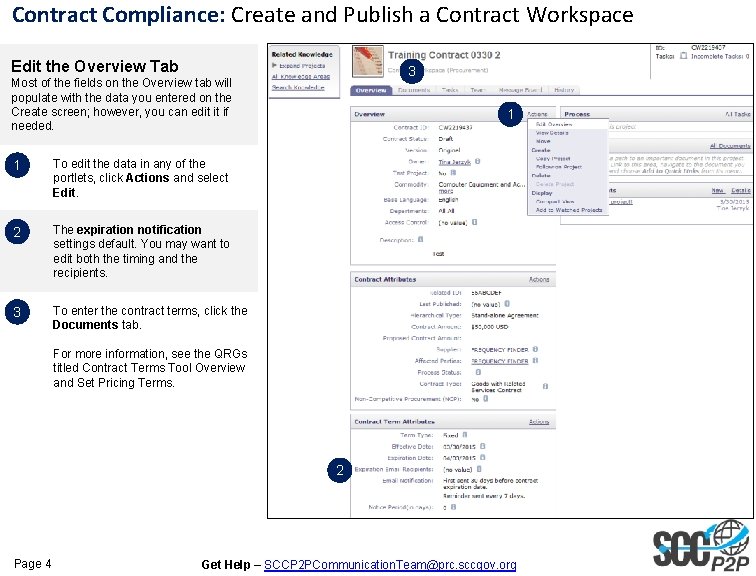
Contract Compliance: Create and Publish a Contract Workspace Edit the Overview Tab 3 Most of the fields on the Overview tab will populate with the data you entered on the Create screen; however, you can edit it if needed. 1 To edit the data in any of the portlets, click Actions and select Edit. 2 The expiration notification settings default. You may want to edit both the timing and the recipients. 3 To enter the contract terms, click the Documents tab. 1 For more information, see the QRGs titled Contract Terms Tool Overview and Set Pricing Terms. 2 Page 4 Get Help – SCCP 2 PCommunication. Team@prc. sccgov. org

Contract Compliance: Create and Publish a Contract Workspace 1 You must publish the contract workspace to activate the contract terms and tie them to the P 2 P catalog. 1 Click the Overview tab. 2 In the Contract Attributes portlet, click Actions and select Publish. 3 In the contract terms tool, click Submit. 2 3 Page 5 Get Help – SCCP 2 PCommunication. Team@prc. sccgov. org
- Slides: 5