
Content Reserve Marketplace Tips and tricks for building

Content Reserve 'Marketplace' Tips and tricks for building your School Download Library collection using Over. Drive's Content Reserve 'Marketplace'. Contact: sdl@overdrive. com. V. 04012009 | © Over. Drive, Inc. 2009 | Page 1
Key Topics 1. Overview: What is School Download Library? What is 'Marketplace'? Collection Details. Content. Wire Newsletter. Help for Selecting Titles. Over. Drive Community Reserve. Workflow Options. Getting Started. 2. Demonstration. 3. Support Resources. V. 04012009 | © Over. Drive, Inc. 2009 | Page 2
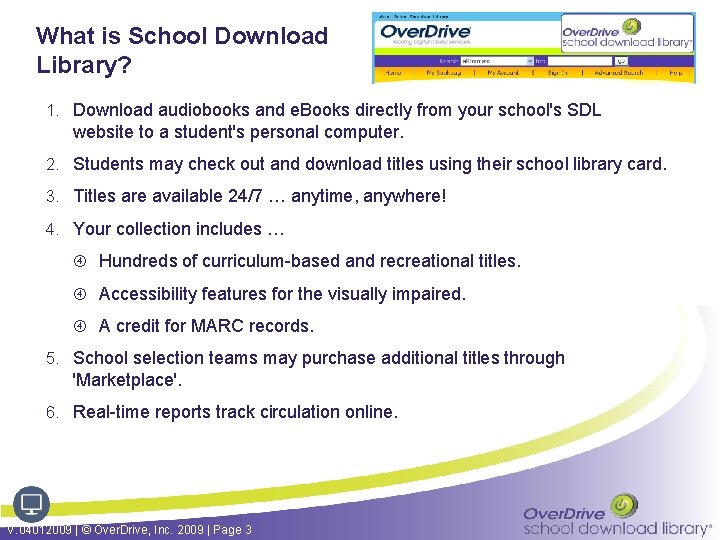
What is School Download Library? 1. Download audiobooks and e. Books directly from your school's SDL website to a student's personal computer. 2. Students may check out and download titles using their school library card. 3. Titles are available 24/7 … anytime, anywhere! 4. Your collection includes … Hundreds of curriculum-based and recreational titles. Accessibility features for the visually impaired. A credit for MARC records. 5. School selection teams may purchase additional titles through 'Marketplace'. 6. Real-time reports track circulation online. V. 04012009 | © Over. Drive, Inc. 2009 | Page 3
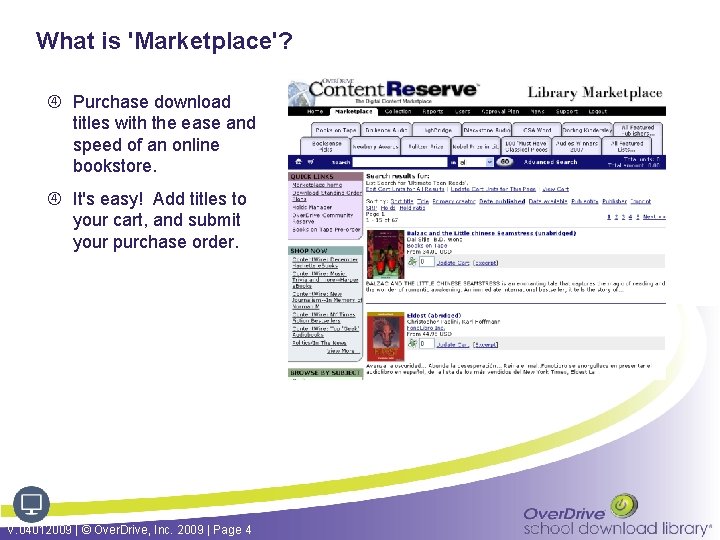
What is 'Marketplace'? Purchase download titles with the ease and speed of an online bookstore. It's easy! Add titles to your cart, and submit your purchase order. V. 04012009 | © Over. Drive, Inc. 2009 | Page 4
Core Collection Includes. . . 1. 740 'Always Available' titles. Unlimited, simultaneous downloads. Includes multiple formats for some titles. Holds are never necessary. 2. 101 'Popular' titles. One copy - one user license. Number of copies based on size of school / consortium. Includes multiple formats for some titles. Students may request a checked out title by placing a hold. 3. 26 'Always Available' MP 3 titles. V. 04012009 | © Over. Drive, Inc. 2009 | Page 5
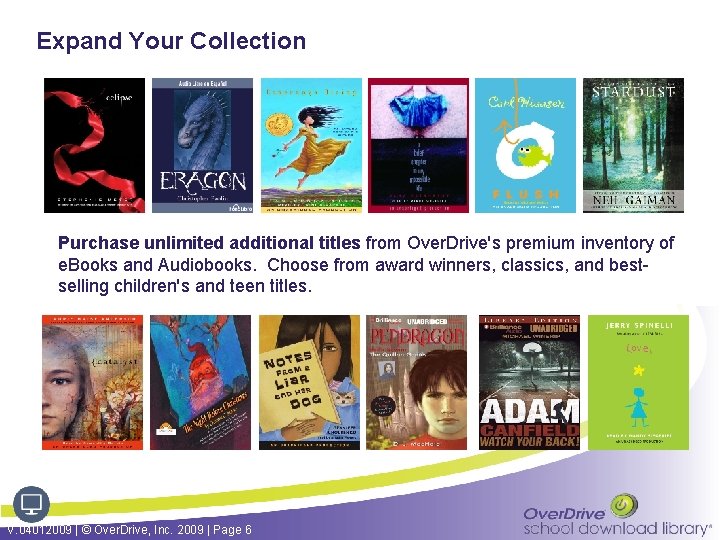
Expand Your Collection Purchase unlimited additional titles from Over. Drive's premium inventory of e. Books and Audiobooks. Choose from award winners, classics, and bestselling children's and teen titles. V. 04012009 | © Over. Drive, Inc. 2009 | Page 6
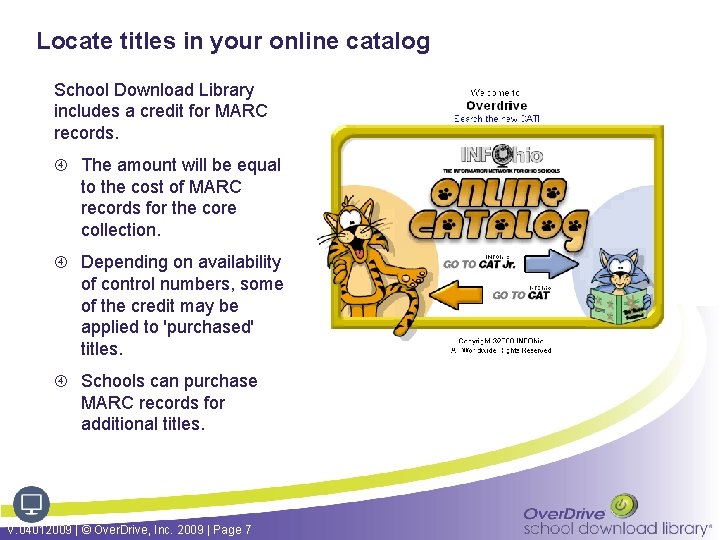
Locate titles in your online catalog School Download Library includes a credit for MARC records. The amount will be equal to the cost of MARC records for the core collection. Depending on availability of control numbers, some of the credit may be applied to 'purchased' titles. Schools can purchase MARC records for additional titles. V. 04012009 | © Over. Drive, Inc. 2009 | Page 7
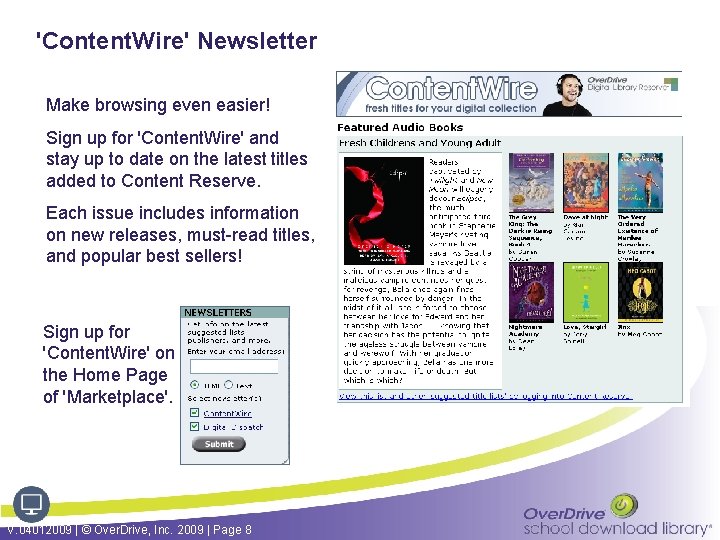
'Content. Wire' Newsletter Make browsing even easier! Sign up for 'Content. Wire' and stay up to date on the latest titles added to Content Reserve. Each issue includes information on new releases, must-read titles, and popular best sellers! Sign up for 'Content. Wire' on the Home Page of 'Marketplace'. V. 04012009 | © Over. Drive, Inc. 2009 | Page 8
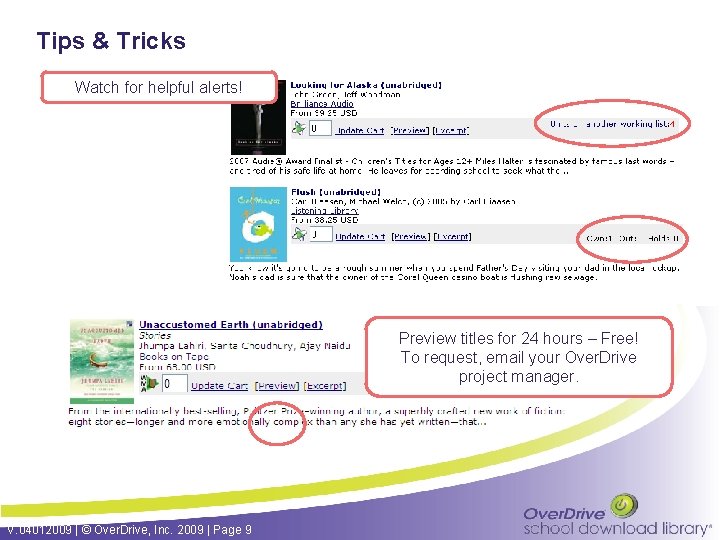
Tips & Tricks Watch for helpful alerts! Preview titles for 24 hours – Free! To request, email your Over. Drive project manager. V. 04012009 | © Over. Drive, Inc. 2009 | Page 9
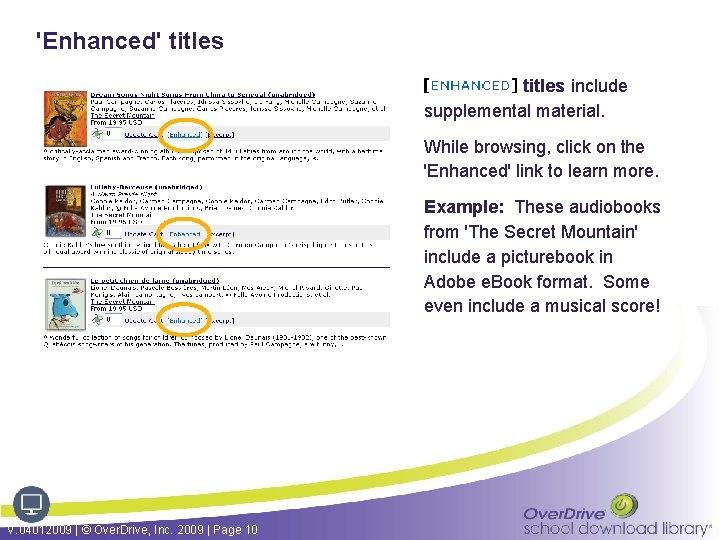
'Enhanced' titles include supplemental material. While browsing, click on the 'Enhanced' link to learn more. Example: These audiobooks from 'The Secret Mountain' include a picturebook in Adobe e. Book format. Some even include a musical score! V. 04012009 | © Over. Drive, Inc. 2009 | Page 10
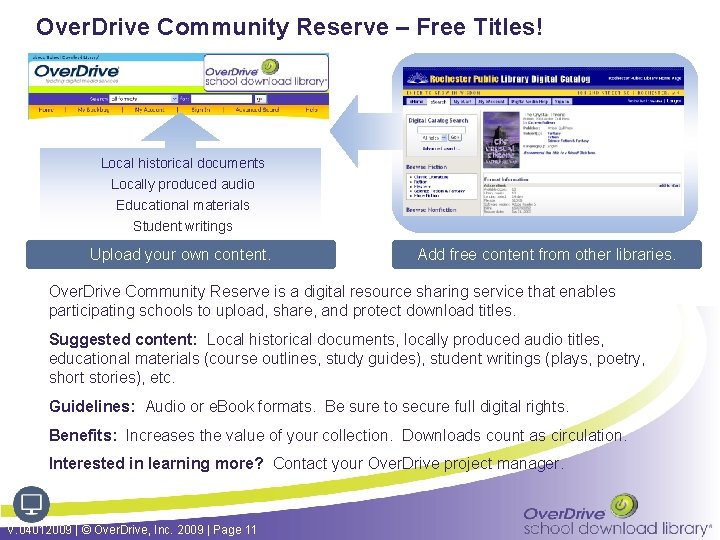
Over. Drive Community Reserve – Free Titles! Local historical documents Locally produced audio Educational materials Student writings Upload your own content. Add free content from other libraries. Over. Drive Community Reserve is a digital resource sharing service that enables participating schools to upload, share, and protect download titles. Suggested content: Local historical documents, locally produced audio titles, educational materials (course outlines, study guides), student writings (plays, poetry, short stories), etc. Guidelines: Audio or e. Book formats. Be sure to secure full digital rights. Benefits: Increases the value of your collection. Downloads count as circulation. Interested in learning more? Contact your Over. Drive project manager. V. 04012009 | © Over. Drive, Inc. 2009 | Page 11
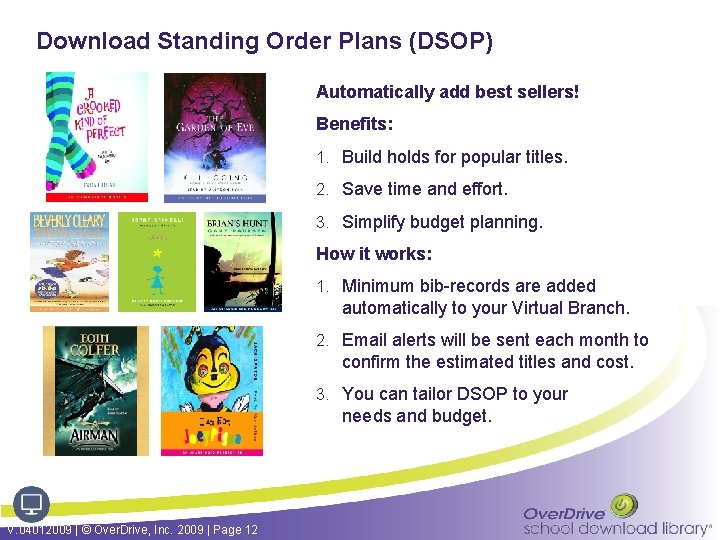
Download Standing Order Plans (DSOP) Automatically add best sellers! Benefits: 1. Build holds for popular titles. 2. Save time and effort. 3. Simplify budget planning. How it works: 1. Minimum bib-records are added automatically to your Virtual Branch. 2. Email alerts will be sent each month to confirm the estimated titles and cost. 3. You can tailor DSOP to your needs and budget. V. 04012009 | © Over. Drive, Inc. 2009 | Page 12
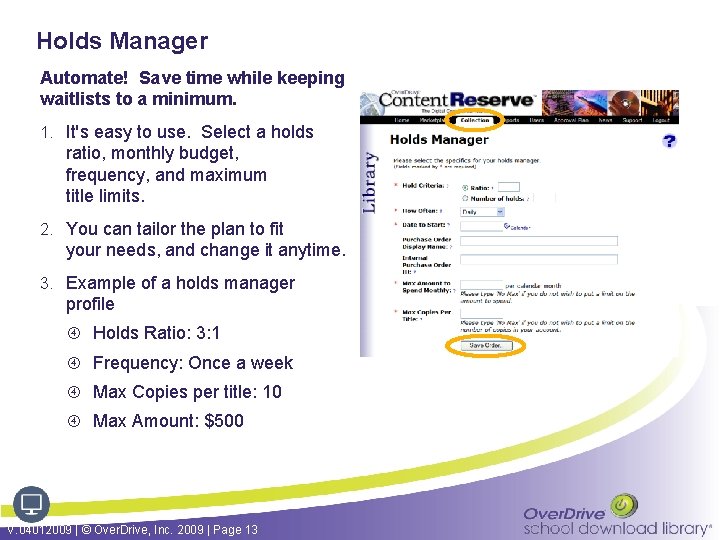
Holds Manager Automate! Save time while keeping waitlists to a minimum. 1. It's easy to use. Select a holds ratio, monthly budget, frequency, and maximum title limits. 2. You can tailor the plan to fit your needs, and change it anytime. 3. Example of a holds manager profile Holds Ratio: 3: 1 Frequency: Once a week Max Copies per title: 10 Max Amount: $500 V. 04012009 | © Over. Drive, Inc. 2009 | Page 13
When you're ready to get started … 1. Login to Content Reserve. 2. Browse or search for titles. 3. Add titles to your cart. 4. Complete your purchase order. 5. Titles become available for download within 24 hours. Need a Login ID? If you are part of the selection team for School Download Library, contact your school's Content Reserve administrator. V. 04012009 | © Over. Drive, Inc. 2009 | Page 14
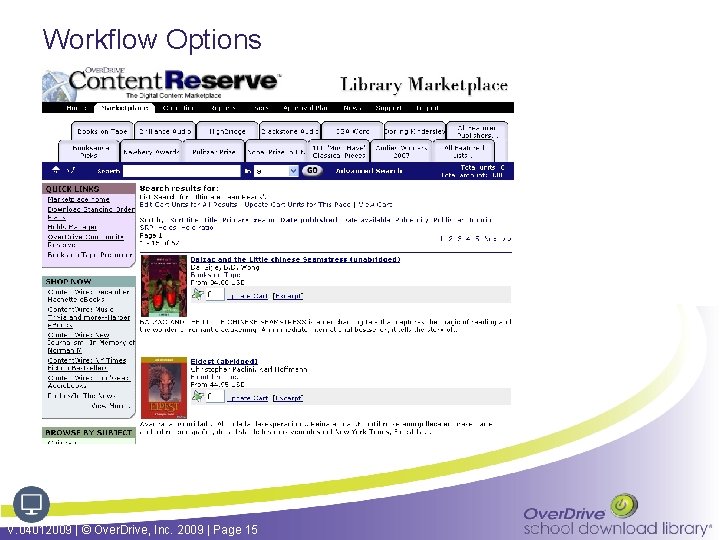
Workflow Options V. 04012009 | © Over. Drive, Inc. 2009 | Page 15
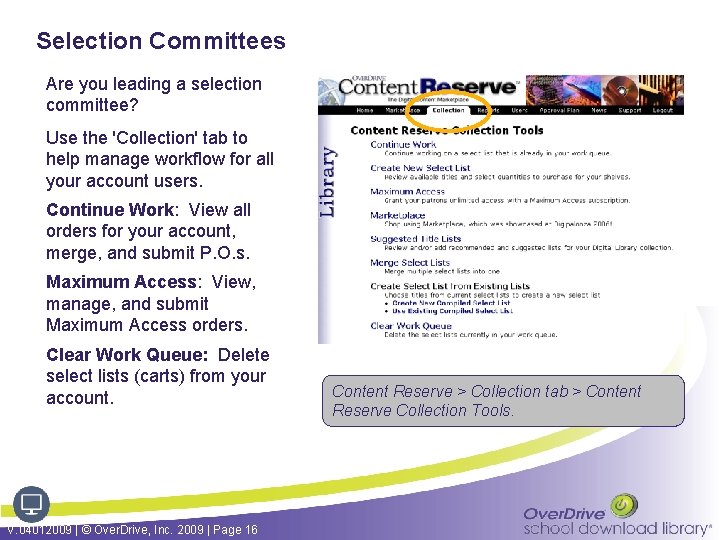
Selection Committees Are you leading a selection committee? Use the 'Collection' tab to help manage workflow for all your account users. Continue Work: View all orders for your account, merge, and submit P. O. s. Maximum Access: View, manage, and submit Maximum Access orders. Clear Work Queue: Delete select lists (carts) from your account. V. 04012009 | © Over. Drive, Inc. 2009 | Page 16 Content Reserve > Collection tab > Content Reserve Collection Tools.
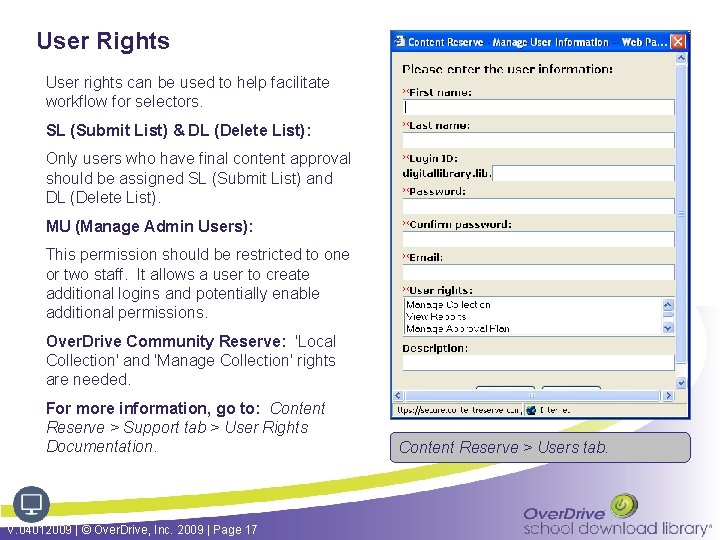
User Rights User rights can be used to help facilitate workflow for selectors. SL (Submit List) & DL (Delete List): Only users who have final content approval should be assigned SL (Submit List) and DL (Delete List). MU (Manage Admin Users): This permission should be restricted to one or two staff. It allows a user to create additional logins and potentially enable additional permissions. Over. Drive Community Reserve: 'Local Collection' and 'Manage Collection' rights are needed. For more information, go to: Content Reserve > Support tab > User Rights Documentation. V. 04012009 | © Over. Drive, Inc. 2009 | Page 17 Content Reserve > Users tab.
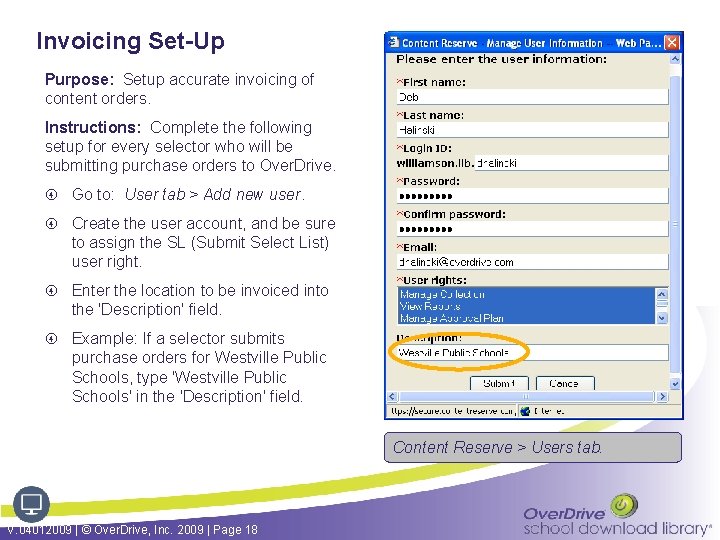
Invoicing Set-Up Purpose: Setup accurate invoicing of content orders. Instructions: Complete the following setup for every selector who will be submitting purchase orders to Over. Drive. Go to: User tab > Add new user. Create the user account, and be sure to assign the SL (Submit Select List) user right. Enter the location to be invoiced into the 'Description' field. Example: If a selector submits purchase orders for Westville Public Schools, type 'Westville Public Schools' in the 'Description' field. Content Reserve > Users tab. V. 04012009 | © Over. Drive, Inc. 2009 | Page 18
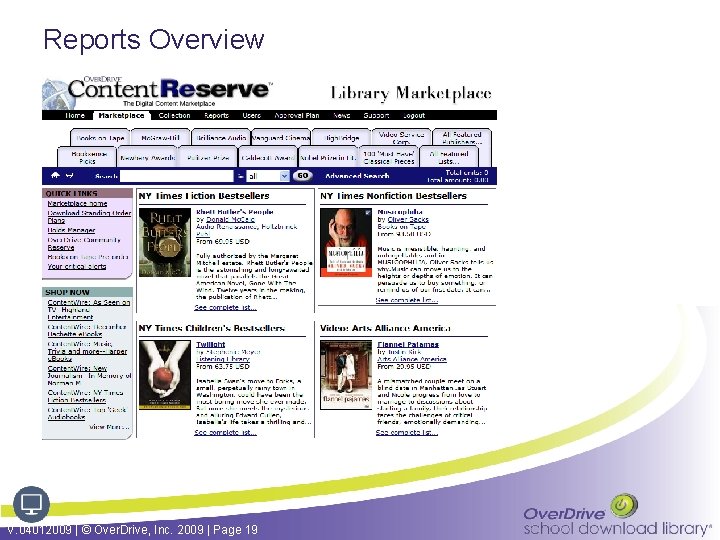
Reports Overview V. 04012009 | © Over. Drive, Inc. 2009 | Page 19
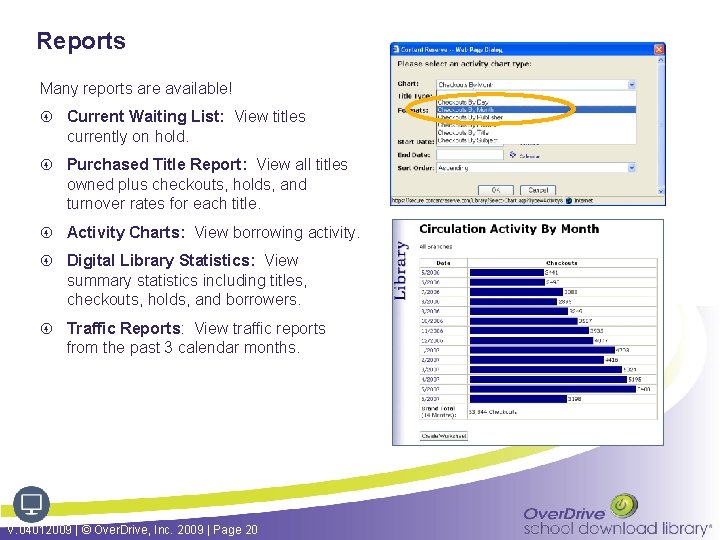
Reports Many reports are available! Current Waiting List: View titles currently on hold. Purchased Title Report: View all titles owned plus checkouts, holds, and turnover rates for each title. Activity Charts: View borrowing activity. Digital Library Statistics: View summary statistics including titles, checkouts, holds, and borrowers. Traffic Reports: View traffic reports from the past 3 calendar months. V. 04012009 | © Over. Drive, Inc. 2009 | Page 20
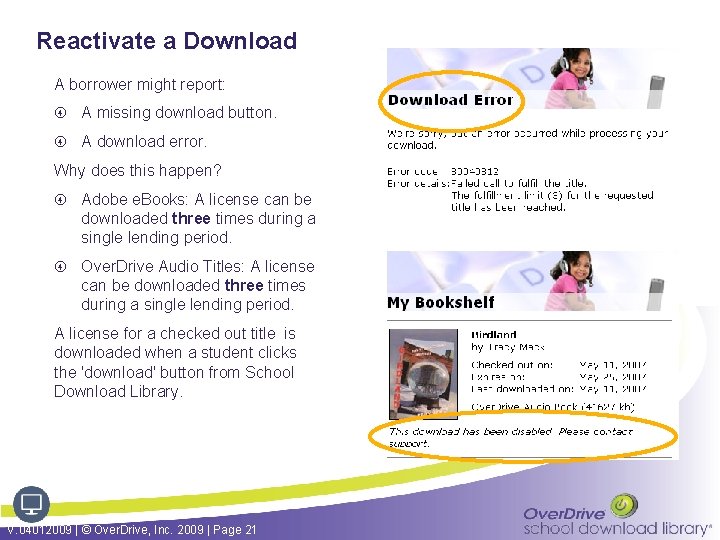
Reactivate a Download A borrower might report: A missing download button. A download error. Why does this happen? Adobe e. Books: A license can be downloaded three times during a single lending period. Over. Drive Audio Titles: A license can be downloaded three times during a single lending period. A license for a checked out title is downloaded when a student clicks the 'download' button from School Download Library. V. 04012009 | © Over. Drive, Inc. 2009 | Page 21
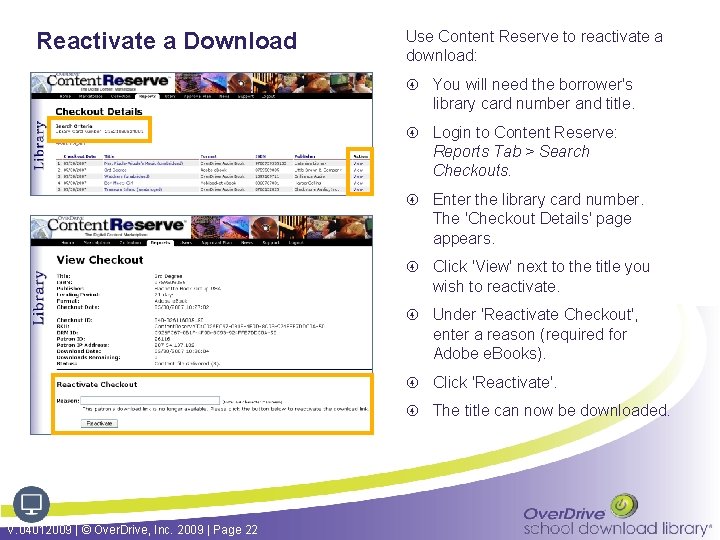
Reactivate a Download Use Content Reserve to reactivate a download: You will need the borrower's library card number and title. Login to Content Reserve: Reports Tab > Search Checkouts. Enter the library card number. The 'Checkout Details' page appears. Click 'View' next to the title you wish to reactivate. Under 'Reactivate Checkout', enter a reason (required for Adobe e. Books). Click 'Reactivate'. The title can now be downloaded. V. 04012009 | © Over. Drive, Inc. 2009 | Page 22
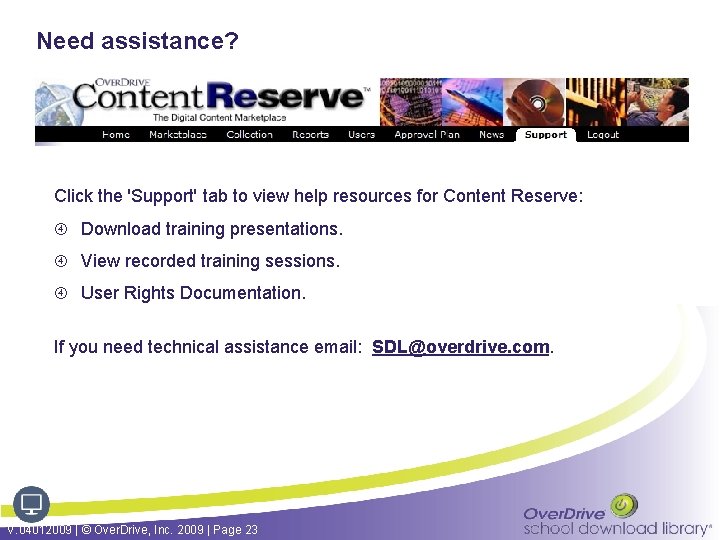
Need assistance? Click the 'Support' tab to view help resources for Content Reserve: Download training presentations. View recorded training sessions. User Rights Documentation. If you need technical assistance email: SDL@overdrive. com. V. 04012009 | © Over. Drive, Inc. 2009 | Page 23
Next Steps Watch for a follow-up email. You will be added to our 'Content. Wire' newsletter list. Sign-up for the 'Preview' Feature if you are interested. Email your Over. Drive project manager and include your Login ID and IP address / range. Check out Over. Drive's Training Resources. V. 04012009 | © Over. Drive, Inc. 2009 | Page 24
- Slides: 24