
CONTENT FLOW MADE EASY AGENDA OF THIS TRAINING


- Slides: 50
CONTENT FLOW MADE EASY
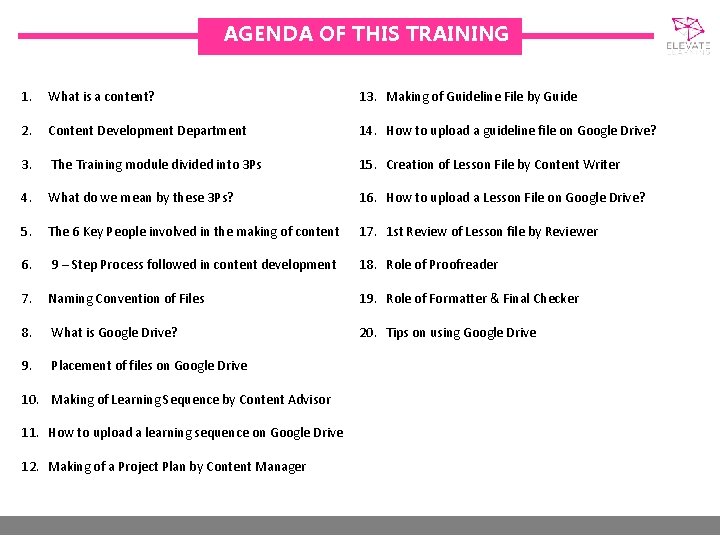
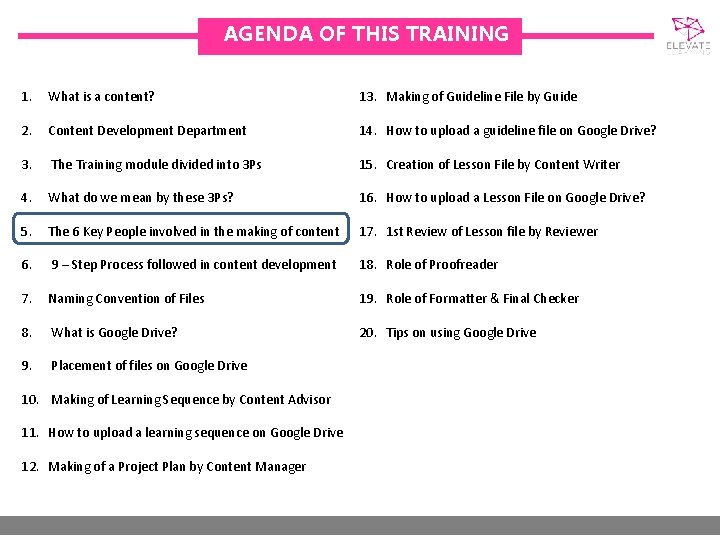
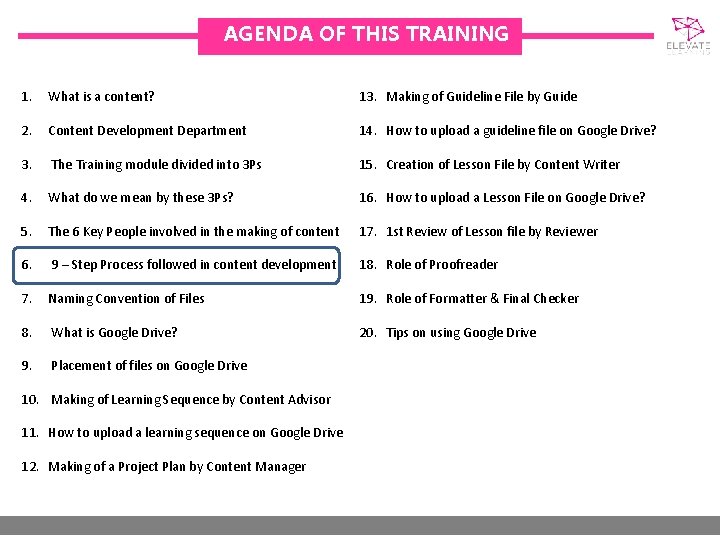
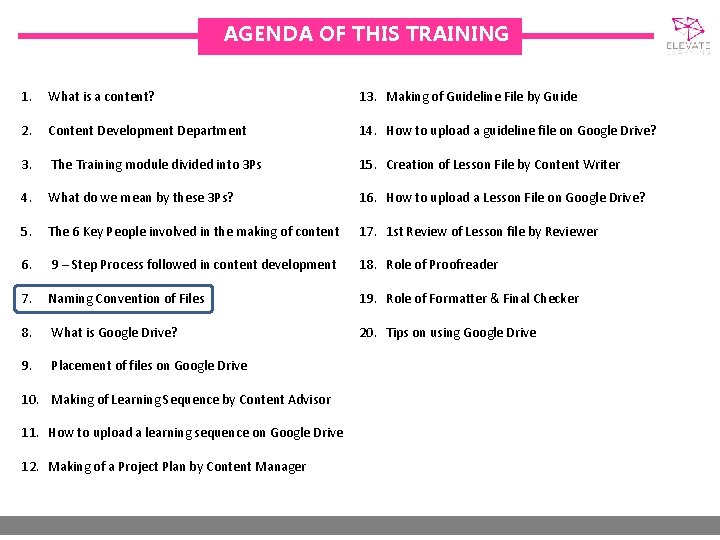
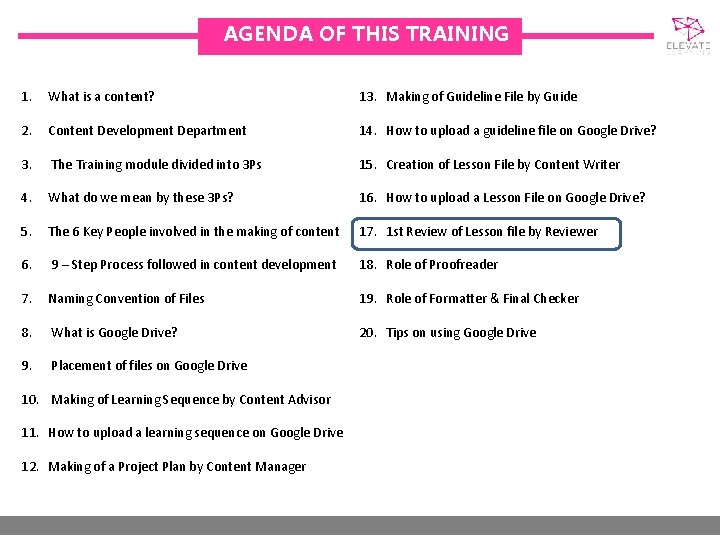
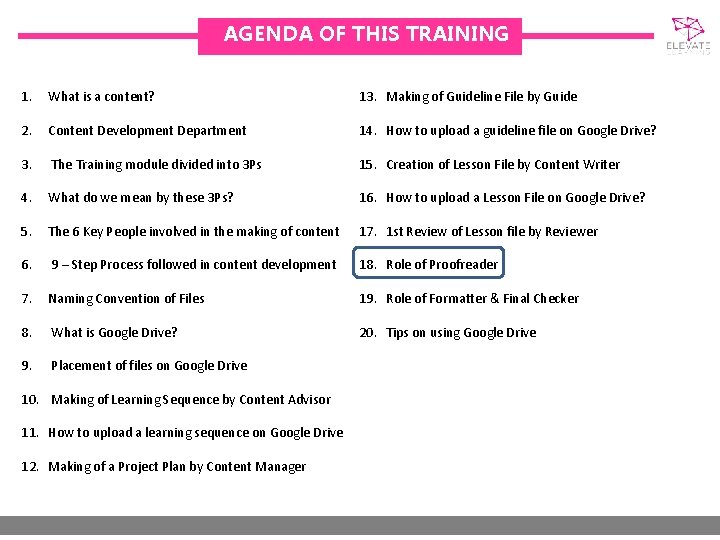
AGENDA OF THIS TRAINING 1. What is a content? 13. Making of Guideline File by Guide 2. Content Development Department 14. How to upload a guideline file on Google Drive? 3. The Training module divided into 3 Ps 15. Creation of Lesson File by Content Writer 4. What do we mean by these 3 Ps? 16. How to upload a Lesson File on Google Drive? 5. The 6 Key People involved in the making of content 17. 1 st Review of Lesson file by Reviewer 6. 9 – Step Process followed in content development 18. Role of Proofreader 7. Naming Convention of Files 19. Role of Formatter & Final Checker 8. What is Google Drive? 20. Tips on using Google Drive 9. Placement of files on Google Drive 10. Making of Learning Sequence by Content Advisor 11. How to upload a learning sequence on Google Drive 12. Making of a Project Plan by Content Manager
INTRODUCTION 1. What is Content? 2. Content Development Department
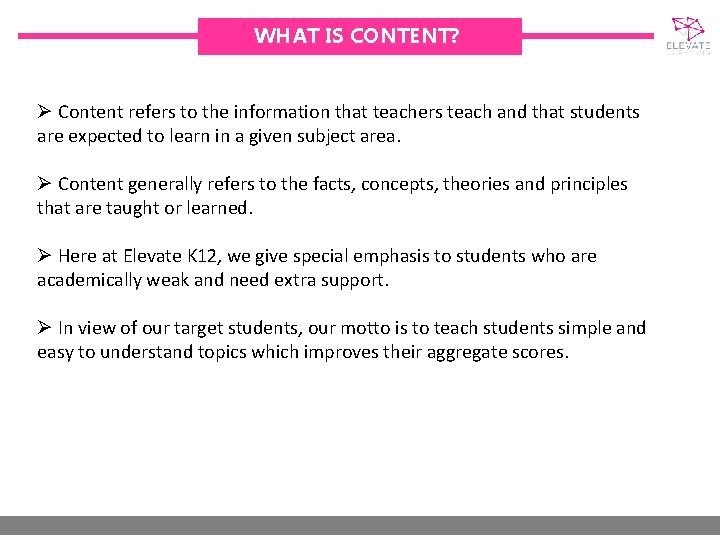
WHAT IS CONTENT? Ø Content refers to the information that teachers teach and that students are expected to learn in a given subject area. Ø Content generally refers to the facts, concepts, theories and principles that are taught or learned. Ø Here at Elevate K 12, we give special emphasis to students who are academically weak and need extra support. Ø In view of our target students, our motto is to teach students simple and easy to understand topics which improves their aggregate scores.
INTRODUCTION 1. What is Content? 2. Content Development Department
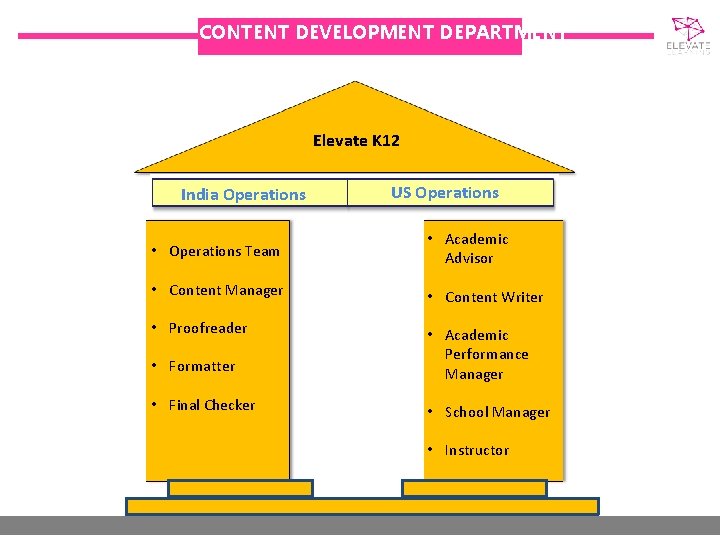
CONTENT DEVELOPMENT DEPARTMENT Elevate K 12 India Operations US Operations • Operations Team • Academic Advisor • Content Manager • Content Writer • Proofreader • Formatter • Academic Performance Manager • Final Checker • School Manager • Instructor
TRAINING MODULE 1. The Training module divided into 3 Ps 2. What do we mean by these 3 Ps?
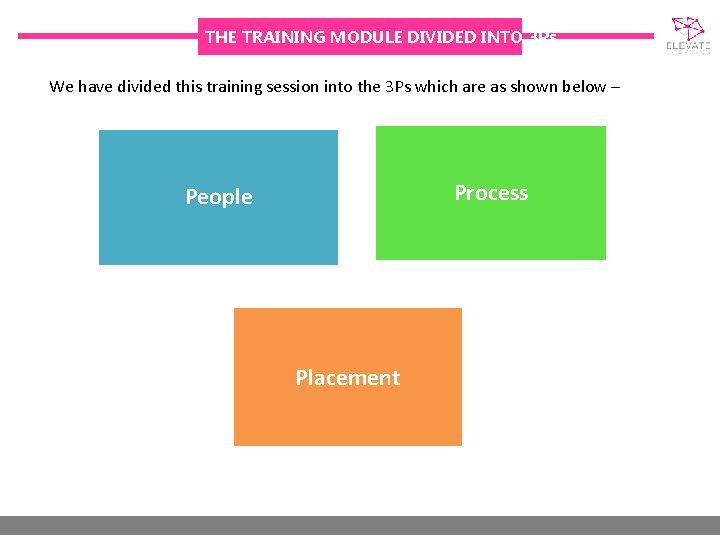
THE TRAINING MODULE DIVIDED INTO 3 Ps We have divided this training session into the 3 Ps which are as shown below – Process People Placement
TRAINING MODULE 1. The Training module divided into 3 Ps 2. What do we mean by these 3 Ps?
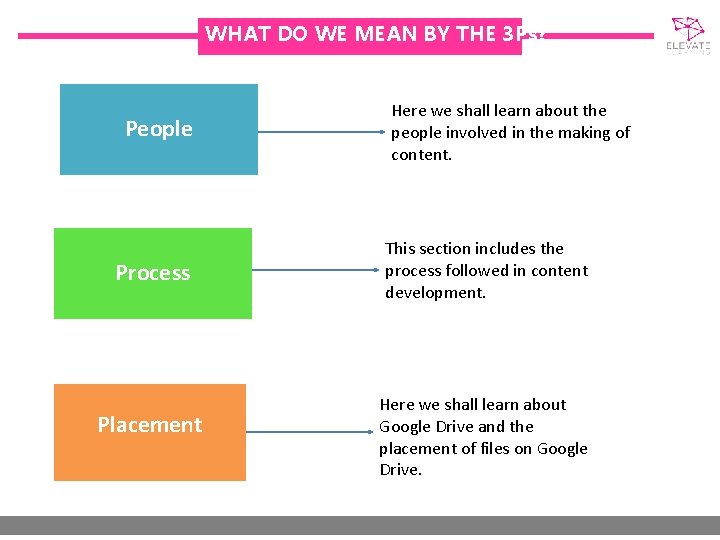
WHAT DO WE MEAN BY THE 3 Ps? People Process Placement Here we shall learn about the people involved in the making of content. This section includes the process followed in content development. Here we shall learn about Google Drive and the placement of files on Google Drive.
AGENDA OF THIS TRAINING 1. What is a content? 13. Making of Guideline File by Guide 2. Content Development Department 14. How to upload a guideline file on Google Drive? 3. The Training module divided into 3 Ps 15. Creation of Lesson File by Content Writer 4. What do we mean by these 3 Ps? 16. How to upload a Lesson File on Google Drive? 5. The 6 Key People involved in the making of content 17. 1 st Review of Lesson file by Reviewer 6. 9 – Step Process followed in content development 18. Role of Proofreader 7. Naming Convention of Files 19. Role of Formatter & Final Checker 8. What is Google Drive? 20. Tips on using Google Drive 9. Placement of files on Google Drive 10. Making of Learning Sequence by Content Advisor 11. How to upload a learning sequence on Google Drive 12. Making of a Project Plan by Content Manager
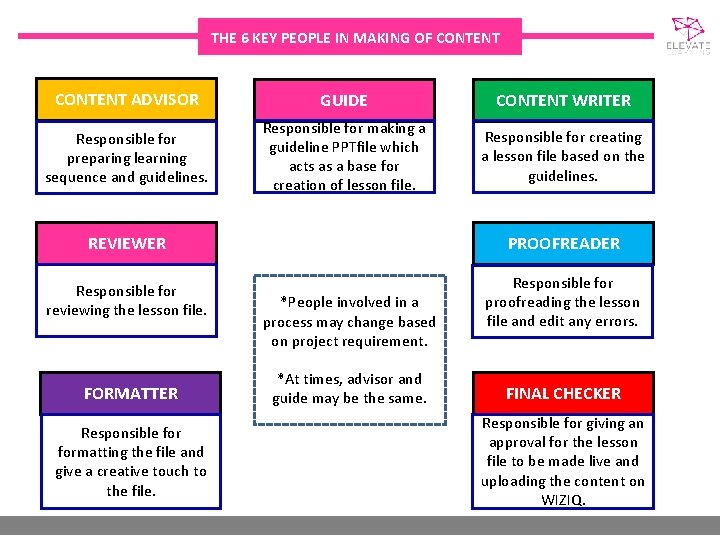
THE 6 KEY PEOPLE IN MAKING OF CONTENT ADVISOR GUIDE CONTENT WRITER Responsible for preparing learning sequence and guidelines. Responsible for making a guideline PPTfile which acts as a base for creation of lesson file. Responsible for creating a lesson file based on the guidelines. REVIEWER PROOFREADER Responsible for reviewing the lesson file. Responsible for proofreading the lesson file and edit any errors. FORMATTER Responsible formatting the file and give a creative touch to the file. *People involved in a process may change based on project requirement. *At times, advisor and guide may be the same. FINAL CHECKER Responsible for giving an approval for the lesson file to be made live and uploading the content on WIZIQ.
AGENDA OF THIS TRAINING 1. What is a content? 13. Making of Guideline File by Guide 2. Content Development Department 14. How to upload a guideline file on Google Drive? 3. The Training module divided into 3 Ps 15. Creation of Lesson File by Content Writer 4. What do we mean by these 3 Ps? 16. How to upload a Lesson File on Google Drive? 5. The 6 Key People involved in the making of content 17. 1 st Review of Lesson file by Reviewer 6. 9 – Step Process followed in content development 18. Role of Proofreader 7. Naming Convention of Files 19. Role of Formatter & Final Checker 8. What is Google Drive? 20. Tips on using Google Drive 9. Placement of files on Google Drive 10. Making of Learning Sequence by Content Advisor 11. How to upload a learning sequence on Google Drive 12. Making of a Project Plan by Content Manager
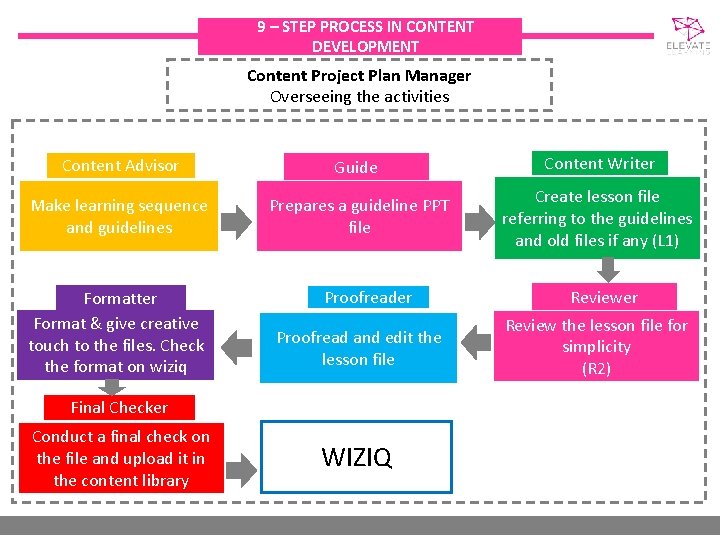
9 – STEP PROCESS IN CONTENT DEVELOPMENT Content Project Plan Manager Overseeing the activities Content Advisor Guide Content Writer Make learning sequence and guidelines Prepares a guideline PPT file Create lesson file referring to the guidelines and old files if any (L 1) Formatter Format & give creative touch to the files. Check the format on wiziq Proofreader Proofread and edit the lesson file Final Checker Conduct a final check on the file and upload it in the content library WIZIQ Reviewer Review the lesson file for simplicity (R 2)
AGENDA OF THIS TRAINING 1. What is a content? 13. Making of Guideline File by Guide 2. Content Development Department 14. How to upload a guideline file on Google Drive? 3. The Training module divided into 3 Ps 15. Creation of Lesson File by Content Writer 4. What do we mean by these 3 Ps? 16. How to upload a Lesson File on Google Drive? 5. The 6 Key People involved in the making of content 17. 1 st Review of Lesson file by Reviewer 6. 9 – Step Process followed in content development 18. Role of Proofreader 7. Naming Convention of Files 19. Role of Formatter & Final Checker 8. What is Google Drive? 20. Tips on using Google Drive 9. Placement of files on Google Drive 10. Making of Learning Sequence by Content Advisor 11. How to upload a learning sequence on Google Drive 12. Making of a Project Plan by Content Manager
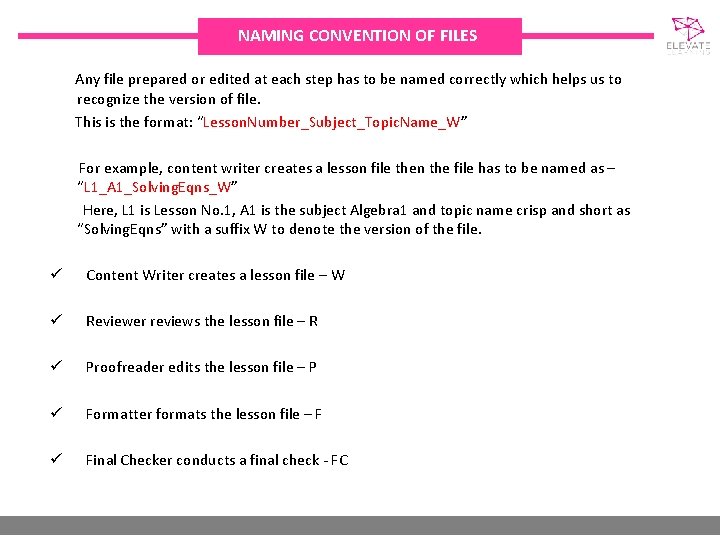
NAMING CONVENTION OF FILES Any file prepared or edited at each step has to be named correctly which helps us to recognize the version of file. This is the format: “Lesson. Number_Subject_Topic. Name_W” For example, content writer creates a lesson file then the file has to be named as – “L 1_A 1_Solving. Eqns_W” Here, L 1 is Lesson No. 1, A 1 is the subject Algebra 1 and topic name crisp and short as “Solving. Eqns” with a suffix W to denote the version of the file. ü Content Writer creates a lesson file – W ü Reviewer reviews the lesson file – R ü Proofreader edits the lesson file – P ü Formatter formats the lesson file – F ü Final Checker conducts a final check - FC
GOOGLE DRIVE 1. What is Google Drive? 2. Placement of files on Google Drive
WHAT IS GOOGLE DRIVE? Ø Google Drive is a file storage and synchronization service created by Google. Ø It allows users to store files in the cloud, share files, edit documents, spreadsheets and presentations with collaborators. Ø Here at Elevate, we use Google Drive to store and share all the documents involved in the process of content development. ØWe shall give you an official Elevate email ID and password which you may use to stay in touch with us.
GOOGLE DRIVE 1. What is Google Drive? 2. Placement of files on Google Drive
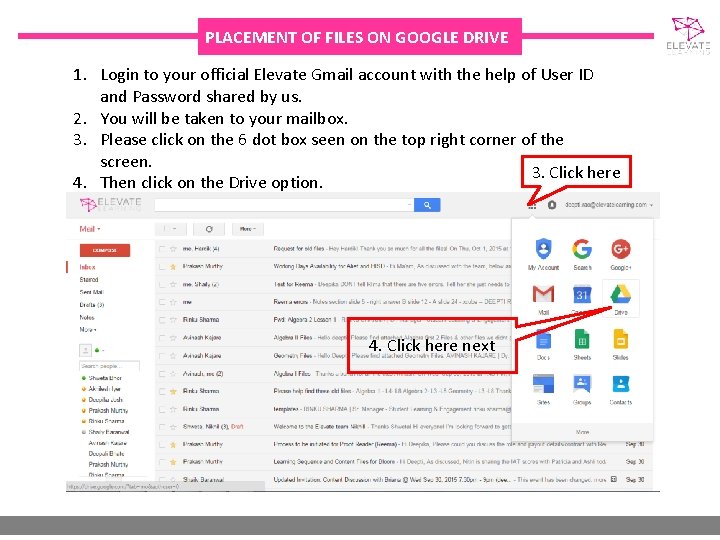
PLACEMENT OF FILES ON GOOGLE DRIVE 1. Login to your official Elevate Gmail account with the help of User ID and Password shared by us. 2. You will be taken to your mailbox. 3. Please click on the 6 dot box seen on the top right corner of the screen. 3. Click here 4. Then click on the Drive option. 4. Click here next
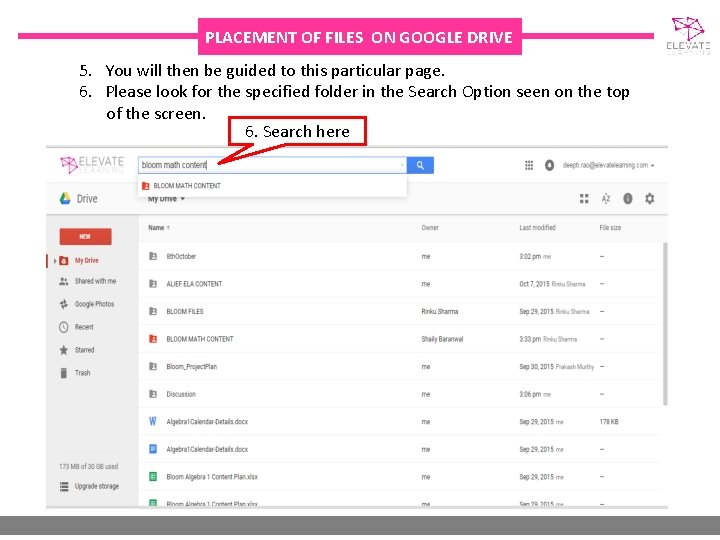
PLACEMENT OF FILES ON GOOGLE DRIVE 5. You will then be guided to this particular page. 6. Please look for the specified folder in the Search Option seen on the top of the screen. 6. Search here
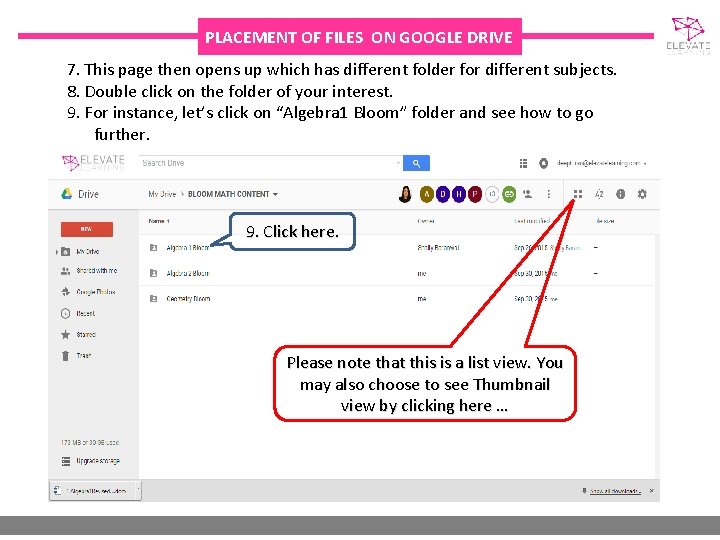
PLACEMENT OF FILES ON GOOGLE DRIVE 7. This page then opens up which has different folder for different subjects. 8. Double click on the folder of your interest. 9. For instance, let’s click on “Algebra 1 Bloom” folder and see how to go further. 9. Click here. Please note that this is a list view. You may also choose to see Thumbnail view by clicking here …
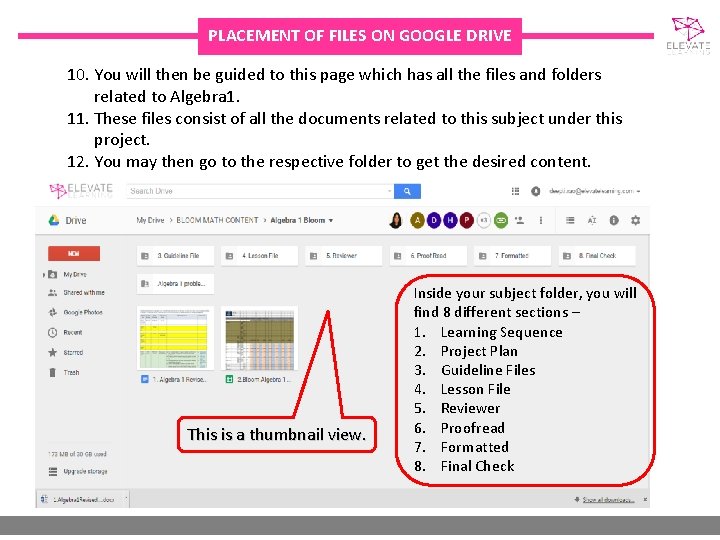
PLACEMENT OF FILES ON GOOGLE DRIVE 10. You will then be guided to this page which has all the files and folders related to Algebra 1. 11. These files consist of all the documents related to this subject under this project. 12. You may then go to the respective folder to get the desired content. This is a thumbnail view. Inside your subject folder, you will find 8 different sections – 1. Learning Sequence 2. Project Plan 3. Guideline Files 4. Lesson File 5. Reviewer 6. Proofread 7. Formatted 8. Final Check
LEARNING SEQUENCE 1. Making of Learning Sequence by Content Advisor 2. How to upload a learning sequence on Google Drive
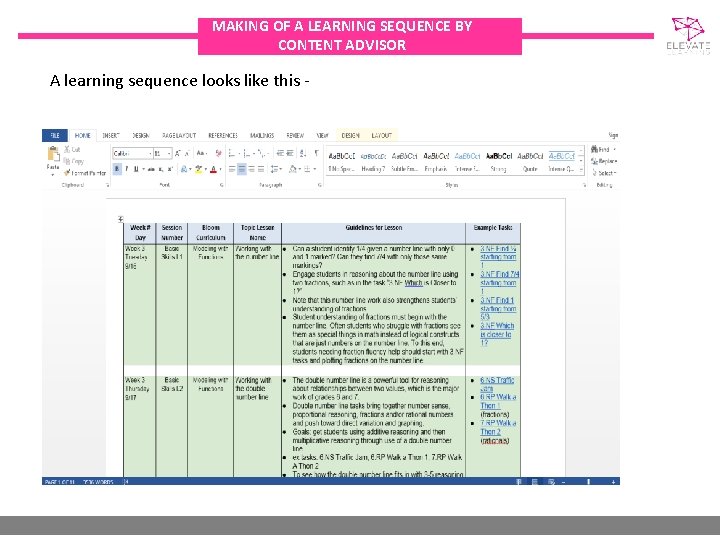
MAKING OF LEARNING SEQUENCE BY CONTENT ADVISOR Ø The Content Advisor prepares a learning sequence which is a document that lists the order of topics to be taught to the students for a particular subject under each lesson. Ø Each lesson should be taught to the students in the same sequence. Ø It includes those topics which appear most often on State Standardized Tests and which can be taught and mastered quickly by students. Ø It has details about the topic, sub topic, indicators, the flow with which each topic has to be taught and the learning outcome of each topic. Ø Please note that the learning sequence may change based on the subject.
MAKING OF A LEARNING SEQUENCE BY CONTENT ADVISOR A learning sequence looks like this -
LEARNING SEQUENCE 1. Making of Learning Sequence by Content Advisor 2. How to upload a learning sequence on Google Drive?
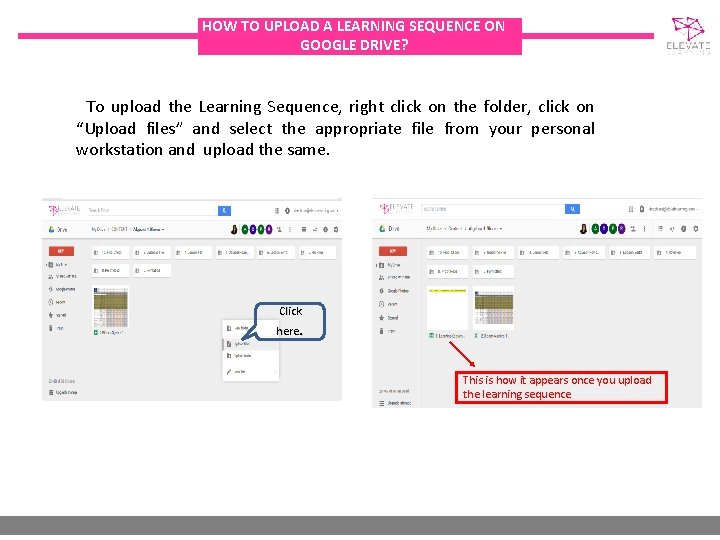
HOW TO UPLOAD A LEARNING SEQUENCE ON GOOGLE DRIVE? To upload the Learning Sequence, right click on the folder, click on “Upload files” and select the appropriate file from your personal workstation and upload the same. Click here. This is how it appears once you upload the learning sequence
AGENDA OF THIS TRAINING 1. What is a content? 13. Making of Guideline File by Guide 2. Content Development Department 14. How to upload a guideline file on Google Drive? 3. The Training module divided into 3 Ps 15. Creation of Lesson File by Content Writer 4. What do we mean by these 3 Ps? 16. How to upload a Lesson File on Google Drive? 5. The 6 Key People involved in the making of content 17. 1 st Review of Lesson file by Reviewer 6. 9 – Step Process followed in content development 18. Role of Proofreader 7. Naming Convention of Files 19. Role of Formatter & Final Checker 8. What is Google Drive? 20. Tips on using Google Drive 9. Placement of files on Google Drive 10. Making of Learning Sequence by Content Advisor 11. How to upload a learning sequence on Google Drive 12. Making of a Project Plan by Content Manager
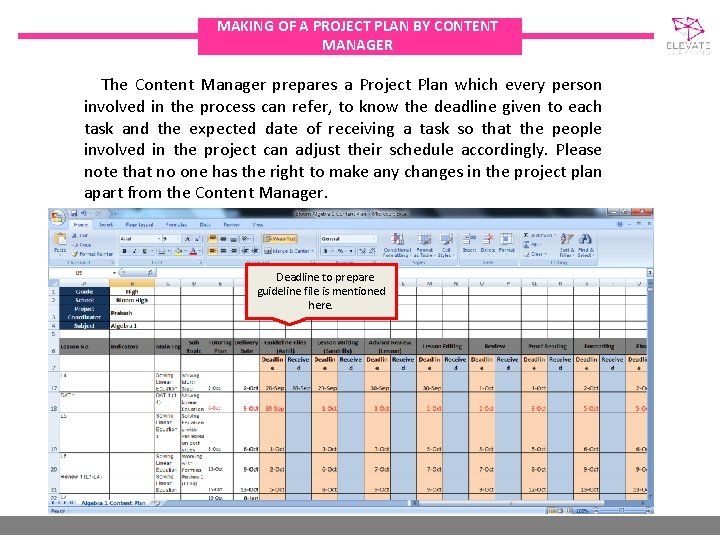
MAKING OF A PROJECT PLAN BY CONTENT MANAGER The Content Manager prepares a Project Plan which every person involved in the process can refer, to know the deadline given to each task and the expected date of receiving a task so that the people involved in the project can adjust their schedule accordingly. Please note that no one has the right to make any changes in the project plan apart from the Content Manager. Deadline to prepare guideline file is mentioned here.
GUIDELINES 1. What is Guideline File? 2. Making of Guideline File by Guide 3. How to upload a guideline file on Google Drive?
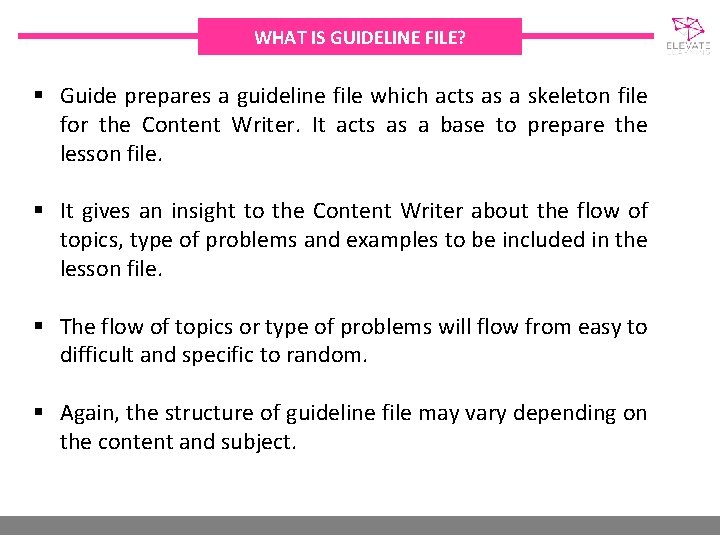
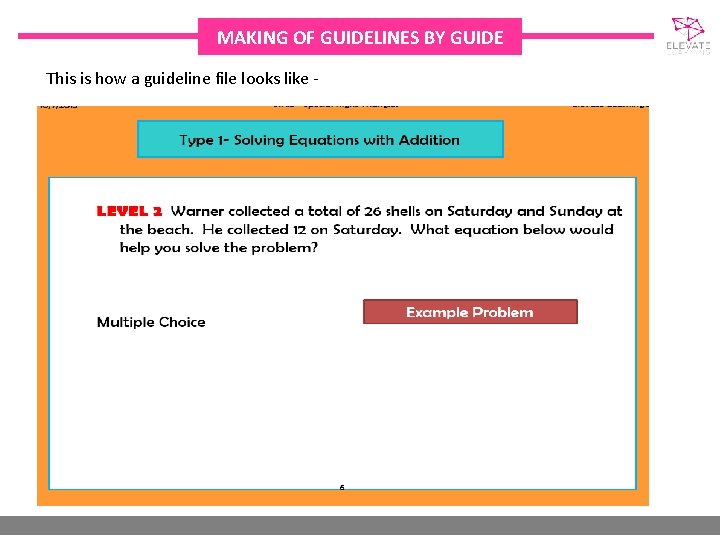
WHAT IS GUIDELINE FILE? § Guide prepares a guideline file which acts as a skeleton file for the Content Writer. It acts as a base to prepare the lesson file. § It gives an insight to the Content Writer about the flow of topics, type of problems and examples to be included in the lesson file. § The flow of topics or type of problems will flow from easy to difficult and specific to random. § Again, the structure of guideline file may vary depending on the content and subject.
GUIDELINES 1. What is Guideline File? 2. Making of Guideline File by Guide 3. How to upload a guideline file on Google Drive?
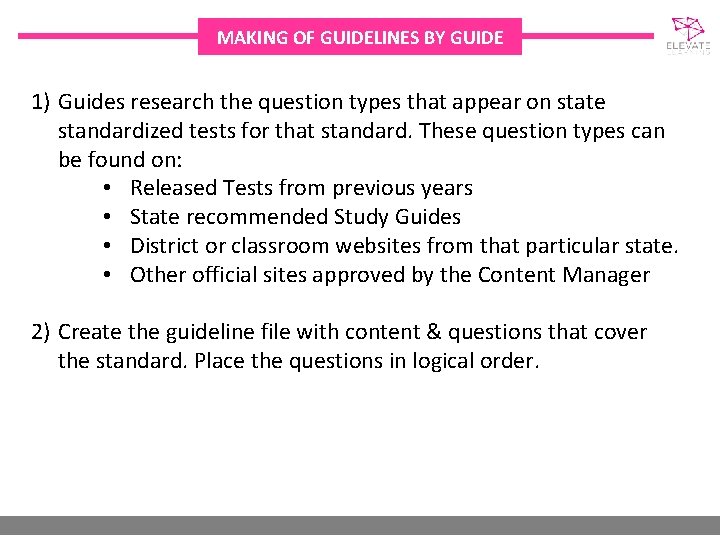
MAKING OF GUIDELINES BY GUIDE 1) Guides research the question types that appear on state standardized tests for that standard. These question types can be found on: • Released Tests from previous years • State recommended Study Guides • District or classroom websites from that particular state. • Other official sites approved by the Content Manager 2) Create the guideline file with content & questions that cover the standard. Place the questions in logical order.
MAKING OF GUIDELINES BY GUIDE This is how a guideline file looks like -
GUIDELINES 1. What is Guideline File? 2. Making of Guideline File by Guide 3. How to upload a guideline file on Google Drive?
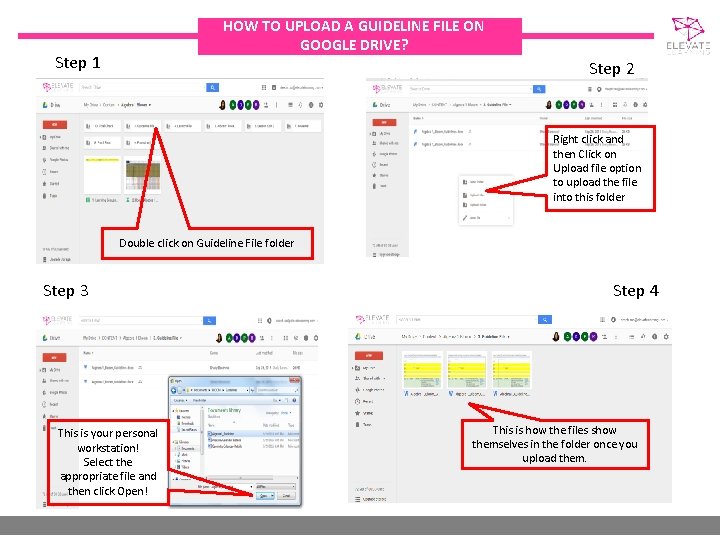
HOW TO UPLOAD A GUIDELINE FILE ON GOOGLE DRIVE? Step 1 Step 2 Right click and then Click on Upload file option to upload the file into this folder Double click on Guideline File folder Step 3 This is your personal workstation! Select the appropriate file and then click Open! Step 4 This is how the files show themselves in the folder once you upload them.
LESSON FILE 1. Creation of Lesson File by Content Writer 2. How to upload a Lesson File on Google Drive?
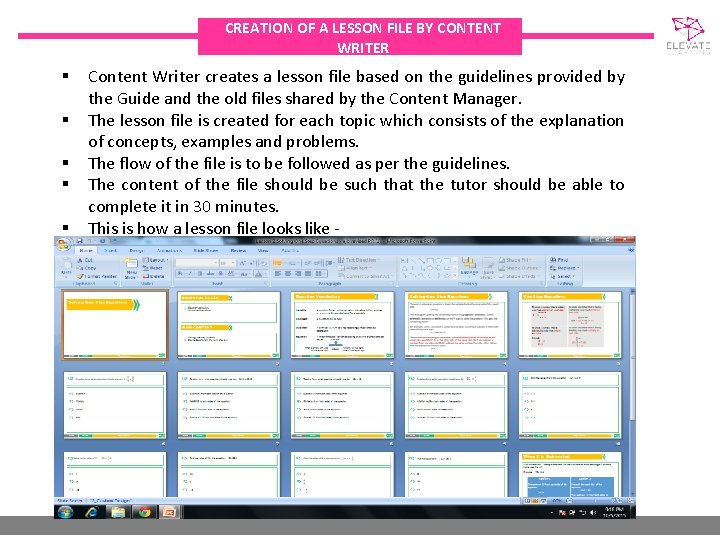
CREATION OF A LESSON FILE BY CONTENT WRITER § § § Content Writer creates a lesson file based on the guidelines provided by the Guide and the old files shared by the Content Manager. The lesson file is created for each topic which consists of the explanation of concepts, examples and problems. The flow of the file is to be followed as per the guidelines. The content of the file should be such that the tutor should be able to complete it in 30 minutes. This is how a lesson file looks like -
LESSON FILE 1. Creation of Lesson File by Content Writer 2. How to upload a Lesson File on Google Drive?
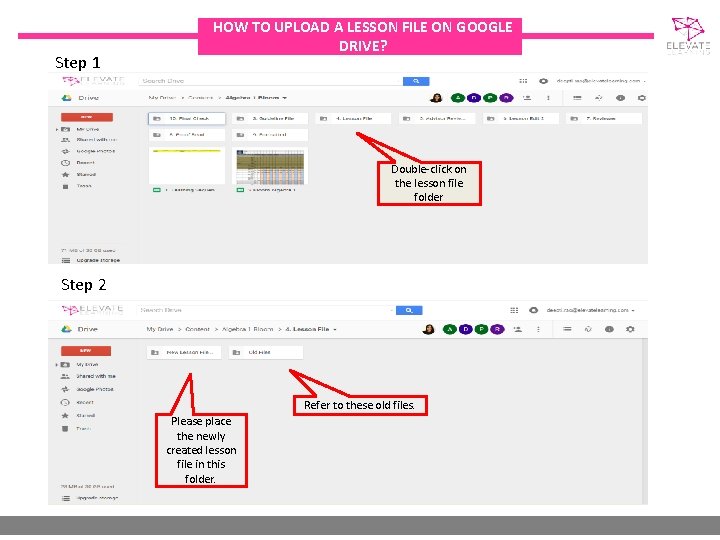
Step 1 HOW TO UPLOAD A LESSON FILE ON GOOGLE DRIVE? Double-click on the lesson file folder Step 2 Refer to these old files. Please place the newly created lesson file in this folder.
AGENDA OF THIS TRAINING 1. What is a content? 13. Making of Guideline File by Guide 2. Content Development Department 14. How to upload a guideline file on Google Drive? 3. The Training module divided into 3 Ps 15. Creation of Lesson File by Content Writer 4. What do we mean by these 3 Ps? 16. How to upload a Lesson File on Google Drive? 5. The 6 Key People involved in the making of content 17. 1 st Review of Lesson file by Reviewer 6. 9 – Step Process followed in content development 18. Role of Proofreader 7. Naming Convention of Files 19. Role of Formatter & Final Checker 8. What is Google Drive? 20. Tips on using Google Drive 9. Placement of files on Google Drive 10. Making of Learning Sequence by Content Advisor 11. How to upload a learning sequence on Google Drive 12. Making of a Project Plan by Content Manager
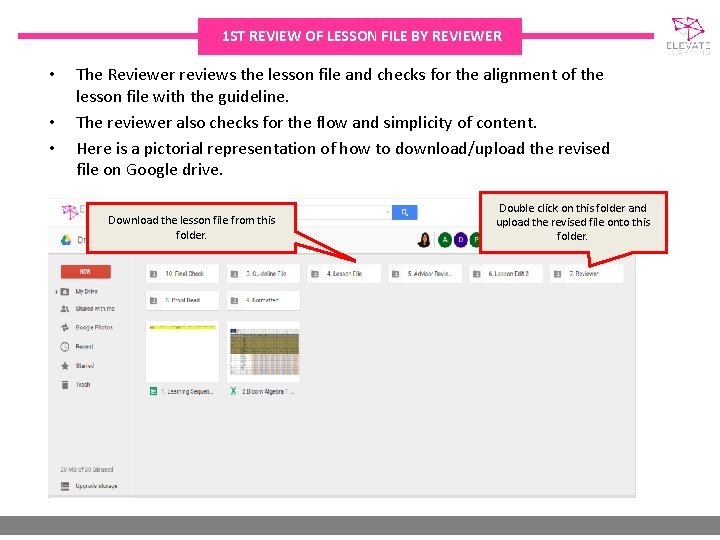
1 ST REVIEW OF LESSON FILE BY REVIEWER • • • The Reviewer reviews the lesson file and checks for the alignment of the lesson file with the guideline. The reviewer also checks for the flow and simplicity of content. Here is a pictorial representation of how to download/upload the revised file on Google drive. Download the lesson file from this folder. Double click on this folder and upload the revised file onto this folder.
AGENDA OF THIS TRAINING 1. What is a content? 13. Making of Guideline File by Guide 2. Content Development Department 14. How to upload a guideline file on Google Drive? 3. The Training module divided into 3 Ps 15. Creation of Lesson File by Content Writer 4. What do we mean by these 3 Ps? 16. How to upload a Lesson File on Google Drive? 5. The 6 Key People involved in the making of content 17. 1 st Review of Lesson file by Reviewer 6. 9 – Step Process followed in content development 18. Role of Proofreader 7. Naming Convention of Files 19. Role of Formatter & Final Checker 8. What is Google Drive? 20. Tips on using Google Drive 9. Placement of files on Google Drive 10. Making of Learning Sequence by Content Advisor 11. How to upload a learning sequence on Google Drive 12. Making of a Project Plan by Content Manager
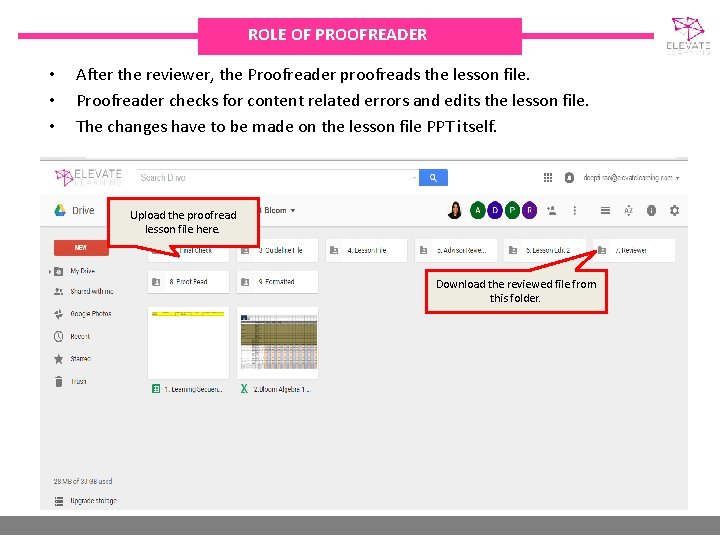
ROLE OF PROOFREADER • • • After the reviewer, the Proofreader proofreads the lesson file. Proofreader checks for content related errors and edits the lesson file. The changes have to be made on the lesson file PPT itself. Upload the proofread lesson file here. Download the reviewed file from this folder.
AGENDA OF THIS TRAINING 1. What is a content? 13. Making of Guideline File by Guide 2. Content Development Department 14. How to upload a guideline file on Google Drive? 3. The Training module divided into 3 Ps 15. Creation of Lesson File by Content Writer 4. What do we mean by these 3 Ps? 16. How to upload a Lesson File on Google Drive? 5. The 6 Key People involved in the making of content 17. 1 st Review of Lesson file by Reviewer 6. 9 – Step Process followed in content development 18. Role of Proofreader 7. Naming Convention of Files 19. Role of Formatter & Final Checker 8. What is Google Drive? 20. Tips on using Google Drive 9. Placement of files on Google Drive 10. Making of Learning Sequence by Content Advisor 11. How to upload a learning sequence on Google Drive 12. Making of a Project Plan by Content Manager
ROLE OF FORMATTER & FINAL CHECKER The Formatter picks the Proofread file, formats the file and checks the format on the wiziq classroom. While formatting, the formatter standardizes the font type, size and improves the overall look of the file. He then places the formatted file in the “FORMATTED” folder. The Final Checker is the one who has a last check on the lesson file that is formatted and approves the lesson file to go live.
AGENDA OF THIS TRAINING 1. What is a content? 13. Making of Guideline File by Guide 2. Content Development Department 14. How to upload a guideline file on Google Drive? 3. The Training module divided into 3 Ps 15. Creation of Lesson File by Content Writer 4. What do we mean by these 3 Ps? 16. How to upload a Lesson File on Google Drive? 5. The 6 Key People involved in the making of content 17. 1 st Review of Lesson file by Reviewer 6. 9 – Step Process followed in content development 18. Role of Proofreader 7. Naming Convention of Files 19. Role of Formatter & Final Checker 8. What is Google Drive? 20. Tips on using Google Drive 9. Placement of files on Google Drive 10. Making of Learning Sequence by Content Advisor 11. How to upload a learning sequence on Google Drive 12. Making of a Project Plan by Content Manager
Tips on using Google Drive • To go into any folder, you need to double click on that particular folder • To download a particular file, select the file, right click on the same and then click download • To upload a new file, you just need to go to the respective folder on Google Drive, right click and then click on Upload file option • Kindly do not forget to name the file as per the file naming convention
Happy Writing… !!!