
Connecting Ontario Clinical Viewer Training NOVEMBER 2020 Contents
Connecting. Ontario Clinical. Viewer Training NOVEMBER 2020
Contents Slide Number • Logging In and Out 2 • My Workspace 7 • Patient Search 8 • Parts of the Window 9 • Patient Care Tab 10 • Timeline 11 • Navigation Bar 13 • Portlets Overview 14 • Medications Portlet *Mandatory Content 17 • Diagnostic Imaging Portlet 28 • Lab and Pathology Results Portlet 37 • Consent Management 40 • Available Training Resources 45 1
Accessing the Connecting. Ontario Clinical. Viewer Using Single Sign-On • If your organization has single sign-on to the Connecting. Ontario Clinical. Viewer, you will be able to access the Clinical. Viewer directly from your own hospital or clinical information system • As well, if patient context sharing is enabled, the patient you select from your information system will be maintained when you access the Connecting. Ontario Clinical. Viewer • Follow your organization’s policies and recommendations regarding single sign-on and patient selection Note: You must only view records for patients for whom you are providing care for the organization you are logged in under (unless otherwise permitted by the organization) 2 Connecting. Ontario Clinical. Viewer Trainer’s Guide v 10 November 2020
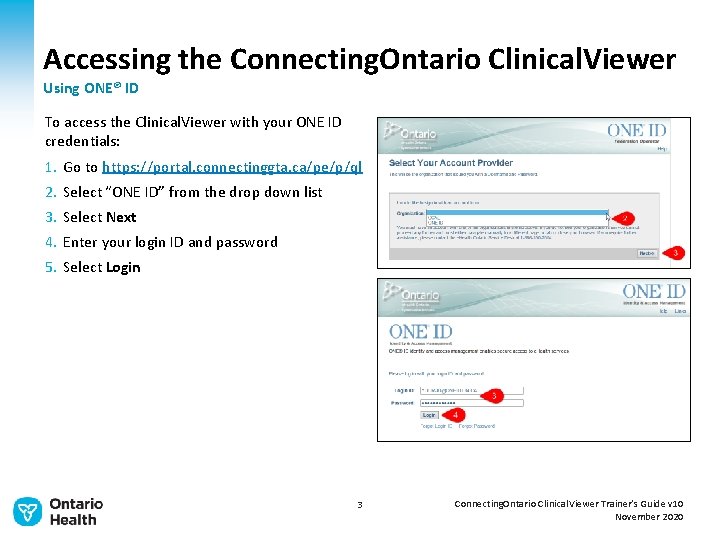
Accessing the Connecting. Ontario Clinical. Viewer Using ONE® ID To access the Clinical. Viewer with your ONE ID credentials: 1. Go to https: //portal. connectinggta. ca/pe/p/ql 2. Select “ONE ID” from the drop down list 3. Select Next 4. Enter your login ID and password 5. Select Login 3 Connecting. Ontario Clinical. Viewer Trainer’s Guide v 10 November 2020

Accessing the Connecting. Ontario Clinical. Viewer Using ONE® ID (continued) The Clinical. Viewer opens in a new browser window. If you are authorized to access the Clinical. Viewer under more than one authority, and through the same user account (i. e. , ONE ID), a pop-up window displays, prompting you to select an organization. * This window displays only under this circumstance. To select the organization under whose authority you are working: 1. In the drop down list, select the name of the organization 2. Click Select Note: You must only view records for patients for whom you are providing care for the organization you are logged in under (unless otherwise permitted by the organization) 4 Connecting. Ontario Clinical. Viewer Trainer’s Guide v 10 November 2020

End User Agreement The first time you access the Clinical. Viewer and on the first access of each new calendar year, you must accept this agreement To accept the End User Agreement: 1. Select OK Ø The End User Agreement displays 2. Scroll through and review the agreement 3. Select Accept, then select Submit Ø A privacy reminder displays on your first log in of the day and no more than once every 24 hours Ø As learned in the Privacy and Security training, you have a legal obligation to protect the privacy of patient information 5 Connecting. Ontario Clinical. Viewer Trainer’s Guide v 10 November 2020
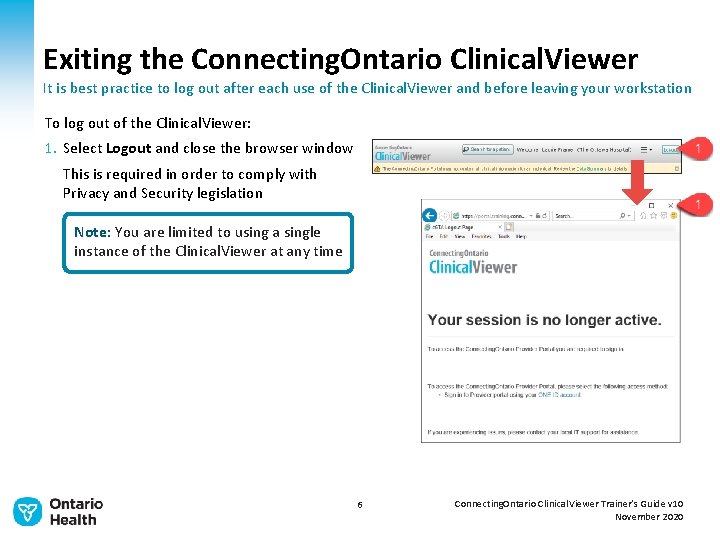
Exiting the Connecting. Ontario Clinical. Viewer It is best practice to log out after each use of the Clinical. Viewer and before leaving your workstation To log out of the Clinical. Viewer: 1. Select Logout and close the browser window This is required in order to comply with Privacy and Security legislation Note: You are limited to using a single instance of the Clinical. Viewer at any time 6 Connecting. Ontario Clinical. Viewer Trainer’s Guide v 10 November 2020
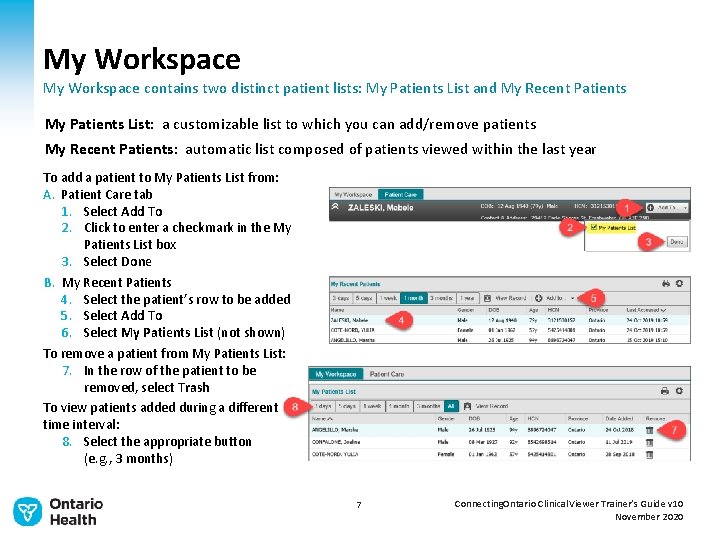
My Workspace contains two distinct patient lists: My Patients List and My Recent Patients My Patients List: a customizable list to which you can add/remove patients My Recent Patients: automatic list composed of patients viewed within the last year To add a patient to My Patients List from: A. Patient Care tab 1. Select Add To 2. Click to enter a checkmark in the My Patients List box 3. Select Done B. My Recent Patients 4. Select the patient’s row to be added 5. Select Add To 6. Select My Patients List (not shown) To remove a patient from My Patients List: 7. In the row of the patient to be removed, select Trash To view patients added during a different time interval: 8. Select the appropriate button (e. g. , 3 months) 7 Connecting. Ontario Clinical. Viewer Trainer’s Guide v 10 November 2020
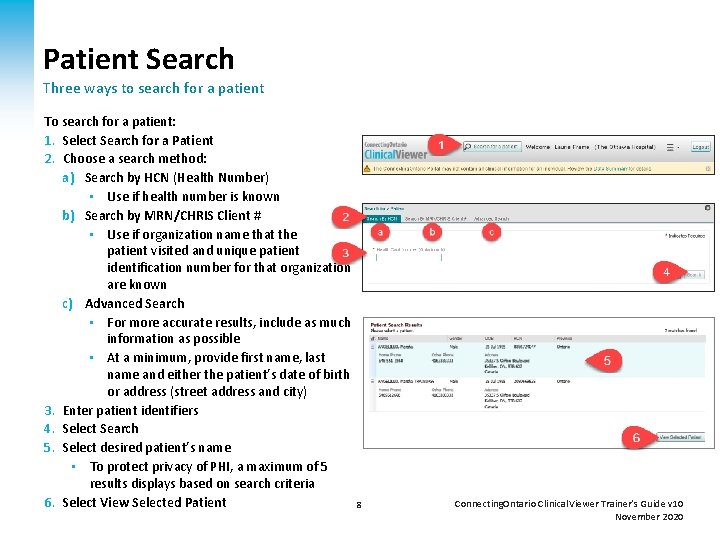
Patient Search Three ways to search for a patient To search for a patient: 1. Select Search for a Patient 2. Choose a search method: a) Search by HCN (Health Number) • Use if health number is known b) Search by MRN/CHRIS Client # • Use if organization name that the patient visited and unique patient identification number for that organization are known c) Advanced Search • For more accurate results, include as much information as possible • At a minimum, provide first name, last name and either the patient’s date of birth or address (street address and city) 3. Enter patient identifiers 4. Select Search 5. Select desired patient’s name • To protect privacy of PHI, a maximum of 5 results displays based on search criteria 6. Select View Selected Patient 8 Connecting. Ontario Clinical. Viewer Trainer’s Guide v 10 November 2020
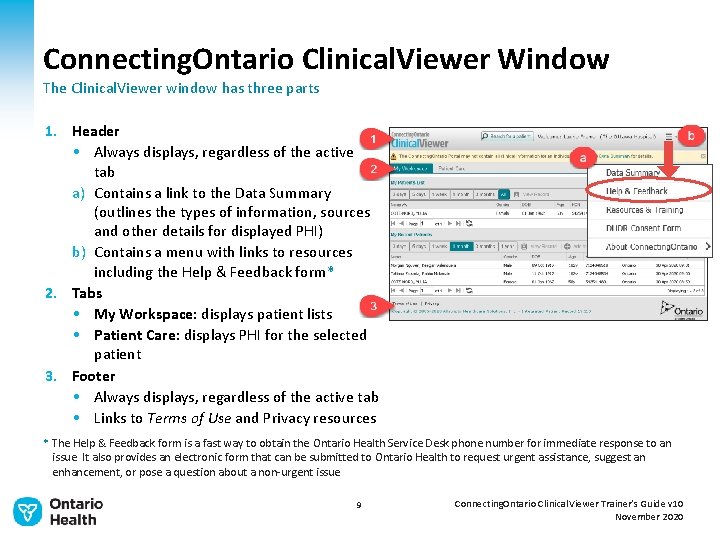
Connecting. Ontario Clinical. Viewer Window The Clinical. Viewer window has three parts 1. Header • Always displays, regardless of the active tab a) Contains a link to the Data Summary (outlines the types of information, sources and other details for displayed PHI) b) Contains a menu with links to resources including the Help & Feedback form* 2. Tabs • My Workspace: displays patient lists • Patient Care: displays PHI for the selected patient 3. Footer • Always displays, regardless of the active tab • Links to Terms of Use and Privacy resources * The Help & Feedback form is a fast way to obtain the Ontario Health Service Desk phone number for immediate response to an issue. It also provides an electronic form that can be submitted to Ontario Health to request urgent assistance, suggest an enhancement, or pose a question about a non-urgent issue 9 Connecting. Ontario Clinical. Viewer Trainer’s Guide v 10 November 2020
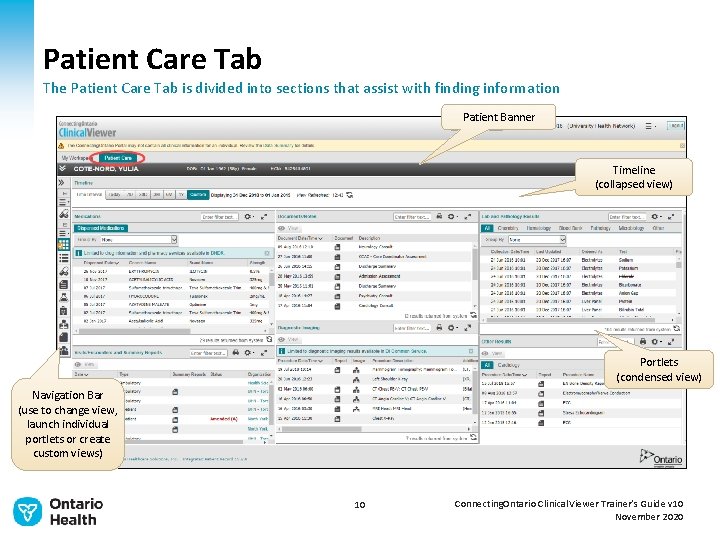
Patient Care Tab The Patient Care Tab is divided into sections that assist with finding information Patient Banner Timeline (collapsed view) Portlets (condensed view) Navigation Bar (use to change view, launch individual portlets or create custom views) 10 Connecting. Ontario Clinical. Viewer Trainer’s Guide v 10 November 2020
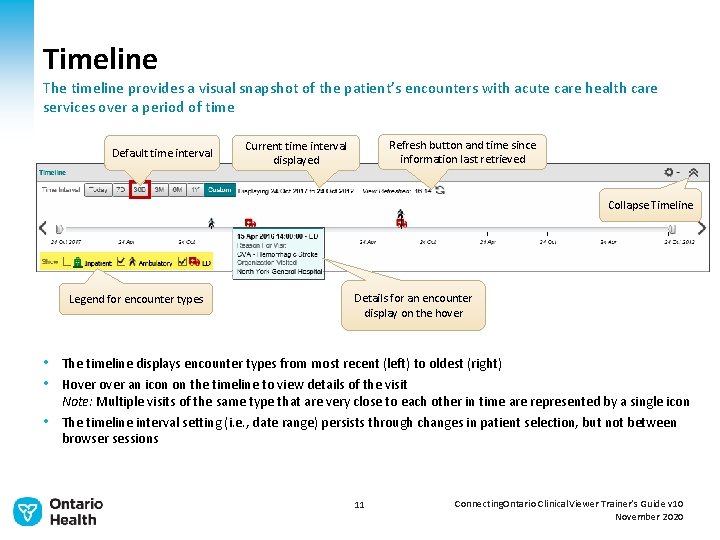
Timeline The timeline provides a visual snapshot of the patient’s encounters with acute care health care services over a period of time Default time interval Refresh button and time since information last retrieved Current time interval displayed Collapse Timeline Legend for encounter types Details for an encounter display on the hover • The timeline displays encounter types from most recent (left) to oldest (right) • Hover an icon on the timeline to view details of the visit Note: Multiple visits of the same type that are very close to each other in time are represented by a single icon • The timeline interval setting (i. e. , date range) persists through changes in patient selection, but not between browser sessions 11 Connecting. Ontario Clinical. Viewer Trainer’s Guide v 10 November 2020
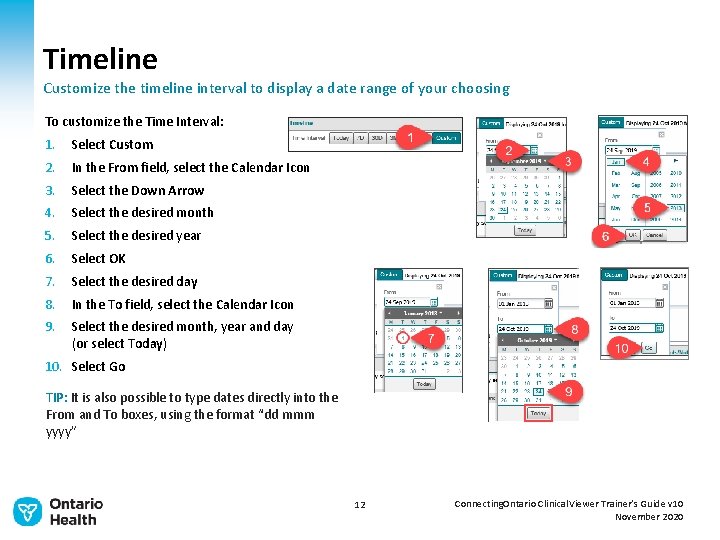
Timeline Customize the timeline interval to display a date range of your choosing To customize the Time Interval: 1. Select Custom 2. In the From field, select the Calendar Icon 3. Select the Down Arrow 4. Select the desired month 5. Select the desired year 6. Select OK 7. Select the desired day 8. In the To field, select the Calendar Icon 9. Select the desired month, year and day (or select Today) 10. Select Go TIP: It is also possible to type dates directly into the From and To boxes, using the format “dd mmm yyyy” 12 Connecting. Ontario Clinical. Viewer Trainer’s Guide v 10 November 2020
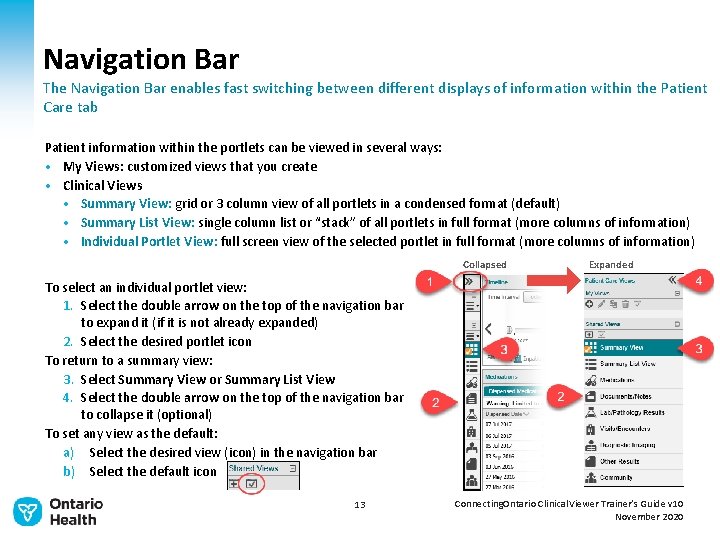
Navigation Bar The Navigation Bar enables fast switching between different displays of information within the Patient Care tab Patient information within the portlets can be viewed in several ways: • My Views: customized views that you create • Clinical Views • Summary View: grid or 3 column view of all portlets in a condensed format (default) • Summary List View: single column list or “stack” of all portlets in full format (more columns of information) • Individual Portlet View: full screen view of the selected portlet in full format (more columns of information) Collapsed Expanded To select an individual portlet view: 1. Select the double arrow on the top of the navigation bar to expand it (if it is not already expanded) 2. Select the desired portlet icon To return to a summary view: 3. Select Summary View or Summary List View 4. Select the double arrow on the top of the navigation bar to collapse it (optional) To set any view as the default: a) Select the desired view (icon) in the navigation bar b) Select the default icon 13 Connecting. Ontario Clinical. Viewer Trainer’s Guide v 10 November 2020
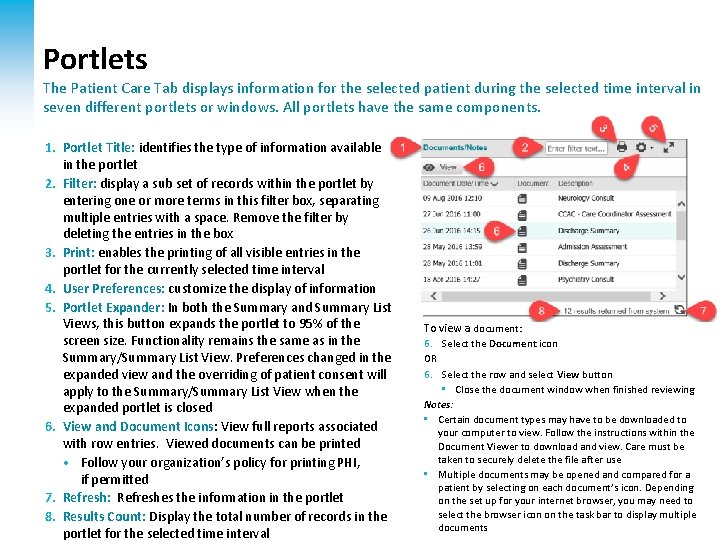
Portlets The Patient Care Tab displays information for the selected patient during the selected time interval in seven different portlets or windows. All portlets have the same components. 1. Portlet Title: identifies the type of information available in the portlet 2. Filter: display a sub set of records within the portlet by entering one or more terms in this filter box, separating multiple entries with a space. Remove the filter by deleting the entries in the box 3. Print: enables the printing of all visible entries in the portlet for the currently selected time interval 4. User Preferences: customize the display of information 5. Portlet Expander: In both the Summary and Summary List Views, this button expands the portlet to 95% of the screen size. Functionality remains the same as in the Summary/Summary List View. Preferences changed in the expanded view and the overriding of patient consent will apply to the Summary/Summary List View when the expanded portlet is closed 6. View and Document Icons: View full reports associated with row entries. Viewed documents can be printed • Follow your organization’s policy for printing PHI, if permitted 7. Refresh: Refreshes the information in the portlet 14 8. Results Count: Display the total number of records in the portlet for the selected time interval To view a document: 6. Select the Document icon OR 6. Select the row and select View button • Close the document window when finished reviewing Notes: • Certain document types may have to be downloaded to your computer to view. Follow the instructions within the Document Viewer to download and view. Care must be taken to securely delete the file after use • Multiple documents may be opened and compared for a patient by selecting on each document’s icon. Depending on. Connecting. Ontario the set up for your. Clinical. Viewer internet browser, you may need Trainer’s Guide v 09 to select the browser icon on the task bar to display multiple June 2020 documents
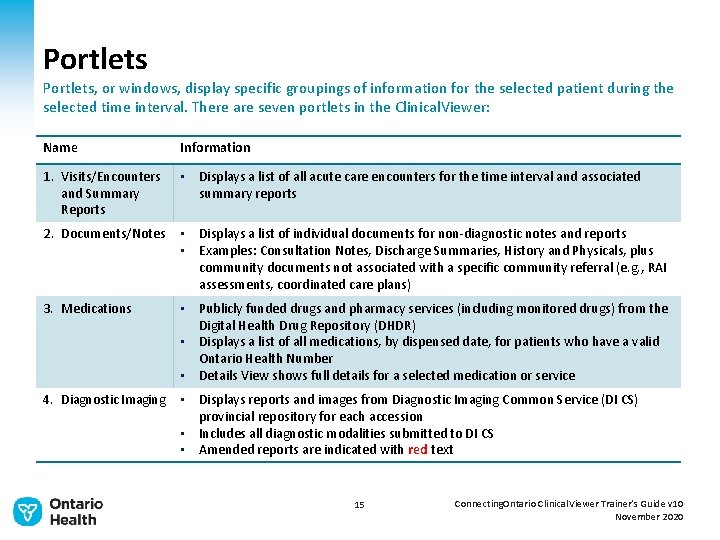
Portlets, or windows, display specific groupings of information for the selected patient during the selected time interval. There are seven portlets in the Clinical. Viewer: Name Information 1. Visits/Encounters and Summary Reports • Displays a list of all acute care encounters for the time interval and associated summary reports 2. Documents/Notes • Displays a list of individual documents for non-diagnostic notes and reports • Examples: Consultation Notes, Discharge Summaries, History and Physicals, plus community documents not associated with a specific community referral (e. g. , RAI assessments, coordinated care plans) 3. Medications • Publicly funded drugs and pharmacy services (including monitored drugs) from the Digital Health Drug Repository (DHDR) • Displays a list of all medications, by dispensed date, for patients who have a valid Ontario Health Number • Details View shows full details for a selected medication or service 4. Diagnostic Imaging • Displays reports and images from Diagnostic Imaging Common Service (DI CS) provincial repository for each accession • Includes all diagnostic modalities submitted to DI CS • Amended reports are indicated with red text 15 Connecting. Ontario Clinical. Viewer Trainer’s Guide v 10 November 2020
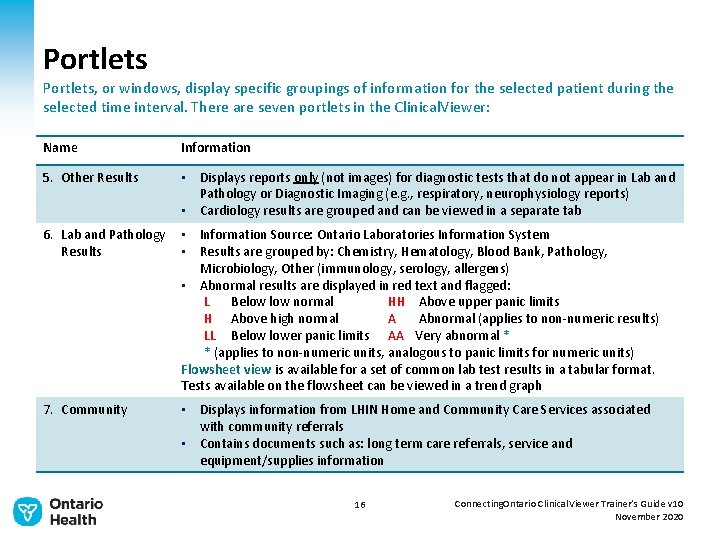
Portlets, or windows, display specific groupings of information for the selected patient during the selected time interval. There are seven portlets in the Clinical. Viewer: Name Information 5. Other Results • Displays reports only (not images) for diagnostic tests that do not appear in Lab and Pathology or Diagnostic Imaging (e. g. , respiratory, neurophysiology reports) • Cardiology results are grouped and can be viewed in a separate tab 6. Lab and Pathology Results • Information Source: Ontario Laboratories Information System • Results are grouped by: Chemistry, Hematology, Blood Bank, Pathology, Microbiology, Other (immunology, serology, allergens) • Abnormal results are displayed in red text and flagged: L Below normal HH Above upper panic limits H Above high normal A Abnormal (applies to non-numeric results) LL Below lower panic limits AA Very abnormal * * (applies to non-numeric units, analogous to panic limits for numeric units) Flowsheet view is available for a set of common lab test results in a tabular format. Tests available on the flowsheet can be viewed in a trend graph 7. Community • Displays information from LHIN Home and Community Care Services associated with community referrals • Contains documents such as: long term care referrals, service and equipment/supplies information 16 Connecting. Ontario Clinical. Viewer Trainer’s Guide v 10 November 2020
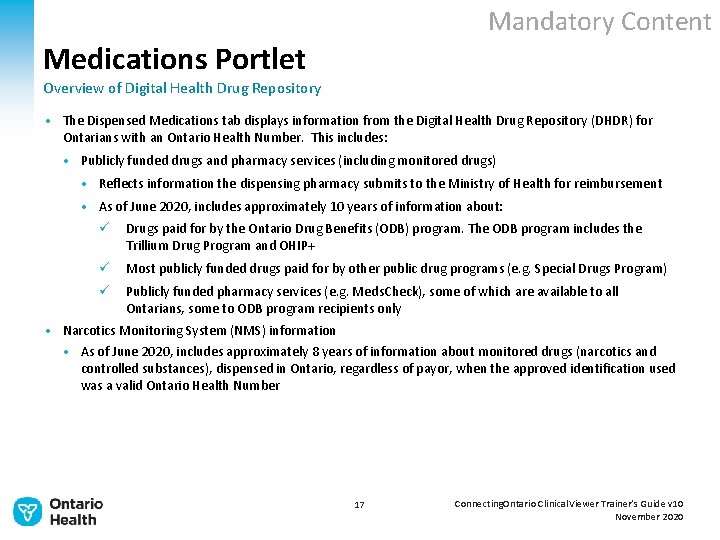
Mandatory Content Medications Portlet Overview of Digital Health Drug Repository • The Dispensed Medications tab displays information from the Digital Health Drug Repository (DHDR) for Ontarians with an Ontario Health Number. This includes: • Publicly funded drugs and pharmacy services (including monitored drugs) • Reflects information the dispensing pharmacy submits to the Ministry of Health for reimbursement • As of June 2020, includes approximately 10 years of information about: ü Drugs paid for by the Ontario Drug Benefits (ODB) program. The ODB program includes the Trillium Drug Program and OHIP+ ü Most publicly funded drugs paid for by other public drug programs (e. g. Special Drugs Program) ü Publicly funded pharmacy services (e. g. Meds. Check), some of which are available to all Ontarians, some to ODB program recipients only • Narcotics Monitoring System (NMS) information • As of June 2020, includes approximately 8 years of information about monitored drugs (narcotics and controlled substances), dispensed in Ontario, regardless of payor, when the approved identification used was a valid Ontario Health Number 17 Connecting. Ontario Clinical. Viewer Trainer’s Guide v 10 November 2020
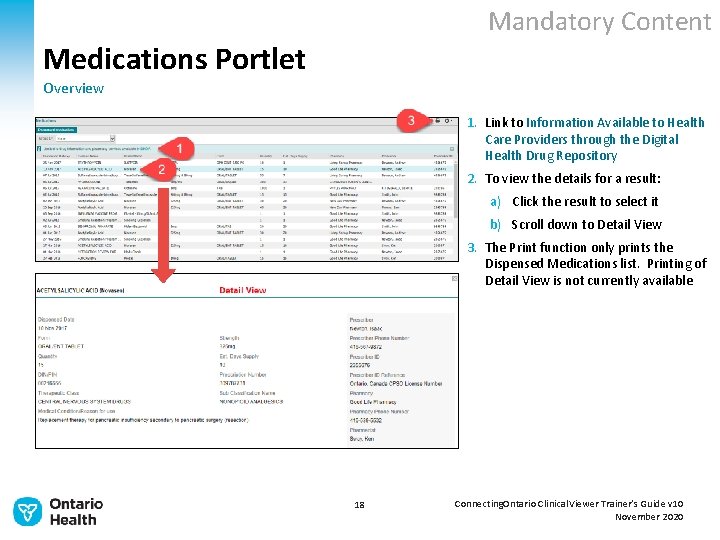
Mandatory Content Medications Portlet Overview 1. Link to Information Available to Health Care Providers through the Digital Health Drug Repository 2. To view the details for a result: a) Click the result to select it b) Scroll down to Detail View 3. The Print function only prints the Dispensed Medications list. Printing of Detail View is not currently available 18 Connecting. Ontario Clinical. Viewer Trainer’s Guide v 10 November 2020
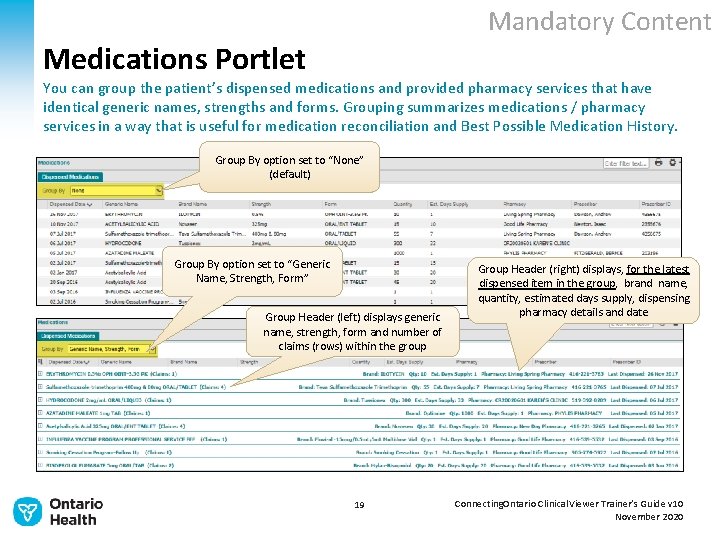
Mandatory Content Medications Portlet You can group the patient’s dispensed medications and provided pharmacy services that have identical generic names, strengths and forms. Grouping summarizes medications / pharmacy services in a way that is useful for medication reconciliation and Best Possible Medication History. Group By option set to “None” (default) Group By option set to “Generic Name, Strength, Form” Group Header (left) displays generic name, strength, form and number of claims (rows) within the group 19 Group Header (right) displays, for the latest dispensed item in the group, brand name, quantity, estimated days supply, dispensing pharmacy details and date Connecting. Ontario Clinical. Viewer Trainer’s Guide v 10 November 2020
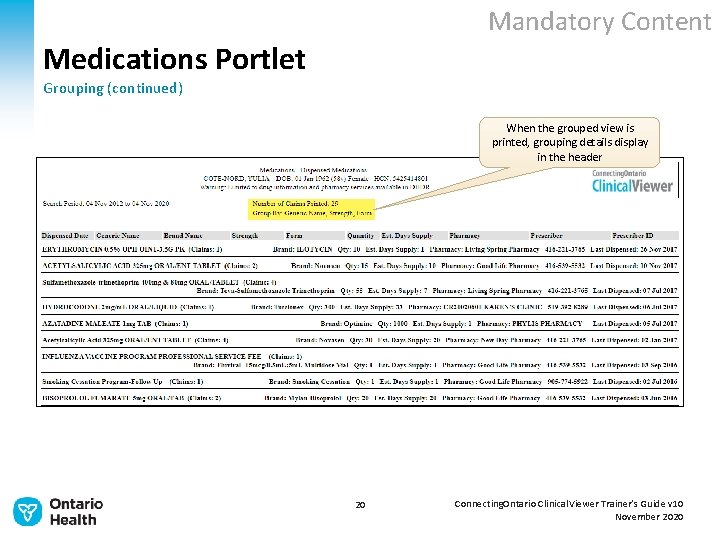
Mandatory Content Medications Portlet Grouping (continued) When the grouped view is printed, grouping details display in the header 20 Connecting. Ontario Clinical. Viewer Trainer’s Guide v 10 November 2020
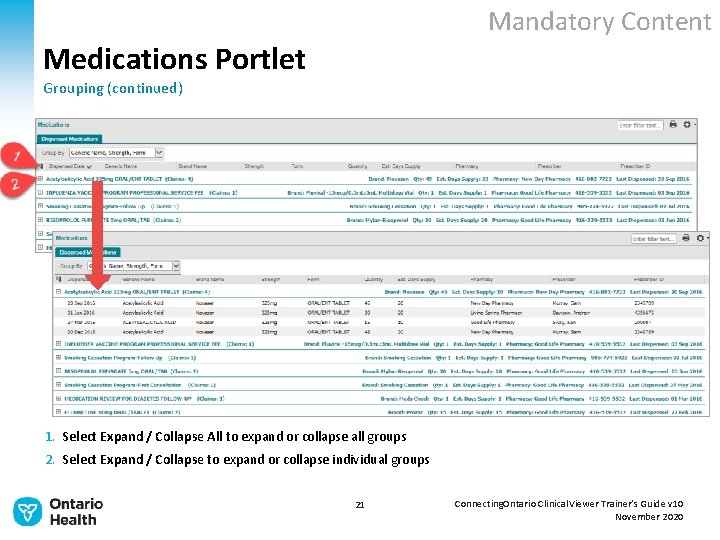
Mandatory Content Medications Portlet Grouping (continued) 1. Select Expand / Collapse All to expand or collapse all groups 2. Select Expand / Collapse to expand or collapse individual groups 21 Connecting. Ontario Clinical. Viewer Trainer’s Guide v 10 November 2020
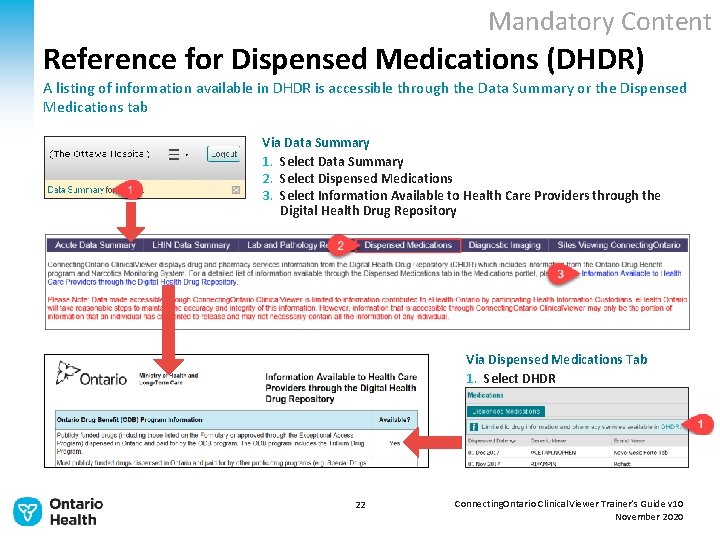
Mandatory Content Reference for Dispensed Medications (DHDR) A listing of information available in DHDR is accessible through the Data Summary or the Dispensed Medications tab Via Data Summary 1. Select Data Summary 2. Select Dispensed Medications 3. Select Information Available to Health Care Providers through the Digital Health Drug Repository Via Dispensed Medications Tab 1. Select DHDR 22 Connecting. Ontario Clinical. Viewer Trainer’s Guide v 10 November 2020
Mandatory Content Clinical Use of DHDR Information Limitations of Data - Considerations • DHDR information is advisory only and is not intended to replace sound clinical judgment • It may not represent a patient’s complete medication history as it may not include • all the current medications a patient is taking at any time, or • all the pharmacy services that a patient has received • Key considerations include: • the information should be discussed and confirmed with the patient or other source(s) • the patient may not have picked up their medications or may not be taking them as prescribed • the patient may be taking other medications such as over-the-counter or privately-paid medications (excluding narcotics and controlled substances) • it does not include hospital-dispensed medications • it does not reflect details such as: ü whether a prescription is new or a refill ü changes to drug therapy (e. g. , discontinued, dosage) ü current use of medication ü instructions for use (e. g. , frequency) • Contact the dispensing pharmacy or prescriber for additional information or clarification 23 Connecting. Ontario Clinical. Viewer Trainer’s Guide v 10 November 2020
Mandatory Content Clinical Use of DHDR Information Limitations of Data – Important Term Descriptions • Dispensed Date: transaction date when the prescription drug was dispensed or the pharmacy service was rendered; it does not indicate if the medication was picked up • Strength: strength of the prescription drug dispensed, amount of active ingredient in the drug; for topical and liquid medication it may be shown as a percentage or ratio • Quantity: quantity of medication dispensed; may be the number of items dispensed, or, for topical and liquid medication (e. g. , Methadone), it may refer to dose, total volume or volume of drug concentrate • Estimated Days Supply: estimated days of treatment based on the directions for use on the prescription, and/or the pharmacist’s judgment on usage; estimating usage accurately may not be possible for some prescriptions (e. g. , PRN) 24 Connecting. Ontario Clinical. Viewer Trainer’s Guide v 10 November 2020
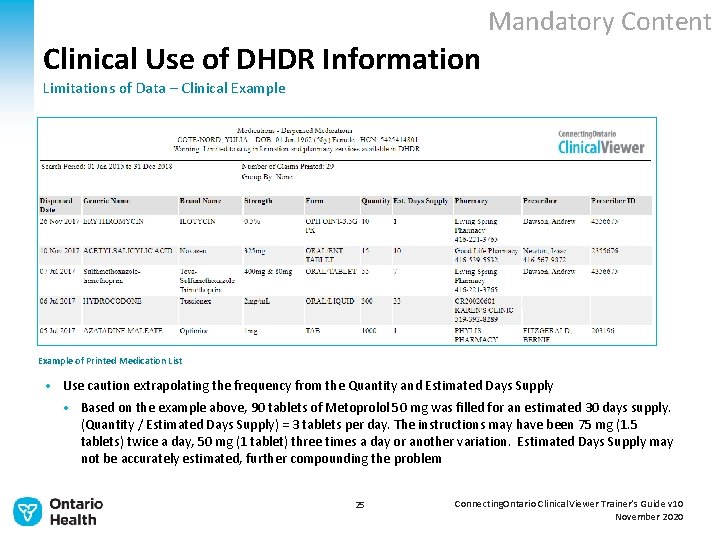
Mandatory Content Clinical Use of DHDR Information Limitations of Data – Clinical Example of Printed Medication List • Use caution extrapolating the frequency from the Quantity and Estimated Days Supply • Based on the example above, 90 tablets of Metoprolol 50 mg was filled for an estimated 30 days supply. (Quantity / Estimated Days Supply) = 3 tablets per day. The instructions may have been 75 mg (1. 5 tablets) twice a day, 50 mg (1 tablet) three times a day or another variation. Estimated Days Supply may not be accurately estimated, further compounding the problem 25 Connecting. Ontario Clinical. Viewer Trainer’s Guide v 10 November 2020
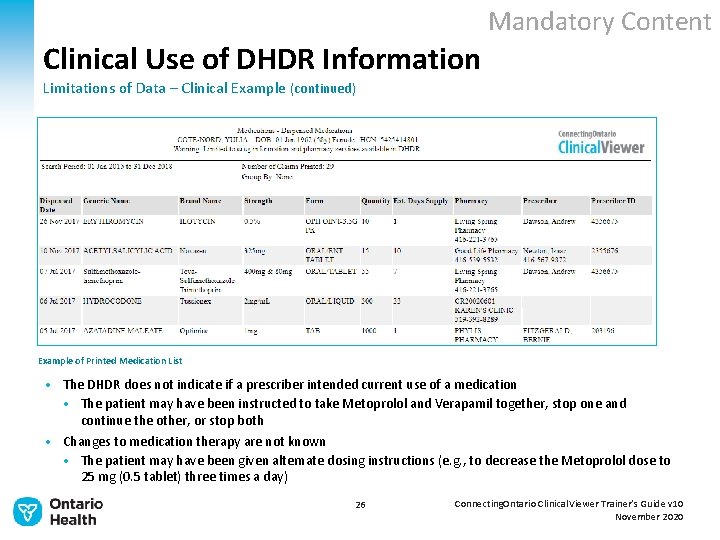
Mandatory Content Clinical Use of DHDR Information Limitations of Data – Clinical Example (continued) Example of Printed Medication List • The DHDR does not indicate if a prescriber intended current use of a medication • The patient may have been instructed to take Metoprolol and Verapamil together, stop one and continue the other, or stop both • Changes to medication therapy are not known • The patient may have been given alternate dosing instructions (e. g. , to decrease the Metoprolol dose to 25 mg (0. 5 tablet) three times a day) 26 Connecting. Ontario Clinical. Viewer Trainer’s Guide v 10 November 2020
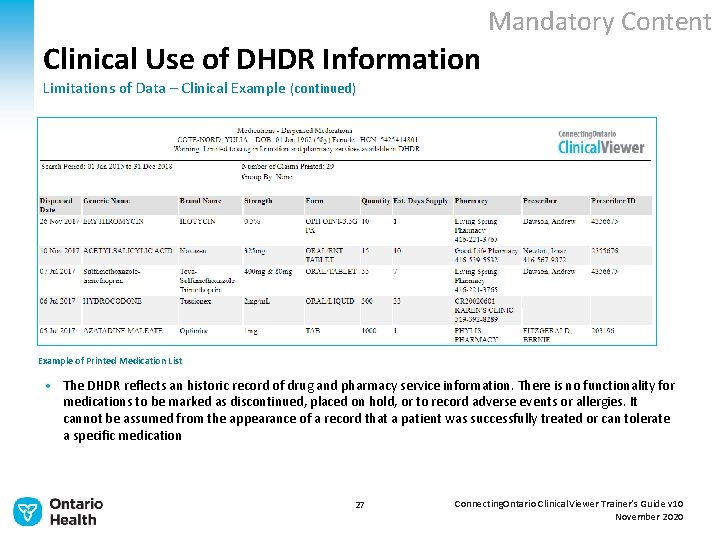
Mandatory Content Clinical Use of DHDR Information Limitations of Data – Clinical Example (continued) Example of Printed Medication List • The DHDR reflects an historic record of drug and pharmacy service information. There is no functionality for medications to be marked as discontinued, placed on hold, or to record adverse events or allergies. It cannot be assumed from the appearance of a record that a patient was successfully treated or can tolerate a specific medication 27 Connecting. Ontario Clinical. Viewer Trainer’s Guide v 10 November 2020
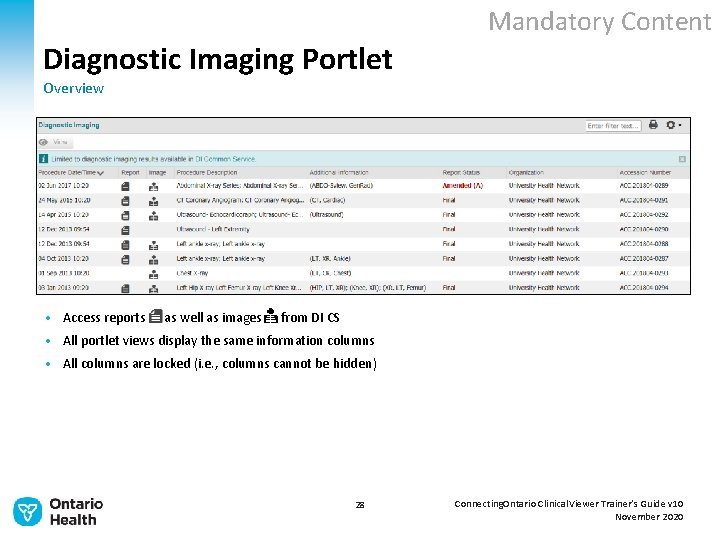
Mandatory Content Diagnostic Imaging Portlet Overview • Access reports as well as images from DI CS • All portlet views display the same information columns • All columns are locked (i. e. , columns cannot be hidden) 28 Connecting. Ontario Clinical. Viewer Trainer’s Guide v 10 November 2020
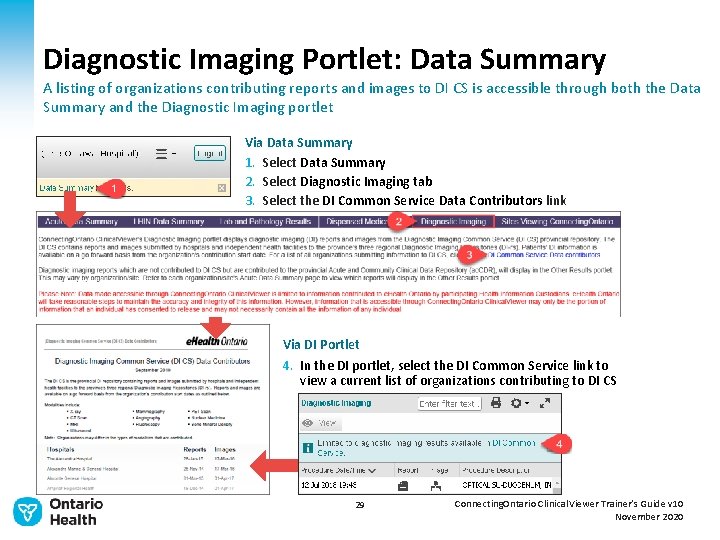
Diagnostic Imaging Portlet: Data Summary A listing of organizations contributing reports and images to DI CS is accessible through both the Data Summary and the Diagnostic Imaging portlet Via Data Summary 1. Select Data Summary 2. Select Diagnostic Imaging tab 3. Select the DI Common Service Data Contributors link Via DI Portlet 4. In the DI portlet, select the DI Common Service link to view a current list of organizations contributing to DI CS 29 Connecting. Ontario Clinical. Viewer Trainer’s Guide v 10 November 2020
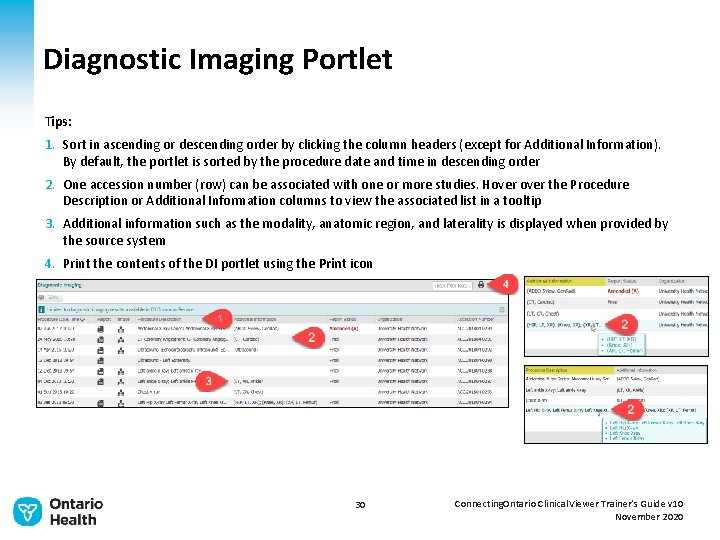
Diagnostic Imaging Portlet Tips: 1. Sort in ascending or descending order by clicking the column headers (except for Additional Information). By default, the portlet is sorted by the procedure date and time in descending order 2. One accession number (row) can be associated with one or more studies. Hover the Procedure Description or Additional Information columns to view the associated list in a tooltip 3. Additional information such as the modality, anatomic region, and laterality is displayed when provided by the source system 4. Print the contents of the DI portlet using the Print icon 30 Connecting. Ontario Clinical. Viewer Trainer’s Guide v 10 November 2020
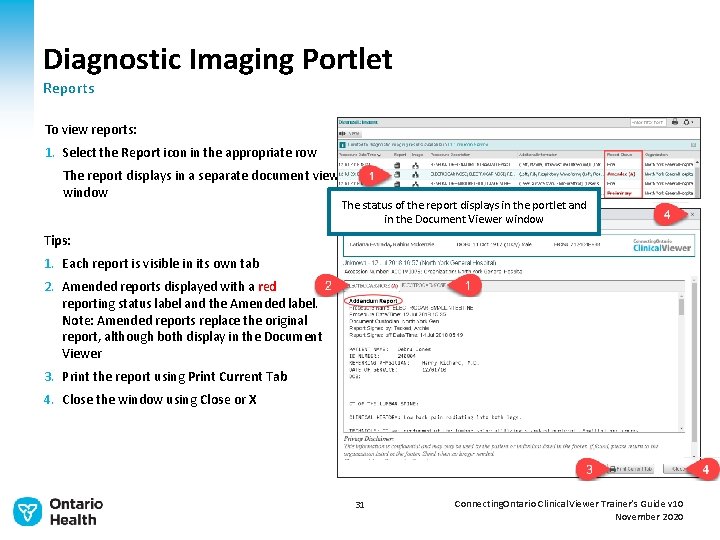
Diagnostic Imaging Portlet Reports To view reports: 1. Select the Report icon in the appropriate row The report displays in a separate document viewer window The status of the report displays in the portlet and in the Document Viewer window Tips: 1. Each report is visible in its own tab 2. Amended reports displayed with a red reporting status label and the Amended label. Note: Amended reports replace the original report, although both display in the Document Viewer 3. Print the report using Print Current Tab 4. Close the window using Close or X 31 Connecting. Ontario Clinical. Viewer Trainer’s Guide v 10 November 2020
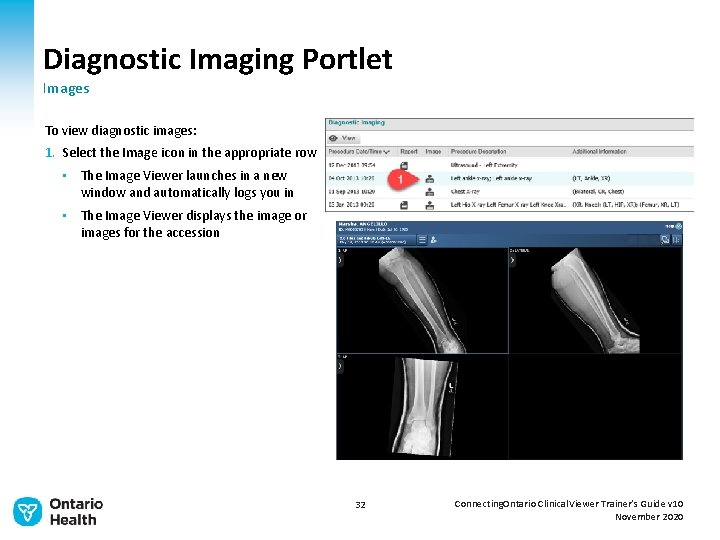
Diagnostic Imaging Portlet Images To view diagnostic images: 1. Select the Image icon in the appropriate row • The Image Viewer launches in a new window and automatically logs you in • The Image Viewer displays the image or images for the accession 32 Connecting. Ontario Clinical. Viewer Trainer’s Guide v 10 November 2020
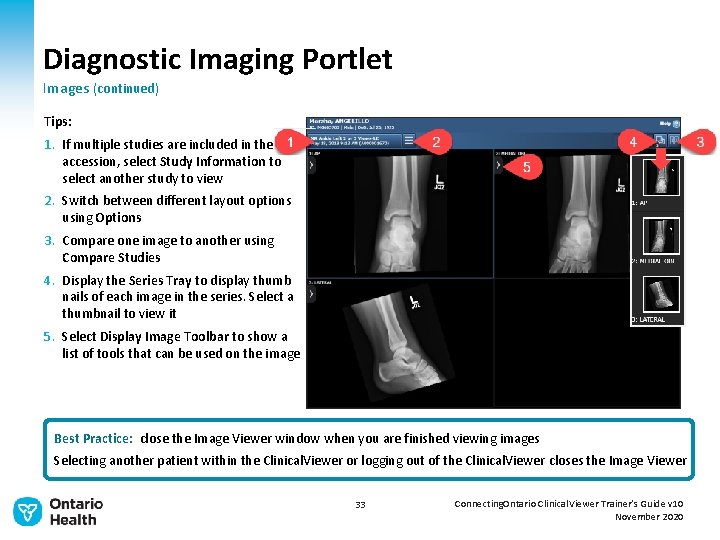
Diagnostic Imaging Portlet Images (continued) Tips: 1. If multiple studies are included in the accession, select Study Information to select another study to view 2. Switch between different layout options using Options 3. Compare one image to another using Compare Studies 4. Display the Series Tray to display thumb nails of each image in the series. Select a thumbnail to view it 5. Select Display Image Toolbar to show a list of tools that can be used on the image Best Practice: close the Image Viewer window when you are finished viewing images Selecting another patient within the Clinical. Viewer or logging out of the Clinical. Viewer closes the Image Viewer 33 Connecting. Ontario Clinical. Viewer Trainer’s Guide v 10 November 2020
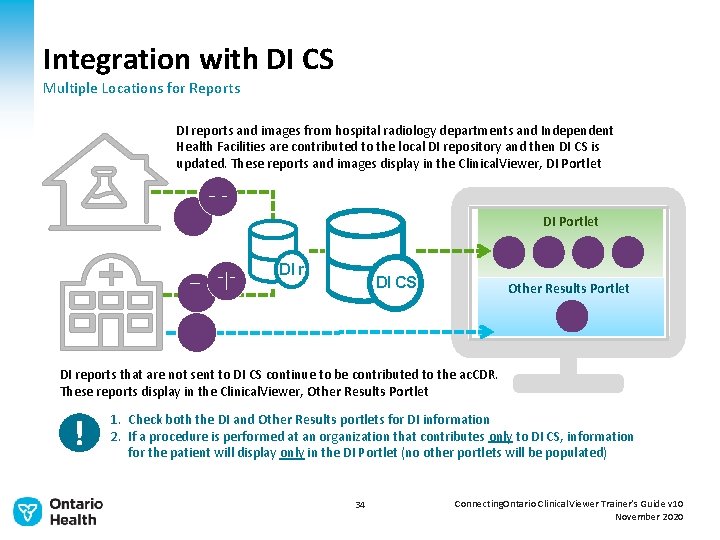
Integration with DI CS Multiple Locations for Reports DI reports and images from hospital radiology departments and Independent Health Facilities are contributed to the local DI repository and then DI CS is updated. These reports and images display in the Clinical. Viewer, DI Portlet DI r DI CS Other Results Portlet DI reports that are not sent to DI CS continue to be contributed to the ac. CDR. These reports display in the Clinical. Viewer, Other Results Portlet ! 1. Check both the DI and Other Results portlets for DI information 2. If a procedure is performed at an organization that contributes only to DI CS, information for the patient will display only in the DI Portlet (no other portlets will be populated) 34 Connecting. Ontario Clinical. Viewer Trainer’s Guide v 10 November 2020
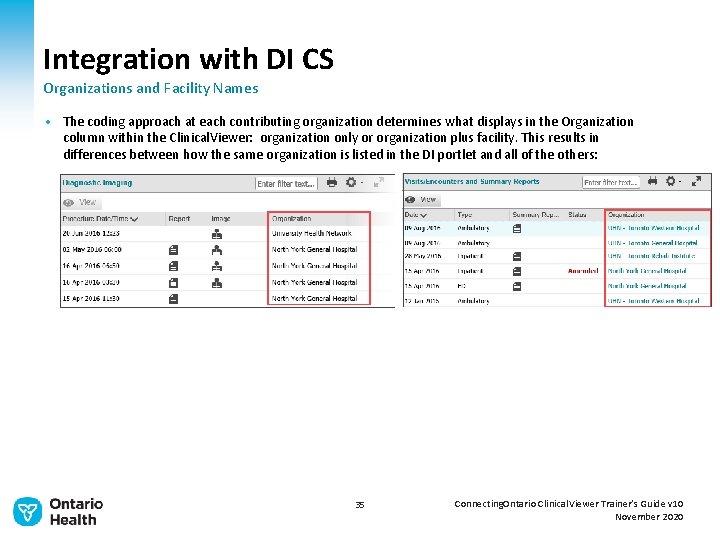
Integration with DI CS Organizations and Facility Names • The coding approach at each contributing organization determines what displays in the Organization column within the Clinical. Viewer: organization only or organization plus facility. This results in differences between how the same organization is listed in the DI portlet and all of the others: 35 Connecting. Ontario Clinical. Viewer Trainer’s Guide v 10 November 2020
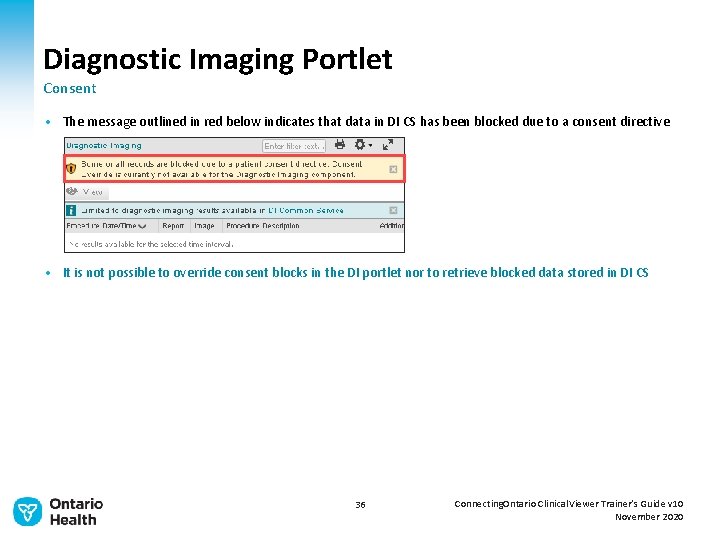
Diagnostic Imaging Portlet Consent • The message outlined in red below indicates that data in DI CS has been blocked due to a consent directive • It is not possible to override consent blocks in the DI portlet nor to retrieve blocked data stored in DI CS 36 Connecting. Ontario Clinical. Viewer Trainer’s Guide v 10 November 2020
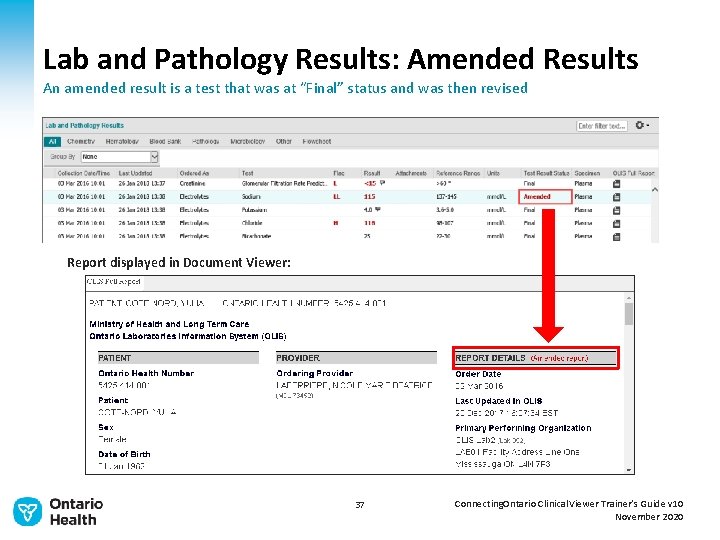
Lab and Pathology Results: Amended Results An amended result is a test that was at “Final” status and was then revised Report displayed in Document Viewer: 37 Connecting. Ontario Clinical. Viewer Trainer’s Guide v 10 November 2020
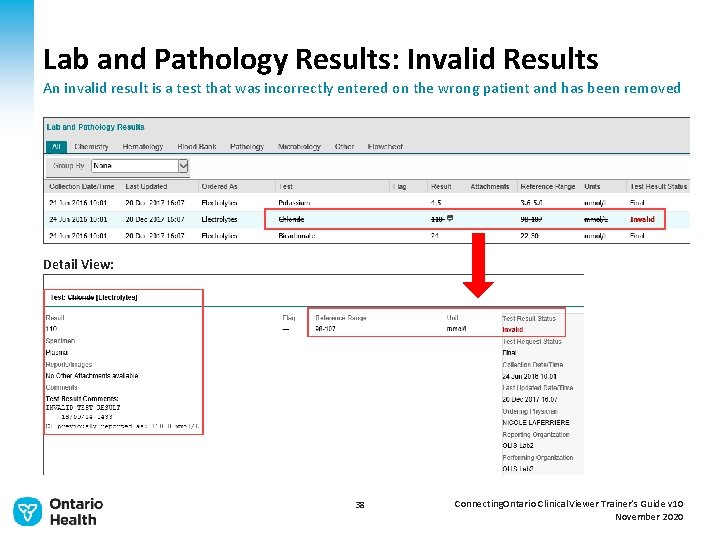
Lab and Pathology Results: Invalid Results An invalid result is a test that was incorrectly entered on the wrong patient and has been removed Detail View: 38 Connecting. Ontario Clinical. Viewer Trainer’s Guide v 10 November 2020
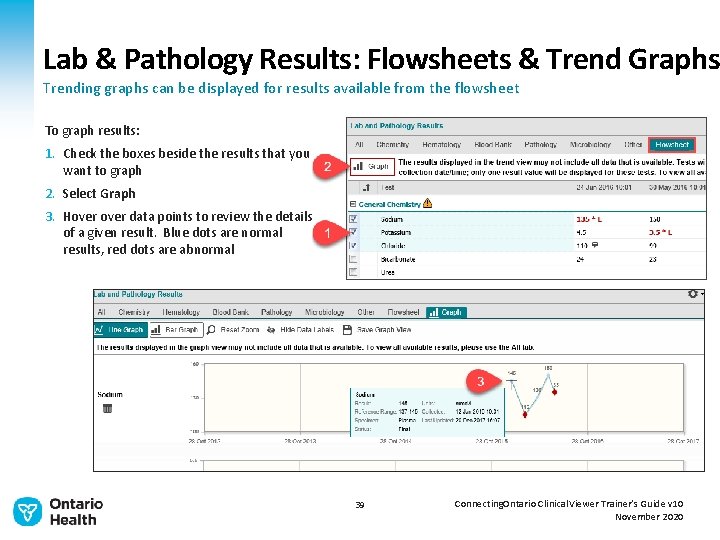
Lab & Pathology Results: Flowsheets & Trend Graphs Trending graphs can be displayed for results available from the flowsheet To graph results: 1. Check the boxes beside the results that you want to graph 2. Select Graph 3. Hover data points to review the details of a given result. Blue dots are normal results, red dots are abnormal 39 Connecting. Ontario Clinical. Viewer Trainer’s Guide v 10 November 2020
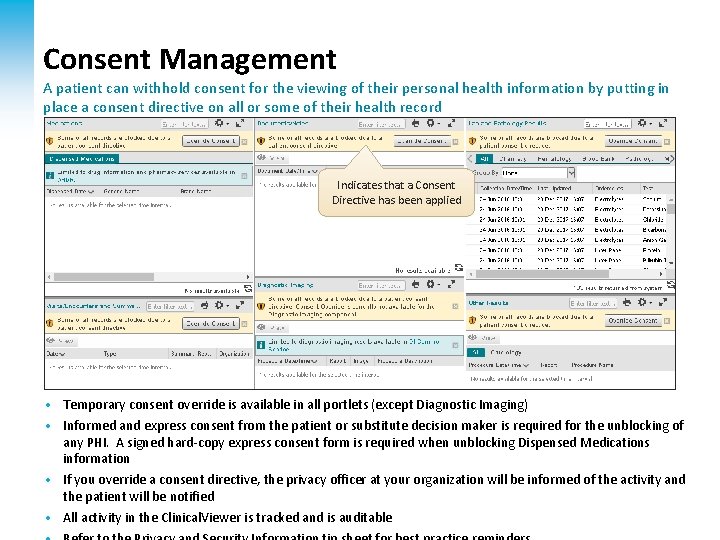
Consent Management A patient can withhold consent for the viewing of their personal health information by putting in place a consent directive on all or some of their health record Indicates that a Consent Directive has been applied • Temporary consent override is available in all portlets (except Diagnostic Imaging) • Informed and express consent from the patient or substitute decision maker is required for the unblocking of any PHI. A signed hard-copy express consent form is required when unblocking Dispensed Medications information • If you override a consent directive, the privacy officer at your organization will be informed of the activity and the patient will be notified Connecting. Ontario Clinical. Viewer Trainer’s Guide v 09 40 June 2020 • All activity in the Clinical. Viewer is tracked and is auditable
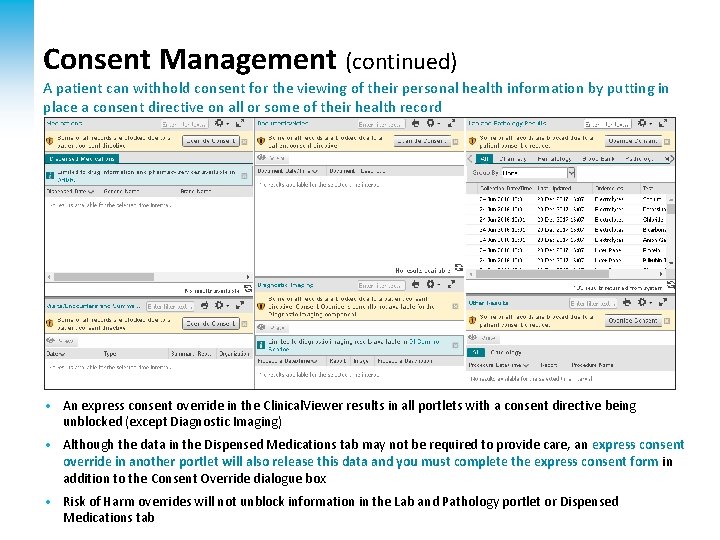
Consent Management (continued) A patient can withhold consent for the viewing of their personal health information by putting in place a consent directive on all or some of their health record • An express consent override in the Clinical. Viewer results in all portlets with a consent directive being unblocked (except Diagnostic Imaging) • Although the data in the Dispensed Medications tab may not be required to provide care, an express consent override in another portlet will also release this data and you must complete the express consent form in addition to the Consent Override dialogue box • Risk of Harm overrides will not unblock information 41 in the Lab and Pathology portlet or Dispensed Connecting. Ontario Clinical. Viewer Trainer’s Guide v 09 June 2020 Medications tab
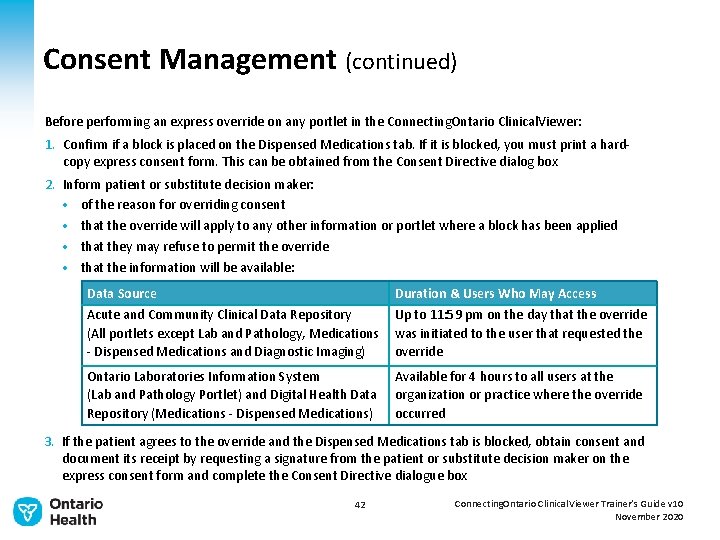
Consent Management (continued) Before performing an express override on any portlet in the Connecting. Ontario Clinical. Viewer: 1. Confirm if a block is placed on the Dispensed Medications tab. If it is blocked, you must print a hardcopy express consent form. This can be obtained from the Consent Directive dialog box 2. Inform patient or substitute decision maker: • of the reason for overriding consent • that the override will apply to any other information or portlet where a block has been applied • that they may refuse to permit the override • that the information will be available: Data Source Acute and Community Clinical Data Repository (All portlets except Lab and Pathology, Medications - Dispensed Medications and Diagnostic Imaging) Duration & Users Who May Access Up to 11: 59 pm on the day that the override was initiated to the user that requested the override Ontario Laboratories Information System (Lab and Pathology Portlet) and Digital Health Data Repository (Medications - Dispensed Medications) Available for 4 hours to all users at the organization or practice where the override occurred 3. If the patient agrees to the override and the Dispensed Medications tab is blocked, obtain consent and document its receipt by requesting a signature from the patient or substitute decision maker on the express consent form and complete the Consent Directive dialogue box 42 Connecting. Ontario Clinical. Viewer Trainer’s Guide v 10 November 2020
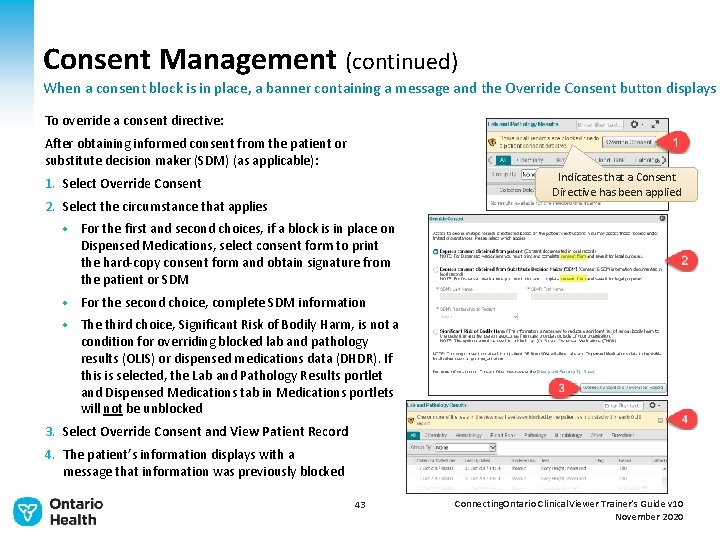
Consent Management (continued) When a consent block is in place, a banner containing a message and the Override Consent button displays To override a consent directive: After obtaining informed consent from the patient or substitute decision maker (SDM) (as applicable): Indicates that a Consent Directive has been applied 1. Select Override Consent 2. Select the circumstance that applies • For the first and second choices, if a block is in place on Dispensed Medications, select consent form to print the hard-copy consent form and obtain signature from the patient or SDM • For the second choice, complete SDM information • The third choice, Significant Risk of Bodily Harm, is not a condition for overriding blocked lab and pathology results (OLIS) or dispensed medications data (DHDR). If this is selected, the Lab and Pathology Results portlet and Dispensed Medications tab in Medications portlets will not be unblocked 3. Select Override Consent and View Patient Record 4. The patient’s information displays with a message that information was previously blocked 43 Connecting. Ontario Clinical. Viewer Trainer’s Guide v 10 November 2020
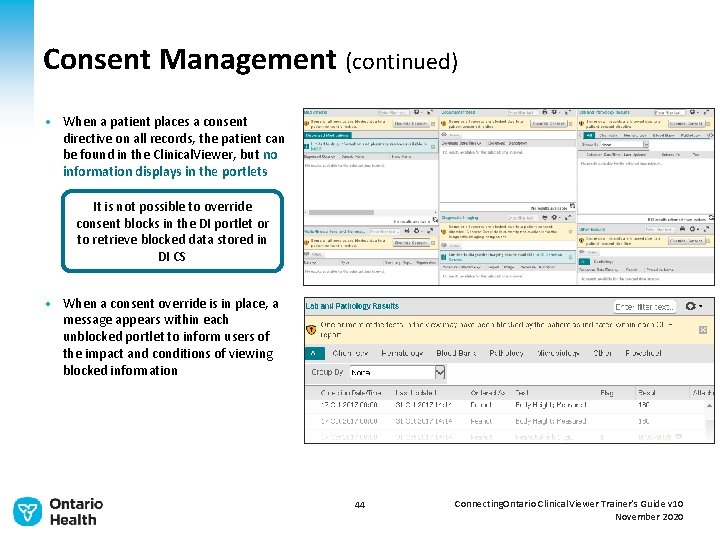
Consent Management (continued) • When a patient places a consent directive on all records, the patient can be found in the Clinical. Viewer, but no information displays in the portlets It is not possible to override consent blocks in the DI portlet or to retrieve blocked data stored in DI CS • When a consent override is in place, a message appears within each unblocked portlet to inform users of the impact and conditions of viewing blocked information 44 Connecting. Ontario Clinical. Viewer Trainer’s Guide v 10 November 2020
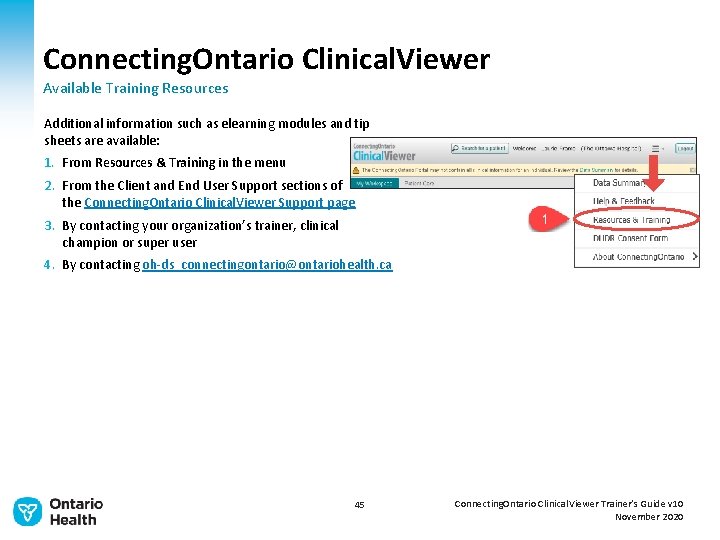
Connecting. Ontario Clinical. Viewer Available Training Resources Additional information such as elearning modules and tip sheets are available: 1. From Resources & Training in the menu 2. From the Client and End User Support sections of the Connecting. Ontario Clinical. Viewer Support page 3. By contacting your organization’s trainer, clinical champion or super user 4. By contacting oh-ds_connectingontario@ontariohealth. ca 45 Connecting. Ontario Clinical. Viewer Trainer’s Guide v 10 November 2020
- Slides: 46