
Connecticut Alternate Assessment Overview Copyright 2016 American Institutes
- Slides: 49
Connecticut Alternate Assessment Overview Copyright © 2016 American Institutes for Research. All rights reserved.
Objectives After viewing this presentation, you should be able to: § Access CTAA resources and administer CTAAs § Log in to AIR systems used for online test administration § Create a new test session and monitor the testing process § Understand online test layout and accessibility features § Pause and stop a test session § Exit and log out of the Test Administrator Interface 2
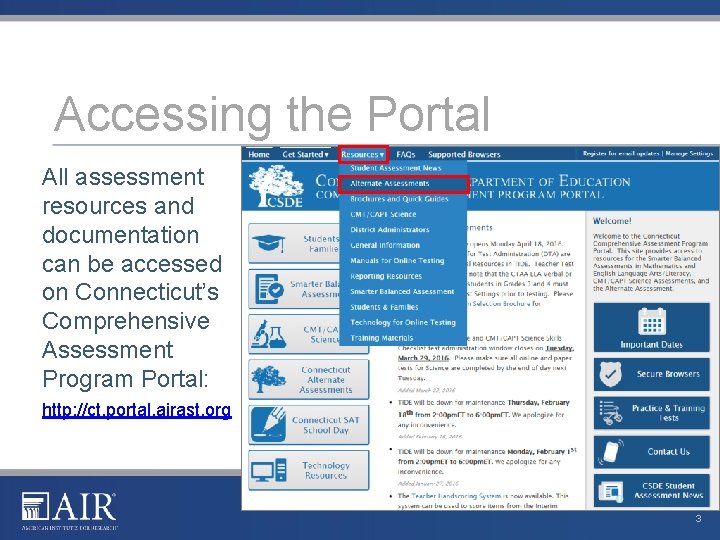
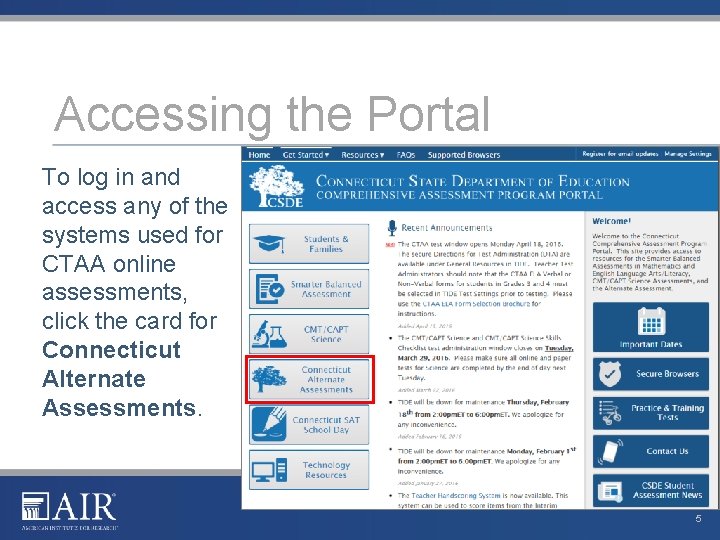
Accessing the Portal All assessment resources and documentation can be accessed on Connecticut’s Comprehensive Assessment Program Portal: http: //ct. portal. airast. org 3
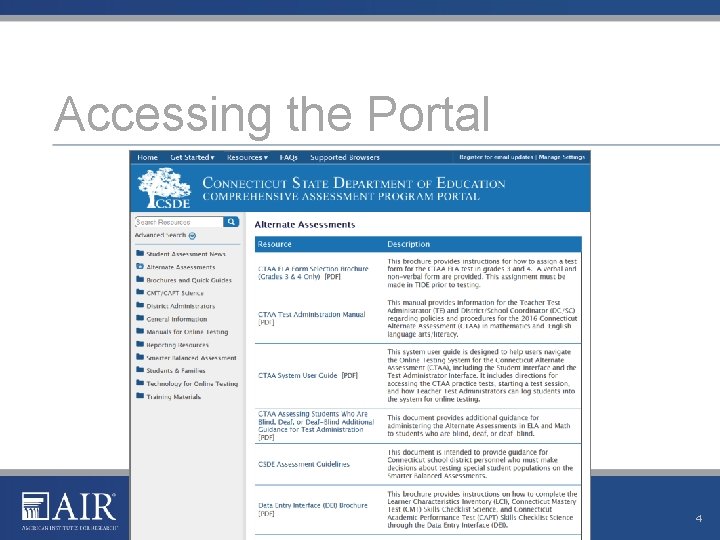
Accessing the Portal 4
Accessing the Portal To log in and access any of the systems used for CTAA online assessments, click the card for Connecticut Alternate Assessments. 5
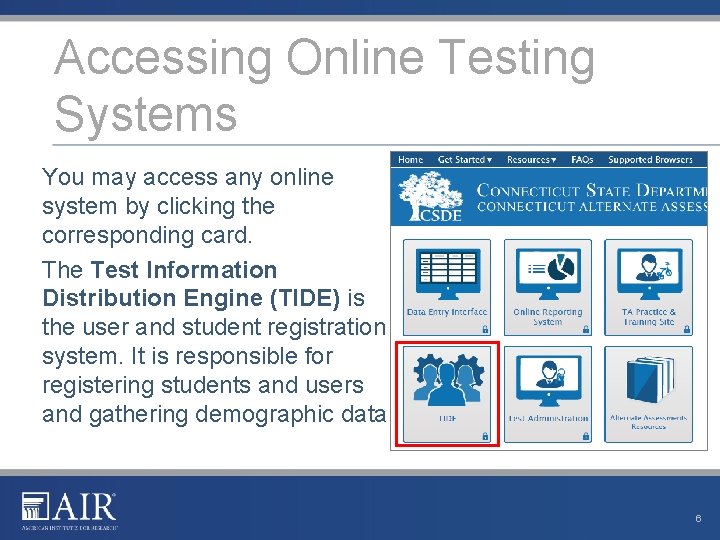
Accessing Online Testing Systems You may access any online system by clicking the corresponding card. The Test Information Distribution Engine (TIDE) is the user and student registration system. It is responsible for registering students and users and gathering demographic data. 6
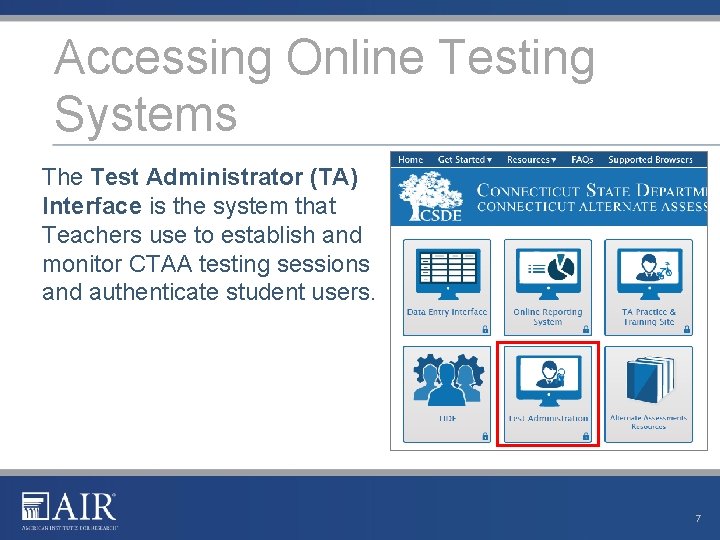
Accessing Online Testing Systems The Test Administrator (TA) Interface is the system that Teachers use to establish and monitor CTAA testing sessions and authenticate student users. 7
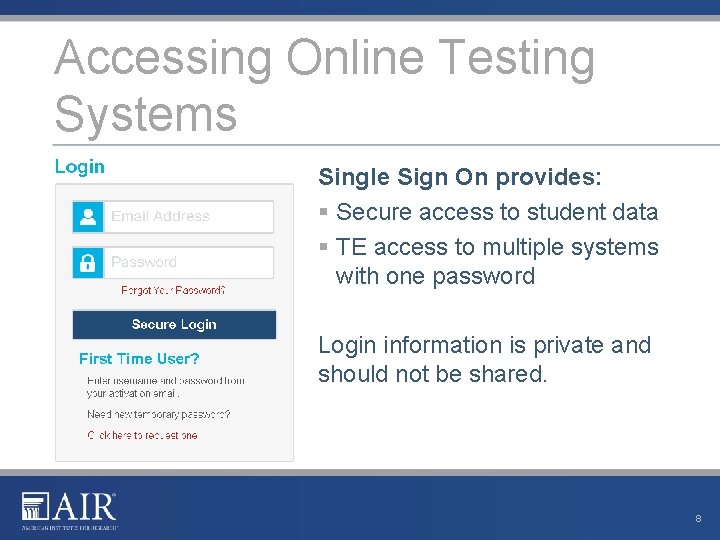
Accessing Online Testing Systems Single Sign On provides: § Secure access to student data § TE access to multiple systems with one password Login information is private and should not be shared. 8
Preparing to Administer the CTAA
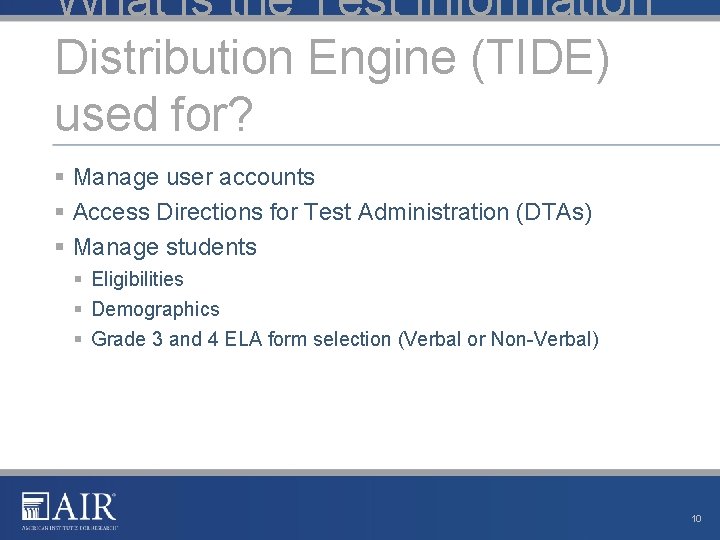
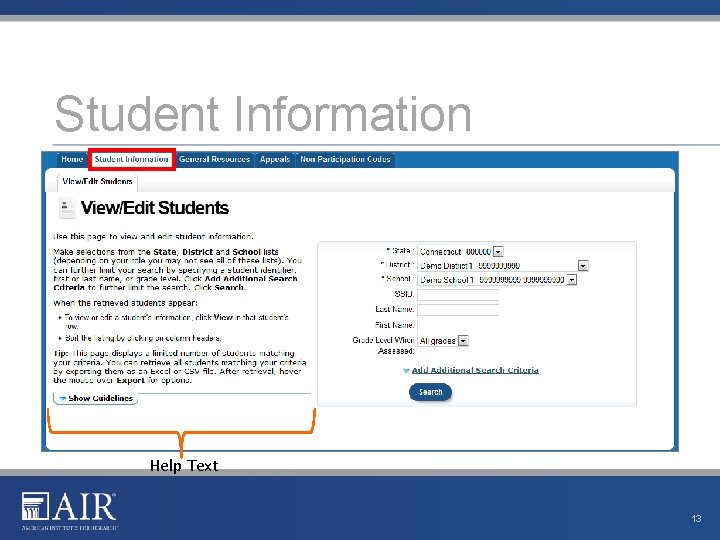
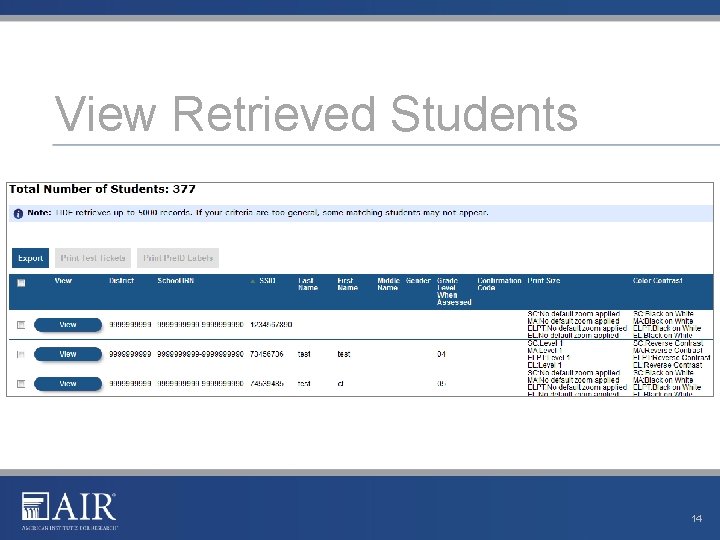
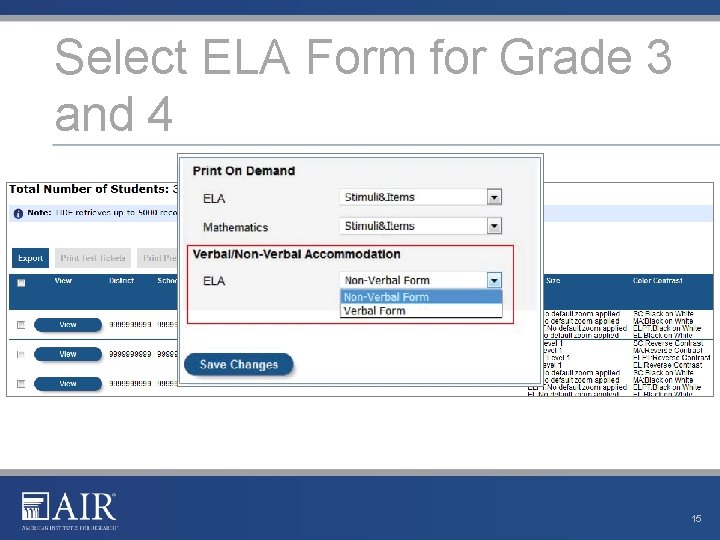
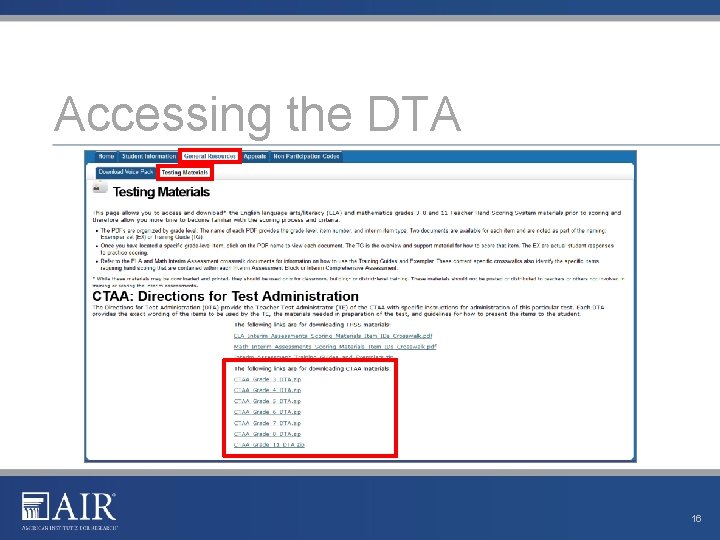
What is the Test Information Distribution Engine (TIDE) used for? § Manage user accounts § Access Directions for Test Administration (DTAs) § Manage students § Eligibilities § Demographics § Grade 3 and 4 ELA form selection (Verbal or Non-Verbal) 10
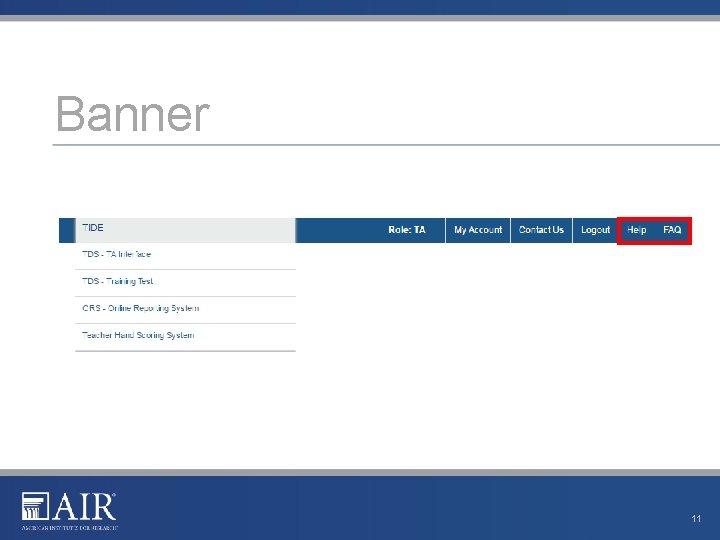
Banner 11
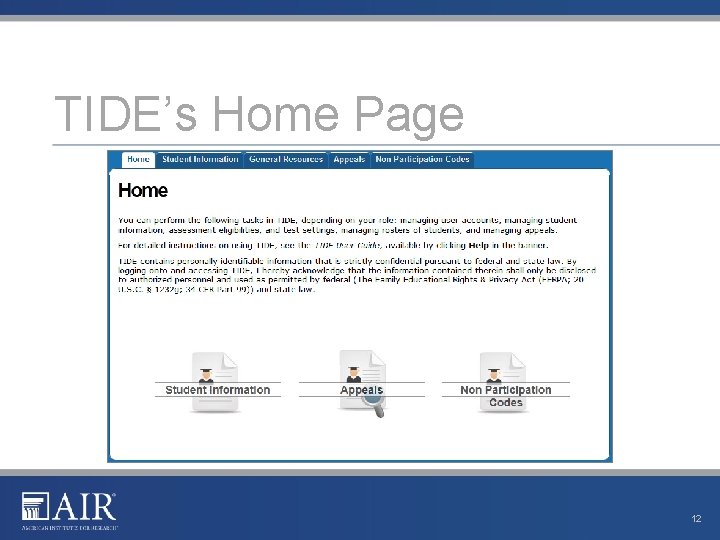
TIDE’s Home Page 12
Student Information Help Text 13
View Retrieved Students 14
Select ELA Form for Grade 3 and 4 15
Accessing the DTA 16
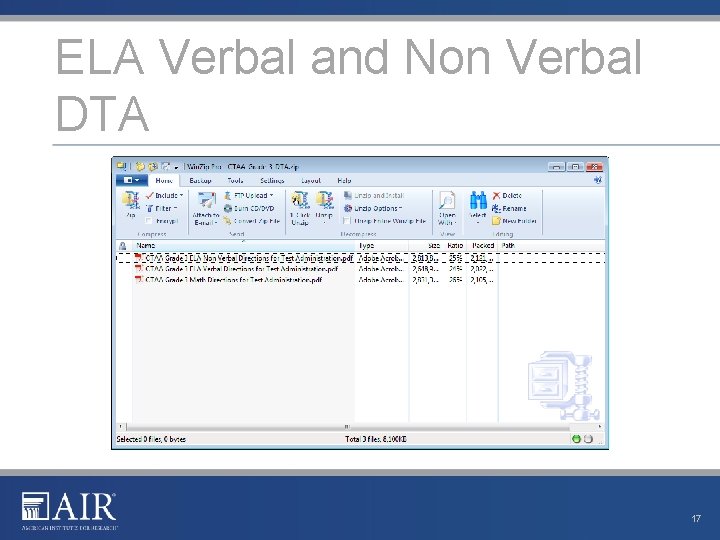
ELA Verbal and Non Verbal DTA 17
Administering the CTAA
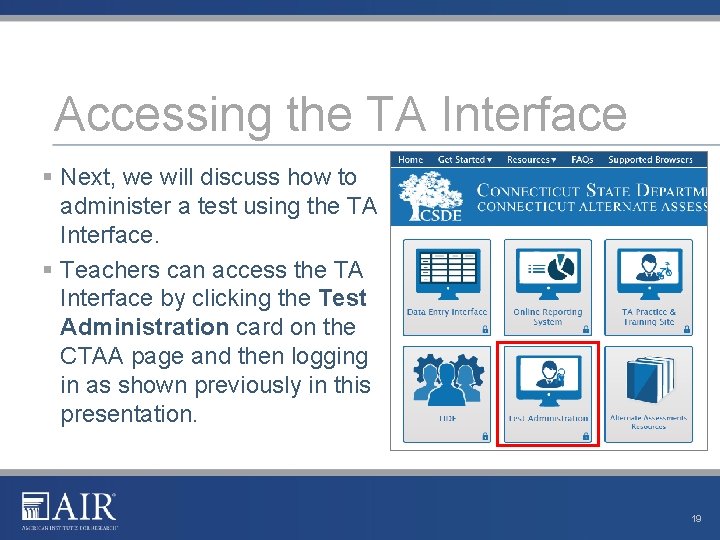
Accessing the TA Interface § Next, we will discuss how to administer a test using the TA Interface. § Teachers can access the TA Interface by clicking the Test Administration card on the CTAA page and then logging in as shown previously in this presentation. 19
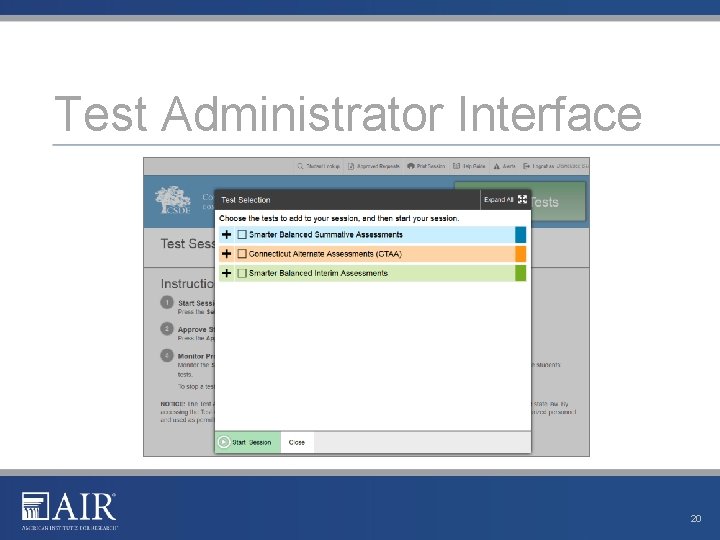
Test Administrator Interface 20
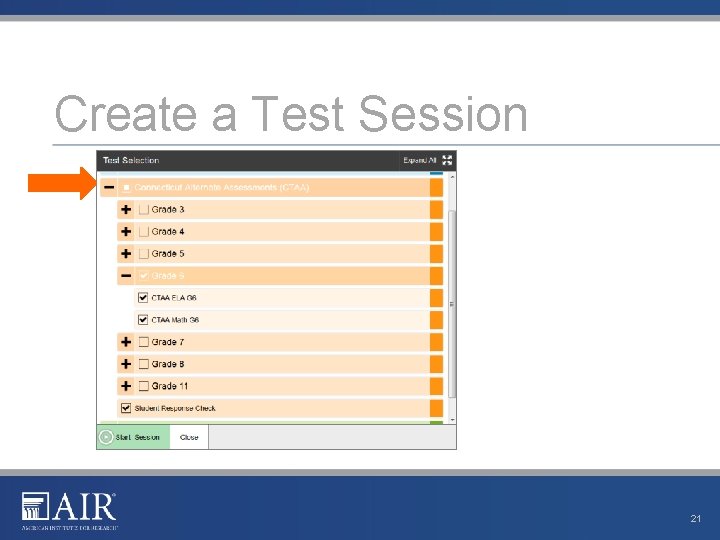
Create a Test Session 21
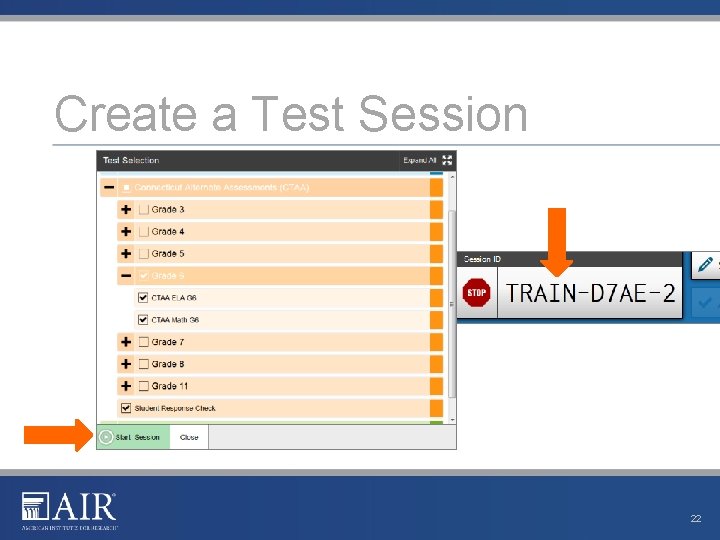
Create a Test Session 22
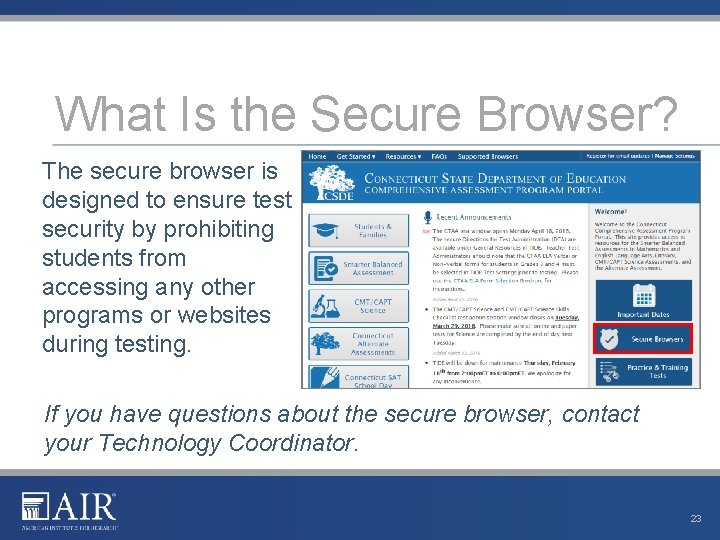
What Is the Secure Browser? The secure browser is designed to ensure test security by prohibiting students from accessing any other programs or websites during testing. If you have questions about the secure browser, contact your Technology Coordinator. 23
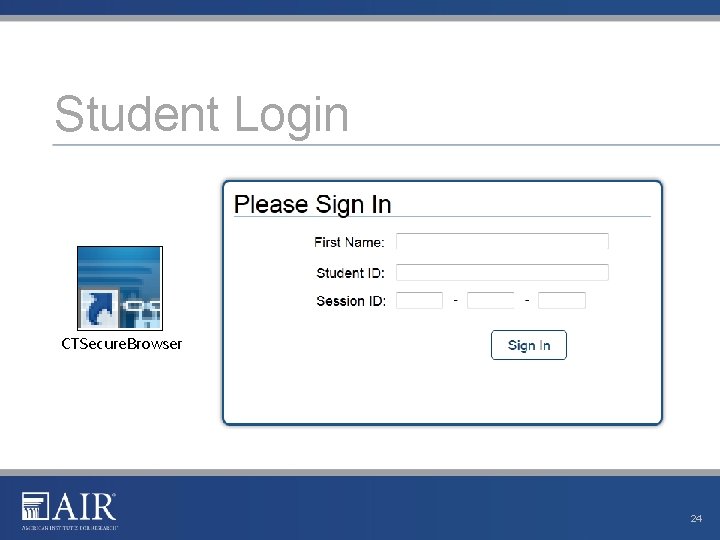
Student Login CTSecure. Browser 24
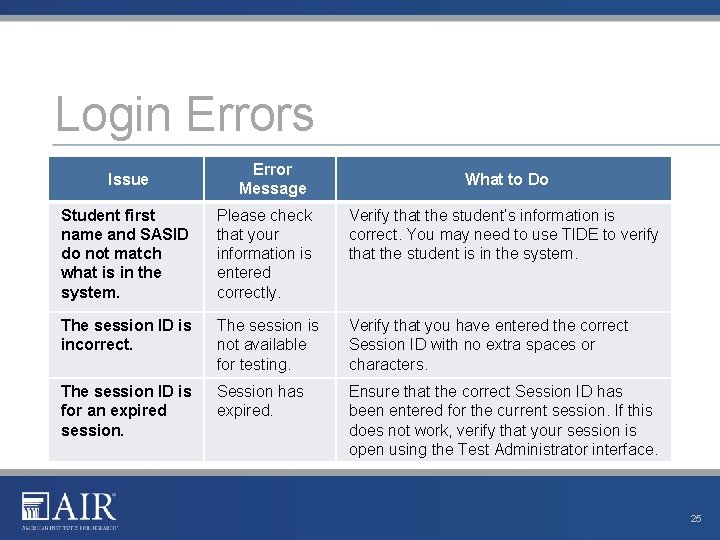
Login Errors Issue Error Message What to Do Student first name and SASID do not match what is in the system. Please check that your information is entered correctly. Verify that the student’s information is correct. You may need to use TIDE to verify that the student is in the system. The session ID is incorrect. The session is not available for testing. Verify that you have entered the correct Session ID with no extra spaces or characters. The session ID is for an expired session. Session has expired. Ensure that the correct Session ID has been entered for the current session. If this does not work, verify that your session is open using the Test Administrator interface. 25
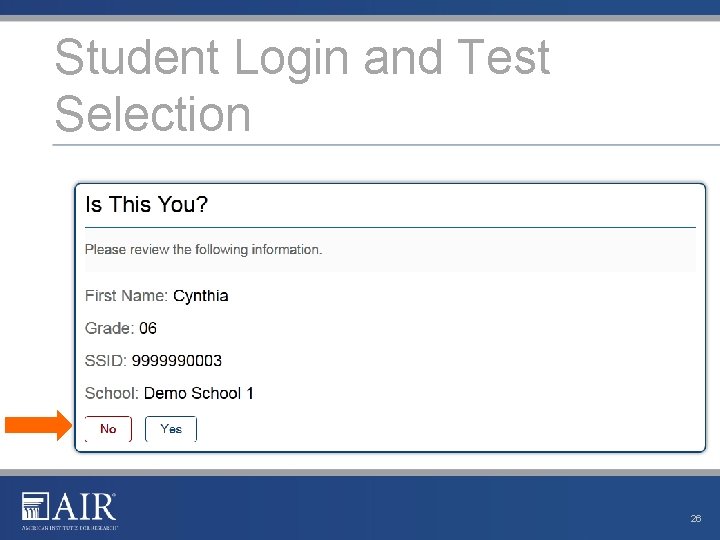
Student Login and Test Selection 26
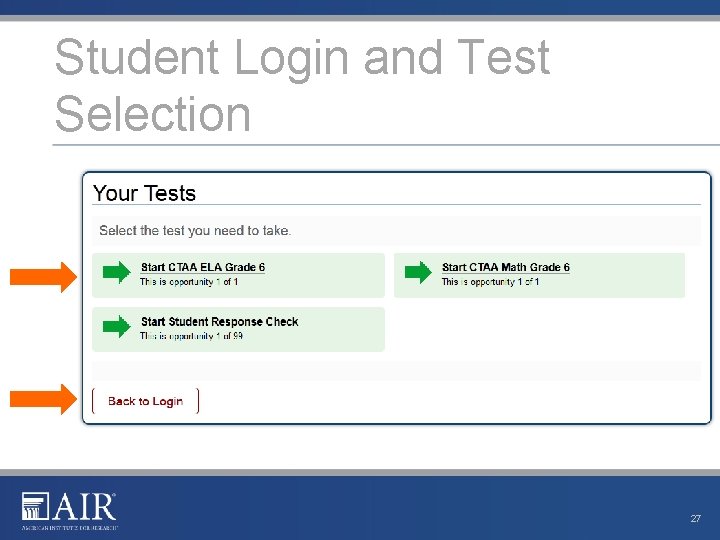
Student Login and Test Selection 27
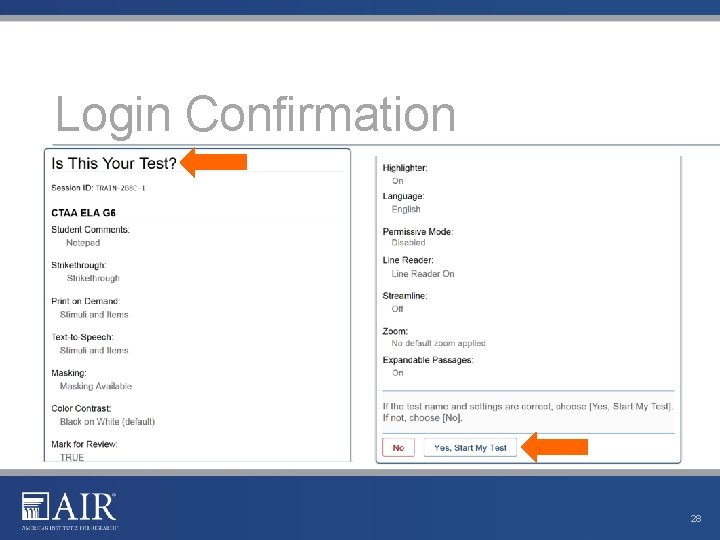
Login Confirmation 28
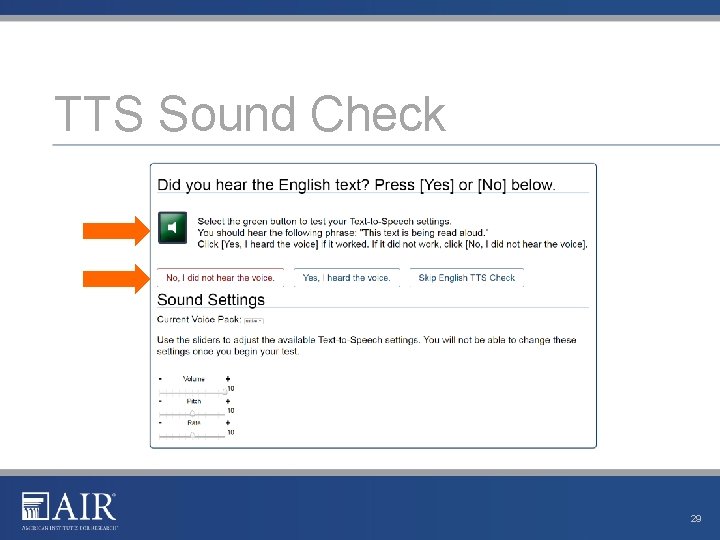
TTS Sound Check 29
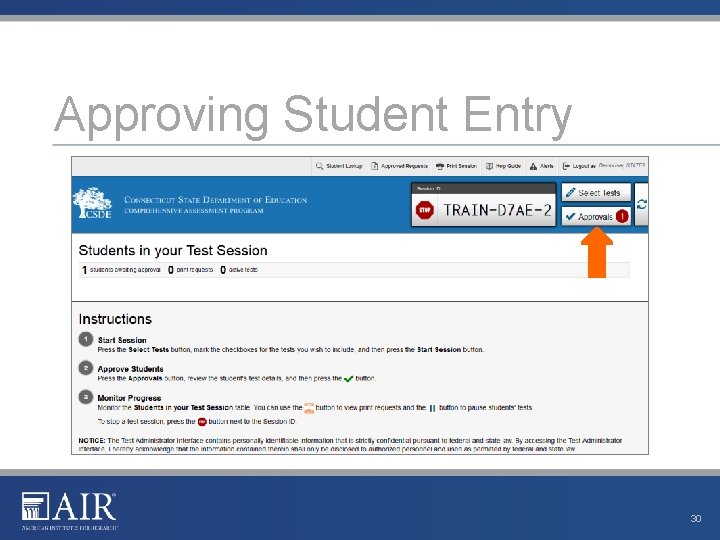
Approving Student Entry 30
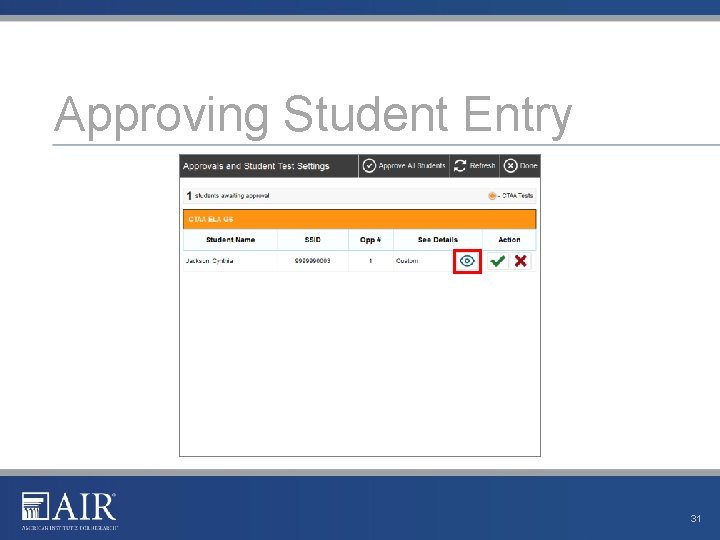
Approving Student Entry 31
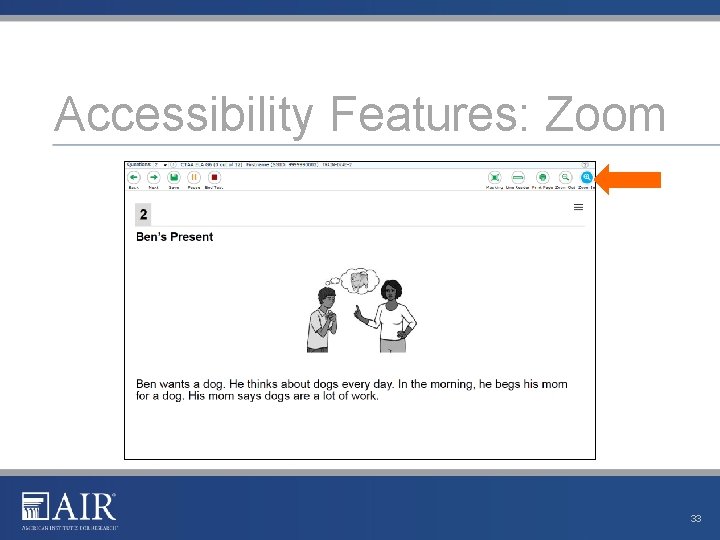
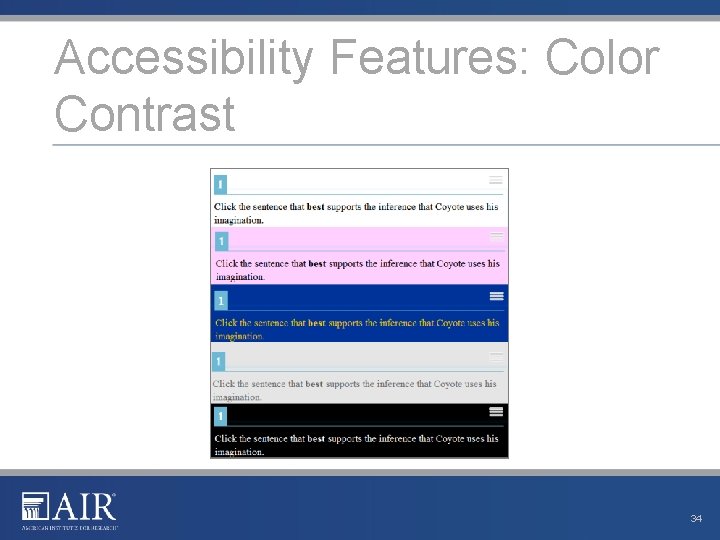
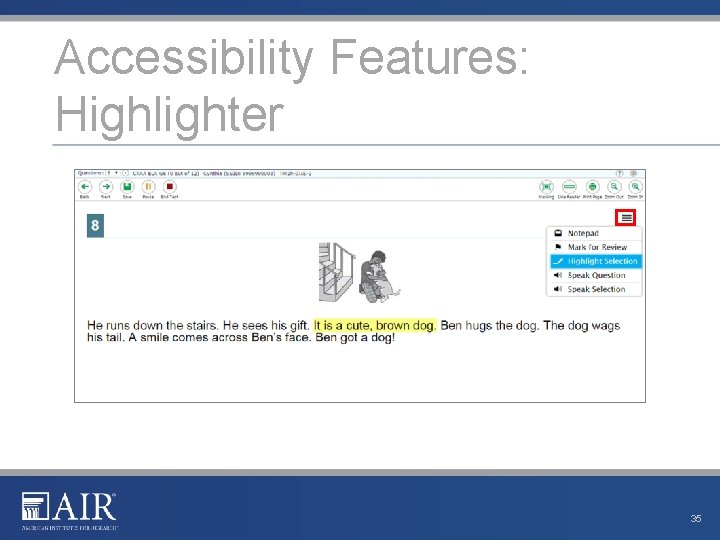
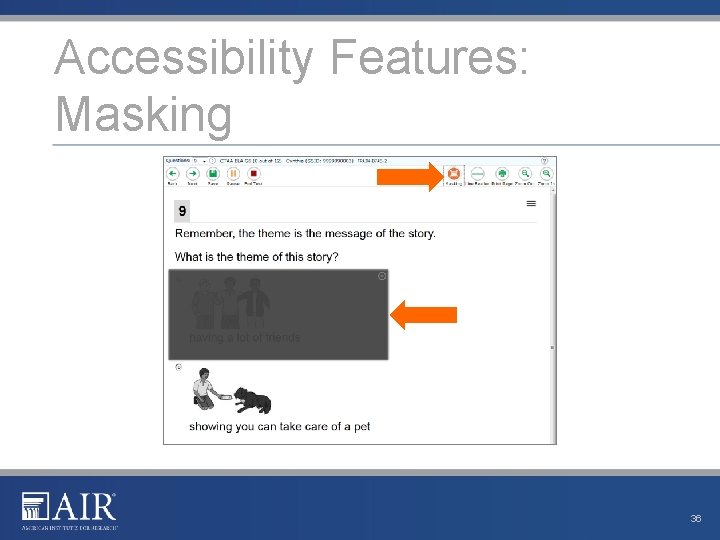
Accessibility Features support student access to the Test. These features include: • Zoom Out and Zoom In • Masking • Line Reader • Highlighter • Color Contrast • Text-To-Speech (TTS) 32
Accessibility Features: Zoom 33
Accessibility Features: Color Contrast 34
Accessibility Features: Highlighter 35
Accessibility Features: Masking 36
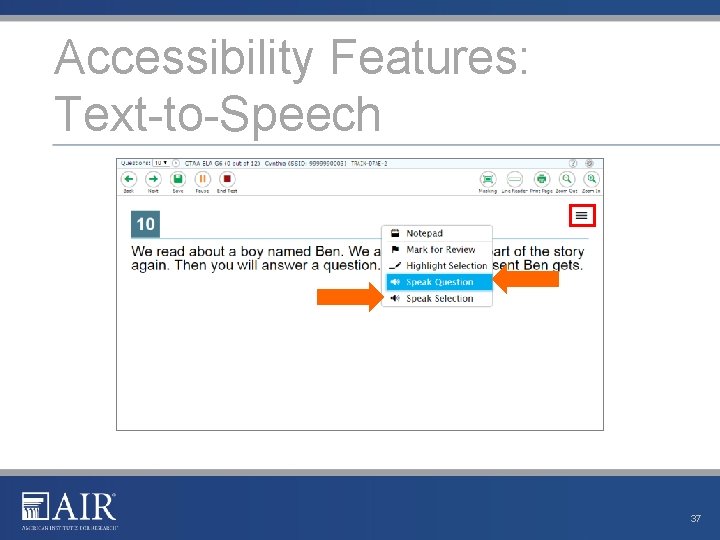
Accessibility Features: Text-to-Speech 37
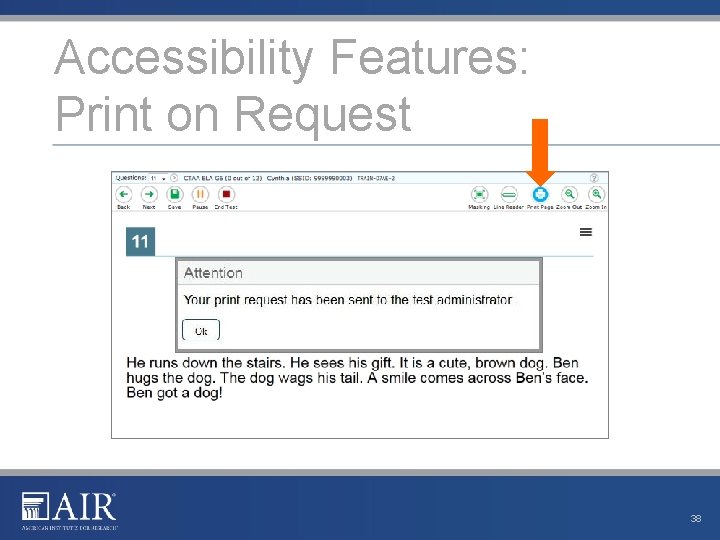
Accessibility Features: Print on Request 38
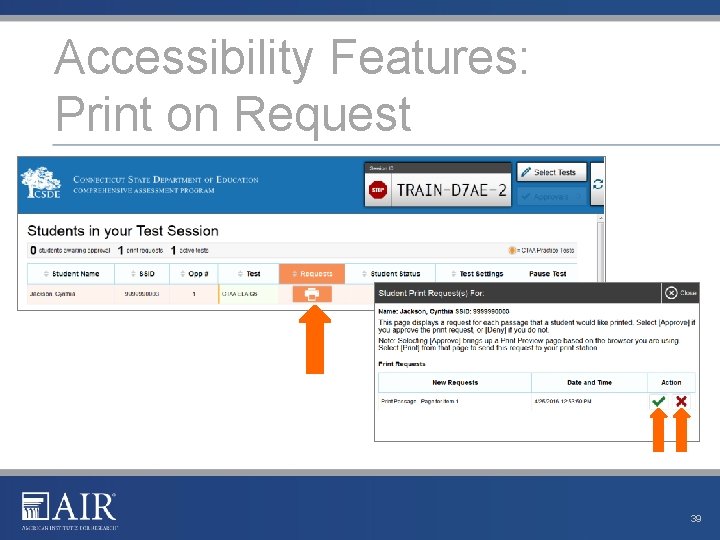
Accessibility Features: Print on Request 39
Pause and Test Timeout Pausing a Test • Students returning to a paused test during the testing window can finish their test, revisit any items, and change their answers if desired. Test Timeout Due to Inactivity • As a security measure, after 60 minutes of test inactivity, students are logged out and their tests are paused automatically. • Inactivity is determined by whether the student is interacting with the test by selecting answers or using navigation tools. • Students will receive a warning message prior to being logged out and must click OK on the pop-up within 30 seconds in order to avoid automatic logout and pausing of their test. 40
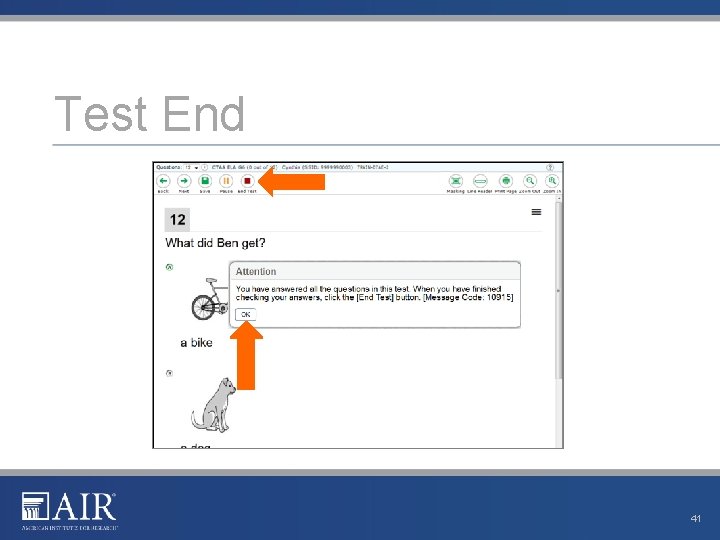
Test End 41
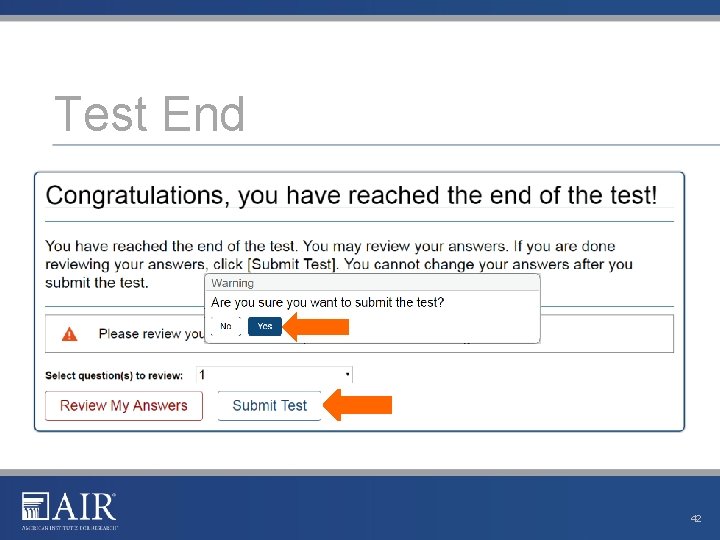
Test End 42
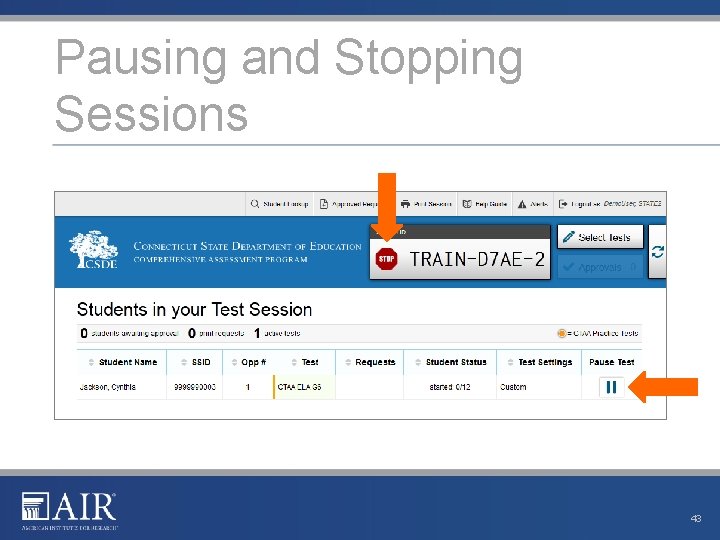
Pausing and Stopping Sessions 43
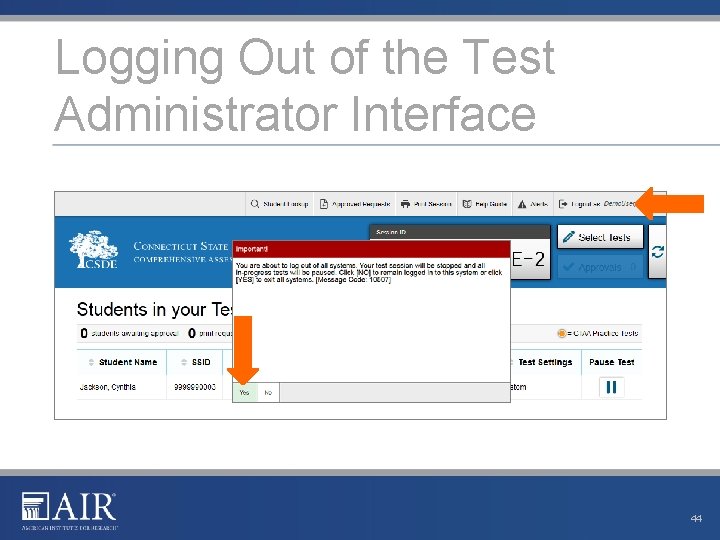
Logging Out of the Test Administrator Interface 44
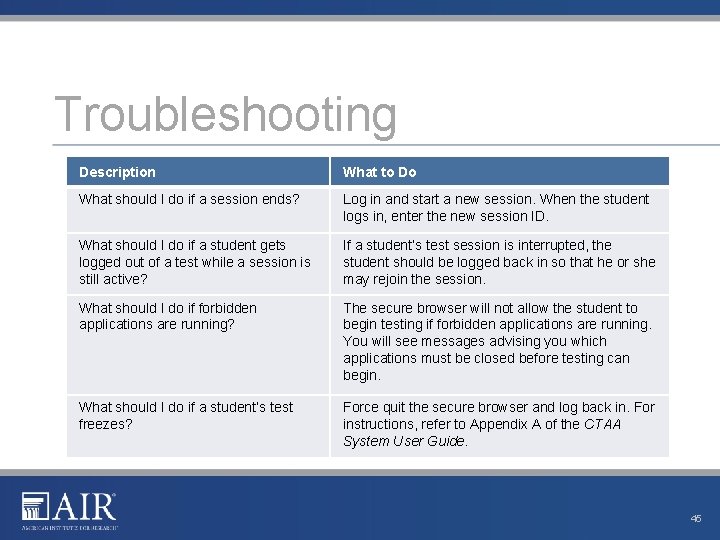
Troubleshooting Description What to Do What should I do if a session ends? Log in and start a new session. When the student logs in, enter the new session ID. What should I do if a student gets logged out of a test while a session is still active? If a student’s test session is interrupted, the student should be logged back in so that he or she may rejoin the session. What should I do if forbidden applications are running? The secure browser will not allow the student to begin testing if forbidden applications are running. You will see messages advising you which applications must be closed before testing can begin. What should I do if a student’s test freezes? Force quit the secure browser and log back in. For instructions, refer to Appendix A of the CTAA System User Guide. 45
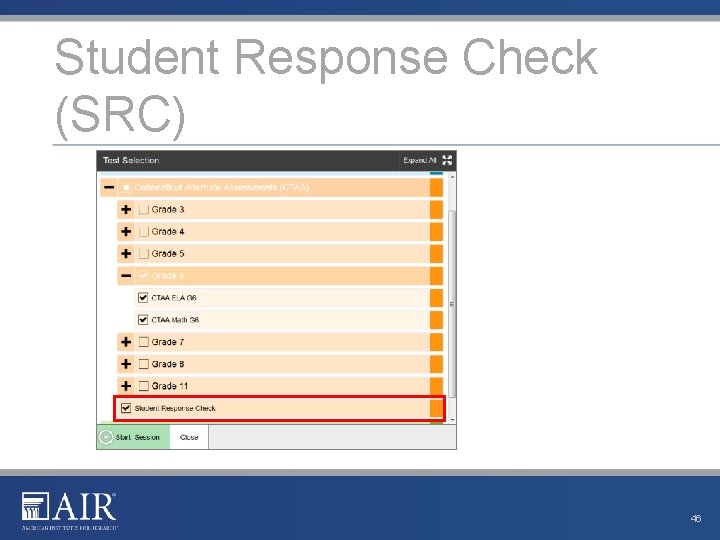
Student Response Check (SRC) 46
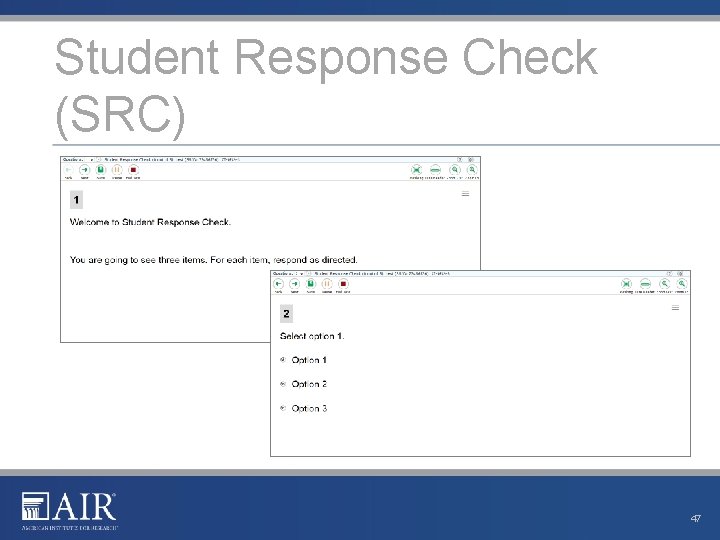
Student Response Check (SRC) 47
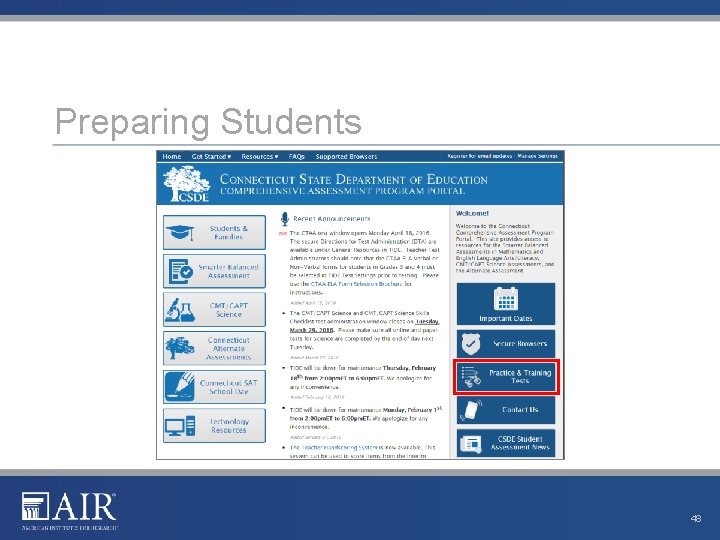
Preparing Students 48
Thank You! Further Information Connecticut Portal: http: //ct. portal. airast. org Connecticut Help Desk 1 -844 -202 -7583 cthelpdesk@air. org 49