
CONFERENCE ROOM USER MANUAL OFFICE OF THE BUILDING

CONFERENCE ROOM USER MANUAL OFFICE OF THE BUILDING: 312. 603. 0400
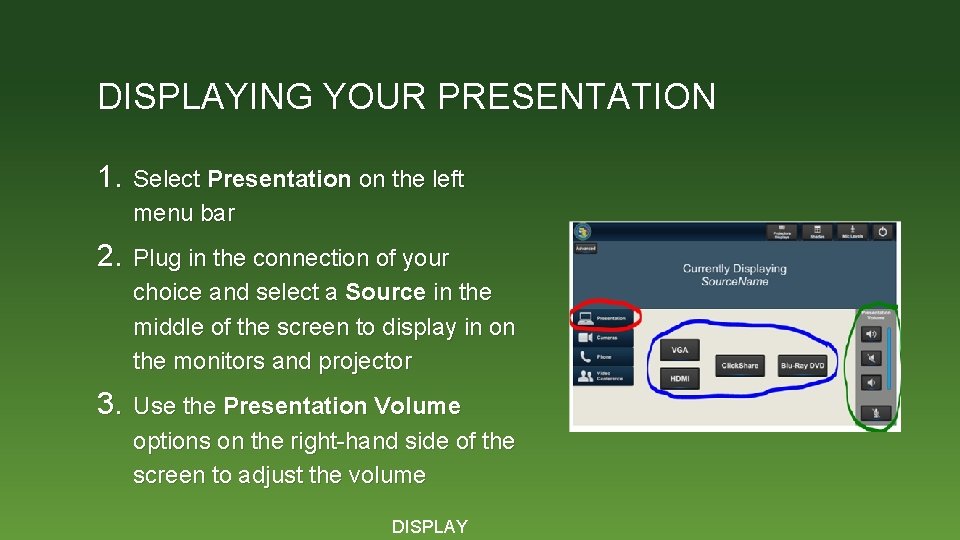
DISPLAYING YOUR PRESENTATION 1. Select Presentation on the left menu bar 2. Plug in the connection of your choice and select a Source in the middle of the screen to display in on the monitors and projector 3. Use the Presentation Volume options on the right-hand side of the screen to adjust the volume DISPLAY
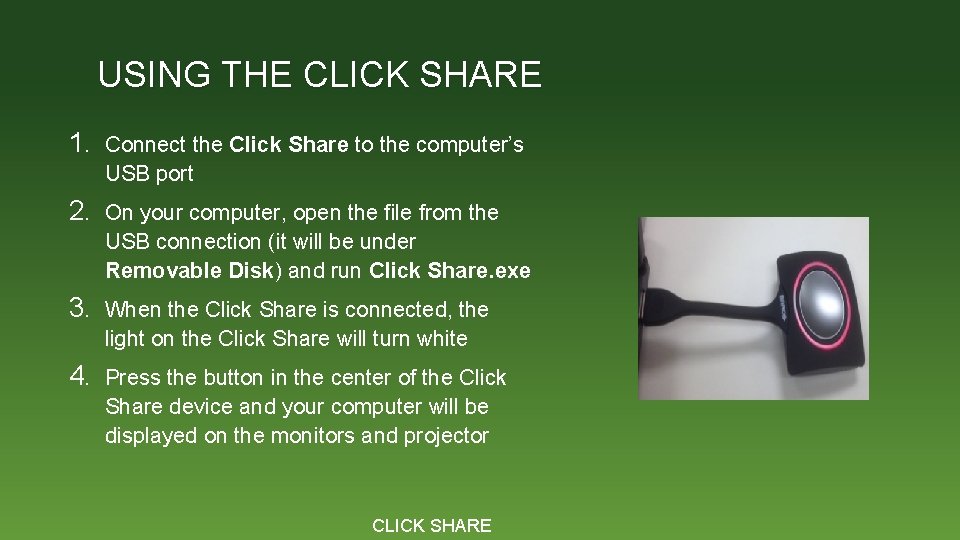
USING THE CLICK SHARE 1. Connect the Click Share to the computer’s USB port 2. On your computer, open the file from the USB connection (it will be under Removable Disk) and run Click Share. exe 3. When the Click Share is connected, the light on the Click Share will turn white 4. Press the button in the center of the Click Share device and your computer will be displayed on the monitors and projector CLICK SHARE
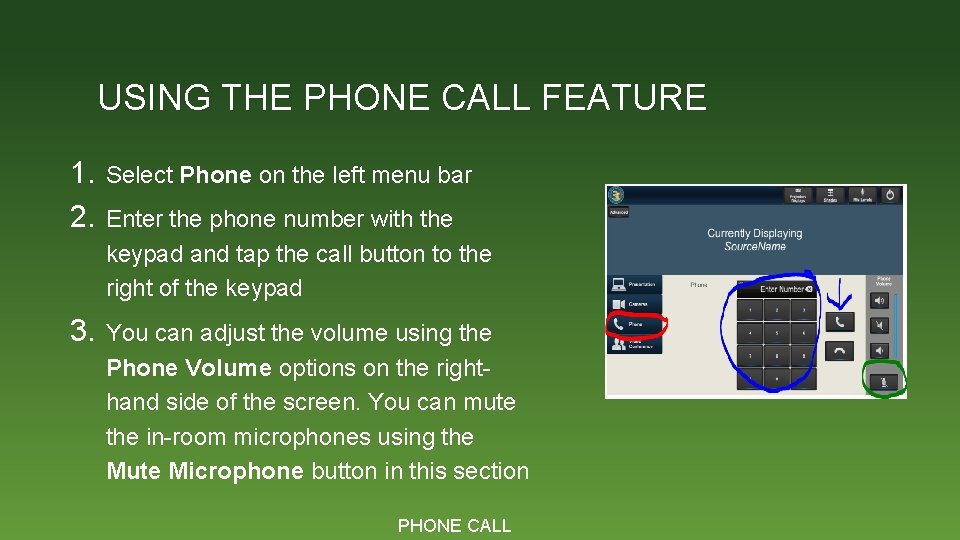
USING THE PHONE CALL FEATURE 1. 2. Select Phone on the left menu bar 3. You can adjust the volume using the Phone Volume options on the righthand side of the screen. You can mute the in-room microphones using the Mute Microphone button in this section Enter the phone number with the keypad and tap the call button to the right of the keypad PHONE CALL
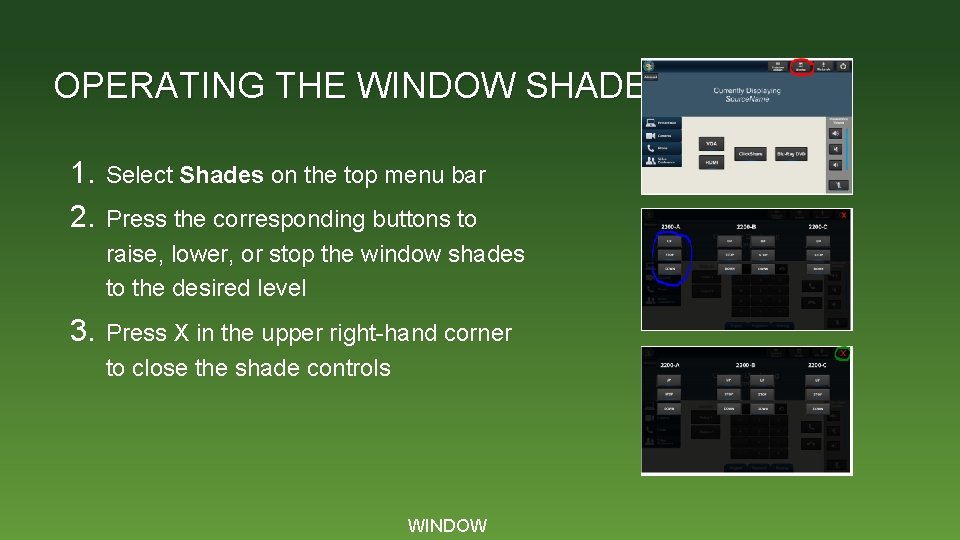
OPERATING THE WINDOW SHADES 1. 2. Select Shades on the top menu bar 3. Press X in the upper right-hand corner to close the shade controls Press the corresponding buttons to raise, lower, or stop the window shades to the desired level WINDOW
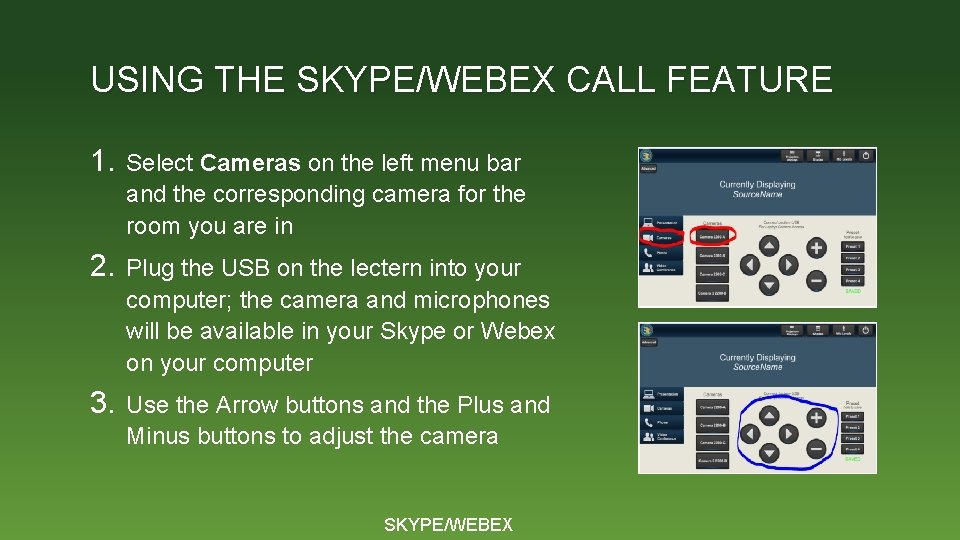
USING THE SKYPE/WEBEX CALL FEATURE 1. Select Cameras on the left menu bar and the corresponding camera for the room you are in 2. Plug the USB on the lectern into your computer; the camera and microphones will be available in your Skype or Webex on your computer 3. Use the Arrow buttons and the Plus and Minus buttons to adjust the camera SKYPE/WEBEX
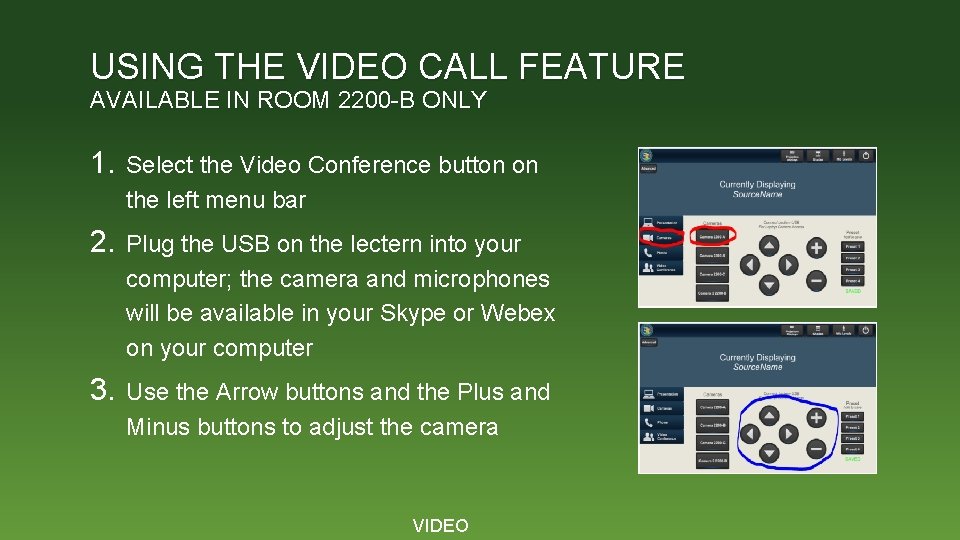
USING THE VIDEO CALL FEATURE AVAILABLE IN ROOM 2200 -B ONLY 1. Select the Video Conference button on the left menu bar 2. Plug the USB on the lectern into your computer; the camera and microphones will be available in your Skype or Webex on your computer 3. Use the Arrow buttons and the Plus and Minus buttons to adjust the camera VIDEO
- Slides: 7