
Concur PCard Approver Role Approver Role The Approver
- Slides: 17
Concur PCard Approver Role
Approver Role • The Approver will review and approve PCard Expense Reports that have been built by an PCard User • Depending on their role in the organization, an Approver can: • Approve PCard Expense Reports as a Reconciler • Approve PCard Expenses allocated to Fund(s) the Approver manages • Approve both as a Reconciler and the Fund manager
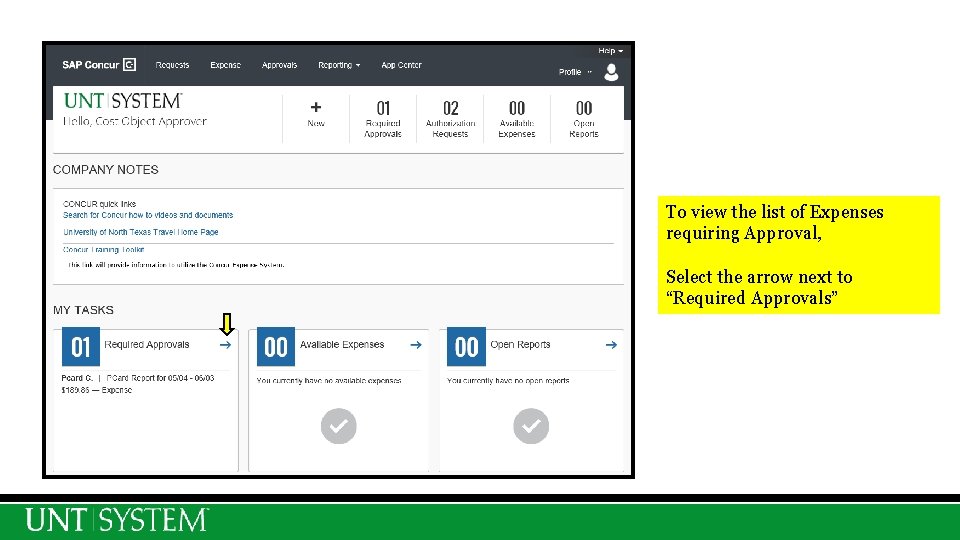
To view the list of Expenses requiring Approval, Select the arrow next to “Required Approvals”
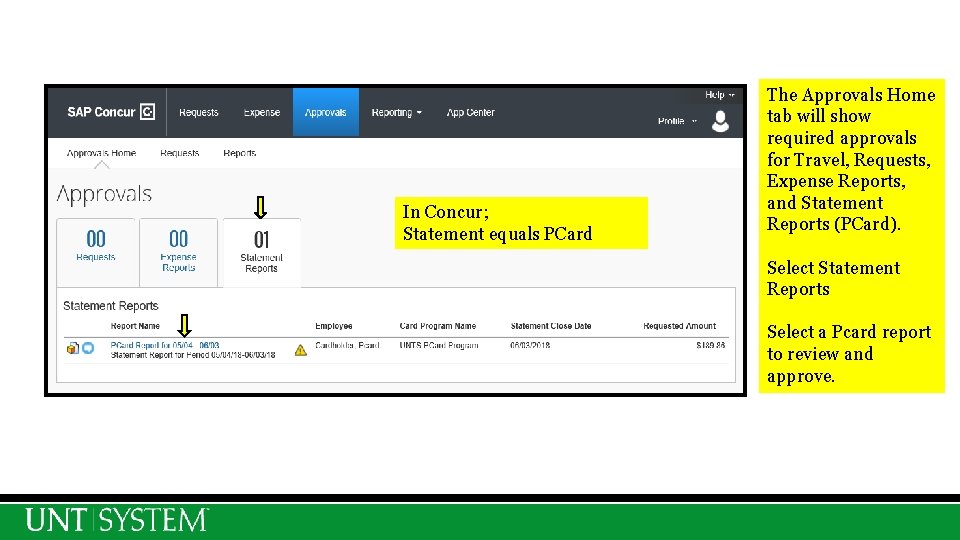
In Concur; Statement equals PCard The Approvals Home tab will show required approvals for Travel, Requests, Expense Reports, and Statement Reports (PCard). Select Statement Reports Select a Pcard report to review and approve.
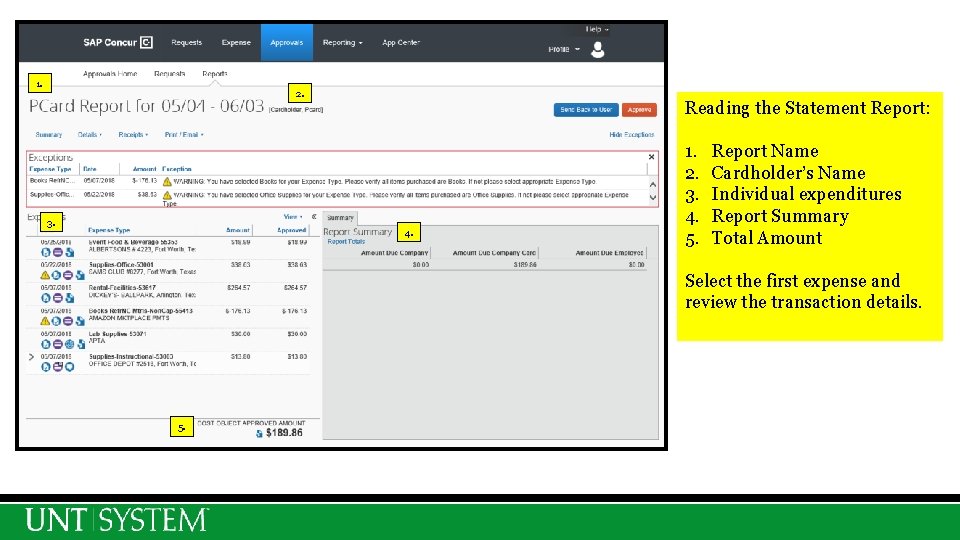
1. 2. 3. Reading the Statement Report: 4. 1. 2. 3. 4. 5. Report Name Cardholder’s Name Individual expenditures Report Summary Total Amount Select the first expense and review the transaction details. 5.
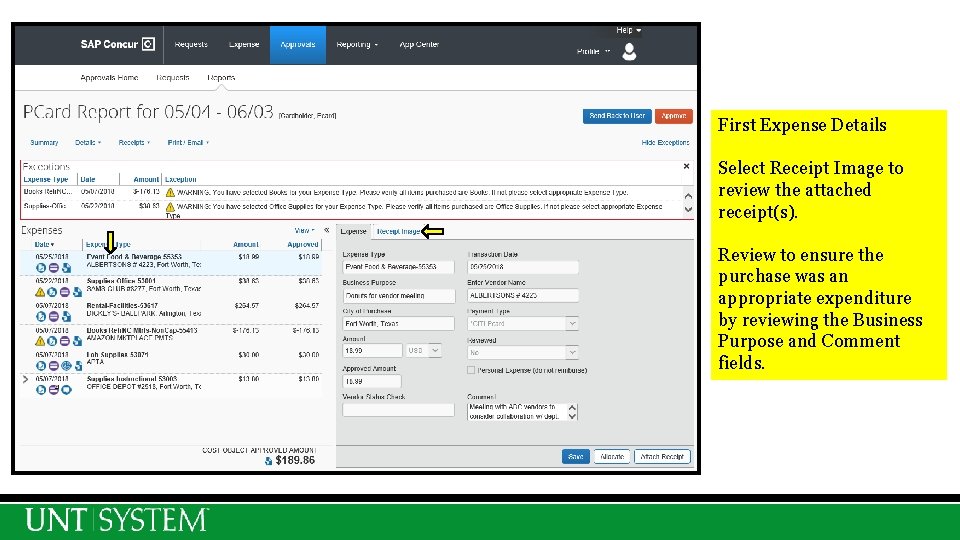
First Expense Details Select Receipt Image to review the attached receipt(s). Review to ensure the purchase was an appropriate expenditure by reviewing the Business Purpose and Comment fields.
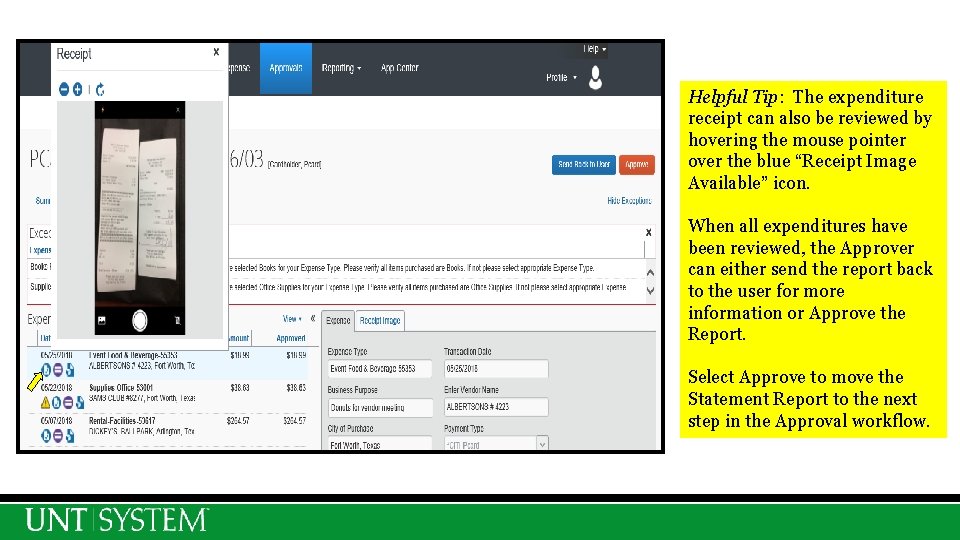
Helpful Tip: The expenditure receipt can also be reviewed by hovering the mouse pointer over the blue “Receipt Image Available” icon. When all expenditures have been reviewed, the Approver can either send the report back to the user for more information or Approve the Report. Select Approve to move the Statement Report to the next step in the Approval workflow.
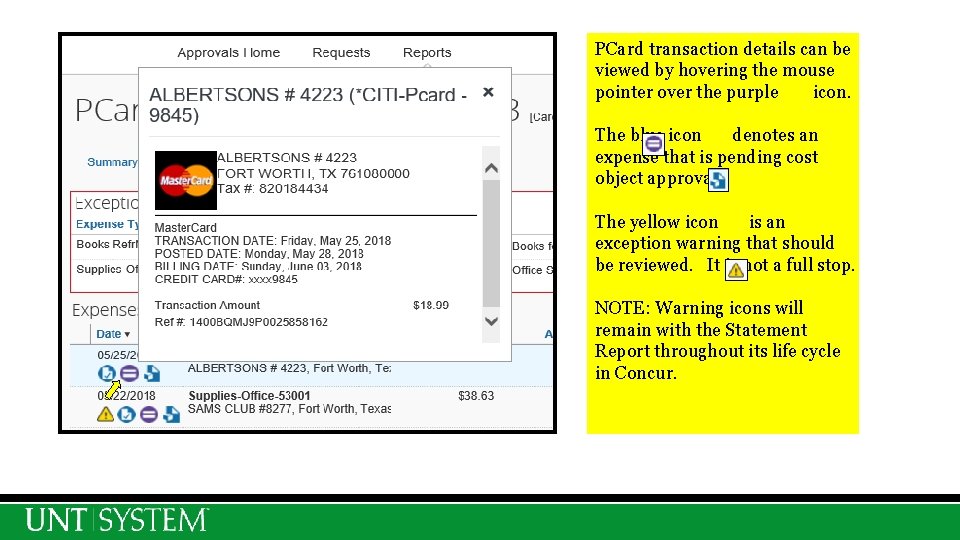
PCard transaction details can be viewed by hovering the mouse pointer over the purple icon. The blue icon denotes an expense that is pending cost object approval. The yellow icon is an exception warning that should be reviewed. It is not a full stop. NOTE: Warning icons will remain with the Statement Report throughout its life cycle in Concur.
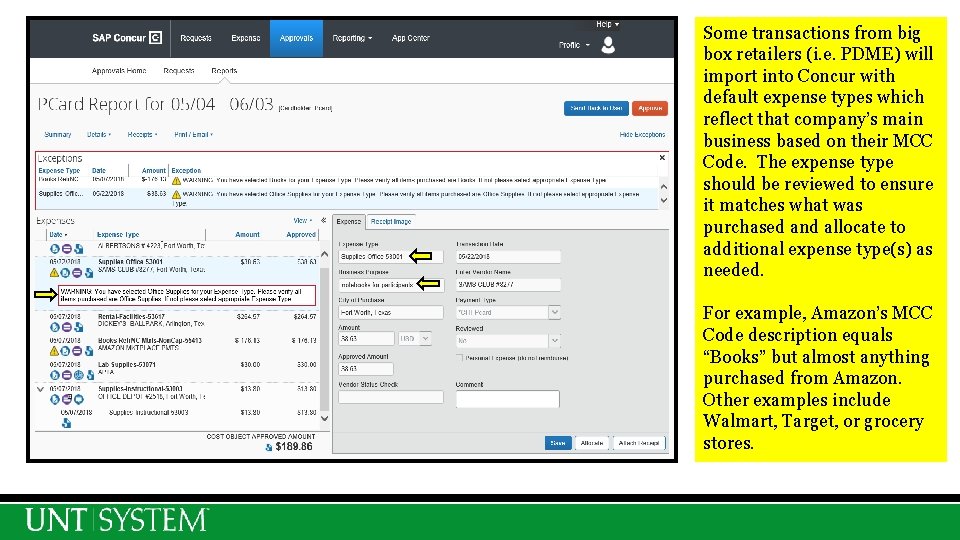
Some transactions from big box retailers (i. e. PDME) will import into Concur with default expense types which reflect that company’s main business based on their MCC Code. The expense type should be reviewed to ensure it matches what was purchased and allocate to additional expense type(s) as needed. For example, Amazon’s MCC Code description equals “Books” but almost anything purchased from Amazon. Other examples include Walmart, Target, or grocery stores.
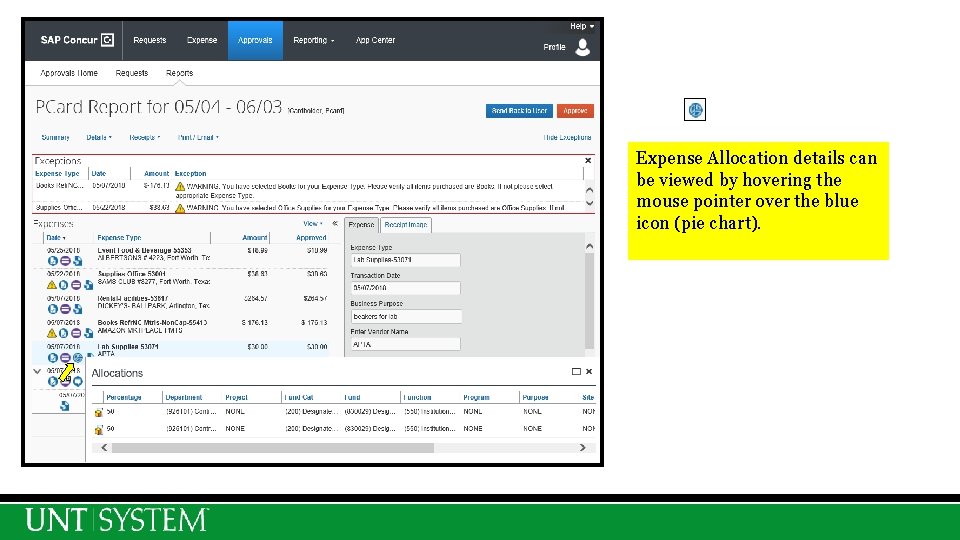
Expense Allocation details can be viewed by hovering the mouse pointer over the blue icon (pie chart).
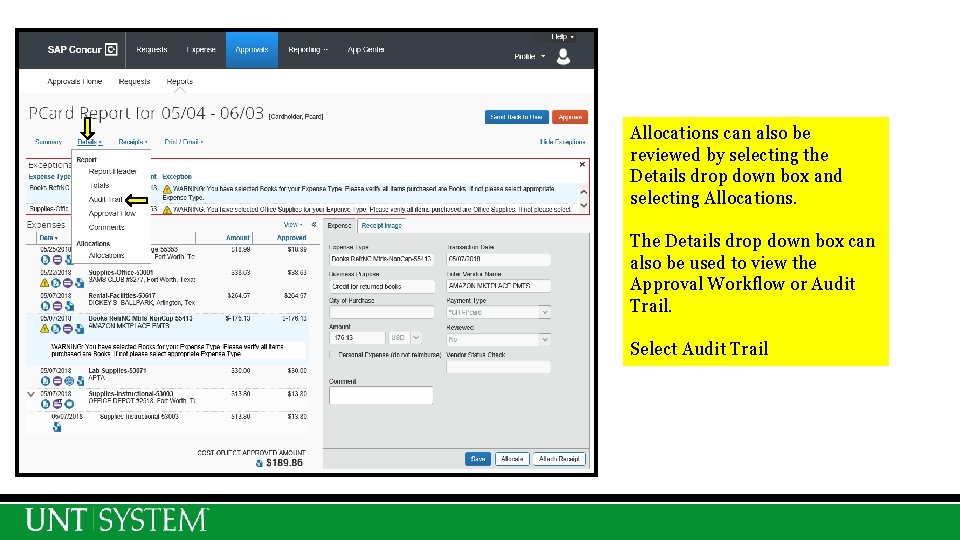
Allocations can also be reviewed by selecting the Details drop down box and selecting Allocations. The Details drop down box can also be used to view the Approval Workflow or Audit Trail. Select Audit Trail
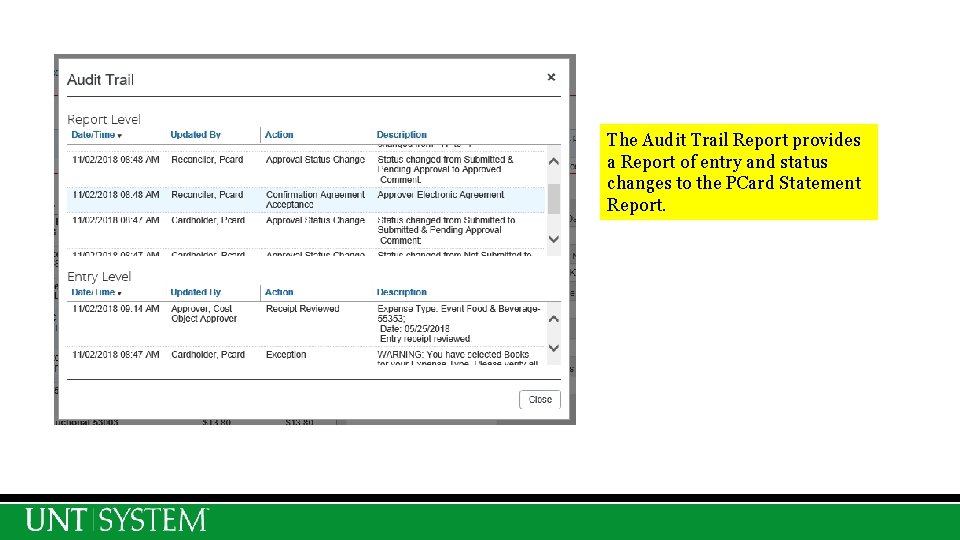
The Audit Trail Report provides a Report of entry and status changes to the PCard Statement Report.
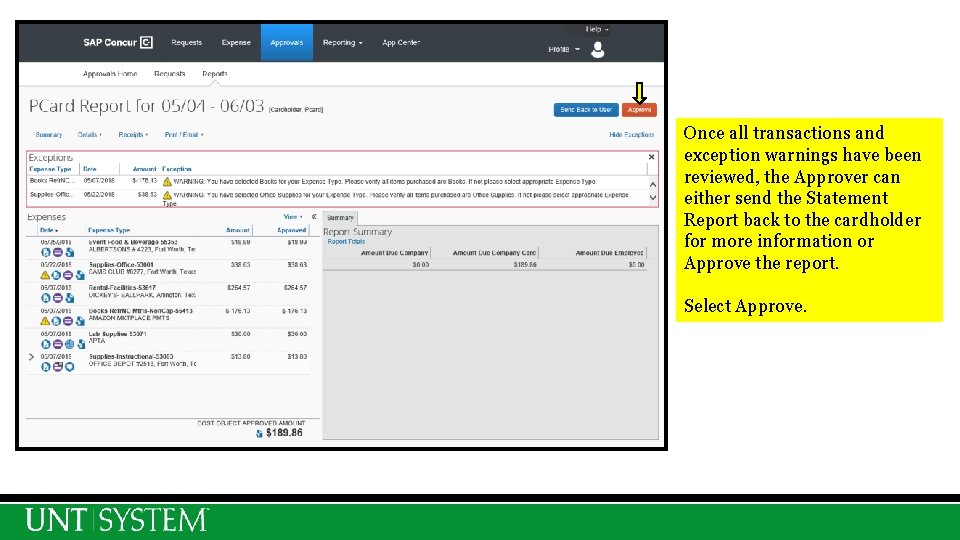
Once all transactions and exception warnings have been reviewed, the Approver can either send the Statement Report back to the cardholder for more information or Approve the report. Select Approve.
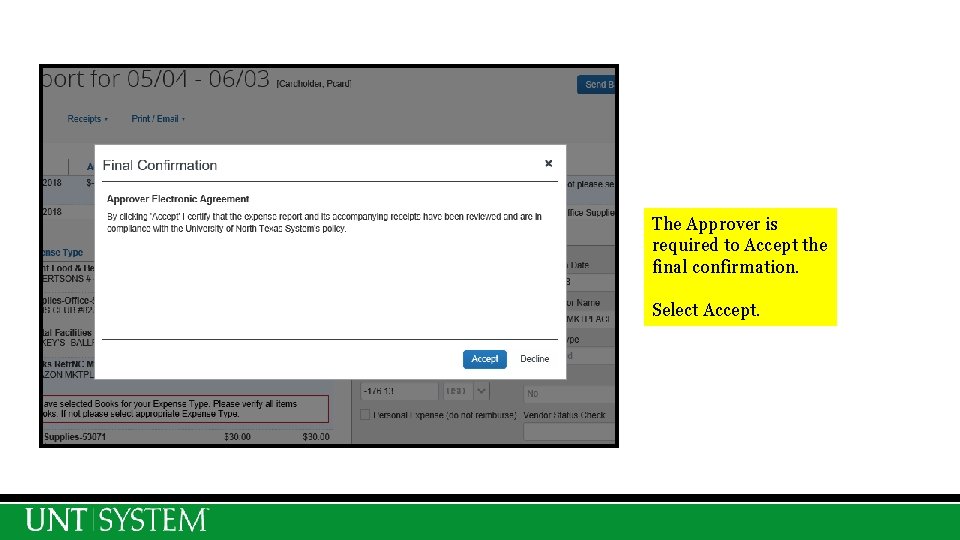
The Approver is required to Accept the final confirmation. Select Accept.
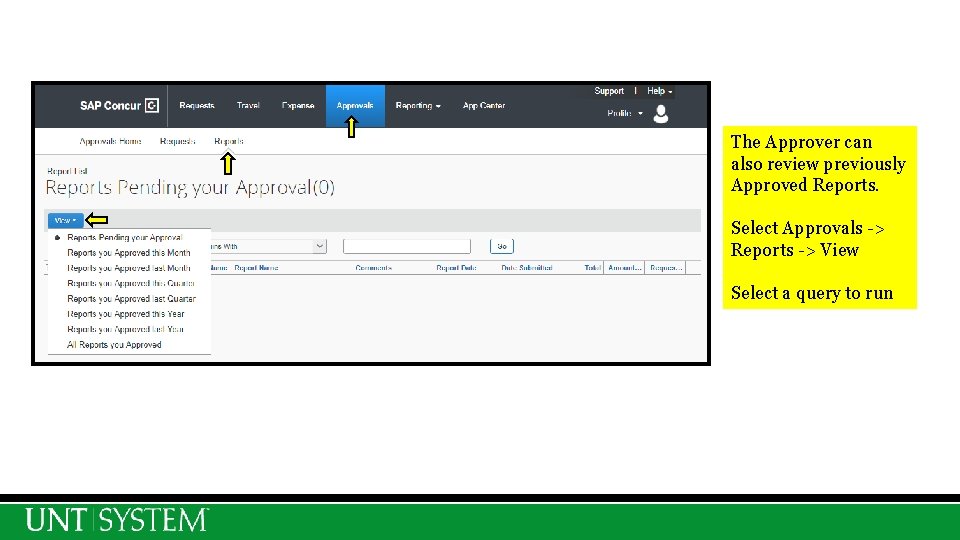
The Approver can also review previously Approved Reports. Select Approvals -> Reports -> View Select a query to run
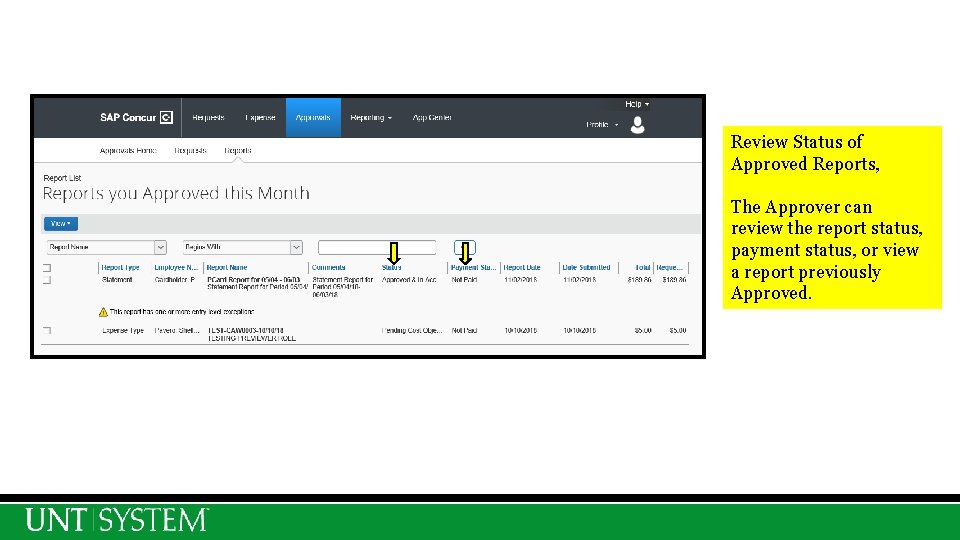
Review Status of Approved Reports, The Approver can review the report status, payment status, or view a report previously Approved.
Concur PCard Contacts ²Concur User Support Desk (Questions regarding Concur System) ²Phone ²PCard Administrative Team ²Phone 940. 369. 5500 X 5 ²Email pcard@untsystem. edu 61