
Conceive Ideas for concepts you are trying to
- Slides: 19
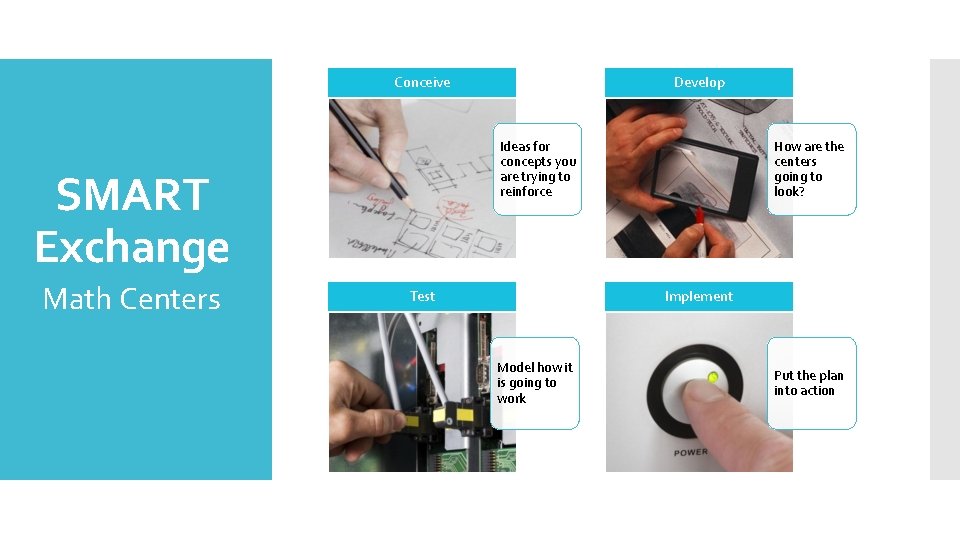
Conceive Ideas for concepts you are trying to reinforce SMART Exchange Math Centers Develop Test How are the centers going to look? Implement Model how it is going to work Put the plan into action
Objectives 1. Know procedure for creating a SMART board center activity from SMART exchange 2. Apply knowledge to create activities 3. Arrange activity to meet the needs of your students
Centers Rotations: A. Teacher is part of the rotation B. Teacher presentation and then student’s rotate through centers v Reinforcing concepts v Data driven centers WHY? 1. Strong practice 2. Advanc. Ed visit
Grouping Be purposeful v. Be able to explain why you grouped the students the way that you have v. Assessments are not always knowledge based
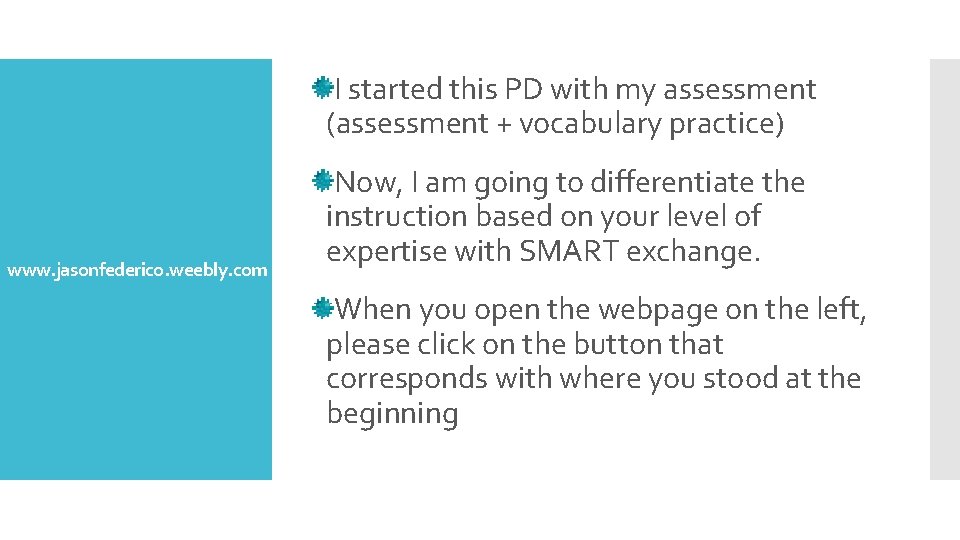
I started this PD with my assessment (assessment + vocabulary practice) www. jasonfederico. weebly. com Now, I am going to differentiate the instruction based on your level of expertise with SMART exchange. When you open the webpage on the left, please click on the button that corresponds with where you stood at the beginning
Novice This group is going to follow along with me on the SMART Board. v. All other groups can start.
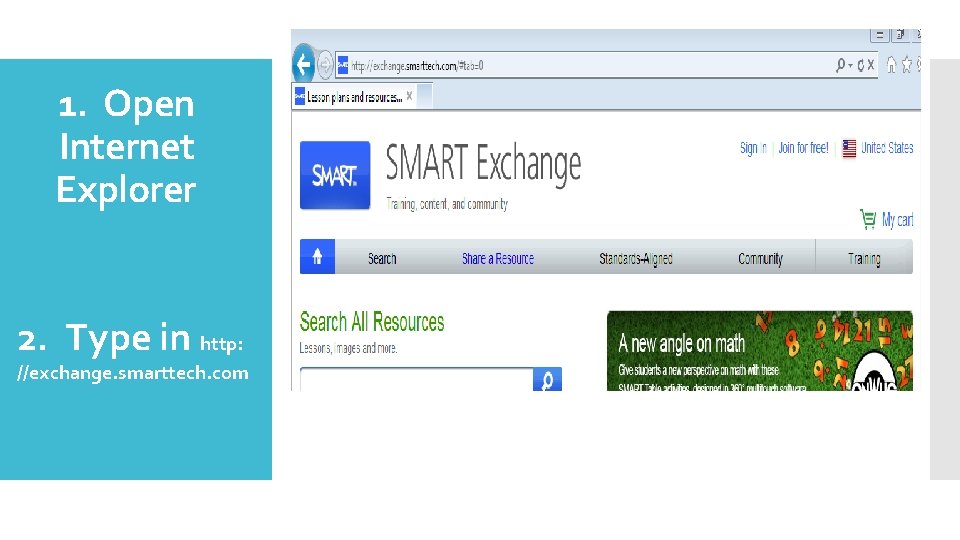
1. Open Internet Explorer 2. Type in http: //exchange. smarttech. com
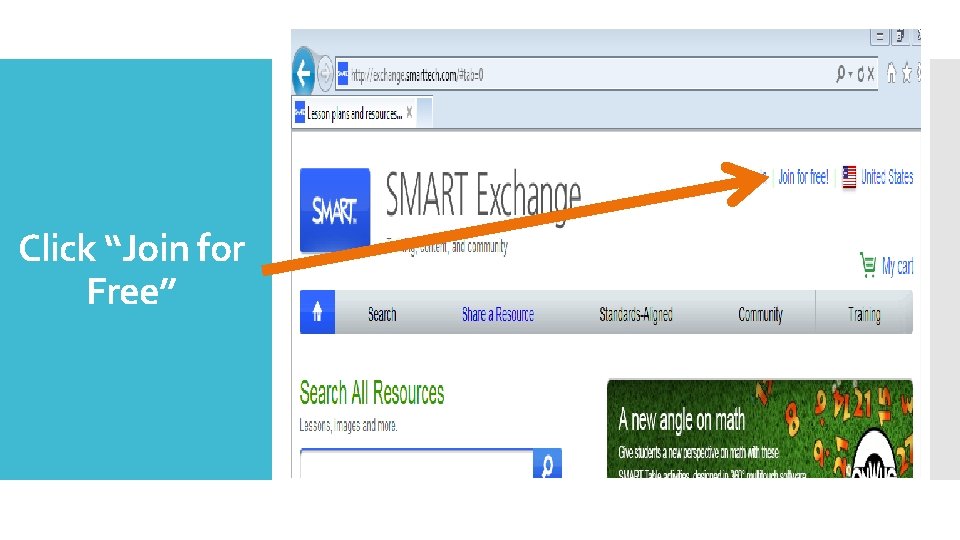
Click “Join for Free”
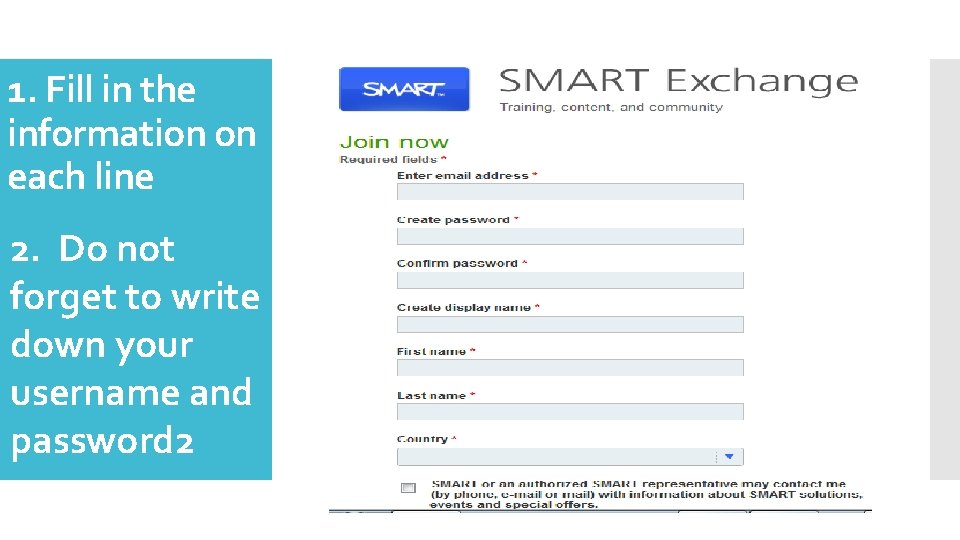
1. Fill in the information on each line 2. Do not forget to write down your username and password 2
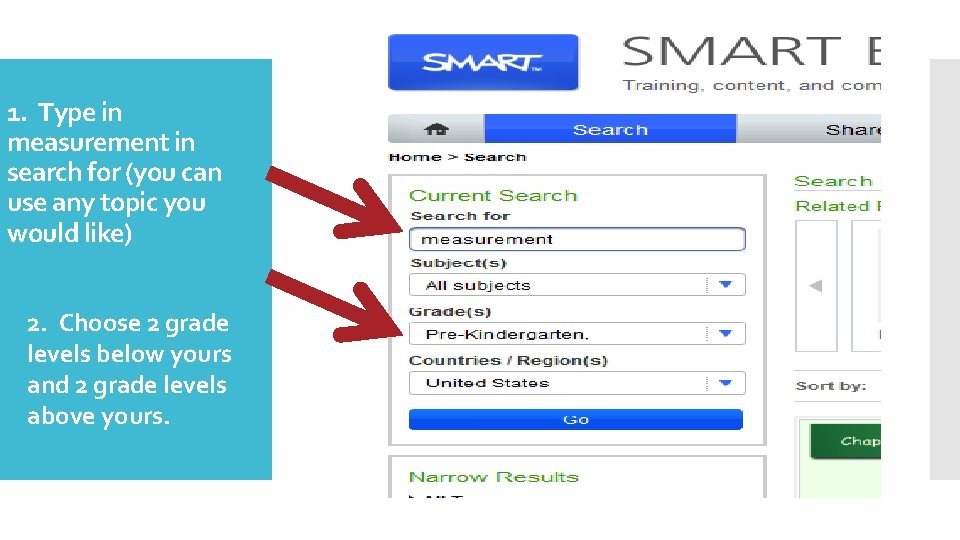
1. Type in measurement in search for (you can use any topic you would like) 2. Choose 2 grade levels below yours and 2 grade levels above yours.
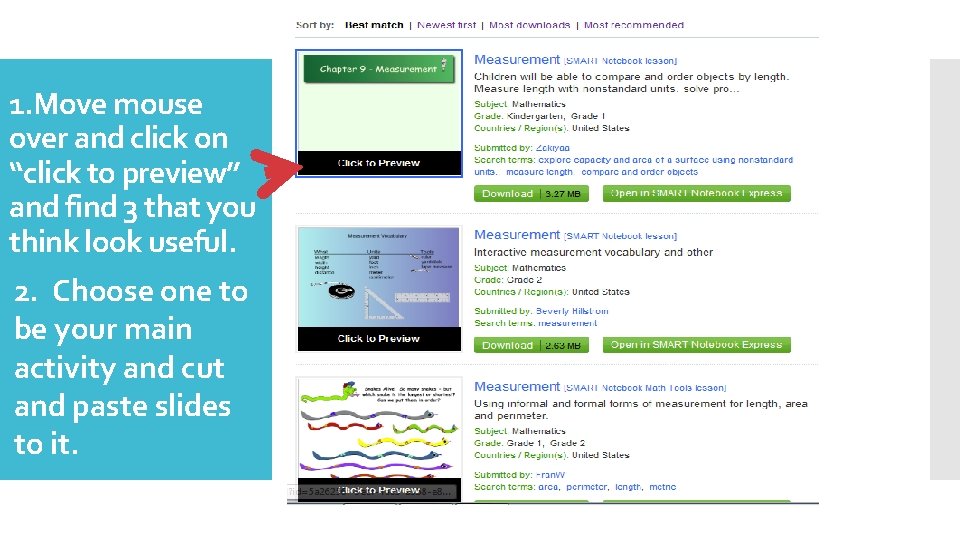
1. Move mouse over and click on “click to preview” and find 3 that you think look useful. 2. Choose one to be your main activity and cut and paste slides to it.
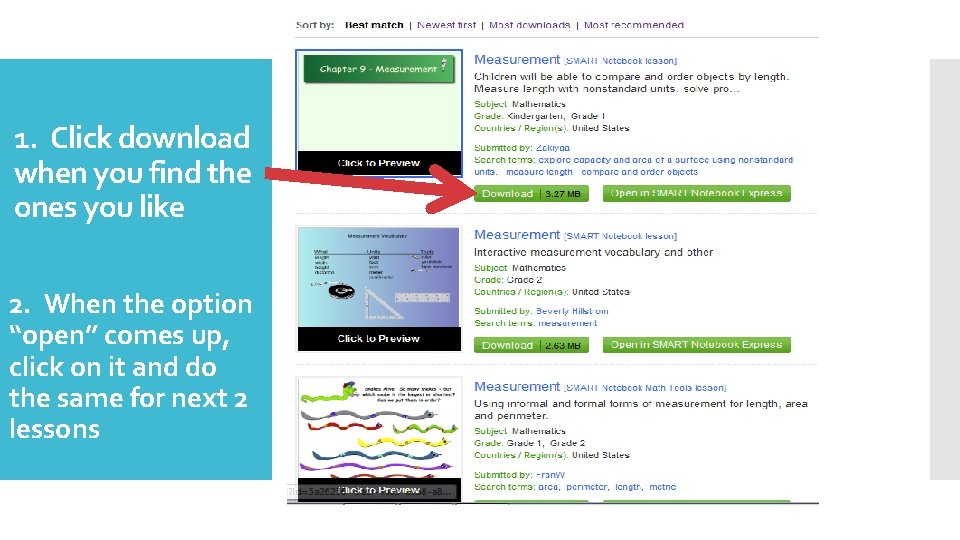
1. Click download when you find the ones you like 2. When the option “open” comes up, click on it and do the same for next 2 lessons
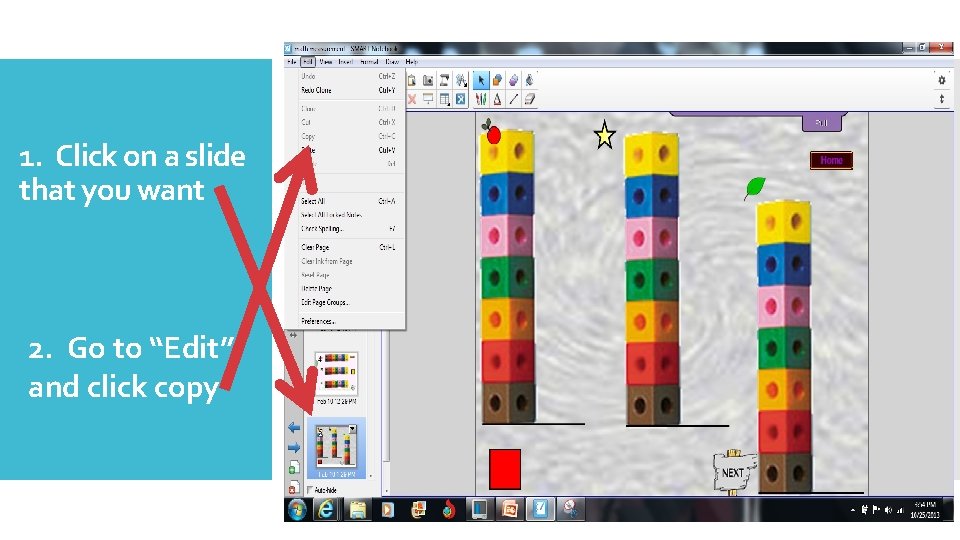
1. Click on a slide that you want 2. Go to “Edit” and click copy
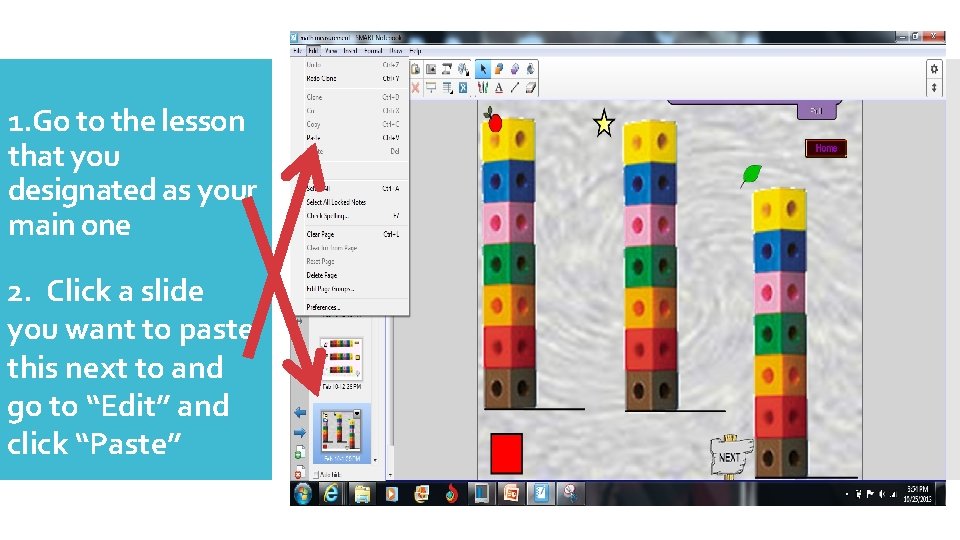
1. Go to the lesson that you designated as your main one 2. Click a slide you want to paste this next to and go to “Edit” and click “Paste”
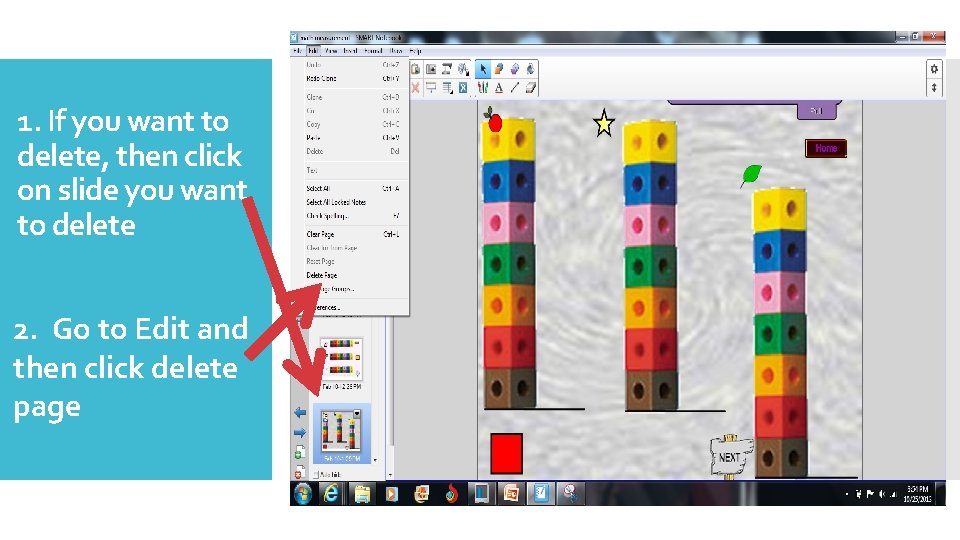
1. If you want to delete, then click on slide you want to delete 2. Go to Edit and then click delete page
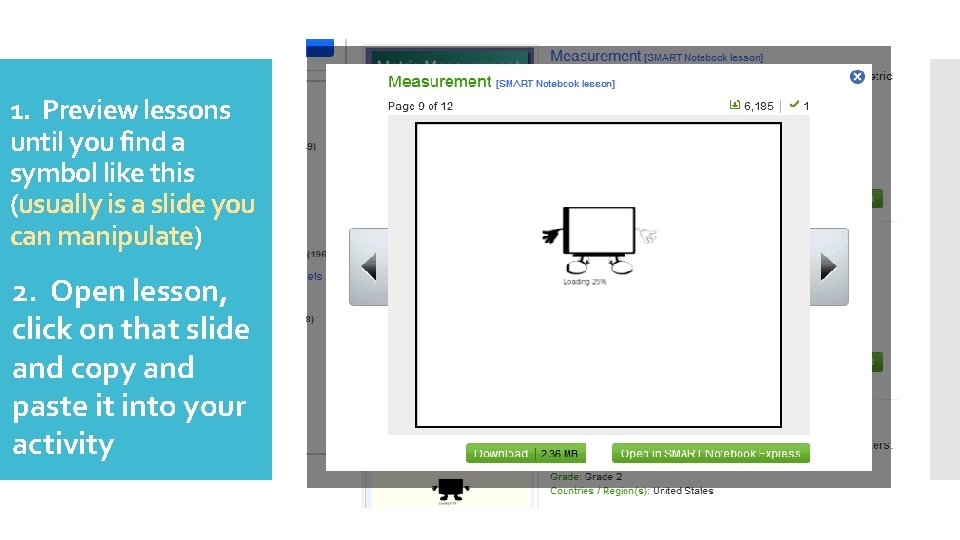
1. Preview lessons until you find a symbol like this (usually is a slide you can manipulate) 2. Open lesson, click on that slide and copy and paste it into your activity
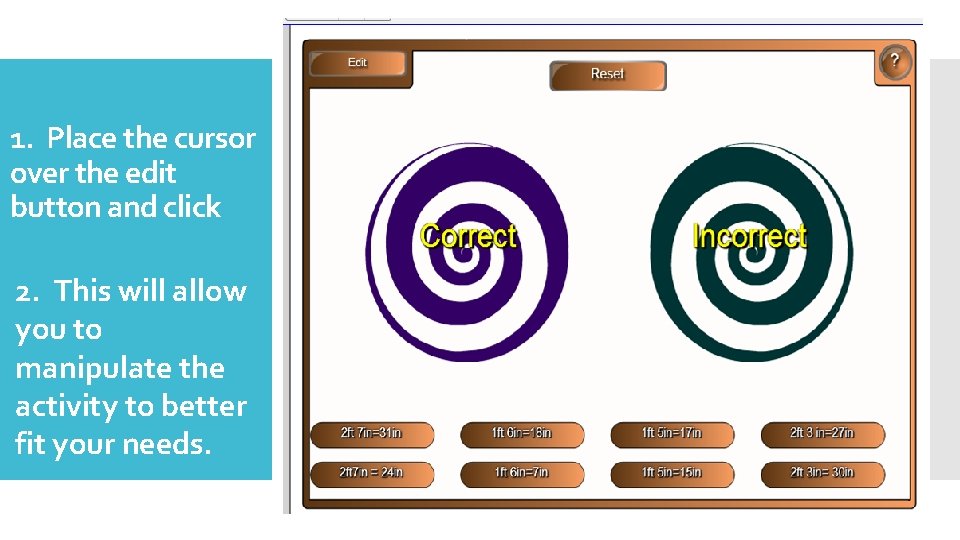
1. Place the cursor over the edit button and click 2. This will allow you to manipulate the activity to better fit your needs.
1. Move mouse over and click to preview and find 3 that you think look useful. 2. Choose one to be your main one to cut and paste slides to it.
1. Move mouse over and click to preview and find 3 that you think look useful. 2. Choose one to be your main one to cut and paste slides to it.