
Computing Week 1 LBSC 690 Information Technology Teaching
Computing Week 1 LBSC 690 Information Technology
Teaching Theater Introduction • Logging on – Userid and password are your university account • Key directories – Shared class materials are on N: SHARE – Your personal directory is at M: • Taking notes
Agenda • Looking backwards • What “computers” do • How they do it • About the course
A Very Brief History of Computing • Hardware: all developed for the government – Mechanical: essentially a big adding machine – Analog: designed for calculus, limited accuracy – Digital: early machines filled a room – Microchips: designed for missile guidance • Software: initial applications were military – Numeric: computing gun angles – Symbolic: code-breaking
Commercial Developments • Mainframes (1960’s) – IBM • Minicomputers(1970’s) – DEC • Personal computers (1980’s) – Apple, Microsoft • Networks (1990’s) – Web
Hardware Processing Cycle • Input comes from somewhere – Keyboard, mouse, microphone, camera, … • The system does something with it – Processor, memory, software, network, … • Output goes somewhere – Monitor, speaker, robot controls, …
Discussion Point: What’s Special About Computers? • Digital content – Perfect copies • Programmed behavior – Speed – Repetition – Complexity
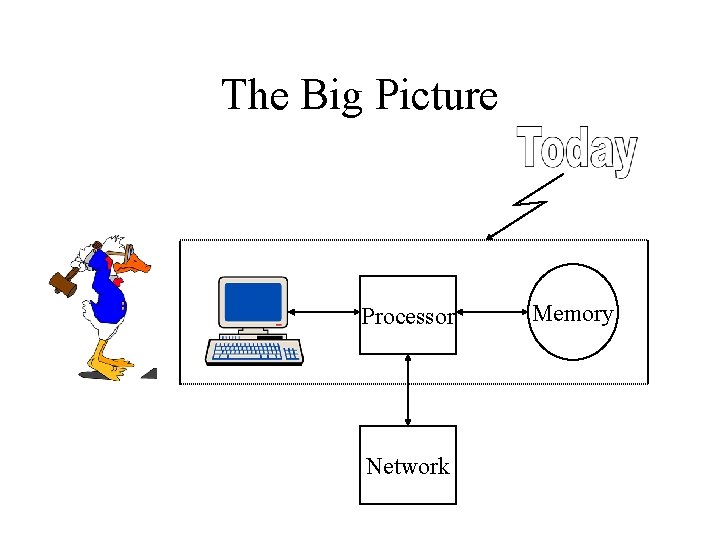
The Big Picture Processor Network Memory

Computer Hardware • Central Processing Unit (CPU) – Intel Pentium, Motorola Power PC, … • Communications “Bus” – PCI, ISA, USB, Firewire, … • Storage devices – Cache, RAM, hard drive, floppy disk, … • External communications – Modem, LAN, …
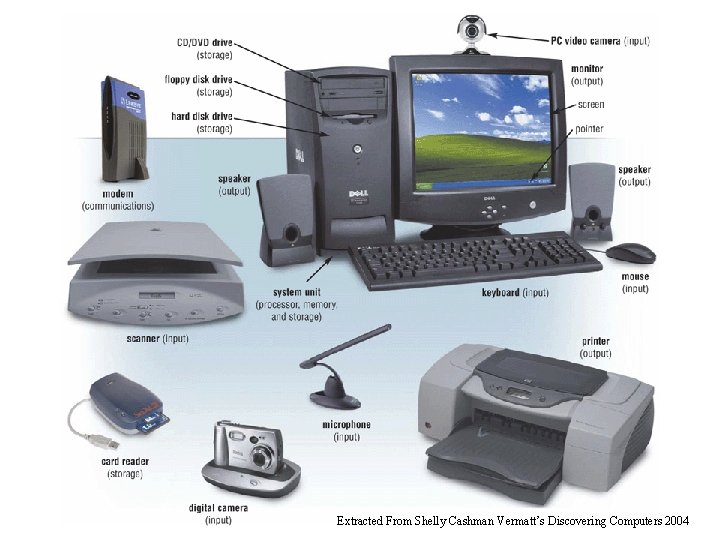
Extracted From Shelly Cashman Vermatt’s Discovering Computers 2004
Thinking About Transfer Time • Total “transfer time” is what counts – Time for first bit + time between first and last bits • For long distances, first bit time is important – California: 1/80 of a second (by optical fiber) – London: 1/4 of a second (by satellite) • For large files, bits per second dominates – Number of bits per second is limited by physics • Inside computers, we focus on the second factor
Thinking About Speed • Speed can be expressed two ways: – How long to do something once? • Memory speed measured as “access time” – How many things can you do in one second? • Processor speed measured in “instructions per second” • Convenient units are typically used – “ 10 microseconds” rather than “ 0. 00001 seconds” • When comparing speeds, convert units first!

The Storage Hierarchy • The problem: – Fast memory devices are expensive • So large memory devices are slow! – But fast access to large memories is needed • The solution: – Keep what you need often in small (fast) places • Keep the rest in large (slow) places – Get things to the fast place before you need them

System Architecture Keyboard Sound Card Video Card Mouse Input Controller Bus CPU Cache RAM Motherboard Hard Drive CD/ DVD Floppy
Everything is Relative • The CPU is the fastest part of a computer – 1 GHz Pentium = 1, 000 MIPS • One operation every 1 nanosecond • Cache memory is fast enough to keep up – 128 k. B L 1 cache on chip, runs at CPU speed – 1 MB L 2 cache on motherboard, ~10 ns • RAM is larger, but slower – 256 MB or more, ~50 ns
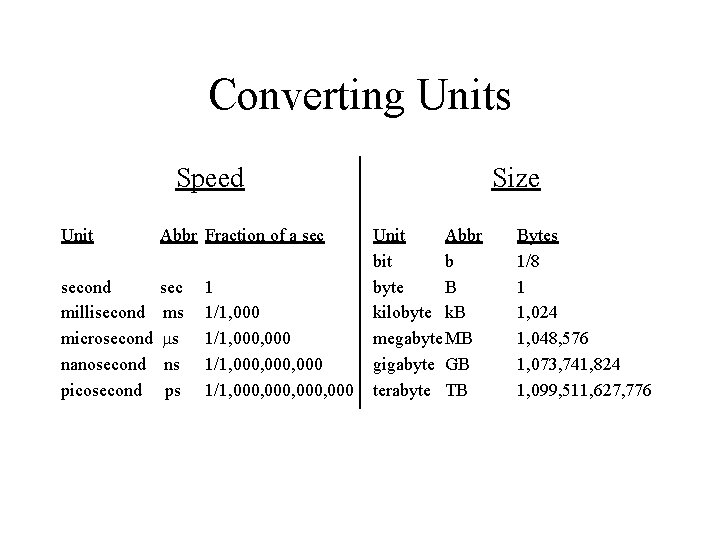
Converting Units Speed Unit Abbr Fraction of a second millisecond microsecond nanosecond picosecond sec ms ms ns ps 1 1/1, 000, 000, 000 Size Unit Abbr bit b byte B kilobyte k. B megabyte MB gigabyte GB terabyte TB Bytes 1/8 1 1, 024 1, 048, 576 1, 073, 741, 824 1, 099, 511, 627, 776
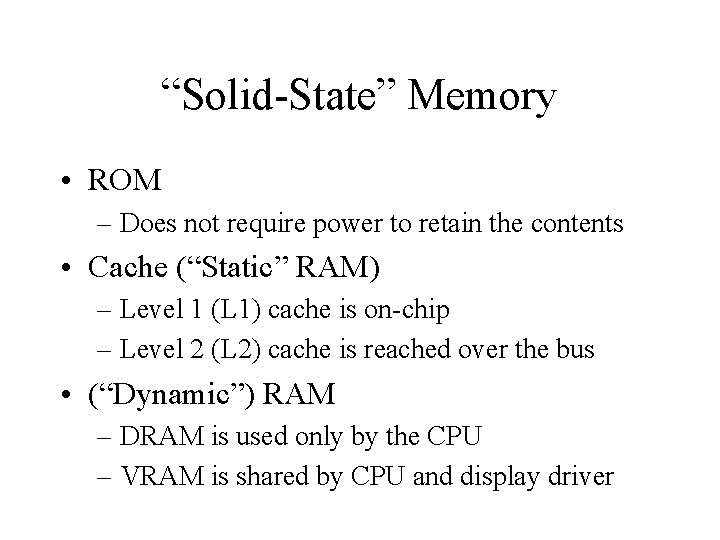
“Solid-State” Memory • ROM – Does not require power to retain the contents • Cache (“Static” RAM) – Level 1 (L 1) cache is on-chip – Level 2 (L 2) cache is reached over the bus • (“Dynamic”) RAM – DRAM is used only by the CPU – VRAM is shared by CPU and display driver
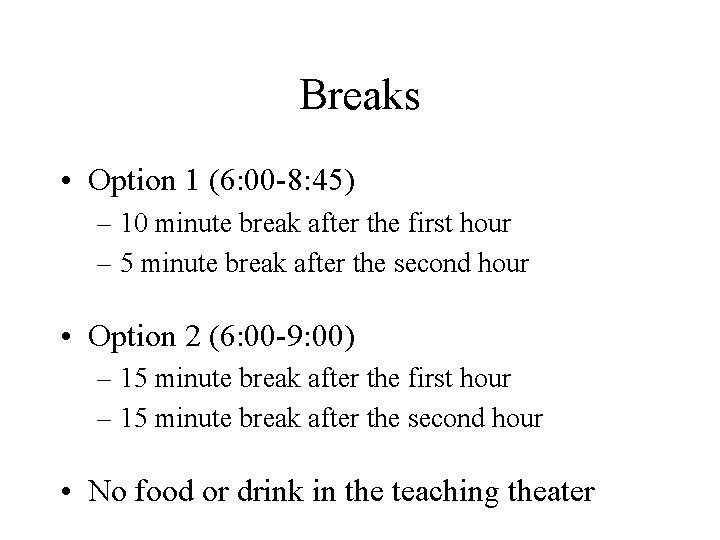
Breaks • Option 1 (6: 00 -8: 45) – 10 minute break after the first hour – 5 minute break after the second hour • Option 2 (6: 00 -9: 00) – 15 minute break after the first hour – 15 minute break after the second hour • No food or drink in the teaching theater
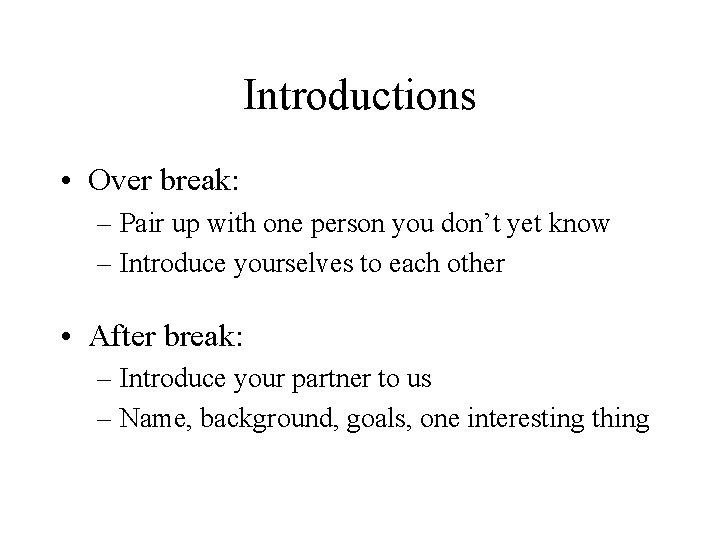
Introductions • Over break: – Pair up with one person you don’t yet know – Introduce yourselves to each other • After break: – Introduce your partner to us – Name, background, goals, one interesting thing
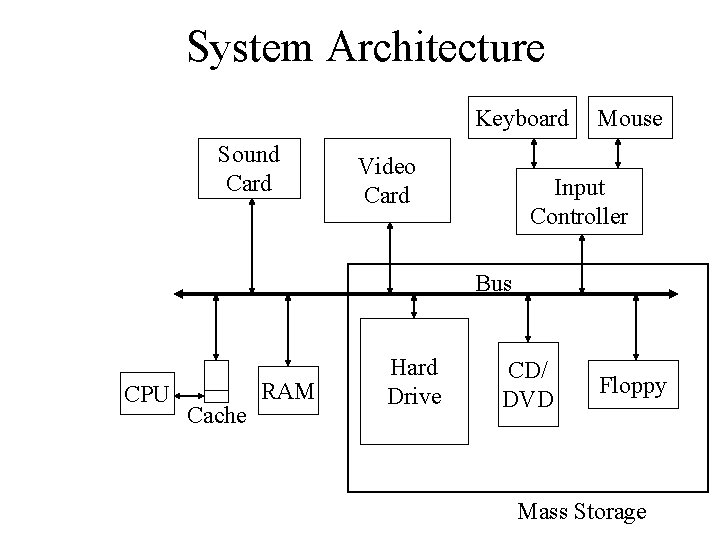
System Architecture Keyboard Sound Card Video Card Mouse Input Controller Bus CPU Cache RAM Hard Drive CD/ DVD Floppy Mass Storage

“Rotating” Memory • Fixed magnetic disk (“hard drive”) – May be partitioned into multiple volumes • In Windows, referred to as C: , D: , E: , … • In Unix, referred to as /software, /homes, /mail, … • Removable magnetic disk – Floppy disk, zip drives, … • Removal optical disk – CDROM, DVD, CD-RW, DVD+RW, …
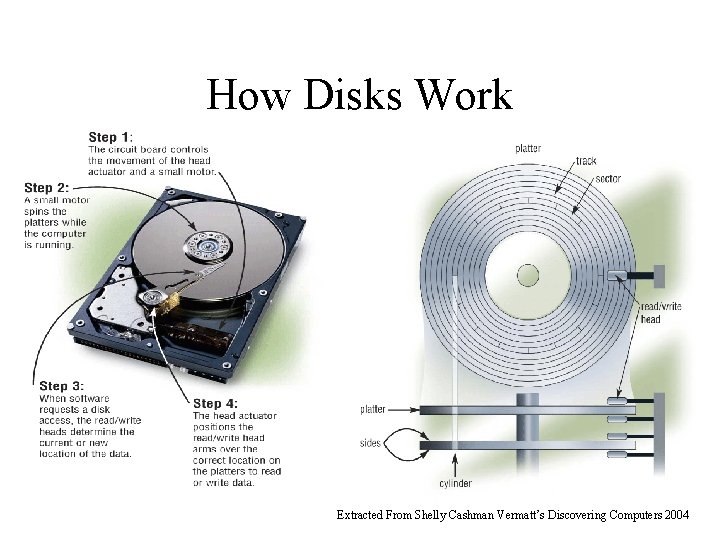
How Disks Work Extracted From Shelly Cashman Vermatt’s Discovering Computers 2004
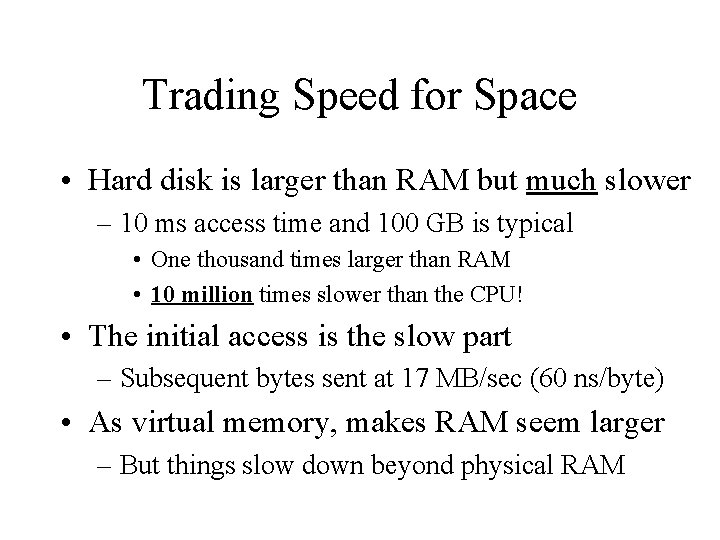
Trading Speed for Space • Hard disk is larger than RAM but much slower – 10 ms access time and 100 GB is typical • One thousand times larger than RAM • 10 million times slower than the CPU! • The initial access is the slow part – Subsequent bytes sent at 17 MB/sec (60 ns/byte) • As virtual memory, makes RAM seem larger – But things slow down beyond physical RAM
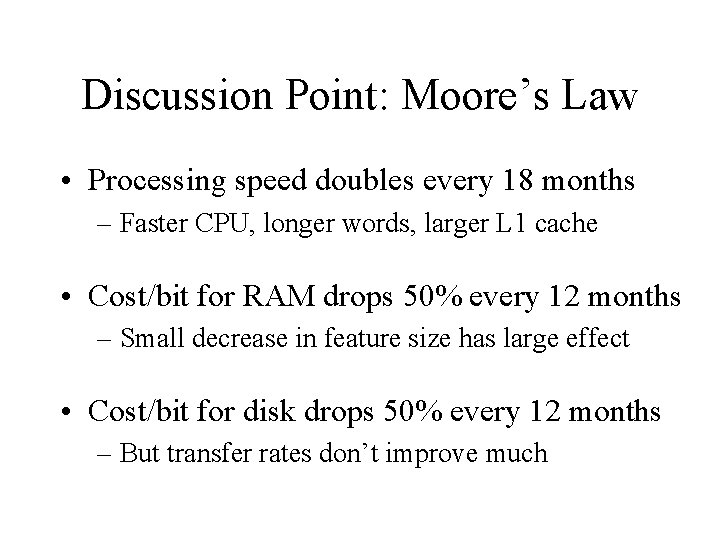
Discussion Point: Moore’s Law • Processing speed doubles every 18 months – Faster CPU, longer words, larger L 1 cache • Cost/bit for RAM drops 50% every 12 months – Small decrease in feature size has large effect • Cost/bit for disk drops 50% every 12 months – But transfer rates don’t improve much
Team Exercise • Form into groups of 4 – Be sure you have someone who has used Excel before in your group • Answer question 1(d) from the Fall 1996 final exam (available on the course Web site)
RAID • Disks can fail in two ways: – Bad sectors (data sectors, directory sectors) – Mechanical failure • RAID arrays put one bit on each disk – ~30% extra allows reconstruction if one disk fails • “Parallel” data transfer is faster than “serial”
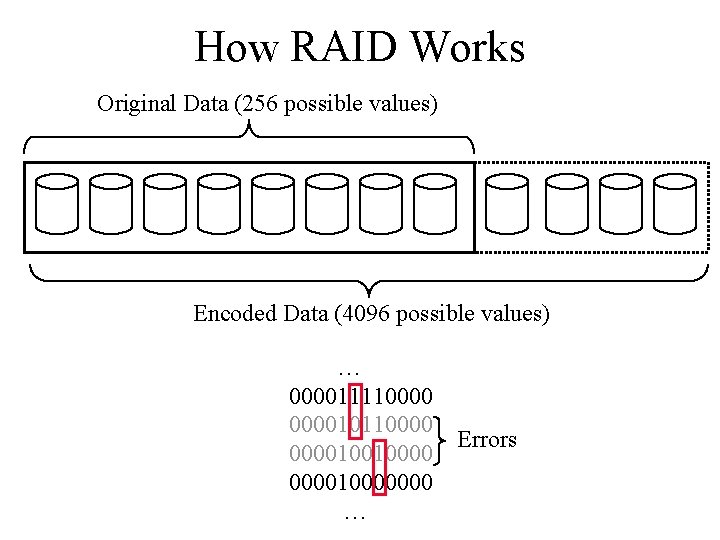
How RAID Works Original Data (256 possible values) Encoded Data (4096 possible values) … 0000111100001001000010000000 … Errors
Tape Backup • Tapes store data sequentially – Very fast transfer, but not “random access” • Used as backup storage for fixed disks – Weekly incremental backup is a good idea • With a complete (“level zero”) monthly backup • Used for archival storage – Higher data density than DVD’s
Discussion Point: Migration • What format should old tapes be converted to? – Newer tape – CD – DVD • How often must we “refresh” these media? • How can we afford this?
Types of Software • Application programs (e. g. , Internet Explorer) – What you normally think of as a “program” • Compilers and interpreters (e. g. , Java. Script) – Allow programmers to create new behavior • Operating system (e. g. , Windows XP) – Moves data between disk and RAM (+lots more!) • Embedded program (e. g. , BIOS) – Permanent software inside some device
Installing Applications • Copy to a permanent place on your hard drive – From a CD, the Internet, … • Installs any other required programs – “DLL” files can be shared by several applications • Register the program’s location – Associates icons/start menu items with it – Configures the uninstaller for later removal • Configure it for your system – Where to find data files and other programs
Discussion Point: What’s a Virus? • Characteristics – Initiation – Behavior – Propagation • Spyware • Detection
Graphical User Interfaces • Easy way to perform simple tasks – Used to start programs, manage files, … – Relies on a physical metaphor (e. g. , a desktop) • Built into most modern operating systems – Windows XP, Mac System 10, Unix X-windows • Application programs include similar ideas – Point-and-click, drag and drop, …
Cursor-based Interfaces • Useful for specifying complex operations • Available in most operating systems – SSH connection to WAM – Command window in Windows XP • Used when graphical display is difficult – Dial-in access from older computers
Summary • Speed, cost, and size: – You can easily get any 2, but not all 3 – Computers use cache as a compromise strategy • Hardware and software work synergistically – Our focus will be on software and the Internet – But understand hardware abilities and limitations
Course Goals • Conceptual – Understand computers and networks – Appreciate the effects of design tradeoffs – Evaluate the role of information technology • Practical – Learn to use some common software tools – Solve a practical problem – Develop a personal plan for further study
Some Motivating Questions • What are the technical implications for: – Privacy? – Copyright? • How will digital repositories develop? – How will they interact with distance education? – What are the implications for archives? • How might electronic dissemination impact: – Roles of authors, publishers, and readers? – Access by disenfranchised populations?
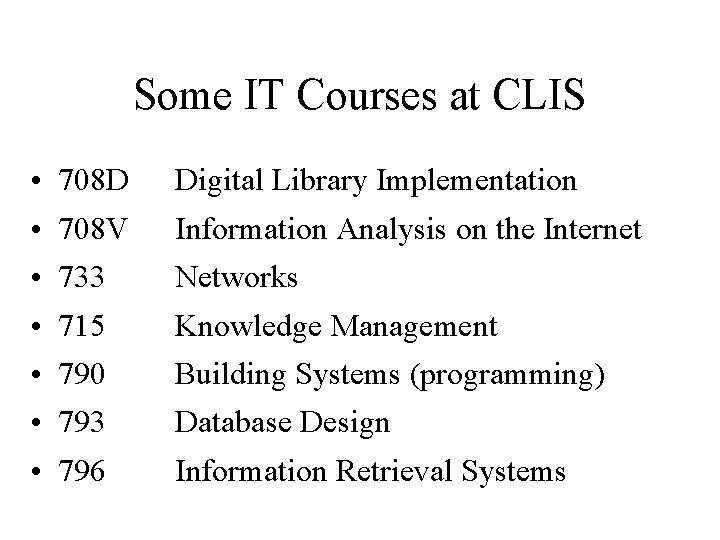
Some IT Courses at CLIS • • 708 D Digital Library Implementation 708 V Information Analysis on the Internet 733 Networks 715 Knowledge Management 790 Building Systems (programming) 793 Database Design 796 Information Retrieval Systems
Instructional Staff • Professor: Dr. Doug Oard – Offices: HBK 4121 G/AVW 3145 – Email: oard@umd. edu (finds me anywhere) • Teaching Assistant: Go. Un Kim – Labs in HBK 2101, times TBA – Email: gounkim@umd. edu • Teaching Theater Technician
Approach • Readings – Provide background and detail • Class sessions – Provide conceptual structure • Outline notes provided in class • Slides and videotapes available • Homework, lab sessions, project – Provide hands-on experience • Quiz, exams – Measure progress
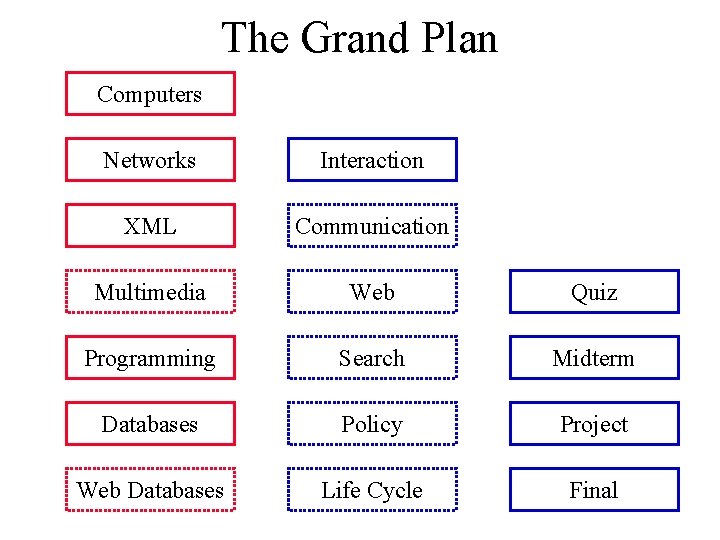
The Grand Plan Computers Networks Interaction XML Communication Multimedia Web Quiz Programming Search Midterm Databases Policy Project Web Databases Life Cycle Final
A Personal Approach to Learning • Work ahead, so that you are never behind • Ask questions about the readings • Augment practical skills with OIT training • Pick topics you want to learn more about • Start thinking about your project soon – Pick partners with complementary skills
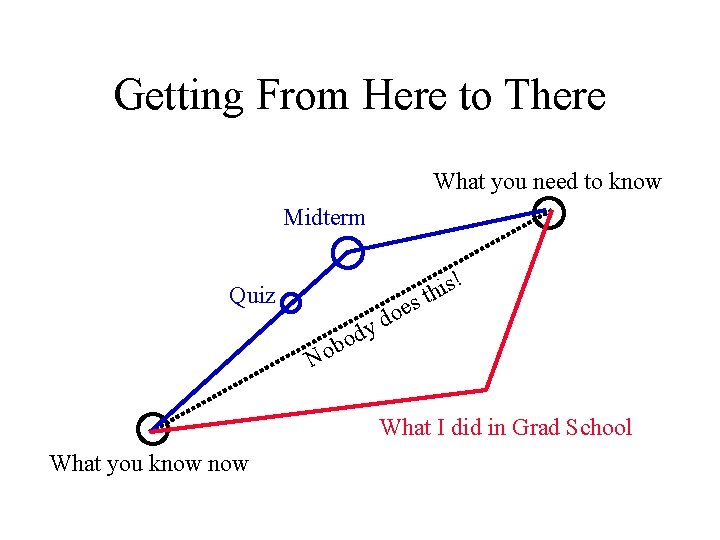
Getting From Here to There What you need to know Midterm Quiz y d o ob s e o d ! s i th N What I did in Grad School What you know
Syllabus • Master the tools in the first 8 weeks – 2 readings and one homework most weeks • Explore integrating issues the last 6 weeks – 1 reading each week + the project
Grading • 35 -38% individual work – Exams: 25% for the best, 10% for the other • 12 -15% group work, in any groups you like – 3% each for best 5 of the 7 homework/quiz • 40% group work, in 3 -person project teams – 25% for the project, 15% for the report • 10% class participation
Some Observations on Grading • One exam is worth more than all the homework – Message: Use the homework to learn the material • Midterm grades predict final grades well – Message: Develop sound study skills early • You need not be good at everything to get an A – But you do need to be excellent at several things
The Fine Print • Group work is encouraged on homework – But you must personally write what you turn in • Deadlines are firm and sharp – Allowances for individual circumstances are included in the grading computation • Academic integrity is a serious matter – No group work during the exams or the quiz! – Don’t discuss exam until all sections are done
Course Materials • • Textbook Supplemental readings Daily access to a networked computer! A few floppy disks or a USB memory stick
Computing at Maryland • Computer Labs (IBM, Mac, Unix) – HBK 2105 (IBM and MAC, CLIS students only) – PG 2: 24 hr WAM lab • Need an OIT “pay for print” account • Dial-in access (Unix only) – College Park (301)209 -0700 (3 hr)/864 -2087(15 min) – Baltimore (410)962 -8865(3 hr)/962 -8867(15 min) • WAM userid and password required
Homework Goals • Think about relative speed and relative size • Interpret specifications for computer systems • Try some “back of the envelope” calculations • Some helpful hints: – There is a calculator in Windows XP accessories – If you’re rusty on math, the TA can help in lab
Saving Your Notes • First, save the Word file on your M: drive – Connect over the Web to pick it up • http: //ttclass. umd. edu • If you have a floppy or a USB memory stick – Save the Word file again there
Obtaining Recordings • All classes recorded – Fixed camera angle, generally focused on screen – Microphones in the ceiling • Available over the Internet – Postage-stamp video, some audio distortion • Videotapes available in Wasserman Library – Available for viewing only in the library
Before You Go On a sheet of paper, answer the following (ungraded) question (no names, please): What was the muddiest point in today’s class?
- Slides: 53