
Computing Spring 2 Making Webpages HTML Knowledge Organiser
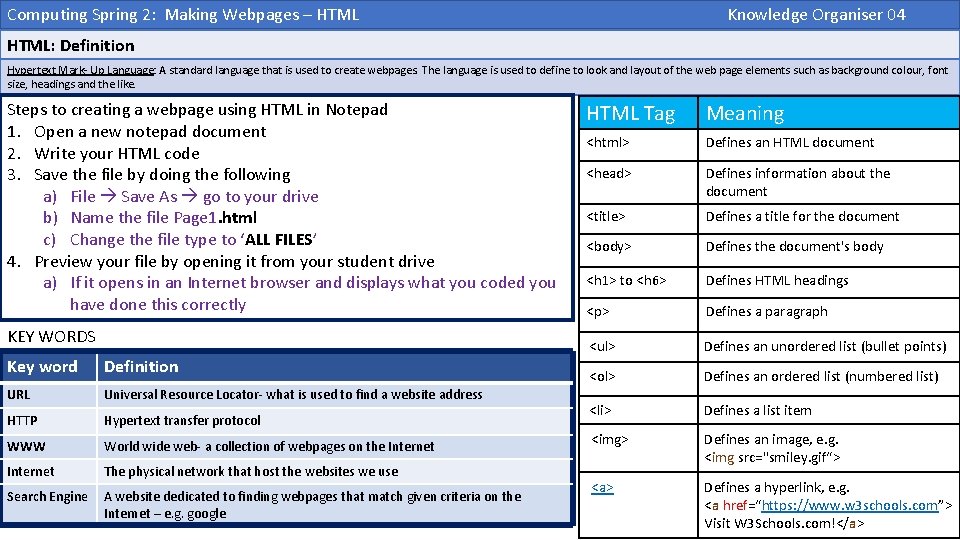
Computing Spring 2: Making Webpages – HTML Knowledge Organiser 04 HTML: Definition Hypertext Mark- Up Language: A standard language that is used to create webpages. The language is used to define to look and layout of the web page elements such as background colour, font size, headings and the like. Steps to creating a webpage using HTML in Notepad 1. Open a new notepad document 2. Write your HTML code 3. Save the file by doing the following a) File Save As go to your drive b) Name the file Page 1. html c) Change the file type to ‘ALL FILES’ 4. Preview your file by opening it from your student drive a) If it opens in an Internet browser and displays what you coded you have done this correctly KEY WORDS Key word Definition URL Universal Resource Locator- what is used to find a website address HTTP Hypertext transfer protocol WWW World wide web- a collection of webpages on the Internet The physical network that host the websites we use Search Engine A website dedicated to finding webpages that match given criteria on the Internet – e. g. google HTML Tag Meaning <html> Defines an HTML document <head> Defines information about the document <title> Defines a title for the document <body> Defines the document's body <h 1> to <h 6> Defines HTML headings <p> Defines a paragraph <ul> Defines an unordered list (bullet points) <ol> Defines an ordered list (numbered list) <li> Defines a list item <img> Defines an image, e. g. <img src="smiley. gif“> <a> Defines a hyperlink, e. g. <a href=“https: //www. w 3 schools. com”> Visit W 3 Schools. com!</a>
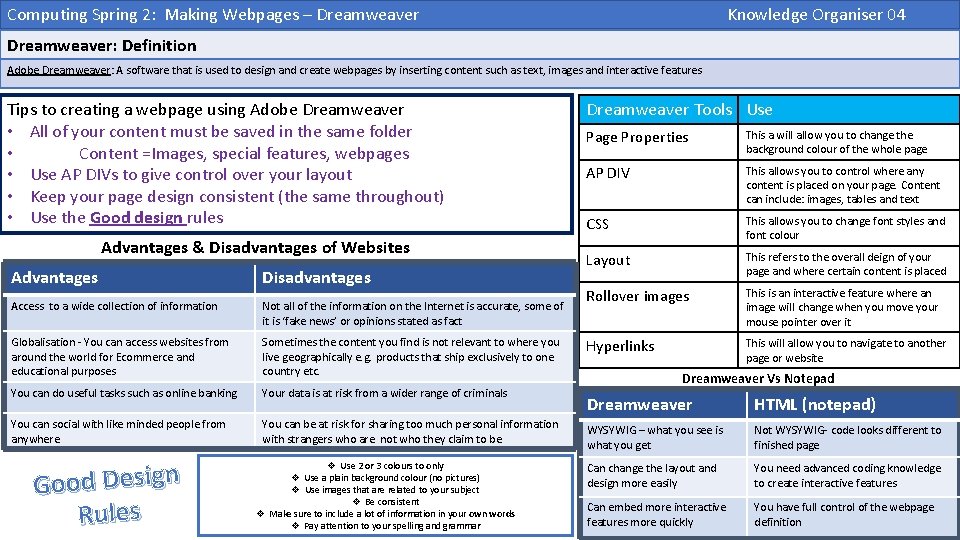
Computing Spring 2: Making Webpages – Dreamweaver Knowledge Organiser 04 Dreamweaver: Definition Adobe Dreamweaver: A software that is used to design and create webpages by inserting content such as text, images and interactive features Tips to creating a webpage using Adobe Dreamweaver • All of your content must be saved in the same folder • Content =Images, special features, webpages • Use AP DIVs to give control over your layout • Keep your page design consistent (the same throughout) • Use the Good design rules Advantages & Disadvantages of Websites Advantages Disadvantages Access to a wide collection of information Not all of the information on the Internet is accurate, some of it is ‘fake news’ or opinions stated as fact Globalisation - You can access websites from around the world for Ecommerce and educational purposes Sometimes the content you find is not relevant to where you live geographically e. g. products that ship exclusively to one country etc. You can do useful tasks such as online banking Your data is at risk from a wider range of criminals You can social with like minded people from anywhere You can be at risk for sharing too much personal information with strangers who are not who they claim to be Good Design Rules v Use 2 or 3 colours to only v Use a plain background colour (no pictures) v Use images that are related to your subject v Be consistent v Make sure to include a lot of information in your own words v Pay attention to your spelling and grammar Dreamweaver Tools Use Page Properties This a will allow you to change the background colour of the whole page AP DIV This allows you to control where any content is placed on your page. Content can include: images, tables and text CSS This allows you to change font styles and font colour Layout This refers to the overall deign of your page and where certain content is placed Rollover images This is an interactive feature where an image will change when you move your mouse pointer over it Hyperlinks This will allow you to navigate to another page or website Dreamweaver Vs Notepad Dreamweaver HTML (notepad) WYSYWIG – what you see is what you get Not WYSYWIG- code looks different to finished page Can change the layout and design more easily You need advanced coding knowledge to create interactive features Can embed more interactive features more quickly You have full control of the webpage definition
- Slides: 2