
Computing Sequencing Lesson 1 of 6 Ben Garside
Computing Sequencing Lesson 1 of 6 Ben Garside 1

Task 1: The Frère Jacques sequence Use this link to find the Scratch file: oaknat. uk/comp-Y 7 sequencing 1 Task 1 Move the blocks into the correct sequence so that the lyrics to the song Frère Jacques are in the correct order. The first one has been done for you. Source: Scratch 2

Make your subroutines Use this link to find the Scratch file: oaknat. uk/comp-Y 7 sequencing 1 Task 2 Listen to each block of music sequences (the green blocks) by using a single click on the block. Place the sequence under the appropriate subroutine headings. 3 Source: Scratch
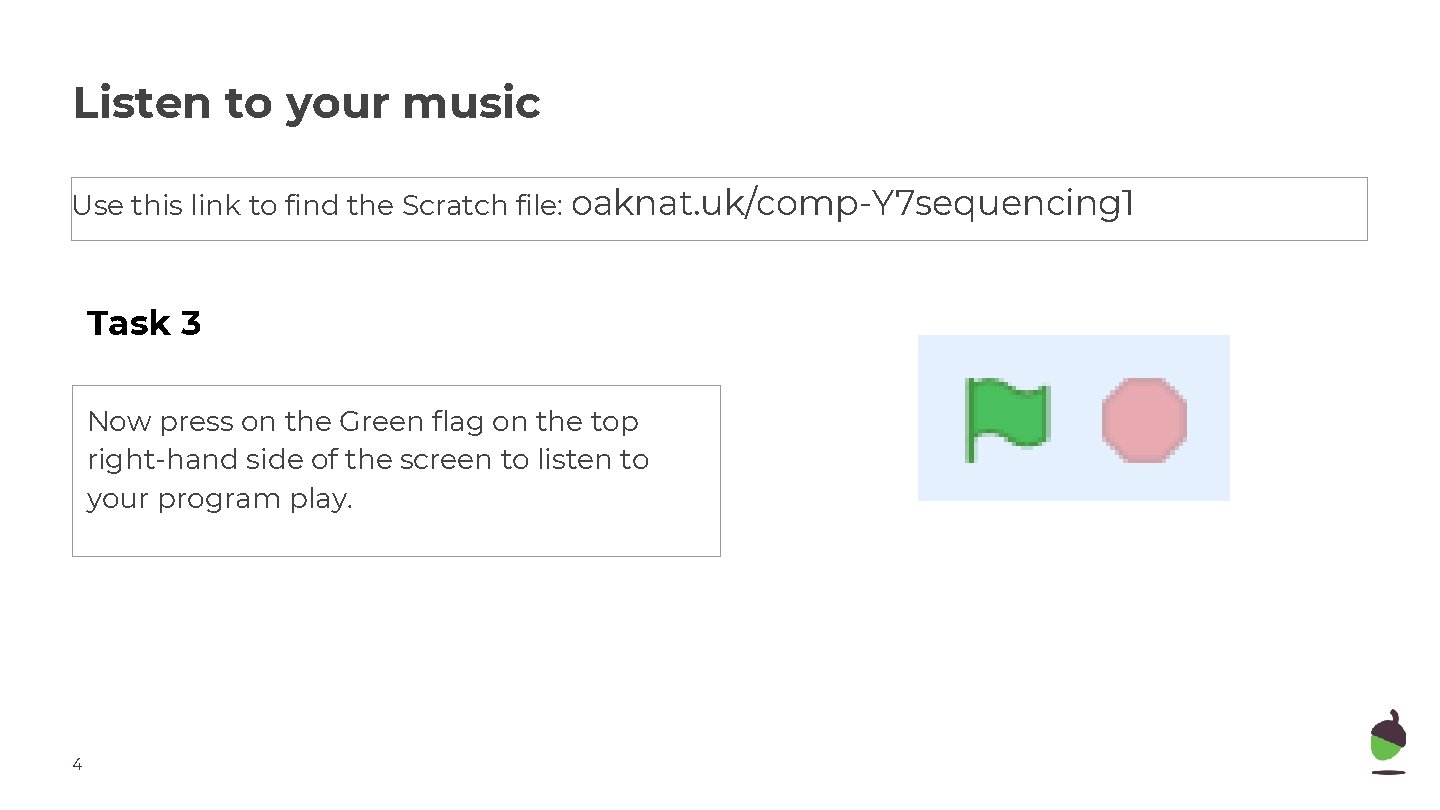
Listen to your music Use this link to find the Scratch file: oaknat. uk/comp-Y 7 sequencing 1 Task 3 Now press on the Green flag on the top right-hand side of the screen to listen to your program play. 4
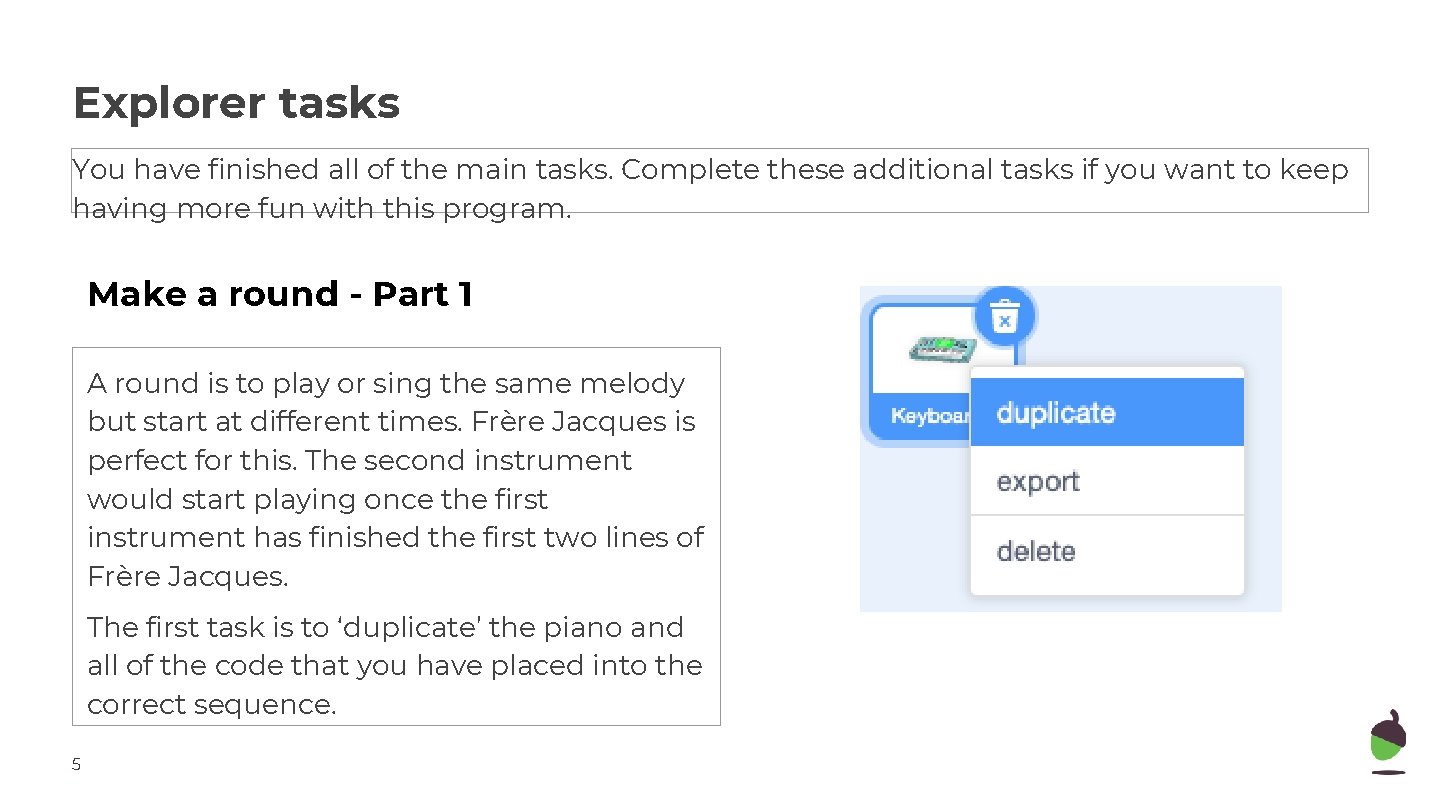
Explorer tasks You have finished all of the main tasks. Complete these additional tasks if you want to keep having more fun with this program. Make a round - Part 1 A round is to play or sing the same melody but start at different times. Frère Jacques is perfect for this. The second instrument would start playing once the first instrument has finished the first two lines of Frère Jacques. The first task is to ‘duplicate’ the piano and all of the code that you have placed into the correct sequence. 5
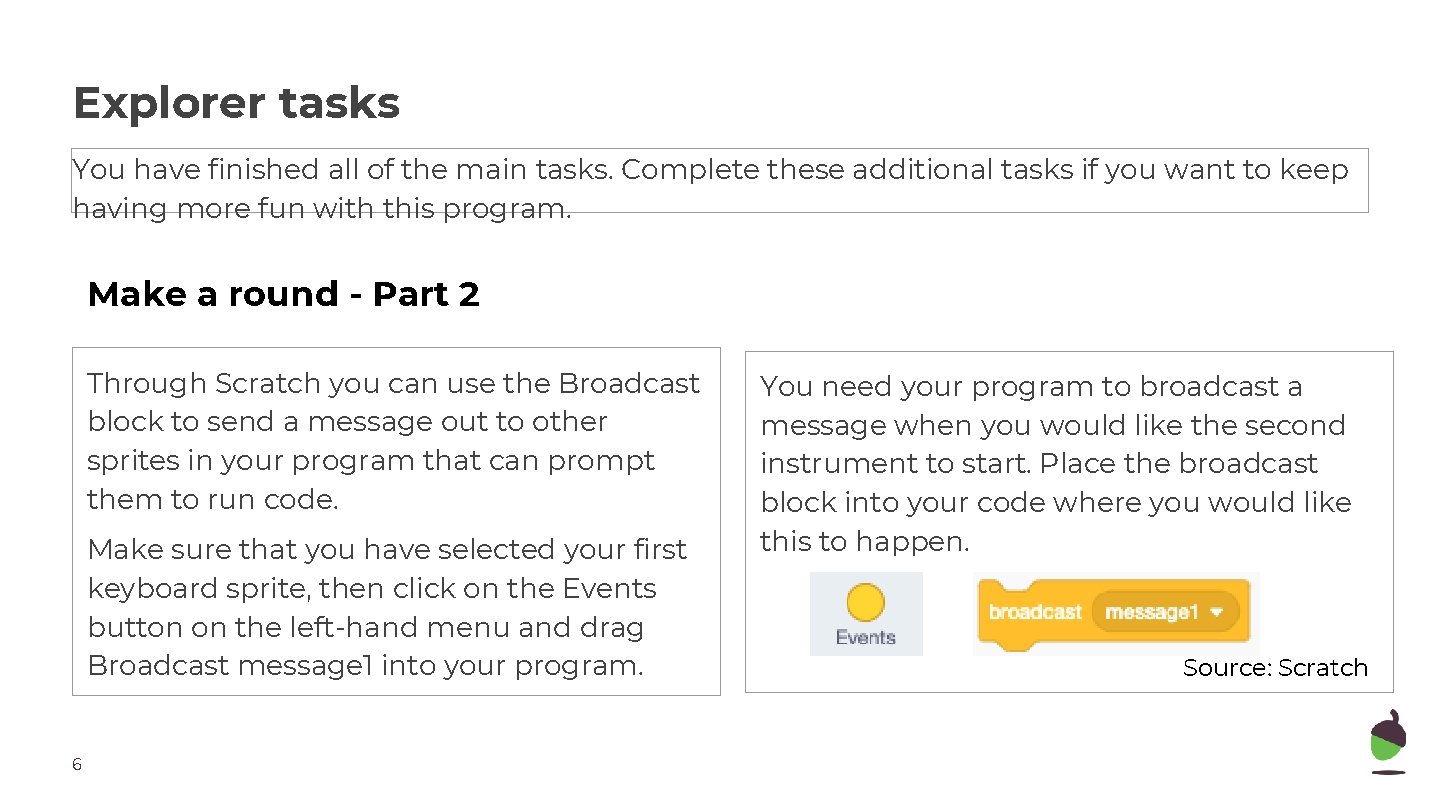
Explorer tasks You have finished all of the main tasks. Complete these additional tasks if you want to keep having more fun with this program. Make a round - Part 2 Through Scratch you can use the Broadcast block to send a message out to other sprites in your program that can prompt them to run code. Make sure that you have selected your first keyboard sprite, then click on the Events button on the left-hand menu and drag Broadcast message 1 into your program. 6 You need your program to broadcast a message when you would like the second instrument to start. Place the broadcast block into your code where you would like this to happen. Source: Scratch
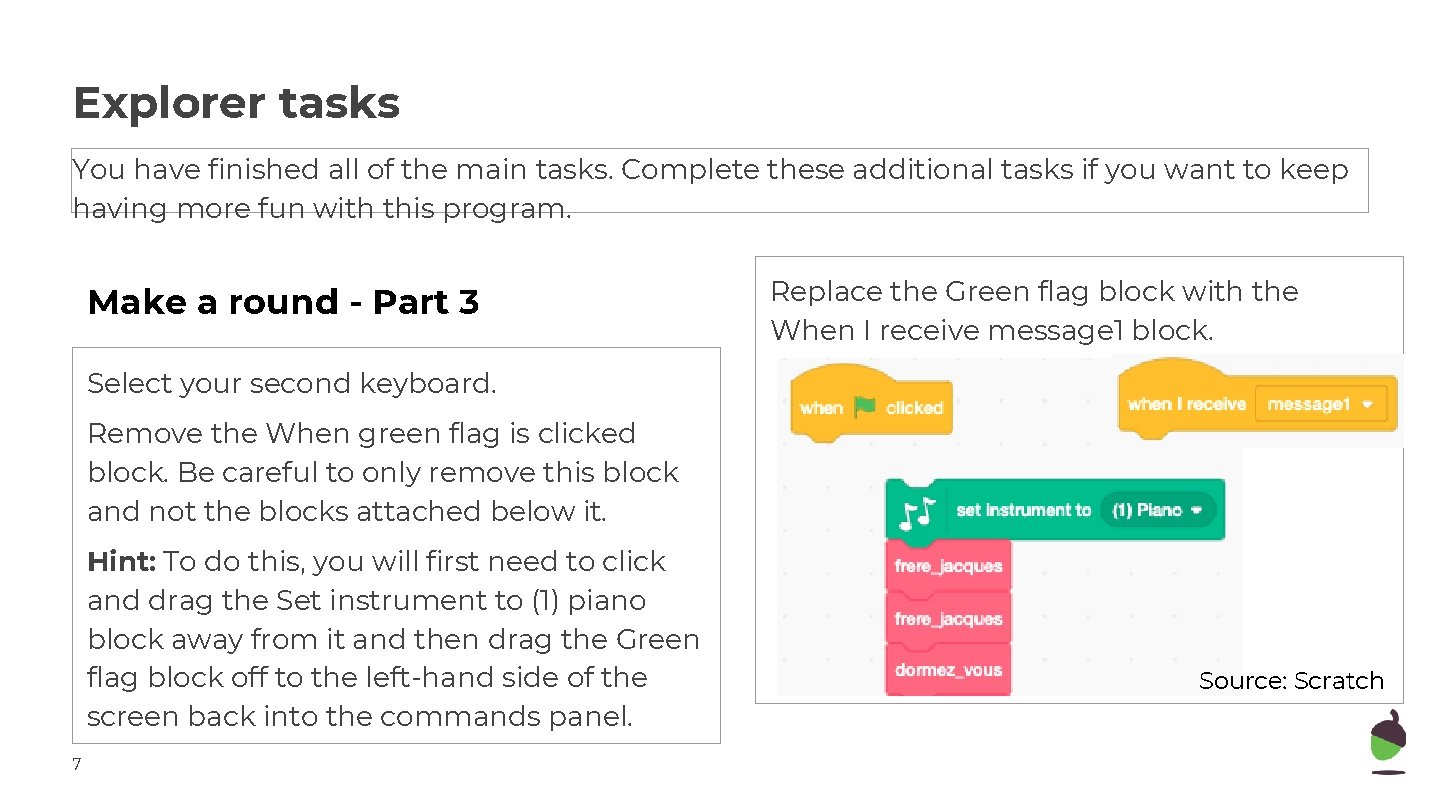
Explorer tasks You have finished all of the main tasks. Complete these additional tasks if you want to keep having more fun with this program. Make a round - Part 3 Replace the Green flag block with the When I receive message 1 block. Select your second keyboard. Remove the When green flag is clicked block. Be careful to only remove this block and not the blocks attached below it. Hint: To do this, you will first need to click and drag the Set instrument to (1) piano block away from it and then drag the Green flag block off to the left-hand side of the screen back into the commands panel. 7 Source: Scratch
Explorer tasks You have finished all of the main tasks. Complete these additional tasks if you want to keep having more fun with this program. Make a round - Part 4 Run your program and listen. If it did work, try adding in a third piano. Has it worked? Hint: You will need to broadcast a different ‘message 1’. You can create a new message by clicking on the Drop-down arrow next to ‘message 1’. If not, go back to your first keyboard. Are you broadcasting in the correct place? 8
- Slides: 8