
Computing Lesson 5 Level up your Data Skills

- Slides: 10
Computing Lesson 5: Level up your Data Skills Spreadsheets Halima Bhayat Materials from the Teach Computing Curriculum created by the National Centre for Computing Education 1
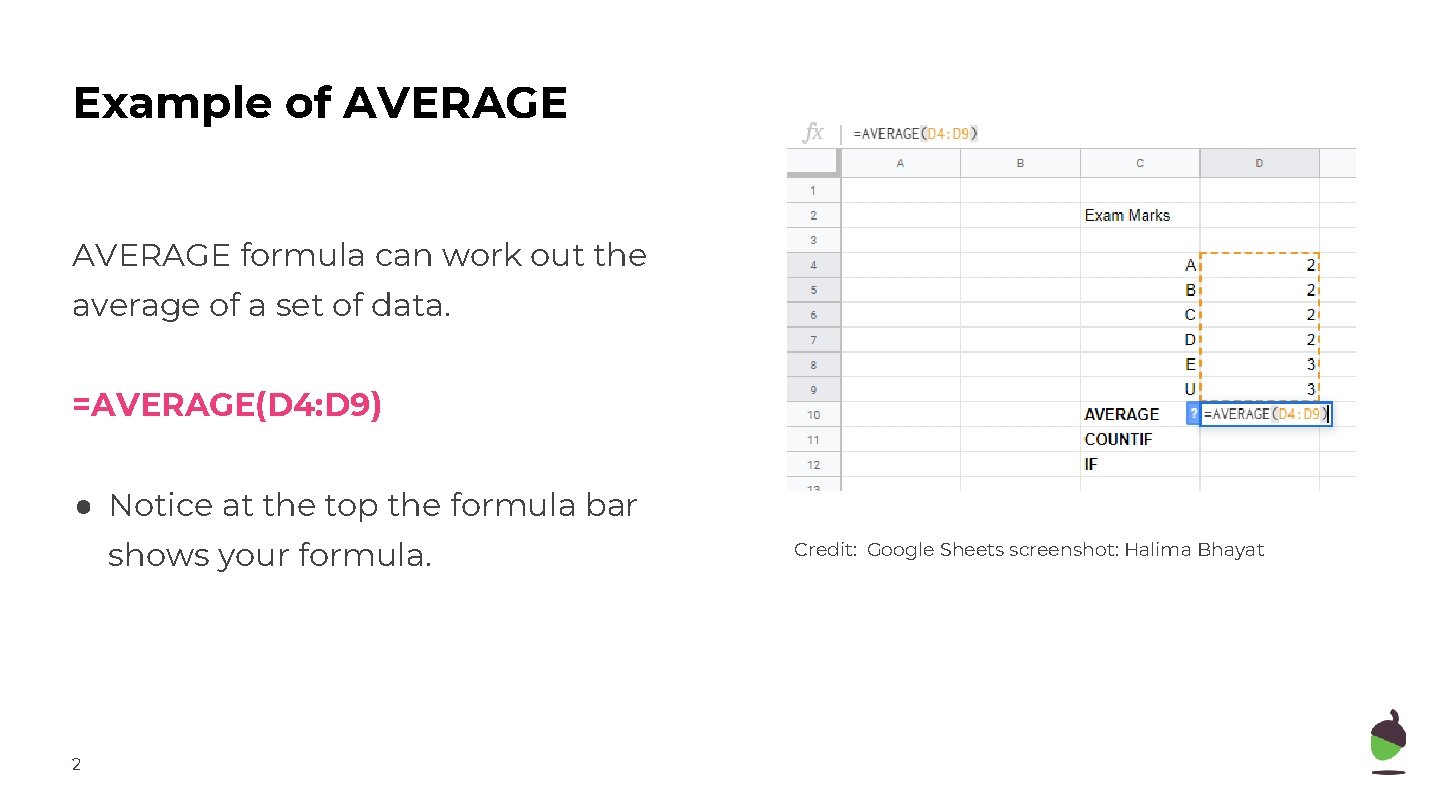
Example of AVERAGE formula can work out the average of a set of data. =AVERAGE(D 4: D 9) ● Notice at the top the formula bar shows your formula. 2 Credit: Google Sheets screenshot: Halima Bhayat
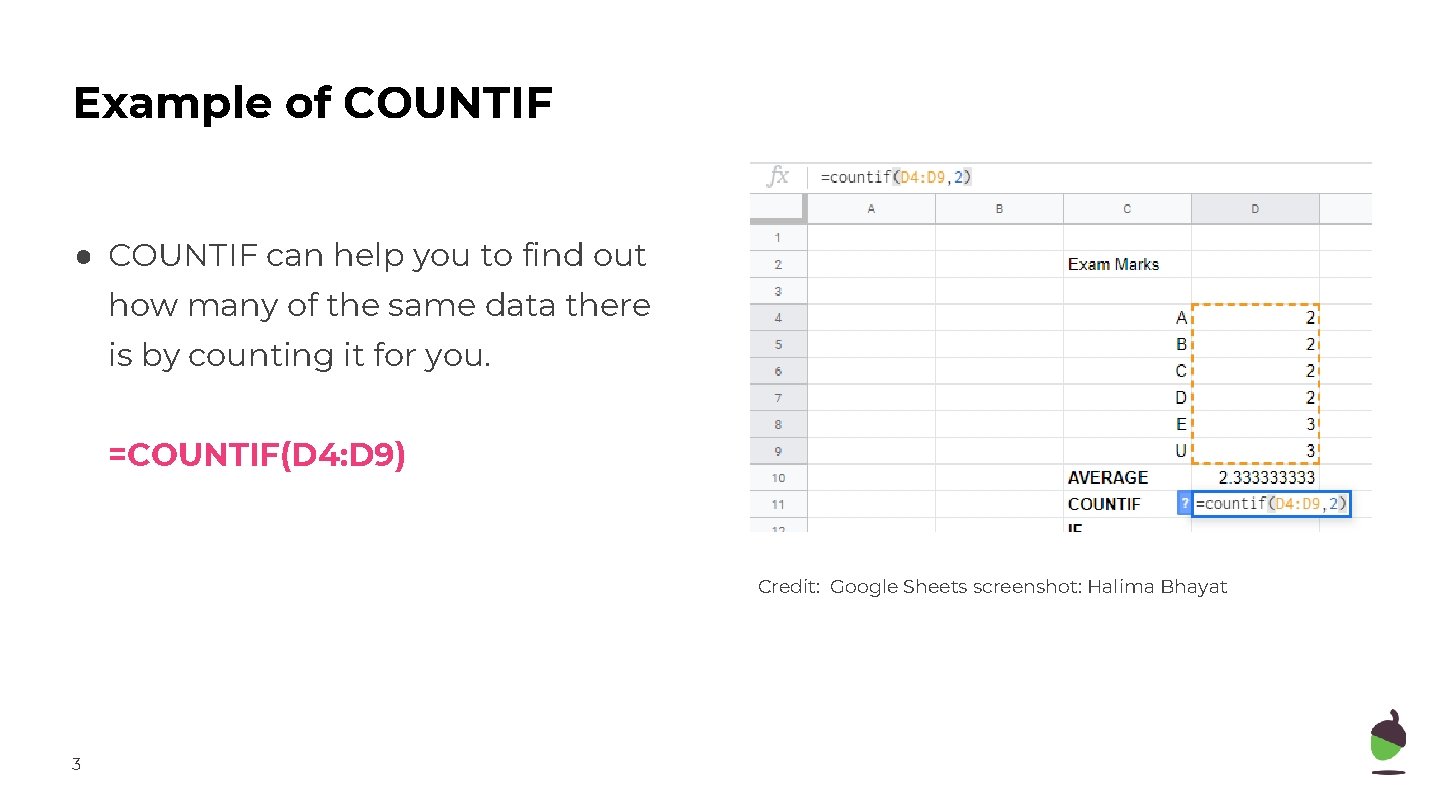
Example of COUNTIF ● COUNTIF can help you to find out how many of the same data there is by counting it for you. =COUNTIF(D 4: D 9) Credit: Google Sheets screenshot: Halima Bhayat 3
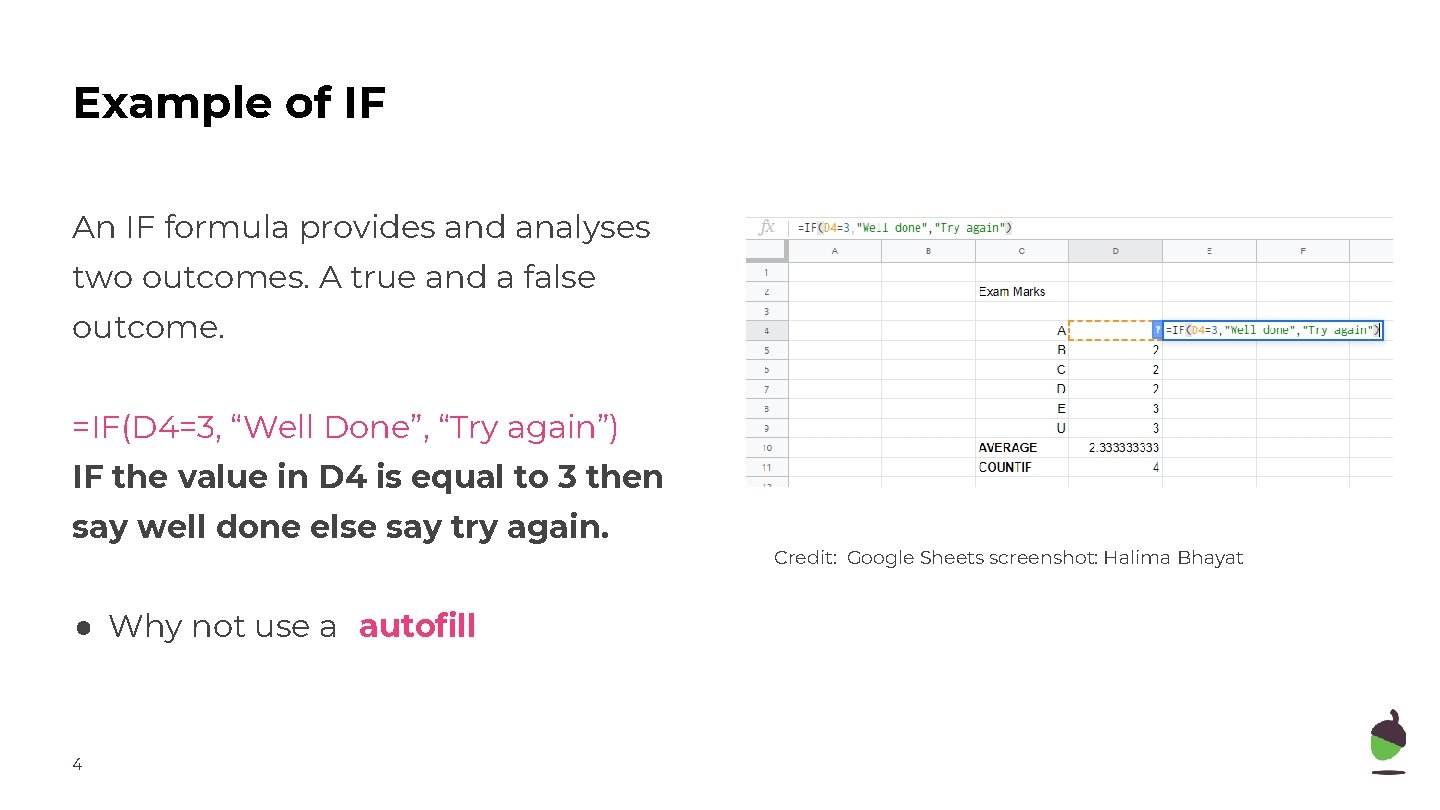
Example of IF An IF formula provides and analyses two outcomes. A true and a false outcome. =IF(D 4=3, “Well Done”, “Try again”) IF the value in D 4 is equal to 3 then say well done else say try again. ● Why not use a autofill 4 Credit: Google Sheets screenshot: Halima Bhayat
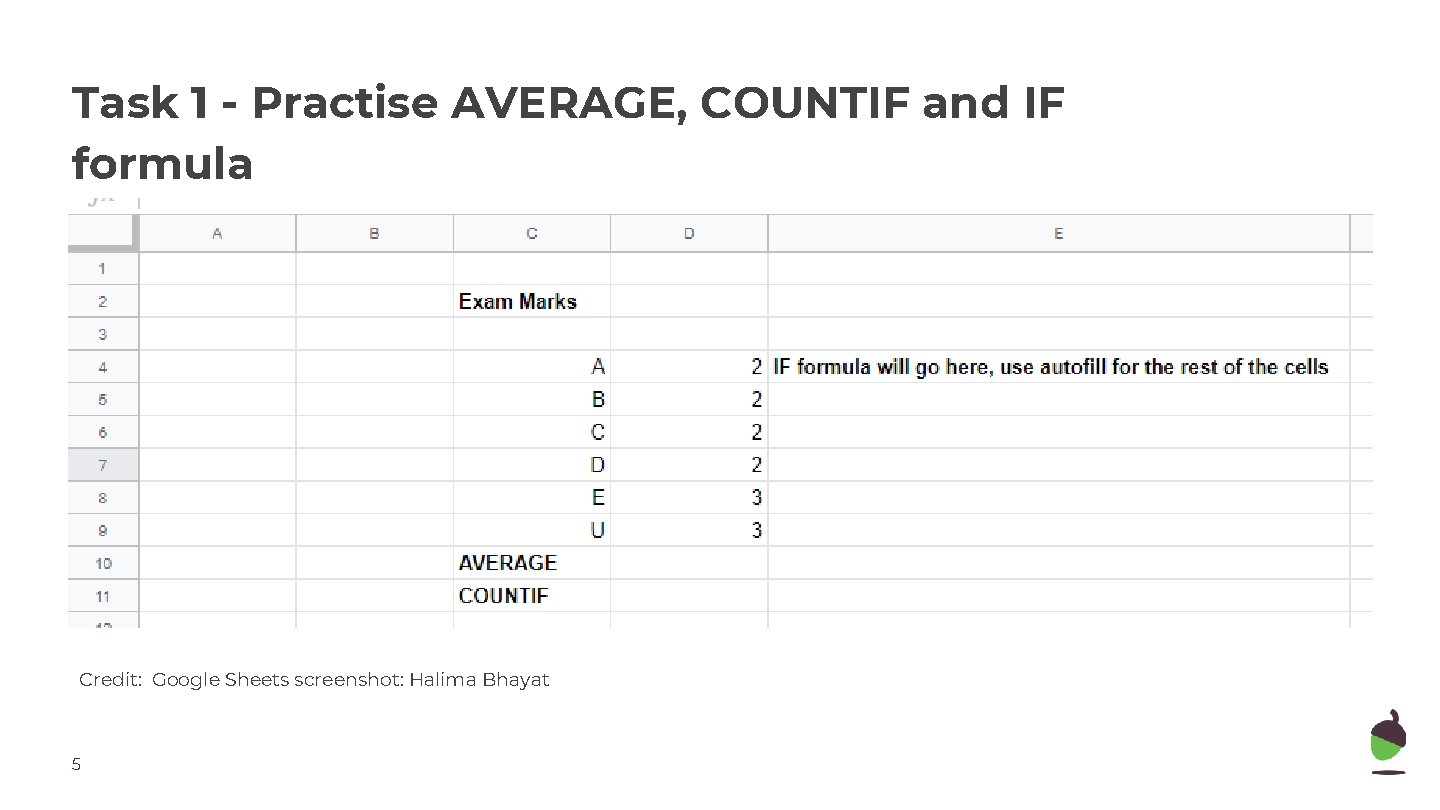
Task 1 - Practise AVERAGE, COUNTIF and IF formula Credit: Google Sheets screenshot: Halima Bhayat 5
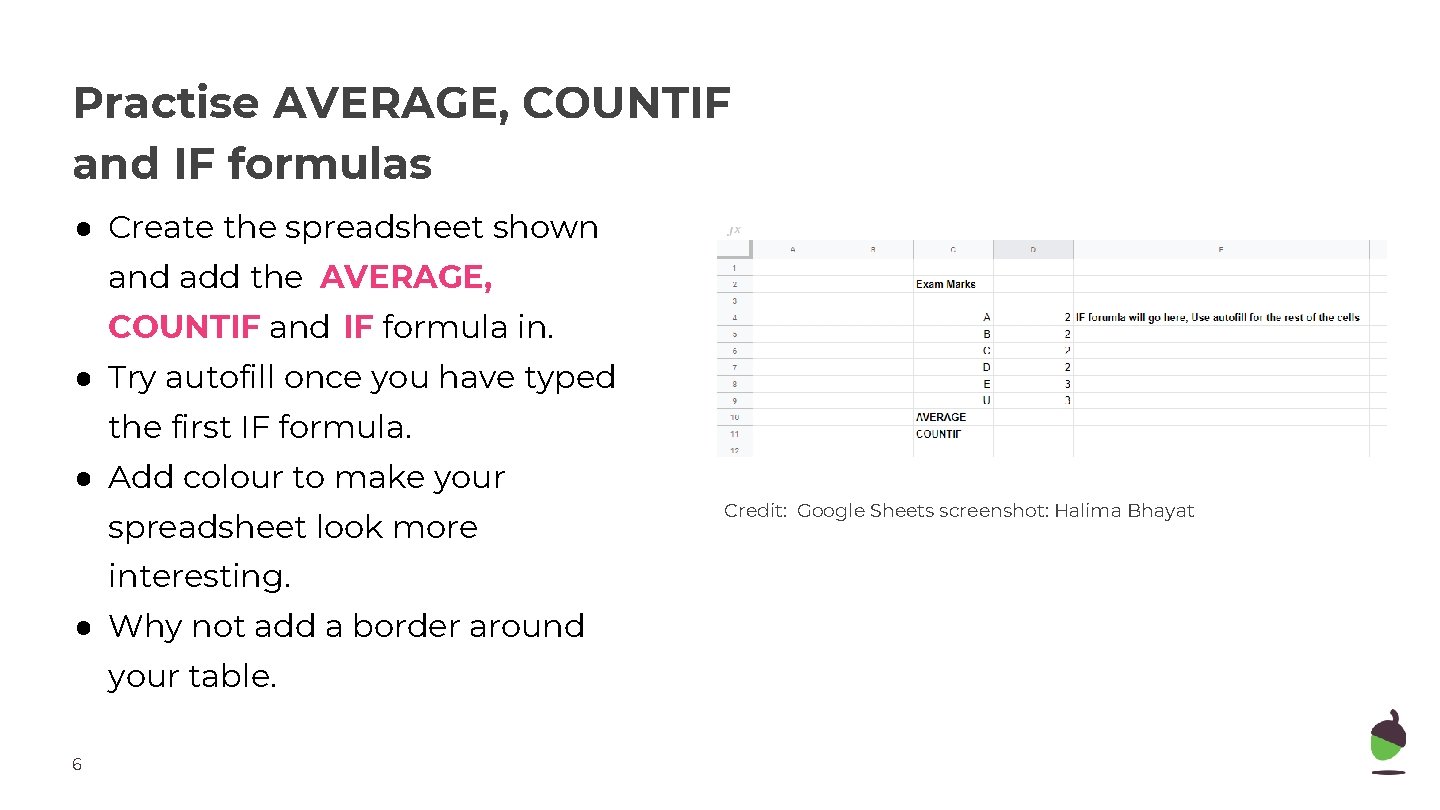
Practise AVERAGE, COUNTIF and IF formulas ● Create the spreadsheet shown and add the AVERAGE, COUNTIF and IF formula in. ● Try autofill once you have typed the first IF formula. ● Add colour to make your spreadsheet look more interesting. ● Why not add a border around your table. 6 Credit: Google Sheets screenshot: Halima Bhayat
Task 2 - Sorting and filtering Credit: Google Sheets screenshot: Halima Bhayat 7
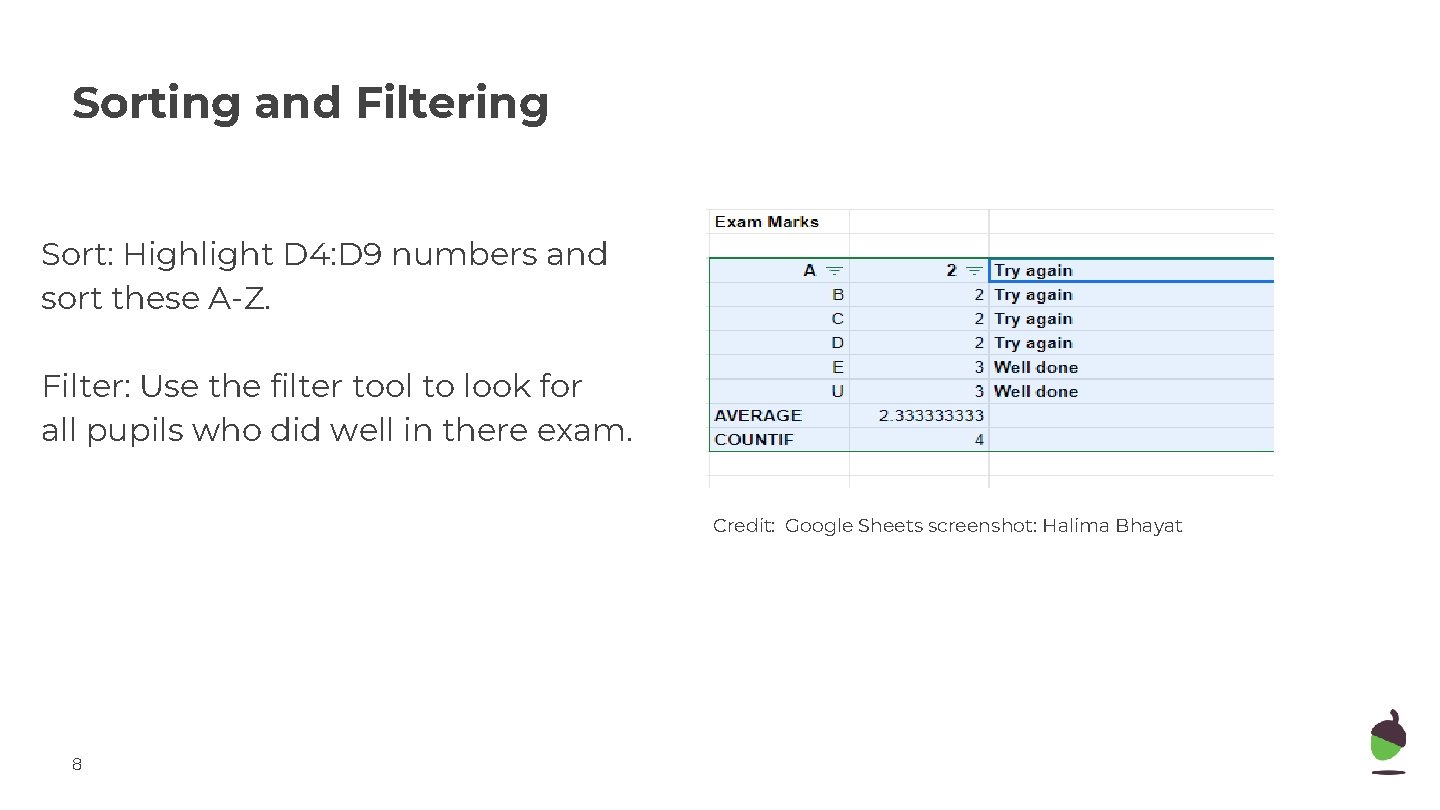
Sorting and Filtering Sort: Highlight D 4: D 9 numbers and sort these A-Z. Filter: Use the filter tool to look for all pupils who did well in there exam. Credit: Google Sheets screenshot: Halima Bhayat 8
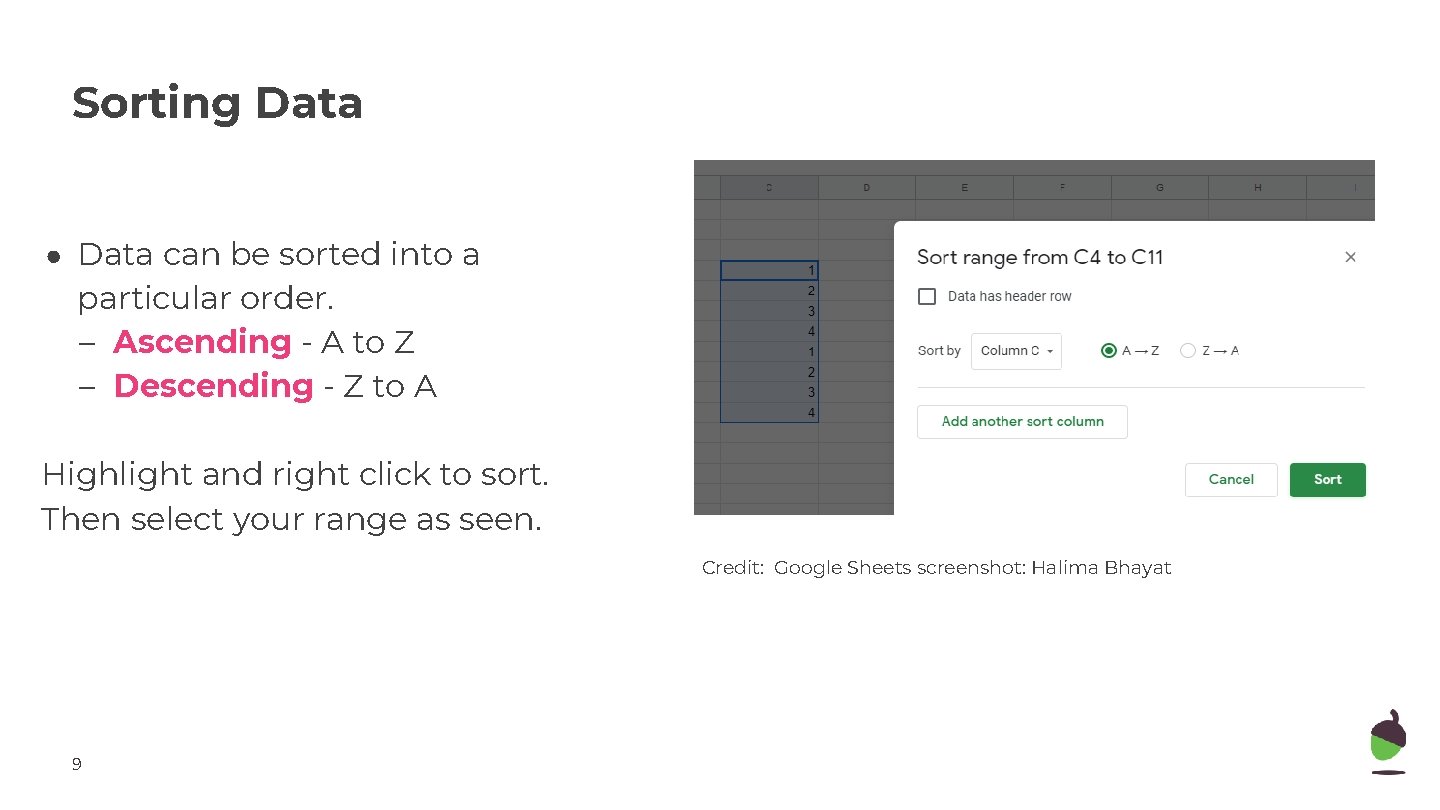
Sorting Data ● Data can be sorted into a particular order. – Ascending - A to Z – Descending - Z to A Highlight and right click to sort. Then select your range as seen. Credit: Google Sheets screenshot: Halima Bhayat 9
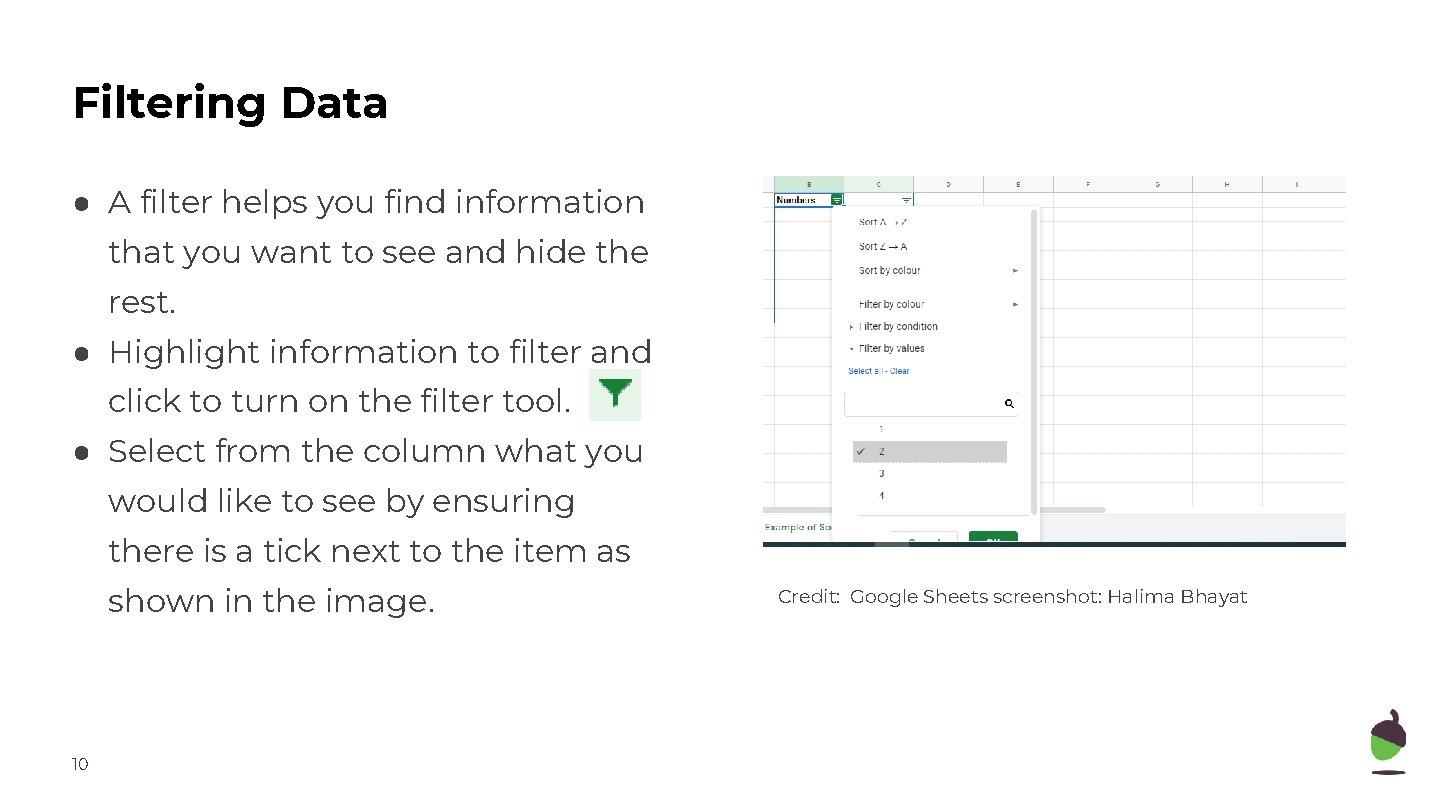
Filtering Data ● A filter helps you find information that you want to see and hide the rest. ● Highlight information to filter and click to turn on the filter tool. ● Select from the column what you would like to see by ensuring there is a tick next to the item as shown in the image. 10 Credit: Google Sheets screenshot: Halima Bhayat