
Computing Lesson 3 School Lab Studios Mobile App
Computing Lesson 3: School Lab Studios Mobile App Development Ben Garside 1 Materials from the Teach Computing Curriculum created by the National Centre for Computing Education
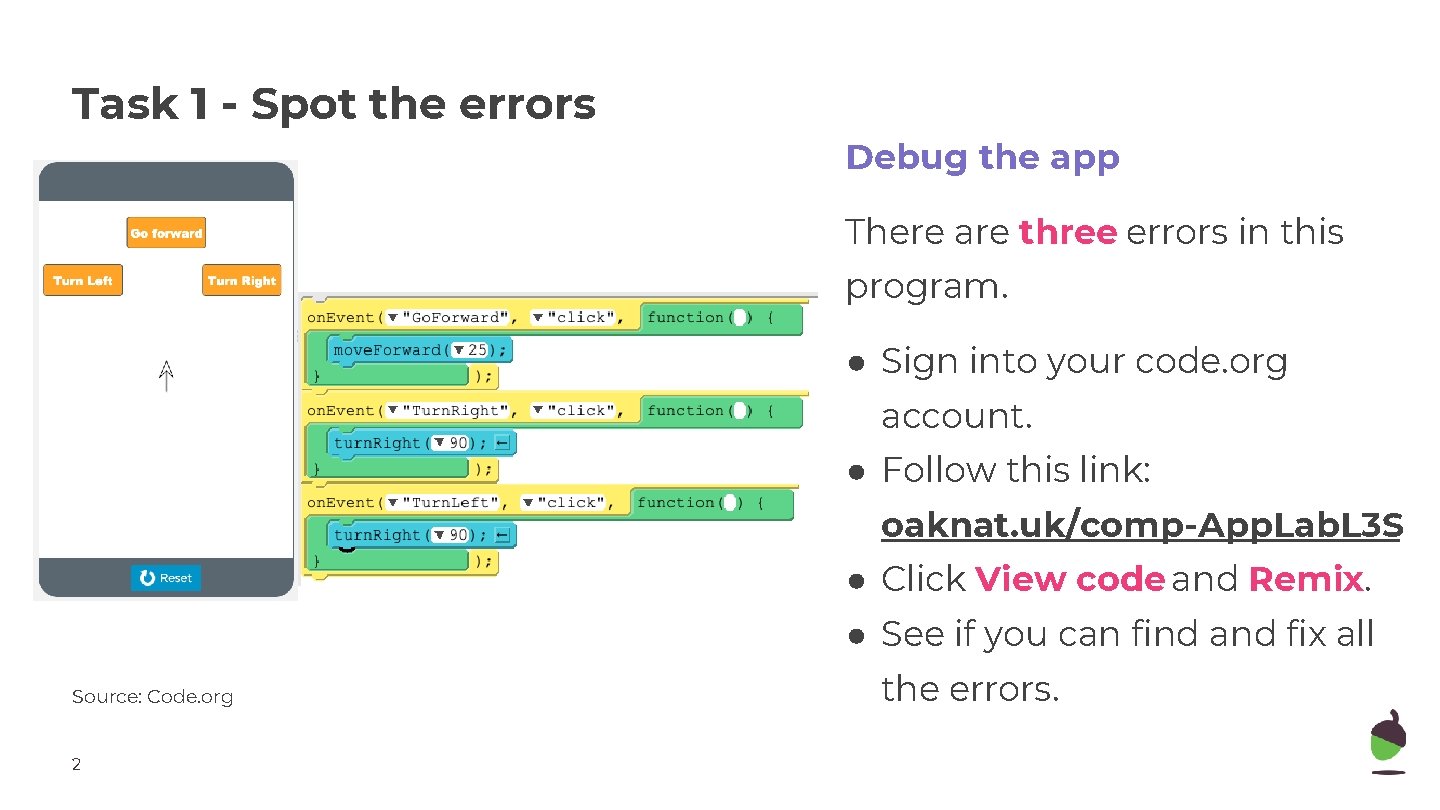
Task 1 - Spot the errors Debug the app There are three errors in this program. ● Sign into your code. org account. ● Follow this link: oaknat. uk/comp-App. Lab. L 3 S ● Click View code and Remix. ● See if you can find and fix all Source: Code. org 2 the errors.
Task 2 - User score We’re now going to apply the final touches to our Tappy Tap App by doing the following: Instructions Open the app that you developed in the previous lesson ● Designing the score screen If you don’t want to use your app, you ● Adding code to pass the score to can remix the following app: the score screen 3 ● oaknat. uk/comp-App. Lab. L 3 a 1
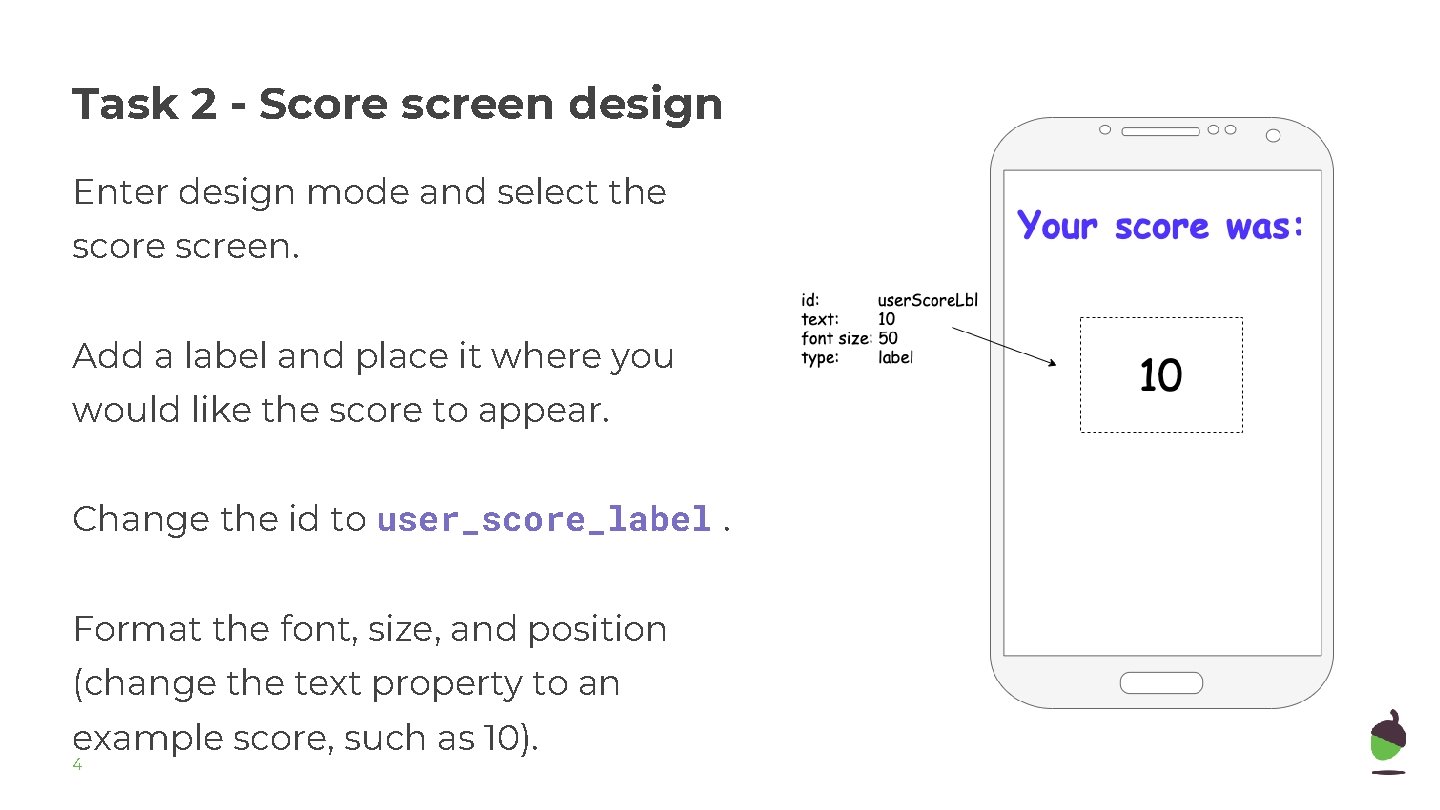
Task 2 - Score screen design Enter design mode and select the score screen. Add a label and place it where you would like the score to appear. Change the id to user_score_label. Format the font, size, and position (change the text property to an example score, such as 10). 4
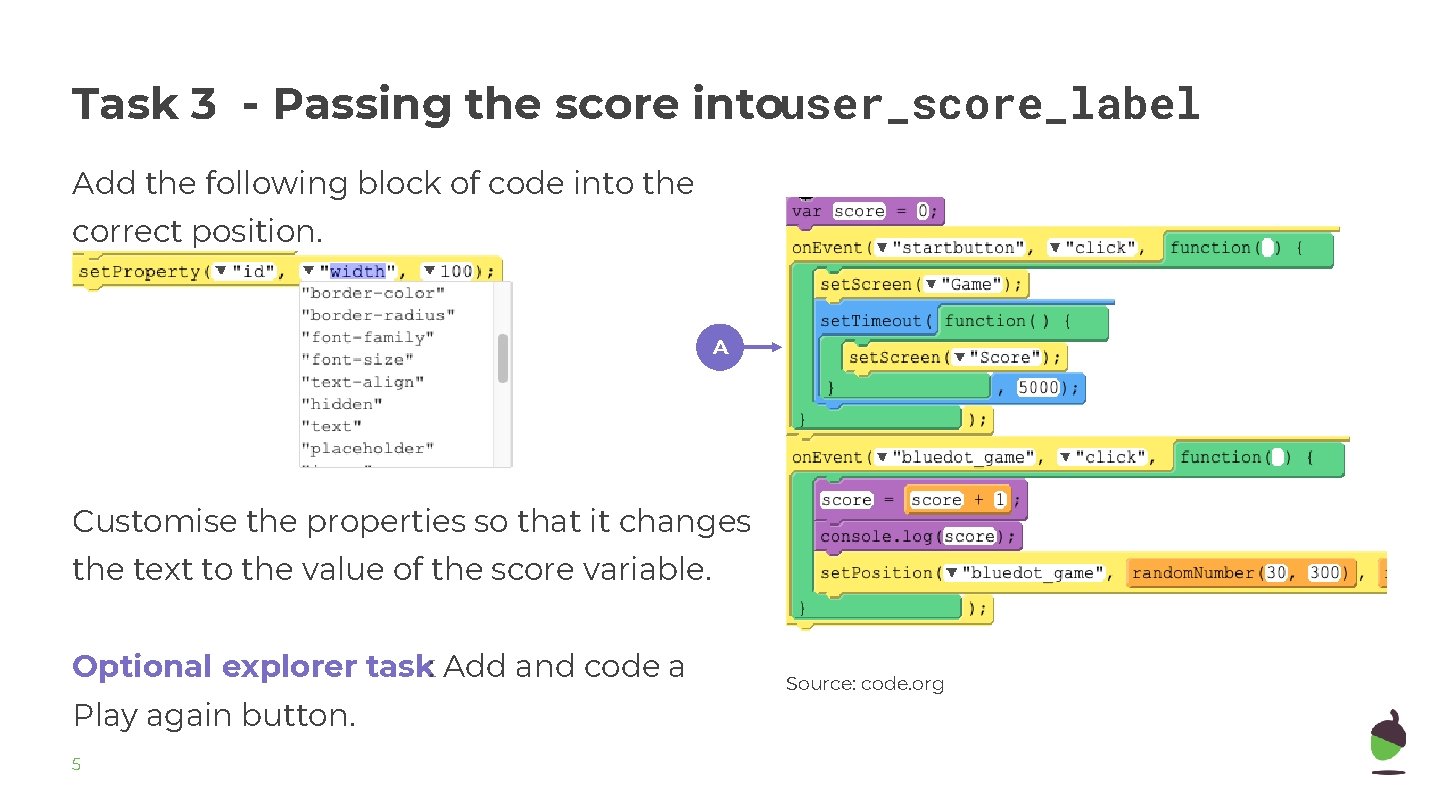
Task 3 - Passing the score intouser_score_label Add the following block of code into the correct position. A Customise the properties so that it changes the text to the value of the score variable. Optional explorer task: Add and code a Play again button. 5 Source: code. org
Task 4 - Choose your project You can now choose your project. ● Open the project diaries for each project ● Spend time reading the options and the requirements of each program ● Download or make a copy of the project that you are going to work on Source: Pixabay 6
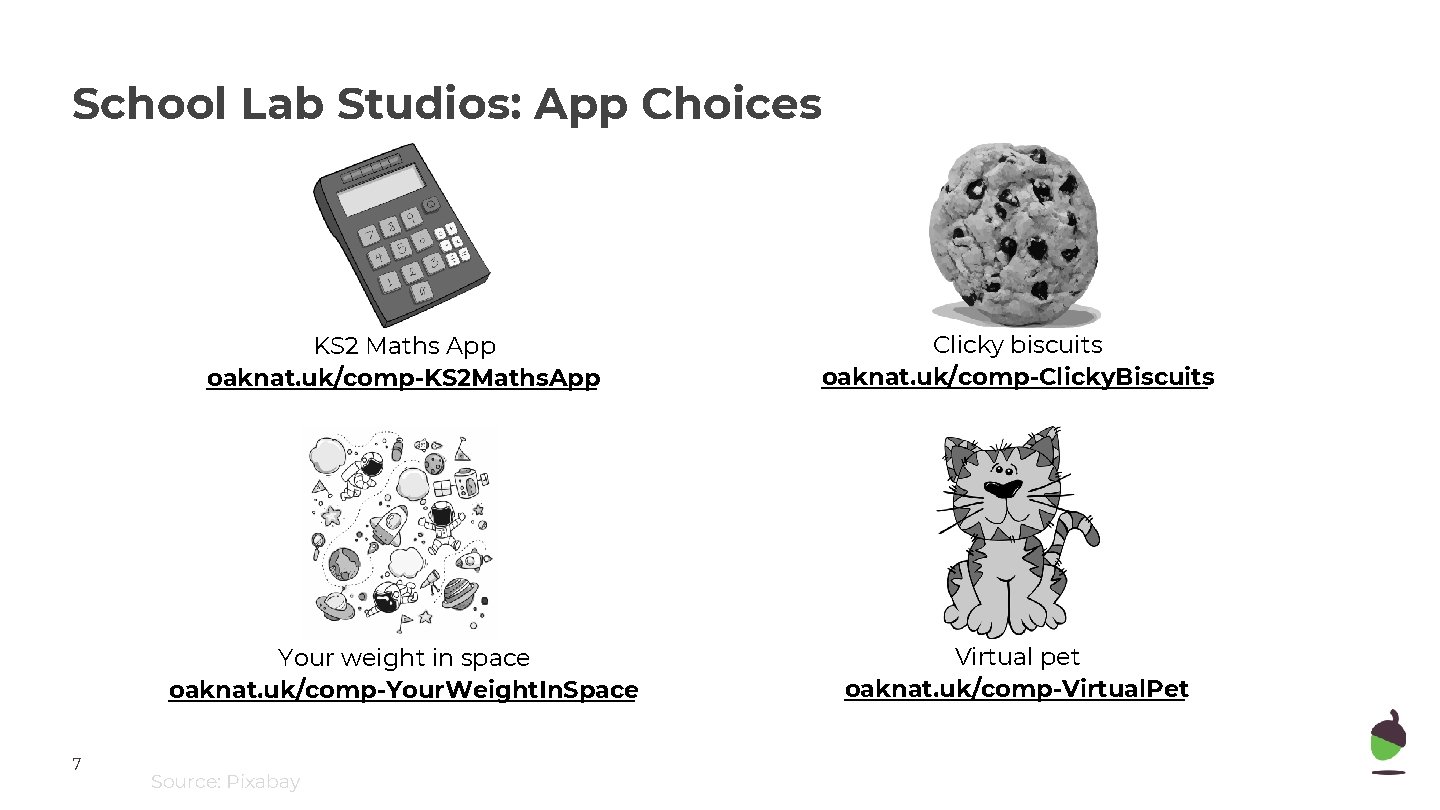
School Lab Studios: App Choices 7 KS 2 Maths App oaknat. uk/comp-KS 2 Maths. App Clicky biscuits oaknat. uk/comp-Clicky. Biscuits Your weight in space oaknat. uk/comp-Your. Weight. In. Space Virtual pet oaknat. uk/comp-Virtual. Pet Source: Pixabay
- Slides: 7