
COMPUTERS PART OF YOUR LIFE Grade 11 1
- Slides: 32
COMPUTERS, PART OF YOUR LIFE Grade 11 1
SOFTWARE Module 1. 4 2
Contents q Application software q Multimedia software q Communications software q Compatibility issues q Software bugs q Updating your software q Online software q Software for physically challenged users q Test and improve 3
APPLICATION SOFTWARE Programs that perform specific tasks for us as users 4
Multimedia software Used to create or view multimedia content Combines text, sound, images, drawings, animations and video to communicate ideas Most popular way to create multimedia is by using HTML 5 5
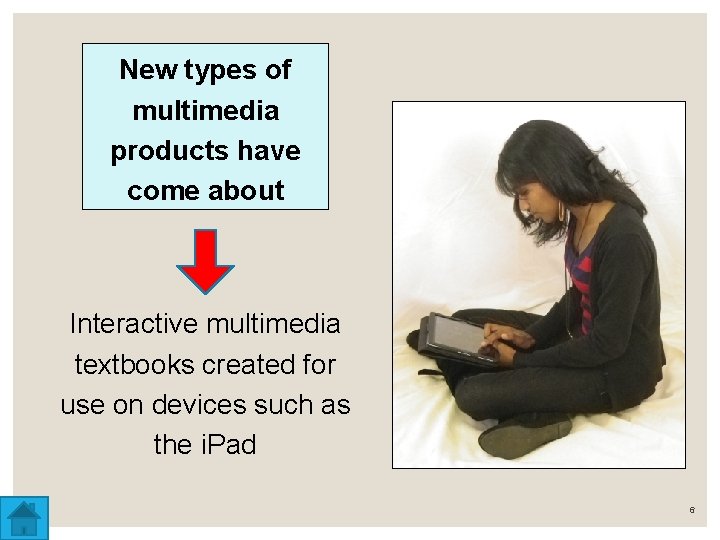
New types of multimedia products have come about Interactive multimedia textbooks created for use on devices such as the i. Pad 6
Communications software Used to make electronic communications simple, effective and efficient • • • Email programs Web browsing software Online chat rooms Instant Messaging Vo. IP software 7
COMPATIBILITY ISSUES 8
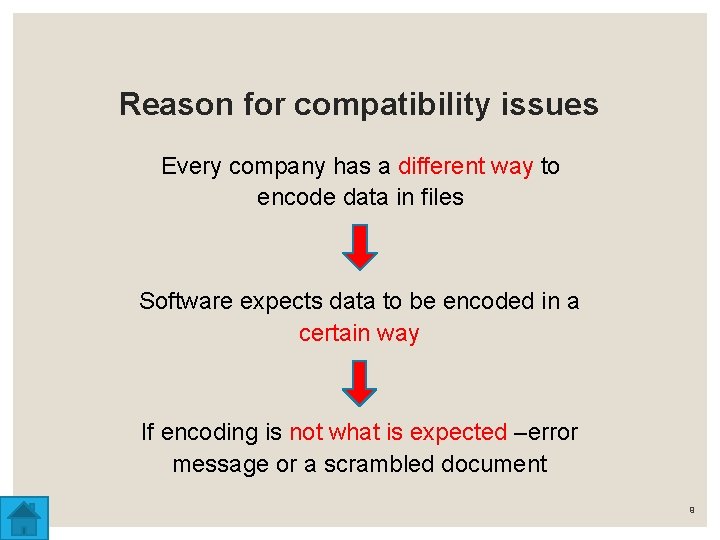
Reason for compatibility issues Every company has a different way to encode data in files Software expects data to be encoded in a certain way If encoding is not what is expected –error message or a scrambled document 9
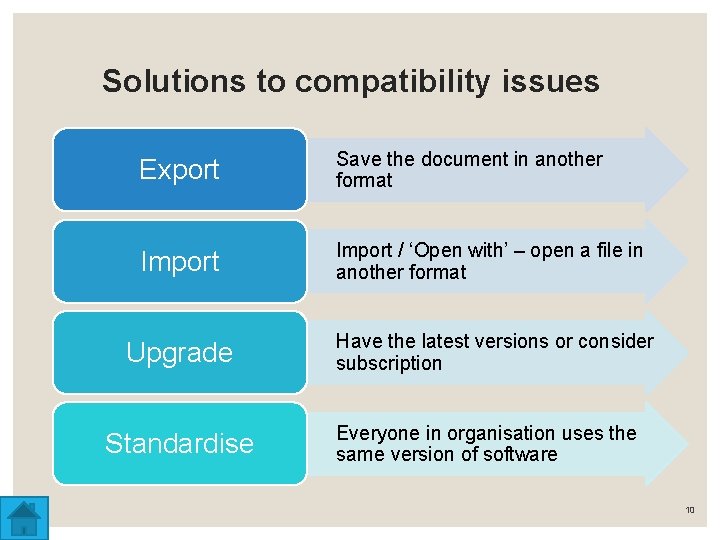
Solutions to compatibility issues Export Save the document in another format Import / ‘Open with’ – open a file in another format Upgrade Have the latest versions or consider subscription Standardise Everyone in organisation uses the same version of software 10
SOFTWARE BUGS 11
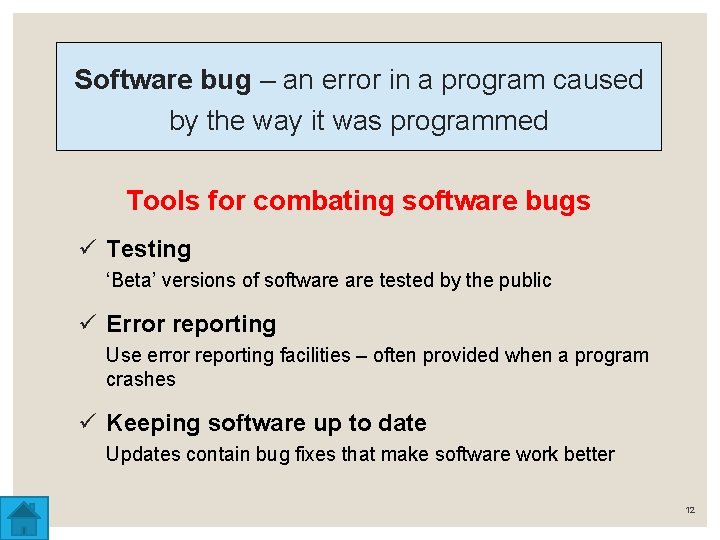
Software bug – an error in a program caused by the way it was programmed Tools for combating software bugs ü Testing ‘Beta’ versions of software tested by the public ü Error reporting Use error reporting facilities – often provided when a program crashes ü Keeping software up to date Updates contain bug fixes that make software work better 12
UPDATING YOUR SOFTWARE 13
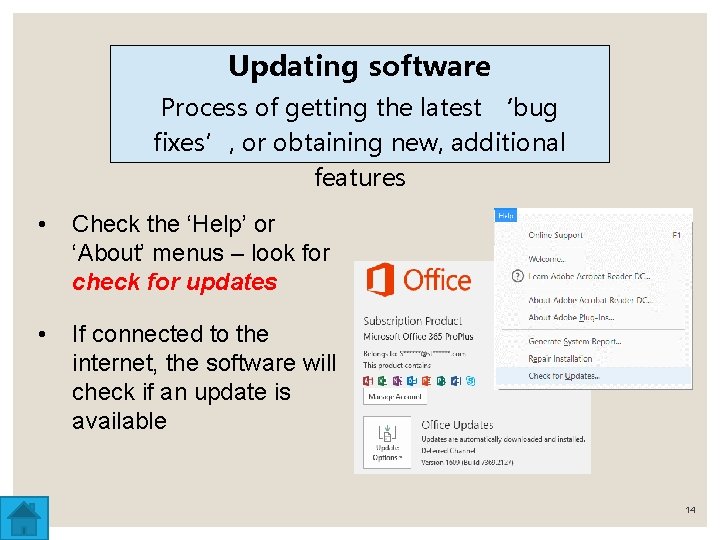
Updating software Process of getting the latest ‘bug fixes’, or obtaining new, additional features • Check the ‘Help’ or ‘About’ menus – look for check for updates • If connected to the internet, the software will check if an update is available 14
SERVICE PACKS vs. UPDATES Service packs • Collection of all previous updates for last period of time • Pretty much a thing of the past Updates • Software regularly checks for updates • Updates are automatically downloaded and installed 15
ONLINE SOFTWARE 16
? ‘online software’ ‘cloud computing’ ‘Web applications’. . . software actually runs on servers on the internet 17
Advantages of online software • Software always up to date • Don’t have to download or install anything • Does not take up space on local storage • Server CPU may be more powerful than your own CPU – run more powerful software • Use the software and access your data from any computer anywhere in the world 18
Disadvantages of online software • Needs internet connection • If no internet connection – cannot access software or your data • No control over data security / backup policy • May have to pay a monthly fee to use it • Might lack features or abilities of desktop software • Might run slower – depending on speed of internet connection 19
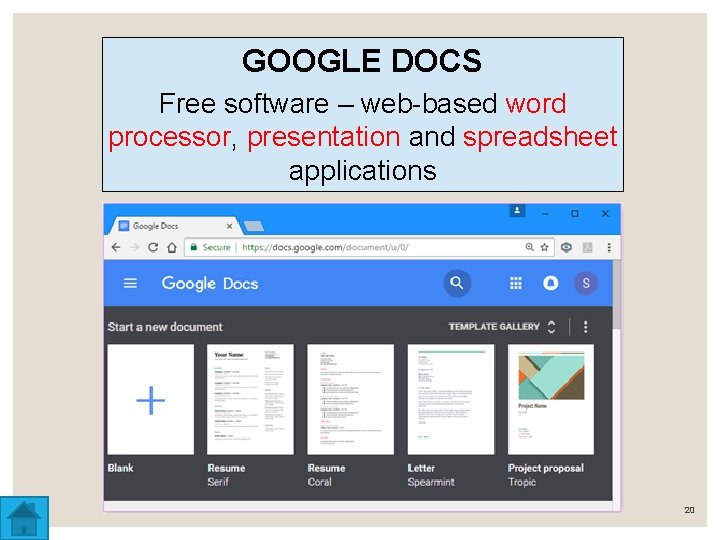
GOOGLE DOCS Free software – web-based word processor, presentation and spreadsheet applications 20
Blogs / Weblogs Online publishing tools Word. Press Blogger Squarespace 21
Good practices when blogging • Update your blog frequently • Interact with readers – respond to comments • Be casual, informative and interesting • Use catchy titles and graphics • Have opinions and express them well • Link to your sources and other sites of interest 22
Advantages of blogging ü Share ideas and get feedback ü Personal and business use – advertising and marketing ü Used as help forums – people with common interests can share ideas ü Used for social change, promote freedom of expression and speech ü Word. Press and Blogger host blogs for free 23
Disadvantages of blogging û Must update constantly to maintain interest among readers û Responses posted can be worthless û Constant display of advertisements (free sites) û Postings appear from newest to oldest – older postings can get ‘lost’ 24
SOFTWARE FOR PHYSICALLY CHALLENGED USERS 25
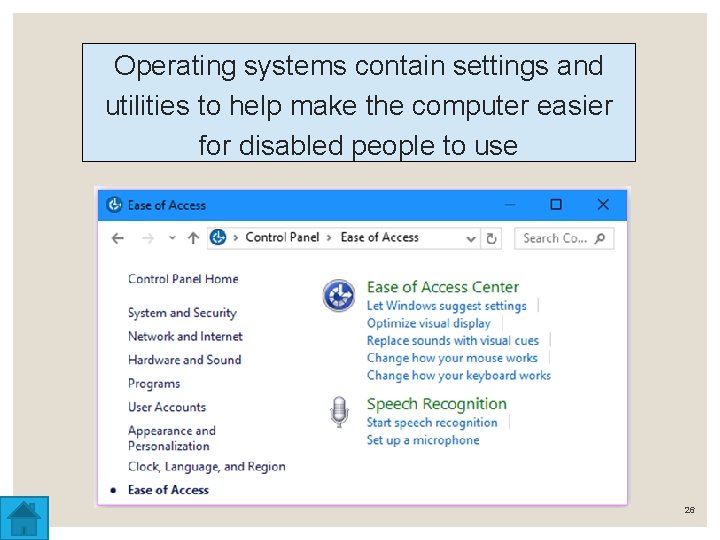
Operating systems contain settings and utilities to help make the computer easier for disabled people to use 26
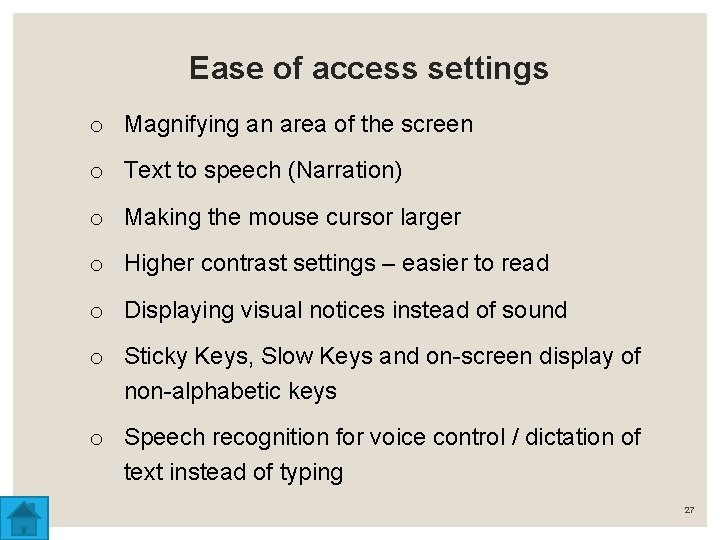
Ease of access settings o Magnifying an area of the screen o Text to speech (Narration) o Making the mouse cursor larger o Higher contrast settings – easier to read o Displaying visual notices instead of sound o Sticky Keys, Slow Keys and on-screen display of non-alphabetic keys o Speech recognition for voice control / dictation of text instead of typing 27
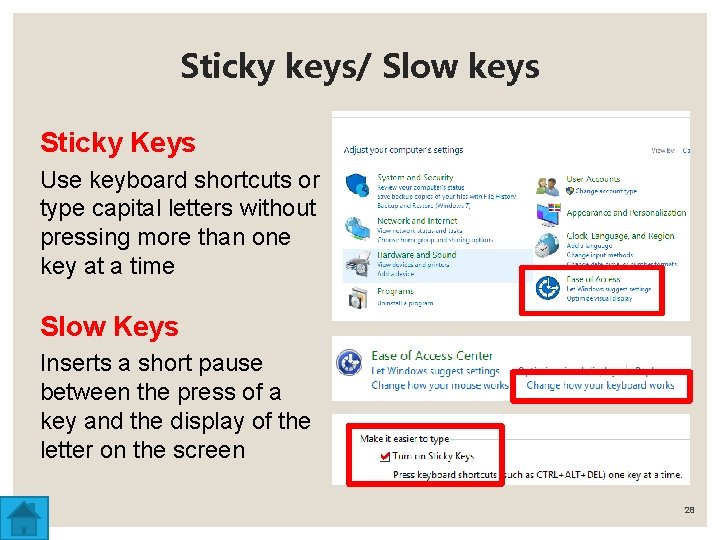
Sticky keys/ Slow keys Sticky Keys Use keyboard shortcuts or type capital letters without pressing more than one key at a time Slow Keys Inserts a short pause between the press of a key and the display of the letter on the screen 28
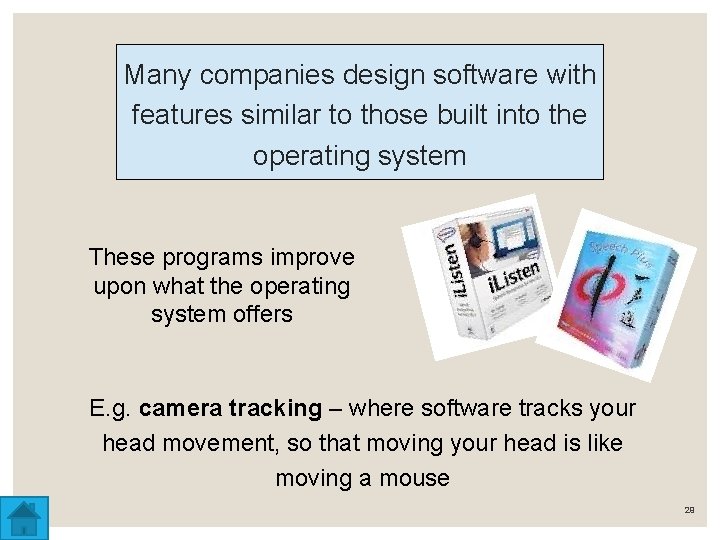
Many companies design software with features similar to those built into the operating system These programs improve upon what the operating system offers E. g. camera tracking – where software tracks your head movement, so that moving your head is like moving a mouse 29
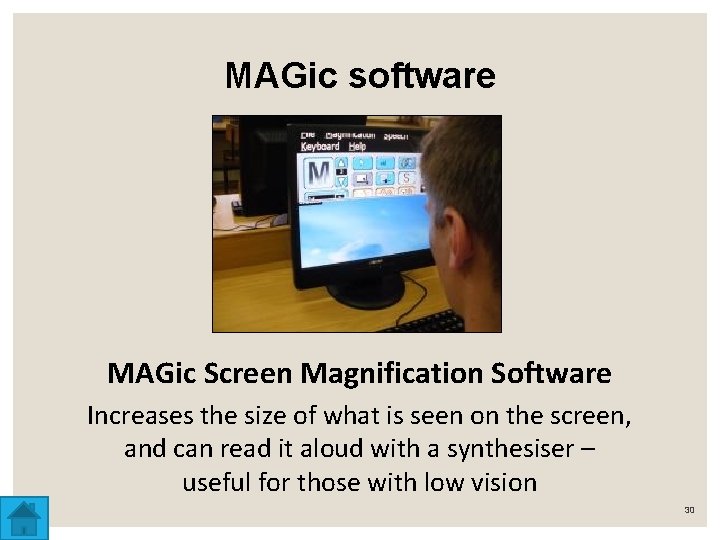
MAGic software MAGic Screen Magnification Software Increases the size of what is seen on the screen, and can read it aloud with a synthesiser – useful for those with low vision 30
TEST AND IMPROVE USE THE SUMMARY FOR OWN REVISION 31
WRITTEN MODULE ACTIVITY 32