
Computers Information Technology in Perspective Software Chapter 2
- Slides: 31
Computers: Information Technology in Perspective
Software Chapter 2
Opening the Window. . . 2. 3 Registered trademark of Microsoft Corp. Quit
Software Categories Quit System Software Application Software
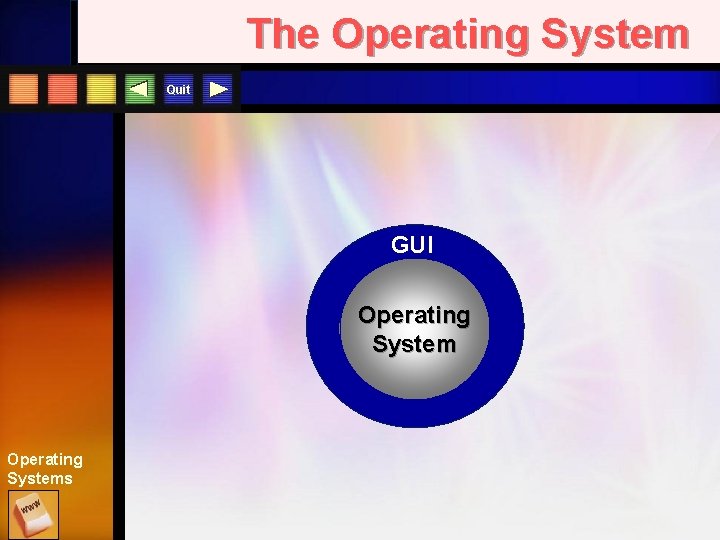
The Operating System Quit GUI Operating Systems
Operating System Objectives Quit u Facilitate communication u Maximize throughput u Minimize processing time u Optimize computer resources u Organize files u Provide security u Monitor system/alert user
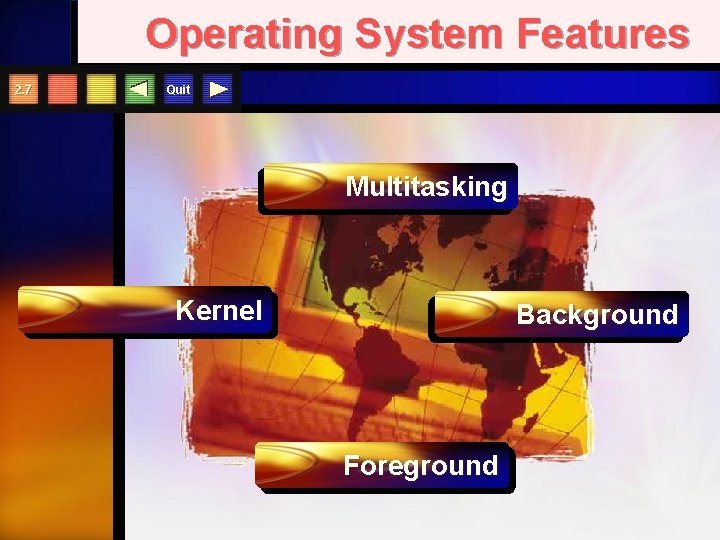
Operating System Features 2. 7 Quit Multitasking Kernel Background Foreground
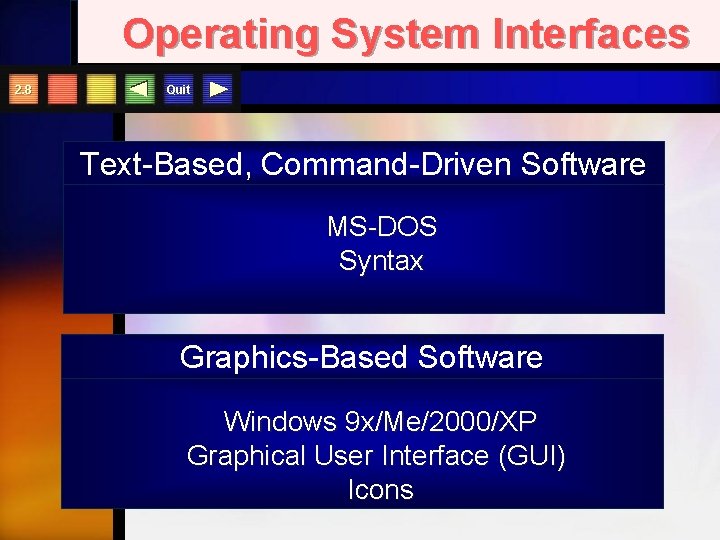
Operating System Interfaces 2. 8 Quit Text-Based, Command-Driven Software MS-DOS Syntax Graphics-Based Software Windows 9 x/Me/2000/XP Graphical User Interface (GUI) Icons
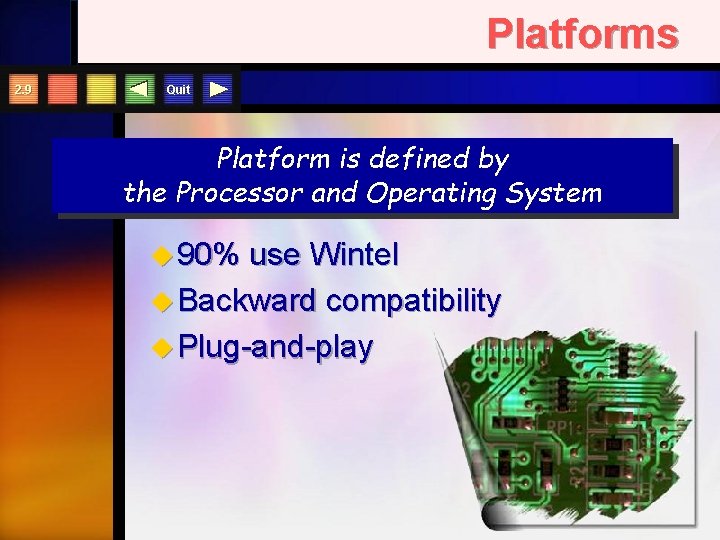
Platforms 2. 9 Quit Platform is defined by the Processor and Operating System u 90% use Wintel u Backward compatibility u Plug-and-play
PC-Compatible Platforms 2. 10 Quit u MS-DOS u Windows with Windows u Windows 95 & 98 u Linux u Free BSD Unix Registered trademark of Microsoft Corp. ME u Windows 2000 u Windows XP u Windows CE u Windows Vista u Windows 7
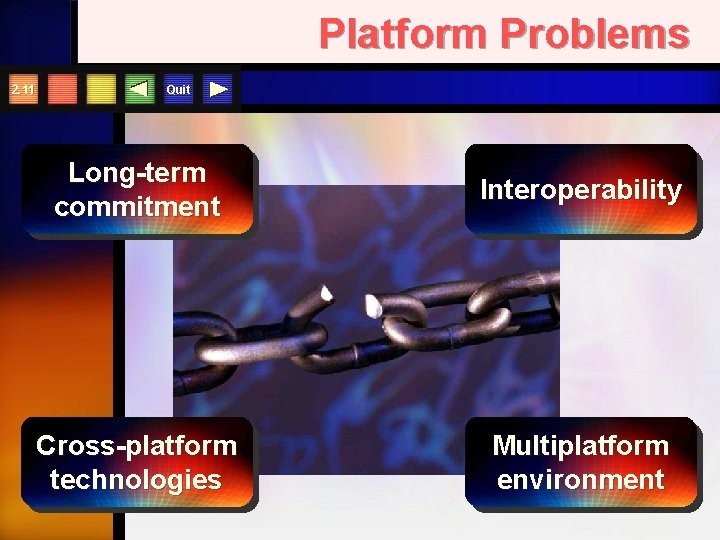
Platform Problems 2. 11 Quit Long-term commitment Interoperability Cross-platform technologies Multiplatform environment
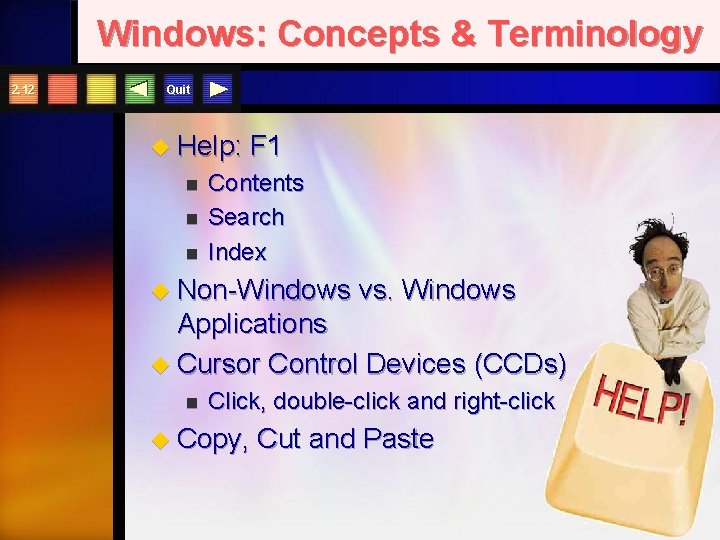
Windows: Concepts & Terminology 2. 12 Quit u Help: n n n F 1 Contents Search Index u Non-Windows vs. Windows Applications u Cursor Control Devices (CCDs) n Click, double-click and right-click u Copy, Cut and Paste
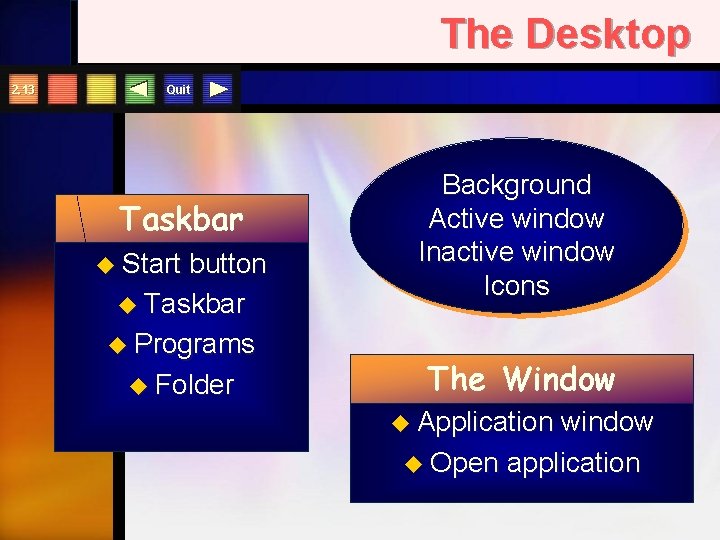
The Desktop 2. 13 Quit Taskbar u Start button u Taskbar u Programs u Folder Background Active window Inactive window Icons The Window u Application window u Open application
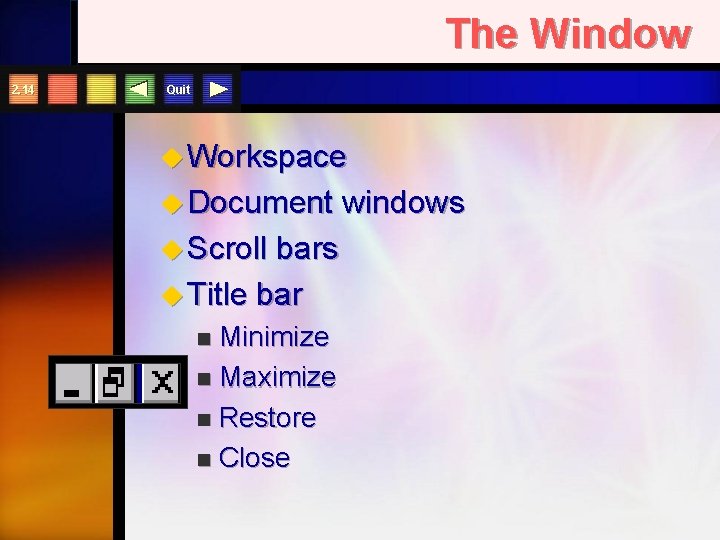
The Window 2. 14 Quit u Workspace u Document u Scroll bars u Title bar Minimize n Maximize n Restore n Close n windows
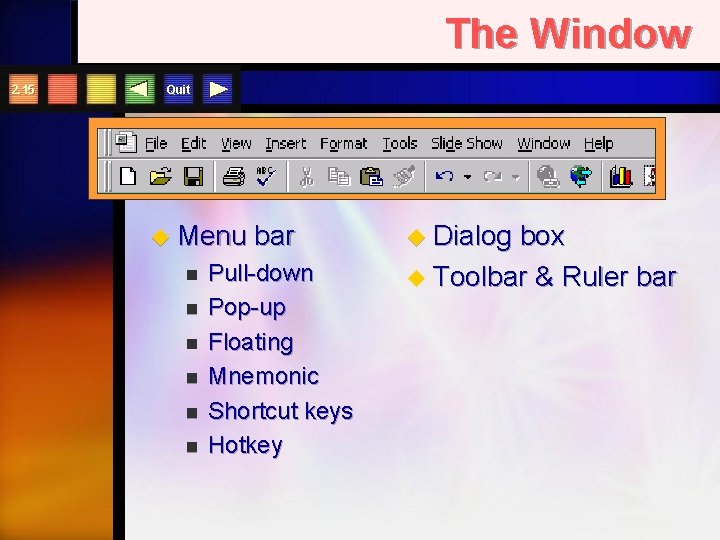
The Window 2. 15 Quit u Menu n n n bar Pull-down Pop-up Floating Mnemonic Shortcut keys Hotkey u Dialog box u Toolbar & Ruler bar
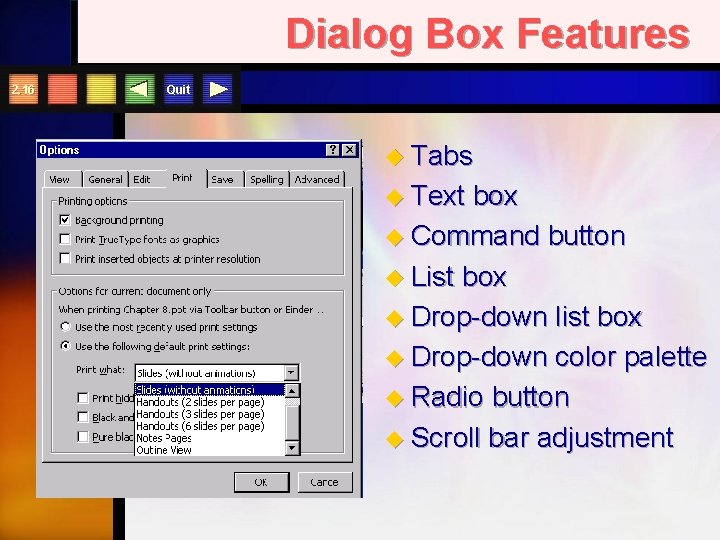
Dialog Box Features 2. 16 Quit u Tabs u Text box u Command button u List box u Drop-down list box u Drop-down color palette u Radio button u Scroll bar adjustment
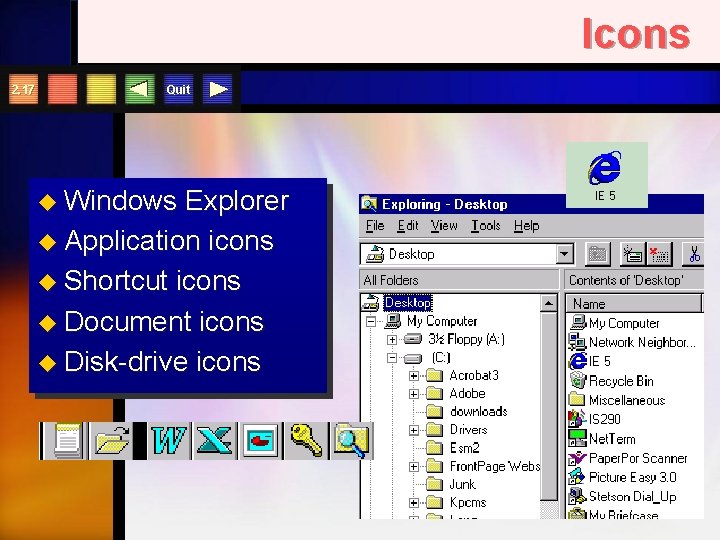
Icons 2. 17 Quit u Windows Explorer u Application icons u Shortcut icons u Document icons u Disk-drive icons
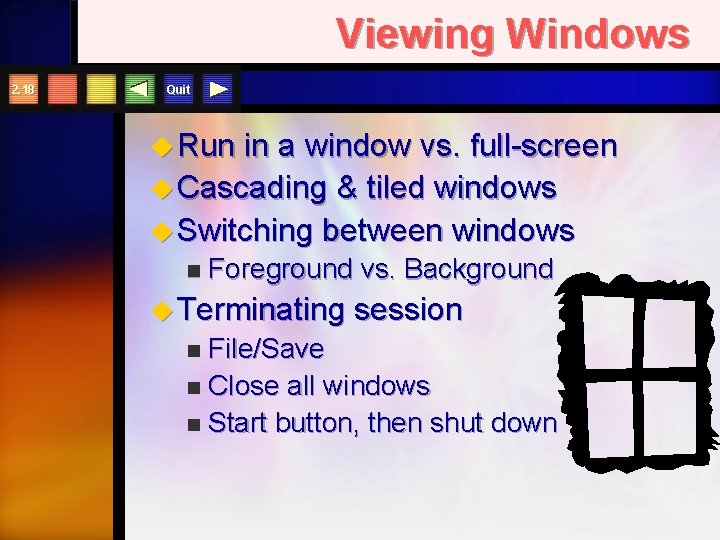
Viewing Windows 2. 18 Quit u Run in a window vs. full-screen u Cascading & tiled windows u Switching between windows n Foreground vs. Background u Terminating session File/Save n Close all windows n Start button, then shut down n
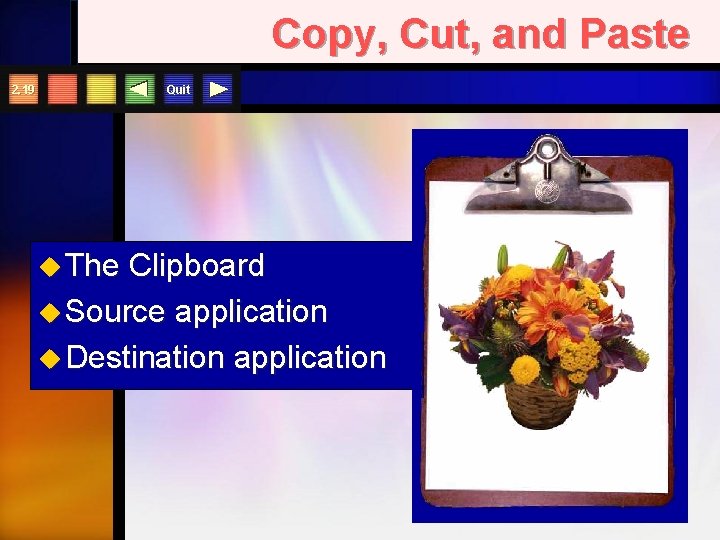
Copy, Cut, and Paste Quit 2. 19 u The Clipboard u Source application u Destination application
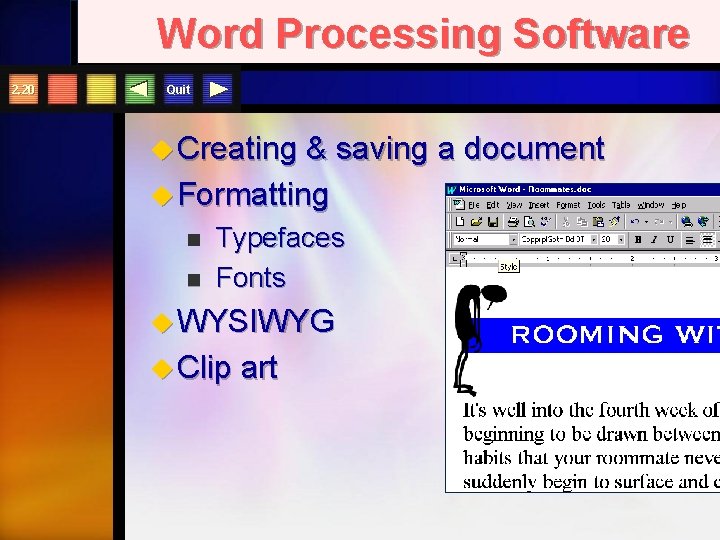
Word Processing Software 2. 20 Quit u Creating & saving a document u Formatting n n Typefaces Fonts u WYSIWYG u Clip art
Word Processing Tools 2. 21 Quit u Writing tools n n Spelling checker Electronic dictionary Online thesaurus Grammar & Style checker u Printing u E-mail u Faxing
Word Processing Software 2. 22 Quit u Merging n documents & database Boilerplate u Integrating charts u Electronic documents u Creating web pages
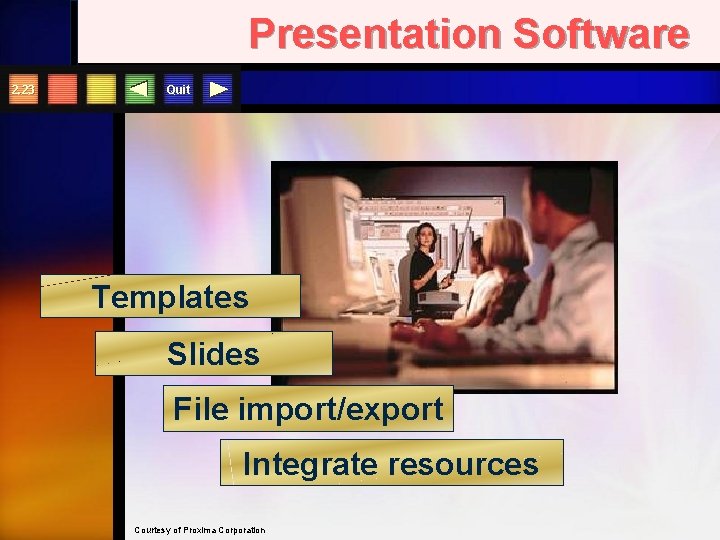
Presentation Software 2. 23 Quit Templates Slides File import/export Integrate resources Courtesy of Proxima Corporation
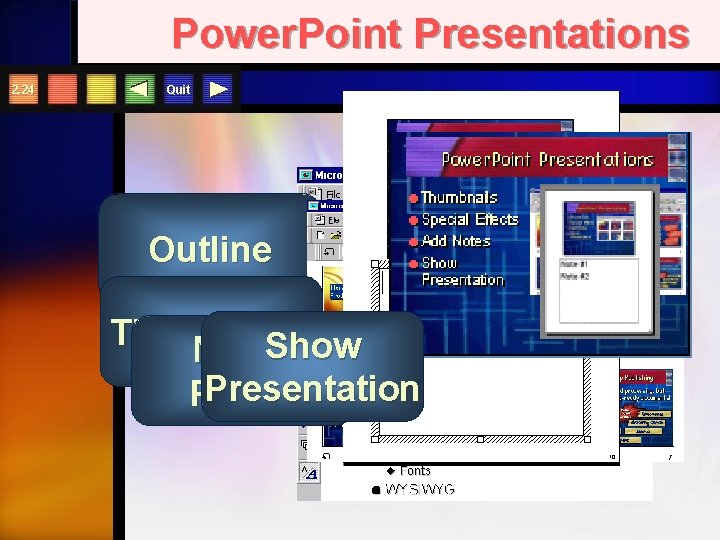
Power. Point Presentations 2. 24 Quit Outline You can then type your notes here. Special Thumbnails Show Notes Effects Presentation Pages
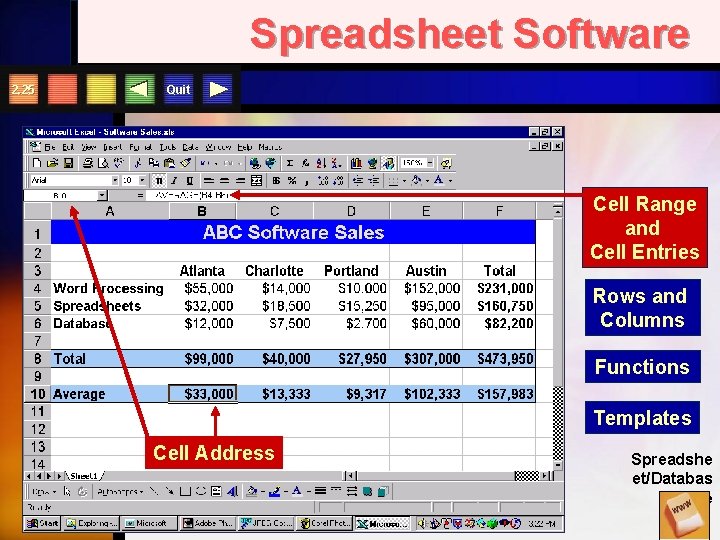
Spreadsheet Software 2. 25 Quit Cell Range and Cell Entries Rows and Columns Functions Templates Cell Address Spreadshe et/Databas e
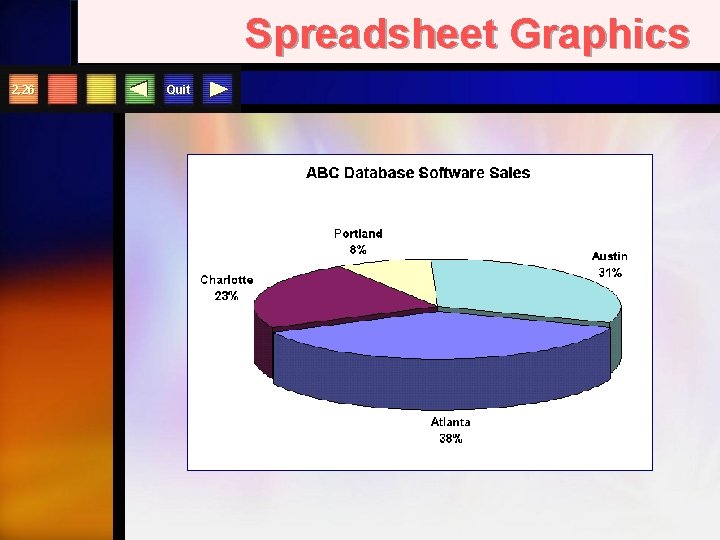
Spreadsheet Graphics 2. 26 Quit
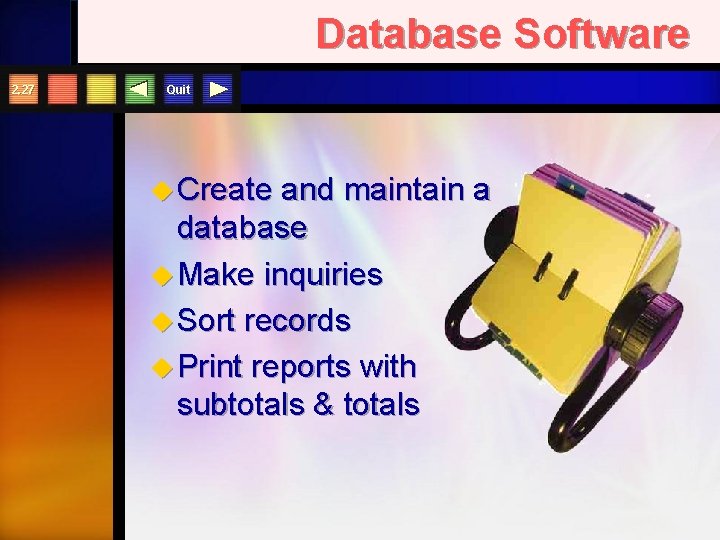
Database Software 2. 27 Quit u Create and maintain a database u Make inquiries u Sort records u Print reports with subtotals & totals
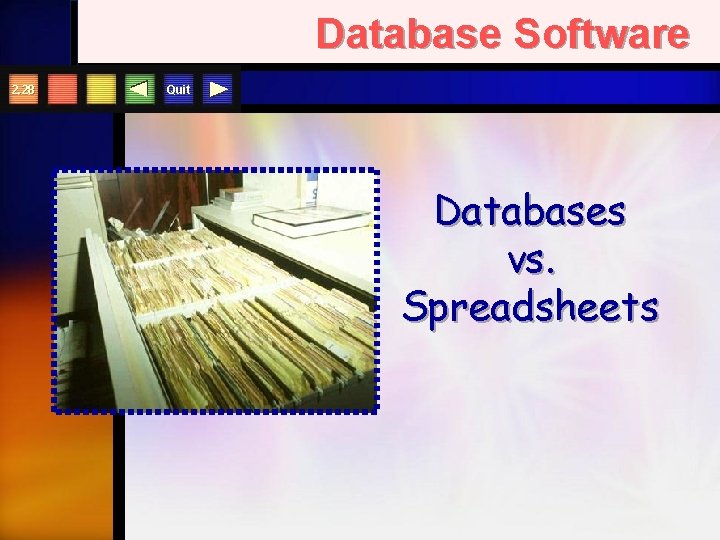
Database Software 2. 28 Quit Databases vs. Spreadsheets
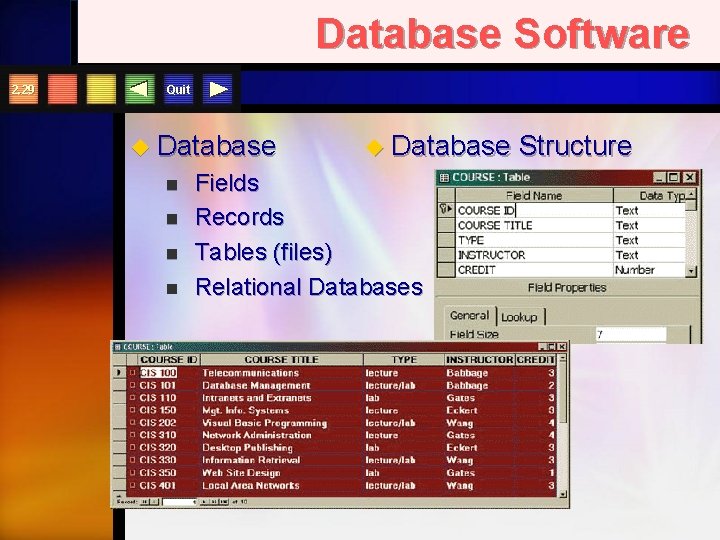
Database Software 2. 29 Quit u Database n n u Database Fields Records Tables (files) Relational Databases Structure
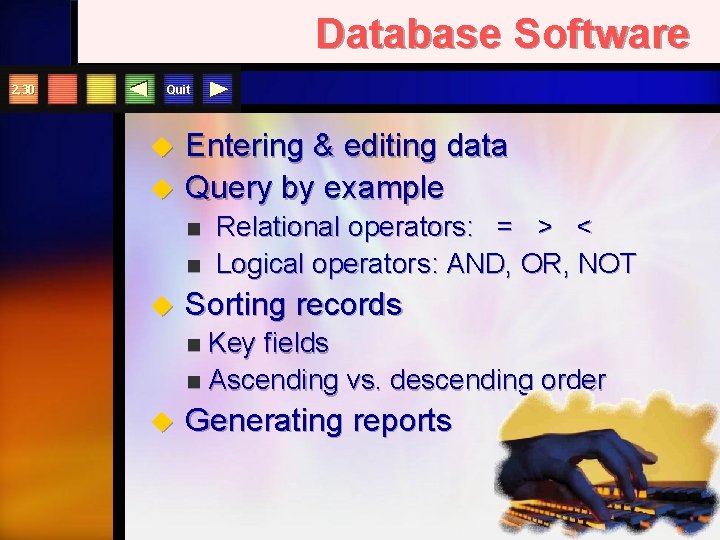
Database Software 2. 30 Quit u u Entering & editing data Query by example n n u Relational operators: = > < Logical operators: AND, OR, NOT Sorting records Key fields n Ascending vs. descending order n u Generating reports
Software The End