
Computers A basic introduction into computer hardware and
Computers A basic introduction into computer hardware and a practical guide to using computers
Technical Specifications • Hardware: the physical ‘touchable/hard’ components of a computer – Software (many are often referred to as “Apps”) : the programs that control or run the hardware • Rather than presenting a long list of hardware specifications and how things work for it’s own sake, the focus will be on providing some of the information you will see when actually buying a machine. – However due to brevity - a complete computer buyer’s guide would constitute a complete (continuing education) lecture only a subset of some of the more pertinent/common specifications will be covered. • (This is very basic material to bring everyone up to a basic level) – Later sections can be more challenging (e. g. . VBA programming)
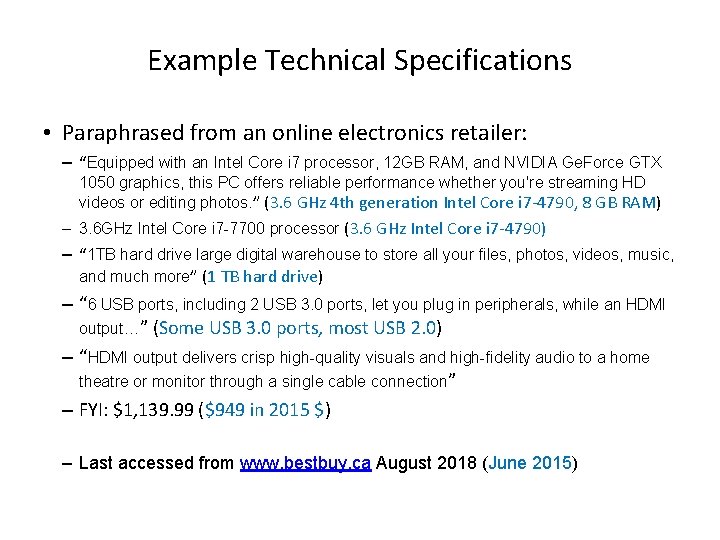
Example Technical Specifications • Paraphrased from an online electronics retailer: – “Equipped with an Intel Core i 7 processor, 12 GB RAM, and NVIDIA Ge. Force GTX 1050 graphics, this PC offers reliable performance whether you're streaming HD videos or editing photos. ” (3. 6 GHz 4 th generation Intel Core i 7 -4790, 8 GB RAM) – 3. 6 GHz Intel Core i 7 -7700 processor (3. 6 GHz Intel Core i 7 -4790) – “ 1 TB hard drive large digital warehouse to store all your files, photos, videos, music, and much more” (1 TB hard drive) – “ 6 USB ports, including 2 USB 3. 0 ports, let you plug in peripherals, while an HDMI output…” (Some USB 3. 0 ports, most USB 2. 0) – “HDMI output delivers crisp high-quality visuals and high-fidelity audio to a home theatre or monitor through a single cable connection” – FYI: $1, 139. 99 ($949 in 2015 $) – Last accessed from www. bestbuy. ca August 2018 (June 2015)
Which Type Of Computer Is Best For You? • No single category, model (let alone manufacturer ) is best for everyone • Ask yourself how you will use your machine, what things are the most important to you: – Portability? – Touch screen capability? – Will you run programs that will ‘push’ your system e. g. . , video editing, 3 D gaming, image and 3 D graphic editing or will you use your computer mainly for common tasks (e. g. . , word processing, spreadsheets) – Web browsing: may require more memory (RAM).

Tablets • Examples: i. Pad, there are several Android models, many of the Windows versions tend to be tablet-laptop variants. • The lightest and most portable multi-touch computer – Touch interface: • Good/bad issues –“Oops!” • Better for ‘light’ work – Price : performance ratio not the best among the categories
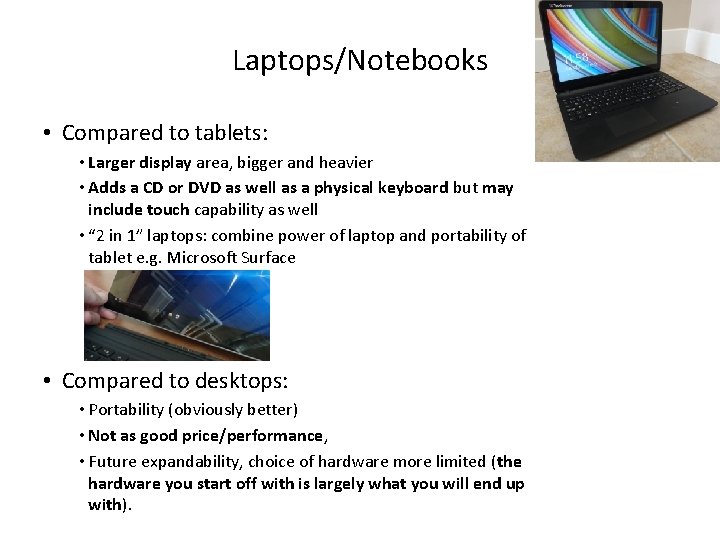
Laptops/Notebooks • Compared to tablets: • Larger display area, bigger and heavier • Adds a CD or DVD as well as a physical keyboard but may include touch capability as well • “ 2 in 1” laptops: combine power of laptop and portability of tablet e. g. Microsoft Surface • Compared to desktops: • Portability (obviously better) • Not as good price/performance, • Future expandability, choice of hardware more limited (the hardware you start off with is largely what you will end up with).
“Specialized/Variant Laptops” • Ultrabooks e. g. Asus Zenbook, Microsoft Surface – Ultra = thinner and lighter (increased portability) but exclude some hardware e. g. . Ethernet (physical network connection), CD/DVD – All things being equal cost tends to be higher than a laptop (manufacturing in exact, smaller, detail) • Netbooks e. g. Acer Travelmate – A cheaper but more portable form of a laptop (smaller and lower quality display, overall less powerful hardware) with a built in physical keyboard but no CD/DVD. – Much less common with the rise of tablets. – Unlike Chromebooks (next page) most/all typical desktop programs (e. g. . Office, games, Photoshop) can be run on a netbook (some may be slow) Comparison of netbooks vs. tablets • http: //www. ehow. com/info_8721028_difference-between-tablet-pc-netbook. html • http: //www. pcadvisor. co. uk/buying-advice/tablets/3450587/netbook-vs-tablet/ • http: //blogs. canoe. ca/canoetech/signs-of-the-times/netbooks-vs-tablets/
“Specialized/Variant Laptops” (2) • Chromebook 1 – Runs via Google Chrome OS (operating system) – Designed for users with a constant Internet connection – Documents and programs are stored online rather than on the computer • Local storage is limited e. g. . flash drive – Requires a less powerful portable computer (often much less expensive), it’s for users who primarily use a computer browser (Chrome) and online applications (e. g. . Google docs) rather than commonly used programs (e. g. . Office) References: 1. https: //www. digitaltrends. com/computing/chromebook-vs-laptop/ 2. Technology in Action (15 e): Evans, Martin, Poatsy
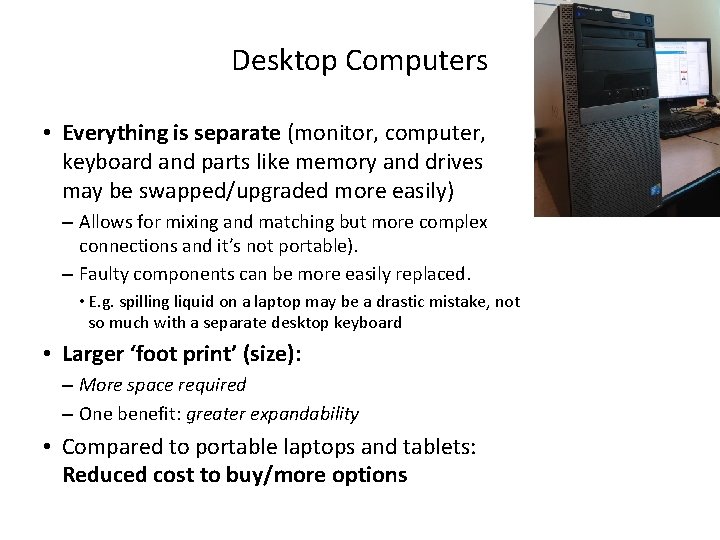
Desktop Computers • Everything is separate (monitor, computer, keyboard and parts like memory and drives may be swapped/upgraded more easily) – Allows for mixing and matching but more complex connections and it’s not portable). – Faulty components can be more easily replaced. • E. g. spilling liquid on a laptop may be a drastic mistake, not so much with a separate desktop keyboard • Larger ‘foot print’ (size): – More space required – One benefit: greater expandability • Compared to portable laptops and tablets: Reduced cost to buy/more options
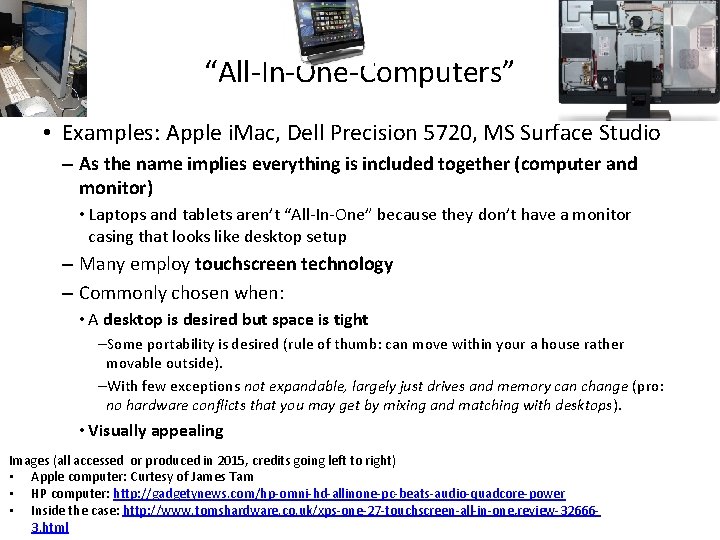
“All-In-One-Computers” • Examples: Apple i. Mac, Dell Precision 5720, MS Surface Studio – As the name implies everything is included together (computer and monitor) • Laptops and tablets aren’t “All-In-One” because they don’t have a monitor casing that looks like desktop setup – Many employ touchscreen technology – Commonly chosen when: • A desktop is desired but space is tight –Some portability is desired (rule of thumb: can move within your a house rather movable outside). –With few exceptions not expandable, largely just drives and memory can change (pro: no hardware conflicts that you may get by mixing and matching with desktops). • Visually appealing Images (all accessed or produced in 2015, credits going left to right) • Apple computer: Curtesy of James Tam • HP computer: http: //gadgetynews. com/hp-omni-hd-allinone-pc-beats-audio-quadcore-power • Inside the case: http: //www. tomshardware. co. uk/xps-one-27 -touchscreen-all-in-one, review-326663. html
Units Of Measurement Kilo: One thousand 1, 000 Mega: One million 1, 000 Giga: One billion 1, 000, 000 Tera: One trillion 1, 000, 000 Example usage (from the computer advertisements shown earlier): 3. 6 GHz processor (G = Giga, Hz = processor oscillation speed) • Large units of measurement will be discussed again when processors and storage devices are covered • • •
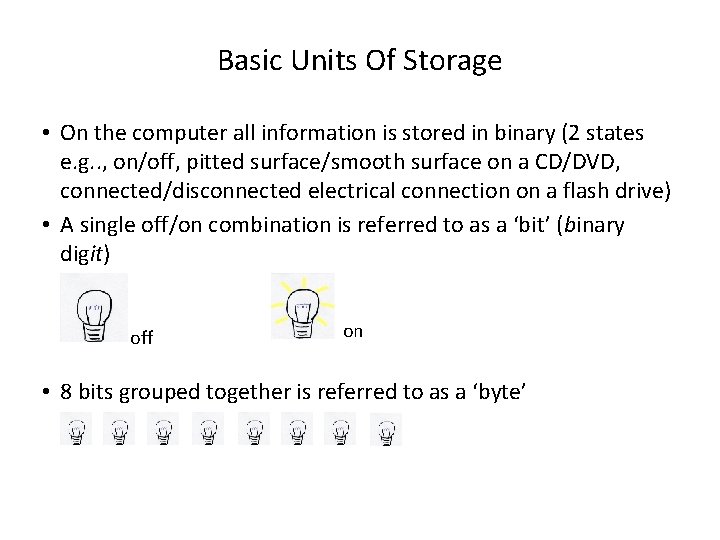
Basic Units Of Storage • On the computer all information is stored in binary (2 states e. g. . , on/off, pitted surface/smooth surface on a CD/DVD, connected/disconnected electrical connection on a flash drive) • A single off/on combination is referred to as a ‘bit’ (binary digit) off on • 8 bits grouped together is referred to as a ‘byte’
Large Units Of Measurement And Storage • The amount of information that can be stored and transferred is typically measured in bytes rather than bits. • Kilobyte (KB) ~ a thousand bytes (1, 024 = 210) X 1, 000 • Low quality preview ‘thumbnail’ images may range from a few thousand to tens of thousands of bytes in size. • Megabyte (MB) ~ a million bytes (1, 048, 576 = 220) X 1, 000 • A typical image may range from ~20, 000 Bytes / 20 KB to several million (single digit) bytes (MB). • Audio files (e. g. . , MP 3) are several Megabytes in size. • Streaming Internet video (compressed, standard definition) ~several hundred Megabytes perhaps one thousand Megabytes for a full movie.
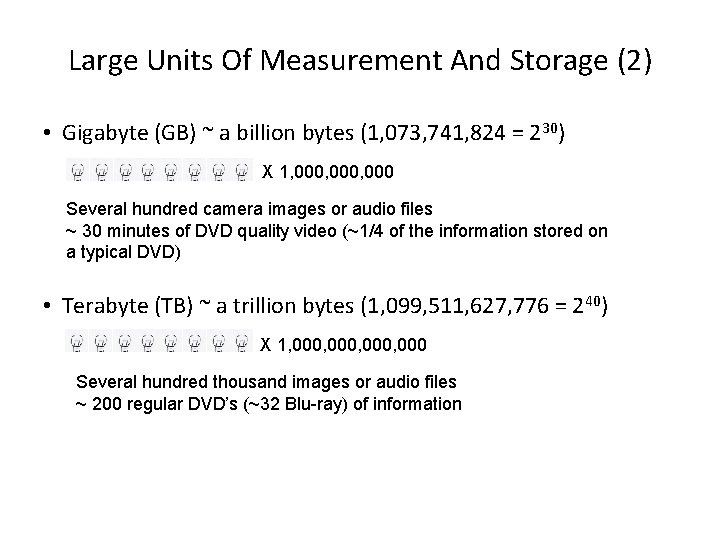
Large Units Of Measurement And Storage (2) • Gigabyte (GB) ~ a billion bytes (1, 073, 741, 824 = 230) X 1, 000, 000 Several hundred camera images or audio files ~ 30 minutes of DVD quality video (~1/4 of the information stored on a typical DVD) • Terabyte (TB) ~ a trillion bytes (1, 099, 511, 627, 776 = 240) X 1, 000, 000 Several hundred thousand images or audio files ~ 200 regular DVD’s (~32 Blu-ray) of information
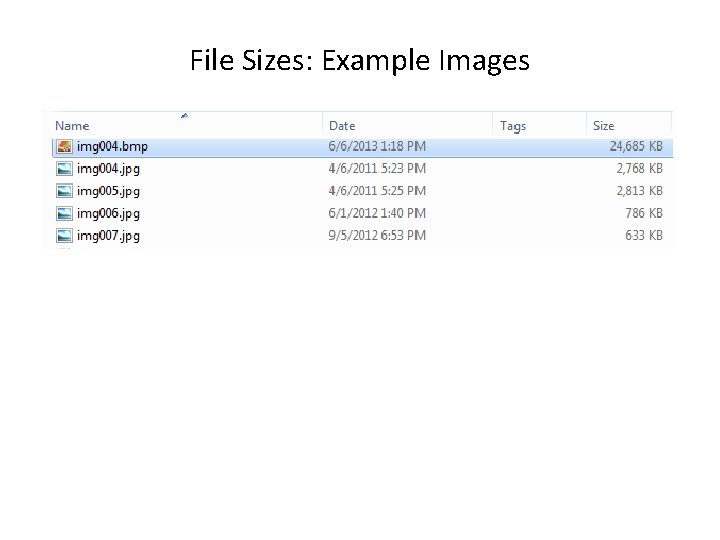
File Sizes: Example Images
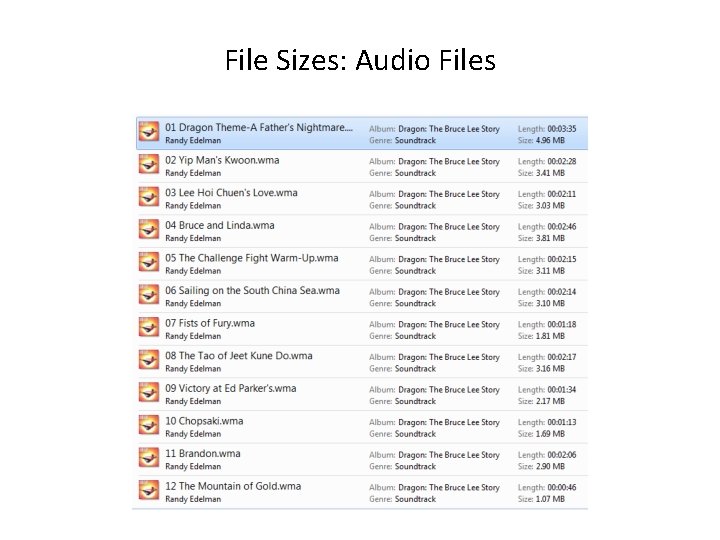
File Sizes: Audio Files
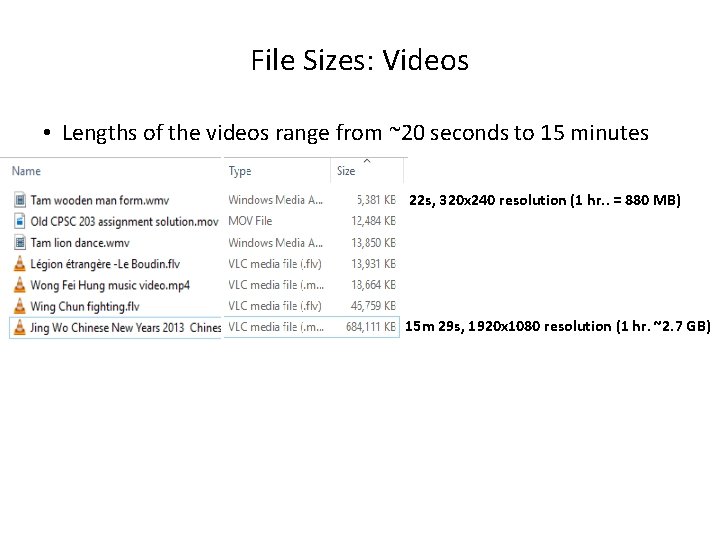
File Sizes: Videos • Lengths of the videos range from ~20 seconds to 15 minutes 22 s, 320 x 240 resolution (1 hr. . = 880 MB) 15 m 29 s, 1920 x 1080 resolution (1 hr. ~2. 7 GB)
Most Important Hardware (When Choosing A Computer) • (This refers to hardware that distinguishes one computer from another computer, other pieces such as hardware such as some sort of network connection are also crucial but not significantly different from computer-to-computer). • Processor (CPU – or the APU for some AMD models) • Memory (RAM) • Storage (hard drive) • ‘Hardware intensive’: software may fully/mostly utilize the computer hardware e. g. . 3 D graphical editors, video editing software, some games etc.
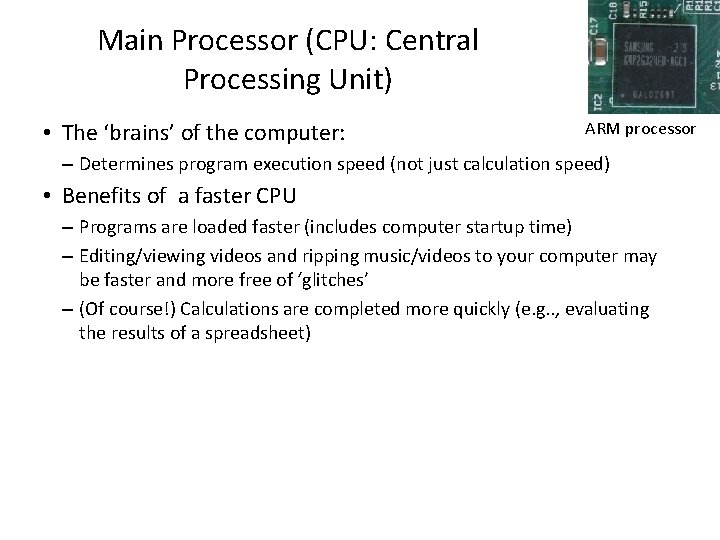
Main Processor (CPU: Central Processing Unit) • The ‘brains’ of the computer: ARM processor – Determines program execution speed (not just calculation speed) • Benefits of a faster CPU – Programs are loaded faster (includes computer startup time) – Editing/viewing videos and ripping music/videos to your computer may be faster and more free of ‘glitches’ – (Of course!) Calculations are completed more quickly (e. g. . , evaluating the results of a spreadsheet)
CPU Clock speed • Aside from the processor model it’s the most common technical specification • It’s the speed at which the processor operates (oscillation rate) • Typical home-type computers (e. g. . , laptops, desktops) operate at low single digit unit Giga-clock speeds ~1 to 4 GHz – Note: Other than clock speeds there’s other factors that determines how fast a processor will run a program but all other things being equal a processor with a higher clock speed will run faster. Computer from advertisement (2018 Ad) Processor: 3. 6 GHz Intel Core processor
Processor Manufacturers • Intel – For more information (last accessed August 2018): https: //www. intel. com/content/www/us/en/processors/processor-numbers. html • AMD – For more information (last accessed August 2018): – https: //www. amd. com/en/products/processors-desktop • AMD vs. Intel: look at the speed tests performed with different software running (benchmarks). – E. g. , http: //www. tomshardware. com/t/cpus/ • The links are available for your reference if you want more information. • However brand definitely does matter in that you can’t freely mix and match between Intel and AMD.
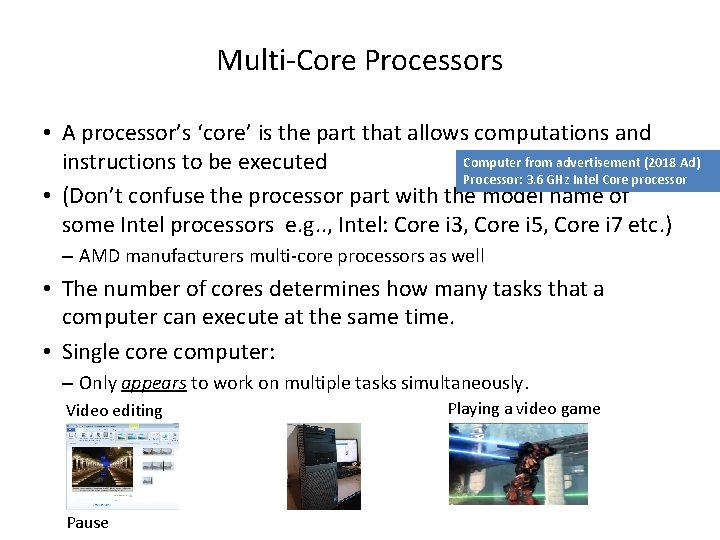
Multi-Core Processors • A processor’s ‘core’ is the part that allows computations and Computer from advertisement (2018 Ad) instructions to be executed Processor: 3. 6 GHz Intel Core processor • (Don’t confuse the processor part with the model name of some Intel processors e. g. . , Intel: Core i 3, Core i 5, Core i 7 etc. ) – AMD manufacturers multi-core processors as well • The number of cores determines how many tasks that a computer can execute at the same time. • Single core computer: – Only appears to work on multiple tasks simultaneously. Video editing Pause Playing a video game
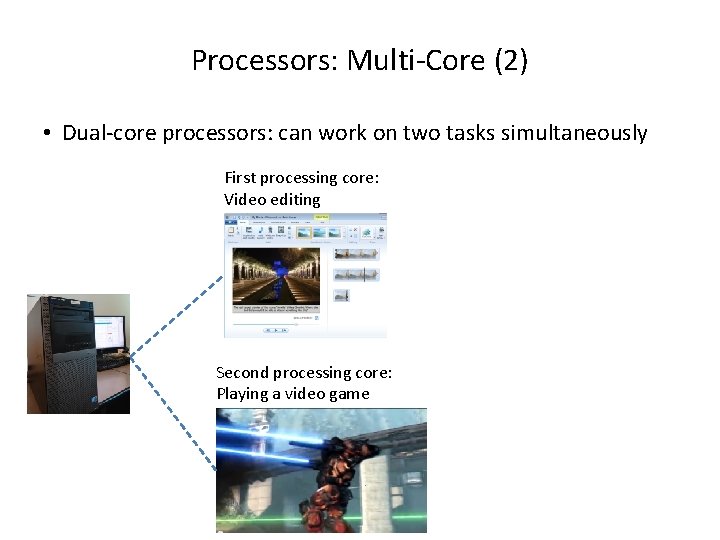
Processors: Multi-Core (2) • Dual-core processors: can work on two tasks simultaneously First processing core: Video editing Second processing core: Playing a video game
Processors: Multi-Core (3) • Other multi-core processors: – Quad core : 4 processing cores – 6 core – 8 core – Extreme machines (expensive) • 12 core (e. g. , Mac. Book pro) • 18 core (e. g. Intel Xeon processor) –https: //money. cnn. com/2017/12/14/technology/imac-pro-on-sale/index. html – For more information: comparing dual vs. quad core processors (i. e. in general what’s the benefit of more vs. fewer cores) • http: //www. pcmag. com/article 2/0, 2817, 2406293, 00. asp

Processors: Multi-Core (4) • Having a processor with multiple cores can speed up execution even if only a single hardware intensive program is running. – The program is written specifically to take advantage of multi-core technology. – Check the ‘system requirements’ or ‘technical requirements’ on the packaging or website e. g. . , Photoshop, Excel, Crysis: www. ea. com/games/crysis First core: runs one part of game Second core: runs another part of the same game
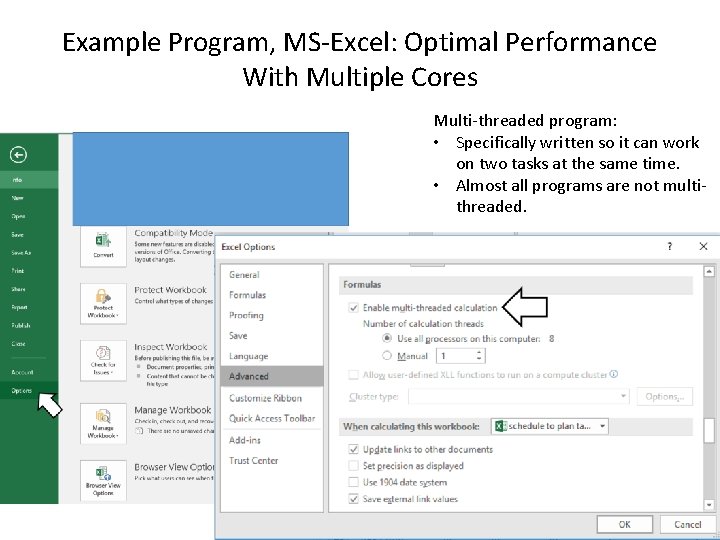
Example Program, MS-Excel: Optimal Performance With Multiple Cores Multi-threaded program: • Specifically written so it can work on two tasks at the same time. • Almost all programs are not multithreaded.
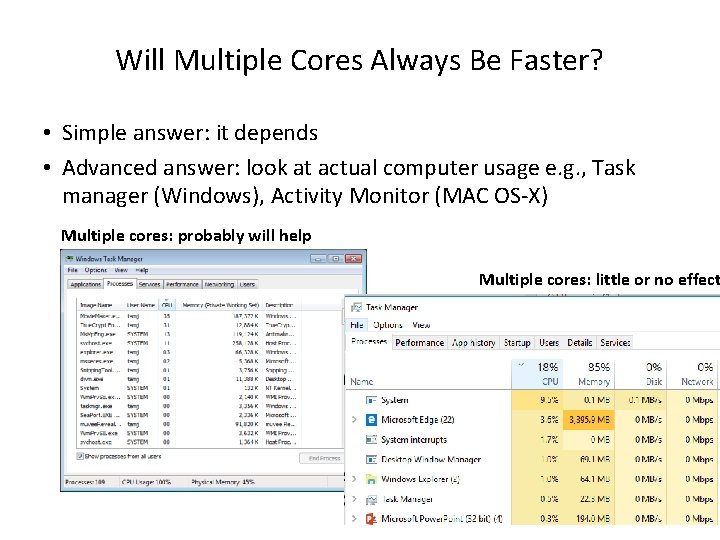
Will Multiple Cores Always Be Faster? • Simple answer: it depends • Advanced answer: look at actual computer usage e. g. , Task manager (Windows), Activity Monitor (MAC OS-X) Multiple cores: probably will help Multiple cores: little or no effect
Intel Processor Models 1 • Another important factor determining execution speed • Intel processor models: – Pentium and Celeron (netbooks): • Very old low end chips • Unless you’re cash strapped avoid computers with these processors –(JT: until part way through 2013 I was running a ~12 -15 year old version of a Celeron for my main computer tasks…painfully!) – Core i 3 (used/refurbished computers): • Dual core processors • For budget computers, good for basic every day computer use (word processing, browsing the web – you might want to avoid viewing videos extensively especially HD video) Sources: • http: //www. cnet. com/topics/desktops/buying-guide/ • http: //ark. intel. com/ • http: //www. intel. com/content/www/us/en/processors/processornumbers. html
Intel Processor Models (2) Tam min (2015) – Core i 5 (more expensive used computers, new computers on clearance) • Mainstream quad core processor line (a handful of lower end ones are dual core) – Core i 7 (entry for most new desktops) Tam min (2018) – For more information about Intel processor models: • http: //ark. intel. com/ • http: //www. intel. com/content/www/us/en/processors/processor-numbers. html Computer from advertisement: Processor: 3. 6 GHz Intel Core i 7 -7700 processor Computer processor from 2015 ad: 3. 6 GHz Intel Core i 7 -4790 processor There’s many versions of the i 7 model
Memory (RAM) • When a computer program is executing the instructions as well as any data currently needed (e. g. . , images, videos) is loaded into RAM from the storage device (usually the hard drive). • RAM is temporary storage (gone when you shut off or restart your computer). • Significantly faster than any storage device. • More expensive on a per unit basis than a storage device such as a hard drive. • The memory capacity of today’s computers are typically specified in single or low double digit Gigabytes (recall that’s billions of bytes).
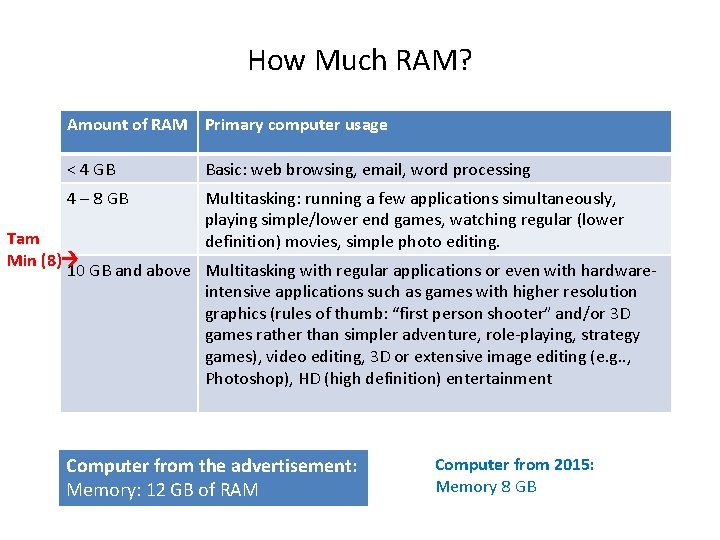
How Much RAM? Amount of RAM Primary computer usage < 4 GB Basic: web browsing, email, word processing 4 – 8 GB Multitasking: running a few applications simultaneously, playing simple/lower end games, watching regular (lower definition) movies, simple photo editing. Tam Min (8) 10 GB and above Multitasking with regular applications or even with hardwareintensive applications such as games with higher resolution graphics (rules of thumb: “first person shooter” and/or 3 D games rather than simpler adventure, role-playing, strategy games), video editing, 3 D or extensive image editing (e. g. . , Photoshop), HD (high definition) entertainment Computer from the advertisement: Memory: 12 GB of RAM Computer from 2015: Memory 8 GB
How Much RAM? (2) • If you do browse the web extensively then consider getting more memory (RAM) especially if the pages include multimedia, many advertisements. – Sometimes it may not be obvious that a web page is running programs (or other hardware intensive tasks). • This may lead to questions such as “Why is my web browser so slow? ” – Use tools such as the Task Manager and Activity monitor to evaluate how much memory that your browser uses. – Do this more than once while going online (memory usage can fluxgate greatly). – Tam’s rule of thumb: 8 GB is your bare-bones minimum (sometimes this will not be enough).
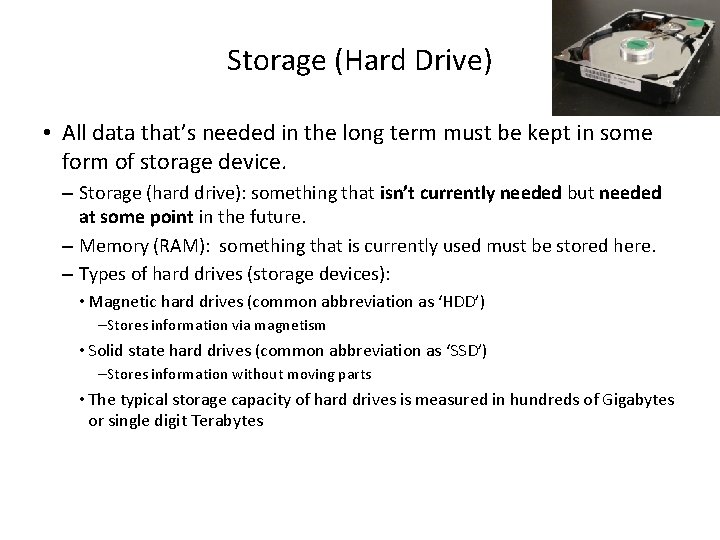
Storage (Hard Drive) • All data that’s needed in the long term must be kept in some form of storage device. – Storage (hard drive): something that isn’t currently needed but needed at some point in the future. – Memory (RAM): something that is currently used must be stored here. – Types of hard drives (storage devices): • Magnetic hard drives (common abbreviation as ‘HDD’) –Stores information via magnetism • Solid state hard drives (common abbreviation as ‘SSD’) –Stores information without moving parts • The typical storage capacity of hard drives is measured in hundreds of Gigabytes or single digit Terabytes
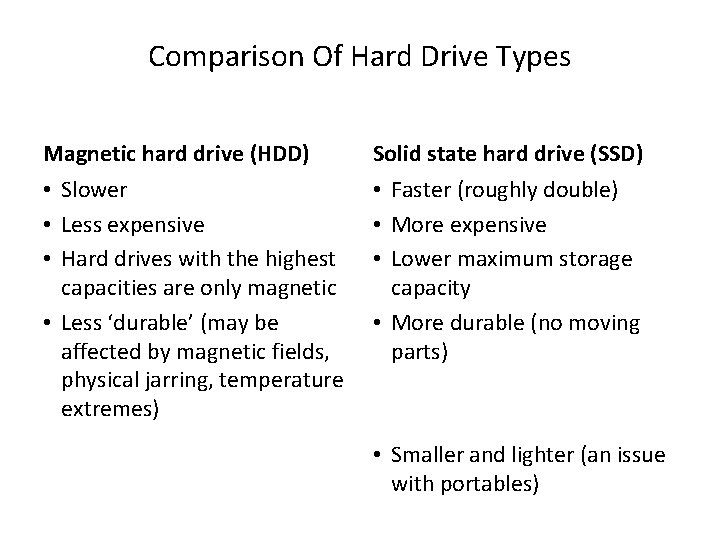
Comparison Of Hard Drive Types Magnetic hard drive (HDD) • Slower • Less expensive • Hard drives with the highest capacities are only magnetic • Less ‘durable’ (may be affected by magnetic fields, physical jarring, temperature extremes) Solid state hard drive (SSD) • Faster (roughly double) • More expensive • Lower maximum storage capacity • More durable (no moving parts) • Smaller and lighter (an issue with portables)
Just How Sturdy Are Solid State Drives? • (Do not try this at home) • My dog ate my homework, or in this case seal…still not a sufficiently good cause for an extension. – https: //www. ctvnews. ca/world/working-usb-stick-found-in-frozen-sealscat-1. 4287192 – (Remember extensions require a good reason which can be reasonably verified).
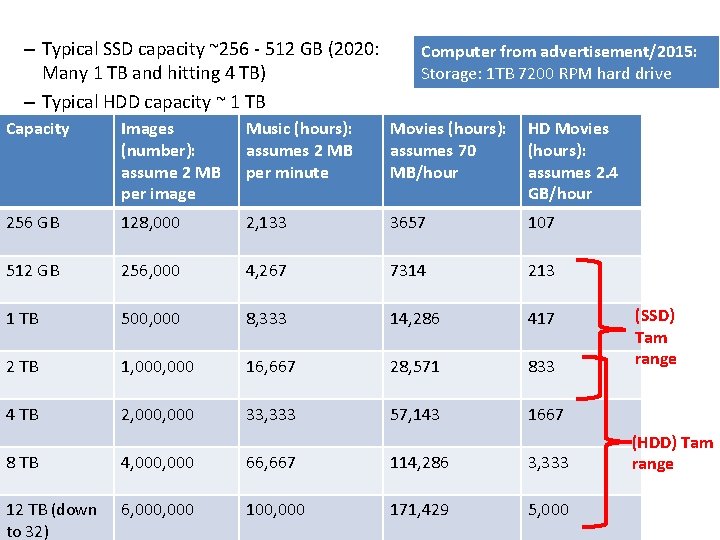
– Typical SSD capacity ~256 - 512 GB (2020: Many 1 TB and hitting 4 TB) – Typical HDD capacity ~ 1 TB Computer from advertisement/2015: Storage: 1 TB 7200 RPM hard drive Capacity Images (number): assume 2 MB per image Music (hours): assumes 2 MB per minute Movies (hours): assumes 70 MB/hour HD Movies (hours): assumes 2. 4 GB/hour 256 GB 128, 000 2, 133 3657 107 512 GB 256, 000 4, 267 7314 213 1 TB 500, 000 8, 333 14, 286 417 2 TB 1, 000 16, 667 28, 571 833 4 TB 2, 000 33, 333 57, 143 1667 8 TB 4, 000 66, 667 114, 286 3, 333 12 TB (down to 32) 6, 000 100, 000 171, 429 5, 000 (SSD) Tam range (HDD) Tam range
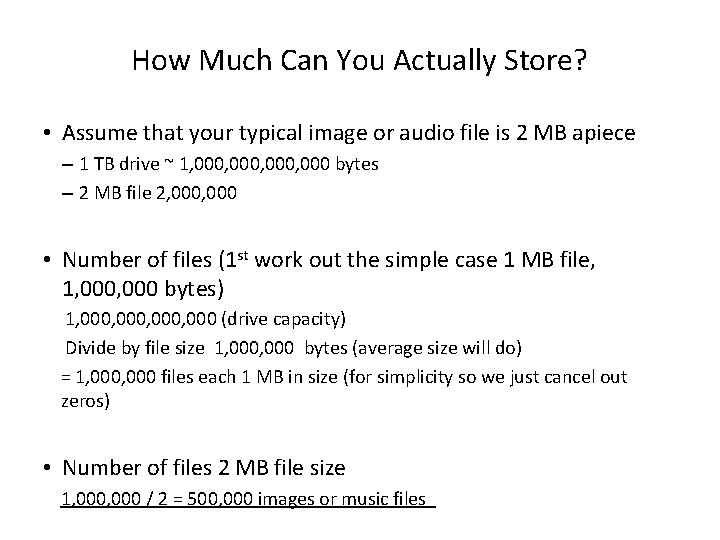
How Much Can You Actually Store? • Assume that your typical image or audio file is 2 MB apiece – 1 TB drive ~ 1, 000, 000 bytes – 2 MB file 2, 000 • Number of files (1 st work out the simple case 1 MB file, 1, 000 bytes) 1, 000, 000 (drive capacity) Divide by file size 1, 000 bytes (average size will do) = 1, 000 files each 1 MB in size (for simplicity so we just cancel out zeros) • Number of files 2 MB file size 1, 000 / 2 = 500, 000 images or music files
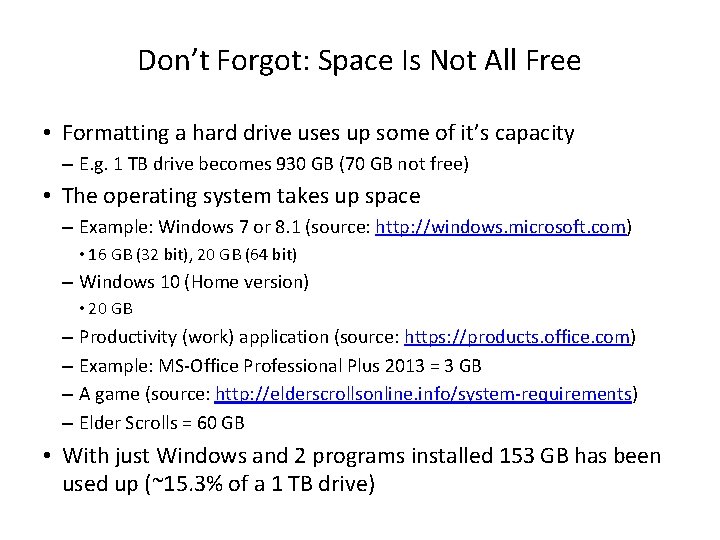
Don’t Forgot: Space Is Not All Free • Formatting a hard drive uses up some of it’s capacity – E. g. 1 TB drive becomes 930 GB (70 GB not free) • The operating system takes up space – Example: Windows 7 or 8. 1 (source: http: //windows. microsoft. com) • 16 GB (32 bit), 20 GB (64 bit) – Windows 10 (Home version) • 20 GB – Productivity (work) application (source: https: //products. office. com) – Example: MS-Office Professional Plus 2013 = 3 GB – A game (source: http: //elderscrollsonline. info/system-requirements) – Elder Scrolls = 60 GB • With just Windows and 2 programs installed 153 GB has been used up (~15. 3% of a 1 TB drive)
Hard Drive Tips • Bigger is often better: even higher capacity drives have come down significantly in price. • But for magnetic drives balance: storage capacity vs. speed (higher capacity drives tend to have lower rpm – slower revolution speed) – 7, 200 to 10, 000 RPM • Or combine an SSD for speed with a magnetic drive for its high storage capacity (store smaller files than are less frequently accessed here).
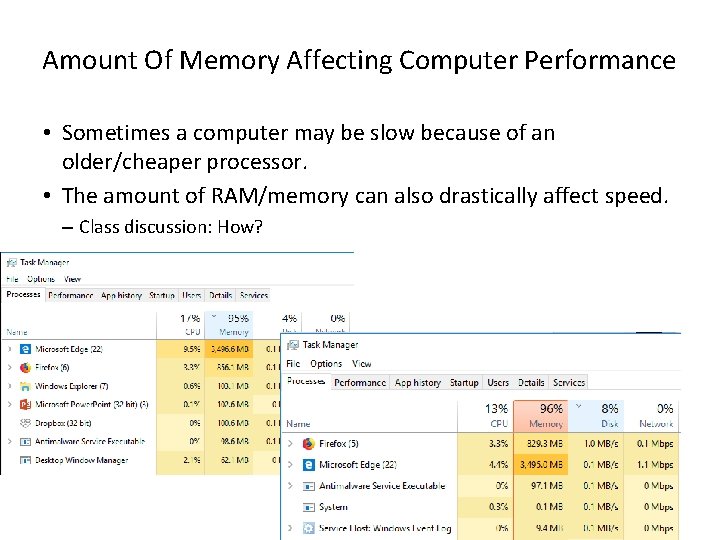
Amount Of Memory Affecting Computer Performance • Sometimes a computer may be slow because of an older/cheaper processor. • The amount of RAM/memory can also drastically affect speed. – Class discussion: How?
Optical (Employ Lasers) Drives • CD/DVD? – Do you play or rip music/videos? – If the answer is no then you might settle with a single inexpensive DVD drive • (Although many programs allow for Internet download some require an optical drive to install)
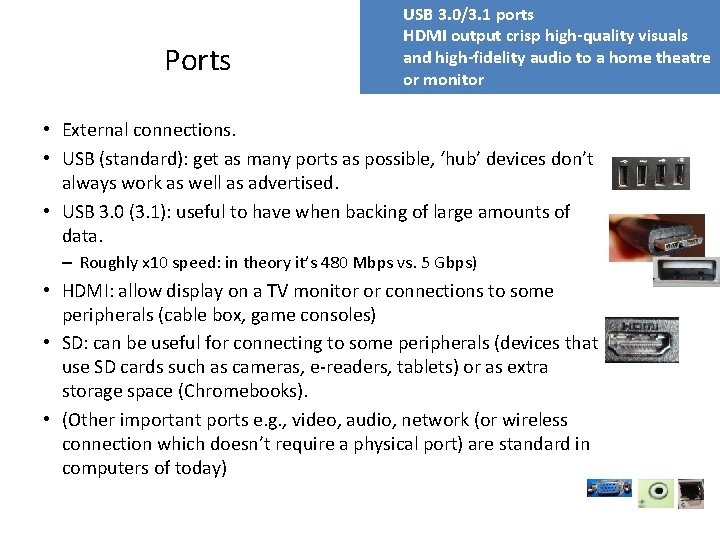
Ports USB 3. 0/3. 1 ports HDMI output crisp high-quality visuals and high-fidelity audio to a home theatre or monitor • External connections. • USB (standard): get as many ports as possible, ‘hub’ devices don’t always work as well as advertised. • USB 3. 0 (3. 1): useful to have when backing of large amounts of data. – Roughly x 10 speed: in theory it’s 480 Mbps vs. 5 Gbps) • HDMI: allow display on a TV monitor or connections to some peripherals (cable box, game consoles) • SD: can be useful for connecting to some peripherals (devices that use SD cards such as cameras, e-readers, tablets) or as extra storage space (Chromebooks). • (Other important ports e. g. , video, audio, network (or wireless connection which doesn’t require a physical port) are standard in computers of today)
Recap Of This Section: Things You Should Now Know • The different category of computers and computing devices: tablets, notebooks/laptops, ultrabooks, netbook, desktop all-in -ones as well as some of their strengths • The large units of measurement and how they apply to computer specifications • The basic units of storage: bits and bytes and how the groupings of bytes applies to hardware • Processor clock speed and reasonable values for computers of today • The effect of multiple processing cores on speed
Recap Of This Section: Things You Should Now Know (2) • What is the function of RAM, how does it work, how it related to storage, what are reasonable amounts for computers of today • What the two main types of storage technology (magnetic and solid state) and how they compare, what is a reasonable amount for today’s computer usage • Characteristics of memory vs. storage • Common computer ports
- Slides: 44