
Computer Technology Review for State Test Basic Network

Computer Technology Review for State Test
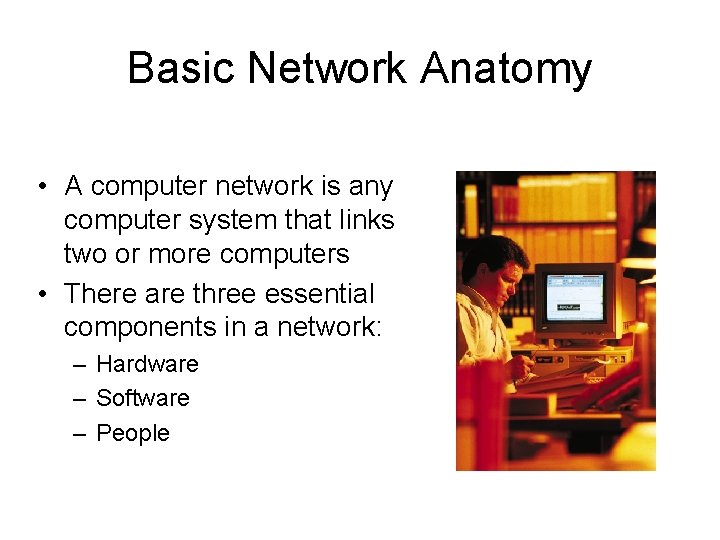
Basic Network Anatomy • A computer network is any computer system that links two or more computers • There are three essential components in a network: – Hardware – Software – People
Computer Connections • Local Area Networks (LAN) – computers are physically close to each other (our classroom) – designed to share resources (such as printers and servers) – allow communication between users (usually in the same building or such as a college campus) • Wide Area Networks (WAN) – computers are not physically close to each other (Bank Branch Office; largest is the Internet) – designed to share resources (web pages, email) – allow communication around the globe
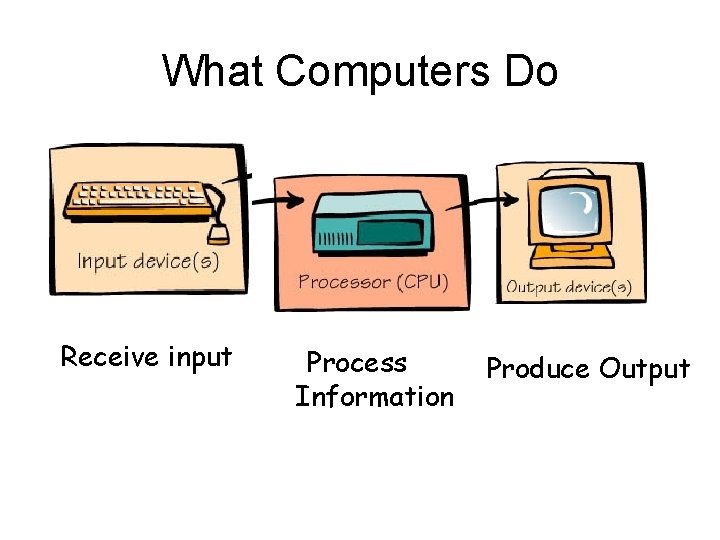
What Computers Do Receive input Process Information Produce Output
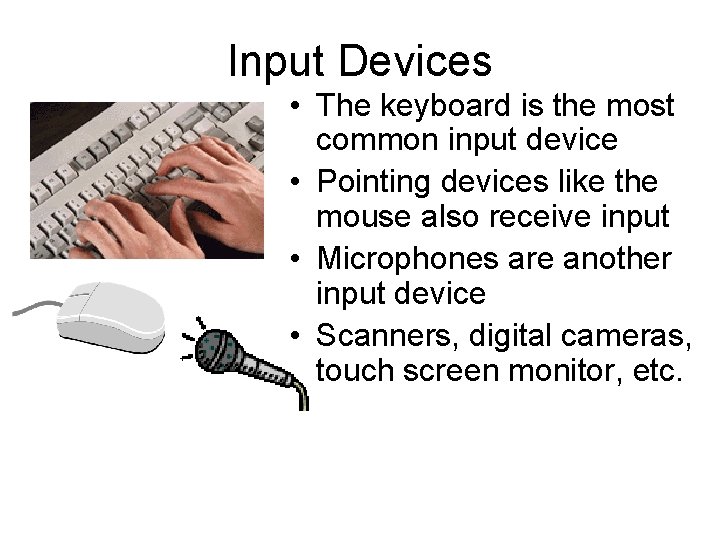
Input Devices • The keyboard is the most common input device • Pointing devices like the mouse also receive input • Microphones are another input device • Scanners, digital cameras, touch screen monitor, etc.
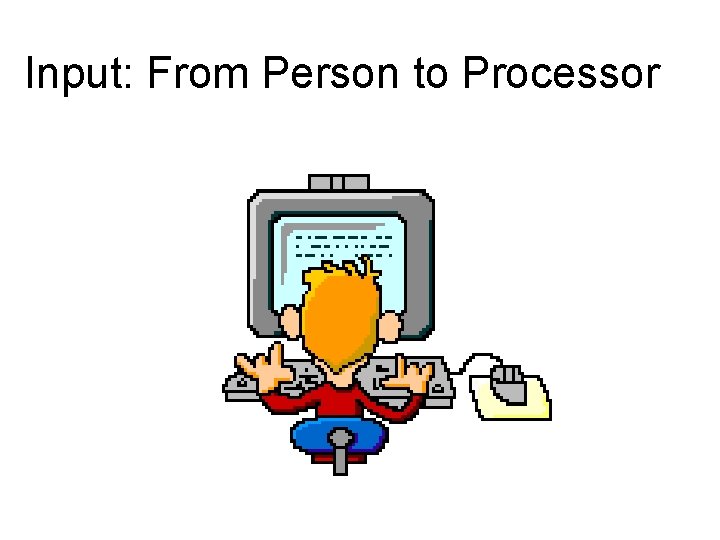
Input: From Person to Processor
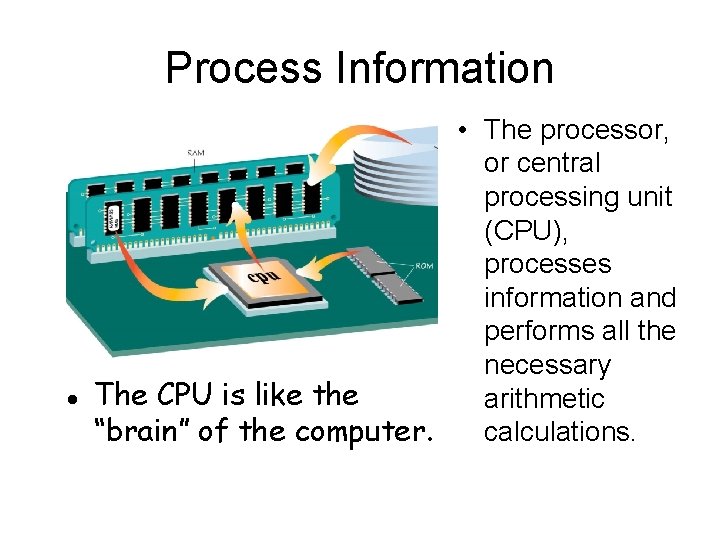
Process Information l • The processor, or central processing unit (CPU), processes information and performs all the necessary The CPU is like the arithmetic “brain” of the computer. calculations.
The Computer’s Memory RAM (random access memory): – is the most common type of primary storage, or computer memory – is used to store program instructions and data temporarily – unique addresses and can be stored in any location – can quickly retrieve information – will not remain if power goes off (volatile)
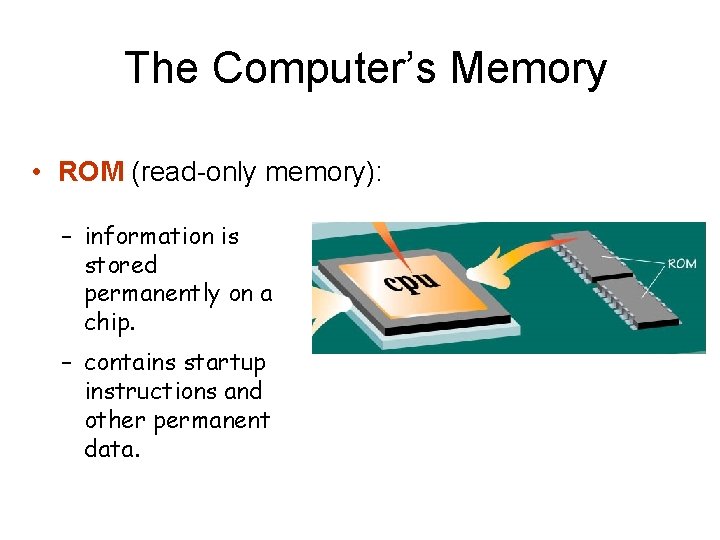
The Computer’s Memory • ROM (read-only memory): – information is stored permanently on a chip. – contains startup instructions and other permanent data.
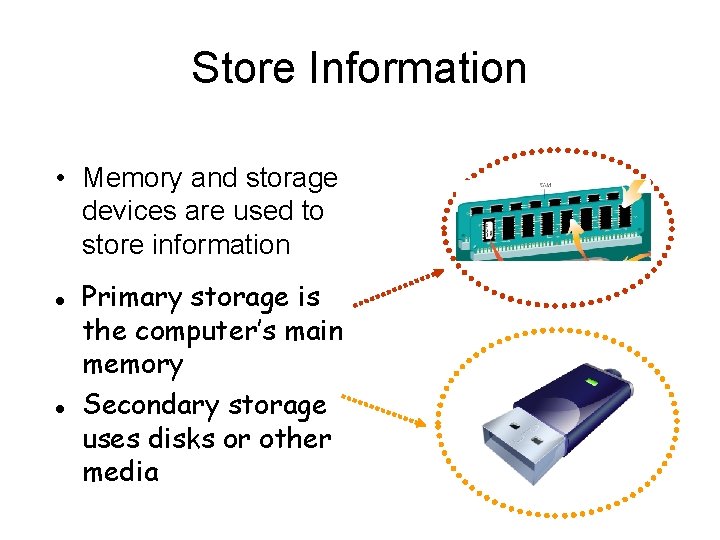
Store Information • Memory and storage devices are used to store information l l Primary storage is the computer’s main memory Secondary storage uses disks or other media
Buses, Ports, and Peripherals • Slots and ports also allow external devices called peripherals to be added to the system (keyboard, monitor, and mouse). l Without peripherals, the CPU and memory are like a brain without a body.
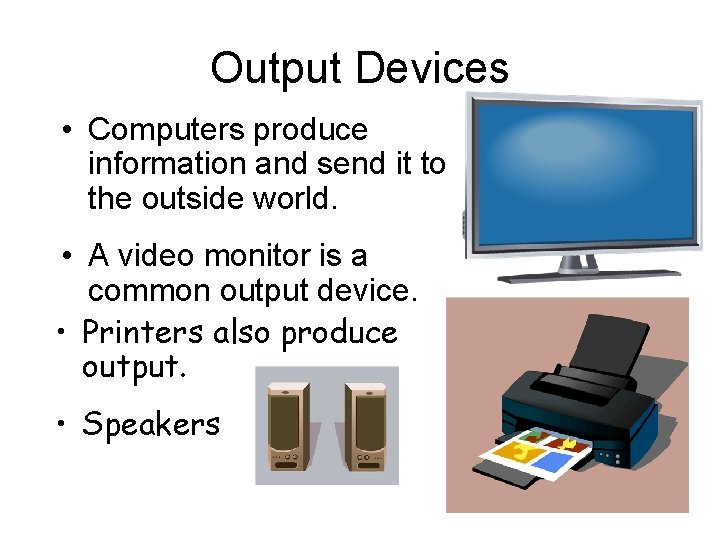
Output Devices • Computers produce information and send it to the outside world. • A video monitor is a common output device. • Printers also produce output. • Speakers
Information comes in many forms l l Words. . . Numbers. . . Pictures. . . Sounds Computers only understand information in digital form v Information must be broken into bits
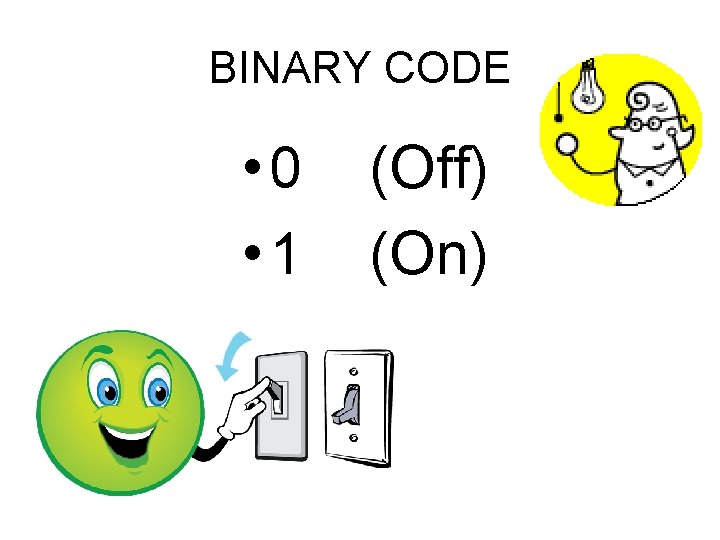
BINARY CODE • 0 • 1 (Off) (On)
Bits, Bytes, and Buzzwords • Common terms might describe file size or memory size: – Bit: smallest unit of information (0 or 1) – Byte: a grouping of eight bits of information (11001010) – K: (kilobyte); about 1, 000 bytes of information - technically 1024 bytes equals 1 K of storage.
Bits, Bytes, and Buzzwords MB: (megabyte): about 1 million bytes of information GB: (gigabyte): about 1 billion bytes of information TB: (terabyte): about 1 million megabytes of information
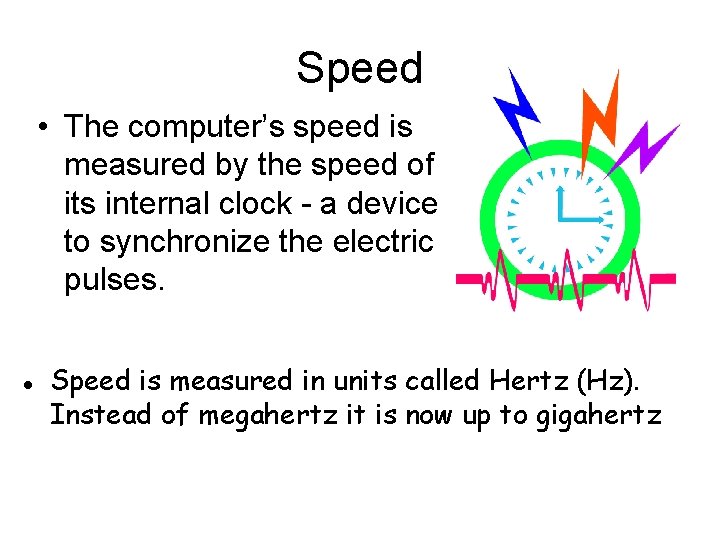
Speed • The computer’s speed is measured by the speed of its internal clock - a device to synchronize the electric pulses. l Speed is measured in units called Hertz (Hz). Instead of megahertz it is now up to gigahertz
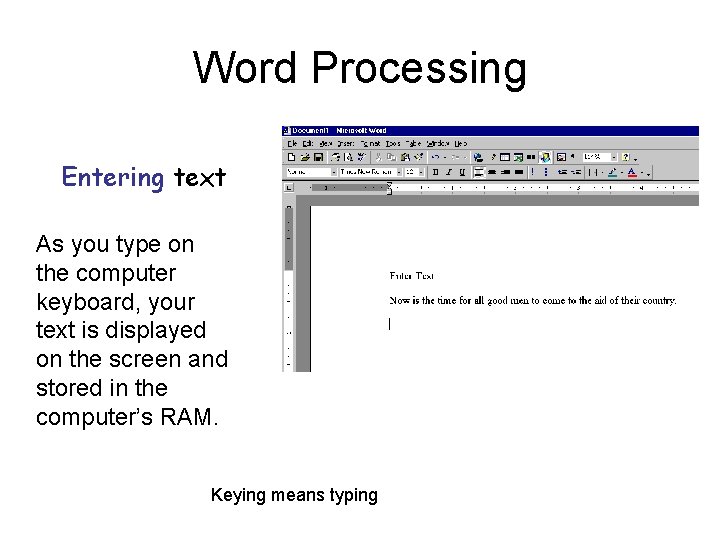
Word Processing Entering text As you type on the computer keyboard, your text is displayed on the screen and stored in the computer’s RAM. Keying means typing
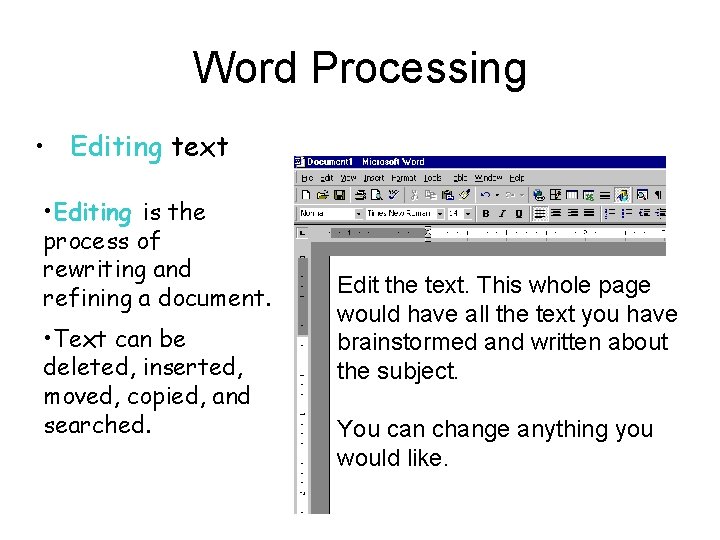
Word Processing • Editing text • Editing is the process of rewriting and refining a document. • Text can be deleted, inserted, moved, copied, and searched. Edit the text. This whole page would have all the text you have brainstormed and written about the subject. You can change anything you would like.
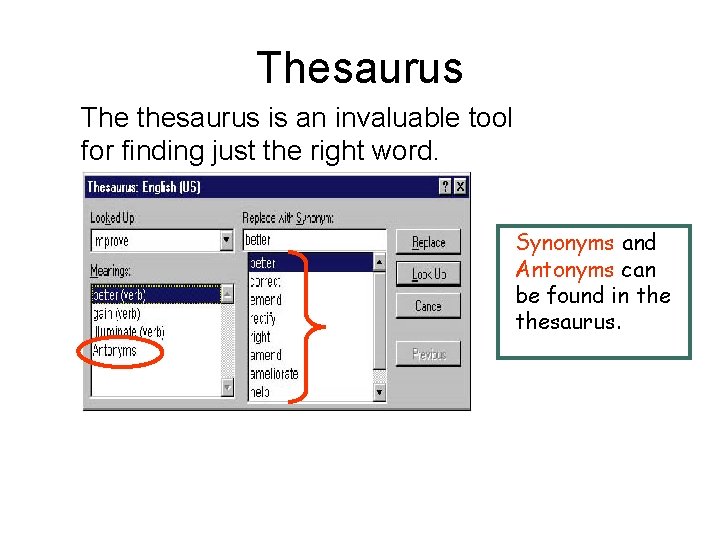
Thesaurus The thesaurus is an invaluable tool for finding just the right word. Synonyms and Antonyms can be found in thesaurus.
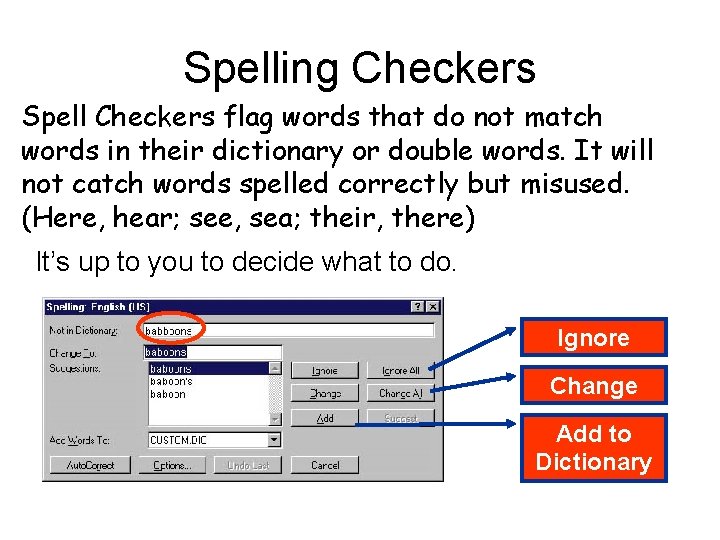
Spelling Checkers Spell Checkers flag words that do not match words in their dictionary or double words. It will not catch words spelled correctly but misused. (Here, hear; see, sea; their, there) It’s up to you to decide what to do. Ignore Change Add to Dictionary
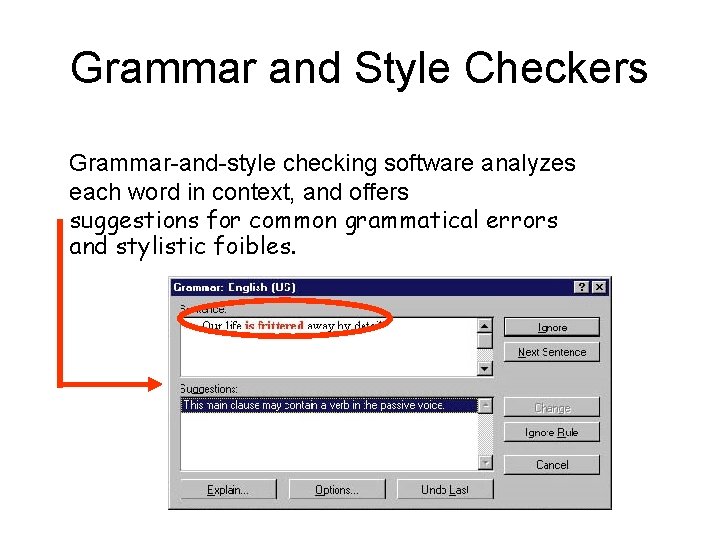
Grammar and Style Checkers Grammar-and-style checking software analyzes each word in context, and offers suggestions for common grammatical errors and stylistic foibles.
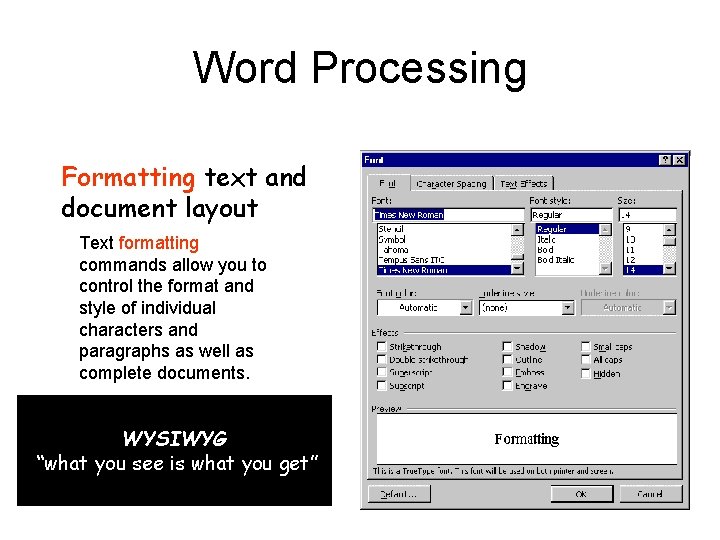
Word Processing Formatting text and document layout Text formatting commands allow you to control the format and style of individual characters and paragraphs as well as complete documents. WYSIWYG “what you see is what you get”
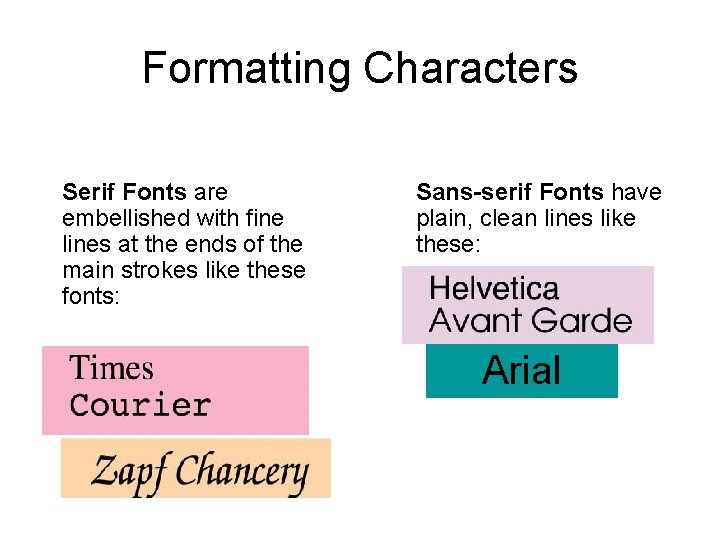
Formatting Characters Serif Fonts are embellished with fine lines at the ends of the main strokes like these fonts: Sans-serif Fonts have plain, clean lines like these: Arial
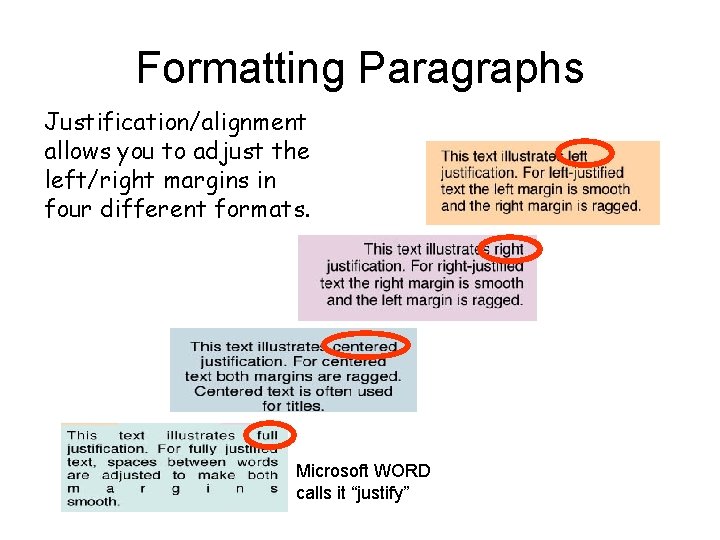
Formatting Paragraphs Justification/alignment allows you to adjust the left/right margins in four different formats. Microsoft WORD calls it “justify”
Letters • Block style - everything starts at the left margin. • Modified block - date and complimentary close and signature starts in the middle of the line • Typist Initials – who typed (or keyed) the letter • Letterhead – Logo of Company
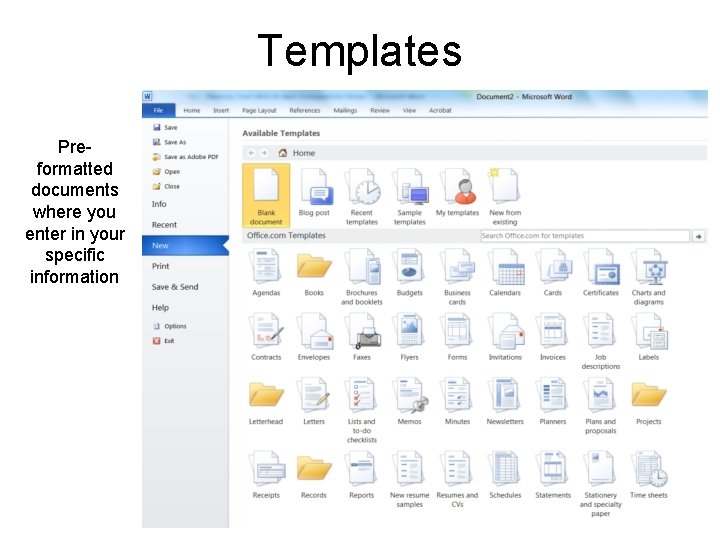
Templates Preformatted documents where you enter in your specific information
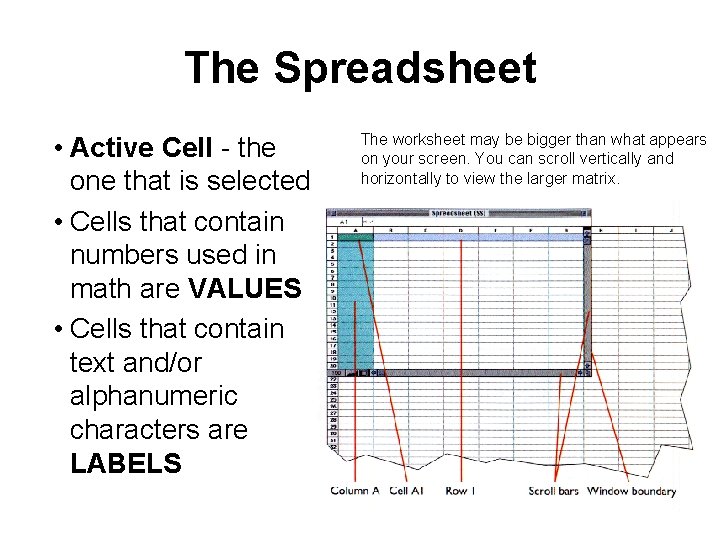
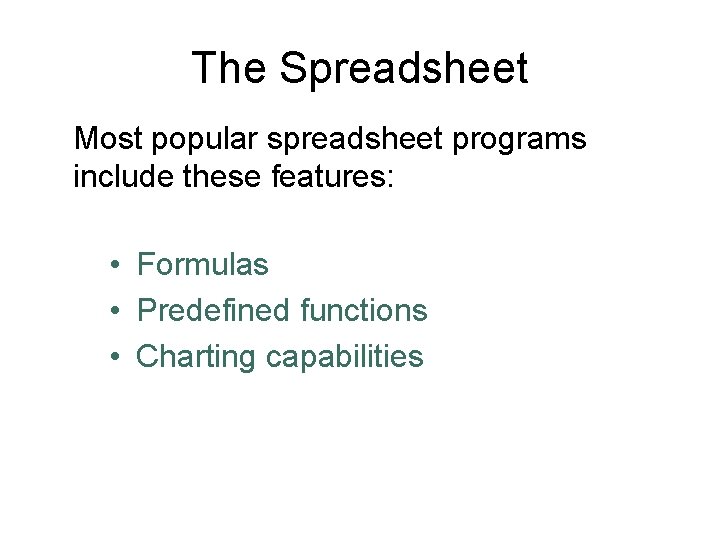
The Spreadsheet • Active Cell - the one that is selected • Cells that contain numbers used in math are VALUES • Cells that contain text and/or alphanumeric characters are LABELS The worksheet may be bigger than what appears on your screen. You can scroll vertically and horizontally to view the larger matrix.
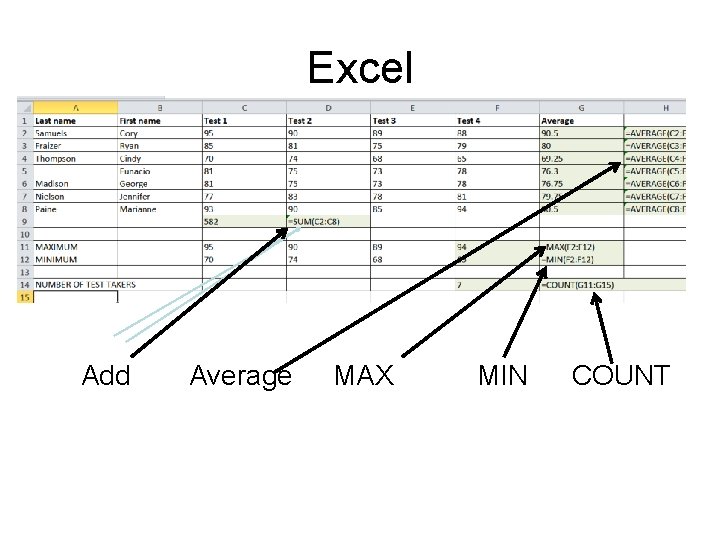
Excel Add Average MAX MIN COUNT
The Spreadsheet Most popular spreadsheet programs include these features: • Formulas • Predefined functions • Charting capabilities
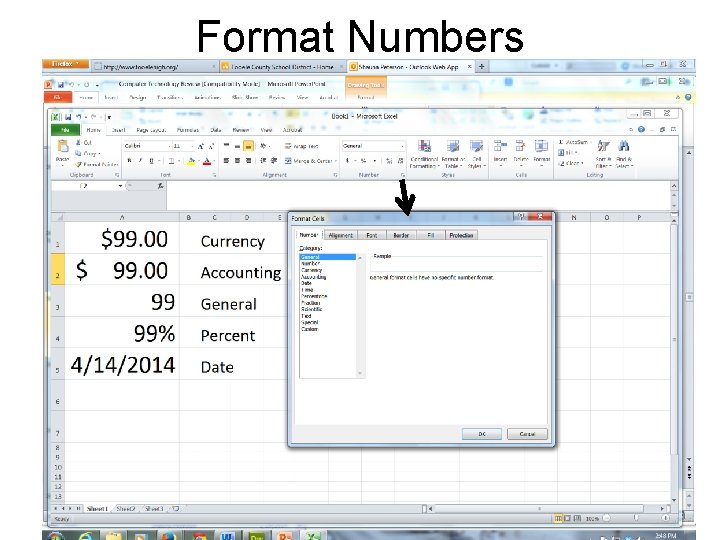
Format Numbers
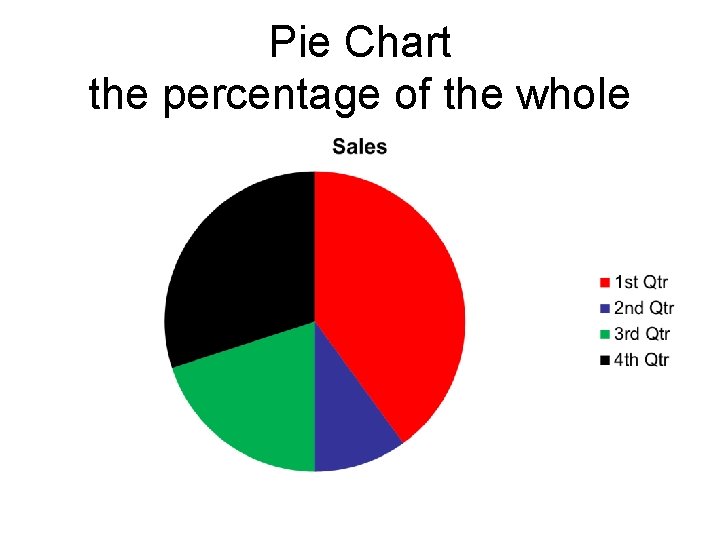
Pie Chart the percentage of the whole
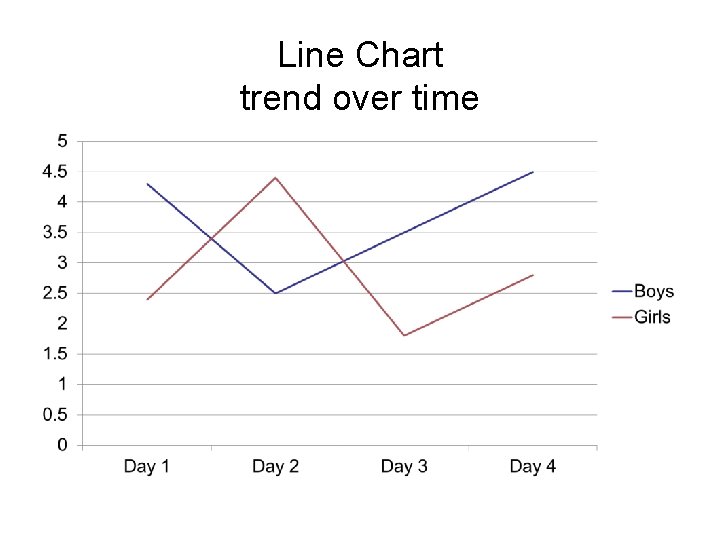
Line Chart trend over time
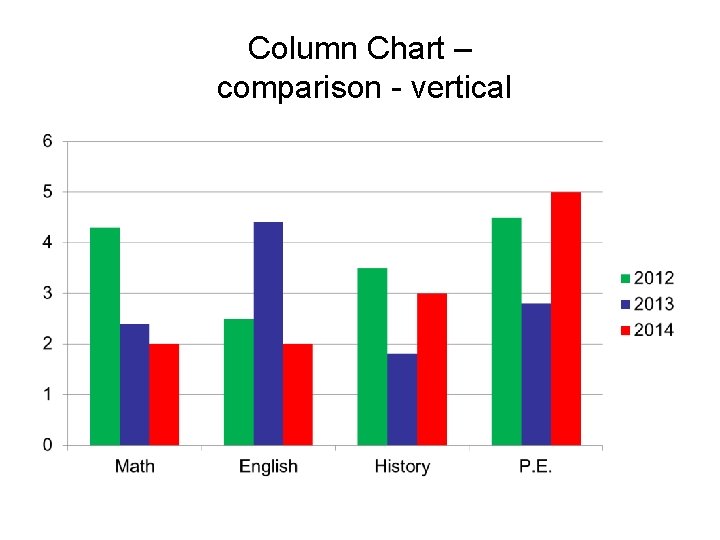
Column Chart – comparison - vertical
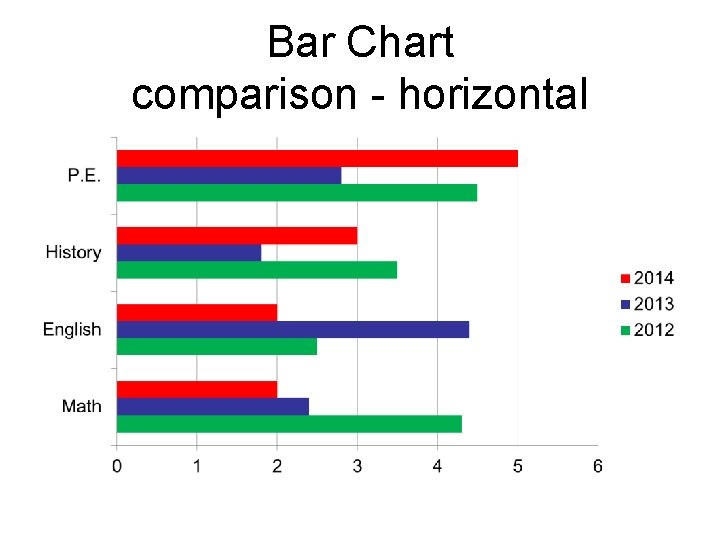
Bar Chart comparison - horizontal
EXCEL • • Add + Subtract Multiply * Divide / • Order of Operations – Please Excuse My Dear Aunt Sally
Internet Access Options Internet Service Providers (ISPs) – Company you pay to provide Internet service • Comcast, Digis, Century Link, etc.
Electronic Mail (e-mail) “The great success of the Internet is not technical, but its human impact. ” Dave Clark Why did E-mail lure people to the Internet? – Availability • software made it easy to use – Speed • messages can be created and delivered in seconds – Preferred communication in Business
Netiquette • Rules of the E-mail – Spamming • Bulk, mass, or repeated identical messages – Flaming • Expresses a strong opinion or criticism. Can be insulting. Can lead to cyber-bullying.
E-mail Addresses An Internet e-mail address includes: username@hostname. domain bgochis@tooeleschools. org – username is the person’s “mailbox” – hostname is the name of the host computer and is followed by one or more domains separated by periods: • host. domain
E-mail Addresses Examples: president@whitehouse. gov User President whose mail is stored on the host whitehouse in the government domain
E-mail Addresses Top level domains (the last part of the address) include: –. edu - educational sites –. com - commercial sites –. gov - government sites –. mil - military sites –. net - network administration sites –. org - nonprofit organizations
World Wide Web browsers, such as Internet Explorer, Mozilla Firefox, Opera, and Chrome, are software that help locate information on the Web Information is stored on Web pages A group of Web pages make up a Web site
Search Engines • • Google Yahoo MSN Dogpile
Internet Search • • “ + [ ” - phrase - and include another word except or don’t show me these ] – exact spelling Use to focus your search
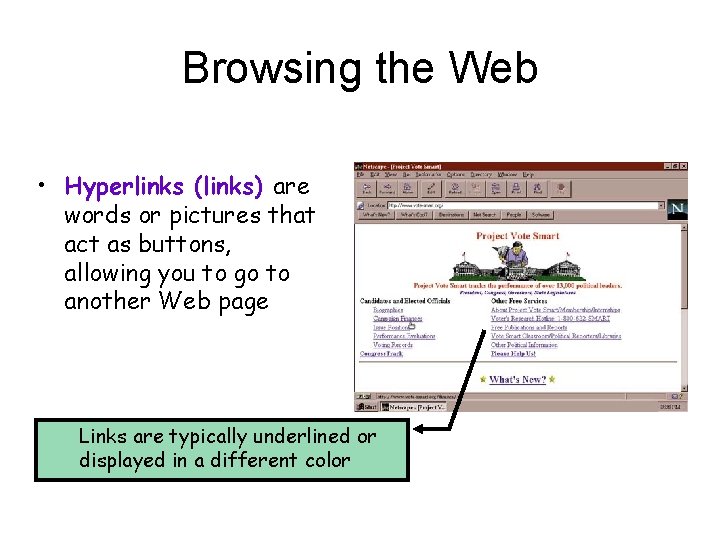
Browsing the Web • Hyperlinks (links) are words or pictures that act as buttons, allowing you to go to another Web page Links are typically underlined or displayed in a different color
More on Browsing the Web site Jargon • Links allow you to locate information without knowing its exact location (it may move from time to time) • Back and Forward buttons let you retrace your steps • Bookmarks (or Favorites) can be set up to mark your favorite Web locations
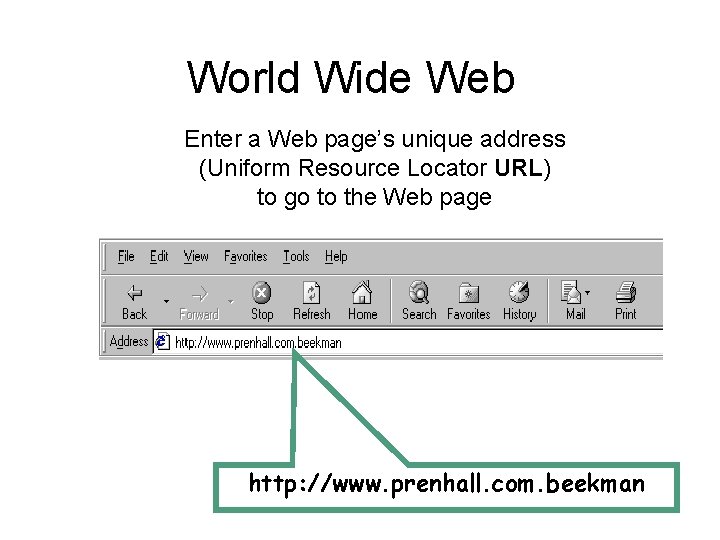
World Wide Web Enter a Web page’s unique address (Uniform Resource Locator URL) to go to the Web page http: //www. prenhall. com. beekman
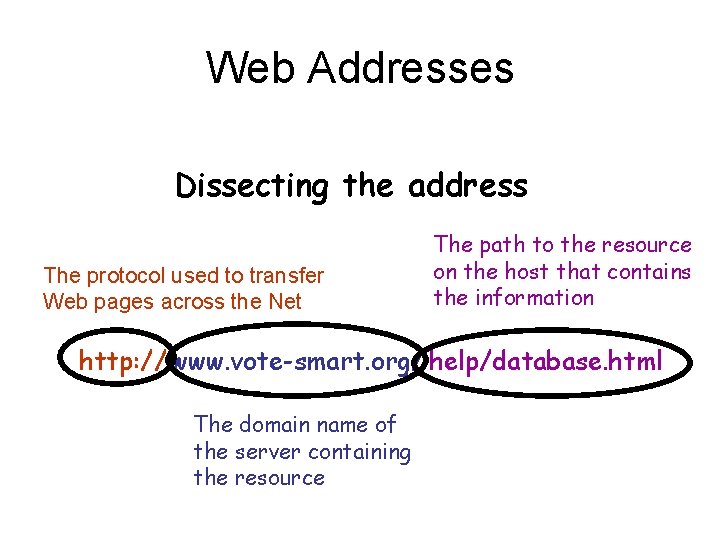
Web Addresses Dissecting the address The protocol used to transfer Web pages across the Net The path to the resource on the host that contains the information http: // www. vote-smart. org/ help/database. html The domain name of the server containing the resource
Validity of Website • Authority – who wrote the page (. com, . edu, . org, etc. ) author credentials • Purpose/Intended Audience – purpose of page • Currency – information up to date, when updated • Objectivity – biased? • Support – is their position supported • Search Results – Number of hits does not make it valid.
Software Piracy and Intellectual Property Laws • Software piracy is the illegal duplication of copyrighted software • All Rights Reserved • Shareware - try before you buy. Pay a fee • Freeware • Open Source • Public Domain
Creative Commons licenses help creators retain copyright while allowing others to copy, distribute, and make some uses of their work, at least non-commercially.
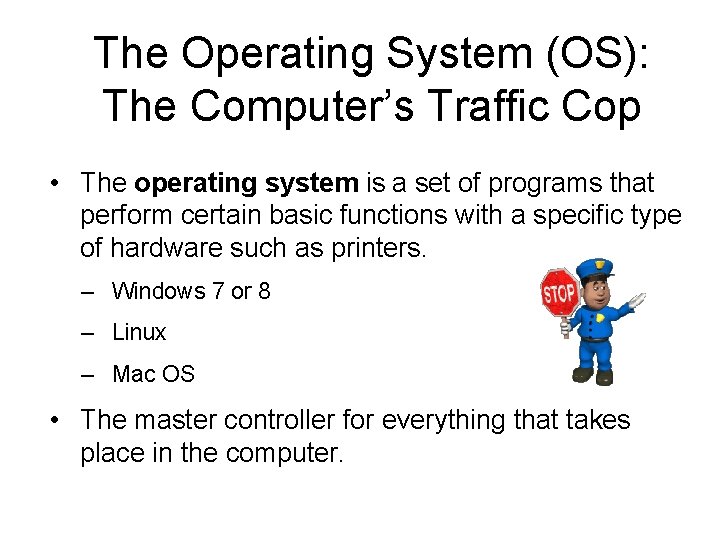
The Operating System (OS): The Computer’s Traffic Cop • The operating system is a set of programs that perform certain basic functions with a specific type of hardware such as printers. – Windows 7 or 8 – Linux – Mac OS • The master controller for everything that takes place in the computer.
Software Sabotage of software can include a Trojan horse, virus, or worm Often, all of these are referred to as a virus Trojan horse: performs a useful task while also being secretly destructive; time bombs are an example Virus: spreads by making copies of itself from program to program or disk to disk Worm: a program that travels independently over computer networks, seeking uninfected sites
Software Sabotage • Virus detection software can find and remove most viruses – Check every time you turn on the computer. – These programs need to be frequently revised – Hundreds of new virus appear each month!
Hacking and Electronic Trespassing Electronic trespassing • Breaking into other computer systems is called electronic trespassing • Electronic crime rings focus on stealing credit card numbers and other valuable information
Encryption • To make a message secure from outsiders requires encryption software • Encryption software scrambles the sent message using a key • A different key is needed to unscramble the received message
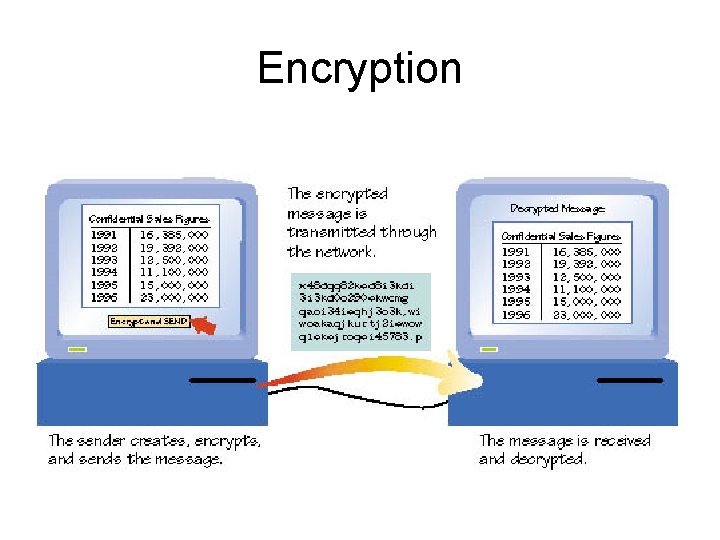
Encryption
Acceptable Use Policy • Documents that govern the use of computers and networks owned by the company (or schools)
Word, Excel, ppt. are all • • Applications Software Programs (All means the same thing)
Bibliography • End of your report • Lists names of authors alphabetically • Use a HANGING INDENT
Sorting • Arrange alphabetically or numerically • Ascending Order (A-Z) or (1 -100) – Smallest to Largest • Descending Order (Z-A) or (100 -1) – Largest to Smallest
Attachments - Adds documents to email • • WORD document Photograph EXCEL spreadsheet Any type of file
Power. Point • Transitions - how one slide changes to another • Animation - how words and graphics come onto the slide • Slide Sorter View - shows small slides (thumbnails) so you can move the position of the slide in the show
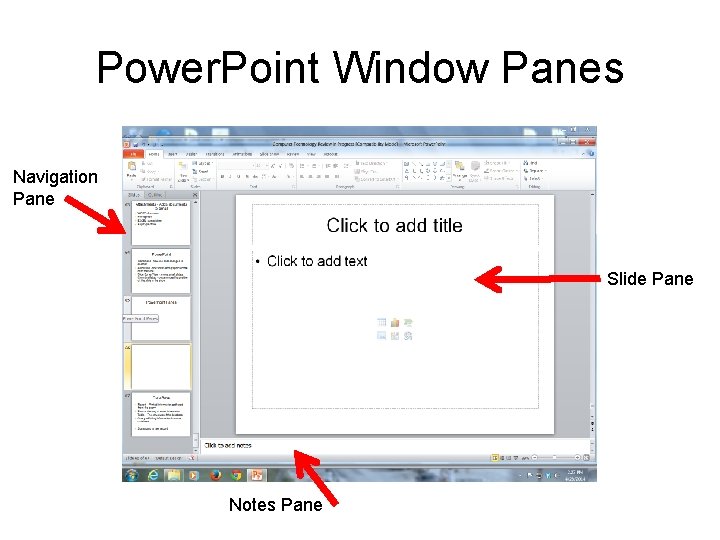
Power. Point Window Panes Navigation Pane Slide Pane Notes Pane
Data Base • Report – Printed information gathered from the query • Form – the way to enter information • Table – The structure of the database • Query – Pulling information from the database • Signs to go to new record
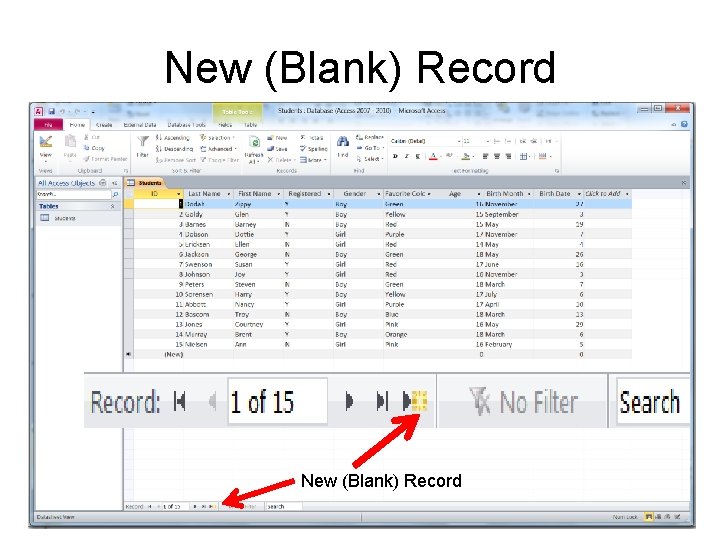
New (Blank) Record
- Slides: 67