
Computer Keyboard and Proper Finger Positioning Prepared by
Computer Keyboard and Proper Finger Positioning Prepared by: MA. CRISTINA ATIENZA DELOS REYES 05/11/2017
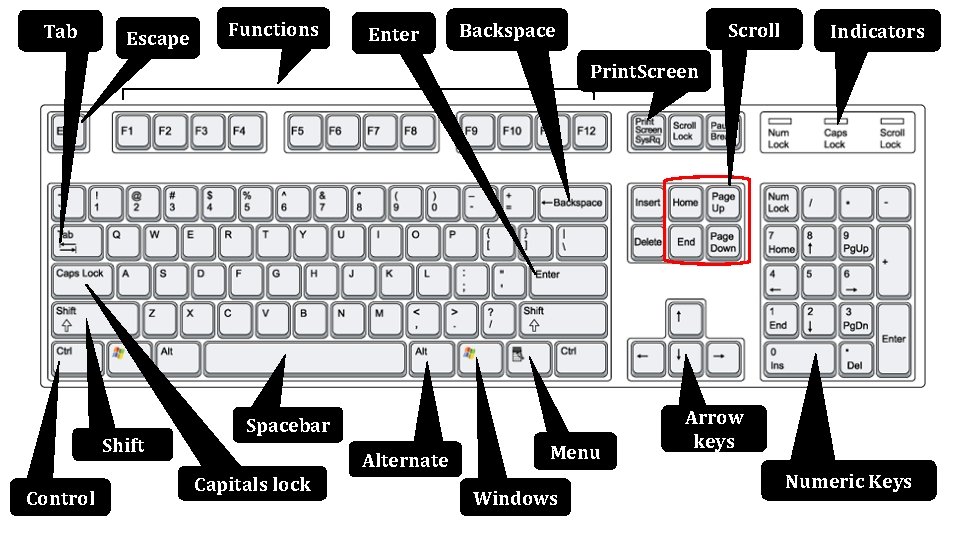
Tab Escape Functions Enter Scroll Backspace Indicators Print. Screen Shift Control Spacebar Alternate Capitals lock Menu Windows Arrow keys Numeric Keys
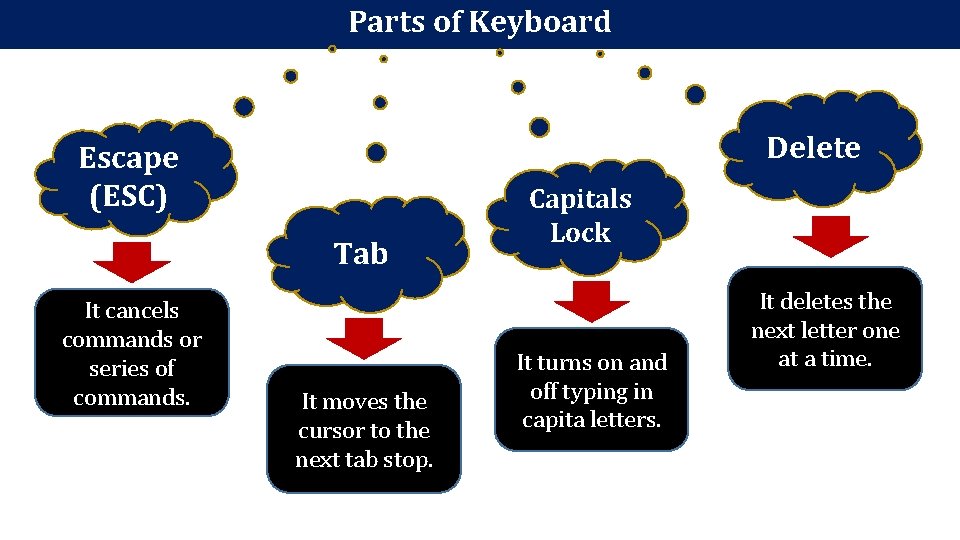
Parts of Keyboard Delete Escape (ESC) Tab It cancels commands or series of commands. It moves the cursor to the next tab stop. Capitals Lock It turns on and off typing in capita letters. It deletes the next letter one at a time.
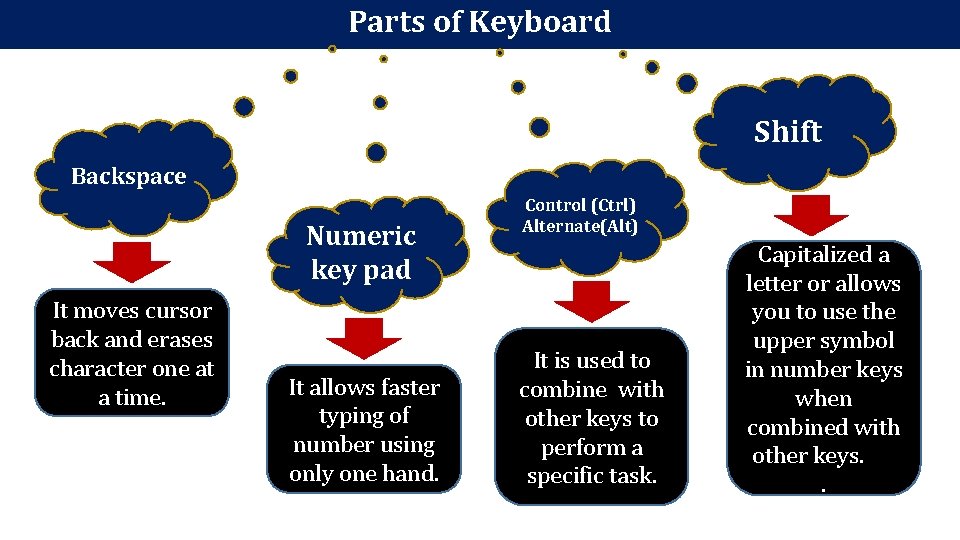
Parts of Keyboard Shift Backspace Numeric key pad It moves cursor back and erases character one at a time. It allows faster typing of number using only one hand. Control (Ctrl) Alternate(Alt) It is used to combine with other keys to perform a specific task. Capitalized a letter or allows you to use the upper symbol in number keys when combined with other keys. .
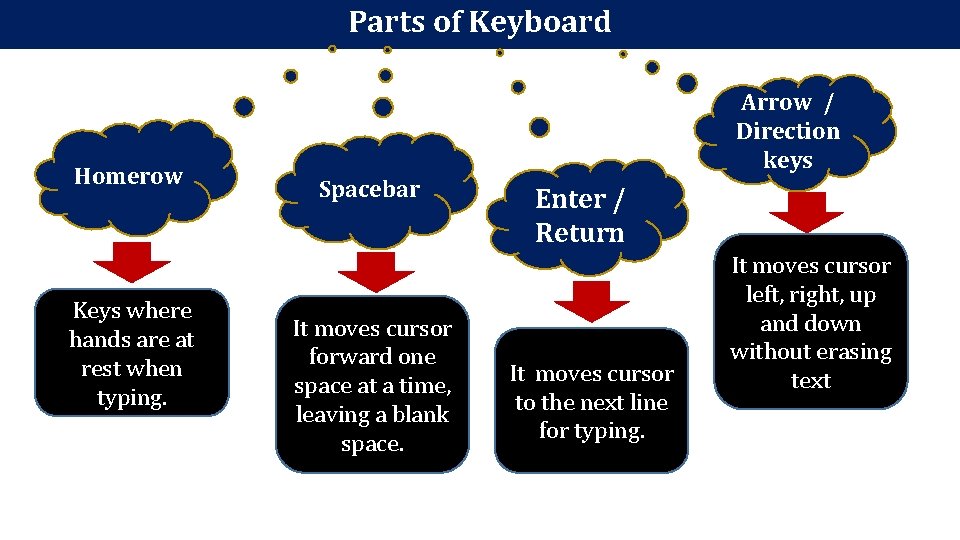
Parts of Keyboard Homerow Keys where hands are at rest when typing. Arrow / Direction keys Spacebar It moves cursor forward one space at a time, leaving a blank space. Enter / Return It moves cursor to the next line for typing. It moves cursor left, right, up and down without erasing text
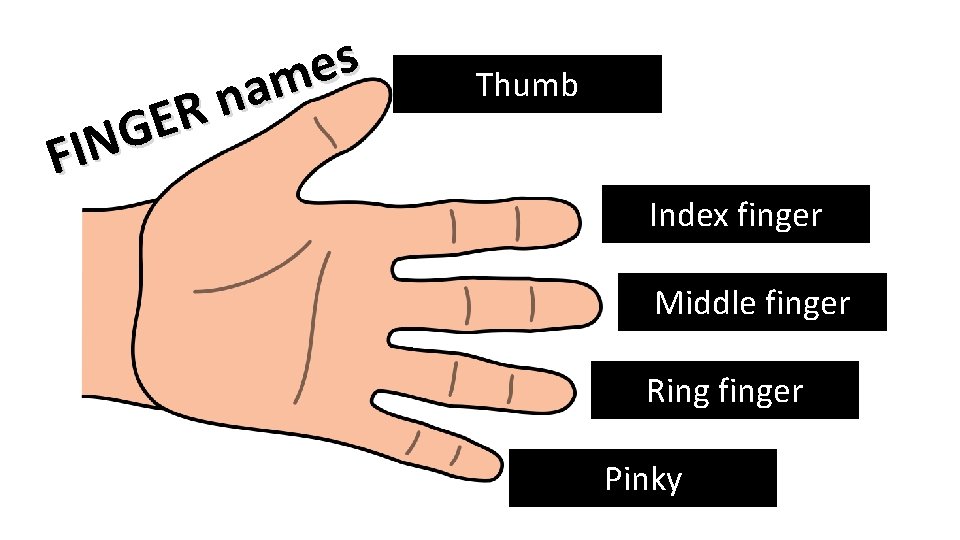
R E G N FI s e m a n Thumb Index finger Middle finger Ring finger Pinky
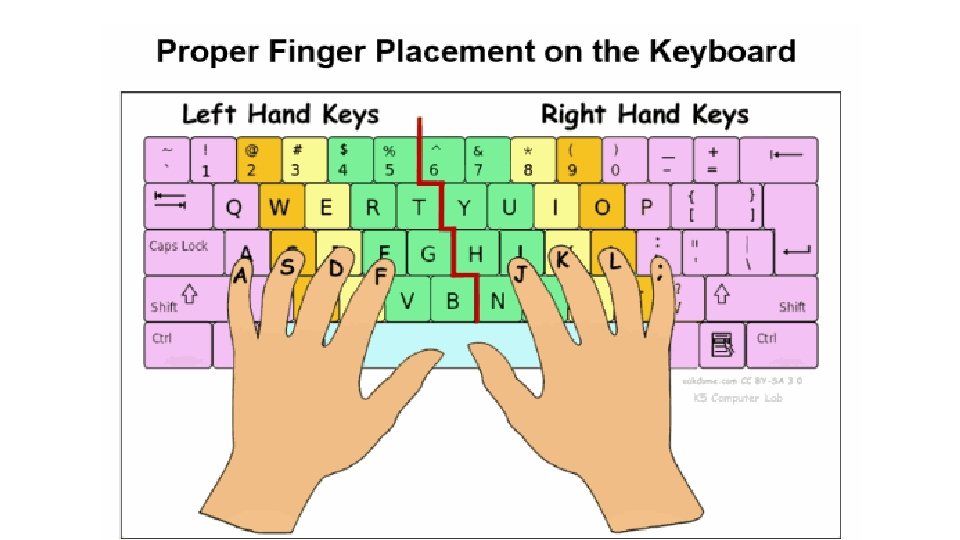
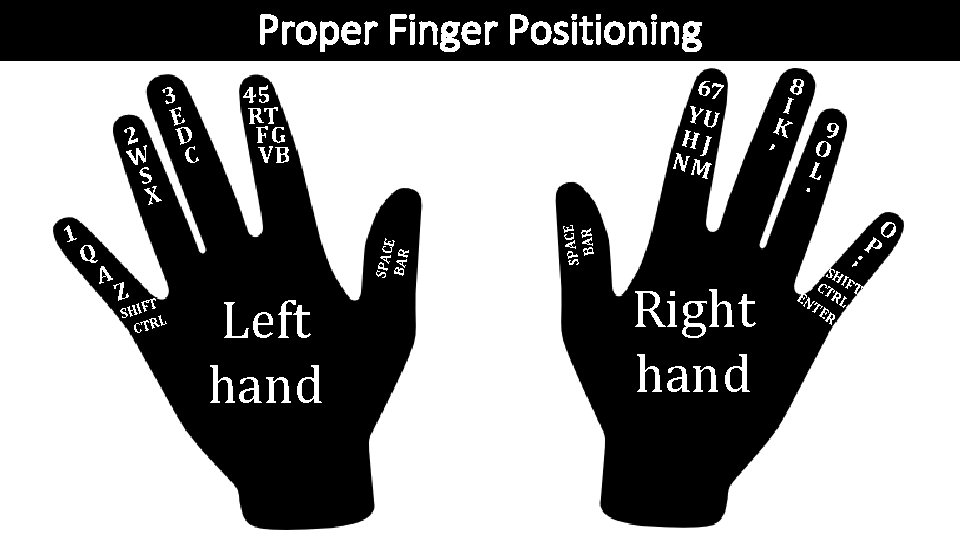
Proper Finger Positioning Q A Z FT I SH I L CTR Left hand SPACE BAR 1 67 YU HJ NM 45 RT FG VB SPAC E BAR 3 E D 2 W C S X 8 I K 9 , O L. ; Right hand SH C IFT EN TRL TE R P O
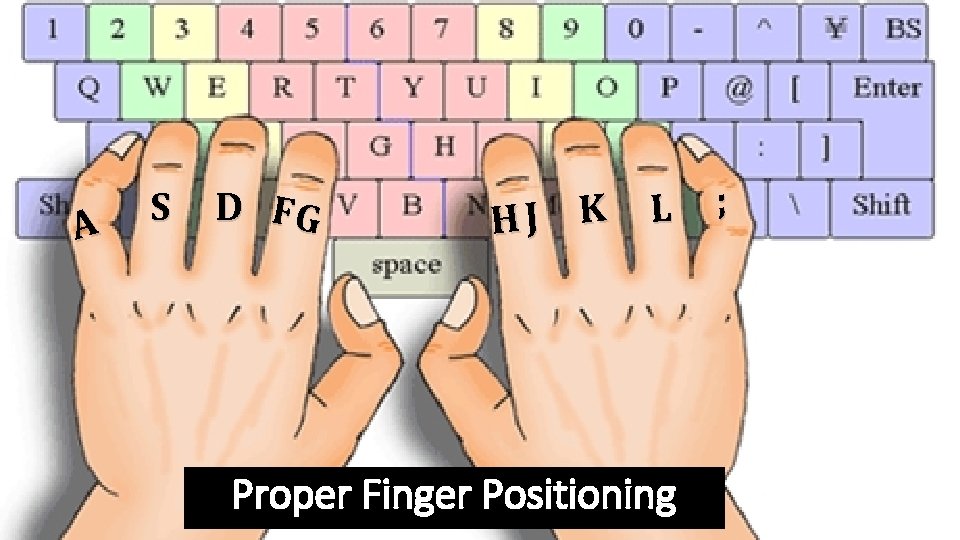
A S D FG HJ K L Proper Finger Positioning ;
Typing Speed Activity 1 2 Do not rush when you’re just started learning. Typehttps: //www. speedtypingonline. com/typing-tutor 3 Take your time when typing to avoid mistakes. 4 Always scan the text and word in advance.
Typing Speed Tips 1 Open your google chrome browser by double clicking the icon. . 2 Speed up only when your fingers hit the right keys out of habit. 3 Practice typing online. 4 Observe your typing speed as you do it over and over again.
T hat‘ s a n i t is 17 r 0 C 2 rght@ e hpyri c a co e T al l folks!
- Slides: 12