
COMPUTER GRAPHICS Computer graphic Programming with Open GL

- Slides: 55
COMPUTER GRAPHICS Computer graphic -- Programming with Open. GL I Jie chen
COMPUTER GRAPHICS What is new • Website: http: //www. ee. oulu. fi/~jiechen/Course. htm • Lecture slides for 3 rd are online now Jie chen 2
COMPUTER GRAPHICS VS 2008 • A student in University of Oulu (Oulu Yliopisto) can download her/his own free copies of MS Visual Studio 2008 Professional Edition (and other software) here: https: //www. dreamspark. com/ – This is a Microsoft's site where user requires an MS Live account (free) and that needs to be verified to be a student account from our university. This is done using the authentication service that our university provides and can be done with an account to Paju. • Also our IT department also links to the site as one of the software sources for students (in Finnish only) http: //www. oulu. fi/tietohallinto/opiskelijoille/ohjelmistot. ht ml Jie chen 3
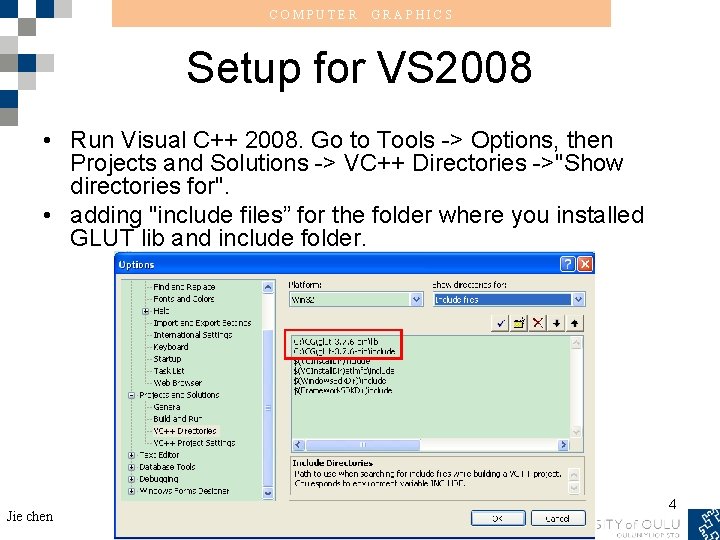
COMPUTER GRAPHICS Setup for VS 2008 • Run Visual C++ 2008. Go to Tools -> Options, then Projects and Solutions -> VC++ Directories ->"Show directories for". • adding "include files” for the folder where you installed GLUT lib and include folder. Jie chen 4
COMPUTER GRAPHICS Setup for VS 2008 • Go to Project -> Properties. Click on Configuration Properties. Click the "Configuration Manager" button in the upper-right corner. Change the "Active solution configuration" from "Debug" to "Release". Click close, then click OK. • In Project -> Properties, go to Configuration Properties -> General. Where it shows the output directory as "Release", backspace the word "Release", and click OK. This makes Visual C++ put the executable in the same directory as the source code, so when our program needs to open a file, it looks for it in that directory. In this case, the program will have to load in an image file called "vtr. bmp". • Go to Build -> Build project_name to build your project. • Run the program by going to Debug -> Start Without Debugging. If all goes well, the test program should run. Jie chen 5
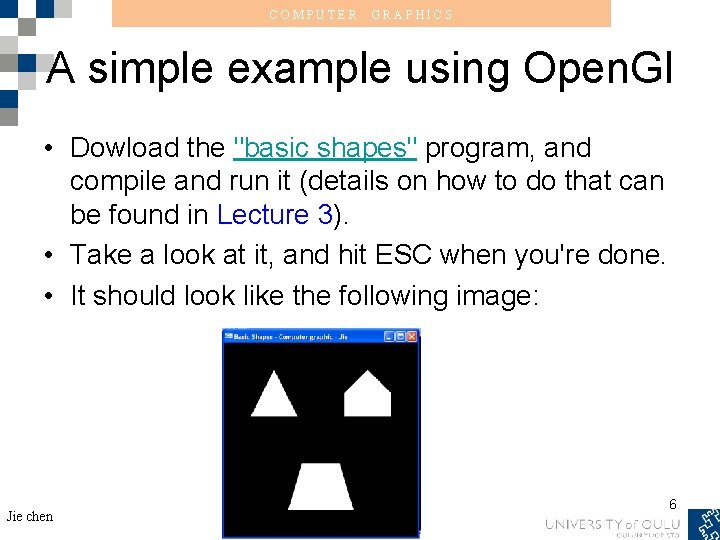
COMPUTER GRAPHICS A simple example using Open. Gl • Dowload the "basic shapes" program, and compile and run it (details on how to do that can be found in Lecture 3). • Take a look at it, and hit ESC when you're done. • It should look like the following image: Jie chen 6
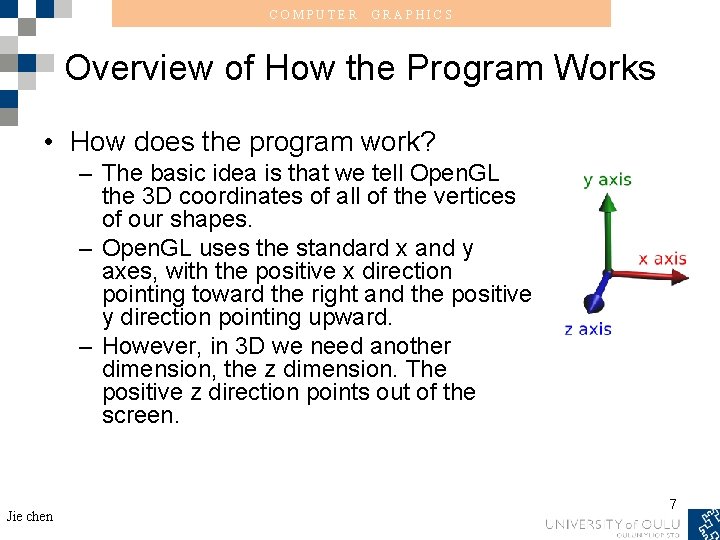
COMPUTER GRAPHICS Overview of How the Program Works • How does the program work? – The basic idea is that we tell Open. GL the 3 D coordinates of all of the vertices of our shapes. – Open. GL uses the standard x and y axes, with the positive x direction pointing toward the right and the positive y direction pointing upward. – However, in 3 D we need another dimension, the z dimension. The positive z direction points out of the screen. Jie chen 7
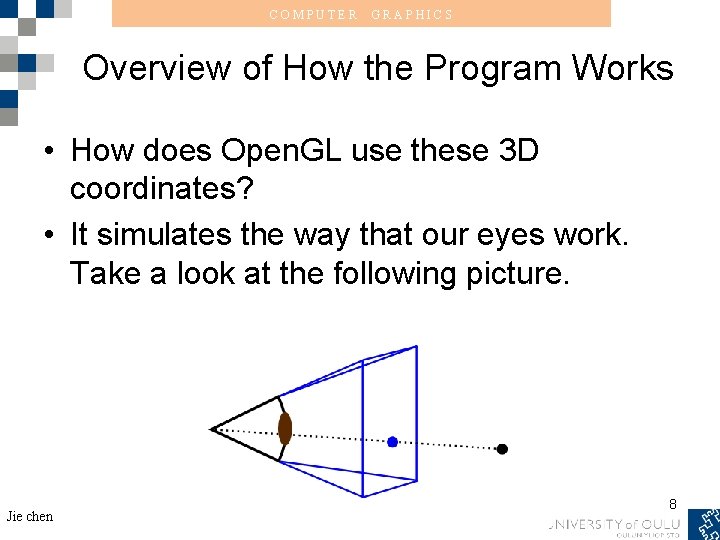
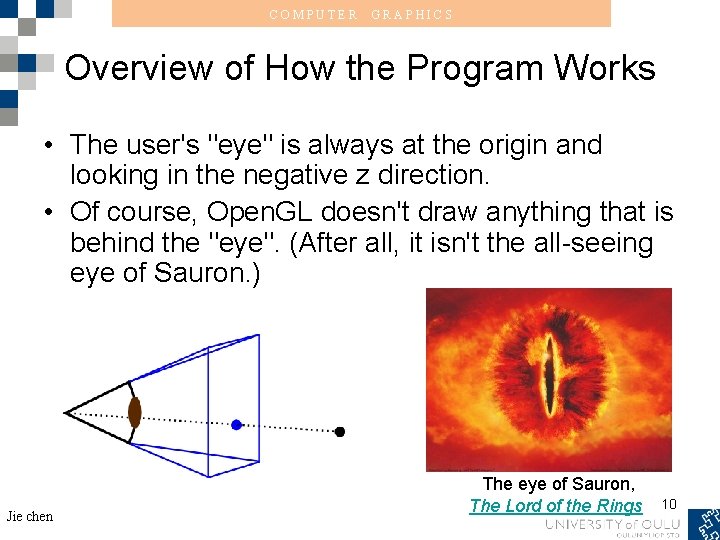
COMPUTER GRAPHICS Overview of How the Program Works • How does Open. GL use these 3 D coordinates? • It simulates the way that our eyes work. Take a look at the following picture. Jie chen 8
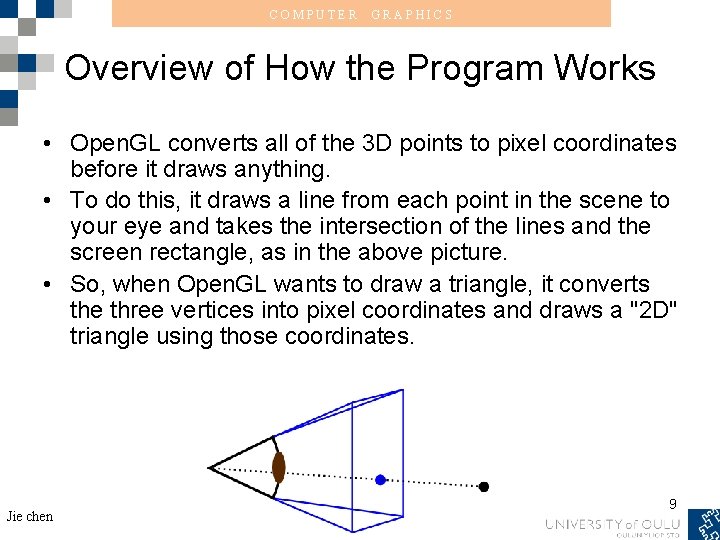
COMPUTER GRAPHICS Overview of How the Program Works • Open. GL converts all of the 3 D points to pixel coordinates before it draws anything. • To do this, it draws a line from each point in the scene to your eye and takes the intersection of the lines and the screen rectangle, as in the above picture. • So, when Open. GL wants to draw a triangle, it converts the three vertices into pixel coordinates and draws a "2 D" triangle using those coordinates. Jie chen 9
COMPUTER GRAPHICS Overview of How the Program Works • The user's "eye" is always at the origin and looking in the negative z direction. • Of course, Open. GL doesn't draw anything that is behind the "eye". (After all, it isn't the all-seeing eye of Sauron. ) Jie chen The eye of Sauron, The Lord of the Rings 10
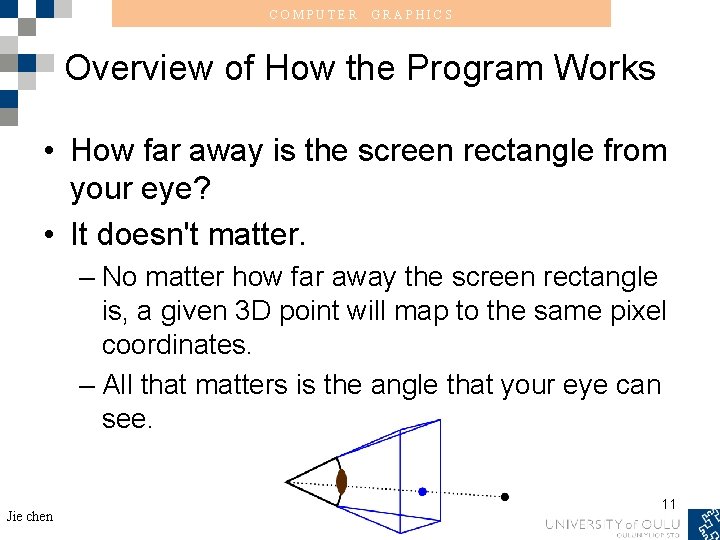
COMPUTER GRAPHICS Overview of How the Program Works • How far away is the screen rectangle from your eye? • It doesn't matter. – No matter how far away the screen rectangle is, a given 3 D point will map to the same pixel coordinates. – All that matters is the angle that your eye can see. Jie chen 11
COMPUTER GRAPHICS Going Through the Source Code • All of this stuff about pixel coordinates is great and all, but as programmers, we want to see some code. • Take a look at main. cpp. – The first thing you'll notice is the license indicating that the code is completely free. That's right, F-R-E-E. You can even use it in commercial projects. Jie chen 12
COMPUTER GRAPHICS Going Through the Source Code • Take a look at main. cpp. – The second thing you'll notice is that it's heavily commented, so much so that it's a bit of an eye sore. That's because this is the first lesson. Other lessons will not be so heavily commented, but they'll still have comments. – Let's go through the file and see if we can understand what it's doing. Jie chen 13
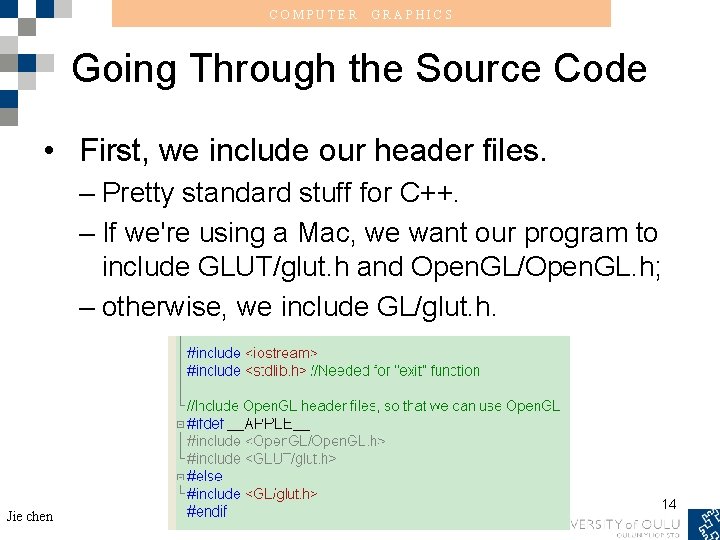
COMPUTER GRAPHICS Going Through the Source Code • First, we include our header files. – Pretty standard stuff for C++. – If we're using a Mac, we want our program to include GLUT/glut. h and Open. GL/Open. GL. h; – otherwise, we include GL/glut. h. Jie chen 14
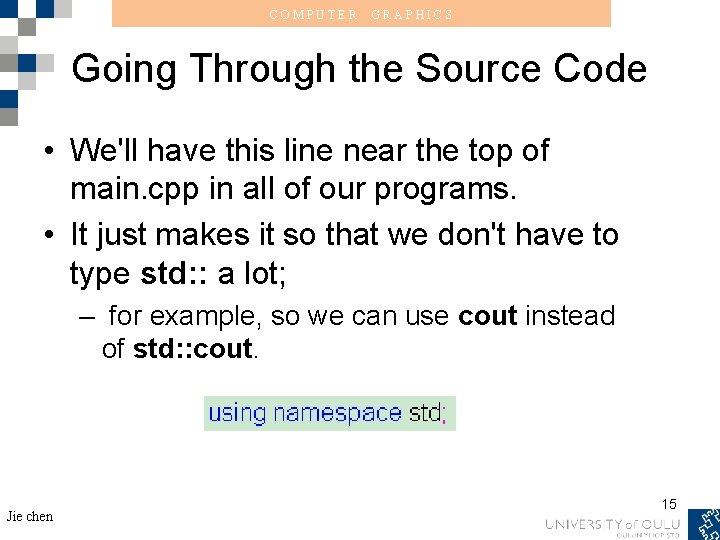
COMPUTER GRAPHICS Going Through the Source Code • We'll have this line near the top of main. cpp in all of our programs. • It just makes it so that we don't have to type std: : a lot; – for example, so we can use cout instead of std: : cout. Jie chen 15
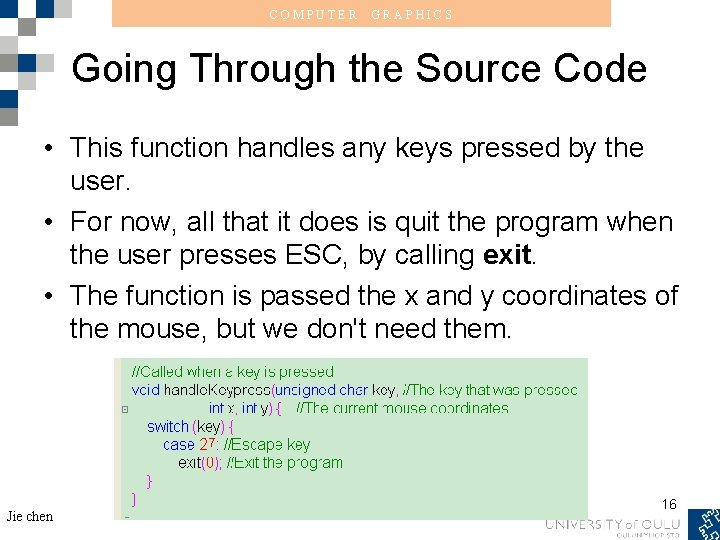
COMPUTER GRAPHICS Going Through the Source Code • This function handles any keys pressed by the user. • For now, all that it does is quit the program when the user presses ESC, by calling exit. • The function is passed the x and y coordinates of the mouse, but we don't need them. Jie chen 16
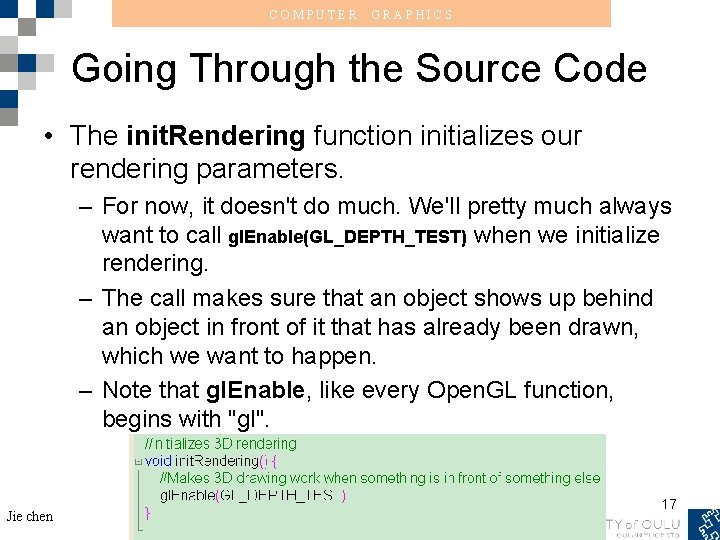
COMPUTER GRAPHICS Going Through the Source Code • The init. Rendering function initializes our rendering parameters. – For now, it doesn't do much. We'll pretty much always want to call gl. Enable(GL_DEPTH_TEST) when we initialize rendering. – The call makes sure that an object shows up behind an object in front of it that has already been drawn, which we want to happen. – Note that gl. Enable, like every Open. GL function, begins with "gl". Jie chen 17
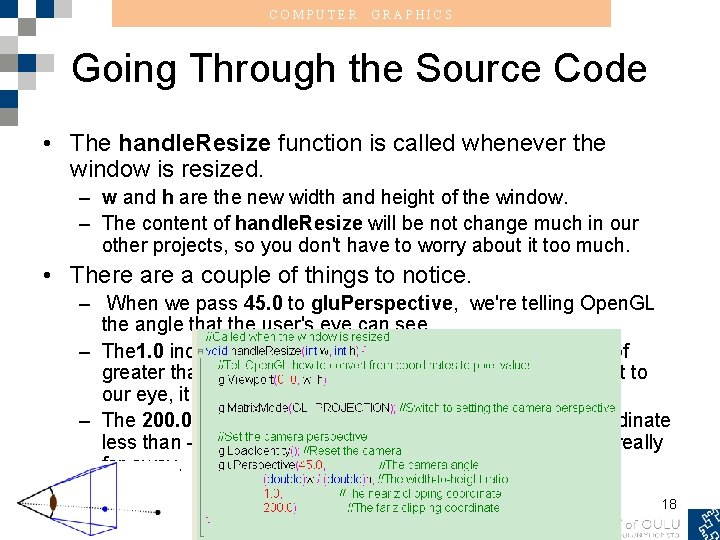
COMPUTER GRAPHICS Going Through the Source Code • The handle. Resize function is called whenever the window is resized. – w and h are the new width and height of the window. – The content of handle. Resize will be not change much in our other projects, so you don't have to worry about it too much. • There a couple of things to notice. – When we pass 45. 0 to glu. Perspective, we're telling Open. GL the angle that the user's eye can see. – The 1. 0 indicates not to draw anything with a z coordinate of greater than -1. This is so that when something is right next to our eye, it doesn't fill up the whole screen. – The 200. 0 tells Open. GL not to draw anything with a z coordinate less than -200. We don't care very much about stuff that's really far away. Jie chen 18
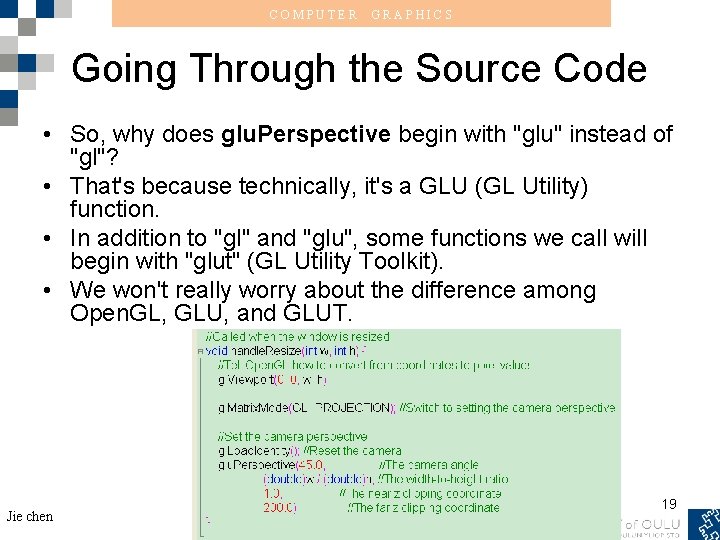
COMPUTER GRAPHICS Going Through the Source Code • So, why does glu. Perspective begin with "glu" instead of "gl"? • That's because technically, it's a GLU (GL Utility) function. • In addition to "gl" and "glu", some functions we call will begin with "glut" (GL Utility Toolkit). • We won't really worry about the difference among Open. GL, GLU, and GLUT. Jie chen 19
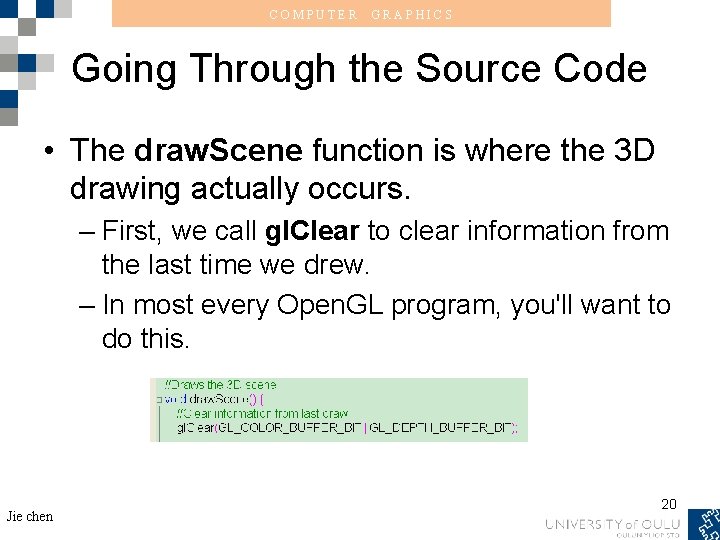
COMPUTER GRAPHICS Going Through the Source Code • The draw. Scene function is where the 3 D drawing actually occurs. – First, we call gl. Clear to clear information from the last time we drew. – In most every Open. GL program, you'll want to do this. Jie chen 20
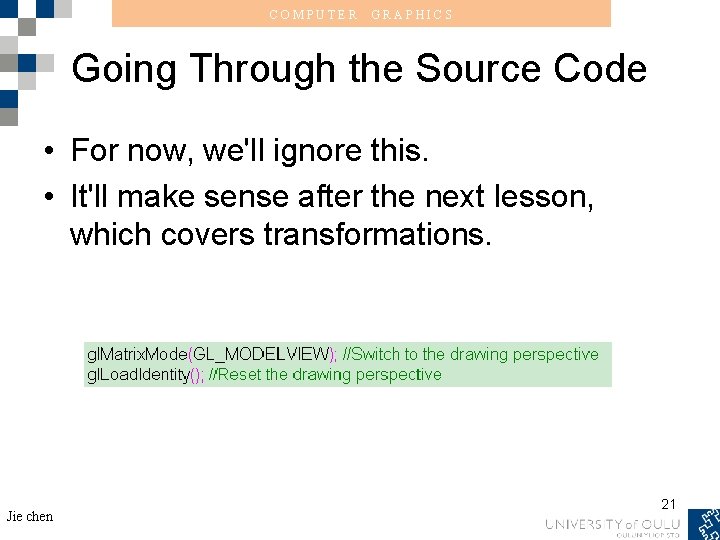
COMPUTER GRAPHICS Going Through the Source Code • For now, we'll ignore this. • It'll make sense after the next lesson, which covers transformations. Jie chen 21
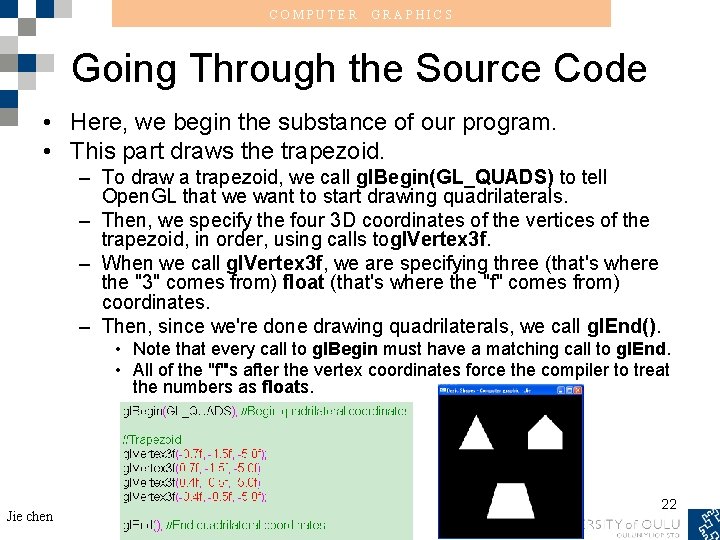
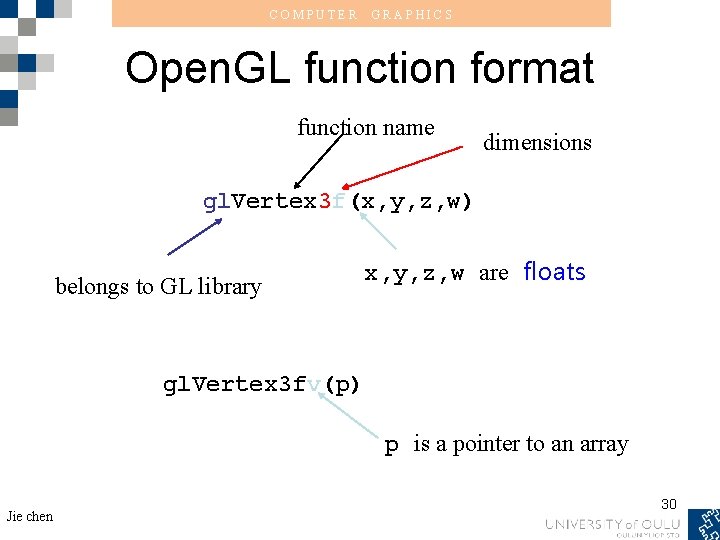
COMPUTER GRAPHICS Going Through the Source Code • Here, we begin the substance of our program. • This part draws the trapezoid. – To draw a trapezoid, we call gl. Begin(GL_QUADS) to tell Open. GL that we want to start drawing quadrilaterals. – Then, we specify the four 3 D coordinates of the vertices of the trapezoid, in order, using calls togl. Vertex 3 f. – When we call gl. Vertex 3 f, we are specifying three (that's where the "3" comes from) float (that's where the "f" comes from) coordinates. – Then, since we're done drawing quadrilaterals, we call gl. End(). • Note that every call to gl. Begin must have a matching call to gl. End. • All of the "f"'s after the vertex coordinates force the compiler to treat the numbers as floats. Jie chen 22
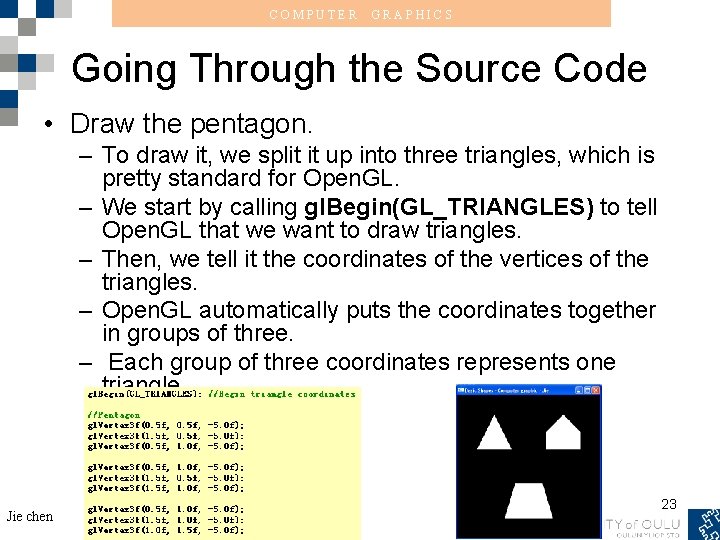
COMPUTER GRAPHICS Going Through the Source Code • Draw the pentagon. – To draw it, we split it up into three triangles, which is pretty standard for Open. GL. – We start by calling gl. Begin(GL_TRIANGLES) to tell Open. GL that we want to draw triangles. – Then, we tell it the coordinates of the vertices of the triangles. – Open. GL automatically puts the coordinates together in groups of three. – Each group of three coordinates represents one triangle. Jie chen 23
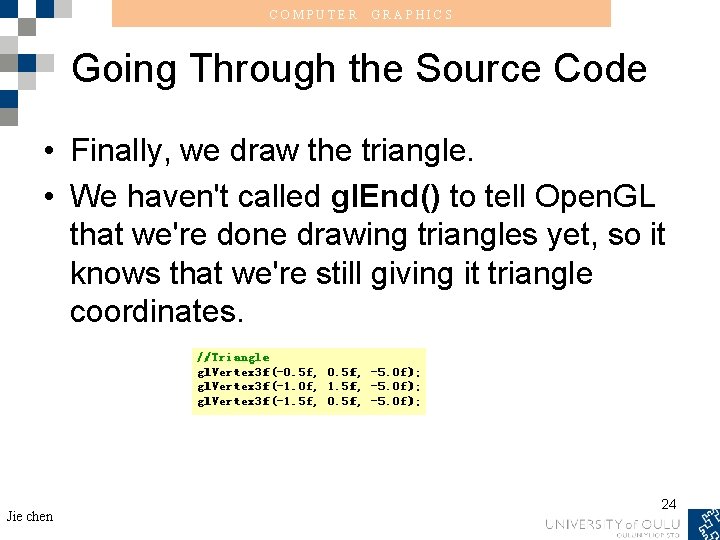
COMPUTER GRAPHICS Going Through the Source Code • Finally, we draw the triangle. • We haven't called gl. End() to tell Open. GL that we're done drawing triangles yet, so it knows that we're still giving it triangle coordinates. Jie chen 24
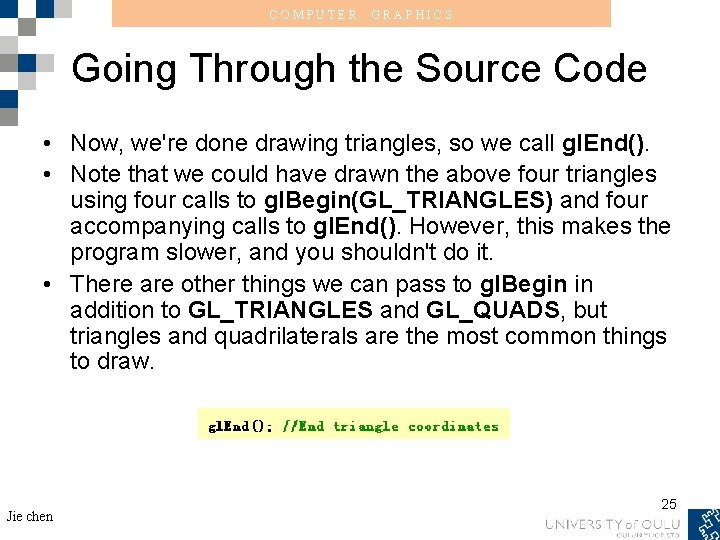
COMPUTER GRAPHICS Going Through the Source Code • Now, we're done drawing triangles, so we call gl. End(). • Note that we could have drawn the above four triangles using four calls to gl. Begin(GL_TRIANGLES) and four accompanying calls to gl. End(). However, this makes the program slower, and you shouldn't do it. • There are other things we can pass to gl. Begin in addition to GL_TRIANGLES and GL_QUADS, but triangles and quadrilaterals are the most common things to draw. Jie chen 25
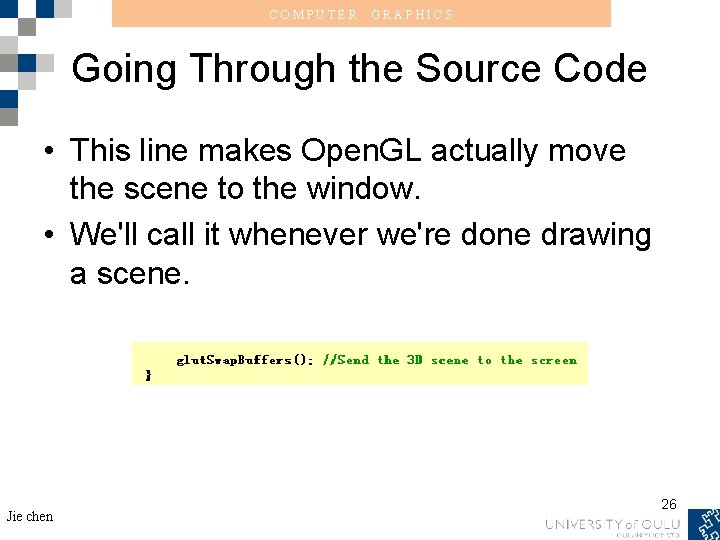
COMPUTER GRAPHICS Going Through the Source Code • This line makes Open. GL actually move the scene to the window. • We'll call it whenever we're done drawing a scene. Jie chen 26
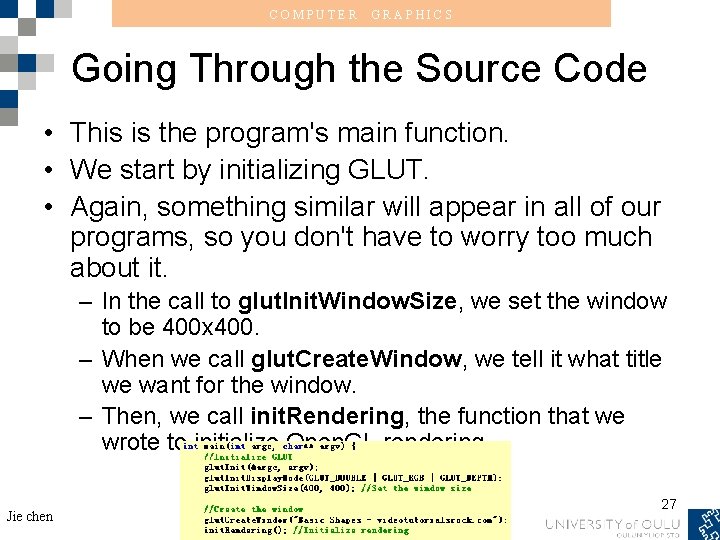
COMPUTER GRAPHICS Going Through the Source Code • This is the program's main function. • We start by initializing GLUT. • Again, something similar will appear in all of our programs, so you don't have to worry too much about it. – In the call to glut. Init. Window. Size, we set the window to be 400 x 400. – When we call glut. Create. Window, we tell it what title we want for the window. – Then, we call init. Rendering, the function that we wrote to initialize Open. GL rendering. Jie chen 27
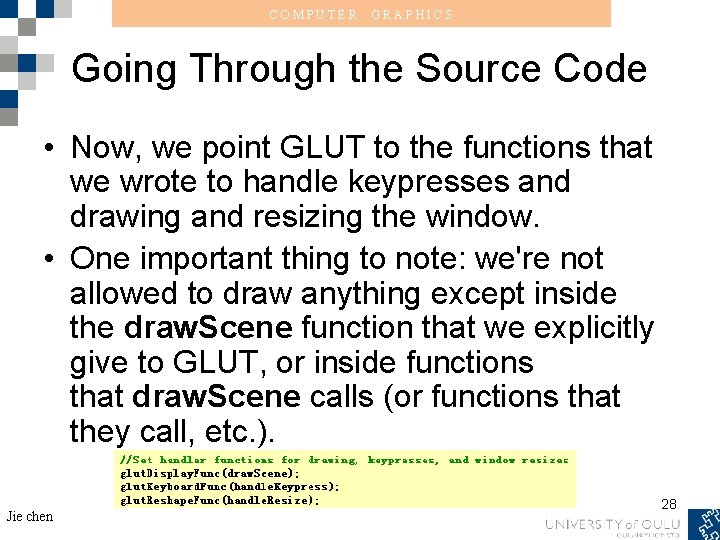
COMPUTER GRAPHICS Going Through the Source Code • Now, we point GLUT to the functions that we wrote to handle keypresses and drawing and resizing the window. • One important thing to note: we're not allowed to draw anything except inside the draw. Scene function that we explicitly give to GLUT, or inside functions that draw. Scene calls (or functions that they call, etc. ). Jie chen 28
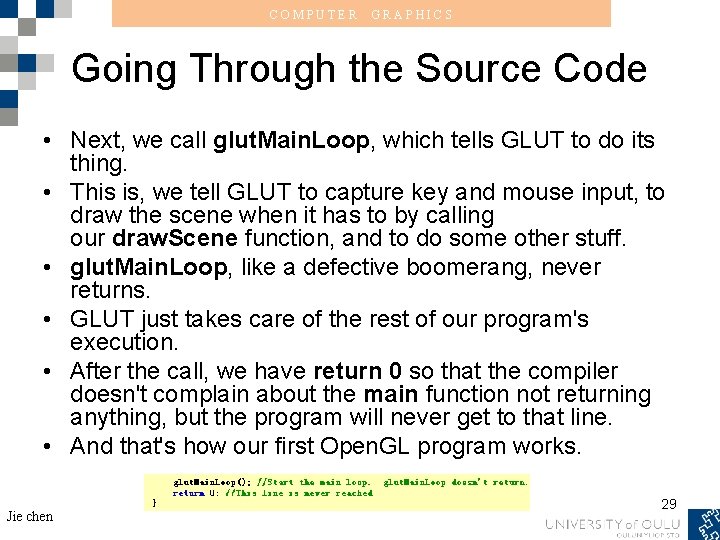
COMPUTER GRAPHICS Going Through the Source Code • Next, we call glut. Main. Loop, which tells GLUT to do its thing. • This is, we tell GLUT to capture key and mouse input, to draw the scene when it has to by calling our draw. Scene function, and to do some other stuff. • glut. Main. Loop, like a defective boomerang, never returns. • GLUT just takes care of the rest of our program's execution. • After the call, we have return 0 so that the compiler doesn't complain about the main function not returning anything, but the program will never get to that line. • And that's how our first Open. GL program works. Jie chen 29
COMPUTER GRAPHICS Open. GL function format function name dimensions gl. Vertex 3 f(x, y, z, w) belongs to GL library x, y, z, w are floats gl. Vertex 3 fv(p) p is a pointer to an array Jie chen 30
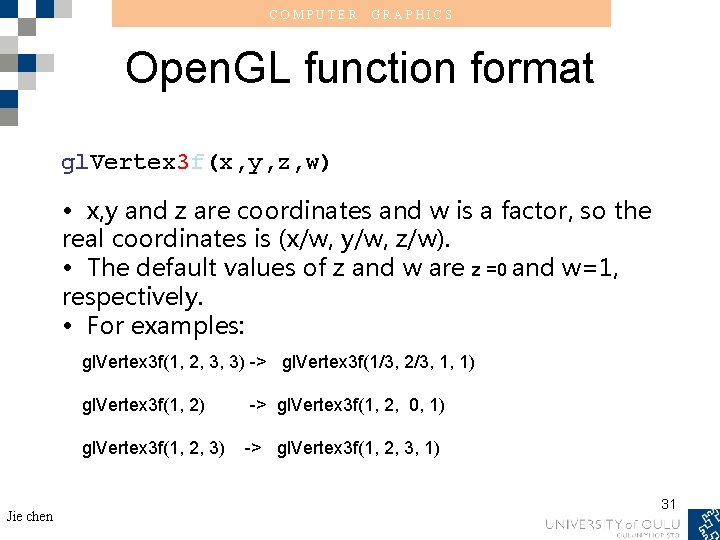
COMPUTER GRAPHICS Open. GL function format gl. Vertex 3 f(x, y, z, w) • x, y and z are coordinates and w is a factor, so the real coordinates is (x/w, y/w, z/w). • The default values of z and w are z =0 and w=1, respectively. • For examples: gl. Vertex 3 f(1, 2, 3, 3) -> gl. Vertex 3 f(1/3, 2/3, 1, 1) gl. Vertex 3 f(1, 2) -> gl. Vertex 3 f(1, 2, 0, 1) gl. Vertex 3 f(1, 2, 3) -> gl. Vertex 3 f(1, 2, 3, 1) Jie chen 31
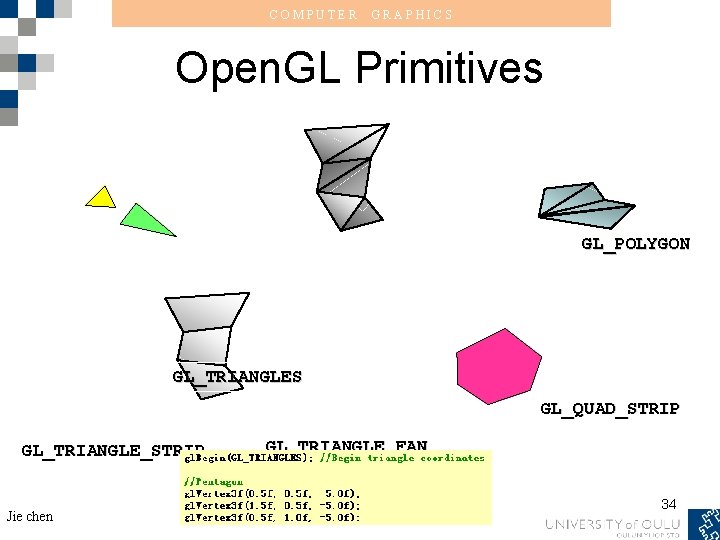
COMPUTER GRAPHICS Open. GL Primitives gl. Vertex 3 f(x, y, z) Jie chen 32
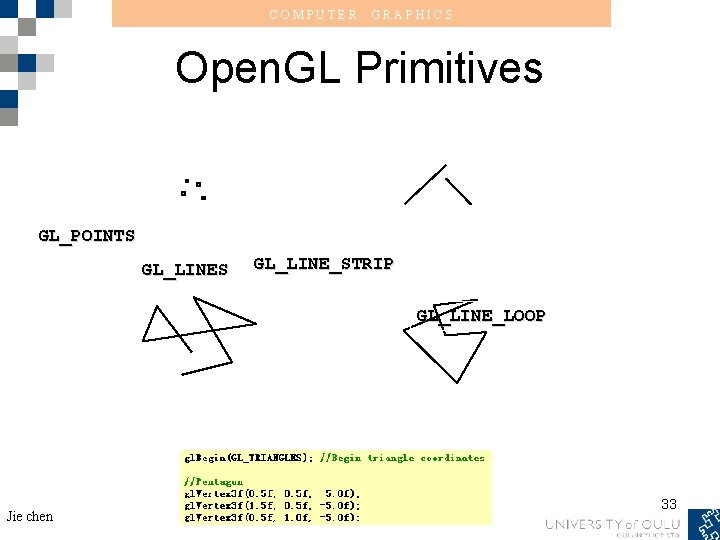
COMPUTER GRAPHICS Open. GL Primitives GL_POINTS GL_LINE_STRIP GL_LINE_LOOP Jie chen 33
COMPUTER GRAPHICS Open. GL Primitives GL_POLYGON GL_TRIANGLES GL_QUAD_STRIP GL_TRIANGLE_STRIP Jie chen GL_TRIANGLE_FAN 34
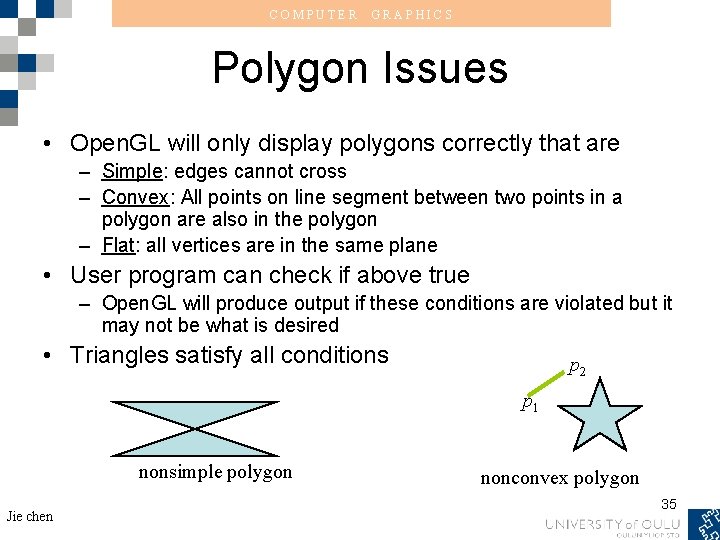
COMPUTER GRAPHICS Polygon Issues • Open. GL will only display polygons correctly that are – Simple: edges cannot cross – Convex: All points on line segment between two points in a polygon are also in the polygon – Flat: all vertices are in the same plane • User program can check if above true – Open. GL will produce output if these conditions are violated but it may not be what is desired • Triangles satisfy all conditions p 2 p 1 nonsimple polygon Jie chen nonconvex polygon 35
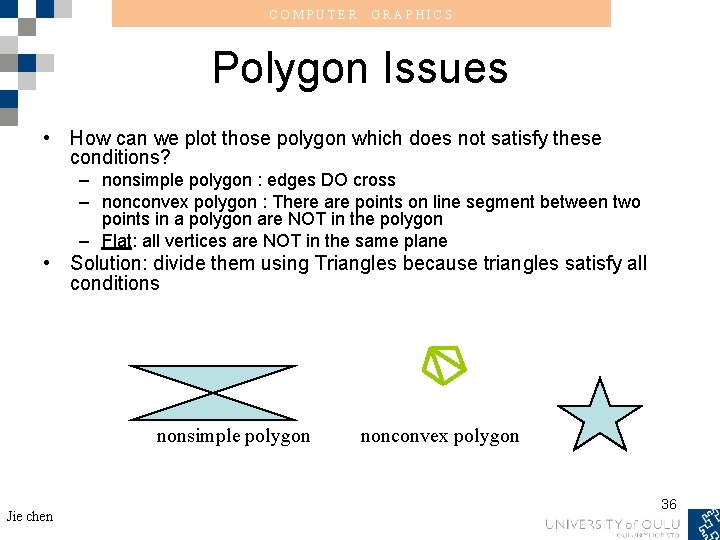
COMPUTER GRAPHICS Polygon Issues • How can we plot those polygon which does not satisfy these conditions? – nonsimple polygon : edges DO cross – nonconvex polygon : There are points on line segment between two points in a polygon are NOT in the polygon – Flat: all vertices are NOT in the same plane • Solution: divide them using Triangles because triangles satisfy all conditions nonsimple polygon Jie chen nonconvex polygon 36
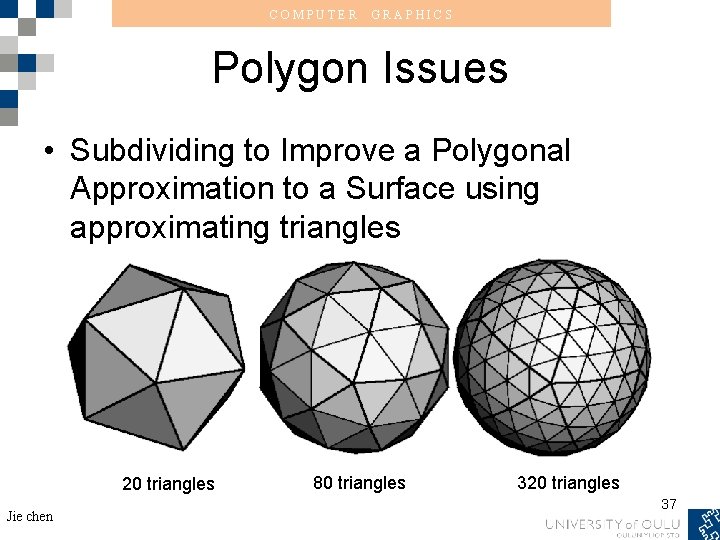
COMPUTER GRAPHICS Polygon Issues • Subdividing to Improve a Polygonal Approximation to a Surface using approximating triangles 20 triangles Jie chen 80 triangles 320 triangles 37
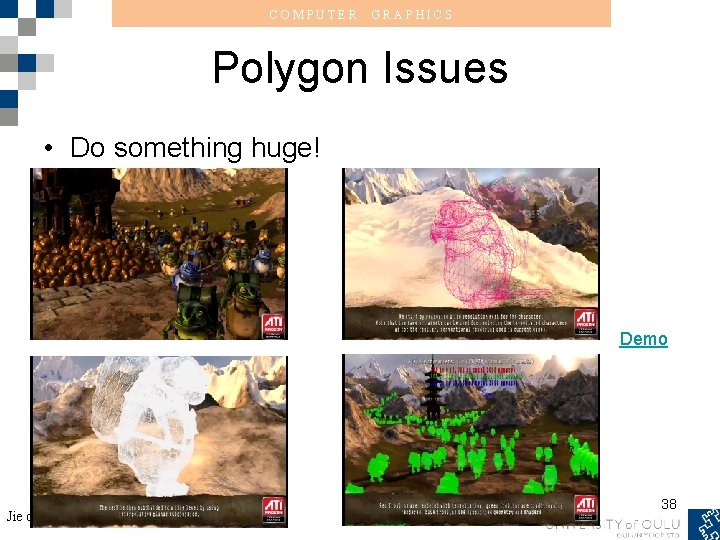
COMPUTER GRAPHICS Polygon Issues • Do something huge! Demo Jie chen 38
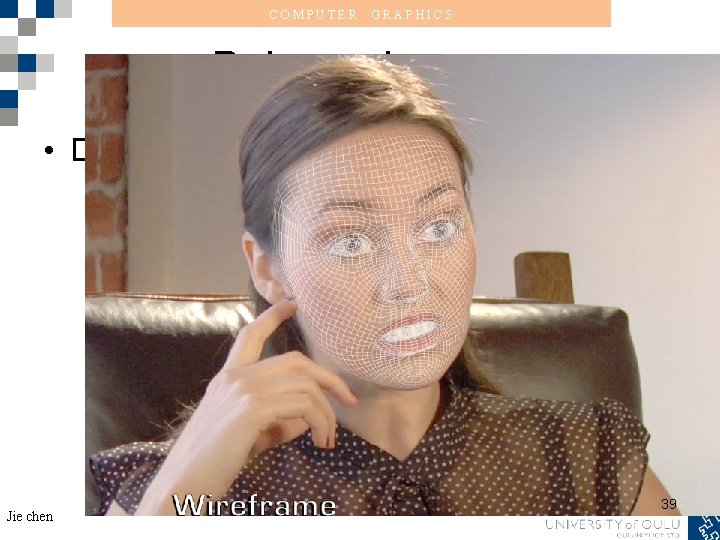
COMPUTER GRAPHICS Polygon Issues • Do something huge! Jie chen 39
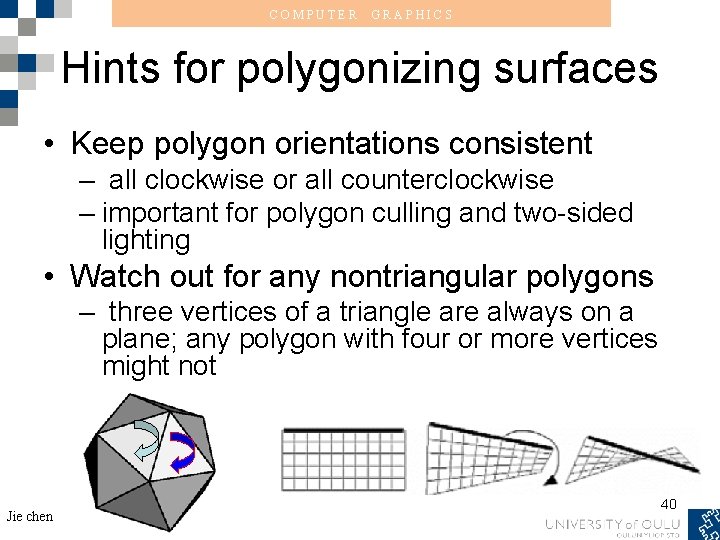
COMPUTER GRAPHICS Hints for polygonizing surfaces • Keep polygon orientations consistent – all clockwise or all counterclockwise – important for polygon culling and two-sided lighting • Watch out for any nontriangular polygons – three vertices of a triangle are always on a plane; any polygon with four or more vertices might not Jie chen 40
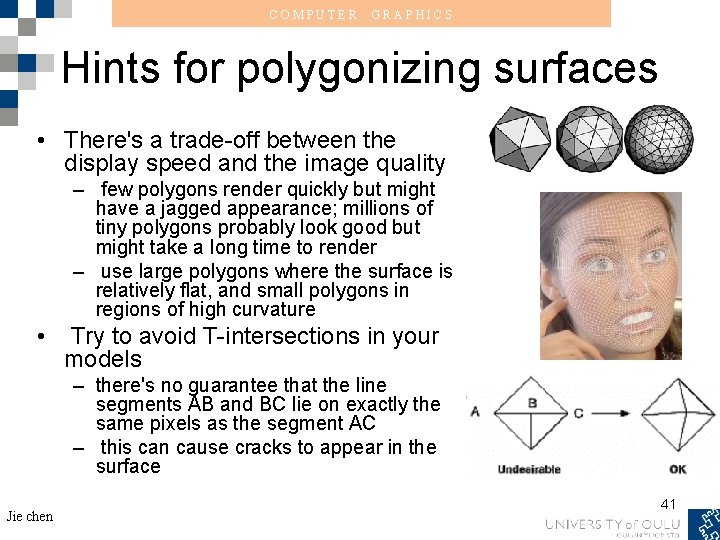
COMPUTER GRAPHICS Hints for polygonizing surfaces • There's a trade-off between the display speed and the image quality – few polygons render quickly but might have a jagged appearance; millions of tiny polygons probably look good but might take a long time to render – use large polygons where the surface is relatively flat, and small polygons in regions of high curvature • Try to avoid T-intersections in your models – there's no guarantee that the line segments AB and BC lie on exactly the same pixels as the segment AC – this can cause cracks to appear in the surface Jie chen 41
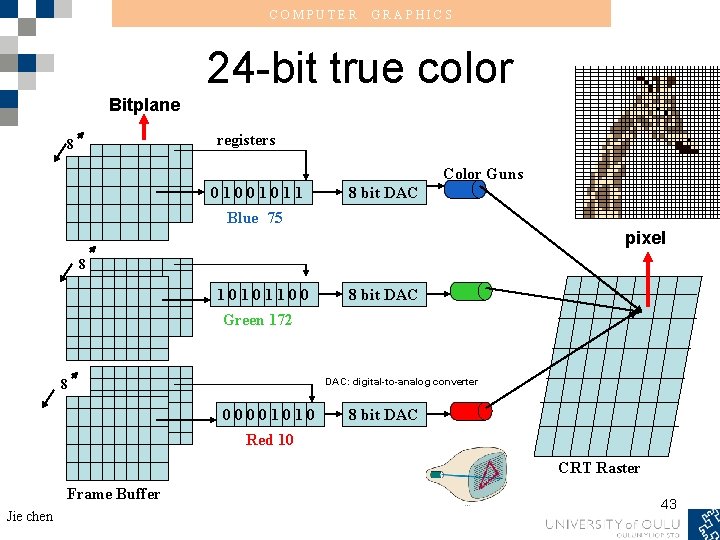
COMPUTER GRAPHICS Some terms • Rendering: the process by which a computer creates images from models. • models, or objects: constructed from geometric primitives - points, lines, and polygons - that are specified by their vertices. • pixel: the smallest visible element the display hardware can put on the screen. The final rendered image consists of pixels drawn on the screen. • Bitplane: an area of memory that holds one bit of information (for instance, what color it is supposed to be) for every pixel on the screen. • framebuffer : Organized by the bitplanes. It holds all the information that the graphics display needs to control the color and intensity of all the pixels on the screen. Jie chen 42
COMPUTER GRAPHICS 24 -bit true color Bitplane registers 8 Color Guns 01001011 8 bit DAC Blue 75 pixel 8 10101100 8 bit DAC Green 172 DAC: digital-to-analog converter 8 00001010 8 bit DAC Red 10 CRT Raster Frame Buffer Jie chen 43
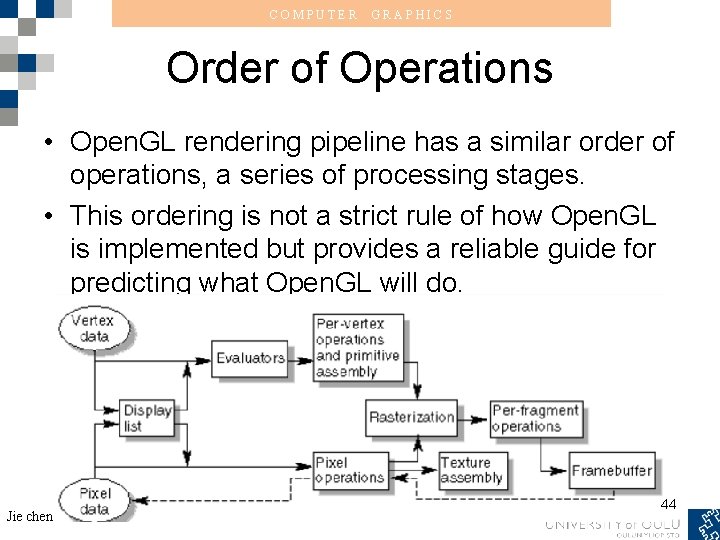
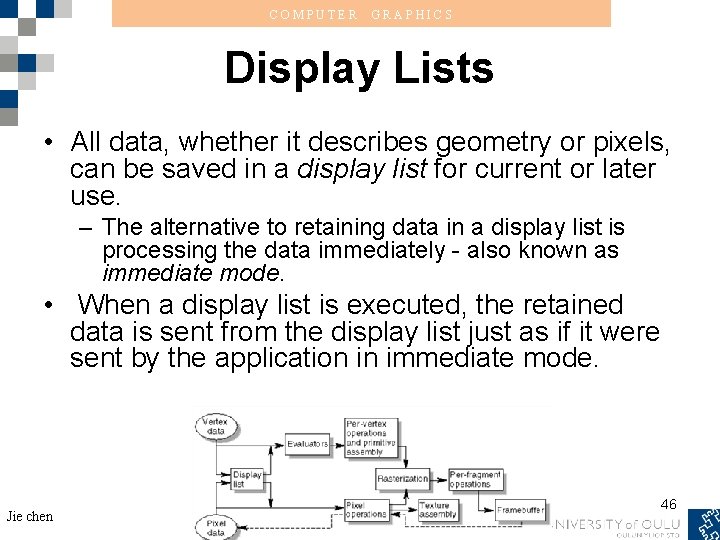
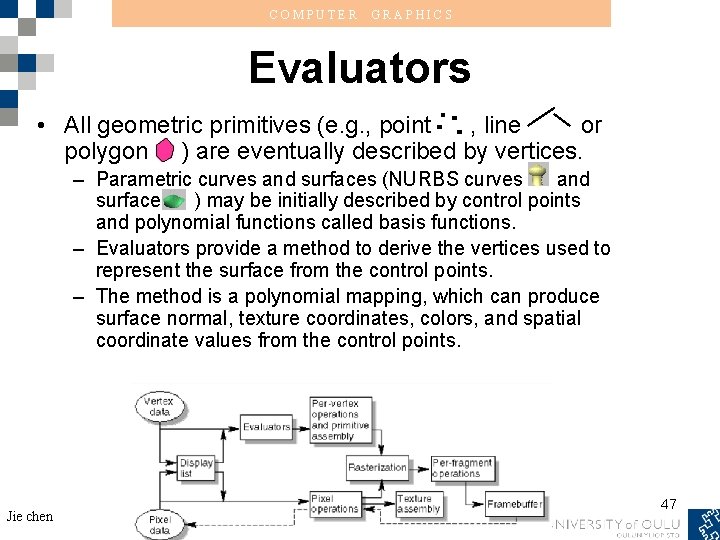
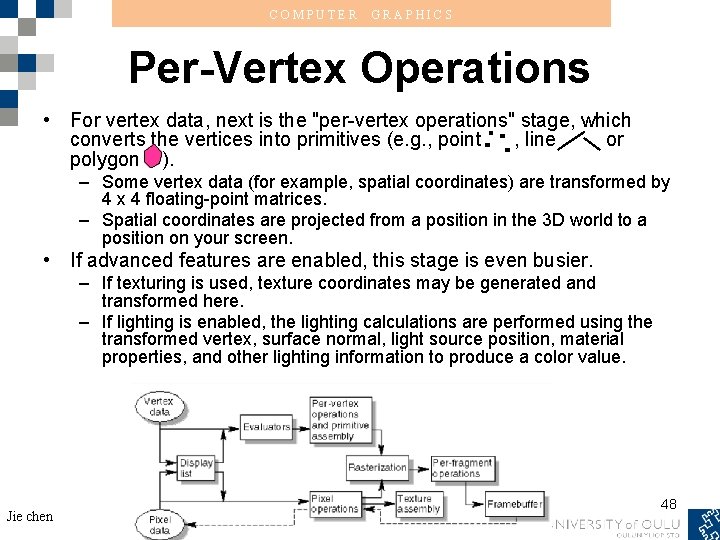
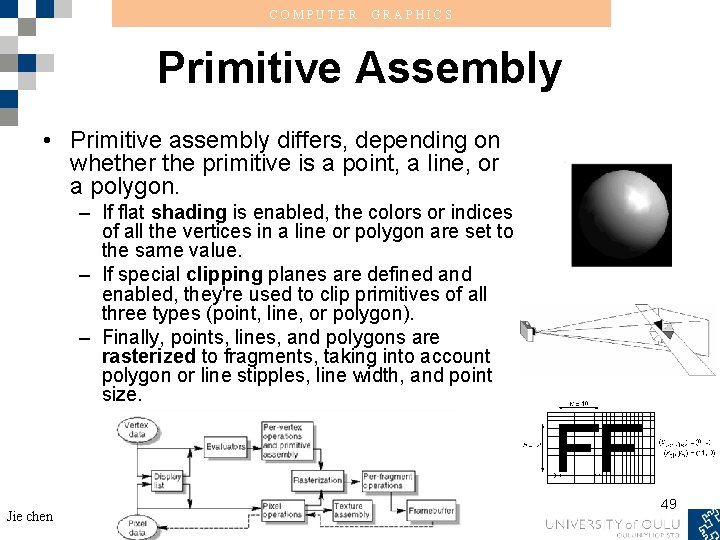
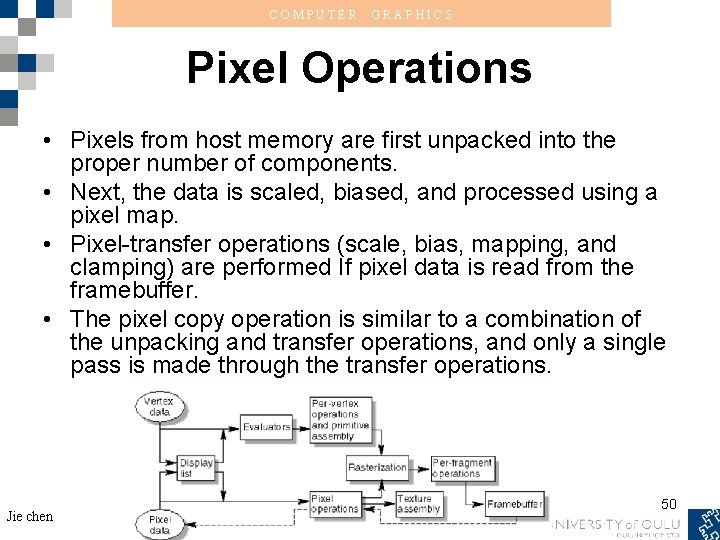
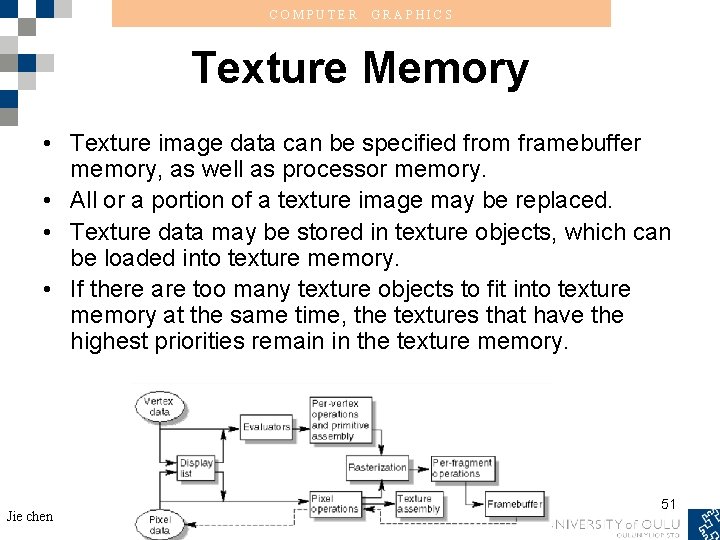
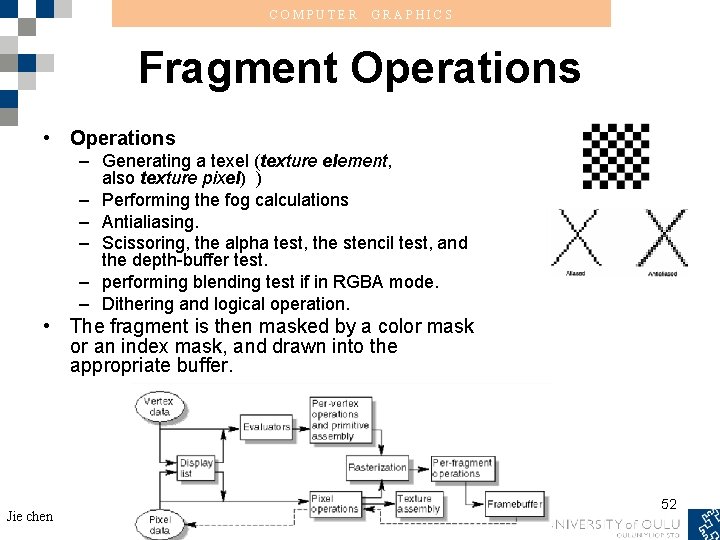
COMPUTER GRAPHICS Order of Operations • Open. GL rendering pipeline has a similar order of operations, a series of processing stages. • This ordering is not a strict rule of how Open. GL is implemented but provides a reliable guide for predicting what Open. GL will do. Jie chen 44
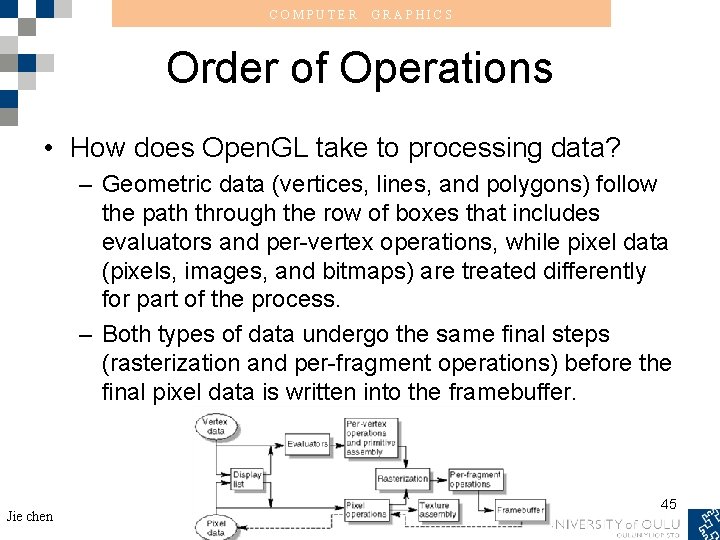
COMPUTER GRAPHICS Order of Operations • How does Open. GL take to processing data? – Geometric data (vertices, lines, and polygons) follow the path through the row of boxes that includes evaluators and per-vertex operations, while pixel data (pixels, images, and bitmaps) are treated differently for part of the process. – Both types of data undergo the same final steps (rasterization and per-fragment operations) before the final pixel data is written into the framebuffer. Jie chen 45
COMPUTER GRAPHICS Display Lists • All data, whether it describes geometry or pixels, can be saved in a display list for current or later use. – The alternative to retaining data in a display list is processing the data immediately - also known as immediate mode. • When a display list is executed, the retained data is sent from the display list just as if it were sent by the application in immediate mode. Jie chen 46
COMPUTER GRAPHICS Evaluators • All geometric primitives (e. g. , point , line or polygon ) are eventually described by vertices. – Parametric curves and surfaces (NURBS curves and surface ) may be initially described by control points and polynomial functions called basis functions. – Evaluators provide a method to derive the vertices used to represent the surface from the control points. – The method is a polynomial mapping, which can produce surface normal, texture coordinates, colors, and spatial coordinate values from the control points. Jie chen 47
COMPUTER GRAPHICS Per-Vertex Operations • For vertex data, next is the "per-vertex operations" stage, which converts the vertices into primitives (e. g. , point , line or polygon ). – Some vertex data (for example, spatial coordinates) are transformed by 4 x 4 floating-point matrices. – Spatial coordinates are projected from a position in the 3 D world to a position on your screen. • If advanced features are enabled, this stage is even busier. – If texturing is used, texture coordinates may be generated and transformed here. – If lighting is enabled, the lighting calculations are performed using the transformed vertex, surface normal, light source position, material properties, and other lighting information to produce a color value. Jie chen 48
COMPUTER GRAPHICS Primitive Assembly • Primitive assembly differs, depending on whether the primitive is a point, a line, or a polygon. – If flat shading is enabled, the colors or indices of all the vertices in a line or polygon are set to the same value. – If special clipping planes are defined and enabled, they're used to clip primitives of all three types (point, line, or polygon). – Finally, points, lines, and polygons are rasterized to fragments, taking into account polygon or line stipples, line width, and point size. Jie chen 49
COMPUTER GRAPHICS Pixel Operations • Pixels from host memory are first unpacked into the proper number of components. • Next, the data is scaled, biased, and processed using a pixel map. • Pixel-transfer operations (scale, bias, mapping, and clamping) are performed If pixel data is read from the framebuffer. • The pixel copy operation is similar to a combination of the unpacking and transfer operations, and only a single pass is made through the transfer operations. Jie chen 50
COMPUTER GRAPHICS Texture Memory • Texture image data can be specified from framebuffer memory, as well as processor memory. • All or a portion of a texture image may be replaced. • Texture data may be stored in texture objects, which can be loaded into texture memory. • If there are too many texture objects to fit into texture memory at the same time, the textures that have the highest priorities remain in the texture memory. Jie chen 51
COMPUTER GRAPHICS Fragment Operations • Operations – Generating a texel (texture element, also texture pixel) ) – Performing the fog calculations – Antialiasing. – Scissoring, the alpha test, the stencil test, and the depth-buffer test. – performing blending test if in RGBA mode. – Dithering and logical operation. • The fragment is then masked by a color mask or an index mask, and drawn into the appropriate buffer. Jie chen 52
COMPUTER GRAPHICS Basics of GLUT Jie chen 53
COMPUTER Jie chen GRAPHICS 54
COMPUTER GRAPHICS • The end of this lecture! Jie chen 55