
Computer File Management One of the most important
- Slides: 19
Computer File Management One of the most important aspects of our job is information maintenance.
Objectives • Understand importance of file management • Be familiar with commands, tools, and resources • Apply file management techniques • Serve as resource to your local academic senate 2
What is file management? The development and maintenance of an organized and meaningful file system. 3
Why manage files? • • • Locate files quickly Keep related documents together Move groups of data easily Facilitate file sharing Backup important data quickly 4
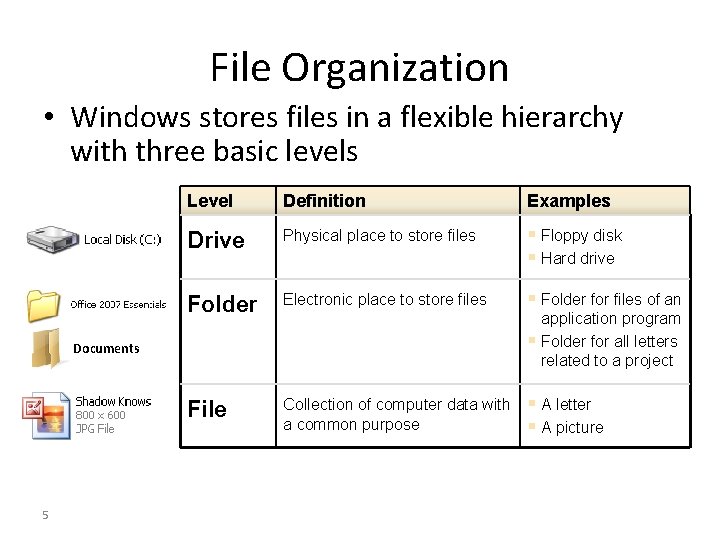
File Organization • Windows stores files in a flexible hierarchy with three basic levels Level Definition Examples Drive Physical place to store files § Floppy disk § Hard drive Folder Electronic place to store files § Folder for files of an File Collection of computer data with a common purpose application program § Folder for all letters related to a project Documents 5 § A letter § A picture
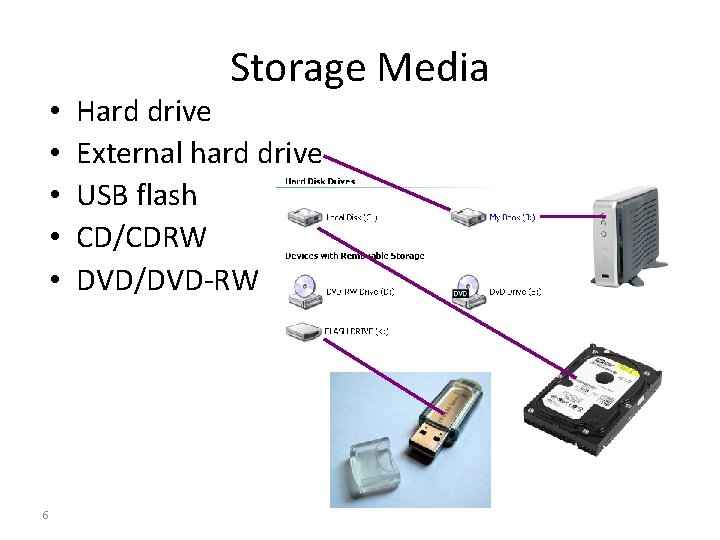
• • • 6 Storage Media Hard drive External hard drive USB flash CD/CDRW DVD/DVD-RW
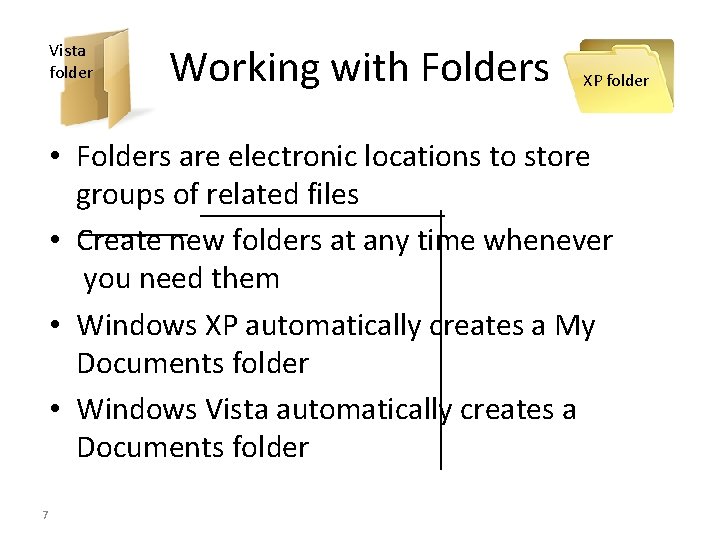
Vista folder Working with Folders XP folder • Folders are electronic locations to store groups of related files • Create new folders at any time whenever you need them • Windows XP automatically creates a My Documents folder • Windows Vista automatically creates a Documents folder 7
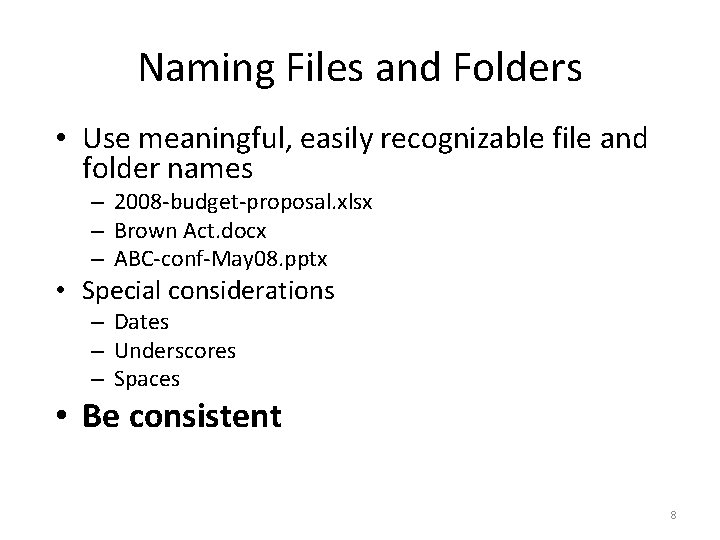
Naming Files and Folders • Use meaningful, easily recognizable file and folder names – 2008 -budget-proposal. xlsx – Brown Act. docx – ABC-conf-May 08. pptx • Special considerations – Dates – Underscores – Spaces • Be consistent 8
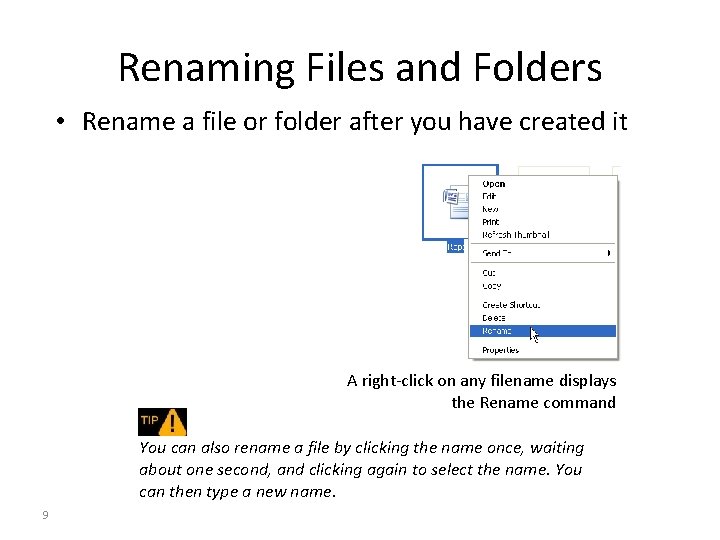
Renaming Files and Folders • Rename a file or folder after you have created it A right-click on any filename displays the Rename command You can also rename a file by clicking the name once, waiting about one second, and clicking again to select the name. You can then type a new name. 9
Organizing Files and Folders • • Group files and folders Name each group Create and delete folders Move files and folders 10
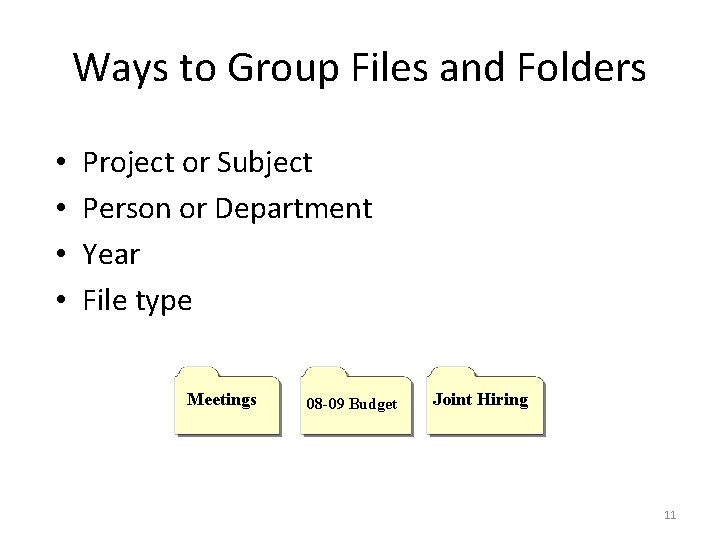
Ways to Group Files and Folders • • Project or Subject Person or Department Year File type Meetings 08 -09 Budget Joint Hiring 11
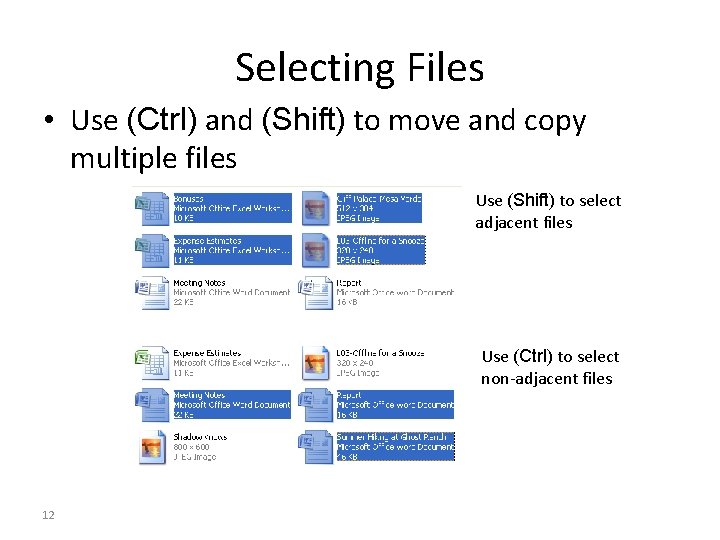
Selecting Files • Use (Ctrl) and (Shift) to move and copy multiple files Use (Shift) to select adjacent files Use (Ctrl) to select non-adjacent files 12
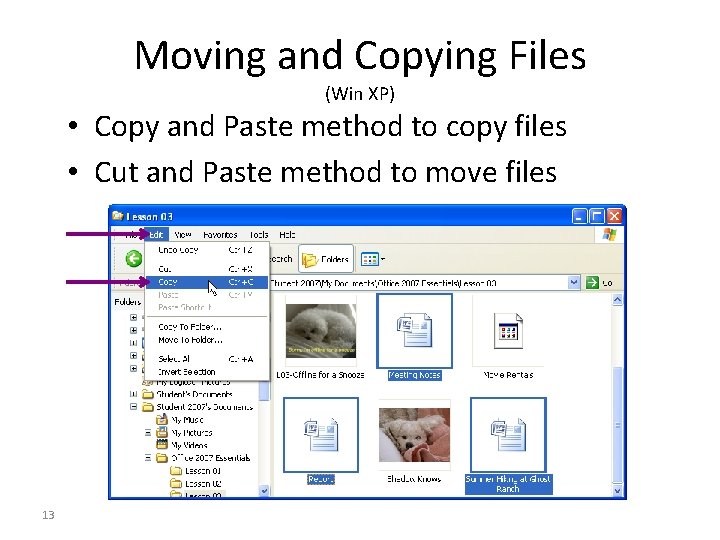
Moving and Copying Files (Win XP) • Copy and Paste method to copy files • Cut and Paste method to move files 13
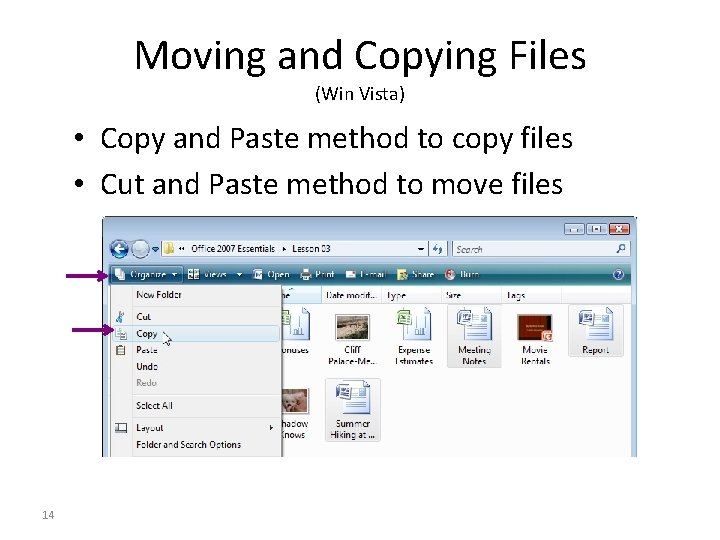
Moving and Copying Files (Win Vista) • Copy and Paste method to copy files • Cut and Paste method to move files 14
Maintaining Structure • Re-identify – Find and move floating files – Rename files and folders • Re-organize – Re-group files and folders – Sub-divide folders 15
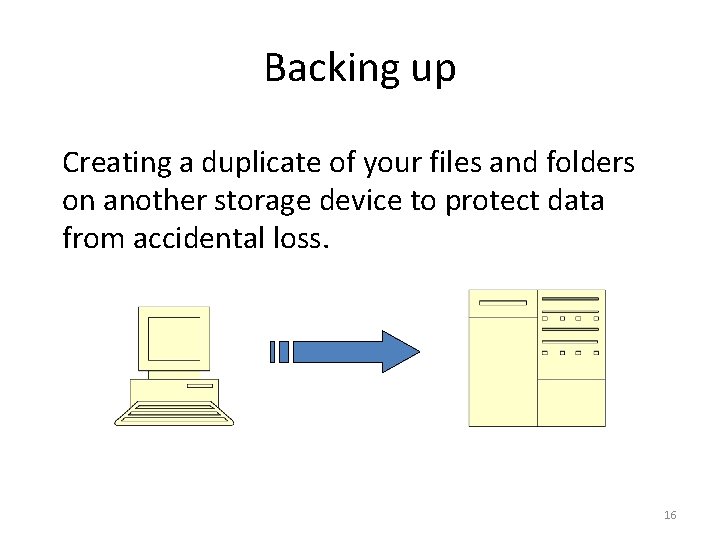
Backing up Creating a duplicate of your files and folders on another storage device to protect data from accidental loss. 16
Backup Tips • Back-up regularly and frequently • Back-up data, not applications • Save data files and folders in My Documents (Windows XP) or Documents (Vista) – Then you just have to backup that one folder • Test back-ups by restoring – Test to make sure you backups are working – Also insures you know how to do a restore and won’t fumble when under pressure 17
More Backup Tips • Automate back-ups if possible – So you don’t have to remember • Keep several iterations of back-ups – Don’t put all your eggs in one basket • Label and date back-ups – File management! • Store back-ups off-site – Never store backups with original files in case of fire, flood, etc. 18
Summary • • • Importance of file management Practical tips Storage options Maintenance Data back-up Questions? 19