
Computer Basics What is a computer An electronic
Computer Basics

What is a computer? An electronic device that manipulates information or data.

Styles of Computers PC vs. MAC Personal Computer Apple
Categories of Computers u Desktop u Laptop u Handheld – Mobile Phones (Smart Phones) – Ipads / Tablets – Gaming Consoles u Server
Basic Parts of All Computers n 1) Hardware n 2) Software
Crossword – Computer Hardware n Modem n Megahertz n Touchpad n Input n Output n Mouse n Monitor n Bit Motherboard RAM Scanner CPU Printer

Hardware Physical Parts that You Can Touch a) CPU b) Input/Output Devices c) Storage

CPU – Central Processing Unit The main processing unit of a computer or information processing device; the "brains" of the machine carrying out instructions, performing calculations, and interacting with the components used to operate the computer. Handles the fetch, decode and execute steps of the computer.

How does it work? n Fetch—Microprocessor gets a software instruction from memory telling it what to do with the data. n Decode—Microprocessor the instruction means. determines what n Execute—Microprocessor instruction. performs the
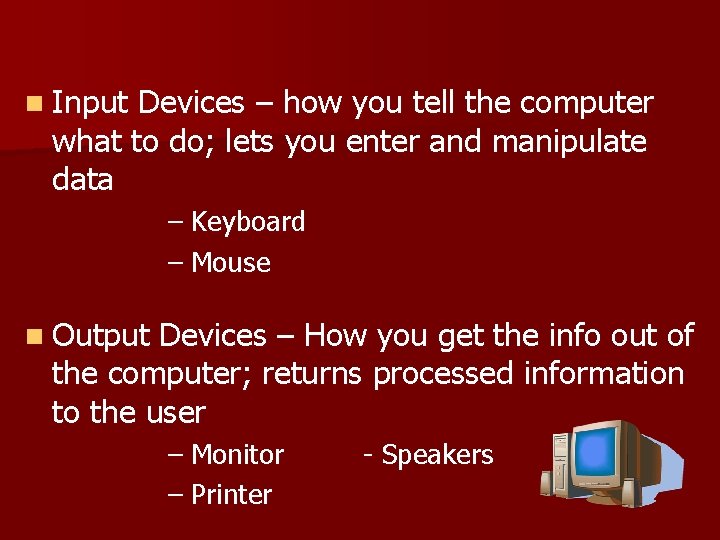
n Input Devices – how you tell the computer what to do; lets you enter and manipulate data – Keyboard – Mouse n Output Devices – How you get the info out of the computer; returns processed information to the user – Monitor – Printer - Speakers
Storage/Memory
“Storage Devices Challenge”
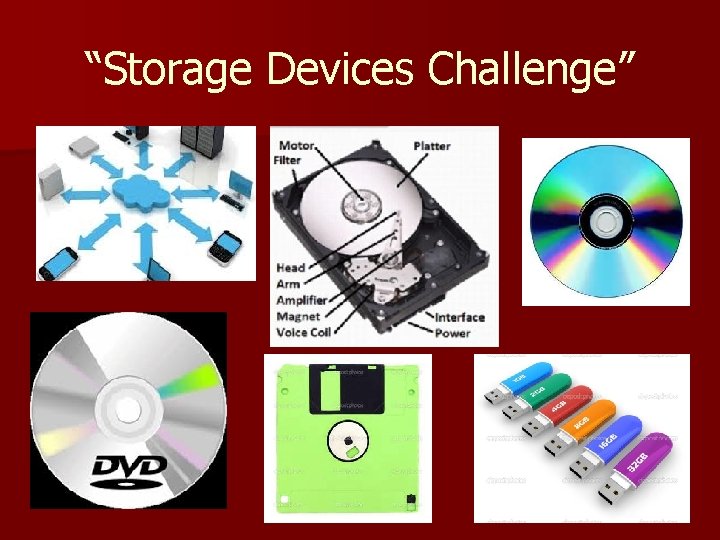
Storage Devices HARD DRIVE FLOPPY DISK CD FLASH DRIVE DVD THE CLOUD
Types of Memory n RAM – Random Access Memory – Temporary Storage/Clears when the computer is turned off n ROM – Read Only Memory – Long Term/Permanent Storage
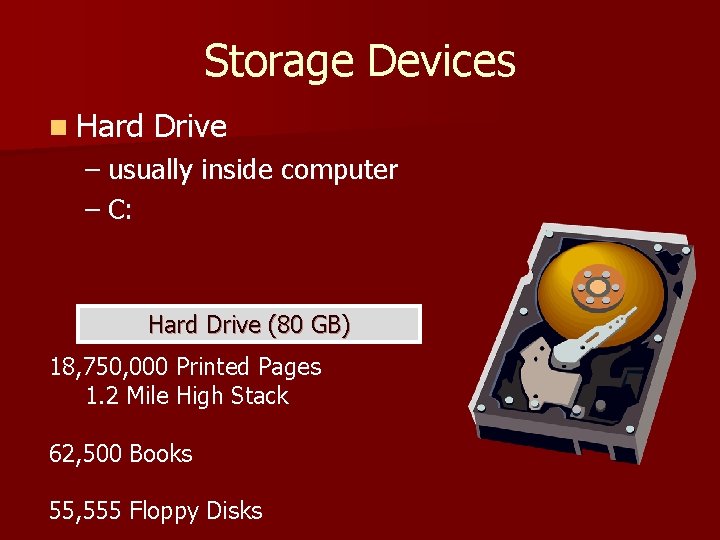
Storage Devices n Hard Drive – usually inside computer – C: Hard Drive (80 GB) 18, 750, 000 Printed Pages 1. 2 Mile High Stack 62, 500 Books 55, 555 Floppy Disks
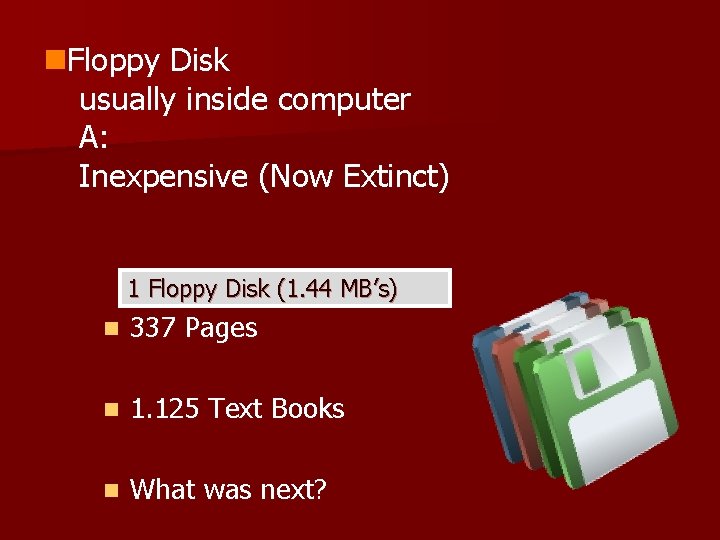
n. Floppy Disk usually inside computer A: Inexpensive (Now Extinct) 1 Floppy Disk (1. 44 MB’s) n 337 Pages n 1. 125 Text Books n What was next?
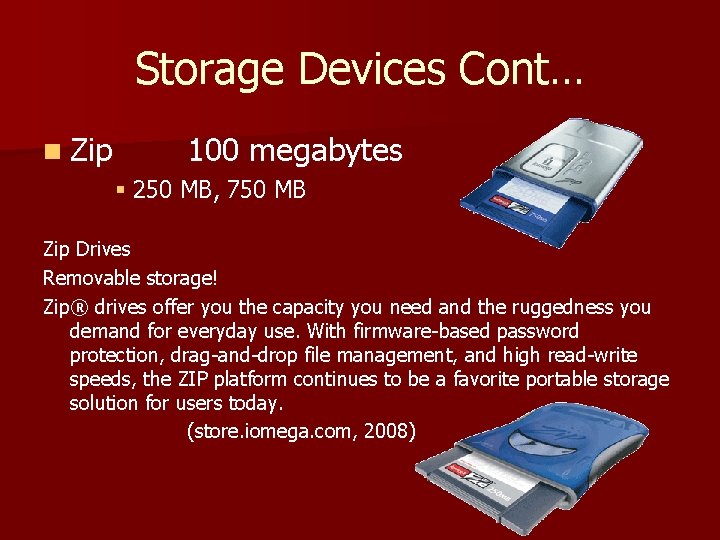
Storage Devices Cont… n Zip 100 megabytes § 250 MB, 750 MB Zip Drives Removable storage! Zip® drives offer you the capacity you need and the ruggedness you demand for everyday use. With firmware-based password protection, drag-and-drop file management, and high read-write speeds, the ZIP platform continues to be a favorite portable storage solution for users today. (store. iomega. com, 2008)
Storage Devices Cont… CD = Compact Disk n CD-ROM = Read Only Memory (music and games – no fast forward or rewind) n CD-R = Write Once Read Many (burn to cd but could not erase) n CD-RW = Rewritable (allowed consumer to burn and remove; however, quality will suffer.
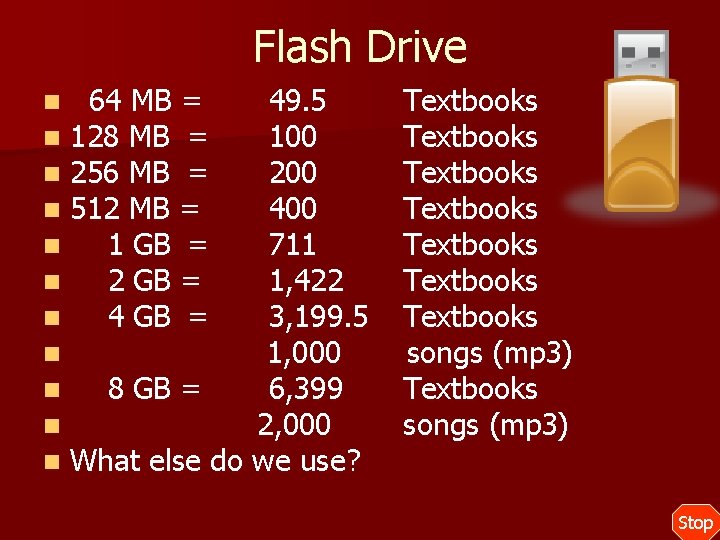
Flash Drive n n n 64 MB = 128 MB = 256 MB = 512 MB = 1 GB = 2 GB = 49. 5 100 200 400 711 1, 422 3, 199. 5 1, 000 8 GB = 6, 399 2, 000 What else do we use? Textbooks Textbooks songs (mp 3) Stop
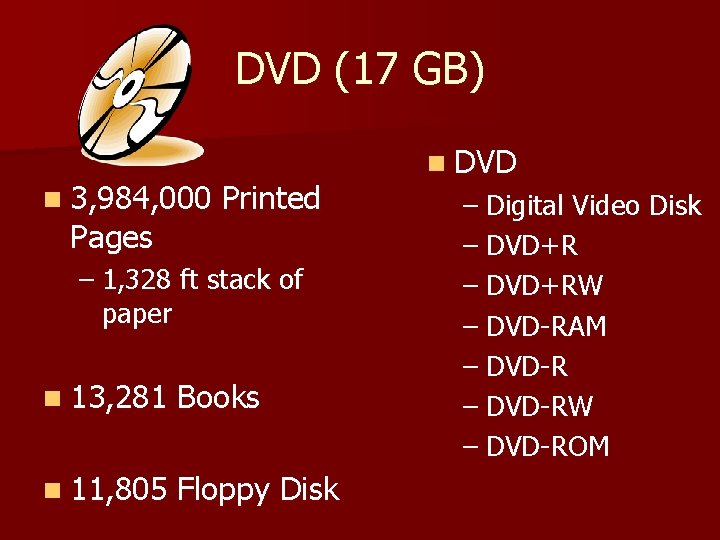
DVD (17 GB) n 3, 984, 000 Pages Printed – 1, 328 ft stack of paper n 13, 281 Books n 11, 805 Floppy Disk n DVD – Digital Video Disk – DVD+RW – DVD-RAM – DVD-RW – DVD-ROM
Storage Devices Cont… HD-DVD (http: //www. thelookandsoundofperfect. com/) vs. Blu-ray (Blu-ray. com) Both of these were great products, but someone had to win. And the winner was…… Blu-ray. It was better in quality!
Storage Devices Cont… n Ultra Violet – Digital Storage. Will cost to store. You can not physically see or touch. n The Cloud – Digital Storage. Usually, will cost the consumer.
Software n Any set of instructions that tells the hardware what to do 1) Application Software 2) Operating Software
Application Software n Word Processing – Word n Spreadsheets – Excel n Presentation – Power. Point n Databases – Access n Web Browser – Internet Explorer
An Operating System is… n The most important software that runs on a computer n Responsible for the management and coordination of activities and the sharing of the resources of the computer.
Operating Systems Cont… Most common operating systems: 1) Microsoft Windows 2) Mac OS X
Mobile Devices With Operating Systems n Apple i. OS – Smart Phones n Android - Google
What is my OS? Windows Computers n On the Desktop, locate the icon labeled "My Computer. " n Point the mouse at the icon, then click the right mouse button. n In the popup menu which appears, choose "Properties. " n After a few seconds, the System Control Panel will open. – Click the tab labeled "General. " – The version of Windows you have installed will be clearly displayed.
So why is this important? #1 – Makes your PC run better #2 – Makes sure information is secure
- Slides: 29