
Computer Basics Deena Sjoberg CIS101 Computer Information Systems
Computer Basics Deena Sjoberg CIS-101 Computer Information Systems General Education Core
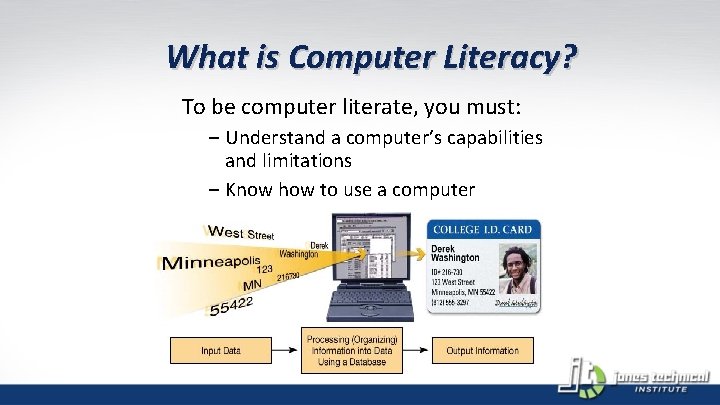
What is Computer Literacy? To be computer literate, you must: – Understand a computer’s capabilities and limitations – Know how to use a computer
• • Being a Savvy Computer User and Consumer Avoid hackers and viruses Protect your privacy Understand the real privacy and security risks Use the Internet wisely Avoid online annoyances Maintain your computer Make good purchase decisions Integrate the latest technology
Computers in Your Career? • Business • Retail • Shipping • Arts • Computer gaming • Education • Law enforcement • Legal system • Agriculture • Automotive technology • Medicine • Sciences
Computers Are Data Processing Devices A computer’s four major functions: • Gathers data (users input data) • Processes data into information • Outputs data or information • Stores data and information
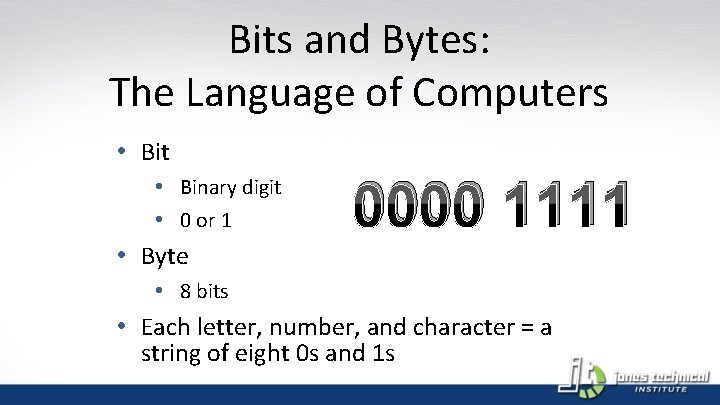
Bits and Bytes: The Language of Computers • Bit • Binary digit • 0 or 1 0000 1111 • Byte • 8 bits • Each letter, number, and character = a string of eight 0 s and 1 s
Two Major types Of Computer Software: Programs that enable hardware to perform different tasks – Application software – System software
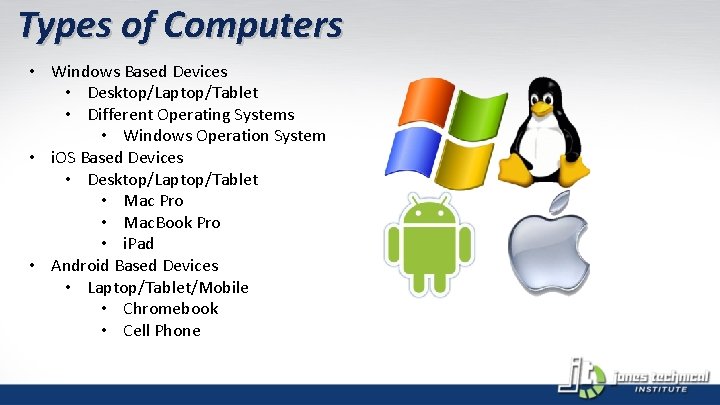
Types of Computers • Windows Based Devices • Desktop/Laptop/Tablet • Different Operating Systems • Windows Operation System • i. OS Based Devices • Desktop/Laptop/Tablet • Mac Pro • Mac. Book Pro • i. Pad • Android Based Devices • Laptop/Tablet/Mobile • Chromebook • Cell Phone
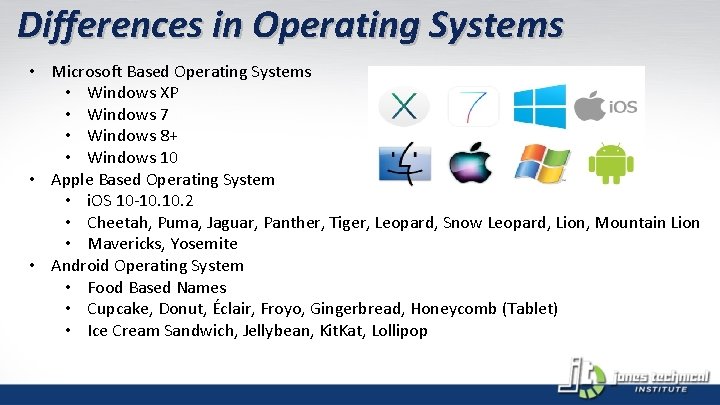
Differences in Operating Systems • Microsoft Based Operating Systems • Windows XP • Windows 7 • Windows 8+ • Windows 10 • Apple Based Operating System • i. OS 10 -10. 2 • Cheetah, Puma, Jaguar, Panther, Tiger, Leopard, Snow Leopard, Lion, Mountain Lion • Mavericks, Yosemite • Android Operating System • Food Based Names • Cupcake, Donut, Éclair, Froyo, Gingerbread, Honeycomb (Tablet) • Ice Cream Sandwich, Jellybean, Kit. Kat, Lollipop
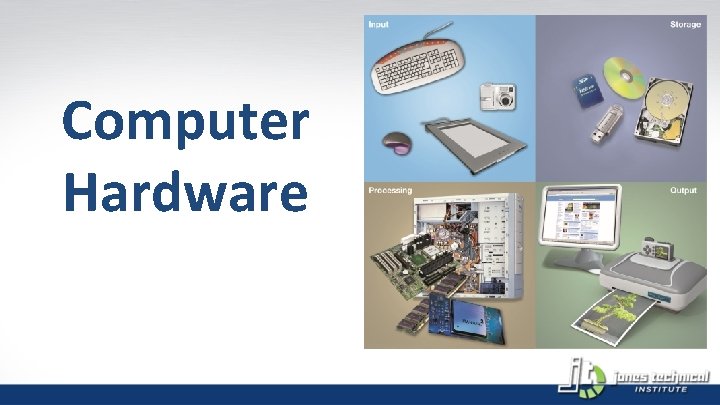
Computer Hardware
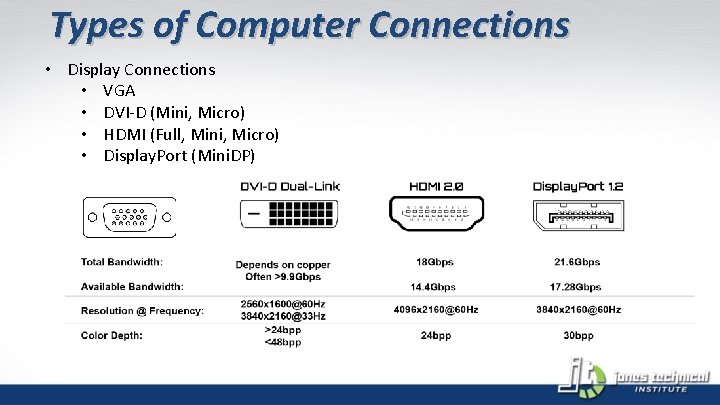
Types of Computer Connections • Display Connections • VGA • DVI-D (Mini, Micro) • HDMI (Full, Mini, Micro) • Display. Port (Mini. DP)
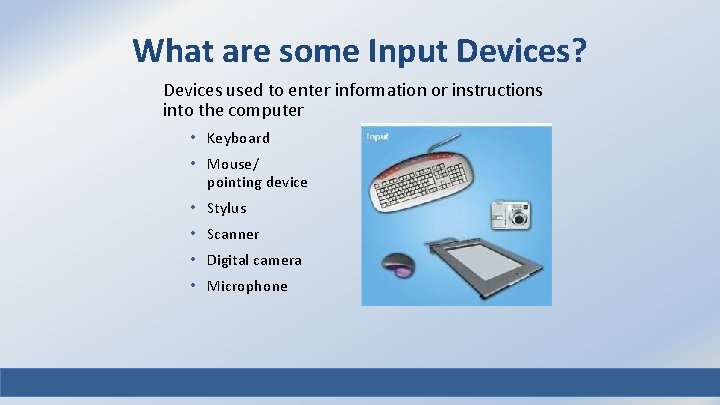
What are some Input Devices? Devices used to enter information or instructions into the computer • Keyboard • Mouse/ pointing device • Stylus • Scanner • Digital camera • Microphone
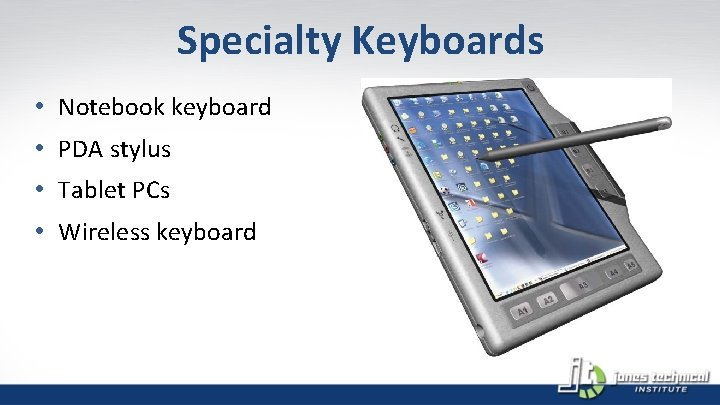
Specialty Keyboards • Notebook keyboard • PDA stylus • Tablet PCs • Wireless keyboard
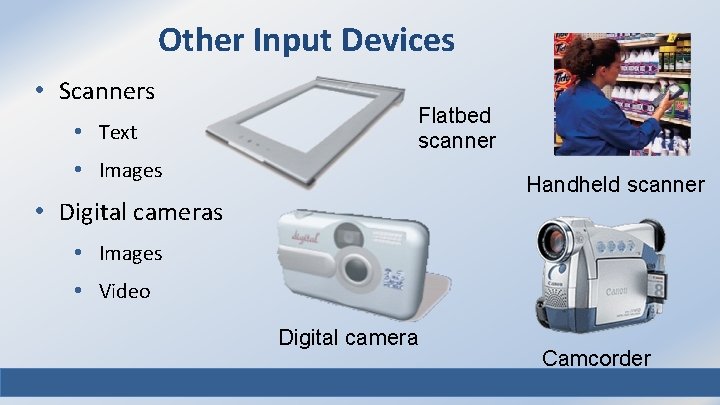
Other Input Devices • Scanners • Text Flatbed scanner • Images Handheld scanner • Digital cameras • Images • Video Digital camera Camcorder
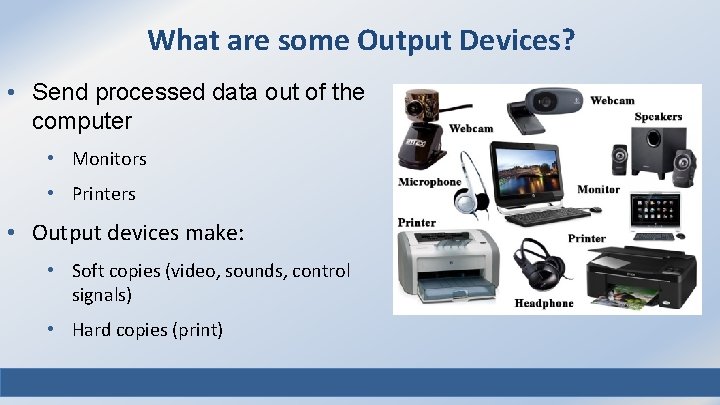
What are some Output Devices? • Send processed data out of the computer • Monitors • Printers • Output devices make: • Soft copies (video, sounds, control signals) • Hard copies (print)
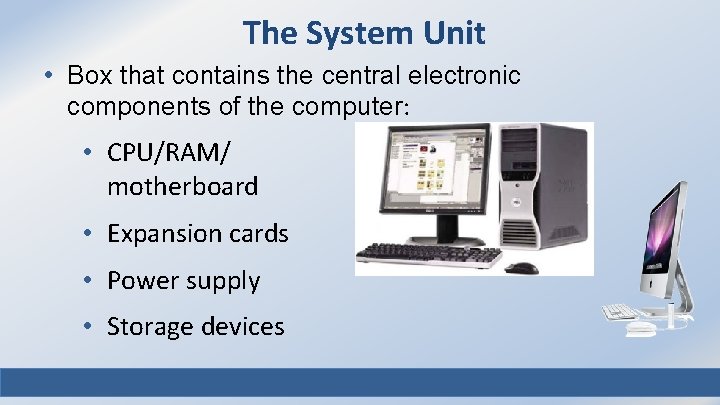
The System Unit • Box that contains the central electronic components of the computer: • CPU/RAM/ motherboard • Expansion cards • Power supply • Storage devices
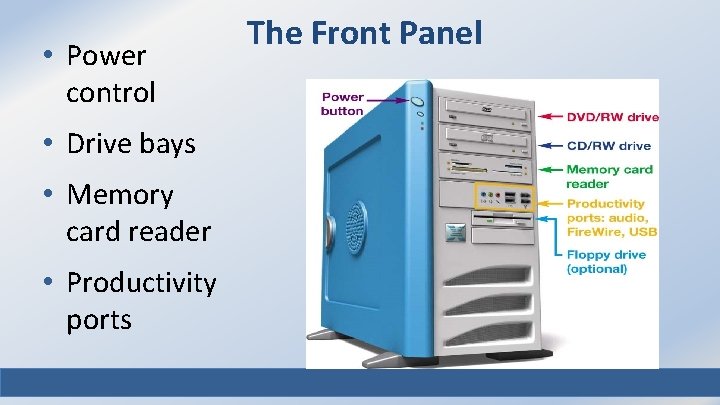
• Power control • Drive bays • Memory card reader • Productivity ports The Front Panel
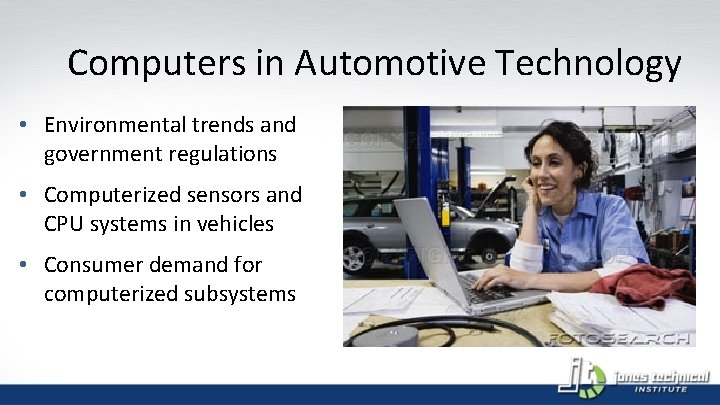
Computers in Automotive Technology • Environmental trends and government regulations • Computerized sensors and CPU systems in vehicles • Consumer demand for computerized subsystems
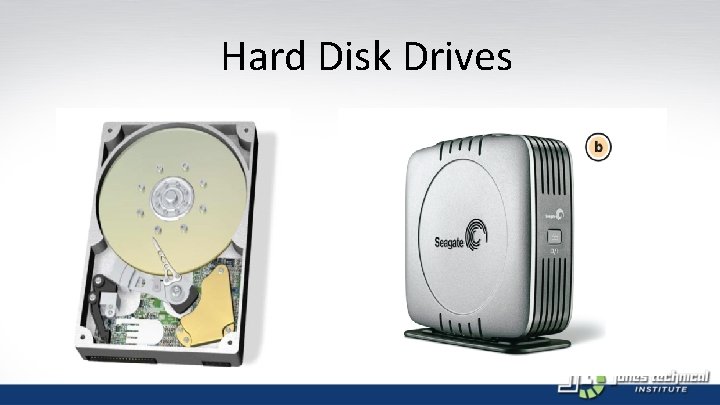
Hard Disk Drives
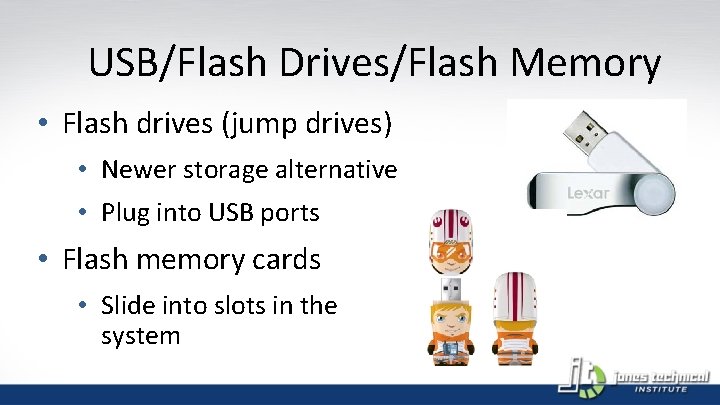
USB/Flash Drives/Flash Memory • Flash drives (jump drives) • Newer storage alternative • Plug into USB ports • Flash memory cards • Slide into slots in the system
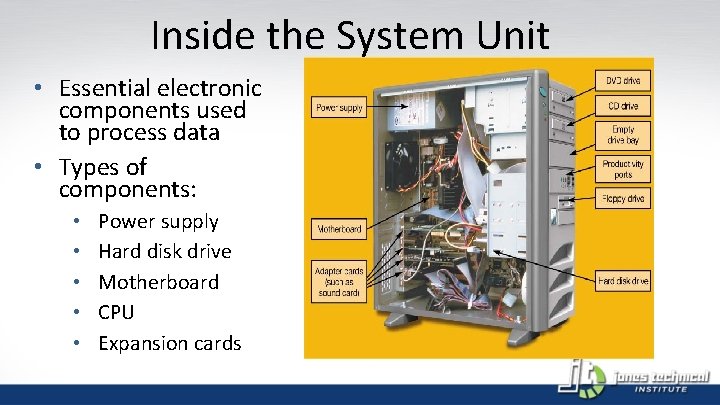
Inside the System Unit • Essential electronic components used to process data • Types of components: • • • Power supply Hard disk drive Motherboard CPU Expansion cards
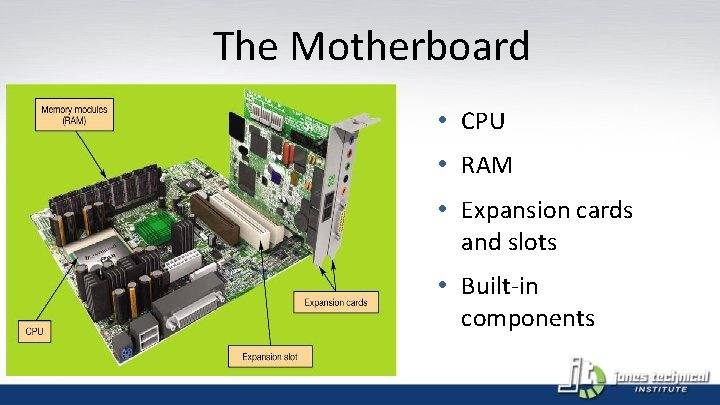
The Motherboard • CPU • RAM • Expansion cards and slots • Built-in components
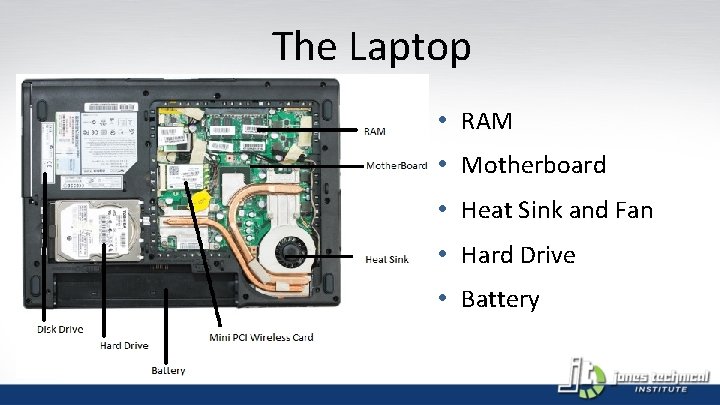
The Laptop • RAM • Motherboard • Heat Sink and Fan • Hard Drive • Battery
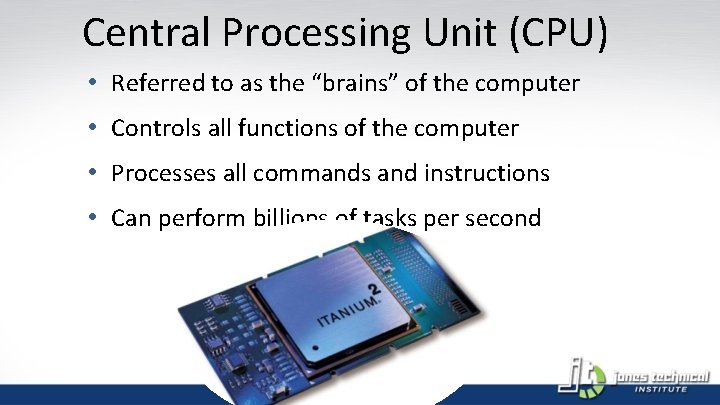
Central Processing Unit (CPU) • Referred to as the “brains” of the computer • Controls all functions of the computer • Processes all commands and instructions • Can perform billions of tasks per second
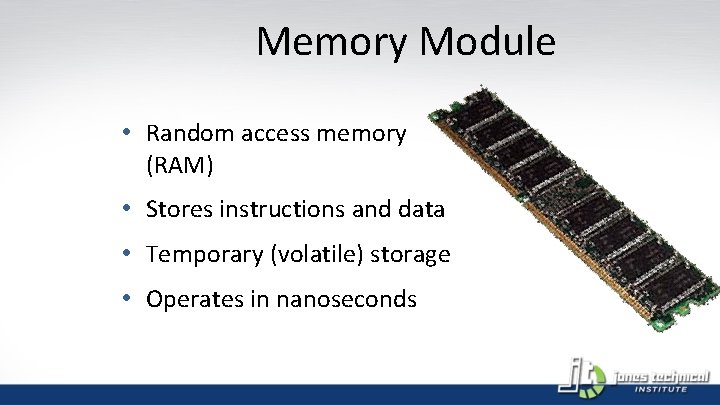
Memory Module • Random access memory (RAM) • Stores instructions and data • Temporary (volatile) storage • Operates in nanoseconds
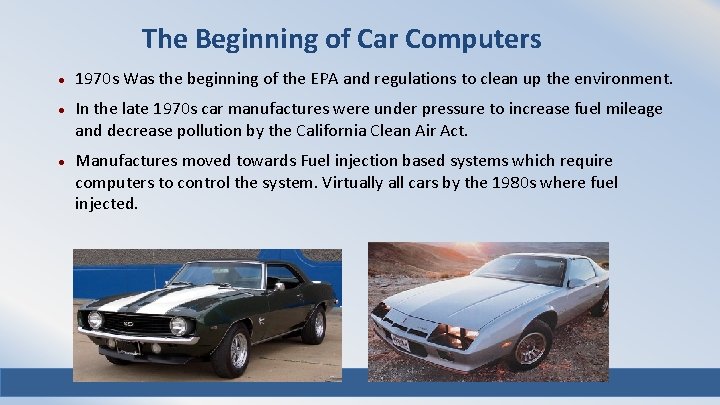
The Beginning of Car Computers 1970 s Was the beginning of the EPA and regulations to clean up the environment. In the late 1970 s car manufactures were under pressure to increase fuel mileage and decrease pollution by the California Clean Air Act. Manufactures moved towards Fuel injection based systems which require computers to control the system. Virtually all cars by the 1980 s where fuel injected.
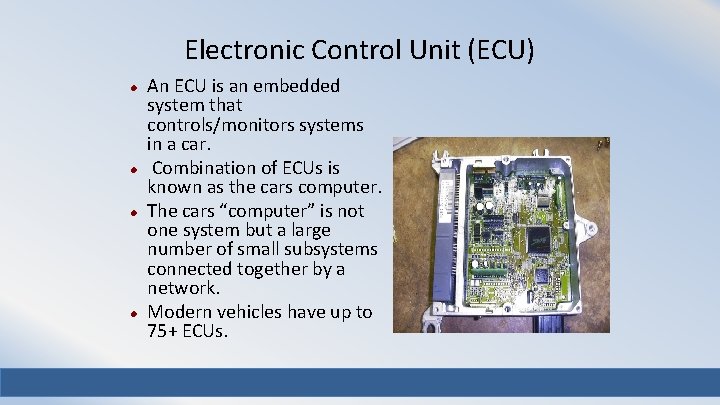
Electronic Control Unit (ECU) An ECU is an embedded system that controls/monitors systems in a car. Combination of ECUs is known as the cars computer. The cars “computer” is not one system but a large number of small subsystems connected together by a network. Modern vehicles have up to 75+ ECUs.
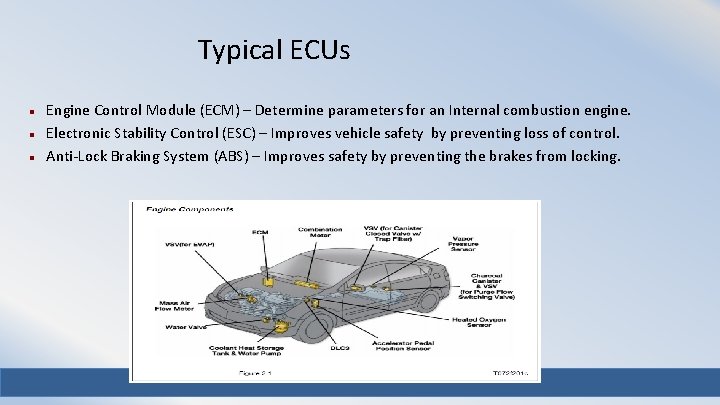
Typical ECUs Engine Control Module (ECM) – Determine parameters for an Internal combustion engine. Electronic Stability Control (ESC) – Improves vehicle safety by preventing loss of control. Anti-Lock Braking System (ABS) – Improves safety by preventing the brakes from locking.
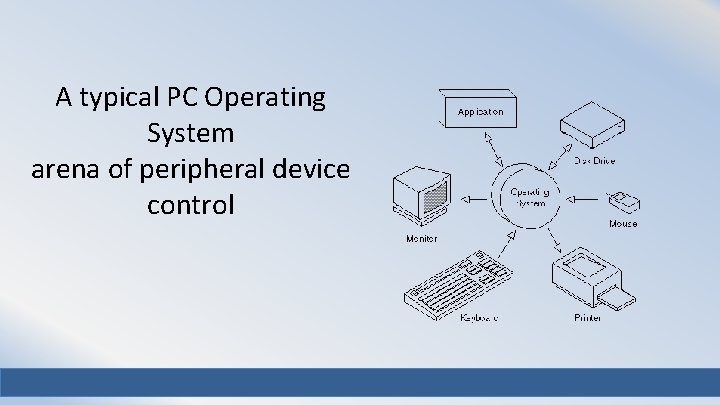
A typical PC Operating System arena of peripheral device control
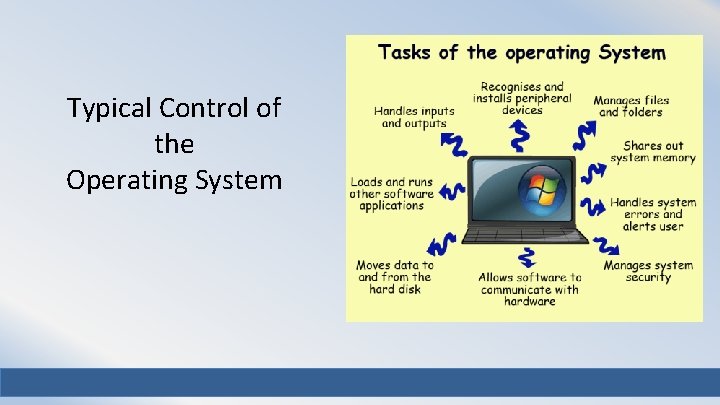
Typical Control of the Operating System
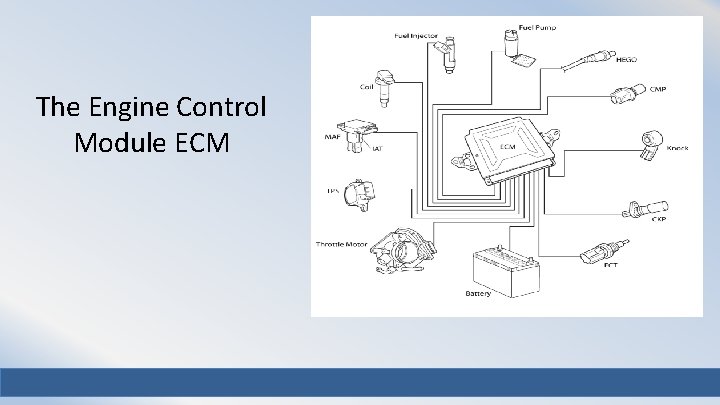
The Engine Control Module ECM
Electronic Control Module Controls the parameters of an internal combustion engine. Has developed into a closed-loop system, feeds data back into the car to make decisions Embedded System, resources are limited. Early systems entirely look-up table based. Current designs are able to compute many parameters on-the-fly but there is still a few look up tables.
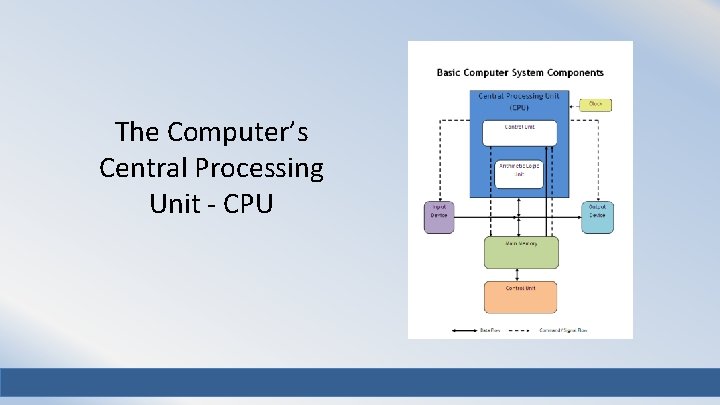
The Computer’s Central Processing Unit - CPU
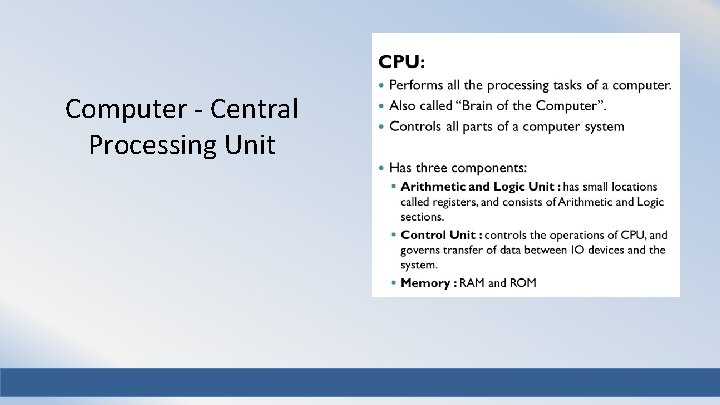
Computer - Central Processing Unit
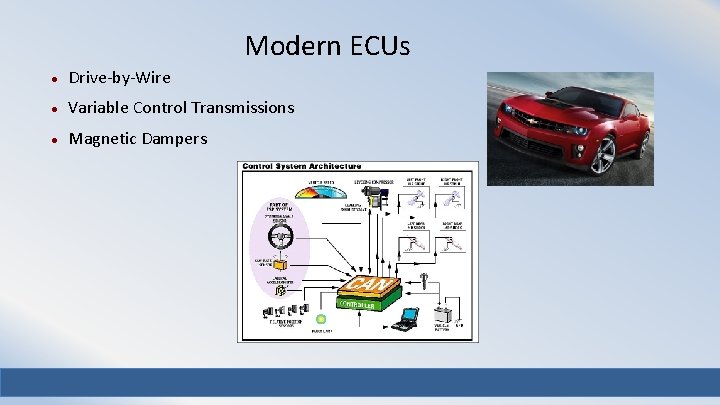
Modern ECUs Drive-by-Wire Variable Control Transmissions Magnetic Dampers
Controller Area Network (CAN) VS. Local Area Network (LAN) • Controller–area network (CAN or CAN-bus) is a vehicle bus standard designed to allow microcontrollers and devices to communicate with each other within a vehicle without a host computer. • Local Area Network (LAN) is a computer network that interconnects computers within a limited area such as a residence, school, laboratory, university campus or office building and has its network equipment and interconnects locally managed. By contrast, a Wide Area Network (WAN), not only covers a larger geographic distance, but also generally involves leased telecommunication circuits or Internet links. An even greater contrast is the Internet, which is a system of globally connected business and personal computers. •

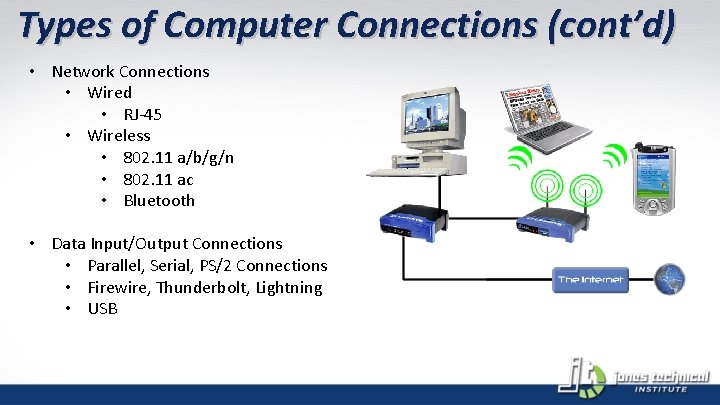
Types of Computer Connections (cont’d) • Network Connections • Wired • RJ-45 • Wireless • 802. 11 a/b/g/n • 802. 11 ac • Bluetooth • Data Input/Output Connections • Parallel, Serial, PS/2 Connections • Firewire, Thunderbolt, Lightning • USB
Best Practices How to Fix What You Did or Didn’t Do CIS-101 Computer Information Systems General Education Core
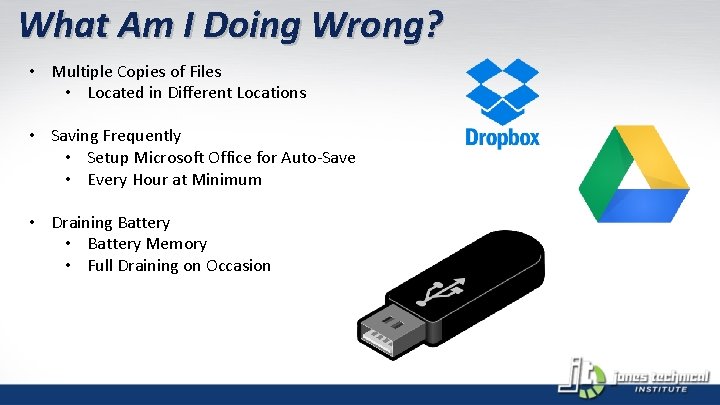
What Am I Doing Wrong? • Multiple Copies of Files • Located in Different Locations • Saving Frequently • Setup Microsoft Office for Auto-Save • Every Hour at Minimum • Draining Battery • Battery Memory • Full Draining on Occasion
How Did I Do that? ! • Virus Issues • Pop-ups • Slowness, but is it a virus? • Random Fan Noise • I lost all my files? ! • Types of Viruses • What is a virus? • Malware • Spyware • Ransomware • Prevention • Website Issues • Spam • Remediating Viruses • Antivirus Software • Removal Tools • Spyware A&D • Ad. Aware • Super. Anti. Spyware • Spyware Blaster
Your ASUS Tablet CIS-101 Computer Information Systems General Education Core
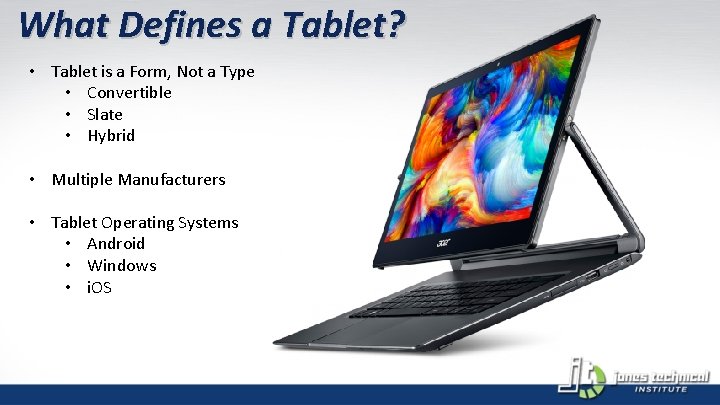
What Defines a Tablet? • Tablet is a Form, Not a Type • Convertible • Slate • Hybrid • Multiple Manufacturers • Tablet Operating Systems • Android • Windows • i. OS
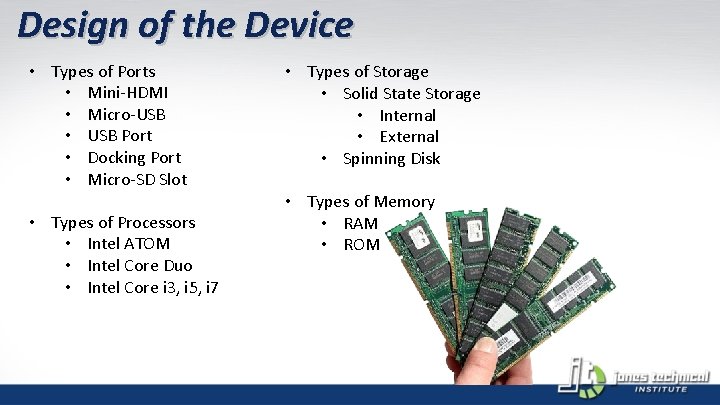
Design of the Device • Types of Ports • Mini-HDMI • Micro-USB • USB Port • Docking Port • Micro-SD Slot • Types of Processors • Intel ATOM • Intel Core Duo • Intel Core i 3, i 5, i 7 • Types of Storage • Solid State Storage • Internal • External • Spinning Disk • Types of Memory • RAM • ROM
Accessory Functions of ASUS Tablet • Function Buttons • FN + F 1 • Put Tablet to Sleep • FN + F 2 • Wireless On/Off • FN + F 5 • Brightness Decrease • FN + F 6 • Brightness Increase • FN + F 8 • External Display On/Off • FN + F 9 • Disable Touchpad • FN + F 10 • Mute Sound • FN + F 11 • Decrease Sound Volume • FN + F 12 • Increase Sound Volume
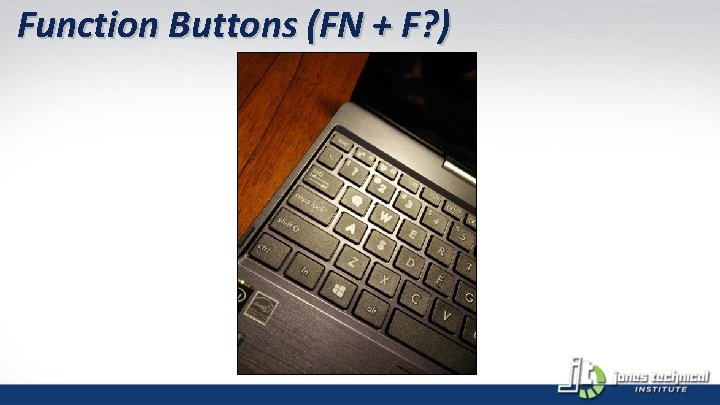
Function Buttons (FN + F? )
Multi-Touch Gestures • Pan • Use two fingers to scroll in the desired direction. • Zoom • Use multiple fingers to pinch or expand an object. • Rotate • Use two fingers to rotate in the desired direction. • Press and tap • Press an object and tap with an accessory finger for right clicking. • Universal Standard on Most Devices • Android • Windows 8+ (Touchscreen or Pad) • i. OS (Mobile Device or Pad)
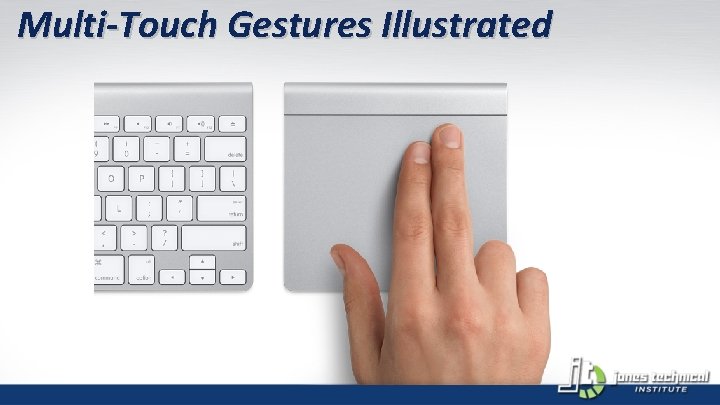
Multi-Touch Gestures Illustrated
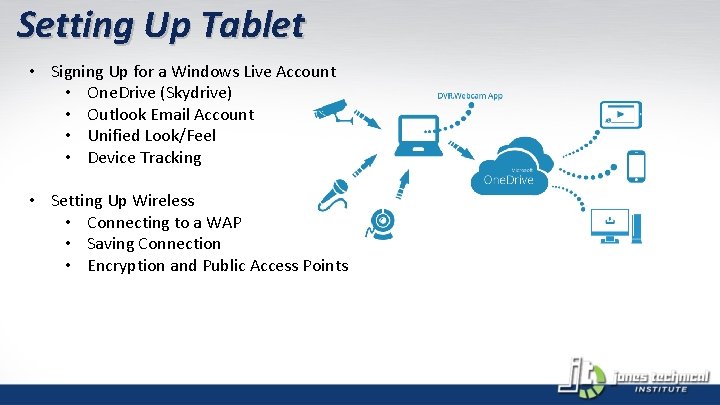
Setting Up Tablet • Signing Up for a Windows Live Account • One. Drive (Skydrive) • Outlook Email Account • Unified Look/Feel • Device Tracking • Setting Up Wireless • Connecting to a WAP • Saving Connection • Encryption and Public Access Points
Questions? “Ask one good question and you will get answers to three. ” ― Robert J. Braathe CIS-101 Computer Information Systems General Education Core
- Slides: 50