
Computer Basics Chapter One Computer Basics Part 1
Computer Basics Chapter One Computer Basics Part 1 1

Computer Basics Computers systems come in many different sizes and shapes, according to the user’s wants and the manufacture’s style. 2
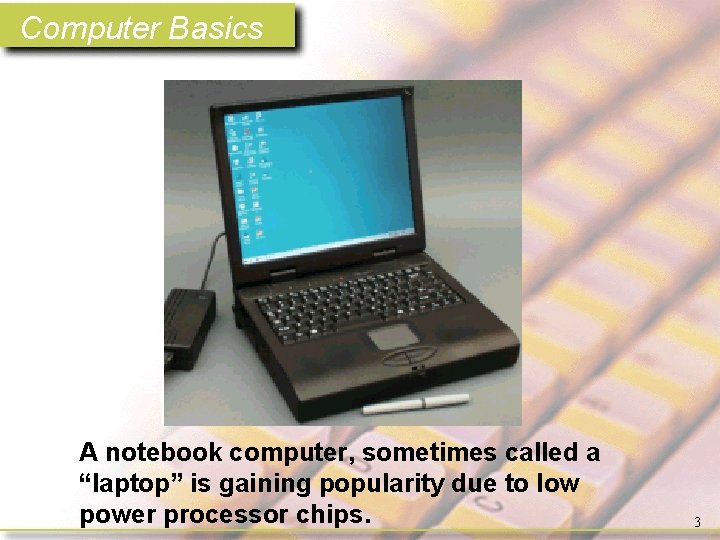
Computer Basics A notebook computer, sometimes called a “laptop” is gaining popularity due to low power processor chips. 3
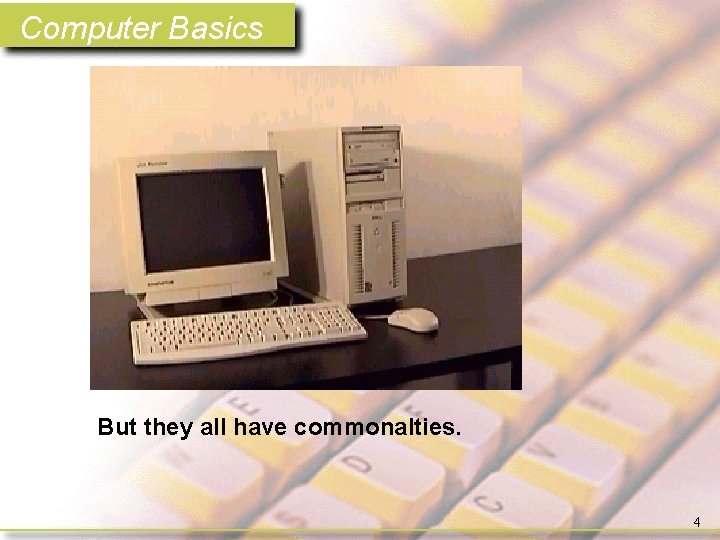
Computer Basics But they all have commonalties. 4
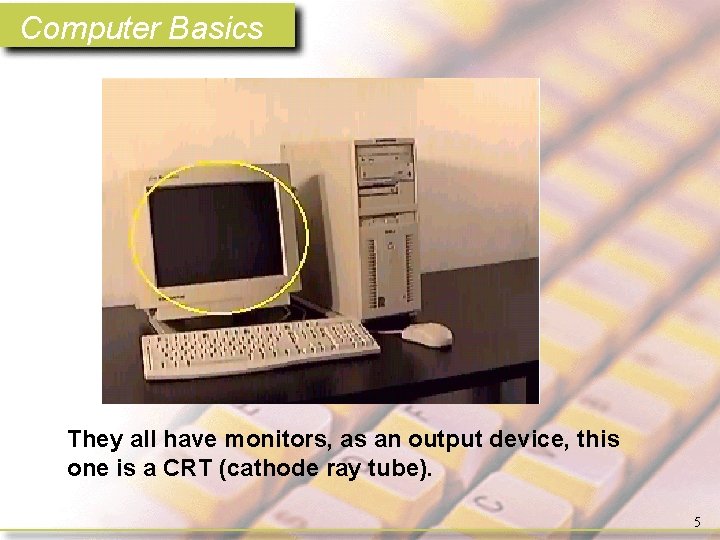
Computer Basics They all have monitors, as an output device, this one is a CRT (cathode ray tube). 5
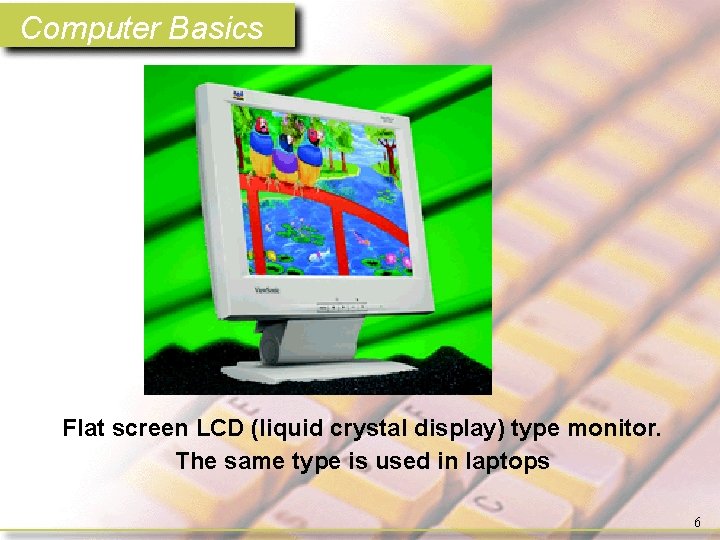
Computer Basics Flat screen LCD (liquid crystal display) type monitor. The same type is used in laptops 6

Computer Basics A laptop monitor is built into the top cover, LCD type. 7
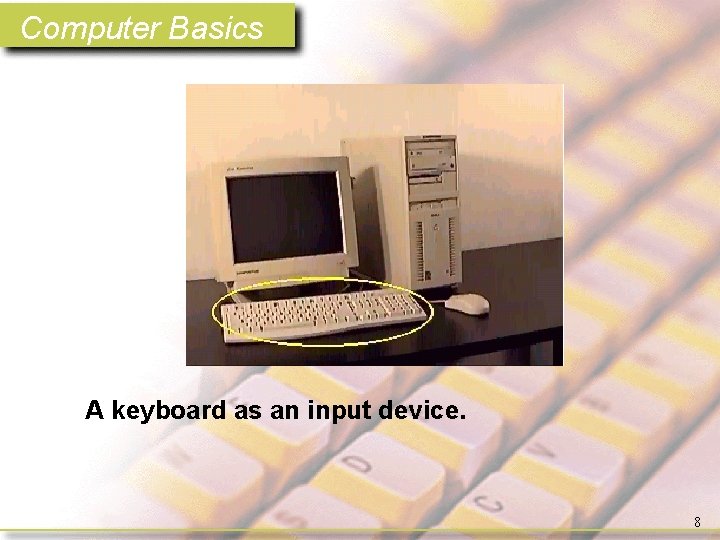
Computer Basics A keyboard as an input device. 8
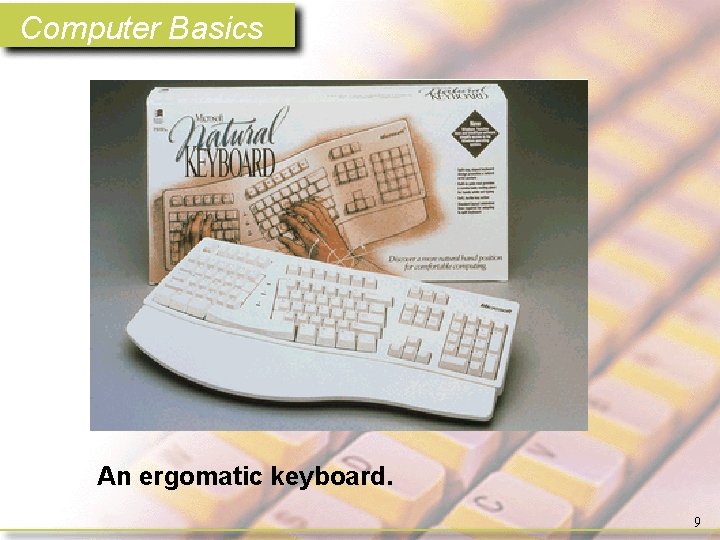
Computer Basics An ergomatic keyboard. 9
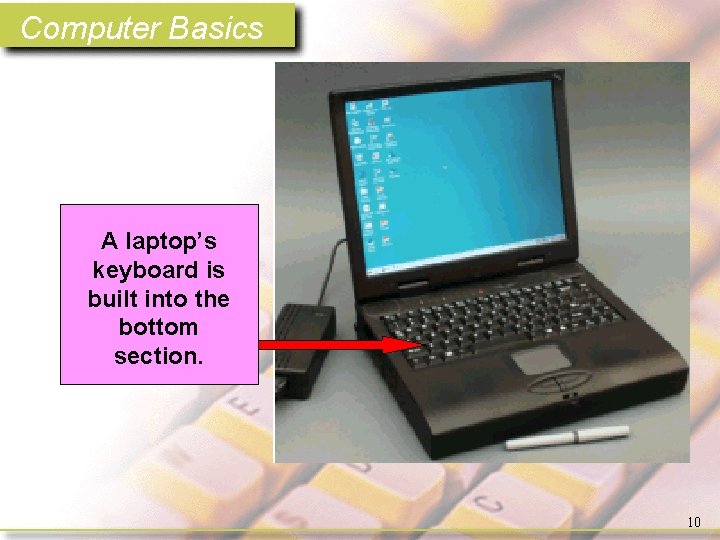
Computer Basics A laptop’s keyboard is built into the bottom section. 10
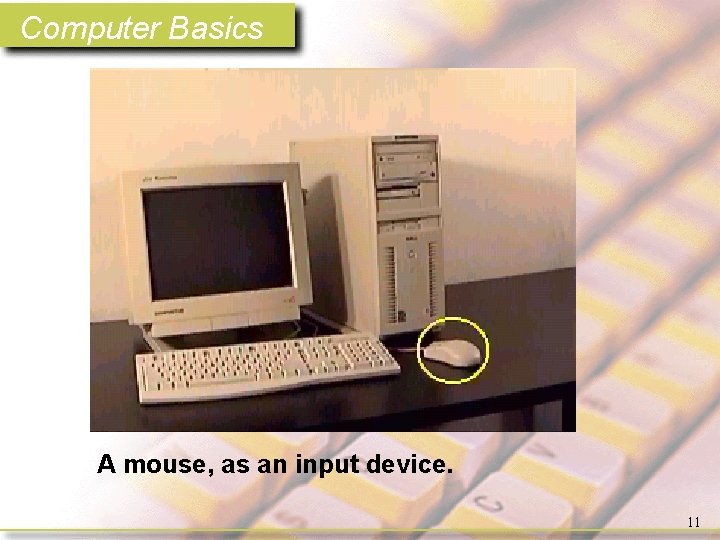
Computer Basics A mouse, as an input device. 11
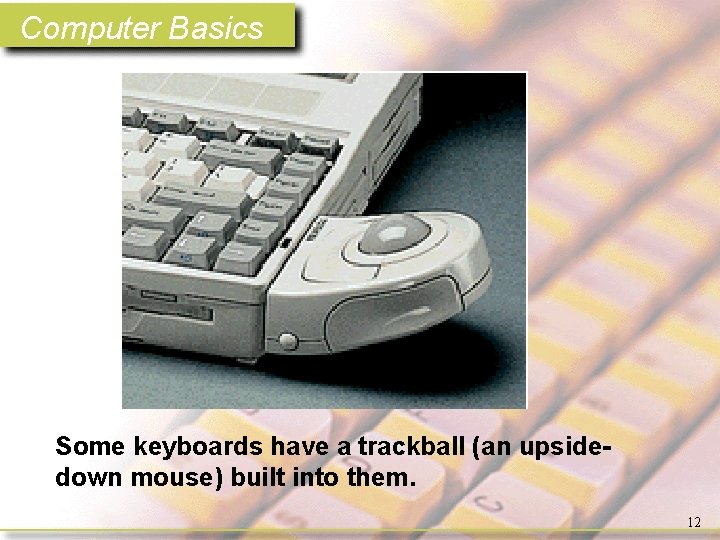
Computer Basics Some keyboards have a trackball (an upsidedown mouse) built into them. 12
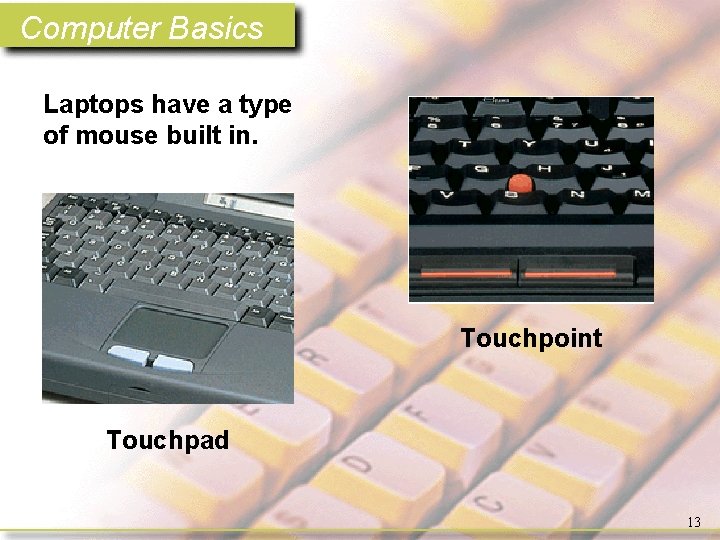
Computer Basics Laptops have a type of mouse built in. Touchpoint Touchpad 13
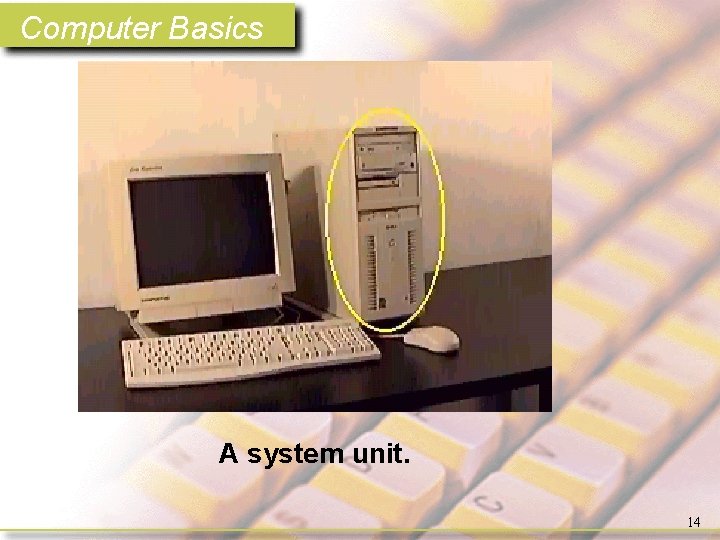
Computer Basics A system unit. 14
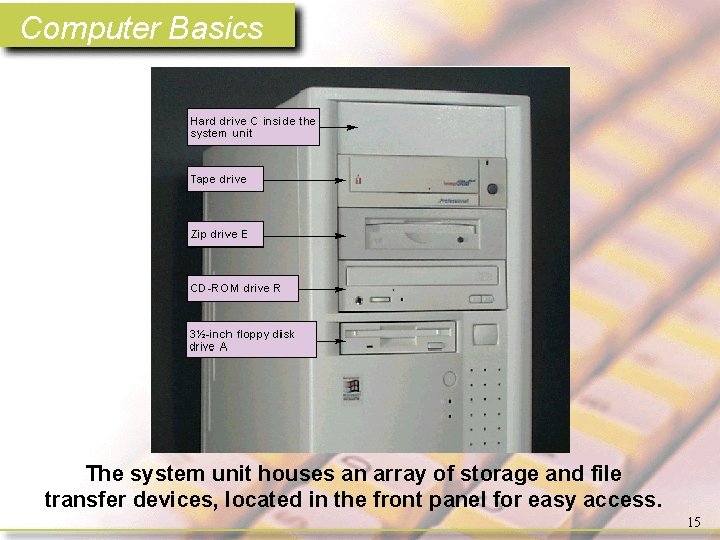
Computer Basics The system unit houses an array of storage and file transfer devices, located in the front panel for easy access. 15
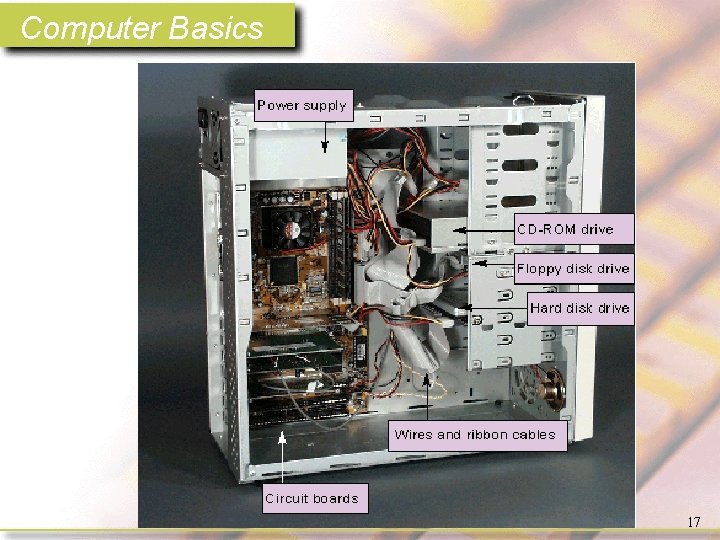
Computer Basics • A computer’s system unit typically contains circuit boards, a power supply, and storage devices. – A few wires and cables connect storage devices to the power supply and circuit boards. – Ports and sockets to connect to input and output devices (called peripheral devices). – Fans to cool the components and indicator lights. 16
Computer Basics 17
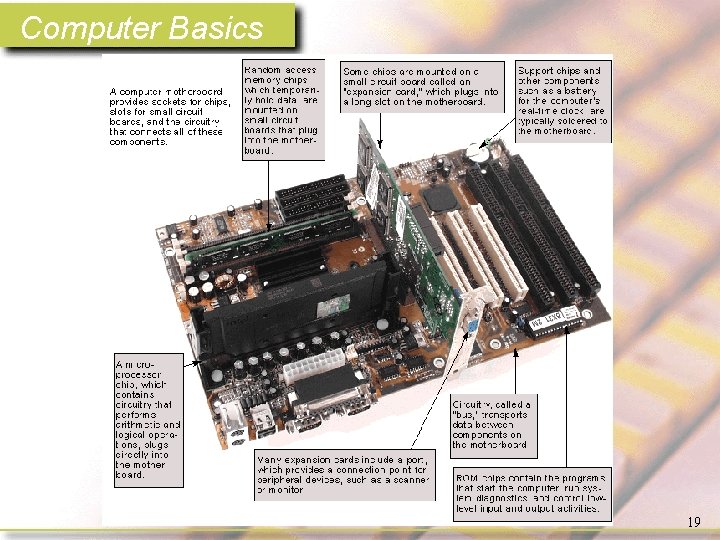
Computer Basics The Main component of a System Unit is the motherboard, or system board. 18
Computer Basics 19
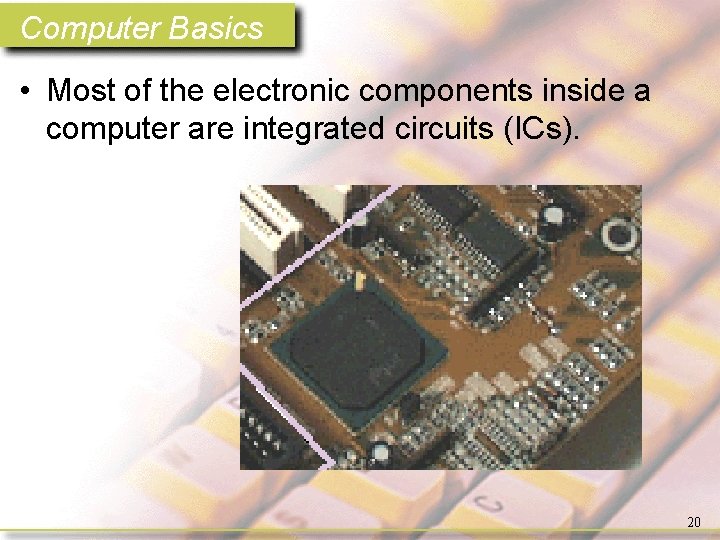
Computer Basics • Most of the electronic components inside a computer are integrated circuits (ICs). 20
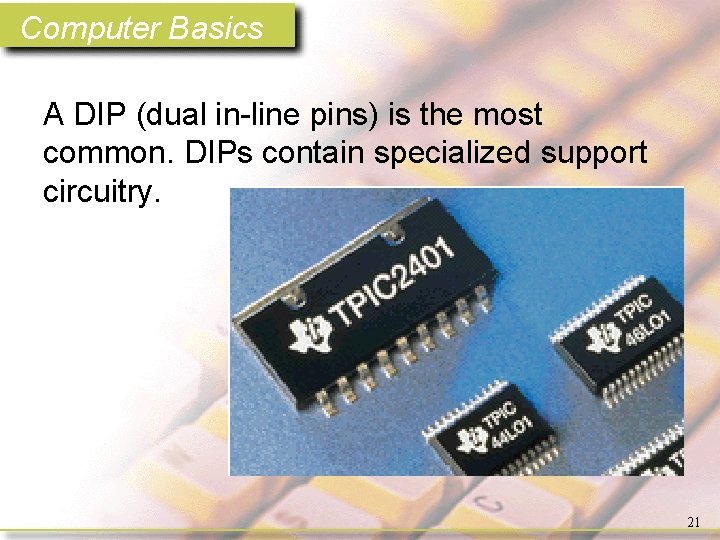
Computer Basics A DIP (dual in-line pins) is the most common. DIPs contain specialized support circuitry. 21
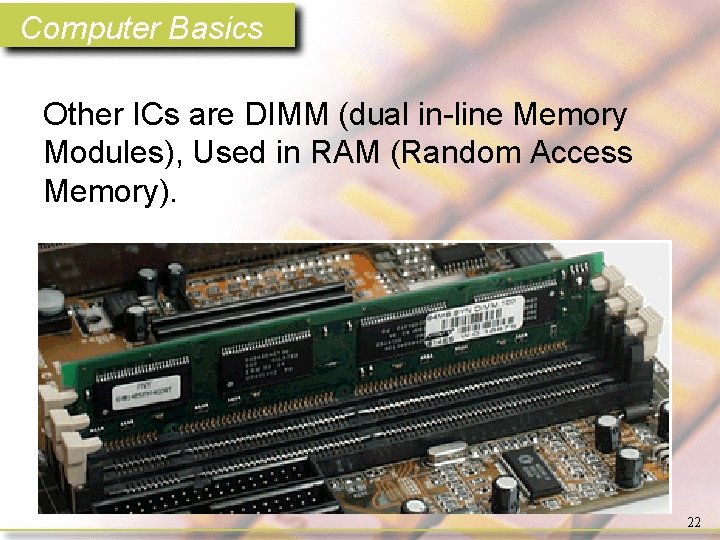
Computer Basics Other ICs are DIMM (dual in-line Memory Modules), Used in RAM (Random Access Memory). 22
Computer Basics • RAM (Random Access Memory) – volatile memory – holds ops for more than one cycle – allows CPU to become a tool 23
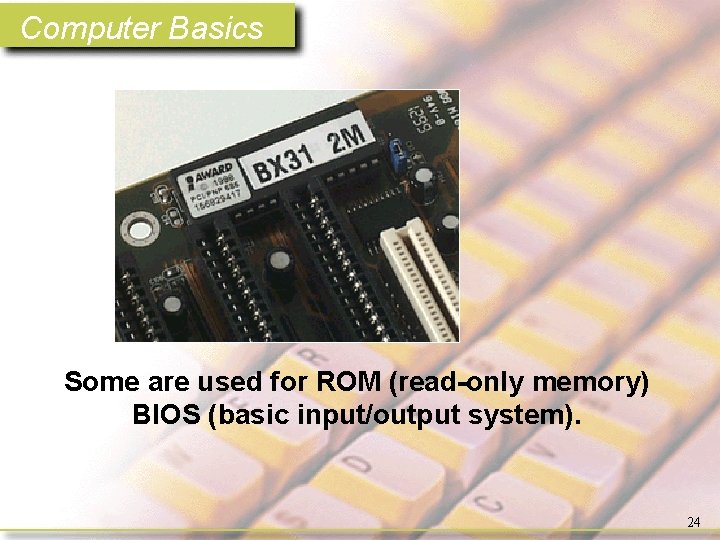
Computer Basics Some are used for ROM (read-only memory) BIOS (basic input/output system). 24
Computer Basics • ROM (read-only memory) is nonvolatile memory – Holds program instructions after power off – Instruction set for startup – BIOS (basic input/output system) 25
Computer Basics • CMOS (complementary metal oxide semiconductor) – permanent as long as battery voltage is applied – Holds PC setup – User intervention 26
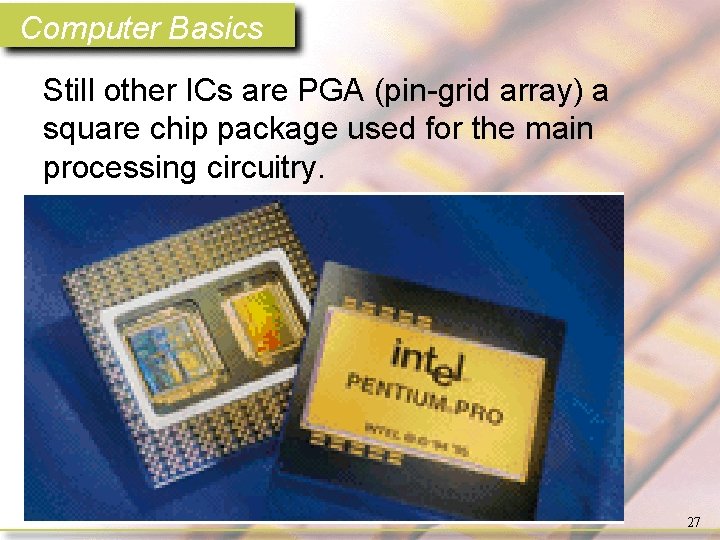
Computer Basics Still other ICs are PGA (pin-grid array) a square chip package used for the main processing circuitry. 27
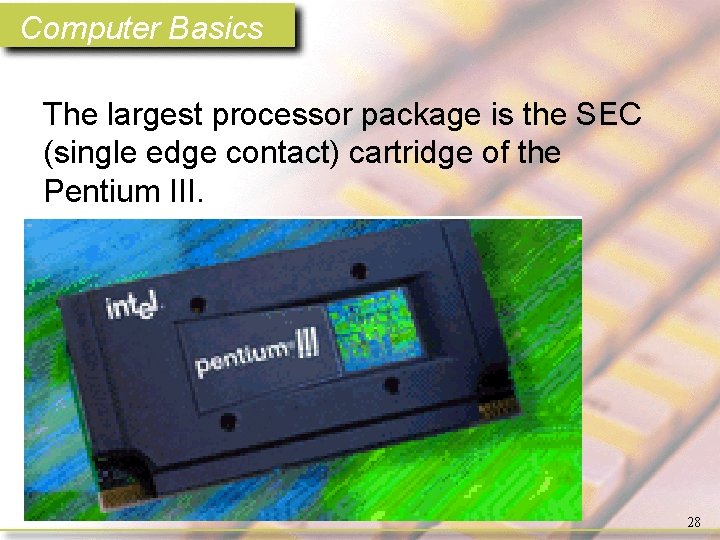
Computer Basics The largest processor package is the SEC (single edge contact) cartridge of the Pentium III. 28
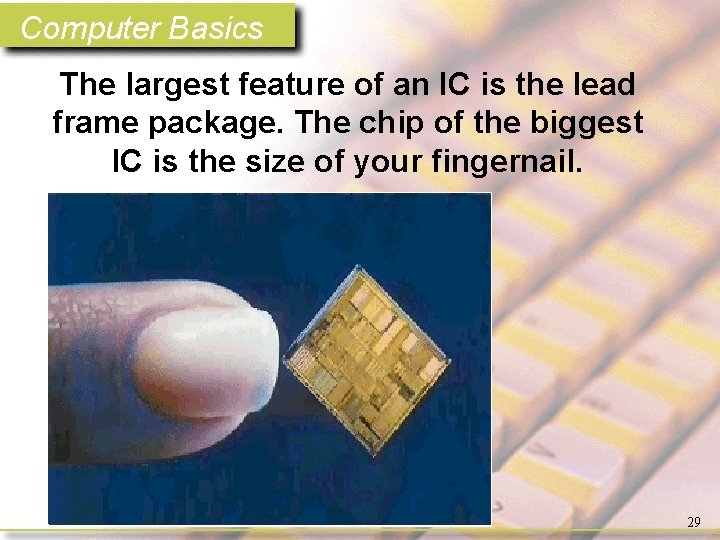
Computer Basics The largest feature of an IC is the lead frame package. The chip of the biggest IC is the size of your fingernail. 29
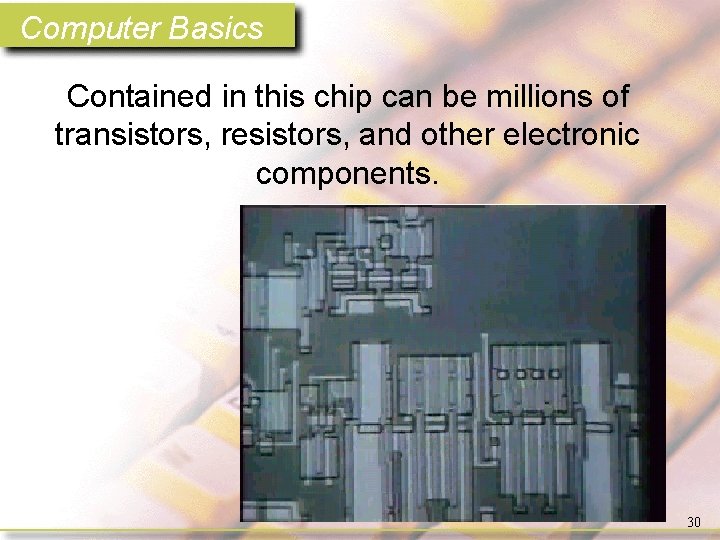
Computer Basics Contained in this chip can be millions of transistors, resistors, and other electronic components. 30
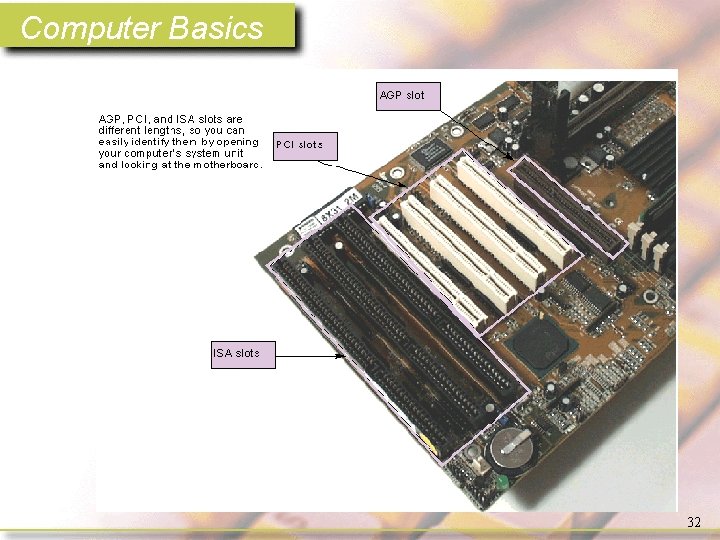
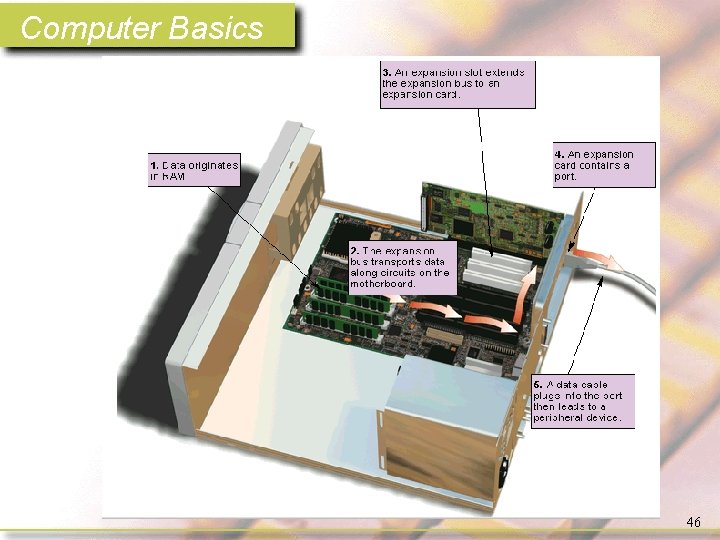
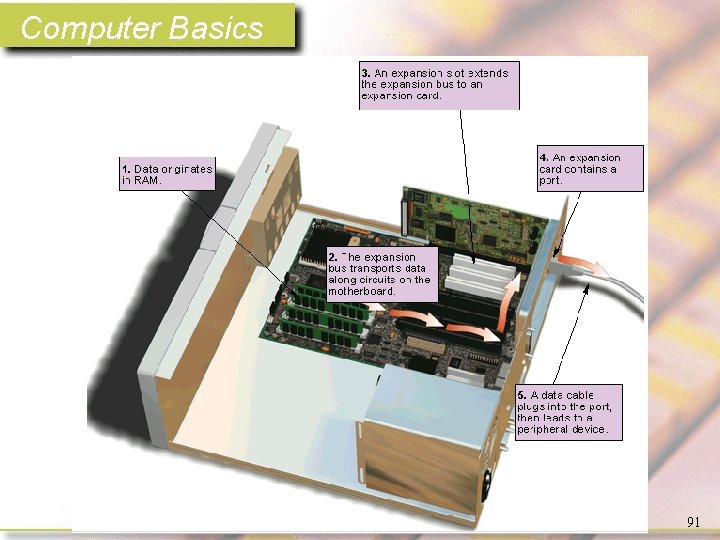
Computer Basics Another feature of the motherboard is the expansion slots which allows the installation of input and output expansion cards for video, sound, and etc. 31
Computer Basics 32
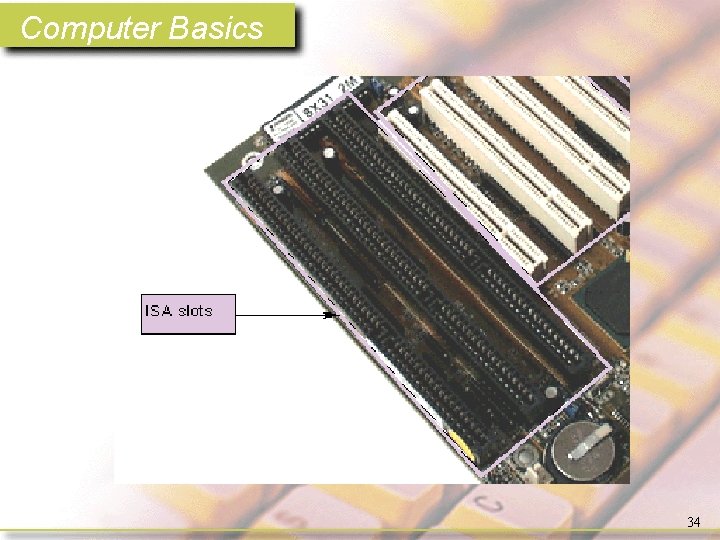
Computer Basics • ISA (industry standard architecture). – ISA slots are an older technology, used today for some modems and other relatively slow devices. Many new computers have few or no ISA slots 33
Computer Basics 34
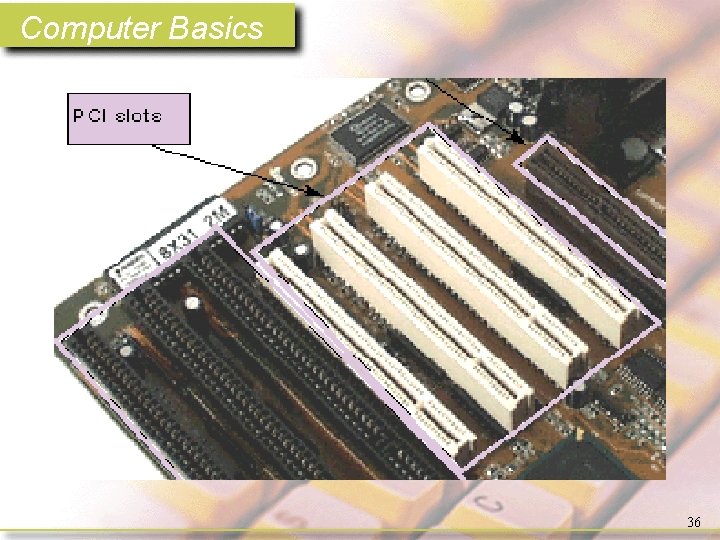
Computer Basics • PCI (peripheral component interconnect). – PCI slots offer fast transfer speeds and a 64 -bit data bus. These slots typically house a graphics card, sound card, video capture card, modem, or network interface card (NIC). 35
Computer Basics 36
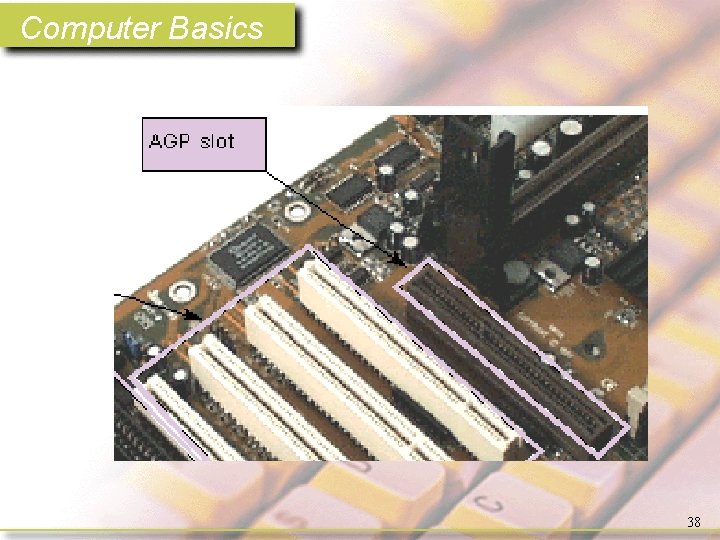
Computer Basics • AGP (accelerated graphics port). – Primarily used for graphics cards, and faster than a PCI slot, an AGP slot provides a highspeed data pathway that is particularly handy for 3 -D graphics. 37
Computer Basics 38
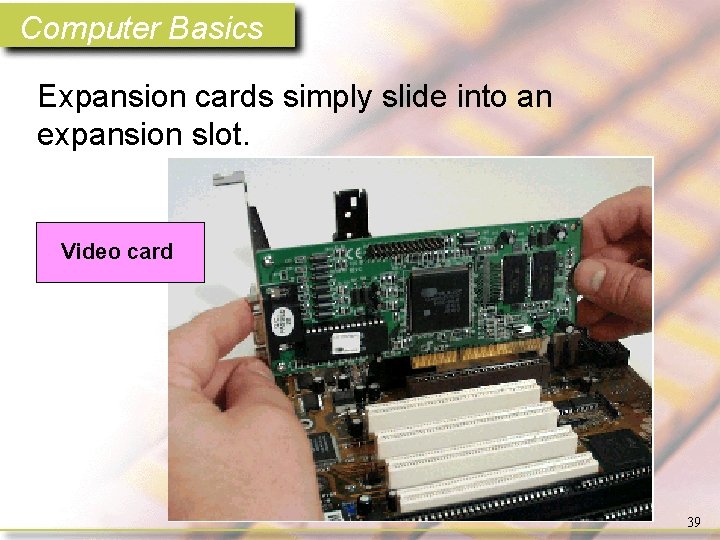
Computer Basics Expansion cards simply slide into an expansion slot. Video card 39
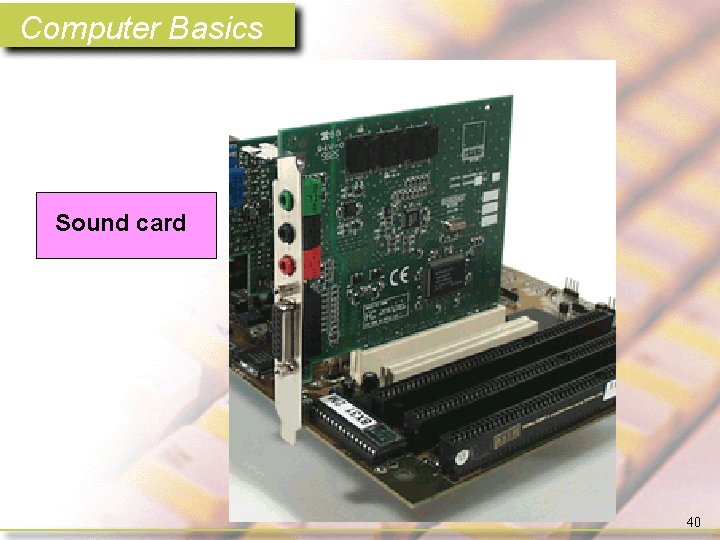
Computer Basics Sound card 40
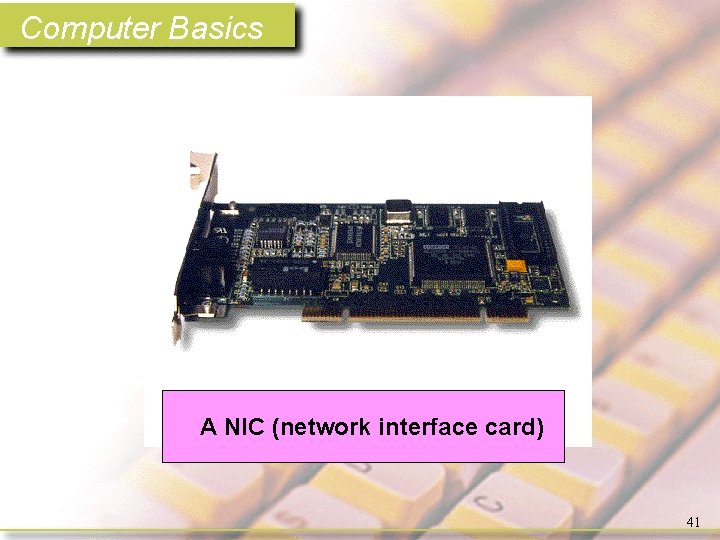
Computer Basics A NIC (network interface card) 41
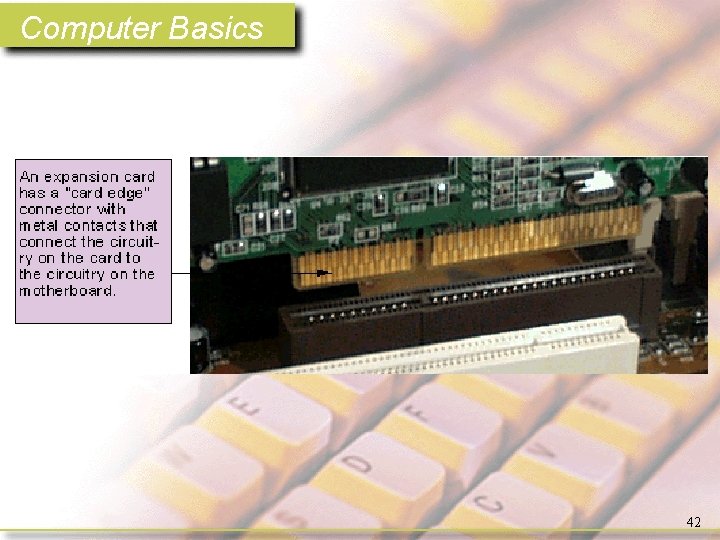
Computer Basics 42
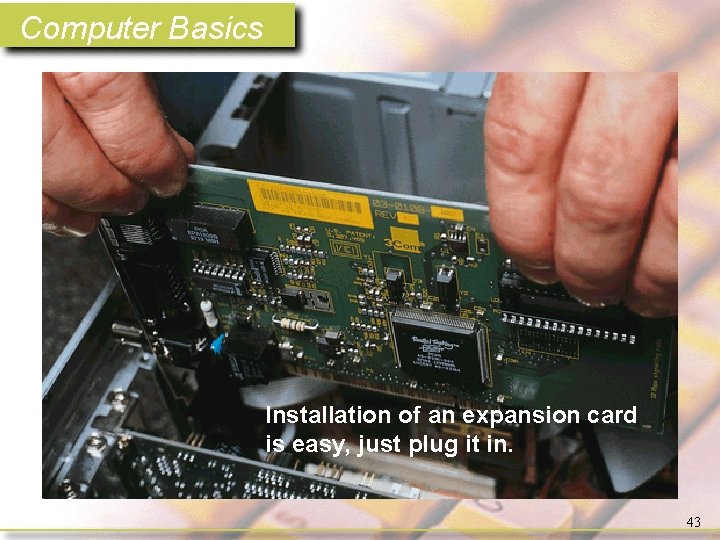
Computer Basics Installation of an expansion card is easy, just plug it in. 43
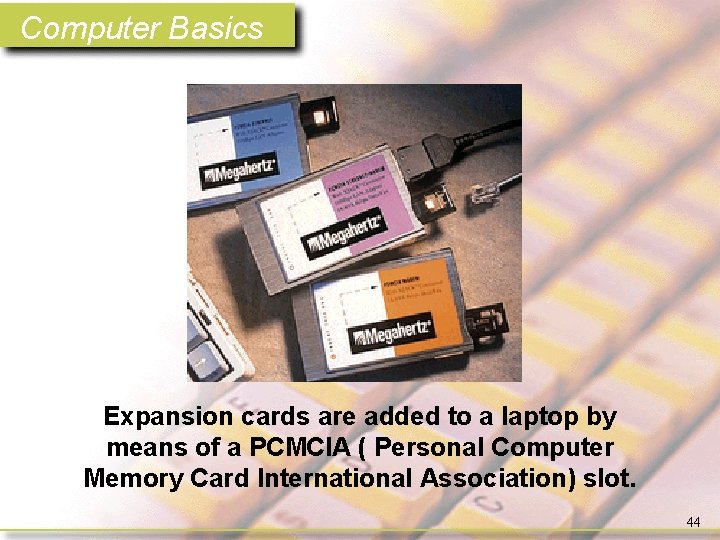
Computer Basics Expansion cards are added to a laptop by means of a PCMCIA ( Personal Computer Memory Card International Association) slot. 44
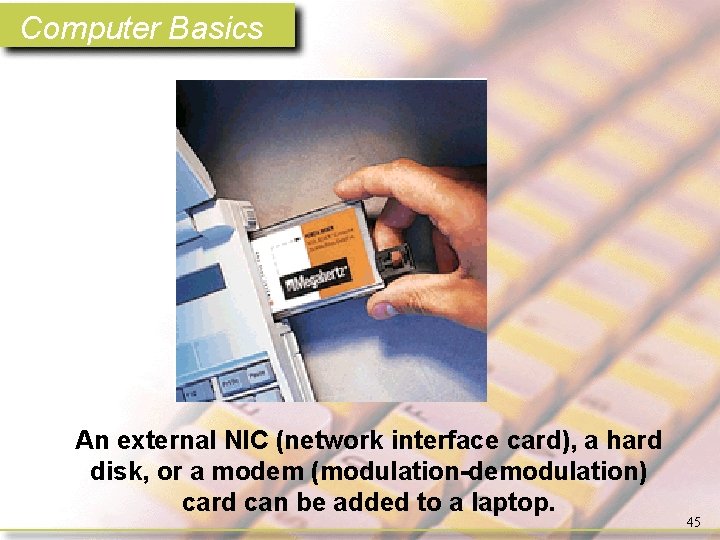
Computer Basics An external NIC (network interface card), a hard disk, or a modem (modulation-demodulation) card can be added to a laptop. 45
Computer Basics 46
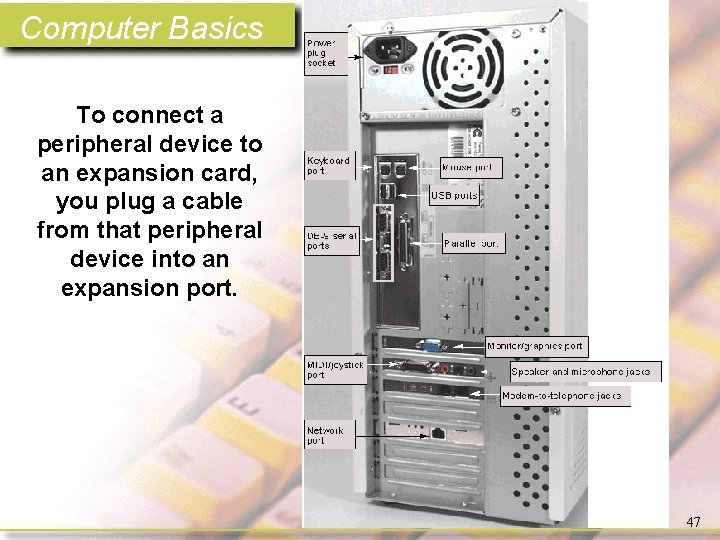
Computer Basics To connect a peripheral device to an expansion card, you plug a cable from that peripheral device into an expansion port. 47
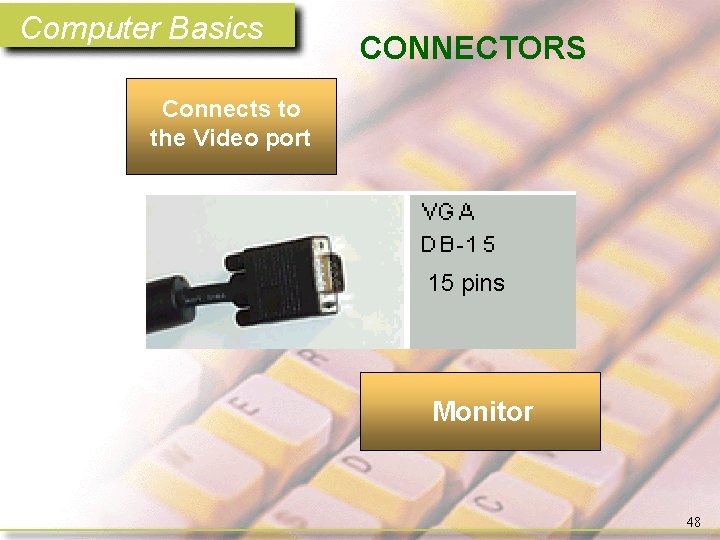
Computer Basics CONNECTORS Connects to the Video port 15 pins Monitor 48
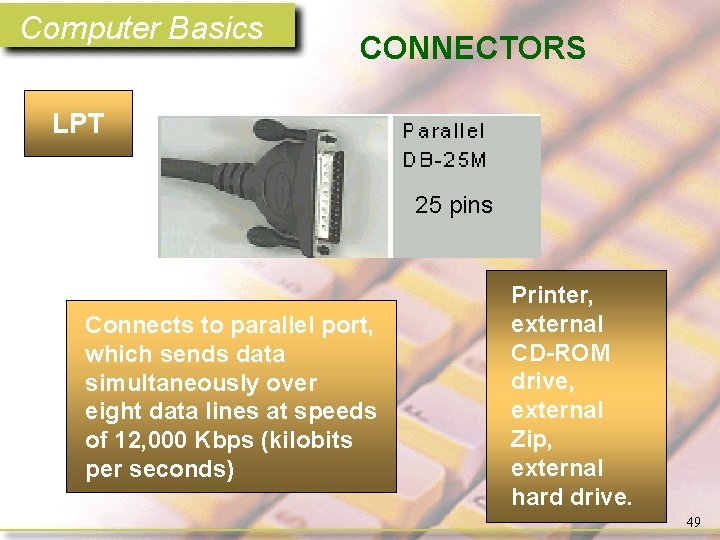
Computer Basics CONNECTORS LPT 25 pins Connects to parallel port, which sends data simultaneously over eight data lines at speeds of 12, 000 Kbps (kilobits per seconds) Printer, external CD-ROM drive, external Zip, external hard drive. 49
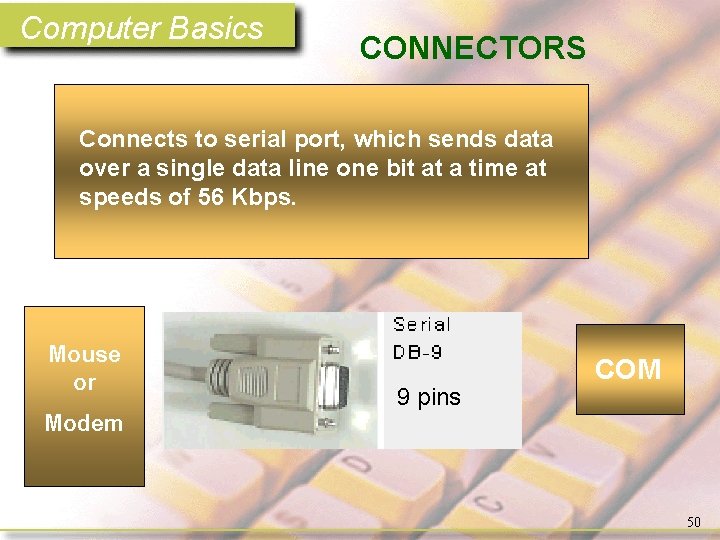
Computer Basics CONNECTORS Connects to serial port, which sends data over a single data line one bit at a time at speeds of 56 Kbps. Mouse or 9 pins COM Modem 50
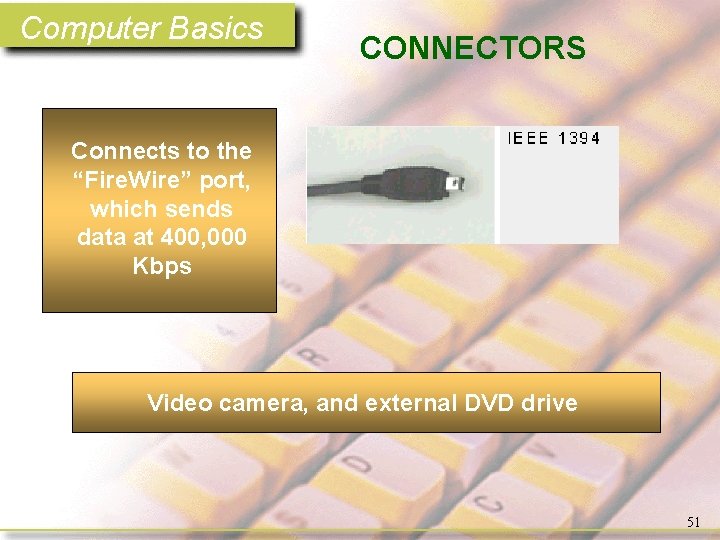
Computer Basics CONNECTORS Connects to the “Fire. Wire” port, which sends data at 400, 000 Kbps Video camera, and external DVD drive 51
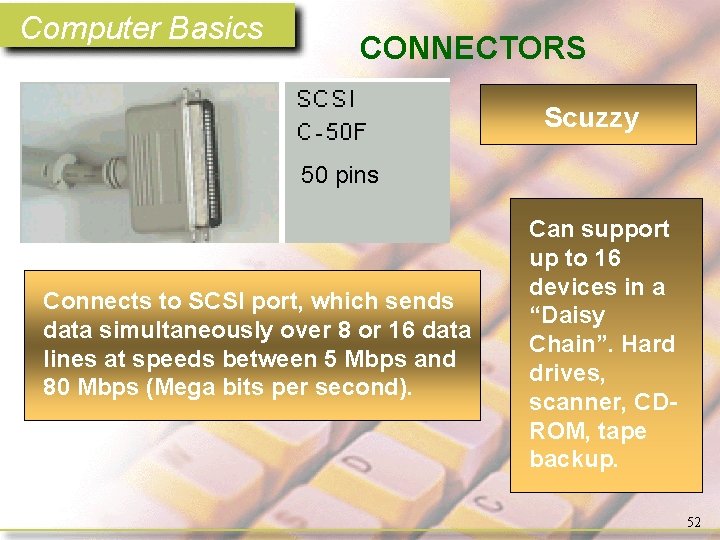
Computer Basics CONNECTORS Scuzzy 50 pins Connects to SCSI port, which sends data simultaneously over 8 or 16 data lines at speeds between 5 Mbps and 80 Mbps (Mega bits per second). Can support up to 16 devices in a “Daisy Chain”. Hard drives, scanner, CDROM, tape backup. 52
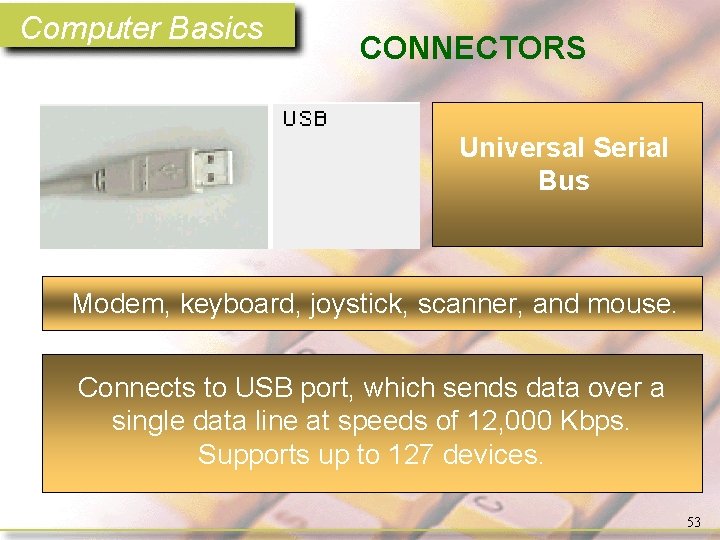
Computer Basics CONNECTORS Universal Serial Bus Modem, keyboard, joystick, scanner, and mouse. Connects to USB port, which sends data over a single data line at speeds of 12, 000 Kbps. Supports up to 127 devices. 53
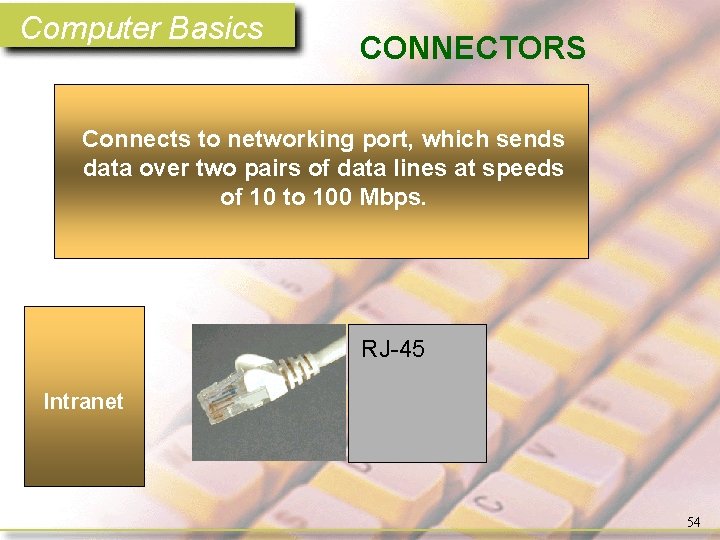
Computer Basics CONNECTORS Connects to networking port, which sends data over two pairs of data lines at speeds of 10 to 100 Mbps. RJ-45 Intranet 54
Computer Basics Memory storage at present fall into three basic categories. • Solid state, transistors and diodes built into an IC. –RAM –ROM 55
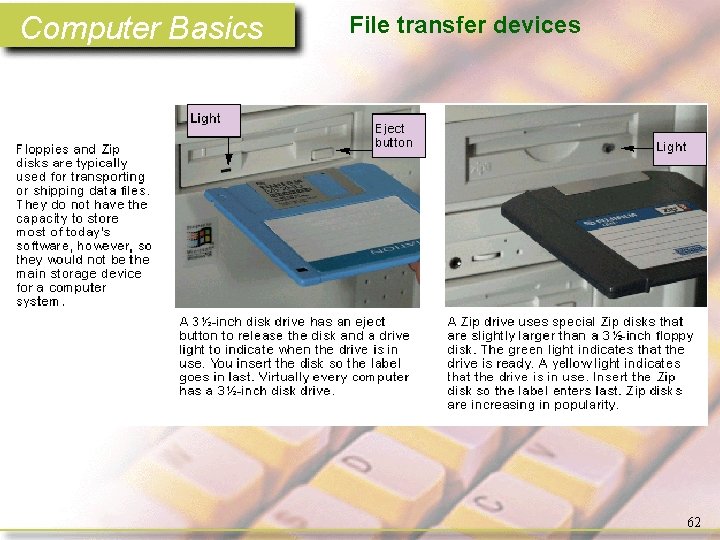
Computer Basics Memory storage at present fall into three basic categories. • Magnetic media –Floppy disks • 3. 5” • 5. 25” –Hard disk –Zip Disk –Tape – used for backup 56
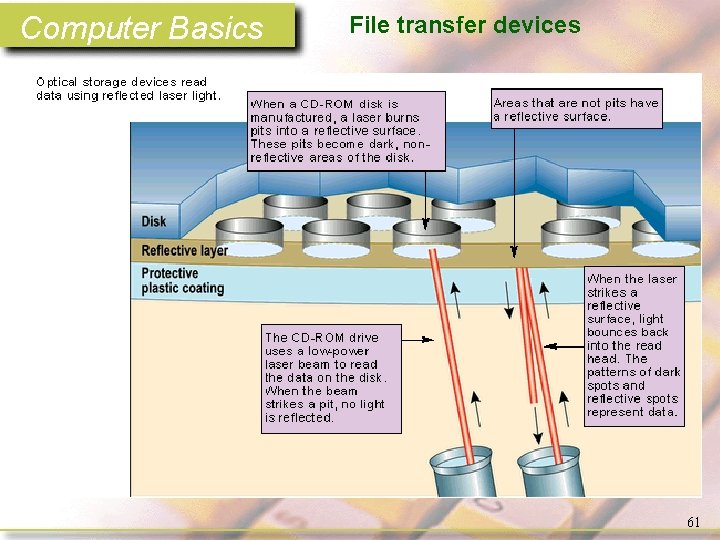
Computer Basics Memory storage at present fall into three basic categories. • Optical storage media –CD-ROM • compact disk - read only memory –DVD • digital video disc or digital versatile disc 57
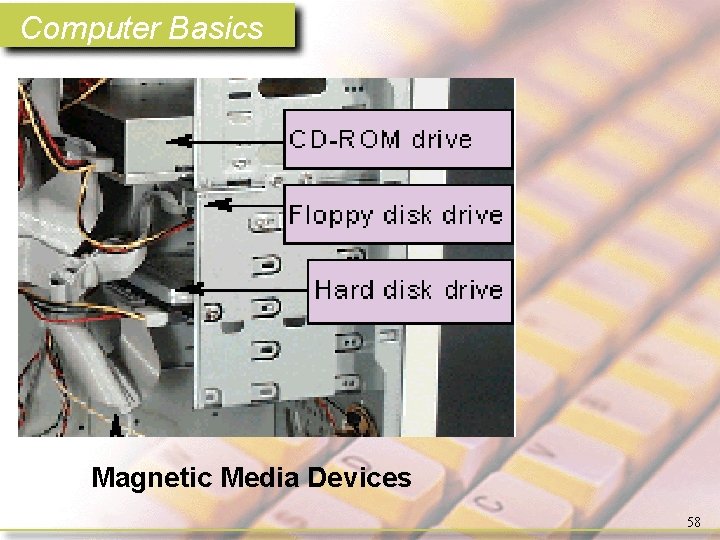
Computer Basics Magnetic Media Devices 58
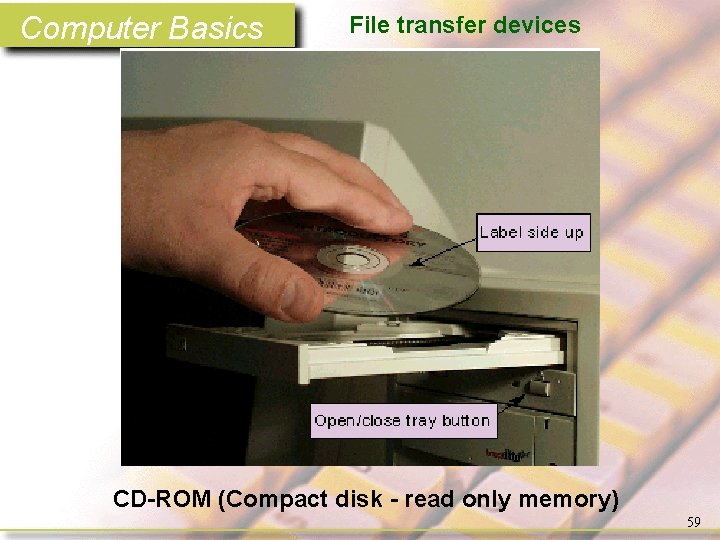
Computer Basics File transfer devices CD-ROM (Compact disk - read only memory) 59
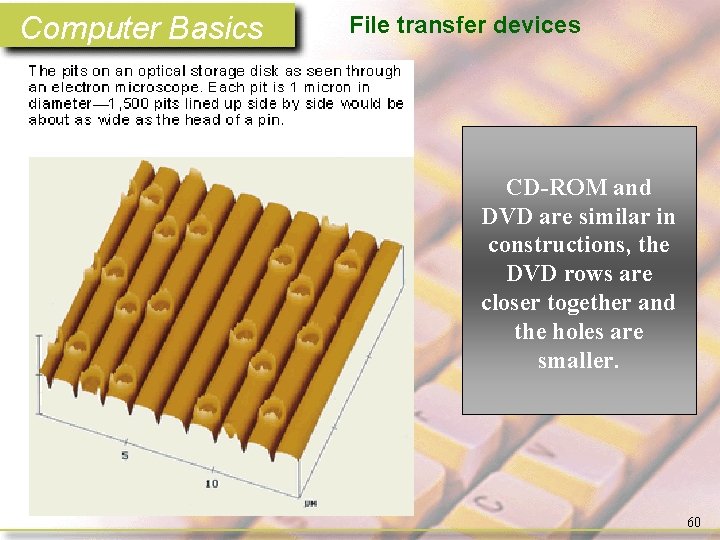
Computer Basics File transfer devices CD-ROM and DVD are similar in constructions, the DVD rows are closer together and the holes are smaller. 60
Computer Basics File transfer devices 61
Computer Basics File transfer devices 62
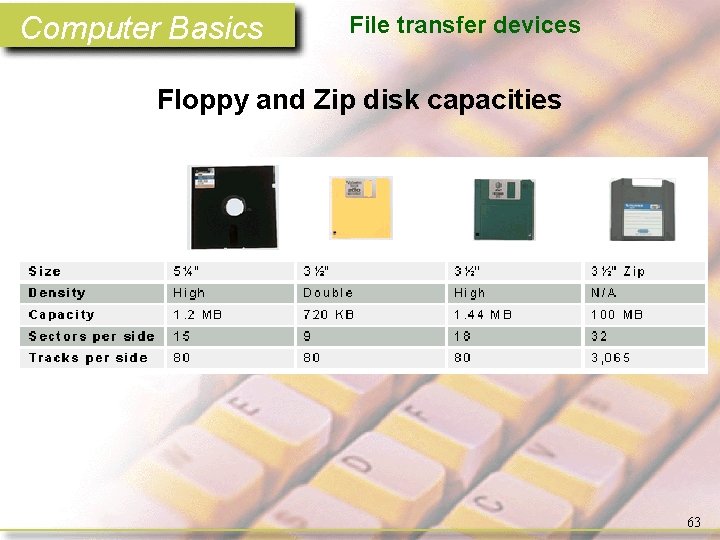
Computer Basics File transfer devices Floppy and Zip disk capacities 63
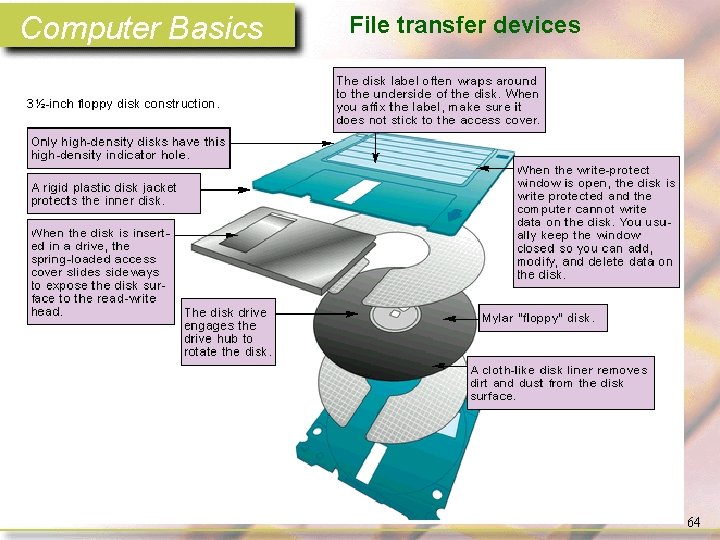
Computer Basics File transfer devices 64
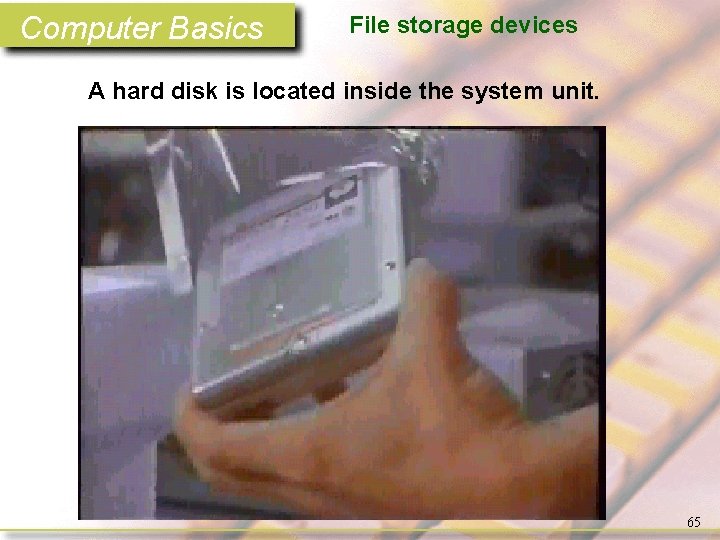
Computer Basics File storage devices A hard disk is located inside the system unit. 65
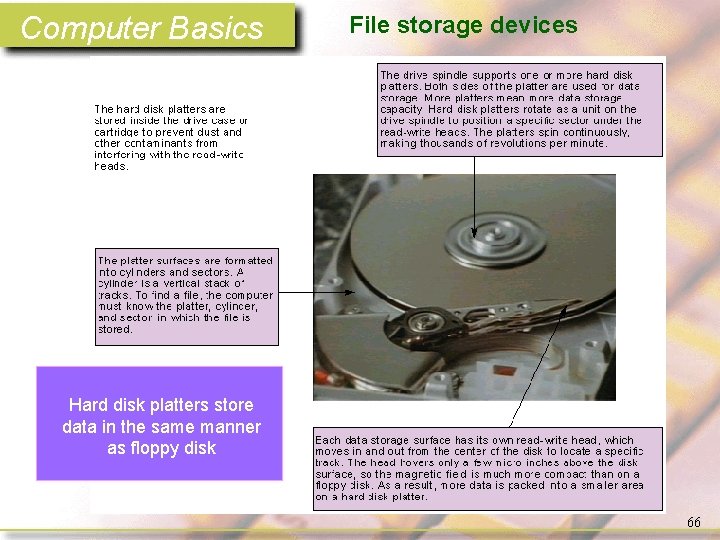
Computer Basics File storage devices Hard disk platters store data in the same manner as floppy disk 66
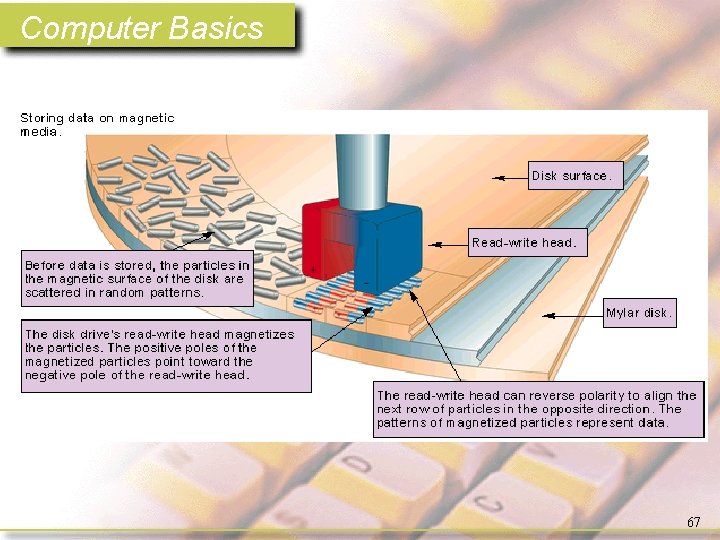
Computer Basics 67
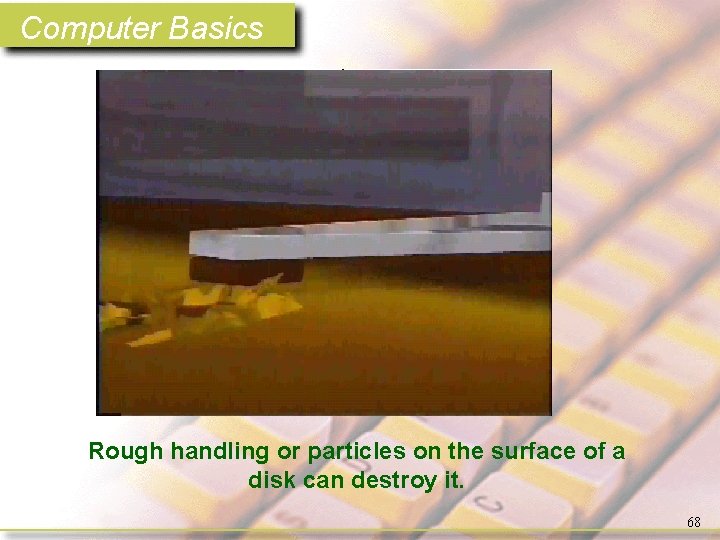
Computer Basics Rough handling or particles on the surface of a disk can destroy it. 68
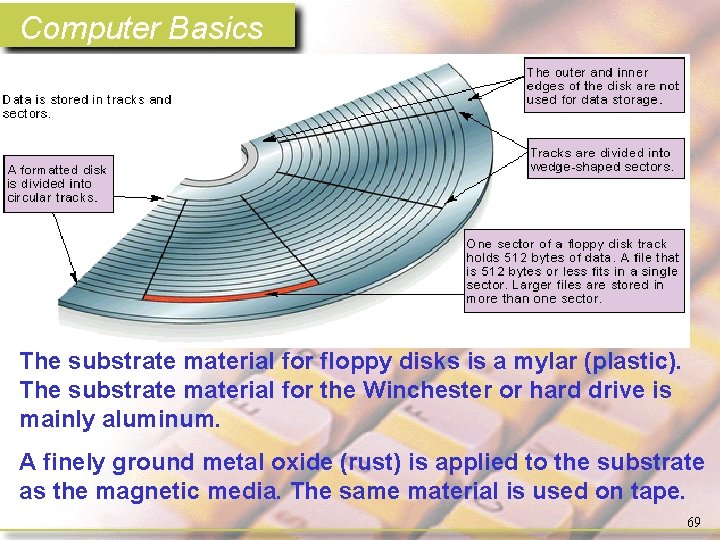
Computer Basics The substrate material for floppy disks is a mylar (plastic). The substrate material for the Winchester or hard drive is mainly aluminum. A finely ground metal oxide (rust) is applied to the substrate as the magnetic media. The same material is used on tape. 69
Computer Basics Binary 70
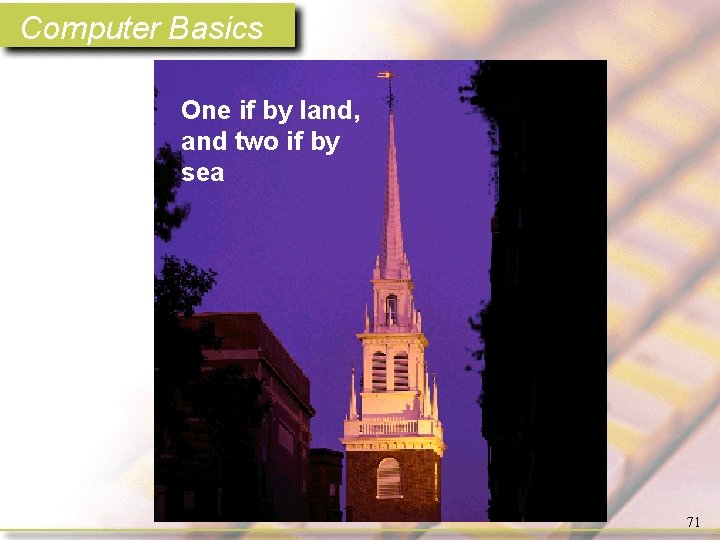
Computer Basics One if by land, and two if by sea 71
Computer Basics 72
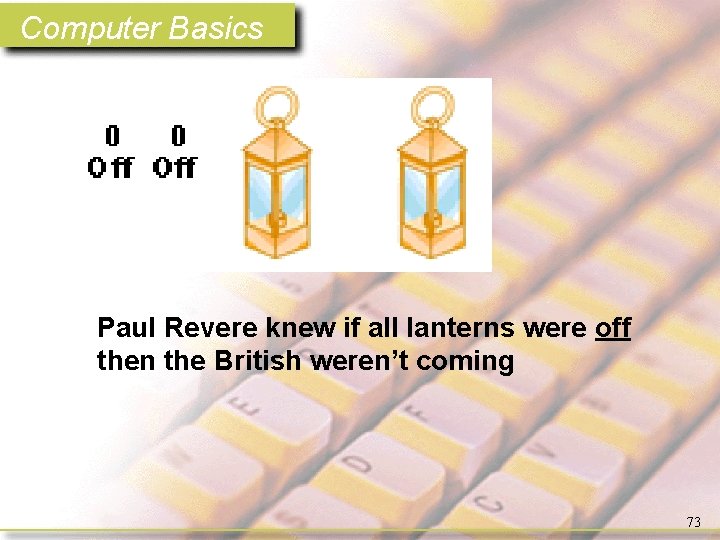
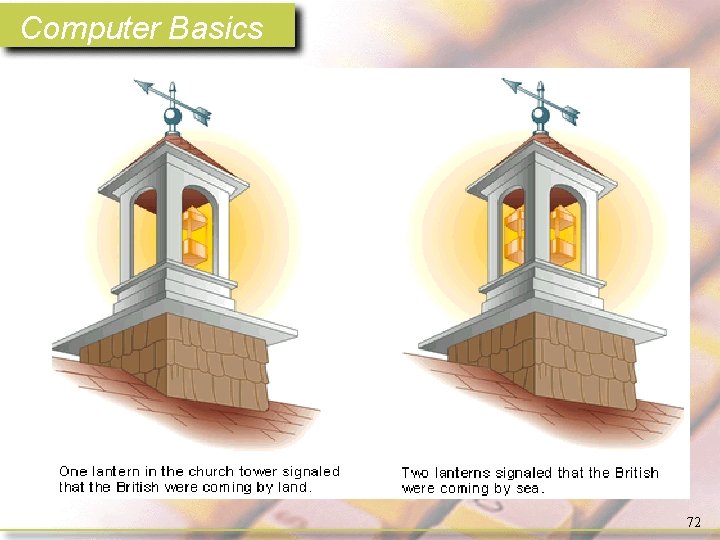
Computer Basics Paul Revere knew if all lanterns were off then the British weren’t coming 73
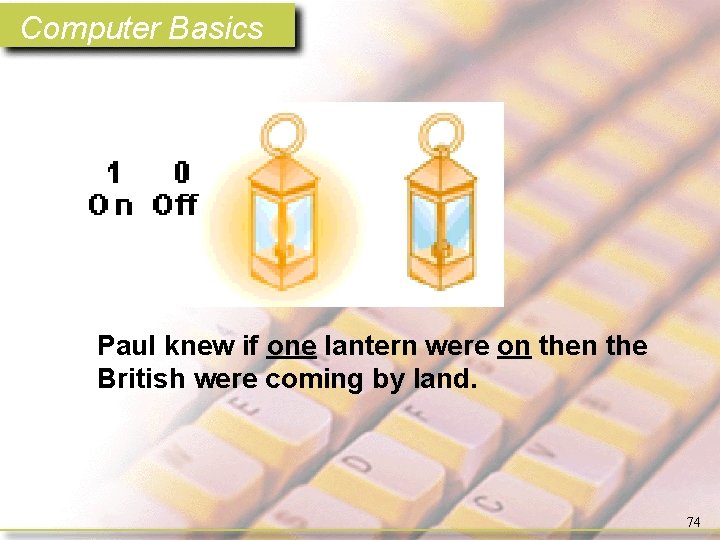
Computer Basics Paul knew if one lantern were on the British were coming by land. 74
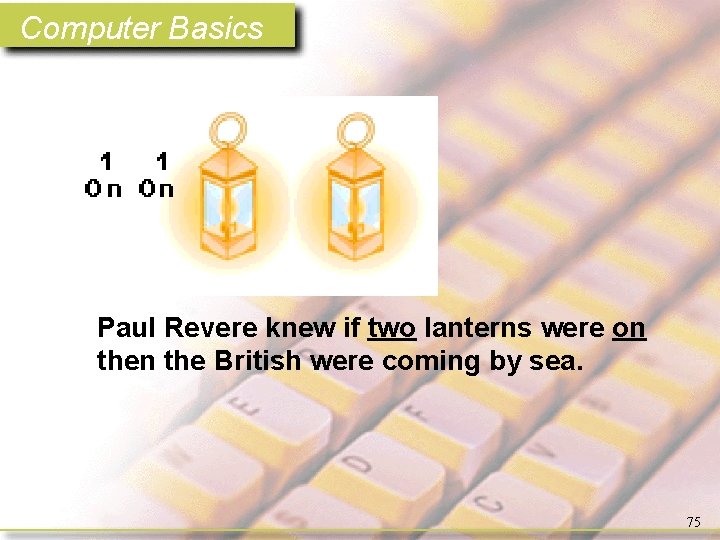
Computer Basics Paul Revere knew if two lanterns were on the British were coming by sea. 75
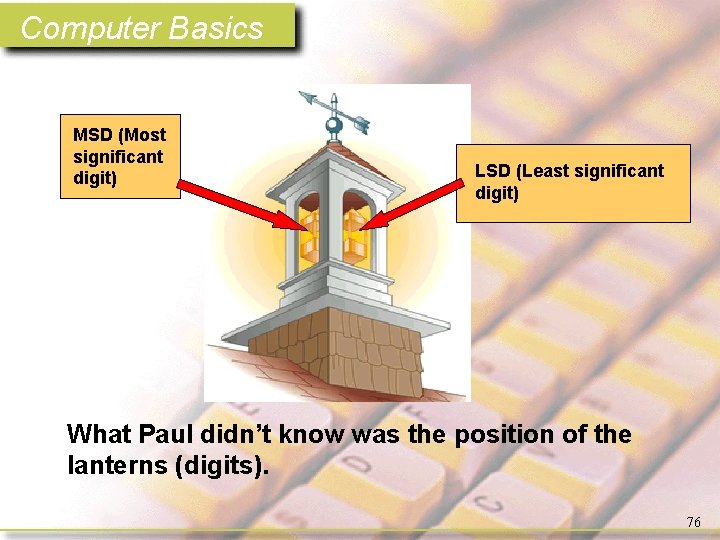
Computer Basics MSD (Most significant digit) LSD (Least significant digit) What Paul didn’t know was the position of the lanterns (digits). 76
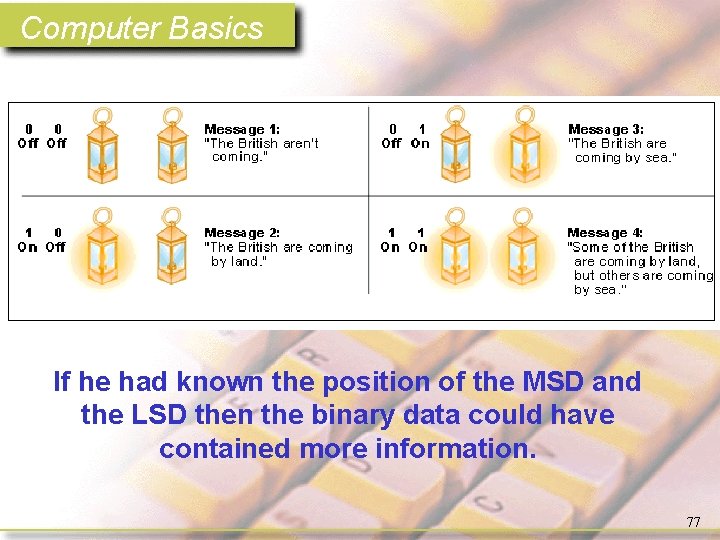
Computer Basics If he had known the position of the MSD and the LSD then the binary data could have contained more information. 77
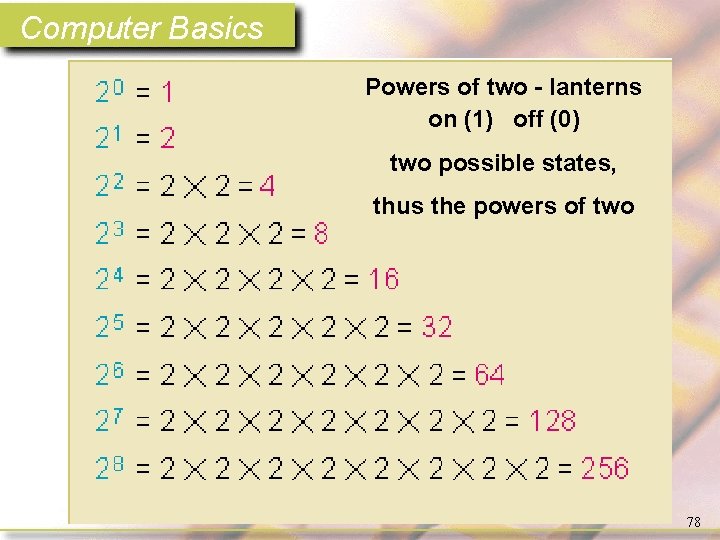
Computer Basics Powers of two - lanterns on (1) off (0) two possible states, thus the powers of two 78
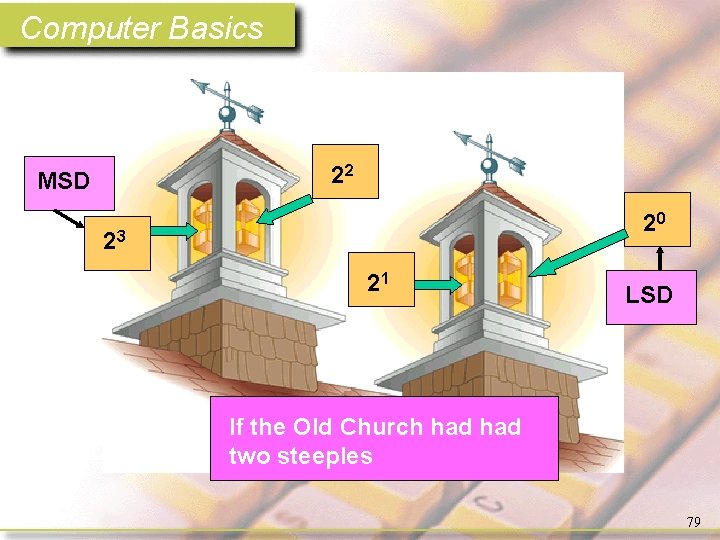
Computer Basics 22 MSD 20 23 21 LSD If the Old Church had two steeples 79
Computer Basics The maximum number of different units of information you can convey with n bits is 2 n 80
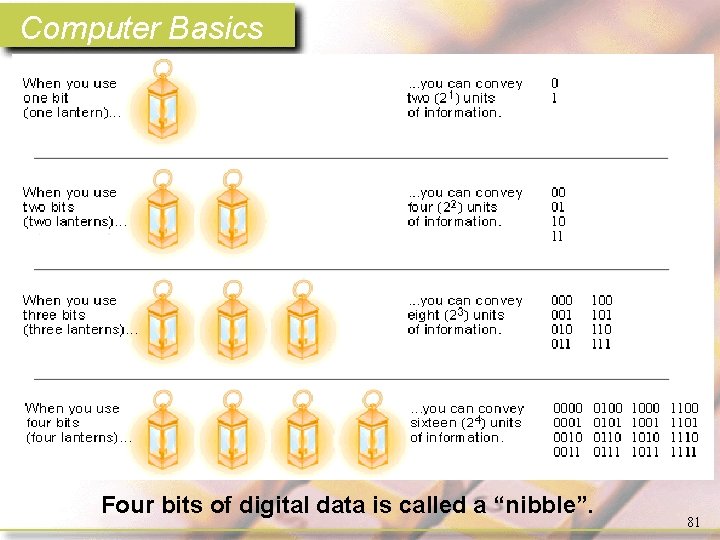
Computer Basics Four bits of digital data is called a “nibble”. 81
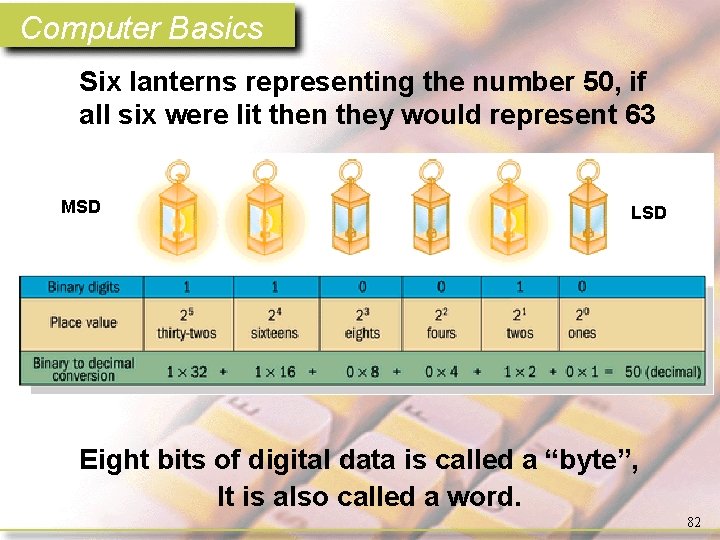
Computer Basics Six lanterns representing the number 50, if all six were lit then they would represent 63 MSD LSD Eight bits of digital data is called a “byte”, It is also called a word. 82
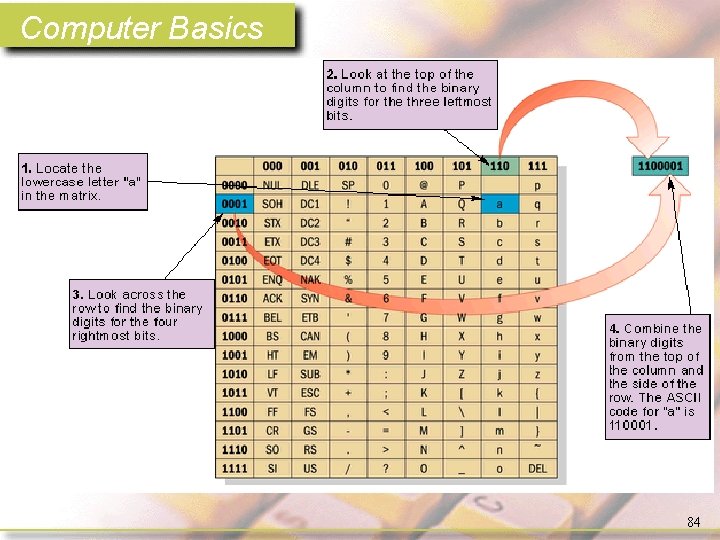
Computer Basics When you press the keys on your keyboard the data is transferred to the computer by digital binary information in the form of ASCII (American Standard Code for Information Interchange). 83
Computer Basics 84
Computer Basics Power on 85
Computer Basics 86
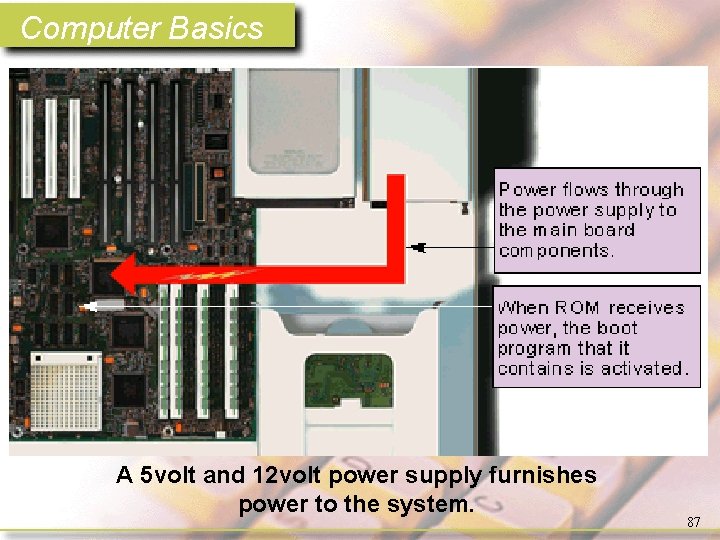
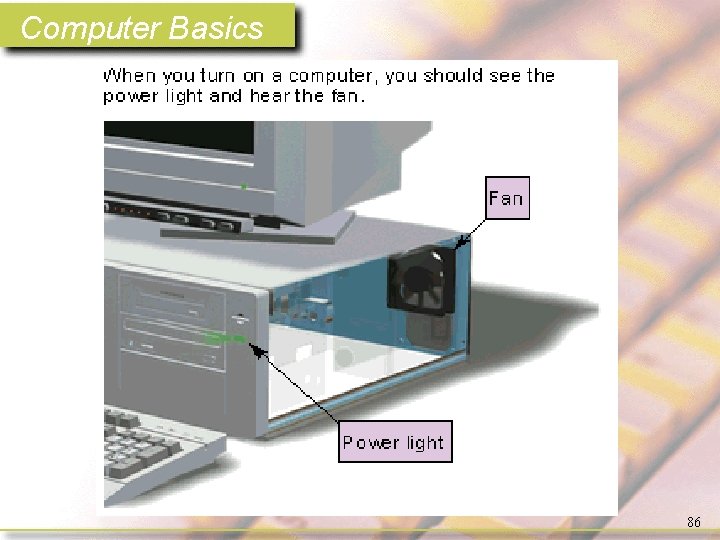
Computer Basics A 5 volt and 12 volt power supply furnishes power to the system. 87
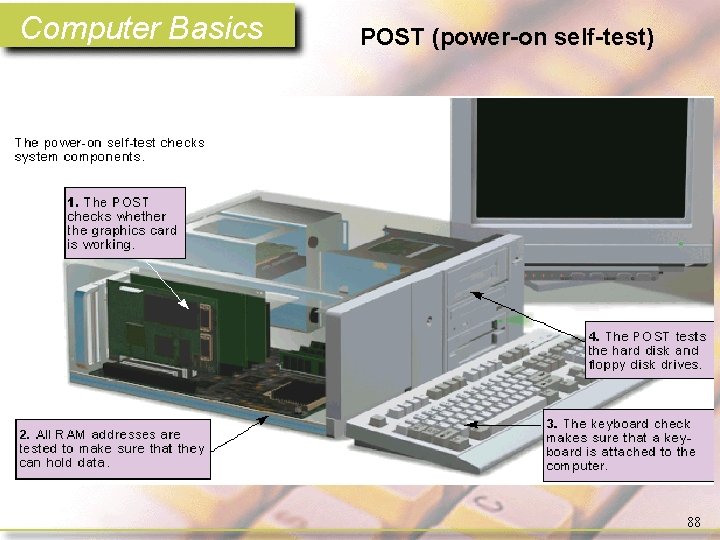
Computer Basics POST (power-on self-test) 88
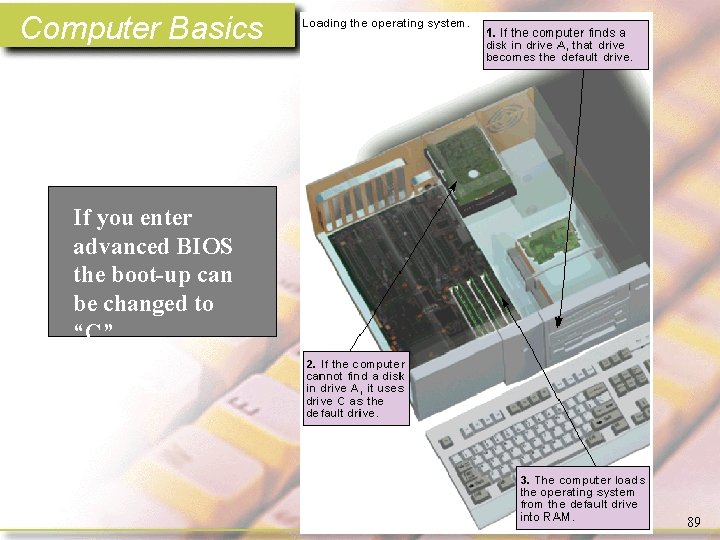
Computer Basics If you enter advanced BIOS the boot-up can be changed to “C” 89
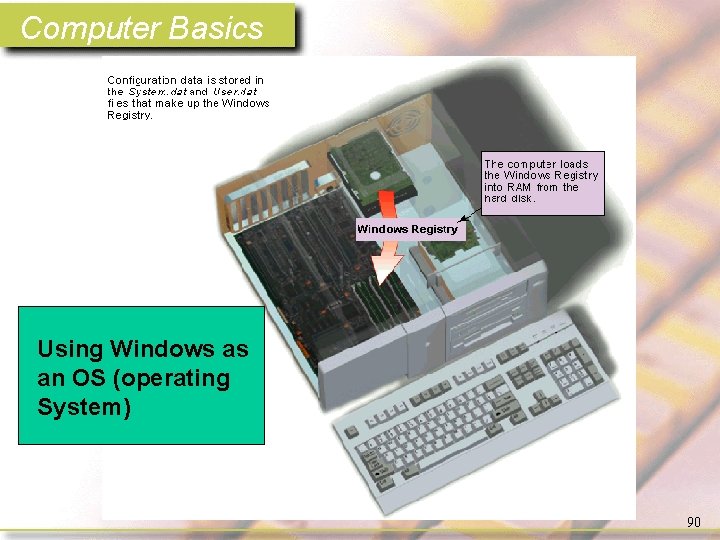
Computer Basics Using Windows as an OS (operating System) 90
Computer Basics 91

Computer Basics 92
- Slides: 92