
Computer Basics 1 Computer Basic 1 includes two
Computer Basics 1 Computer Basic 1 includes two lessons: §Lesson 1: Introduction to Computers §Lesson 2: Common Computer Terminology
Lesson 1 – Introduction to Computer Objectives After completing lesson 1, you will be able to: ¡ Describe the importance of computers in today’s world. ¡ Identify the main parts of a computer. ¡ Identify the steps for starting a computer. ¡ Identify the different groups of keys on a keyboard. ¡ Perform different tasks by using a mouse.
OBJECTIVES Learn Basic Computer Terminology ¡ Difference Between Hardware and Software ¡ Understanding Computer Components ¡ Basic Keyboard and Mouse Usage ¡ Proper Care For your PC ¡
DEFINITION ¡ ¡ ¡ What is a Computer? com·put·er Pronunciation key (kmpytr) n. A device that computes, especially a programmable electronic machine that performs high-speed mathematical or logical operations or that assembles, stores, correlates, or otherwise processes information. One who computes. (American Heritage Dictionary, 4 th ed. Pub. 2000)
The Role of Computers ¡ In Business and Industry ¡ In Publication Field ¡ In Education Field ¡ In Government Organizations ¡ In Medical Field ¡ In Science Field ¡ In Entertainment Field
Uses for a PC ¡ ¡ ¡ ¡ ¡ Word Processing Desktop Publishing Database Management Spreadsheets Communication Finance Education Entertainment News and Information Doorstop
Tips for Beginners Explore Your Computer ¡ Mistakes won’t Kill You ¡ EDIT/ UNDO is your Friend ¡ Be persistent ¡ Apply what you Learn ¡ Don’t try to learn too fast ¡ Walk away if you get frustrated ¡ Have Fun ¡
Why Learn This Stuff? Calculations ¡ Letters, emails, notes ¡ Be able to talk to Friends & family ¡ It’s Fun ¡
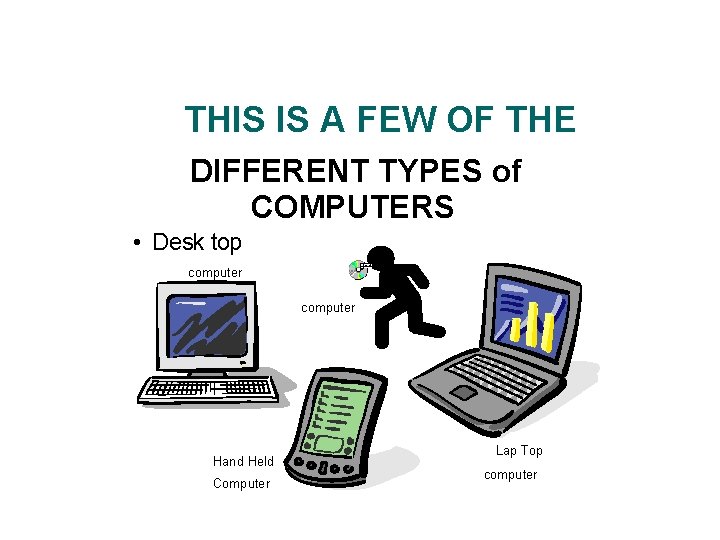
THIS IS A FEW OF THE DIFFERENT TYPES of COMPUTERS • Desk top computer Hand Held Computer Lap Top computer
DEFINITION ¡ Hardware Vs. Software If you can touch it, it’s hardware
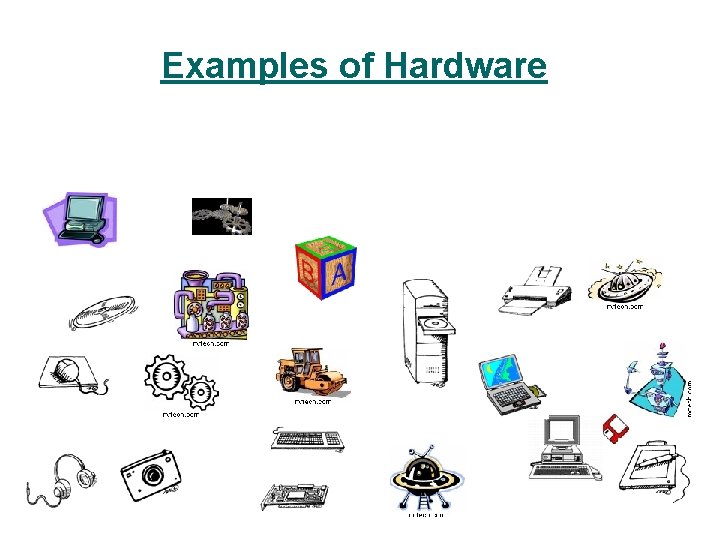
Examples of Hardware
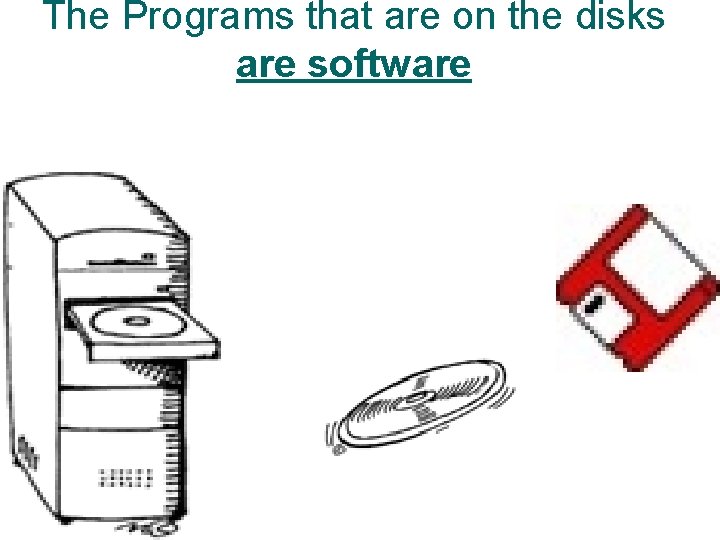
The Programs that are on the disks are software
Parts of a Computer 1. Input Devices (Keyboard, Mouse, etc. ) 2. Output Devices (Monitor, Speakers, etc. ) 3. Central Processing Unit (CPU) and memory 4. Motherboard (Circuit Board) 5. Expansion Cards (Video Card, Sound Card, or NIC) 6. Hard Drive Ports and Connections (USB, Firewire, etc. )
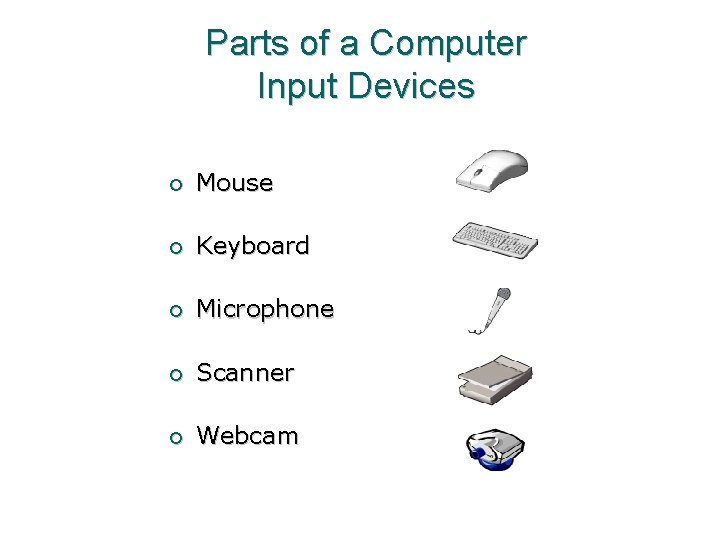
Parts of a Computer Input Devices ¡ Mouse ¡ Keyboard ¡ Microphone ¡ Scanner ¡ Webcam
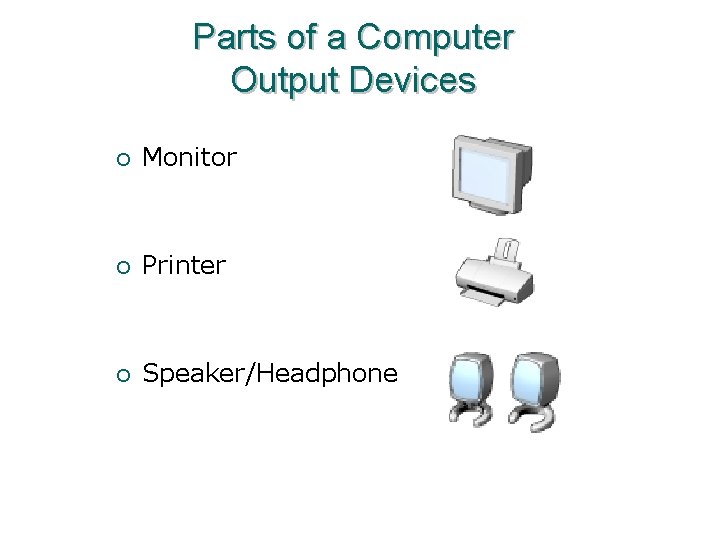
Parts of a Computer Output Devices ¡ Monitor ¡ Printer ¡ Speaker/Headphone
Parts of a Computer Central Processing Unit (CPU) ¡ A device that interprets and runs the commands that you give to the computer. ¡ Also referred to as the processor. ¡ Two major brands are Intel and AMD. ¡ Examples: Intel Core 2 Duo, AMD Turion X 2
Parts of a Computer Memory ¡ Memory is where information is stored and retrieved by the CPU. ¡ There are two main types of memory: l Random Access Memory (RAM): It is the main memory and allows you to temporarily store commands and data. l Read Only Memory (ROM): It is the memory that retains its contents even after the computer is turned off.
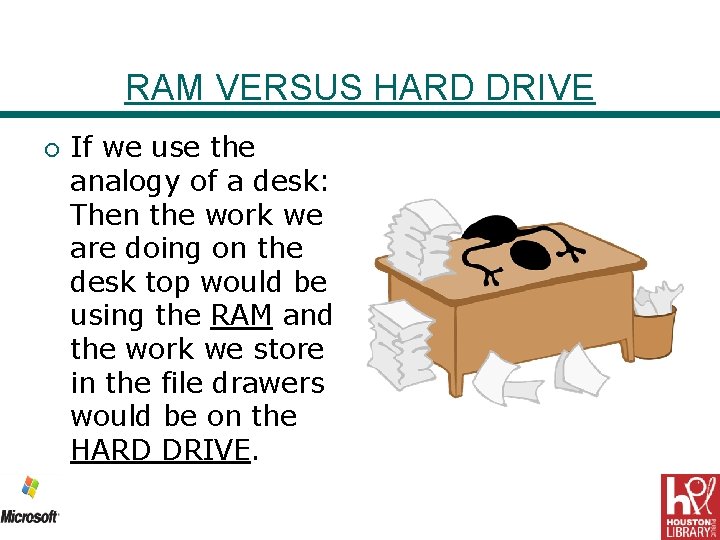
RAM VERSUS HARD DRIVE ¡ If we use the analogy of a desk: Then the work we are doing on the desk top would be using the RAM and the work we store in the file drawers would be on the HARD DRIVE.
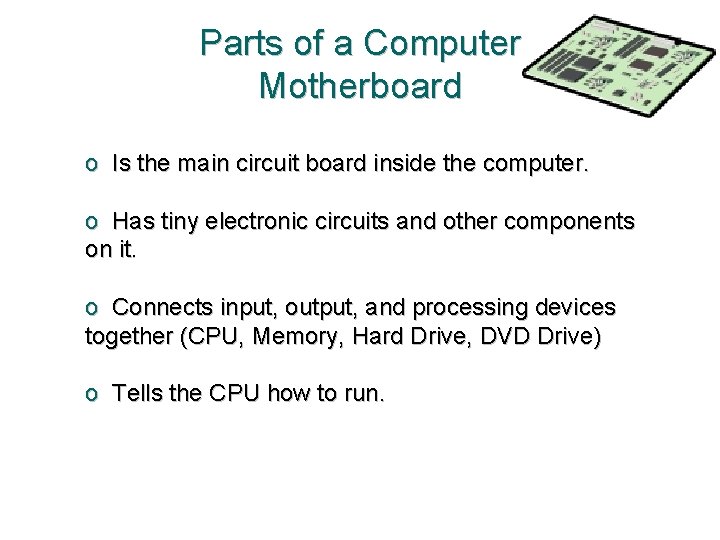
Parts of a Computer Motherboard o Is the main circuit board inside the computer. o Has tiny electronic circuits and other components on it. o Connects input, output, and processing devices together (CPU, Memory, Hard Drive, DVD Drive) o Tells the CPU how to run.
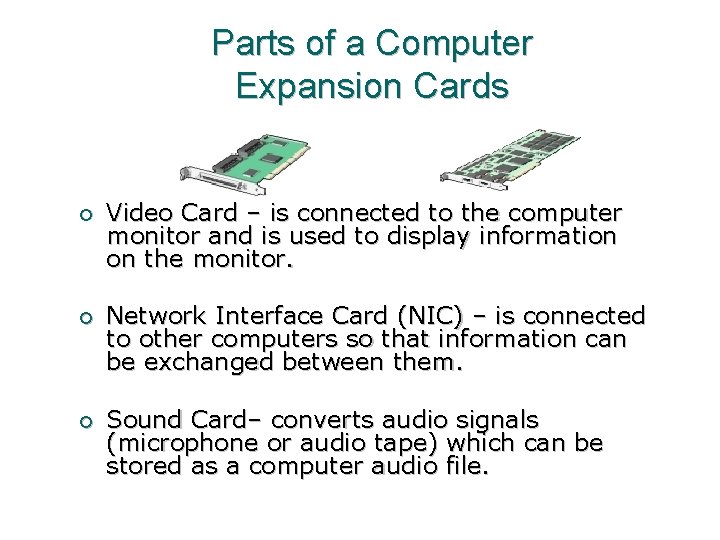
Parts of a Computer Expansion Cards ¡ Video Card – is connected to the computer monitor and is used to display information on the monitor. ¡ Network Interface Card (NIC) – is connected to other computers so that information can be exchanged between them. ¡ Sound Card– converts audio signals (microphone or audio tape) which can be stored as a computer audio file.
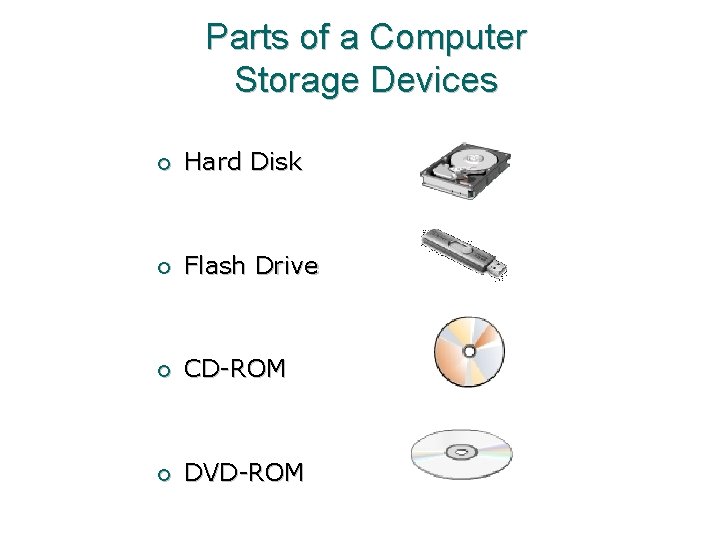
Parts of a Computer Storage Devices ¡ Hard Disk ¡ Flash Drive ¡ CD-ROM ¡ DVD-ROM
Parts of a Computer Ports and Connections ¡ Universal Serial Bus (USB) Port ¡ Fire. Wire (similar to USB but faster) ¡ Network Port (Ethernet) ¡ Parallel Port and Serial Port ¡ Display Adapter ¡ Power
Using a Computer ¡ To turn on a computer, press the power button on the system unit. ¡ Log on to the operating system by your user name and password. ¡ Computers allow you to create, modify, and save files. ¡ To shut down a computer, click Start, and then, at the bottom of the Start menu, click Shut Down.
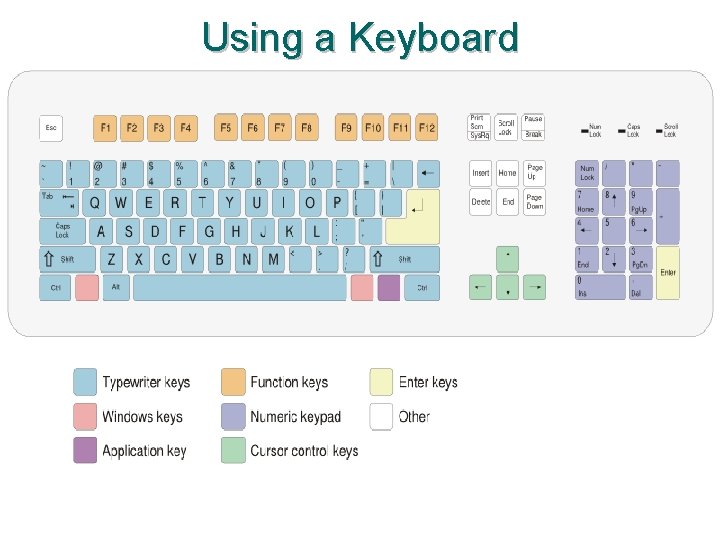
Using a Keyboard
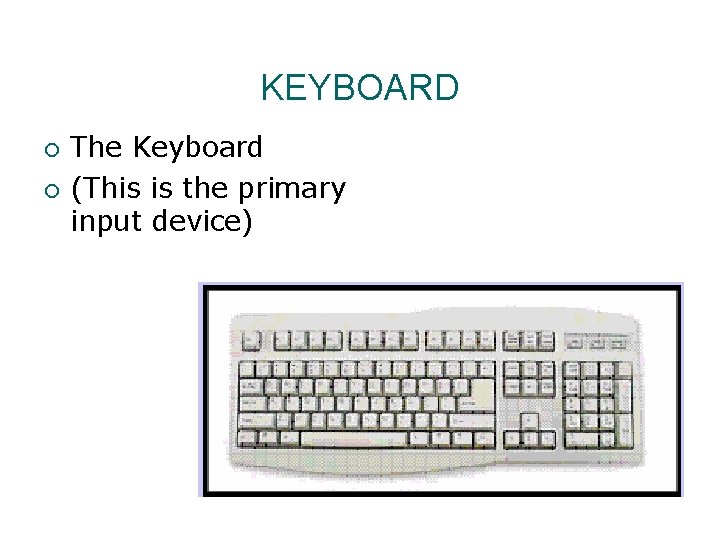
KEYBOARD ¡ ¡ The Keyboard (This is the primary input device)
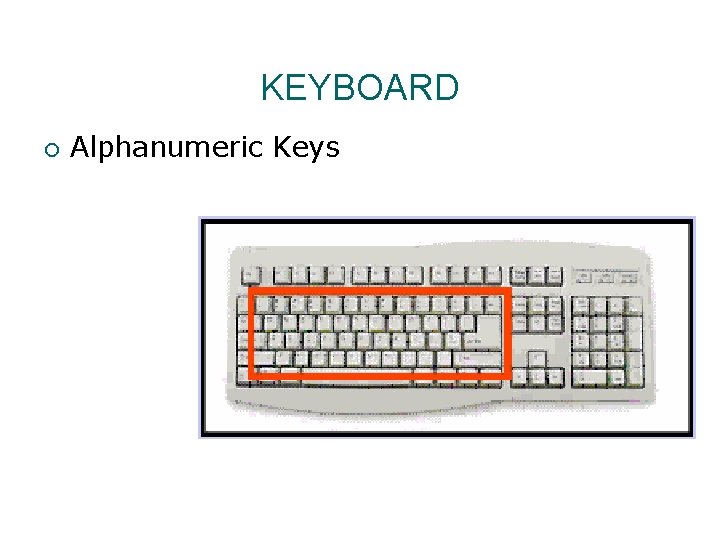
KEYBOARD ¡ Alphanumeric Keys
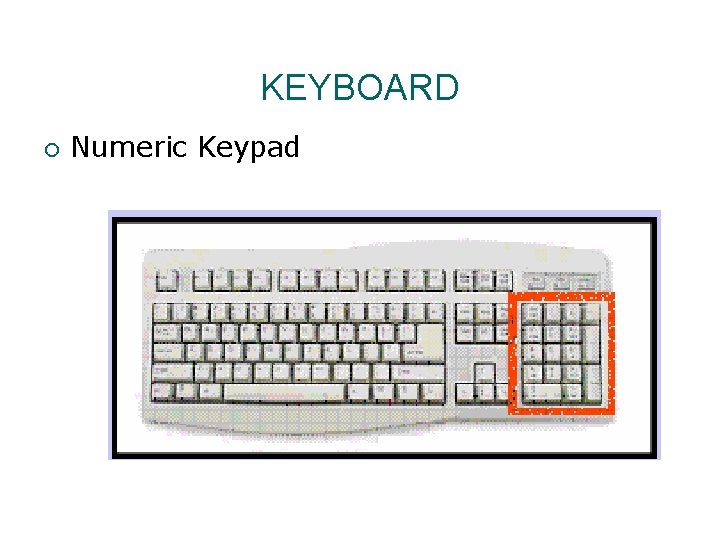
KEYBOARD ¡ Numeric Keypad
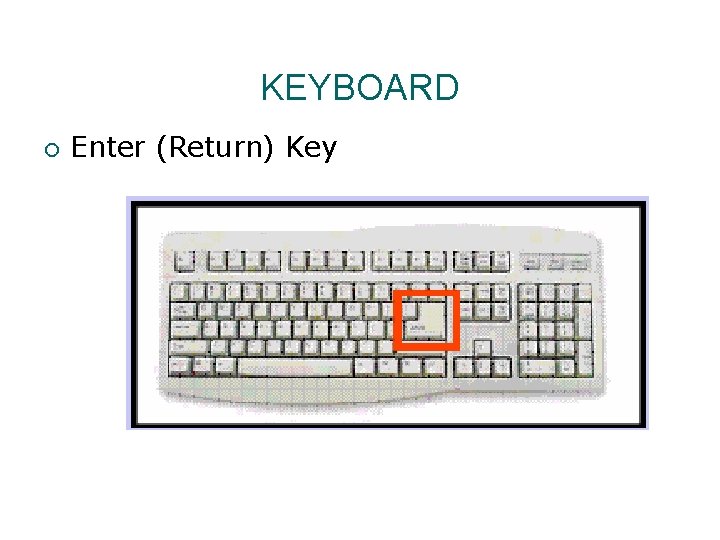
KEYBOARD ¡ Enter (Return) Key

KEYBOARD ¡ Spacebar
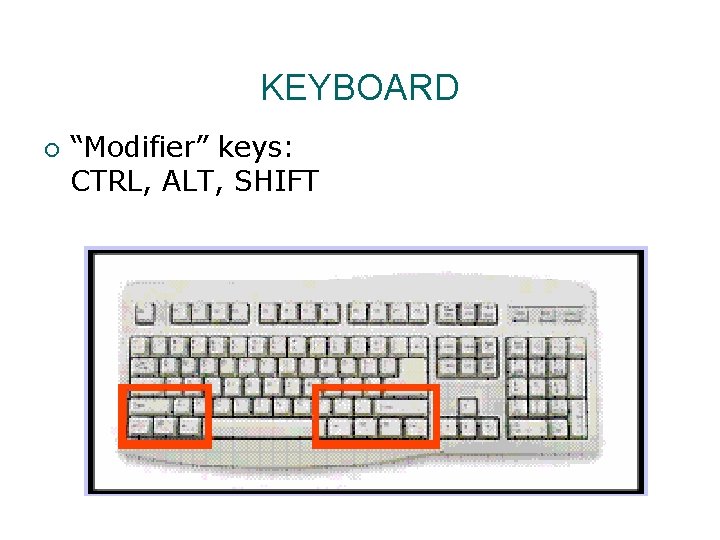
KEYBOARD ¡ “Modifier” keys: CTRL, ALT, SHIFT
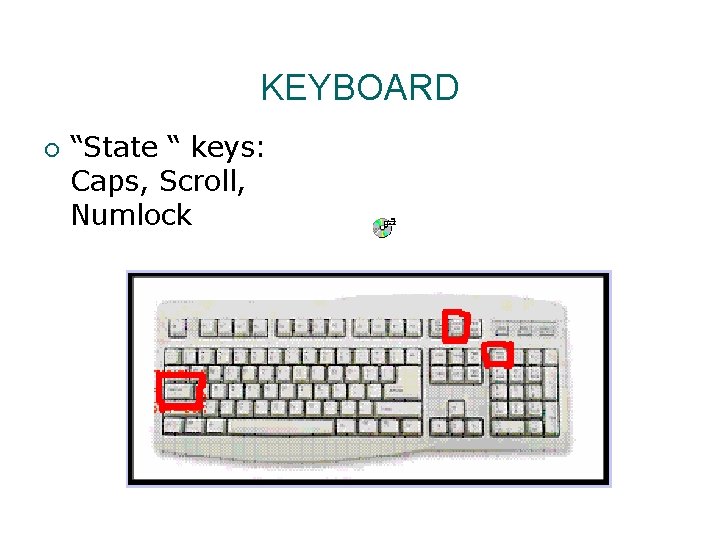
KEYBOARD ¡ “State “ keys: Caps, Scroll, Numlock
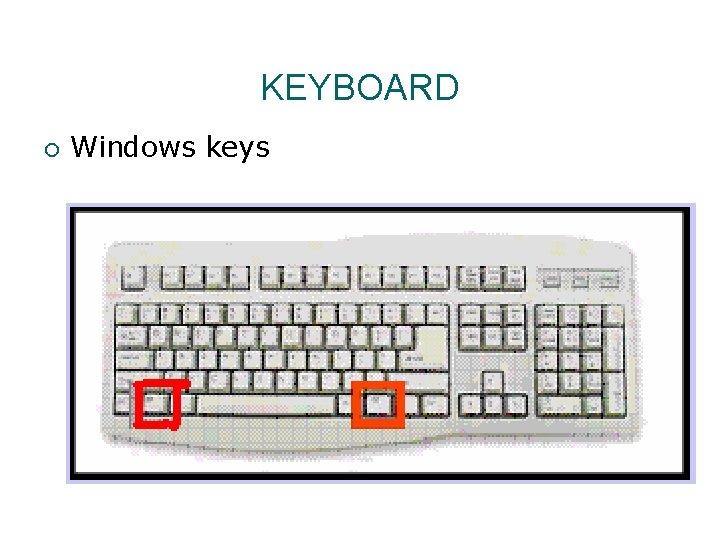
KEYBOARD ¡ Windows keys
Using a Mouse ¡ A mouse is a small device that you can use to move, select, and open items displayed on your monitor. ¡ Most mouse devices have at least two buttons, left and right. ¡ Mouse’s action: o Point o Double Click o Left Click o Right Click o Click-and-Drag or Drag-and-Drop
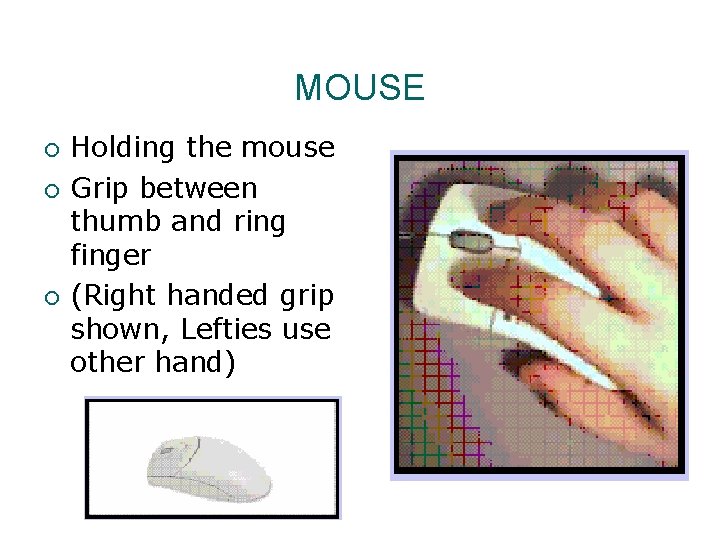
MOUSE ¡ ¡ ¡ Holding the mouse Grip between thumb and ring finger (Right handed grip shown, Lefties use other hand)
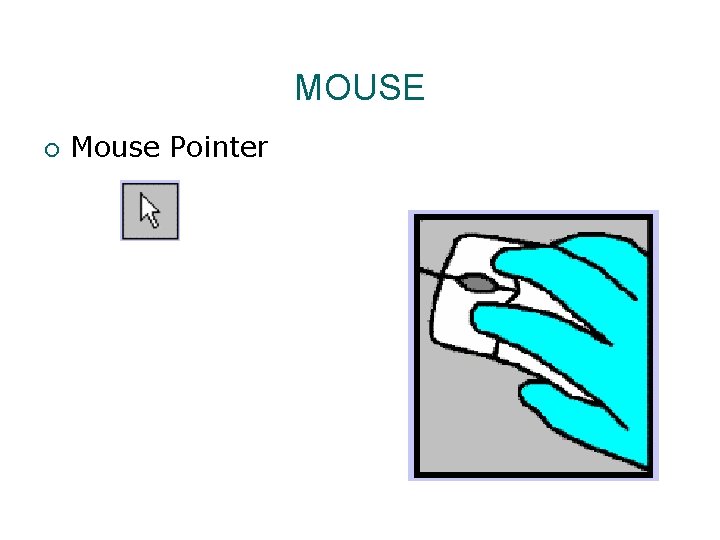
MOUSE ¡ Mouse Pointer
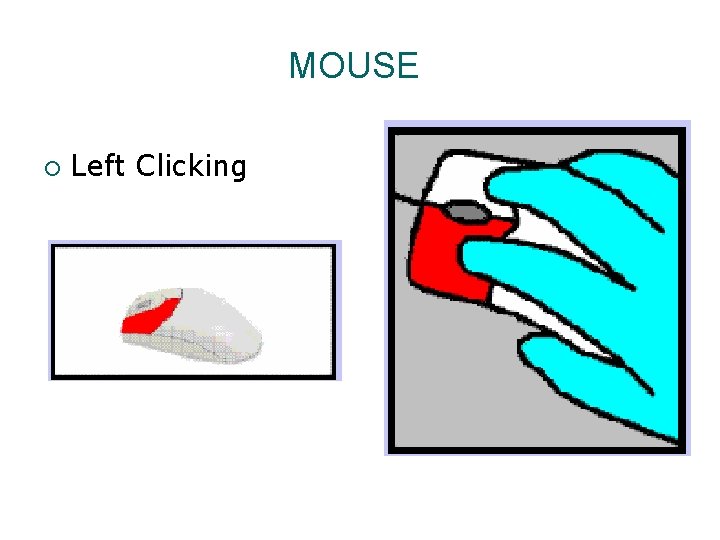
MOUSE ¡ Left Clicking
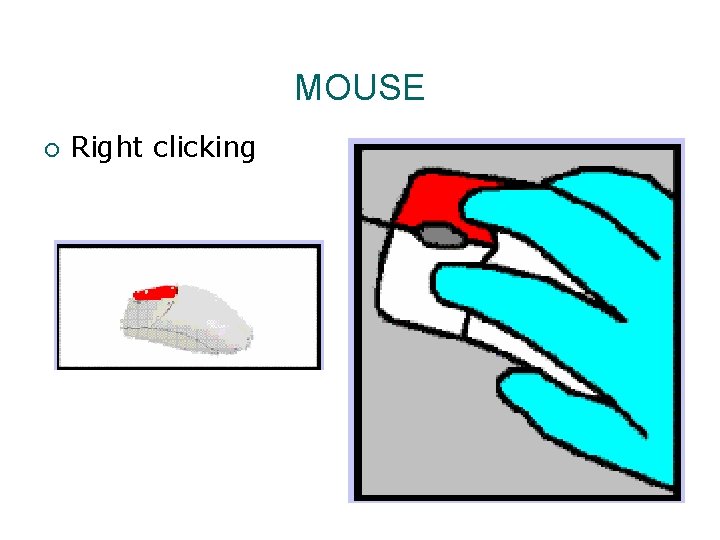
MOUSE ¡ Right clicking
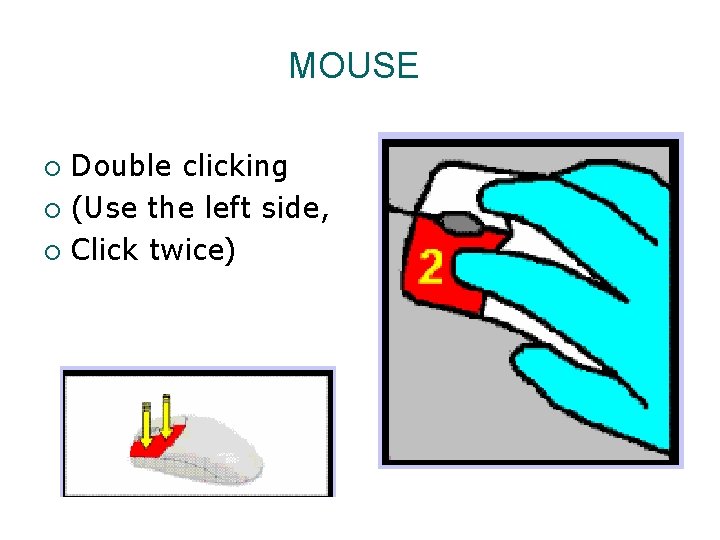
MOUSE Double clicking ¡ (Use the left side, ¡ Click twice) ¡
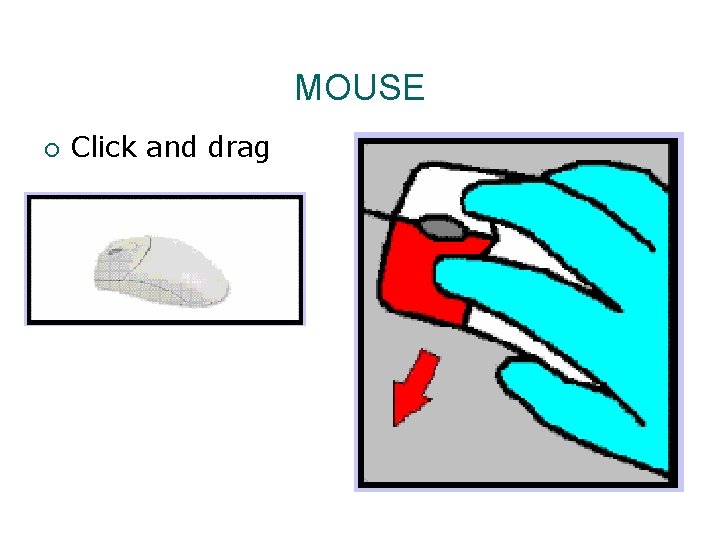
MOUSE ¡ Click and drag
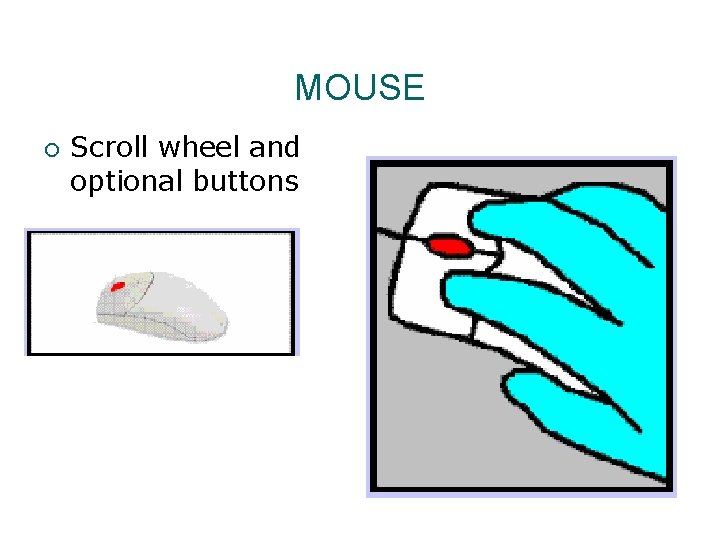
MOUSE ¡ Scroll wheel and optional buttons
Questions
Lesson 2 – Common Computer Terminology Objectives ¡ Identify the primary hardware components of a computer. ¡ Define an operating system and its role. ¡ Define the term program. ¡ Explain what is meant by data. ¡ Define the term network, and identify the benefits of networking. ¡ Define the term Internet.
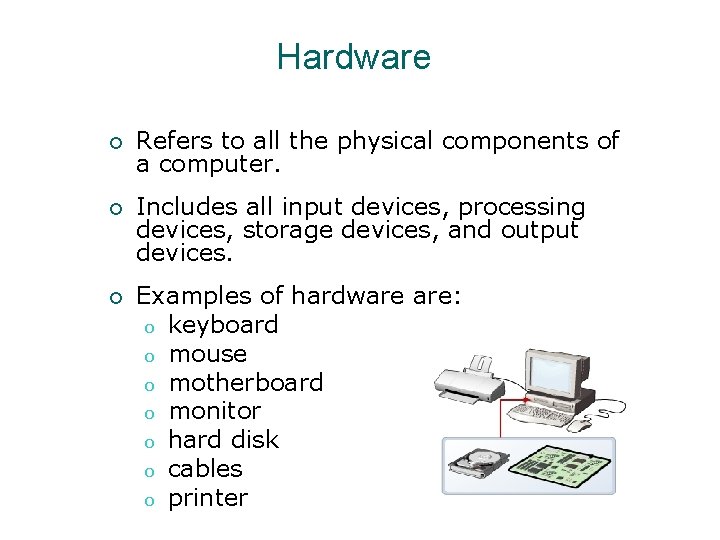
Hardware ¡ Refers to all the physical components of a computer. ¡ Includes all input devices, processing devices, storage devices, and output devices. ¡ Examples of hardware are: o keyboard o mouse o motherboard o monitor o hard disk o cables o printer
Operating Systems ¡ Is the most important software on the computer ¡ Controls and manages the hardware connected to your computer ¡ Provides an interface that helps you to interact with the computer ¡ Ensures that your computer is functioning properly ¡ Windows XP is an example of the operation system. ¡ Can be either text-based or graphics-based. ¡ Graphics-based operating system help you install hardware or software with easy-to-use interface.
Programs o The hardware and the operating system together are referred to as a platform. o Programs, also called applications, use this platform to perform tasks. o There are many types of programs: o Some programs allow you to perform tasks such as writing letters, doing calculations, or sending e-mail messages. o Other programs allow you to create illustrations, play games, watch movies, or communicate with other computer users.
Data o Programs process data that you provide as input to your computer. o Data can be in the form of text, graphics, audio, or video depending on the type of program. o Program processes the data and displays the output on the screen. o You can save this output in a file. o The file can be an audio file, a text file, a graphics file, or a video file.
Networks ¡ Is a group of computers and associated devices that are linked together to facilitate sharing information. ¡ Can also be used to share data and devices such as printers. ¡ A typical network has the following three components: o o o Server Workstation Communication channel
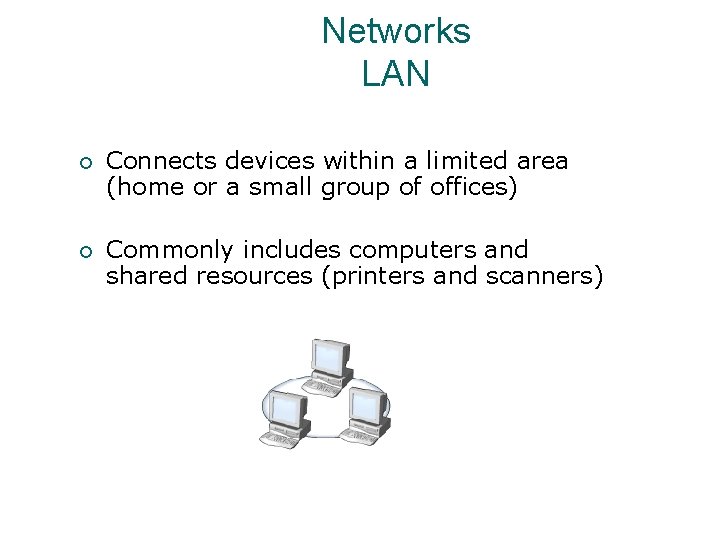
Networks LAN ¡ Connects devices within a limited area (home or a small group of offices) ¡ Commonly includes computers and shared resources (printers and scanners)
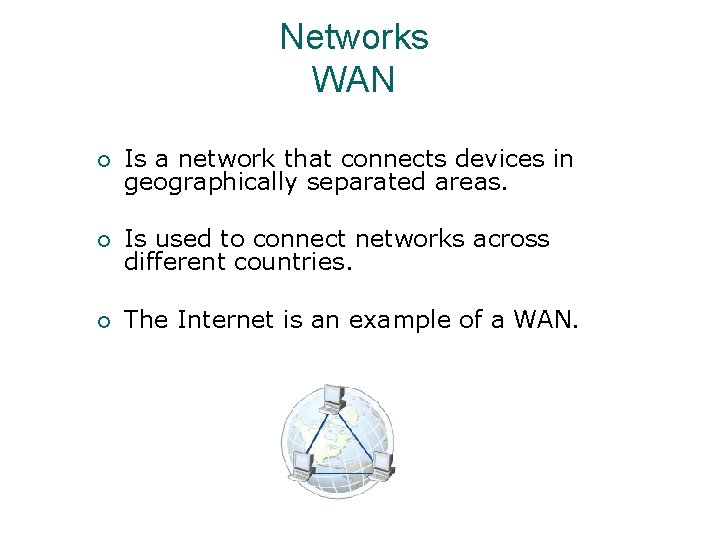
Networks WAN ¡ Is a network that connects devices in geographically separated areas. ¡ Is used to connect networks across different countries. ¡ The Internet is an example of a WAN.
Internet ¡ Internet is a worldwide collection of public networks that are linked to each other for information exchange. ¡ Internet offers a range of services to its users (file transfers between Internet users and electronic mail) ¡ The World Wide Web (WWW), or the Web, is another service that the Internet provides. ¡ An intranet is similar to the Web but is accessible only to authorized users of the organization.
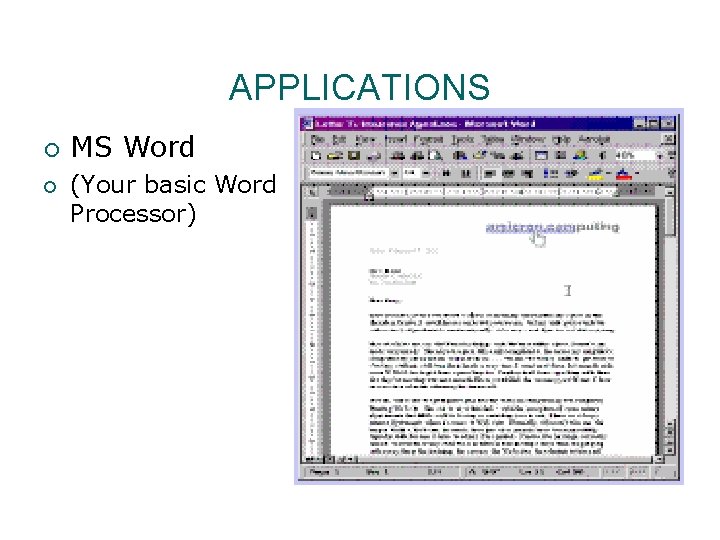
APPLICATIONS ¡ ¡ MS Word (Your basic Word Processor)
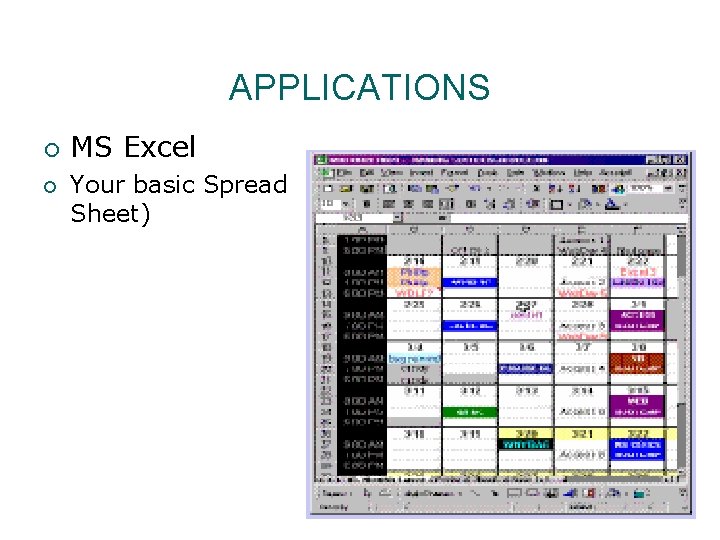
APPLICATIONS ¡ ¡ MS Excel Your basic Spread Sheet)
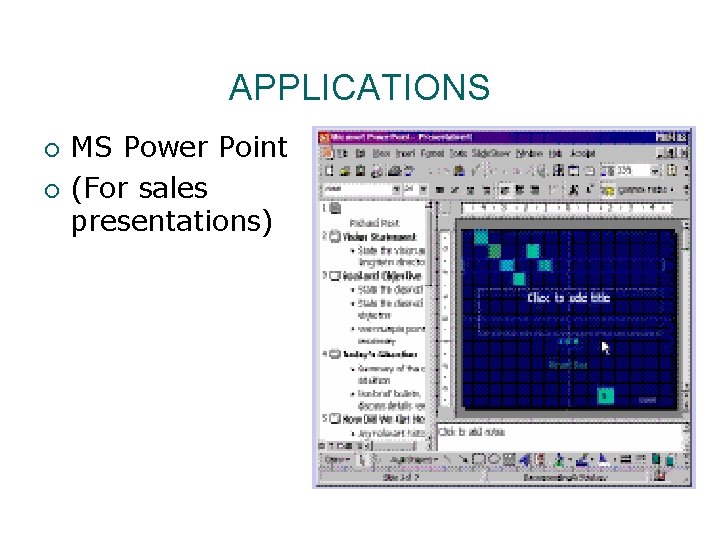
APPLICATIONS ¡ ¡ MS Power Point (For sales presentations)
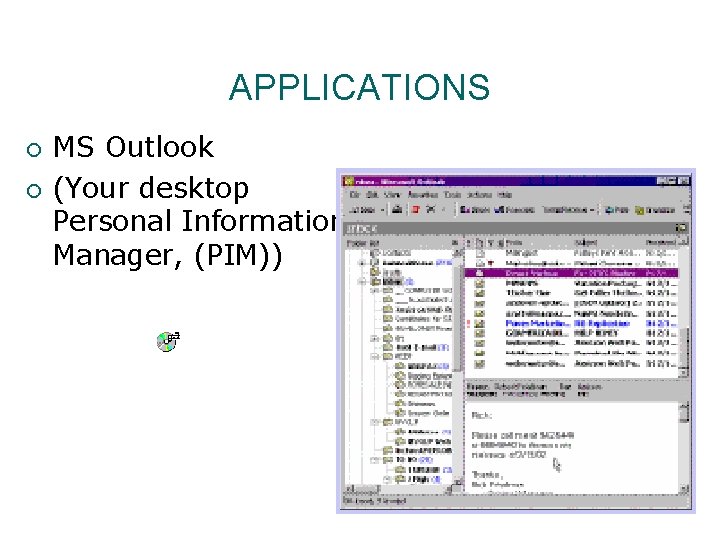
APPLICATIONS ¡ ¡ MS Outlook (Your desktop Personal Information Manager, (PIM))
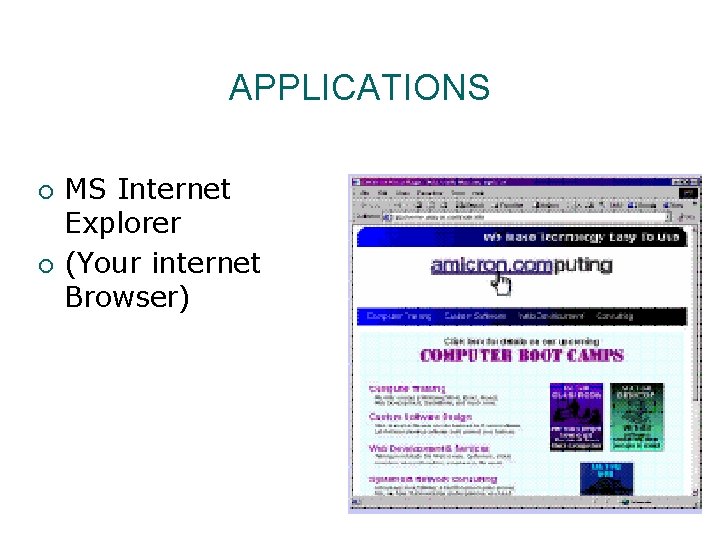
APPLICATIONS ¡ ¡ MS Internet Explorer (Your internet Browser)
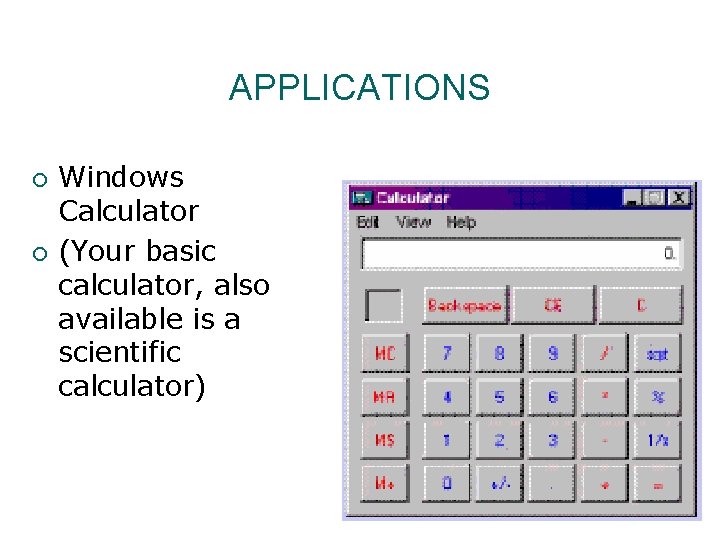
APPLICATIONS ¡ ¡ Windows Calculator (Your basic calculator, also available is a scientific calculator)
APPLICATIONS Word. Perfect ¡ Lotus 1 -2 -3 ¡ Quick. Books ¡ Corel. Draw ¡ Hyper. Cam ¡ Photo Paint ¡ ETC. Adobe Acrobat Photoshop Notepad Win. Zip Media Player Star. Craft ¡ ETC . Ad Infinitum
Questions
Practices ¡ ¡ Practice typing by visiting www. powertyping. com Practice using the mouse at www. mouseprogram. com
- Slides: 59