
Computer Architecture The Bus What is a bus
Computer Architecture
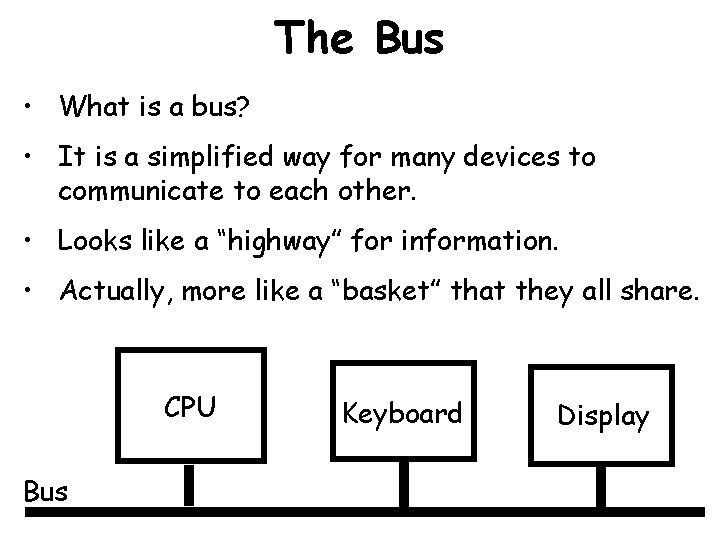
The Bus • What is a bus? • It is a simplified way for many devices to communicate to each other. • Looks like a “highway” for information. • Actually, more like a “basket” that they all share. CPU Bus Keyboard Display
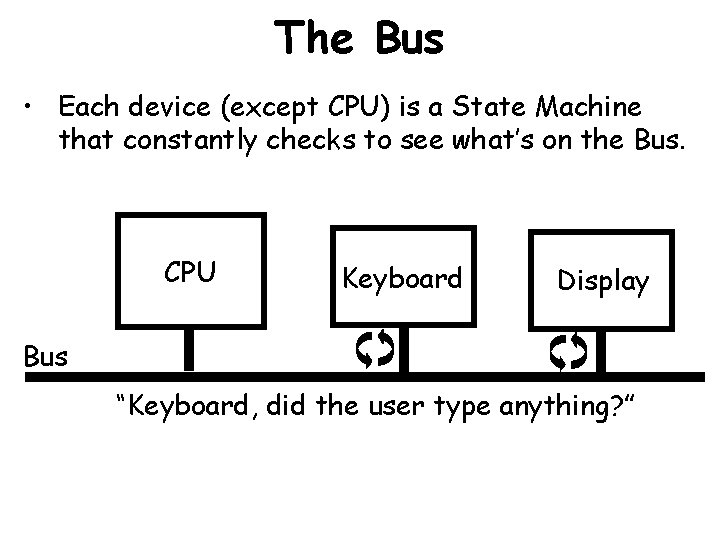
The Bus • Each device (except CPU) is a State Machine that constantly checks to see what’s on the Bus. CPU Keyboard Display Bus “Keyboard, did the user type anything? ”
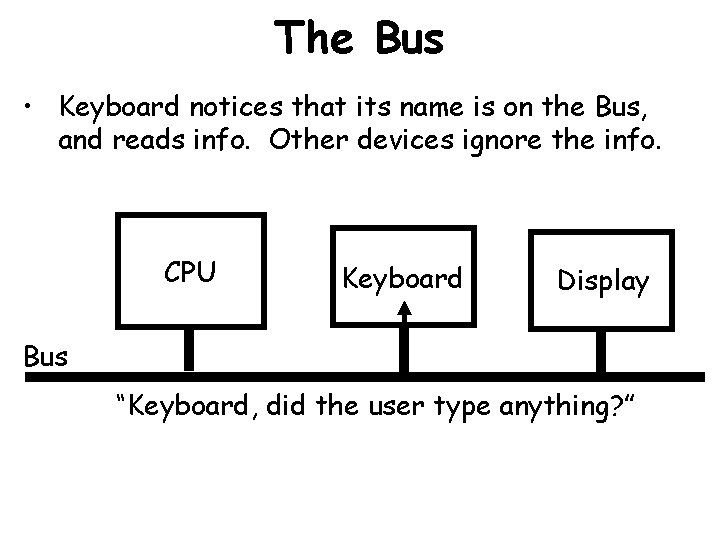
The Bus • Keyboard notices that its name is on the Bus, and reads info. Other devices ignore the info. CPU Keyboard Display Bus “Keyboard, did the user type anything? ”
The Central Processing Unit • The Central Processing Unit ( CPU) – Often referred to as the “brain” of the computer. – Responsible for controlling all activities of the computer system. – The three major components of the CPU are: 1. Arithmetic Unit (Computations performed) Accumulator (Results of computations kept here) 2. Control Unit (Has two locations where numbers are kept) Instruction Register (Instruction placed here for analysis) Program Counter (Which instruction will be performed next? ) 3. Instruction Decoding Unit (Decodes the instruction) – Motherboard: The place where most of the electronics including the CPU are mounted.
Inside the CPU • The CPU is the brain of the computer. • It is the part that actually executes the instructions. • Let’s take a look inside.
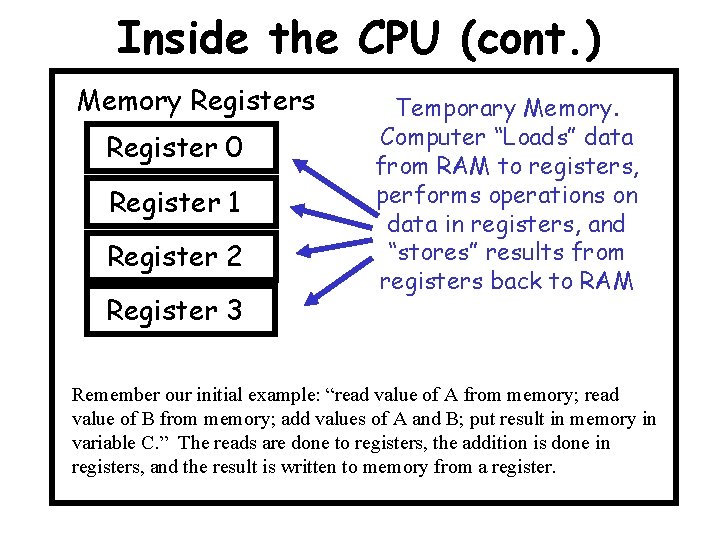
Inside the CPU (cont. ) Memory Registers Register 0 Register 1 Register 2 Register 3 Temporary Memory. Computer “Loads” data from RAM to registers, performs operations on data in registers, and “stores” results from registers back to RAM Remember our initial example: “read value of A from memory; read value of B from memory; add values of A and B; put result in memory in variable C. ” The reads are done to registers, the addition is done in registers, and the result is written to memory from a register.
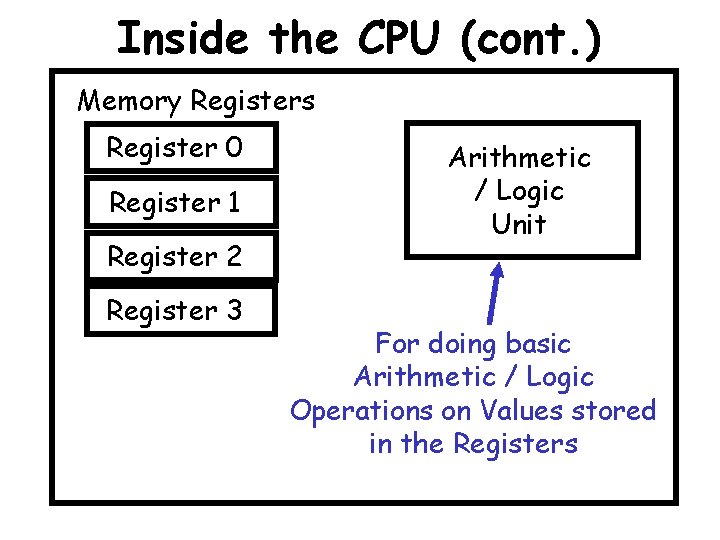
Inside the CPU (cont. ) Memory Registers Register 0 Register 1 Register 2 Register 3 Arithmetic / Logic Unit For doing basic Arithmetic / Logic Operations on Values stored in the Registers
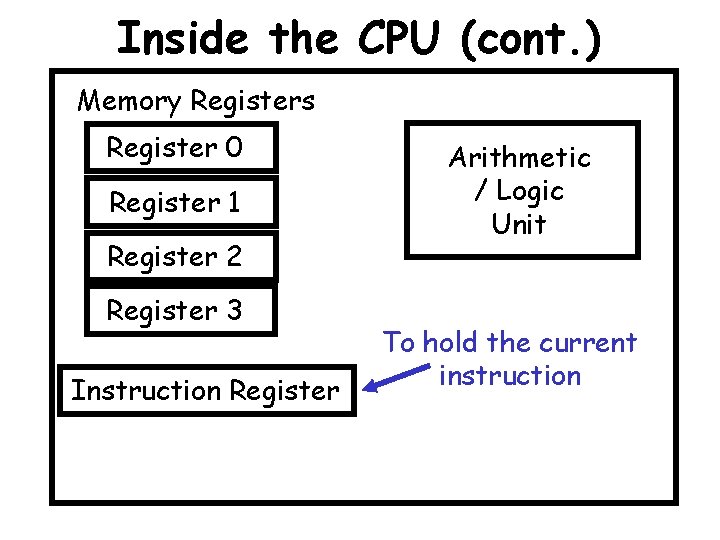
Inside the CPU (cont. ) Memory Registers Register 0 Register 1 Register 2 Register 3 Instruction Register Arithmetic / Logic Unit To hold the current instruction
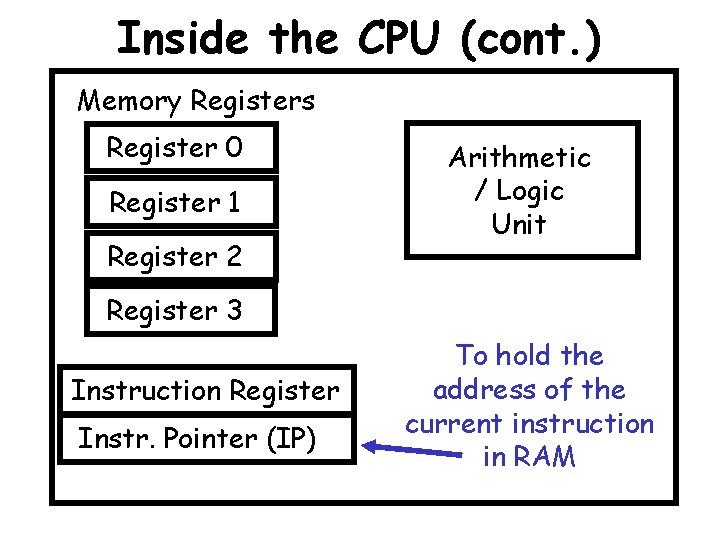
Inside the CPU (cont. ) Memory Registers Register 0 Register 1 Register 2 Arithmetic / Logic Unit Register 3 Instruction Register Instr. Pointer (IP) To hold the address of the current instruction in RAM
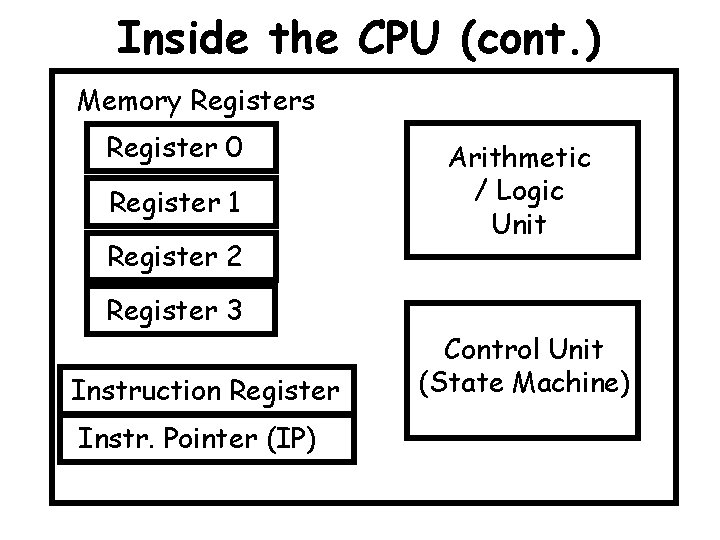
Inside the CPU (cont. ) Memory Registers Register 0 Register 1 Register 2 Register 3 Instruction Register Instr. Pointer (IP) Arithmetic / Logic Unit Control Unit (State Machine)
The Control Unit • It all comes down to the Control Unit. • This is just a State Machine. • How does it work?
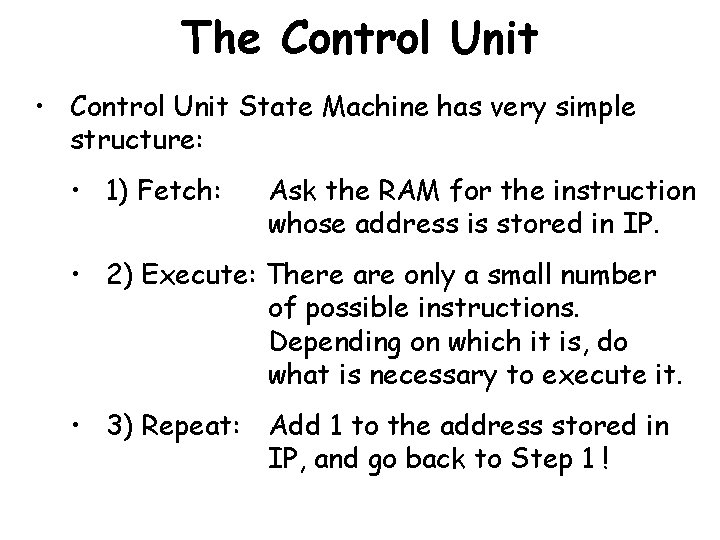
The Control Unit • Control Unit State Machine has very simple structure: • 1) Fetch: Ask the RAM for the instruction whose address is stored in IP. • 2) Execute: There are only a small number of possible instructions. Depending on which it is, do what is necessary to execute it. • 3) Repeat: Add 1 to the address stored in IP, and go back to Step 1 !
Memory and Storage
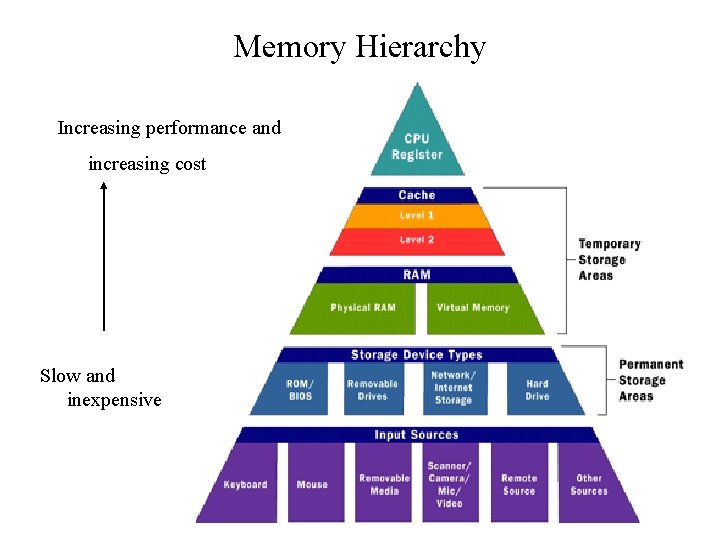
Memory Hierarchy Increasing performance and increasing cost Slow and inexpensive
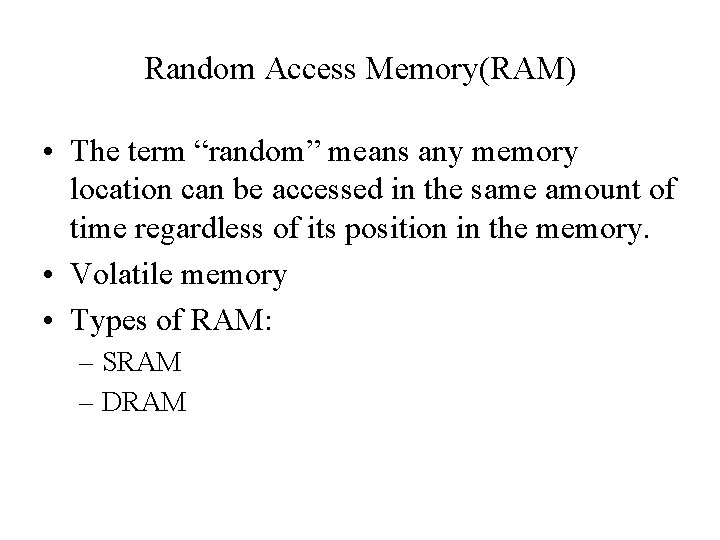
Random Access Memory(RAM) • The term “random” means any memory location can be accessed in the same amount of time regardless of its position in the memory. • Volatile memory • Types of RAM: – SRAM – DRAM
Static RAM • Static RAM (SRAM) based on flip flops • Contents of each location persist as long as power is applied. • Fast but relatively large • Consume a lot of power • Used for memory applications that are small but fast
Dynamic RAM • Dynamic RAM (DRAM) employ capacitors • Capacitor stores electric charge whose level represents a 1 or 0 • Capacitors dissipate with time and hence the charge must be restored frequently • DRAMs smaller, slower than SRAMs support low cost, low power and high density and hence used in main memory
Read Only Memory(ROM) • Data stored in these chips is nonvolatile -- it is not lost when power is turned off. • On turn on, the computer loads BIOS from ROM • Data stored in these chips is either unchangeable or requires a special operation to change • Applications: Videogames, calculators, microwave oven, etc
Read Only Memory(ROM) (contd) • Lets see the circuit for a ROM that stores four-bit words(0101, 1011, 1110, 0000) • PROM burner allows contents of the ROM to be overwritten only once • EPROMs – could be written several times • EEPROMs – allow the content to be rewritten electrically
Flash Memory • A section of memory cells can be erased in a single step, or 'flash', thus the name • Nonvolatile memory • Flash memory is used for easy and fast information storage in such devices as digital cameras, mobile, video game consoles
Secondary storage: is required in a computer system for three reasons 1. The content of memory is usually volatile, which means that if power is disconnected the data is lost. 2. The capacity in megabytes of memory is limited. 3. Memory is more expensive than secondary storage.
Storage Devices • Common Basic Technologies for Storing Binary Information: – Electronic – Magnetic – Optical
Electronic Circuits • Electronic Circuits – Most expensive of the three forms for storing binary information. – A flip-flop circuit has either one electronic status or the other. It is said to flip-flop from one to the other. – Electronic circuits come in two forms: • Permanent • Non-permanent
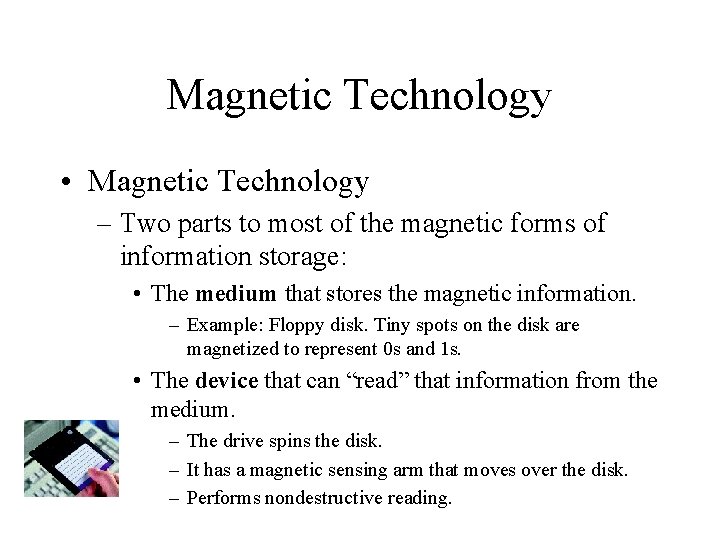
Magnetic Technology • Magnetic Technology – Two parts to most of the magnetic forms of information storage: • The medium that stores the magnetic information. – Example: Floppy disk. Tiny spots on the disk are magnetized to represent 0 s and 1 s. • The device that can “read” that information from the medium. – The drive spins the disk. – It has a magnetic sensing arm that moves over the disk. – Performs nondestructive reading.
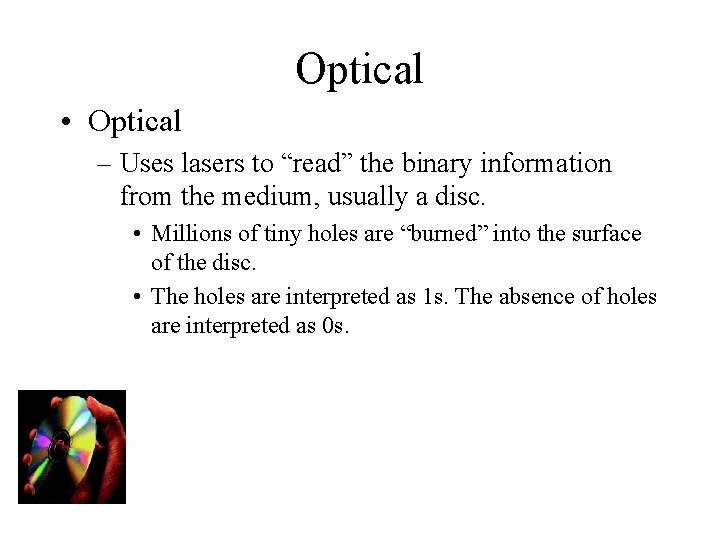
Optical • Optical – Uses lasers to “read” the binary information from the medium, usually a disc. • Millions of tiny holes are “burned” into the surface of the disc. • The holes are interpreted as 1 s. The absence of holes are interpreted as 0 s.
Storage Devices Several types of disks may be used for Secondary storage. • Floppy disks • Hard disks • Optical disks (including CD-ROM, writeable CD, DVD • Backup Storage Devices e. g. tape
Storage Devices Floppy Disk A floppy disk is a low capacity disk which may be removed from the computer. There are two types: Those holding a small amount of data (typically 1. 44 Mb And ‘Super floppies’ known as ZIP disks (typically 100 Mb Data may be written to and read from a floppy. A small notch can be used to make the disk read-only
Storage Devices Floppy Disk They are small lightweight and easy to transport. Ideal for backups of small amounts of data or for transfer of data from one machine to another. Floppy Drives are common to most if not all computers. On the down side, they may be easily misplaced, damaged or stolen. There is a risk of transferring VIRUSES
Storage Devices Hard Disk A hard disk is a higher capacity medium, with up to hundreds of gigabytes. They are usually non-removable, but removable hard disks are becoming more common. They can be both read from and written to, and are the standard medium for storage on computer systems today.
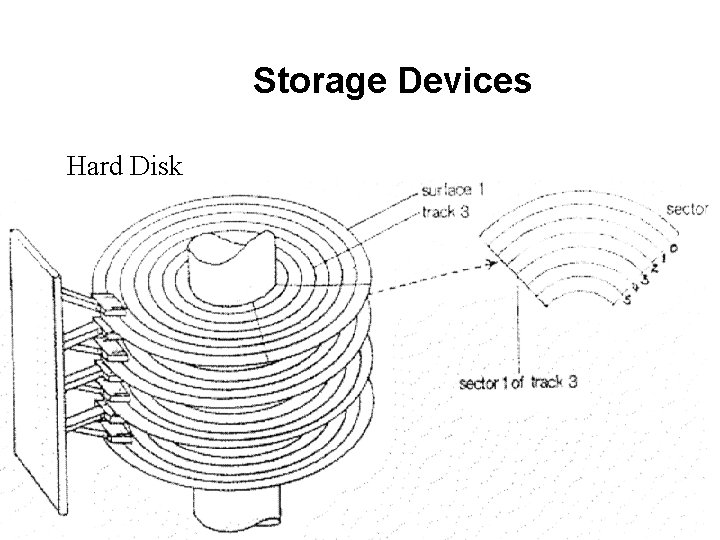
Storage Devices Hard Disk Hard disks are manufactured in metal and coated with a magnetisable recording medium, similar to the material used in a floppy disk or audio tape. Depending on the storage capacity of the unit, it may comprise a number of disks each having its own read/write head. Hard disks are much faster than floppy disks and can store much larger amounts of data.
Storage Devices Hard Disk
Storage Devices Hard Disk You can see from the previous diagram a hard disk is made up of Sectors, Tracks and Cylinders. The specification of a hard disk depends not only on its capacity but also: Access time to data. This is affected by the rotation Speed of the disk and also the way in which the disk Is connected to the motherboard – standard being SCSI and IDE
Storage Devices Optical disks CD ROM = Compact Disk Read Only Memory, is an ideal device for storing large quantities of data and information such as large software packages. The CD drive uses laser technology to read the disk contents and therefore both access and transfer are extremely fast. With a typical capacity of 600 Mb they are used for software supply, reference material such as Encyclopaedias and games.
Storage Devices Optical disks CD ROM as the name suggests is Read Only Writable CDs allow for large amounts of data to be written to a CD as well as read from it. They are sometimes know as CD-RW. For these, a CD drive is needed which includes write heads as well as read heads
Storage Devices Optical disks DVD or Digital Versatile Disk is a higher capacity version of a CD and DVD drives have a higher transfer rate. DVD disks provide high quality playback of films and audio and are increasingly found as standard on the home PC. DVDs may be read only or read/write. They are sometimes know as DVD-ROM and DVD-RAM.
Storage Devices Optical disks DVD disks are double sided so data is stored on both sides of the disk. DVD technology uses a very shortwave laser beam to read pits from the spinning disk DVD disks typically holds 4. 7 Gbytes of data Rewritable disks can be re-used thousands of times.

THANK YOU!!
- Slides: 38