
Computer Applications for Managers Introduction to Computers Computers
- Slides: 12
Computer Applications for Managers Introduction to Computers
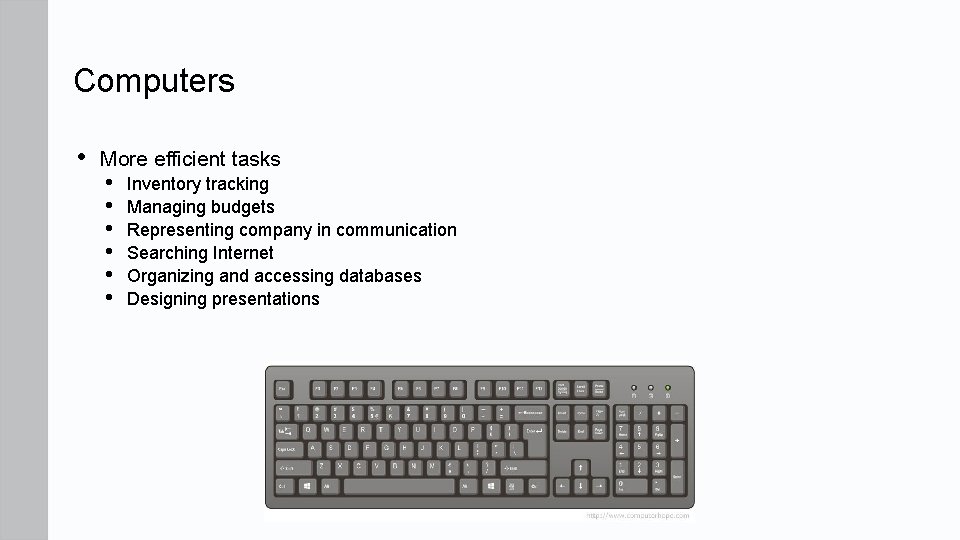
Computers • More efficient tasks • • • Inventory tracking Managing budgets Representing company in communication Searching Internet Organizing and accessing databases Designing presentations
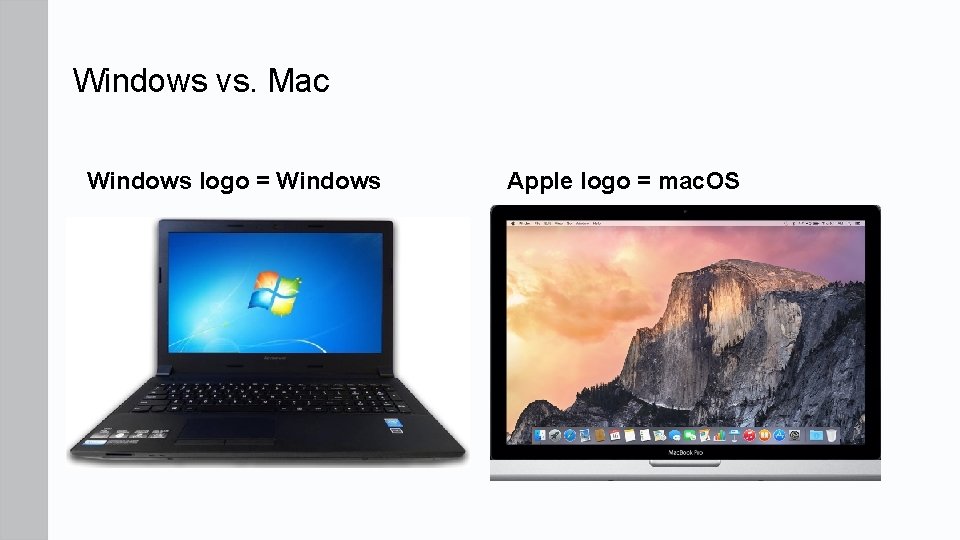
Windows vs. Mac Windows logo = Windows Apple logo = mac. OS
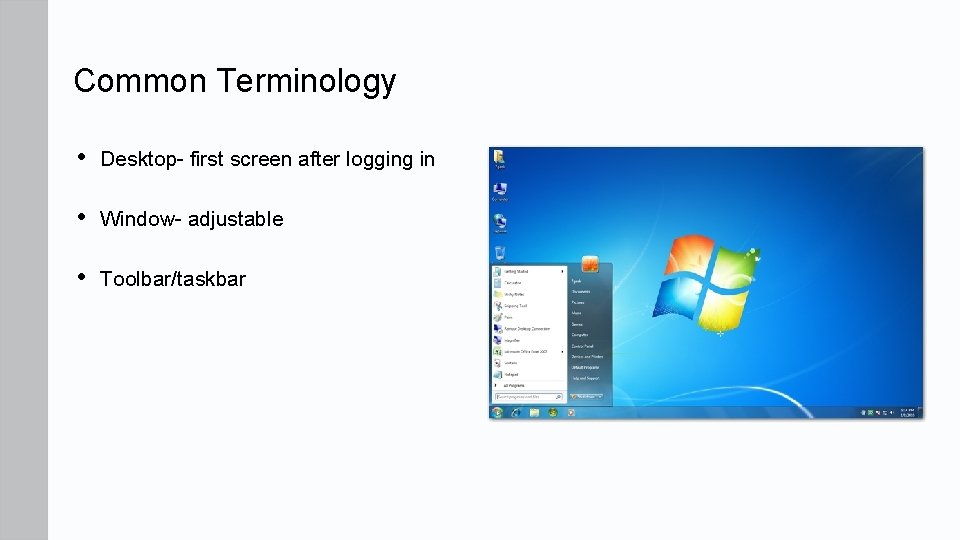
Common Terminology • Desktop- first screen after logging in • Window- adjustable • Toolbar/taskbar
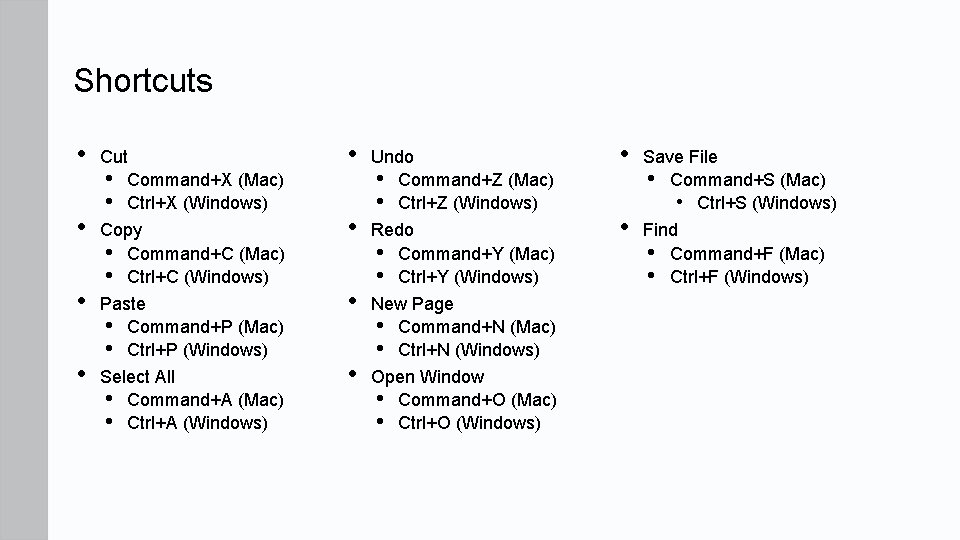
Shortcuts • • Cut • Command+X (Mac) • Ctrl+X (Windows) Copy • Command+C (Mac) • Ctrl+C (Windows) Paste • Command+P (Mac) • Ctrl+P (Windows) Select All • Command+A (Mac) • Ctrl+A (Windows) • • Undo • Command+Z (Mac) • Ctrl+Z (Windows) Redo • Command+Y (Mac) • Ctrl+Y (Windows) New Page • Command+N (Mac) • Ctrl+N (Windows) Open Window • Command+O (Mac) • Ctrl+O (Windows) • • Save File • Command+S (Mac) • Ctrl+S (Windows) Find • Command+F (Mac) • Ctrl+F (Windows)
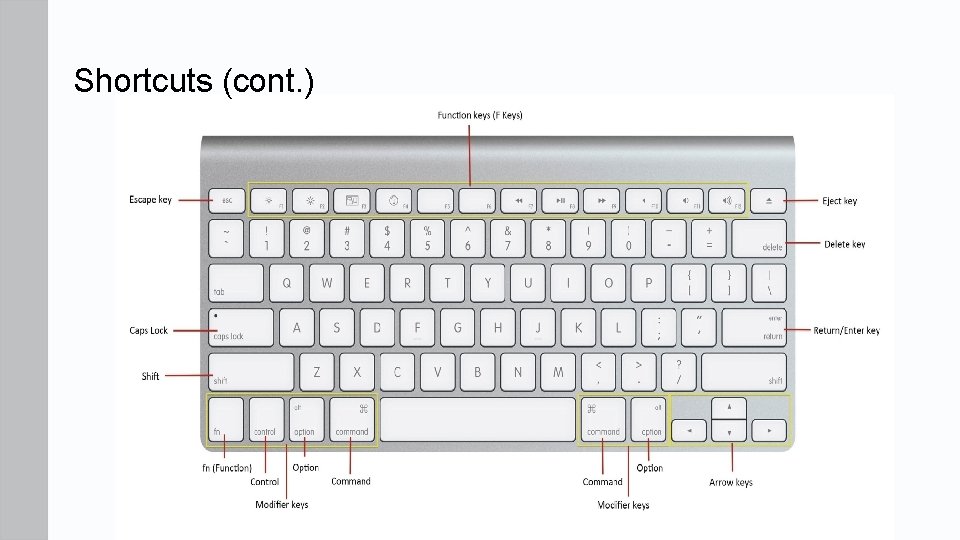
Shortcuts (cont. )
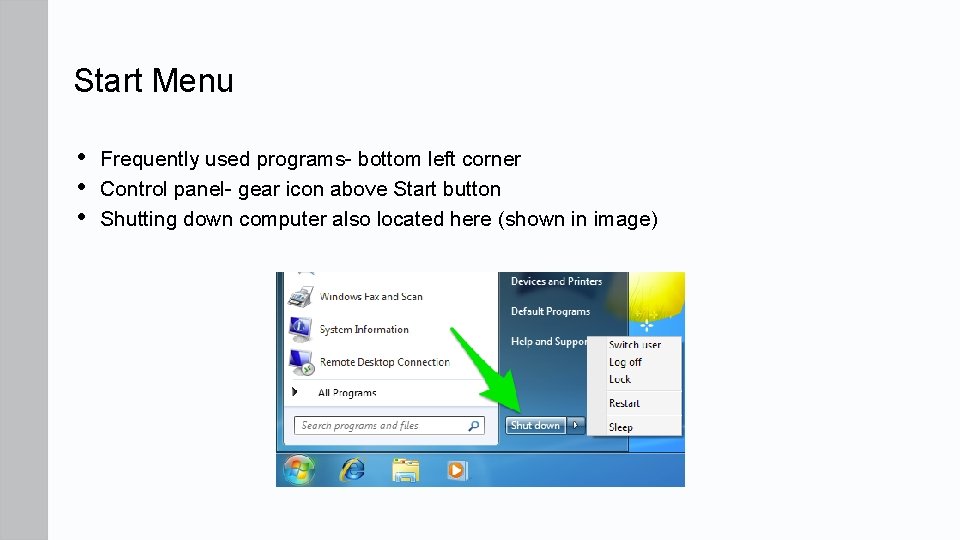
Start Menu • • • Frequently used programs- bottom left corner Control panel- gear icon above Start button Shutting down computer also located here (shown in image)
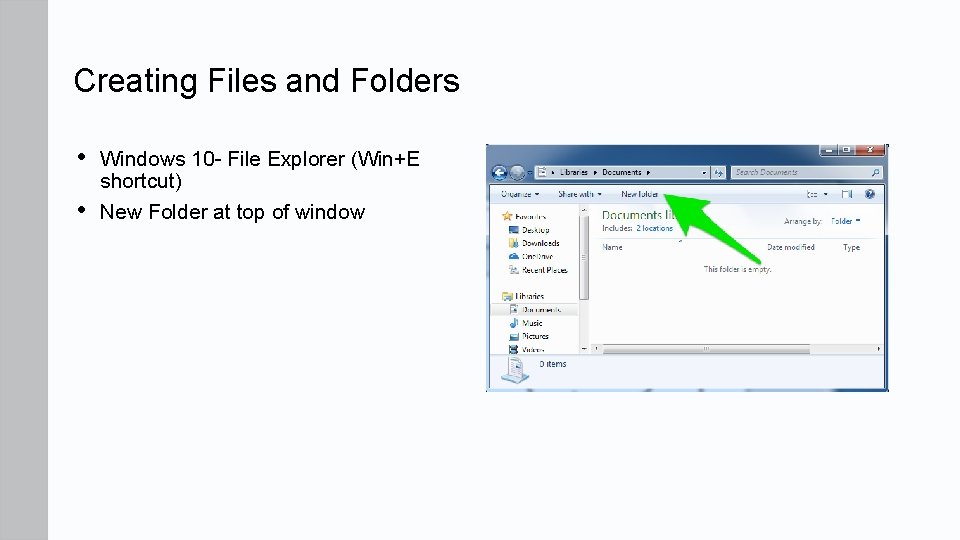
Creating Files and Folders • • Windows 10 - File Explorer (Win+E shortcut) New Folder at top of window
Organizing Files and Folders • • • Right-click file and select properties Selecting and moving files- Ctrl+X>Ctrl+V Ctrl+C will copy all selected files
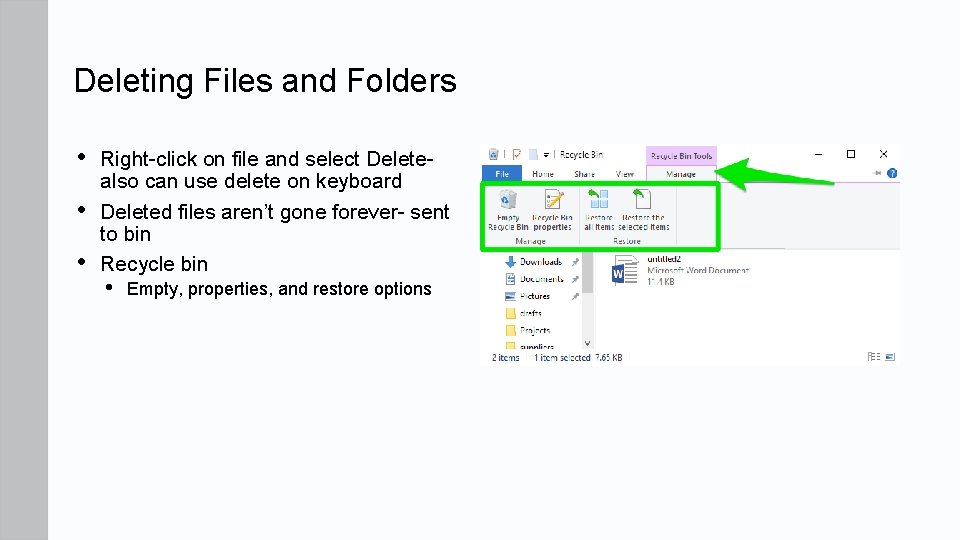
Deleting Files and Folders • • • Right-click on file and select Deletealso can use delete on keyboard Deleted files aren’t gone forever- sent to bin Recycle bin • Empty, properties, and restore options
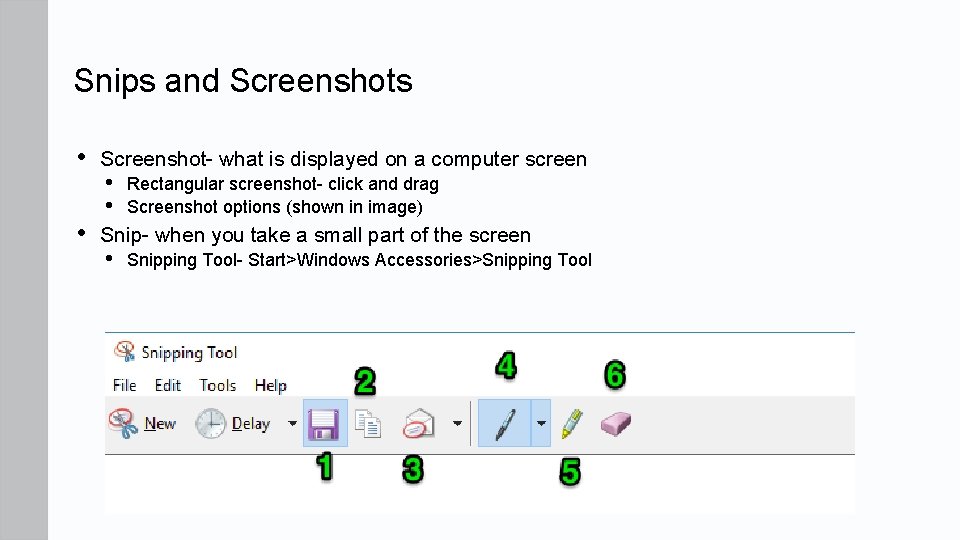
Snips and Screenshots • • Screenshot- what is displayed on a computer screen • • Rectangular screenshot- click and drag Screenshot options (shown in image) Snip- when you take a small part of the screen • Snipping Tool- Start>Windows Accessories>Snipping Tool
Quick Review • • How do you determine what operating system you have? Are you able to manage multiple windows? What are some keyboard shortcuts you can use to perform tasks? Are you now able to navigate the Start menu to locate programs, files, and settings? Can you now create files and folders? How can you correctly organize files and folders? Are you able to delete and restore files and folders using the Recycle Bin? How do you take a snip/screenshot?