
Computational Forms Topic 9 Exploring Scenarios Lesson 1
- Slides: 20
Computational Forms Topic 9 – Exploring Scenarios Lesson 1 - Computational Forms Exploring Scenarios | Lesson 1 - Computational Forms CS 1100
Computational Forms Worksheets are often used by people other than the author. Providing inputs in the right cells can be difficult and formulas are often inadvertently damaged. Form controls and locked cells can help construct reusable models and more user-friendly "applications". Excel provides a number of common form controls, including sliders, scrollbars, checkboxes, buttons, and so forth. Exploring Scenarios | Lesson 1 - Computational Forms CS 1100 2
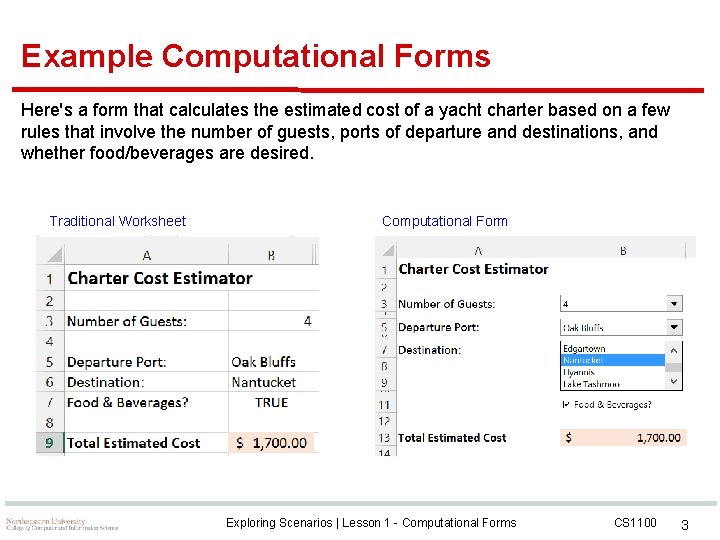
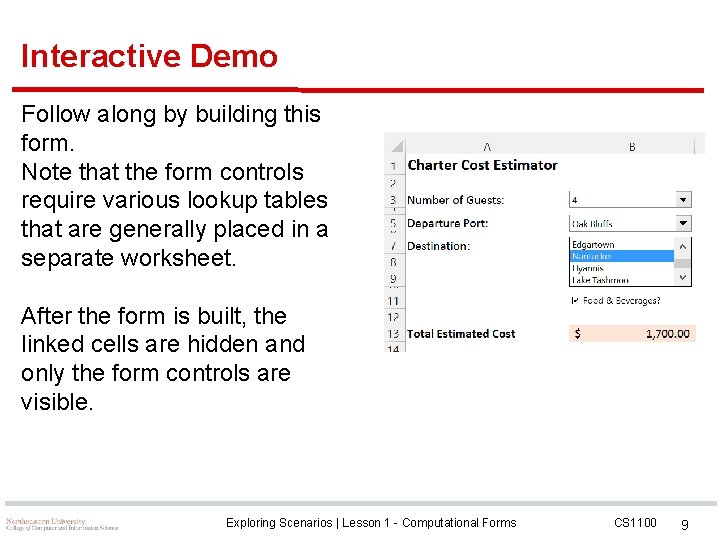
Example Computational Forms Here's a form that calculates the estimated cost of a yacht charter based on a few rules that involve the number of guests, ports of departure and destinations, and whether food/beverages are desired. Traditional Worksheet Computational Form Exploring Scenarios | Lesson 1 - Computational Forms CS 1100 3
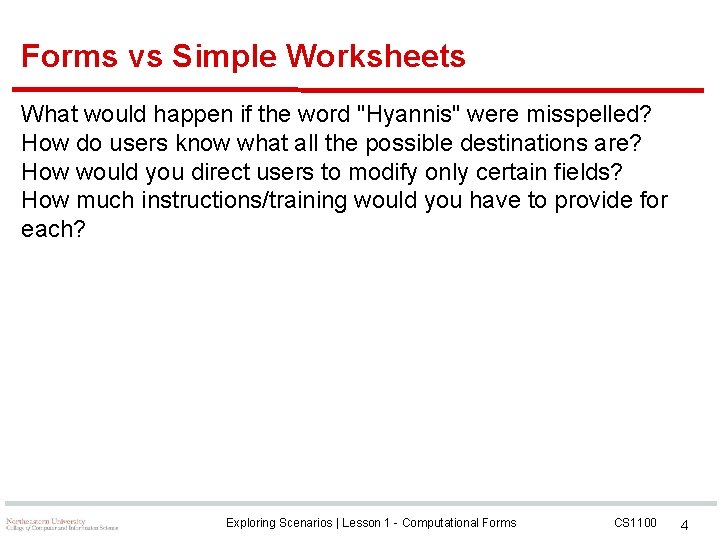
Forms vs Simple Worksheets What would happen if the word "Hyannis" were misspelled? How do users know what all the possible destinations are? How would you direct users to modify only certain fields? How much instructions/training would you have to provide for each? Exploring Scenarios | Lesson 1 - Computational Forms CS 1100 4
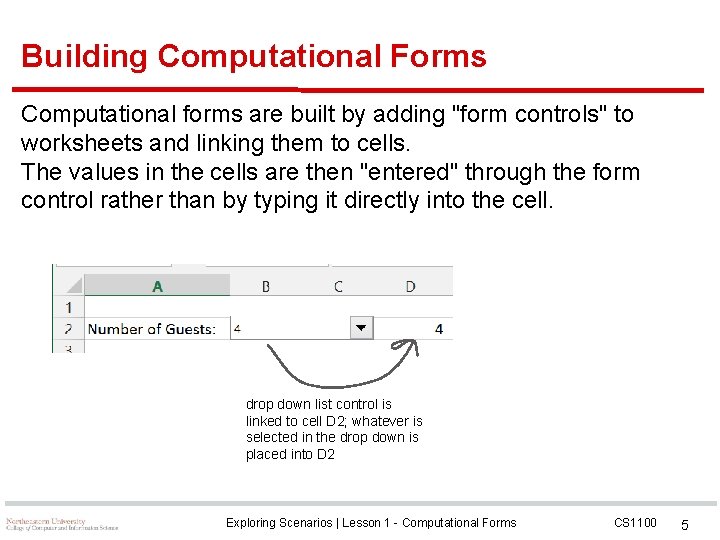
Building Computational Forms Computational forms are built by adding "form controls" to worksheets and linking them to cells. The values in the cells are then "entered" through the form control rather than by typing it directly into the cell. drop down list control is linked to cell D 2; whatever is selected in the drop down is placed into D 2 Exploring Scenarios | Lesson 1 - Computational Forms CS 1100 5
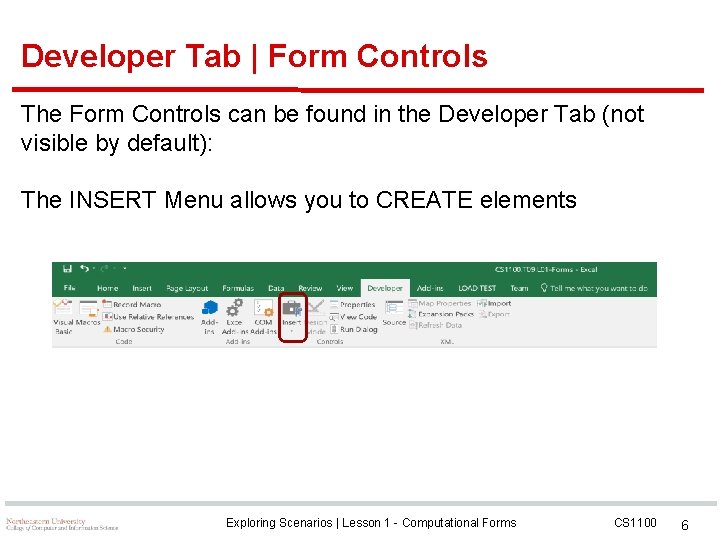
Developer Tab | Form Controls The Form Controls can be found in the Developer Tab (not visible by default): The INSERT Menu allows you to CREATE elements Exploring Scenarios | Lesson 1 - Computational Forms CS 1100 6
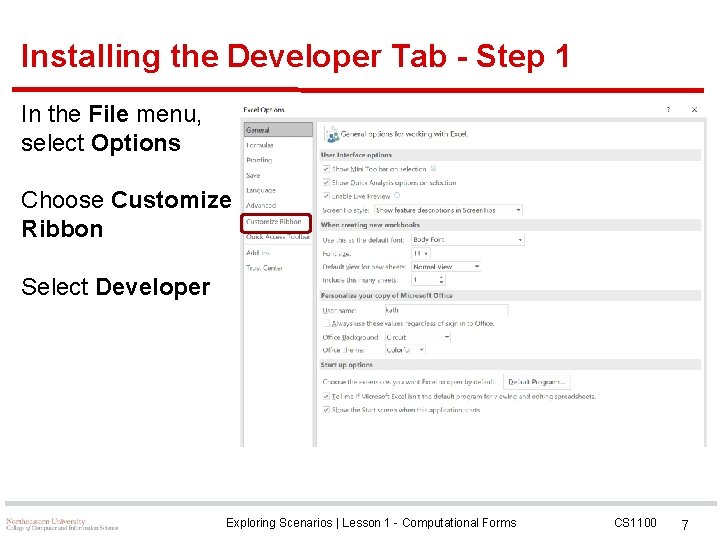
Installing the Developer Tab - Step 1 In the File menu, select Options Choose Customize Ribbon Select Developer Exploring Scenarios | Lesson 1 - Computational Forms CS 1100 7
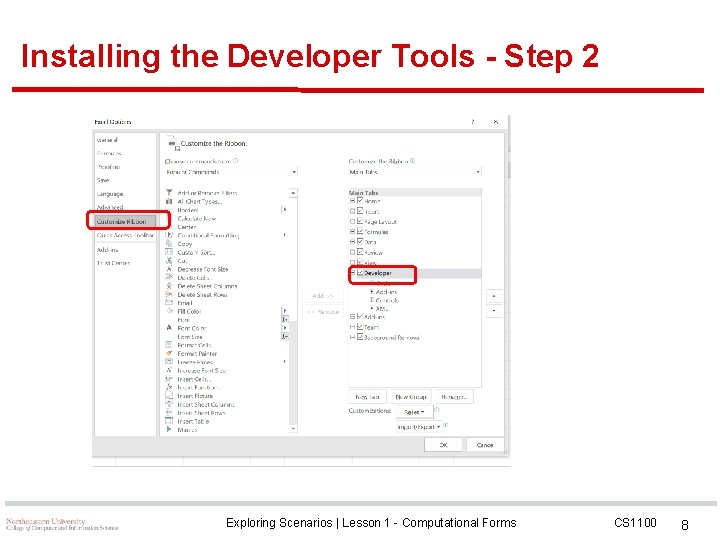
Installing the Developer Tools - Step 2 Exploring Scenarios | Lesson 1 - Computational Forms CS 1100 8
Interactive Demo Follow along by building this form. Note that the form controls require various lookup tables that are generally placed in a separate worksheet. After the form is built, the linked cells are hidden and only the form controls are visible. Exploring Scenarios | Lesson 1 - Computational Forms CS 1100 9
Exploring Scenarios Spreadsheets are often used to explore different scenarios and do "what-if" analysis. For example: What is our expected profit for next year if we sell 10, 000, 20, 000, or 50, 000 units of some new product? What is the expected impact on profitability of different buildings rentals? What if next year we'll have 100, 200, or 300 computer science majors? How many sections of each course do we need? How many faculty do we need to hire? Form controls, in particular sliders, are useful in building interactively "exploratory" models. Exploring Scenarios | Lesson 1 - Computational Forms CS 1100 10
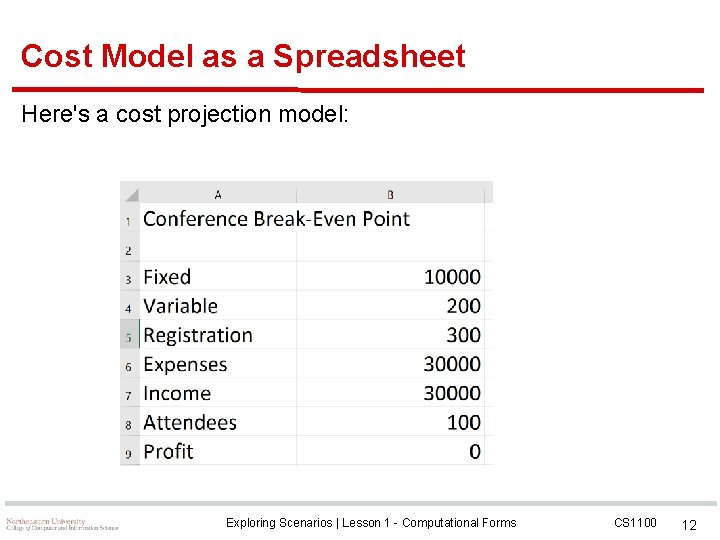
An Example: Planning a Conference Let's say we want to plan a conference and we need to determine what we need to charge in order to at least break even. Here are some cost parameters we have identified: The venue rental is a fixed amount. The cost per attendee (lunch, etc. ) can be varied. We know the expected range of the number of attendees. We need to set the registration fee so we break even. Exploring Scenarios | Lesson 1 - Computational Forms CS 1100 11
Cost Model as a Spreadsheet Here's a cost projection model: Exploring Scenarios | Lesson 1 - Computational Forms CS 1100 12
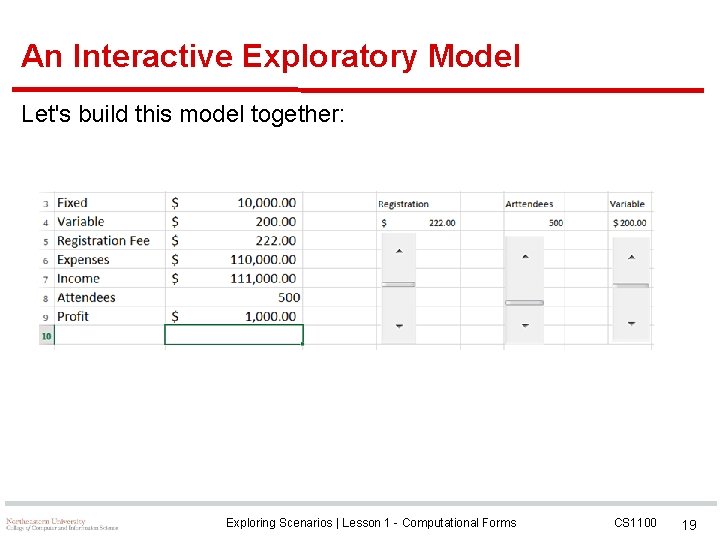
Interactive Exploration We want to explore how the profit changes if we change any of the following values: Registration Fee Attendees Variable Cost Exploring Scenarios | Lesson 1 - Computational Forms CS 1100 13
Using the Slider Control for Exploration A slider is a scroll bar form control that is linked to the value of a given cell allowing us to change the value of the cell by moving the slider rather than entering a value directly. At the same time, the value shown on the slider changes any time we type in a new value into the linked cell. All values that depend on this cell are re-computed immediately. Exploring Scenarios | Lesson 1 - Computational Forms CS 1100 14
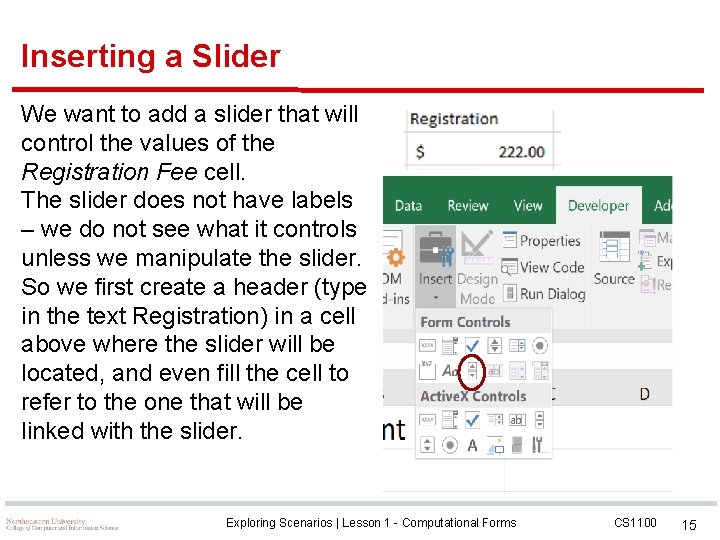
Inserting a Slider We want to add a slider that will control the values of the Registration Fee cell. The slider does not have labels – we do not see what it controls unless we manipulate the slider. So we first create a header (type in the text Registration) in a cell above where the slider will be located, and even fill the cell to refer to the one that will be linked with the slider. Exploring Scenarios | Lesson 1 - Computational Forms CS 1100 15
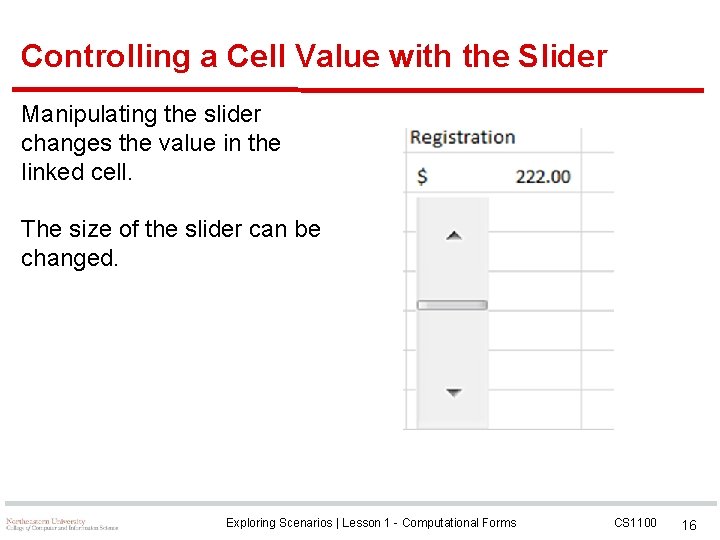
Controlling a Cell Value with the Slider Manipulating the slider changes the value in the linked cell. The size of the slider can be changed. Exploring Scenarios | Lesson 1 - Computational Forms CS 1100 16
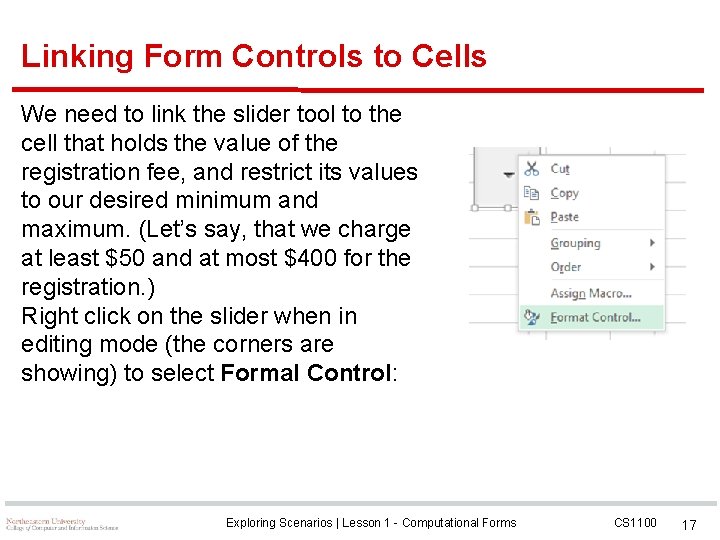
Linking Form Controls to Cells We need to link the slider tool to the cell that holds the value of the registration fee, and restrict its values to our desired minimum and maximum. (Let’s say, that we charge at least $50 and at most $400 for the registration. ) Right click on the slider when in editing mode (the corners are showing) to select Formal Control: Exploring Scenarios | Lesson 1 - Computational Forms CS 1100 17
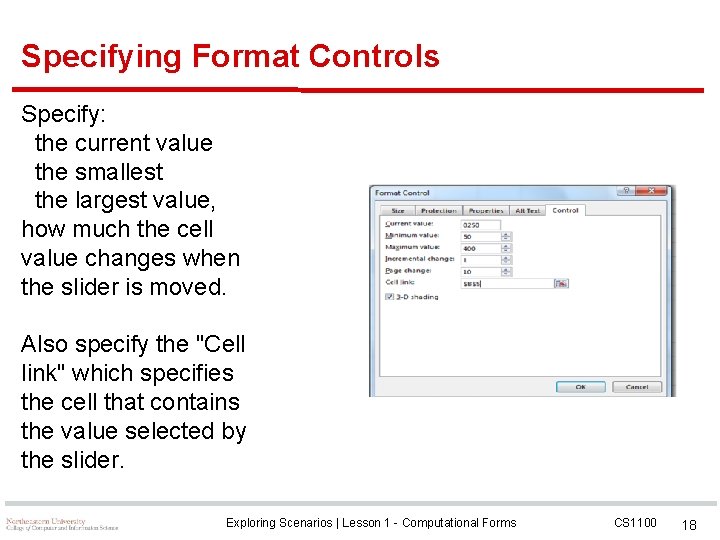
Specifying Format Controls Specify: the current value the smallest the largest value, how much the cell value changes when the slider is moved. Also specify the "Cell link" which specifies the cell that contains the value selected by the slider. Exploring Scenarios | Lesson 1 - Computational Forms CS 1100 18
An Interactive Exploratory Model Let's build this model together: Exploring Scenarios | Lesson 1 - Computational Forms CS 1100 19
Questions? Exploring Scenarios | Lesson 1 - Computational Forms CS 1100 20