
Comprehensive Continuous Improvement Plan CCIP Training Module 3
- Slides: 8
Comprehensive Continuous Improvement Plan (CCIP) Training Module 3 Planning Tool Pt 2
Agenda • • Deleting Plan Items Planning Tool Print Planning Tool Contact in Address Book Active Demonstration CCIP Training Module 3 - Planning Tool Pt 2 2
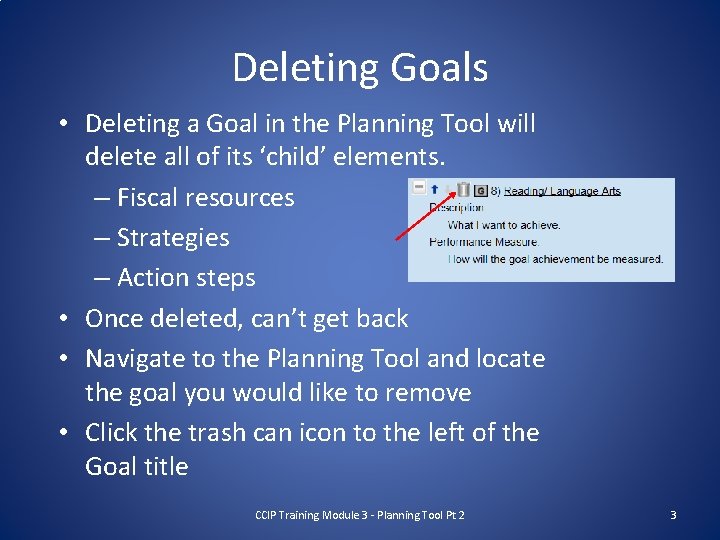
Deleting Goals • Deleting a Goal in the Planning Tool will delete all of its ‘child’ elements. – Fiscal resources – Strategies – Action steps • Once deleted, can’t get back • Navigate to the Planning Tool and locate the goal you would like to remove • Click the trash can icon to the left of the Goal title CCIP Training Module 3 - Planning Tool Pt 2 3
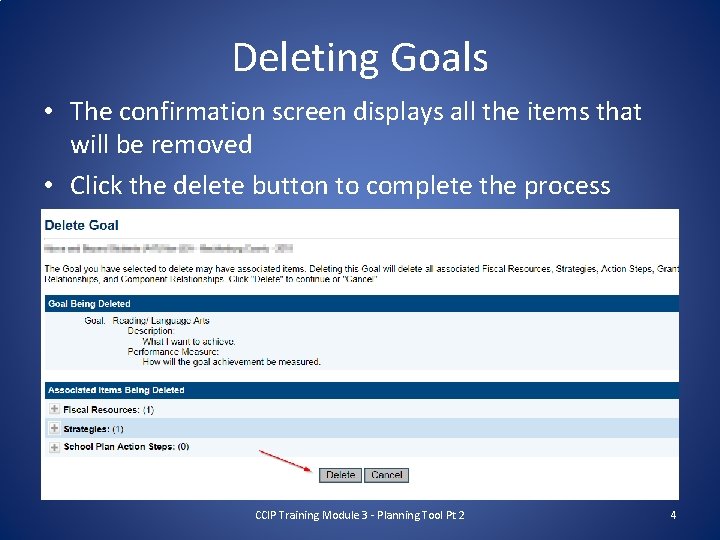
Deleting Goals • The confirmation screen displays all the items that will be removed • Click the delete button to complete the process CCIP Training Module 3 - Planning Tool Pt 2 4
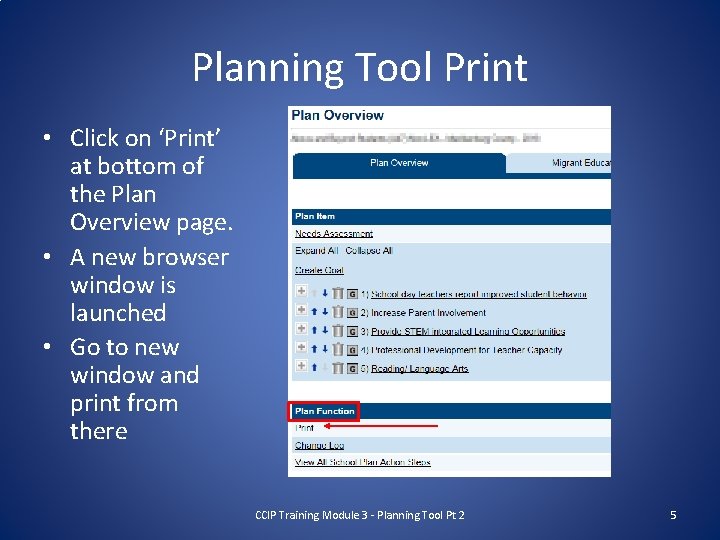
Planning Tool Print • Click on ‘Print’ at bottom of the Plan Overview page. • A new browser window is launched • Go to new window and print from there CCIP Training Module 3 - Planning Tool Pt 2 5
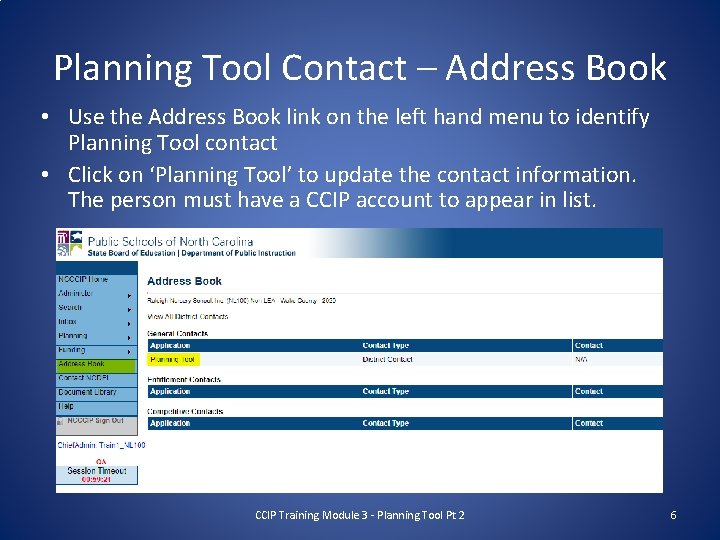
Planning Tool Contact – Address Book • Use the Address Book link on the left hand menu to identify Planning Tool contact • Click on ‘Planning Tool’ to update the contact information. The person must have a CCIP account to appear in list. CCIP Training Module 3 - Planning Tool Pt 2 6
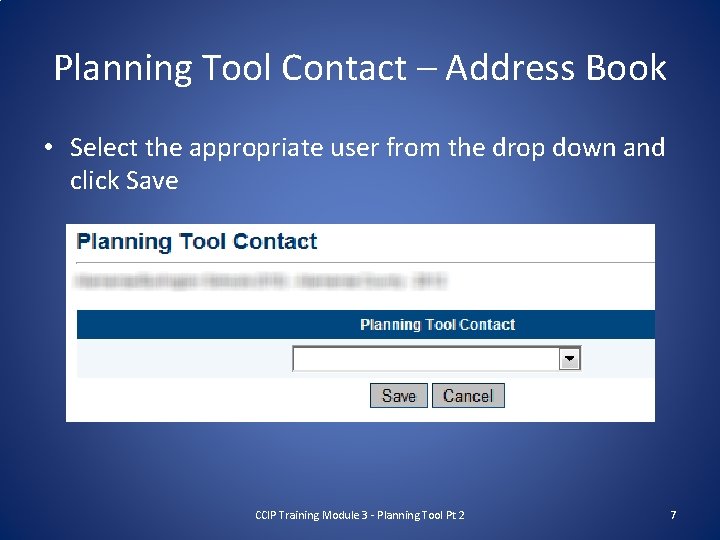
Planning Tool Contact – Address Book • Select the appropriate user from the drop down and click Save CCIP Training Module 3 - Planning Tool Pt 2 7
Activity 1. 2. 3. 4. 5. 6. Navigate to the Planning Tool Click on ‘Organization’ Delete a Goal by clicking on Trashcan icon You cancel out of the Deletion Confirmation On Plan Overview tab, click on ‘Print’ You may be directed to your Inbox, or view the newlyopened browser window (depends on size of file being opened) 7. Navigate to Address Book (lefthand menu) 8. Add a Planning Tool Contact CCIP Training Module 3 - Planning Tool Pt 2 8